

Microsoft’s latest Windows 11 update shipped a new Gaming Copilot integration that many users found helpful — and unsettling — because it introduced model-training settings that appear to be enabled by default and can capture in-game text and voice interactions, with multiple reports saying the feature also consumes CPU and can reduce gaming FPS.
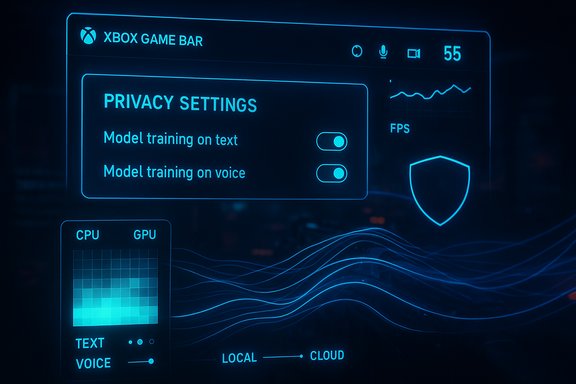
Gaming Copilot is the Xbox-branded Copilot assistant folded into the Windows 11 Xbox Game Bar, designed to provide contextual help for gamers: tips, achievement tracking, guided walkthroughs, and voice/text interactions without leaving the game. Microsoft announced Copilot expansions for Windows earlier in the year as part of a broader push to bake AI into the OS and gaming ecosystem. The controversy began when users and community testers noticed unexpected network activity and privacy controls labelled “Model training on text” and “Model training on voice” in the Game Bar’s Privacy settings, and reported that the text-training control was enabled by default. That discovery sparked questions: is Microsoft capturing screenshots and on-screen text using OCR, is the system uploading in-game content to remote servers, and what is being used to train the models? Multiple independent outlets and community threads examined the behavior and reproduced aspects of the issue.
For enterprises and developers, the risk is practical and reputational: inadvertent upload of sensitive content (e.g., pre‑release game assets, private chat) can violate NDAs or expose proprietary material. Organizations should explicitly document policies for developer and QA machines and ensure telemetry/assistant features are turned off or restricted.
The net effect is this: Gaming Copilot is a useful tool for many, but it arrived with defaults and telemetry complexity that require attention. Until vendors provide unequivocal, machine‑auditable guarantees about what is collected, how it is processed, and where it is stored, users and organizations should assume a conservative posture — disable training options and verify system behavior — to protect privacy and preserve gaming performance.
Source: MARCA Windows is 'spying' on you. If you updated recently, Microsoft might be stealing FPS
 Background
Gaming Copilot is the Xbox-branded Copilot assistant folded into the Windows 11 Xbox Game Bar, designed to provide contextual help for gamers: tips, achievement tracking, guided walkthroughs, and voice/text interactions without leaving the game. Microsoft announced Copilot expansions for Windows earlier in the year as part of a broader push to bake AI into the OS and gaming ecosystem. The controversy began when users and community testers noticed unexpected network activity and privacy controls labelled “Model training on text” and “Model training on voice” in the Game Bar’s Privacy settings, and reported that the text-training control was enabled by default. That discovery sparked questions: is Microsoft capturing screenshots and on-screen text using OCR, is the system uploading in-game content to remote servers, and what is being used to train the models? Multiple independent outlets and community threads examined the behavior and reproduced aspects of the issue. What is Gaming Copilot and what does it claim to do?
Gaming Copilot is a Beta feature available through the Xbox Game Bar that aims to be a low-friction in-game assistant. Its core features include:- Natural-language chat and voice interaction with Copilot while in a game.
- In-game contextual checks via screenshots to understand on-screen events.
- Hints, strategy suggestions, achievement tracking, and quick access to guides.
- Optional personalization and memory features to remember preferences.
The specific privacy concern: screenshots, OCR and default opt‑in
Several community reports and technical write-ups claimed that Gaming Copilot was taking screenshots of gameplay, applying optical character recognition (OCR) to in‑game text, and sending extracted text — and possibly screenshots — for model training or analysis unless the user explicitly disabled the setting. These reports pointed to a Game Bar privacy screen where the “Model training on text” option was visible and (in many cases) enabled by default. Microsoft responded publicly, saying that when you actively use Gaming Copilot, screenshots can be taken to better understand in‑game events and provide contextual assistance, but that those screenshots are not used to train AI models. The company separately acknowledged that text and voice conversations with Copilot may be used to improve AI models, and reiterated that Gaming Copilot is optional and can be turned off from the Game Bar settings. This distinction — screenshots for contextual responses vs. text/voice for model training — is central to the debate. Caution: public statements and community tests diverge in details about what is uploaded and when. The pattern reported by multiple independent outlets suggests the text-training toggle often appears enabled by default in the Game Bar, but whether full-screen captures are routinely uploaded for model training — and whether uploads are sent to cloud servers or processed locally on an NPU — is not uniformly confirmed across every setup. Treat claims of "screenshots are sent for training" as plausible based on community captures, but not universally established as Microsoft’s stated policy.Performance impact: does Gaming Copilot steal FPS?
Beyond privacy, multiple gamers and testers reported noticeable performance degradation when Gaming Copilot’s model-training features were active. Independent benching and anecdotal tests showed frame-rate dips in certain games, sometimes modest and sometimes more perceptible on lower-powered devices or handheld Windows gaming devices.- One set of tests reproduced by gaming outlets found average frame drops when Copilot model training was active — for example, a reported dip from the mid‑80s FPS down into the low‑70s or low‑80s range in specific test titles. The presence of background processes — including Microsoft Edge components required by some Copilot functions — was also flagged as a contributor to CPU and memory load.
- Users on forums and in video comments reported that disabling the training toggles yielded improved performance and fewer background spikes. These reports were widespread enough that many outlets highlighted FPS loss as a practical downside alongside privacy concerns.
Microsoft’s official guidance and the available controls
Microsoft’s public documentation and support pages explain how users can control Copilot’s data usage. Key items:- Copilot privacy controls include toggles for Model training on text and Model training on voice; these are available in the Copilot app, the Copilot web account, and in Copilot for Windows settings. Users signed into Copilot can opt out and that opt‑out should apply to past and future conversations.
- For Gaming Copilot specifically, the Game Bar contains a Privacy section where users can disable Model training on text and Model training on voice for the Gaming Copilot widget. The Game Bar is opened with Windows+G; Gaming Copilot’s settings live under the Privacy settings within that overlay.
- Microsoft asserts that screenshots taken for context are used to improve in‑game assistance while the feature is actively in use, and not for model training, but that text and voice interactions may be used for training unless disabled. Where those assets are processed — locally on a device NPU or uploaded to cloud servers — is nuanced and appears to vary by implementation, region or account state; Microsoft’s public response did not fully resolve all community questions.
How to check and how to disable Gaming Copilot’s model training (step‑by‑step)
The safest, least‑invasive approach is to toggle settings via the Game Bar and Copilot account controls. The following steps outline a practical workflow:- Press Windows + G to open the Xbox Game Bar overlay.
- Click the Settings (gear) icon and go to Privacy Settings.
- Locate Gaming Copilot and toggle off:
- Model training on text
- Model training on voice
- Optionally disable personalization & memory if you don’t want Copilot to retain conversational context.
- Confirm the Copilot account privacy page (copilot settings or profile → Privacy) and ensure your global Copilot privacy toggles are set to your preference (text/voice training off).
How to remove Copilot/Gaming Services entirely (power user option) — and the risks
Some users want to remove Copilot and related Xbox services from Windows completely. PowerShell commands circulating in guides and community posts remove Appx packages for gaming components. Typical commands found in multiple writeups include:- Get-AppxPackage GamingServices | Remove-AppxPackage
- Get-AppxPackage WindowsCopilot | Remove-AppxPackage
- Removing these packages can break or degrade other Xbox-related functionality, including the Game Bar, Game Pass integration, and some store or streaming features.
- The Microsoft Store and Game Pass features may behave unpredictably or fail if you remove core GamingServices packages.
- PowerShell Remove-AppxPackage affects only the current installed package state — system reimaging, Windows Store reinstalls, or later feature updates could reinstall components.
- Reinstallation is possible but sometimes nontrivial; keeping a restore point and having administrative knowledge is advised.
Neutral analysis: benefits, trade‑offs and real risks
Benefits
- Gaming Copilot can be useful: contextual guidance, quick access to help without alt‑tabbing, and voice control can improve convenience and accessibility.
- For less technical players or those who appreciate in‑game coaching, Copilot lowers the friction of looking up tips, tracking achievements, or capturing relevant screenshots for troubleshooting.
Trade‑offs
- Privacy vs. convenience: any assistant that captures on‑screen content or records voice inherently raises data‑use questions. Microsoft provides opt‑outs, but default settings and UX discoverability matter: opt‑in by default erodes user trust even if company policies are benign.
- Performance vs. utility: background OCR, voice processing, and telemetry can add load. On high‑end desktops the hit may be negligible; on lower‑power or thermally constrained devices (handhelds, older laptops) the impact can be measurable and noticeable. Independent tests indicate small but realistic FPS penalties in certain scenarios.
Real risks to flag
- Unverified uploads: community capture logs showed suspicious network activity in some tests. Microsoft denies that context screenshots are used to train models, but community reports claim at least that text extraction was being uploaded in some conditions. Because of mixed signals between product behavior and statements, this remains an area that needs clearer, reproducible documentation from Microsoft. Treat reports of unprompted uploads as plausible but not universally proven.
- NDA leaks: there are community claims that content from unreleased games under NDA was unintentionally captured and visible in network traces. This is a worst‑case scenario for developers and testers; organizations handling sensitive builds should audit Game Bar and Copilot settings on test machines.
- UX complexity: important privacy toggles scattered across Game Bar, Copilot account pages, and possibly app-level settings increase the risk users will miss controls and stay opted in by default.
Recommendations for gamers, admins and privacy‑minded users
- Immediately check your system: press Windows + G → Settings → Privacy and confirm the status of Model training on text and Model training on voice. If unsure, toggle both off.
- Verify Copilot account privacy settings: sign into Copilot web/app → Profile → Privacy and ensure the global model‑training toggles match your preferences. Opting out in your account complements the local Game Bar settings.
- For development and QA machines that handle sensitive content (NDA builds, unreleased materials), disable or uninstall Copilot/Gaming services and isolate test systems from unnecessary telemetry. Maintain restore points and document changes made for the test environment.
- If you need to remove packages with PowerShell, proceed cautiously:
- Create a full system restore point or backup.
- Use Get-AppxPackage to list packages and confirm exact names before Remove-AppxPackage.
- Understand that removing GamingServices may affect the Game Bar, Game Pass, and other Xbox-integrated features.
- Be prepared to reinstall system packages via the Microsoft Store or Windows repair tools if needed.
- Consider alternative capture tools: if you rely on recording/streaming or screenshots, third‑party capture apps may offer finer control and less background telemetry than built‑in Game Bar functionality.
Legal, regulatory and trust implications
The episode underscores a broader challenge for major platform vendors: integrating AI features tightly into operating systems demands clear, discoverable privacy controls and transparent processing descriptions. Regulators in multiple jurisdictions are increasingly focused on consent, data minimization, and explainability for AI features — especially when data from everyday consumers might be used to train large models.For enterprises and developers, the risk is practical and reputational: inadvertent upload of sensitive content (e.g., pre‑release game assets, private chat) can violate NDAs or expose proprietary material. Organizations should explicitly document policies for developer and QA machines and ensure telemetry/assistant features are turned off or restricted.
What remains unresolved
- Where exactly are contextual screenshots processed in all deployments — locally on device NPUs, or uploaded to Microsoft cloud endpoints — and under which conditions? Microsoft’s statement says screenshots used while actively using Copilot are not used to train models, but community packet captures and forum reports raised conflicting observations. Until Microsoft provides a detailed, reproducible technical explanation covering regional and account differences, some uncertainty remains.
- Why did some users see the text‑training toggle enabled by default? The opt‑in/opt‑out defaults vary by rollout, preview vs stable builds, and user account state; clearer UX and rollout notes from Microsoft are needed to resolve this ambiguity.
Conclusion
Gaming Copilot brings an interesting set of AI capabilities to Windows 11 gaming: inline tips, voice controls, and contextual assistance that can reduce friction for many players. However, its arrival also highlights the persistent tension between convenience and control. Community tests and multiple reporting outlets show that the “Model training on text” control has, in some cases, been enabled by default and that enabling Copilot training can add background CPU and network activity — enough to affect FPS on some systems. Microsoft’s response clarified that screenshots taken when the assistant is actively used are intended for in‑the‑moment contextual help and not to train models, while text and voice prompts may be included in training unless the user opts out. For gamers who prioritize performance or privacy, the responsible immediate steps are simple: check the Game Bar settings (Windows + G) and Copilot account privacy toggles, disable model training on text and voice if you prefer, and consider removing the Game Bar or related packages only if you understand and accept the downstream consequences. Administrators and developers handling sensitive or NDA content should proactively disable AI-assisted capture on test systems and audit telemetry.The net effect is this: Gaming Copilot is a useful tool for many, but it arrived with defaults and telemetry complexity that require attention. Until vendors provide unequivocal, machine‑auditable guarantees about what is collected, how it is processed, and where it is stored, users and organizations should assume a conservative posture — disable training options and verify system behavior — to protect privacy and preserve gaming performance.
Source: MARCA Windows is 'spying' on you. If you updated recently, Microsoft might be stealing FPS
