

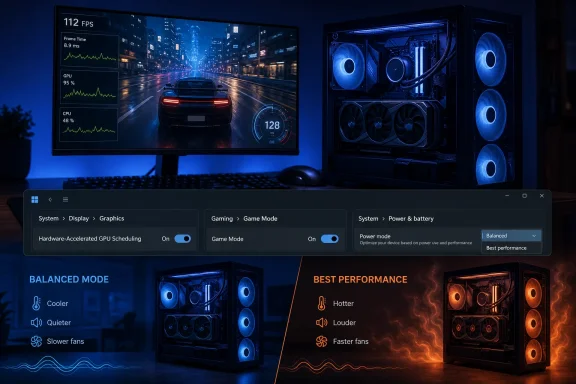
AI-generated Windows gaming advice often promises extra frames with a few clicks, but the reality is more nuanced: Hardware-Accelerated GPU Scheduling, Game Mode, and a faster Power mode can help in specific situations, yet only one of them deserves a near-universal recommendation. The major exception is the aggressive “Best performance” power setting, which can raise energy use and heat substantially while delivering little or no measurable gaming benefit on a modern, properly configured gaming PC.
There is nothing wrong with looking for free performance. PC hardware remains expensive, game system requirements continue to climb, and even a small improvement to frame-time consistency can make a game feel smoother.
The problem begins when broad recommendations are presented as guaranteed performance upgrades. Windows is designed to dynamically manage processor clocks, GPU resources, background activity, storage access, and thermal limits. A setting that helps one machine can do nothing on another—or, in a few cases, make an otherwise stable system behave worse.
That is particularly true for AI-generated PC optimization lists. They are often good at identifying settings with gaming-related names, but less reliable at explaining:
If the option appears, the system’s GPU and installed driver support it. If it does not appear, there is no safe Windows trick to force it on; compatibility depends on the graphics hardware, driver model, and vendor support.
This is not the same as overclocking a GPU. HAGS does not add shader cores, memory bandwidth, VRAM, or CPU cache. It changes part of the software and driver path used to organize graphics work.
That distinction matters. In a game limited by raw GPU horsepower, enabling HAGS is unlikely to transform performance. If a title is already saturating the graphics card with ray tracing, high-resolution textures, or heavy shader effects, the bottleneck remains the GPU itself.
The potential benefits are more subtle:
A gaming PC with a powerful modern processor may have so much CPU headroom that shifting some scheduling work produces no meaningful change. A machine with an older or lower-tier CPU, by contrast, may see more benefit in games where CPU-side work is already near its limit.
The game itself matters just as much. DirectX version, rendering engine design, driver maturity, overlay software, capture utilities, and whether the game runs in exclusive fullscreen or borderless windowed mode can all affect results.
This is why claims such as “HAGS always boosts FPS” should be treated with caution. The feature was designed to modernize a foundational portion of the Windows graphics stack, not to act as a universal gaming performance button.
For NVIDIA systems using DLSS Frame Generation, HAGS is a software requirement. Gamers using compatible GeForce RTX hardware and games that offer DLSS Frame Generation need HAGS enabled for the option to work correctly.
AMD’s ecosystem is less straightforward because it includes multiple approaches, including game-integrated FSR Frame Generation and driver-level AMD Fluid Motion Frames technologies. HAGS has been recommended or required in particular AMD configurations and driver generations, especially on newer Radeon hardware, but the exact behavior can vary by GPU, driver, Windows version, and game.
The practical takeaway is simple: if a game’s frame-generation setting is unavailable, greyed out, or fails to activate, checking HAGS should be part of the troubleshooting process.
However, frame generation itself should not be confused with a traditional FPS increase. It inserts generated frames between rendered frames to improve perceived smoothness. It can make high-refresh-rate gameplay feel substantially more fluid, but it does not eliminate input latency or solve a severe CPU bottleneck.
For the best experience, the game should already be running at a reasonably stable native frame rate before frame generation is added.
Its core purpose is straightforward: when Windows detects a game, it attempts to prioritize the game experience by managing system resources and reducing the chance that background activity disrupts play.
Instead, Game Mode is intended to make Windows behave more appropriately while a game is running. Depending on the situation, that can include reducing background interruptions and prioritizing game-related workloads.
For a typical gaming desktop, the impact may be small. That is not a failure of the feature. A well-configured PC with ample CPU cores, sufficient memory, updated drivers, and minimal background apps may already have little resource contention to solve.
Game Mode matters more when the PC is doing several things at once:
It can be especially useful on systems that are not overloaded enough to crash or freeze, but are prone to inconsistent frame pacing. A game might show a decent average FPS figure while still feeling jerky because background tasks occasionally interrupt CPU time, storage access, or graphics scheduling.
This is why gamers should pay attention to:
Game Mode once gained a poor reputation among OBS users because earlier versions of Windows could give the active game too much priority, leaving fewer GPU resources available for OBS to composite scenes and render captures. Those issues were especially notable on older Windows 10 builds.
Modern Windows builds handle this situation much better, and current OBS guidance generally supports leaving Game Mode enabled on updated systems. Still, streaming is one of the few scenarios where individual testing matters more than generic advice.
A stream setup is not merely “a game plus OBS.” It may also include:
In many cases, the smarter fix is to cap the game’s FPS slightly below the display’s maximum refresh rate or below the point where GPU usage is pinned at 99–100%. Leaving a little GPU headroom can improve OBS stability more effectively than disabling Game Mode.
In Windows 11, the relevant setting is usually found under:
Depending on the device, available choices may include Best power efficiency, Balanced, and Best performance. Traditional Control Panel power plans can also appear, although their availability depends on the PC, Windows installation, and manufacturer configuration.
That recommendation is incomplete because it ignores how modern CPUs operate. Current Intel and AMD processors are built to boost rapidly when a demanding game needs additional performance. They do not normally sit at a low speed during gameplay simply because Windows is using a Balanced plan.
A modern CPU evaluates workload, temperature, power limits, voltage behavior, and available cooling hundreds or thousands of times per second. Under a substantial game workload, it can raise clocks aggressively without needing the operating system to keep it at maximum performance all day.
In other words, Balanced does not mean slow.
That can be helpful in certain workloads, including:
The additional heat can also affect the system in indirect ways:
This approach is especially appropriate when:
Consider trying it if:
That does not mean every new driver is automatically best for every PC. If a system is stable and a newly released driver causes problems in a favorite game, rolling back to the previous stable version is a valid troubleshooting step.
The goal is not to install drivers blindly. It is to keep the GPU software current enough to receive game fixes while avoiding unstable beta behavior unless there is a clear reason to use it.
Fast storage matters increasingly in games that continuously stream world assets. A modern NVMe SSD is ideal, but even a SATA SSD can be a major upgrade over a traditional hard drive.
Settings that frequently have a major impact include:
A sensible FPS cap can improve consistency, reduce noise, and reserve GPU capacity for streaming, recording, browser-based overlays, or background tasks.
For competitive games, the right cap depends on the display’s refresh rate, latency preference, VRR support, and whether the player uses technologies such as NVIDIA Reflex or AMD Anti-Lag. For cinematic single-player games, a stable frame-time target is often more valuable than a wildly fluctuating maximum FPS figure.
Use a repeatable process:
Game Mode should generally remain enabled. Modern Windows versions handle it well, and it is designed to help preserve the gaming experience when background activity competes for system resources. Streamers should test their full OBS workflow, but GPU headroom and sensible frame caps usually matter more than disabling Game Mode.
The important exception is Best performance power mode. It can help in niche cases, but it is not a mandatory gaming optimization for modern desktops and laptops. Balanced mode already lets contemporary processors boost aggressively during games, while avoiding unnecessary power draw, heat, fan noise, and battery loss outside of demanding workloads.
The best Windows gaming performance strategy is not to enable every setting that sounds fast. It is to keep drivers and firmware healthy, install games on fast storage, use sensible in-game settings, identify the actual bottleneck, and test Windows changes with repeatable measurements. That approach produces smoother gameplay without turning a gaming PC into a louder, hotter machine for no meaningful gain.
 Overview: Why Windows Gaming Tweaks Need Context
There is nothing wrong with looking for free performance. PC hardware remains expensive, game system requirements continue to climb, and even a small improvement to frame-time consistency can make a game feel smoother.The problem begins when broad recommendations are presented as guaranteed performance upgrades. Windows is designed to dynamically manage processor clocks, GPU resources, background activity, storage access, and thermal limits. A setting that helps one machine can do nothing on another—or, in a few cases, make an otherwise stable system behave worse.
That is particularly true for AI-generated PC optimization lists. They are often good at identifying settings with gaming-related names, but less reliable at explaining:
- Which hardware benefits
- Which game engines react differently
- Whether the improvement affects average FPS, 1% lows, or input latency
- What trade-offs come with higher power consumption
- Whether a feature is required for another gaming technology
- When a “performance” option simply shifts heat and noise rather than increasing speed
- Hardware-Accelerated GPU Scheduling
- Game Mode
- Best performance power mode
Hardware-Accelerated GPU Scheduling: Useful, but Not a Universal FPS Switch
Hardware-Accelerated GPU Scheduling, commonly called HAGS, is one of the most frequently recommended Windows gaming settings. It is found in:Settings > System > Display > Graphics > Default graphics settingsIf the option appears, the system’s GPU and installed driver support it. If it does not appear, there is no safe Windows trick to force it on; compatibility depends on the graphics hardware, driver model, and vendor support.
What HAGS Actually Changes
GPU scheduling is the process of deciding how graphics work is queued, prioritized, and sent to the GPU. Traditionally, Windows and the CPU handled much of this scheduling work. With HAGS enabled, compatible GPUs can take on more of that high-frequency scheduling activity through dedicated hardware.This is not the same as overclocking a GPU. HAGS does not add shader cores, memory bandwidth, VRAM, or CPU cache. It changes part of the software and driver path used to organize graphics work.
That distinction matters. In a game limited by raw GPU horsepower, enabling HAGS is unlikely to transform performance. If a title is already saturating the graphics card with ray tracing, high-resolution textures, or heavy shader effects, the bottleneck remains the GPU itself.
The potential benefits are more subtle:
- Reduced overhead in the graphics scheduling path
- Improved frame pacing in certain system configurations
- Lower latency in some games and workloads
- Reduced CPU involvement in scheduling-related work
- Compatibility with specific frame-generation implementations
Why Results Vary So Much
The effect of HAGS can vary from no visible difference to a minor improvement, depending on the entire system rather than a single component.A gaming PC with a powerful modern processor may have so much CPU headroom that shifting some scheduling work produces no meaningful change. A machine with an older or lower-tier CPU, by contrast, may see more benefit in games where CPU-side work is already near its limit.
The game itself matters just as much. DirectX version, rendering engine design, driver maturity, overlay software, capture utilities, and whether the game runs in exclusive fullscreen or borderless windowed mode can all affect results.
This is why claims such as “HAGS always boosts FPS” should be treated with caution. The feature was designed to modernize a foundational portion of the Windows graphics stack, not to act as a universal gaming performance button.
HAGS and Frame Generation
There is one important reason to enable HAGS even if benchmarks show little difference: frame generation.For NVIDIA systems using DLSS Frame Generation, HAGS is a software requirement. Gamers using compatible GeForce RTX hardware and games that offer DLSS Frame Generation need HAGS enabled for the option to work correctly.
AMD’s ecosystem is less straightforward because it includes multiple approaches, including game-integrated FSR Frame Generation and driver-level AMD Fluid Motion Frames technologies. HAGS has been recommended or required in particular AMD configurations and driver generations, especially on newer Radeon hardware, but the exact behavior can vary by GPU, driver, Windows version, and game.
The practical takeaway is simple: if a game’s frame-generation setting is unavailable, greyed out, or fails to activate, checking HAGS should be part of the troubleshooting process.
However, frame generation itself should not be confused with a traditional FPS increase. It inserts generated frames between rendered frames to improve perceived smoothness. It can make high-refresh-rate gameplay feel substantially more fluid, but it does not eliminate input latency or solve a severe CPU bottleneck.
For the best experience, the game should already be running at a reasonably stable native frame rate before frame generation is added.
The HAGS Stability Caveat
HAGS is generally safe to try, but it is not mandatory for every player. Some users encounter:- Stuttering in a specific game
- Unusual frame-time spikes
- Capture or overlay conflicts
- Game crashes after driver updates
- Unexpected behavior with multi-monitor systems
- Driver-specific problems on certain GPU generations
A Sensible HAGS Recommendation
For most gaming PCs, the best advice is:- Enable HAGS if the option is available.
- Restart Windows if prompted.
- Test the games you actually play.
- Compare frame-time consistency, not merely the highest FPS number.
- Disable it again if a game begins stuttering, crashing, or behaving abnormally.
Game Mode: Leave It On for Most Gamers
Windows Game Mode is far less controversial today than it was in its earliest Windows 10 era. It is located at:Settings > Gaming > Game ModeIts core purpose is straightforward: when Windows detects a game, it attempts to prioritize the game experience by managing system resources and reducing the chance that background activity disrupts play.
What Game Mode Does—and Does Not Do
Game Mode does not magically allocate more GPU power than the graphics card has. It cannot turn an entry-level system into a high-end gaming rig, and it does not override hard limits such as insufficient VRAM, slow storage, thermal throttling, or a CPU bottleneck.Instead, Game Mode is intended to make Windows behave more appropriately while a game is running. Depending on the situation, that can include reducing background interruptions and prioritizing game-related workloads.
For a typical gaming desktop, the impact may be small. That is not a failure of the feature. A well-configured PC with ample CPU cores, sufficient memory, updated drivers, and minimal background apps may already have little resource contention to solve.
Game Mode matters more when the PC is doing several things at once:
- Downloading updates or game patches
- Running browser tabs and media apps
- Recording gameplay
- Synchronizing cloud storage
- Using RGB control suites
- Running overlays and hardware-monitoring tools
- Hosting voice chat, streaming software, or remote access tools
Why It Is Still Worth Enabling
The strongest reason to keep Game Mode enabled is that it is low-risk for ordinary gaming use. It is designed for exactly the scenario most people have: launching a game and expecting Windows to avoid treating a background process as more important than the foreground experience.It can be especially useful on systems that are not overloaded enough to crash or freeze, but are prone to inconsistent frame pacing. A game might show a decent average FPS figure while still feeling jerky because background tasks occasionally interrupt CPU time, storage access, or graphics scheduling.
This is why gamers should pay attention to:
- 1% low FPS
- 0.1% low FPS
- Frame-time graphs
- Input responsiveness
- Momentary stutters during busy scenes
Game Mode and Streaming
Streamers deserve a more careful recommendation.Game Mode once gained a poor reputation among OBS users because earlier versions of Windows could give the active game too much priority, leaving fewer GPU resources available for OBS to composite scenes and render captures. Those issues were especially notable on older Windows 10 builds.
Modern Windows builds handle this situation much better, and current OBS guidance generally supports leaving Game Mode enabled on updated systems. Still, streaming is one of the few scenarios where individual testing matters more than generic advice.
A stream setup is not merely “a game plus OBS.” It may also include:
- Browser-based alerts
- Chat applications
- A webcam source
- Multiple audio devices
- Background music
- Animated overlays
- Virtual cameras
- Capture cards
- Hardware encoding
- A second monitor with video or dashboards
In many cases, the smarter fix is to cap the game’s FPS slightly below the display’s maximum refresh rate or below the point where GPU usage is pinned at 99–100%. Leaving a little GPU headroom can improve OBS stability more effectively than disabling Game Mode.
Recommended Game Mode Policy
For most Windows 11 gaming PCs:- Leave Game Mode on.
- Test it only if a specific game or streaming workflow produces a repeatable problem.
- Do not confuse Game Mode with Windows Game Bar background capture features.
- If using OBS, disable unwanted background recording features that consume resources.
- Cap game frame rate when streaming if GPU utilization is constantly maxed out.
The Major Exception: “Best Performance” Is Not a Default Gaming Upgrade
The most questionable recommendation in many AI-generated Windows optimization lists is to set the system power mode to Best performance or enable the legacy High performance power plan.In Windows 11, the relevant setting is usually found under:
Settings > System > Power & battery > Power modeDepending on the device, available choices may include Best power efficiency, Balanced, and Best performance. Traditional Control Panel power plans can also appear, although their availability depends on the PC, Windows installation, and manufacturer configuration.
Why “Best Performance” Sounds So Convincing
The logic seems obvious. Gaming needs performance, so choose the profile that says “Best performance.”That recommendation is incomplete because it ignores how modern CPUs operate. Current Intel and AMD processors are built to boost rapidly when a demanding game needs additional performance. They do not normally sit at a low speed during gameplay simply because Windows is using a Balanced plan.
A modern CPU evaluates workload, temperature, power limits, voltage behavior, and available cooling hundreds or thousands of times per second. Under a substantial game workload, it can raise clocks aggressively without needing the operating system to keep it at maximum performance all day.
In other words, Balanced does not mean slow.
What Best Performance Can Change
The Best performance power mode is designed to favor responsiveness and performance over energy efficiency. It can encourage the system to maintain higher performance states more readily and reduce the tendency to prioritize power savings.That can be helpful in certain workloads, including:
- CPU-heavy productivity tasks
- Low-latency workstation scenarios
- Render jobs
- Compiling large projects
- Some poorly optimized games
- Certain laptops that apply overly conservative manufacturer power policies
- Systems where a benchmark exposes a specific clock-transition issue
The Real Costs: Heat, Noise, and Power Draw
Using Best performance can increase power use. On a desktop, that may raise energy consumption while the PC is idle or doing light tasks. On a laptop, it can reduce battery life and make the machine run warmer.The additional heat can also affect the system in indirect ways:
- Fans may run more often or at higher speeds.
- Laptop chassis temperatures may become uncomfortable.
- CPU cooling may become the dominant source of noise.
- Small-form-factor PCs may have less thermal headroom.
- A poorly cooled system can hit thermal limits more often.
- Higher sustained temperatures can reduce the consistency of boost behavior.
Balanced Is Usually the Correct Default
For the vast majority of gaming desktops, Balanced remains the sensible baseline. It allows the CPU to boost when games demand it while reducing unnecessary power draw during lighter work.This approach is especially appropriate when:
- The PC uses a modern Ryzen or Core processor.
- The BIOS is up to date.
- Chipset drivers are current.
- The game is primarily GPU-bound.
- Cooling is adequate.
- No specific testing has shown a problem under Balanced mode.
When Best Performance Is Worth Testing
There are still legitimate reasons to test Best performance. It should simply be treated as a diagnostic or workload-specific option rather than a universal gaming commandment.Consider trying it if:
- A CPU-heavy game has inconsistent clocks or unexplained hitching.
- A laptop’s manufacturer profile appears overly restrictive while plugged in.
- A benchmark repeatedly improves in both average FPS and 1% lows.
- You run a high-end workstation that also serves as a gaming machine.
- You are investigating a specific performance regression and want to rule out power management behavior.
Better Windows Gaming Optimizations Than Chasing Every Toggle
The three settings above can matter, but they are rarely the biggest contributors to gaming PC performance. A few practical maintenance steps often deliver more dependable gains.Keep Graphics Drivers Current—But Stable
GPU driver updates can improve support for newly released games, fix crashes, improve performance in specific engines, and address display or frame-generation issues.That does not mean every new driver is automatically best for every PC. If a system is stable and a newly released driver causes problems in a favorite game, rolling back to the previous stable version is a valid troubleshooting step.
The goal is not to install drivers blindly. It is to keep the GPU software current enough to receive game fixes while avoiding unstable beta behavior unless there is a clear reason to use it.
Install Games on an SSD
Moving games from a mechanical hard drive to an SSD does not normally double the frame rate. It can, however, dramatically improve load times, texture streaming, open-world traversal, shader-related hitching in some titles, and general responsiveness.Fast storage matters increasingly in games that continuously stream world assets. A modern NVMe SSD is ideal, but even a SATA SSD can be a major upgrade over a traditional hard drive.
Tune In-Game Settings Before Windows Settings
In-game settings have a more direct effect on performance than most Windows toggles. The best options to adjust depend on whether the system is GPU-bound, CPU-bound, VRAM-limited, or memory-limited.Settings that frequently have a major impact include:
- Ray tracing quality
- Resolution and render scale
- Shadow quality
- Volumetric effects
- Ambient occlusion
- Reflections
- Texture quality when VRAM is limited
- Crowd density and draw distance in CPU-heavy games
- Anti-aliasing method
- Upscaling mode and quality preset
Use a Frame Cap When Appropriate
An uncapped frame rate is not always the best experience. If a game runs far above the monitor’s refresh rate, the additional frames may provide diminishing returns while increasing GPU power draw, fan noise, and heat.A sensible FPS cap can improve consistency, reduce noise, and reserve GPU capacity for streaming, recording, browser-based overlays, or background tasks.
For competitive games, the right cap depends on the display’s refresh rate, latency preference, VRR support, and whether the player uses technologies such as NVIDIA Reflex or AMD Anti-Lag. For cinematic single-player games, a stable frame-time target is often more valuable than a wildly fluctuating maximum FPS figure.
A Practical Testing Method for Windows Gaming Settings
The correct way to evaluate a Windows gaming setting is not to toggle it, glance at a frame counter, and assume the higher number is better. Modern games fluctuate naturally from one scene to another, and shader compilation can distort the first run.Use a repeatable process:
- Update the game and graphics driver.
Start from a stable, current configuration. - Choose a repeatable test area.
Use a built-in benchmark where possible, or repeat the same route through a game. - Keep game settings unchanged.
Do not alter resolution, DLSS, FSR, ray tracing, or the FPS cap between runs. - Test one Windows change at a time.
Enable or disable HAGS, Game Mode, or a power mode individually. - Restart when necessary.
HAGS changes generally require a restart, and some driver behavior may not fully reset until Windows restarts. - Run multiple passes.
One run can be affected by background activity, shader caching, or a temporary Windows task. - Look beyond average FPS.
Compare 1% lows, 0.1% lows, frame-time consistency, input feel, temperatures, noise, and stability. - Keep the winner only if the difference is real.
A one-frame-per-second variation is often normal test noise, not proof of an optimization.
The Bottom Line for Windows 11 Gaming PCs
Hardware-Accelerated GPU Scheduling is worth enabling and testing, especially for gamers using compatible frame-generation technologies. It can reduce graphics scheduling overhead and may improve latency or frame consistency in some systems, but it should not be sold as a guaranteed FPS upgrade.Game Mode should generally remain enabled. Modern Windows versions handle it well, and it is designed to help preserve the gaming experience when background activity competes for system resources. Streamers should test their full OBS workflow, but GPU headroom and sensible frame caps usually matter more than disabling Game Mode.
The important exception is Best performance power mode. It can help in niche cases, but it is not a mandatory gaming optimization for modern desktops and laptops. Balanced mode already lets contemporary processors boost aggressively during games, while avoiding unnecessary power draw, heat, fan noise, and battery loss outside of demanding workloads.
The best Windows gaming performance strategy is not to enable every setting that sounds fast. It is to keep drivers and firmware healthy, install games on fast storage, use sensible in-game settings, identify the actual bottleneck, and test Windows changes with repeatable measurements. That approach produces smoother gameplay without turning a gaming PC into a louder, hotter machine for no meaningful gain.
References
- Primary source: PC Guide
Published: 2026-07-23T10:48:28+00:00
Loading…
www.pcguide.com - Related coverage: obsproject.com
Loading…
obsproject.com - Official source: support.microsoft.com
Power settings in Windows 11 | Microsoft Support
You can use Screen and sleep settings to save energy and make your battery last longer.support.microsoft.com