

Windows 11 can be maddening, especially when a fresh reinstall still leaves you with hiccups—but with the right safety net and methodical tuning, you can wrest control back and turn Microsoft’s general-purpose OS into a pragmatic, low-noise gaming platform. XDA’s recent walkthrough — a hands-on account of repeated reinstalls, frustration, and eventual tuning — lays out a practical toolkit of tweaks that prioritize responsiveness and consistency over chasing synthetic FPS numbers. Those suggestions form the backbone of the workflow I’ve tested and refined for Windows-centered gaming rigs in early 2026. rview
Windows 11 ships with tons of user-facing features and background subsystems: telemetry collectors, security virtualization layers, multimedia schedulers, and a cascade of vendor utilities that auto-install at first boot. All of these exist for broad reasons—security, power efficiency, compatibility—but they also introduce jitter into the experience of a foreground, performance-sensitive task like gaming.
This article walks through a prioritized, safety-first process to tame that complexity. You’ll get a clear set of actions to take (and when to stop), the rationale behind each tweak, the measurable trade-offs, and the known dangers. I’ll also call out which recommendations are well-supported by official docs and which come from community experience and therefore deserve careful A/B testing on your hardware.
Before you touch anything sensitive—drivers, services, or the Registry—create a restore point and export any configuration you may change. A restore point lets you experiment aggressively and rollback quickly if a tweak causes instability.
HKEY_LOCAL_MACHINE\SOFTWARE\Microsoft\Windows NT\CurrentVersion\Multimedia\SystemProfile
Microsoft’s documentation for MMCSS explains that this key governs the percentage reserved for lower-priority tasks and that values are rounded/clamped by the OS. Setting SystemResponsiveness lower reduces reserved CPU and can help foreground games get more headroom, but it’s a trade-off: background tasks and media will be given less guaranteed CPU. Read the official guidance before editing.
A short checklist:
HKEY_LOCAL_MACHINE\SOFTWARE\Microsoft\Windows NT\CurrentVersion\Multimedia\SystemProfile\Tasks\Games
HKEY_LOCAL_MACHINE\SOFTWARE\Microsoft\Windows NT\CurrentVersion\Multimedia\SystemProfile
What tuning buys you most reliably is predictability: tighter frametime distributions, lower background noise, and fewer surprise spikes during competitive play. That translates into a better, more playable experience even if average FPS ticks up only slightly.
However, two areas deserve caution:
Windows will never be as light as a purpose-built gaming micro-OS, but it’s flexible. Use that flexibility responsibly: instrument your tests, keep security trade-offs explicit, and prefer reversible changes. Do the work once, measure, and you’ll have a tuned Windows 11 that lets your hardware—and your play—shine.
Source: XDA I'm stuck with Windows for gaming in 2026, but here's how I'm optimizing it
Windows 11 ships with tons of user-facing features and background subsystems: telemetry collectors, security virtualization layers, multimedia schedulers, and a cascade of vendor utilities that auto-install at first boot. All of these exist for broad reasons—security, power efficiency, compatibility—but they also introduce jitter into the experience of a foreground, performance-sensitive task like gaming.
This article walks through a prioritized, safety-first process to tame that complexity. You’ll get a clear set of actions to take (and when to stop), the rationale behind each tweak, the measurable trade-offs, and the known dangers. I’ll also call out which recommendations are well-supported by official docs and which come from community experience and therefore deserve careful A/B testing on your hardware.
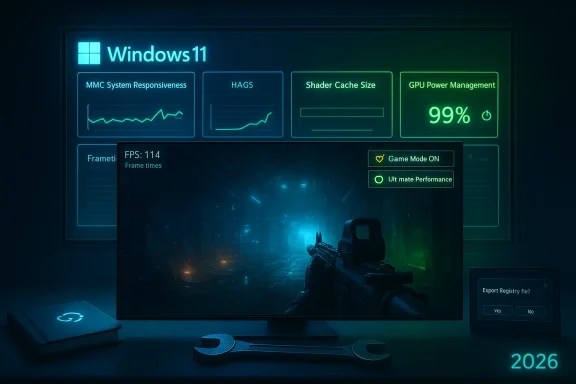 First rule: create a safety net
Before you touch anything sensitive—drivers, services, or the Registry—create a restore point and export any configuration you may change. A restore point lets you experiment aggressively and rollback quickly if a tweak causes instability.- Open System Restore: press Windows, type “Create a restore point”, select your system drive, click Create, and give the point a clear name.
- Export registry before edits: launch regedit (Win + R → regedit), File → Export → choose All and save.
Game Mode, Power Modes, and overall scheduling
Game Mode: the low-effort front-line tweak
Game Mode is the built-in, first-stop optimization that tells Windows to prioritize the foreground app. It’s low-risk and should be enabled early in any tuning session because it reduces background interruptions without invasive changes. Turn it on via Settings → Gaming → Game Mode.Power Plan: High Performance vs. Ultimate Performance
For desktop rigs and plugged-in laptops, set Power Mode to a performance profile. The legacy High Performance plan is fine for many builds, but Windows has a hidden Ultimate Performance plan that can be added on demand by duplicating Microsoft’s hidden scheme:- Run an elevated command prompt (Admin).
- Enter:
powercfg -duplicatescheme e9a42b02-d5df-448d-aa00-03f14749eb61
Scheduling friction: MMCSS and responsiveness
Windows uses the Multimedia Class Scheduler Service (MMCSS) to reserve CPU for time-sensitive multimedia work. By default MMCSS reserves a slice of CPU for low-priority tasks; the system value that controls this is SystemResponsiveness in the Registry key:HKEY_LOCAL_MACHINE\SOFTWARE\Microsoft\Windows NT\CurrentVersion\Multimedia\SystemProfile
Microsoft’s documentation for MMCSS explains that this key governs the percentage reserved for lower-priority tasks and that values are rounded/clamped by the OS. Setting SystemResponsiveness lower reduces reserved CPU and can help foreground games get more headroom, but it’s a trade-off: background tasks and media will be given less guaranteed CPU. Read the official guidance before editing.
Graphics settings: Windows + GPU vendor controls
Optimizations for windowed games & HAGS
Windows 11 includes a toggle labeled Optimizations for windowed games (useful for borderless-windowed play) and the Hardware-accelerated GPU scheduling (HAGS) option in Settings → System → Display → Graphics → Change default graphics settings. HAGS hands more scheduling responsibility to the GPU and OS driver to reduce CPU overhead and frametime variance in some workloads. In practice, results vary by game, driver version, and GPU vendor—some users see improvements, others encounter instability (particularly in capture/streaming or specific encoder scenarios).- Enable HAGS and test. If you stream with OBS or use third-party capture/encoders, be ready to toggle it off if you see encoding failures or stutters. HowToGeek’s walkthrough shows the toggle location and notes you may not see immediate improvement; XDA’s hands-on testing echoes that it helps in CPU-bound scenarios but is inconsistent.
NVIDIA specifics: Shader cache and power management
NVIDIA’s Control Panel exposes important global settings that deserve attention:- Shader Cache Size: NVIDIA drivers maintain a disk-based shader cache to avoid runtime shader compilation stutters. Modern driver UI allows you to set limits including 10 GB, which is a pragmatic sweet spot for a multi-game library: large enough to avoid frequent eviction but not so large as to hoard SSD space. NVIDIA’s documentation on Manage 3D settings lists the cache options and offers guidance.
- Power management mode: Set to Prefer maximum performance for gaming-focused profiles. This reduces the chance the GPU will downclock at inopportune times, improving 1% lows and making performance more predictable.
Trim startup baggage: Task Manager → Autoruns
Windows accumulates background agents (launchers, telemetry updaters, monitoring tools) that run at boot and occasionally spike I/O and CPU. Start by pruning startup entries inside Task Manager → Startup. For a deeper sweep, use Sysinternals Autoruns to inspect:- Services
- Scheduled Tasks
- Driver entries
- Explorer shell extensions
Virtualization and security features: VM Platform, Hyper-V, and Memory Integrity
Virtualization features in Windows 11, including Virtual Machine Platform (VMP), Hyper-V, and Hypervisor-Protected Code Integrity (HVCI or Memory Integrity), can introduce measurable overhead on some systems. Microsoft itself has acknowledged that, on certain hardware and configurations, these features can impact gaming performance and offers guidance to temporarily disable them for gaming scenarios (if you accept the security trade-offs). Community testing shows that disabling VMP/HVCI can reduce stutter and DPC-style pauses on affected systems, particularly certain laptop platform combinations or when using legacy drivers. Test on your hardware and re-enable after play for best security posture.A short checklist:
- If you don’t use WSL2, Android subsystem, or virtualization tools, consider turning off VMP via Turn Windows features on or off.
- For Memory Integrity: open Windows Security → Device security → Core isolation → toggle Memory integrity off if testing shows improvements. Reboot after changes.
Debloating responsibly: Win11Debloat and alternatives
“Debloat” scripts remove bundled apps and disable telemetry services. The PowerShell script Win11Debloat is popular because it centralizes common removals and toggles, but treat scripts as to Backup first (restore point + system image).- Read the script before running it and opt in/out of each action.
- Consider running in review mode (where the script lists actions) before applying changes.
Registry tuning — what helps, what hurts (and how to test)
Registry edits are potent; they also carry risk. Below are the most commonly recommended keys that XDA and the wider community reference, with context and safe-testing steps.1) Games scheduling priority
Path:HKEY_LOCAL_MACHINE\SOFTWARE\Microsoft\Windows NT\CurrentVersion\Multimedia\SystemProfile\Tasks\Games
- Change Scheduling Category from "Medium" to High.
- Adjust GPU Priority to 8 and Priority to 6 if present.
2) NetworkThrottlingIndex — proceed with caution
Path:HKEY_LOCAL_MACHINE\SOFTWARE\Microsoft\Windows NT\CurrentVersion\Multimedia\SystemProfile
- Creating NetworkThrottlingIndex and setting it to 0xFFFFFFFF (hex ffffffff) is the common community shortcut to disable Windows’ network throttling mechanism, which originally existed to prioritize multimedia streams. Community guides claim lower ping spikes and higher throughput in saturated LAN scenarios; other reports show it can increase DPC latency and cause audio/interrupt issues on certain hardware.
3) SystemResponsiveness — lower the reserved background CPU
As explained earlier from Microsoft’s MMCSS docs, change SystemResponsiveness in the Multimedia\SystemProfile key to 10 (decimal) or even 0 for “pure” foreground prioritization. Note Microsoft clamps/rounds values and the documented behavior should guide expectations. Lowering the value gives more headroom to games but reduces guaranteed CPU for background tasks (including audio drivers and OS maintenance). Always benchmark before and after.A testing methodology that produces reliable results
When you tune, use repeatable tests. Don’t rely on subjective “it feels smoother.” Build a small test plan:- Create a restore point and registry export.
- Baseline: record metrics for at least three runs of the same scenario (a replay, a GPU benchmark, and a multiplayer map) using MSI Afterburner / RTSS or Windows Game Bar.
- Apply one change at a time.
- Reboot (many settings require it).
- Re-run the same tests and compare:
- Average FPS
- 1% lows and 0.1% lows
- Frametime variance (ms)
- Network ping, jitter, and packet loss for online play
- If a tweak causes instability (blue screens, audio dropouts, driver failures) revert immediately and report the result for future reference.
Quick, safe checklist for gamers (order of operations)
- Backup: create restore point + registry export.
- Enable Game Mode.
- Set Power Mode: High Performance (or add Ultimate Performance if you prefer maximum responsiveness).
- Update GPU drivers and use vendor control panel settings (Shader Cache Size ~10 GB for NVIDIA; set Power management to Prefer maximum performance).
- Toggle HAGS and test (revert if it breaks streaming or capture).
- Trim startup apps and run Autoruns.
- If you don’t need virtualization features, test disabling Virtual Machine Platform and Memory Integrity and measure the impact. Re-enable later if security matters.
- If you’re comfortable with registry edits, tweak SystemResponsiveness and scheduling category for the Games task, but test network tweaks (NetworkThrottlingIndex) carefully.
What to avoid or approach cautiously
- Copy-paste registry tweak lists without understanding them. Some values are legacy artifacts and can cause regressions on new Windows builds.
- Permanently disabling security virtualization (Memory Integrity/HVCI) on a machine used for daily browsing, work, or sensitive tasks. If you disable them, toggle them back after gaming sessions if practical.
- Running third-party “one-click” debloaters without inspecting their actions and having a recovery point.
- Sweeping network changes (NetworkThrottlingIndex) on laptop Wi‑Fi; reser and can worsen audio or DPC latency in some combos.
Why this is not a silver-bullet approach
Tuning Windows 11 can significantly improve consistency—fewer spikes, fewer microstutters, smoother 1% lows—especially on CPU-bound scenarios and older or I/O-constrained systems. But do not expect 20–30% FPS gains unless your system was severely misconfigured or heavily backgrounded. Most modern games are GPU-bound at native resolutions on mid-to-high-end hardware; in those cases, the marginal gains you’ll get from OS-level tweaks are real but modest.What tuning buys you most reliably is predictability: tighter frametime distributions, lower background noise, and fewer surprise spikes during competitive play. That translates into a better, more playable experience even if average FPS ticks up only slightly.
Final evaluation and risks: what XDA got right and where you should be skeptical
XDA’s practical, safety-first approach (restore point, registry export, one-tweak-at-a-time testing) is exactly the right posture for 2026 Windows tuning. The specific recommendations—Game Mode, Ultimate Performance plan exposure, HAGS experimentation, using Autoruns, and considered registry changes—are all grounded in broad community practice and align with vendor and Microsoft guidance in key areas.However, two areas deserve caution:
- NetworkThrottlingIndex: community tests show mixed results; on some systems it helps, on others it increases DPC latency or audio issues. Treat it as experimental and revert if anything feels worse.
- Hardware-accelerated GPU scheduling (HAGS): vendor and user experiences are mixed—HAGS helps in some CPU-bound scenarios but causes encoding/capture issues for some streamers and odd regressions in specific titles. Toggle and test.
Closing: make Windows work for you, but measure everything
If you’re “stuck” on Windows for gaming in 2026, you’re not helpless. With a careful, methodical approach you can significantly reduce the friction that makes games feel worse than they should. Prioritize safety (restore points and registry exports), test changes one at a time, and focus on reducing variance (framedrop spikes and stutters) rather than chasing headline FPS numbers.Windows will never be as light as a purpose-built gaming micro-OS, but it’s flexible. Use that flexibility responsibly: instrument your tests, keep security trade-offs explicit, and prefer reversible changes. Do the work once, measure, and you’ll have a tuned Windows 11 that lets your hardware—and your play—shine.
Source: XDA I'm stuck with Windows for gaming in 2026, but here's how I'm optimizing it
