

Windows 11’s settings story is still unfinished in 2026, and that unfinished state is exactly why God Mode remains so useful. Microsoft has spent years moving legacy Control Panel items into the modern Settings app, but the handoff is still incomplete, especially for advanced configuration. The result is a system that looks unified on the surface while still forcing power users to bounce between old and new interfaces.
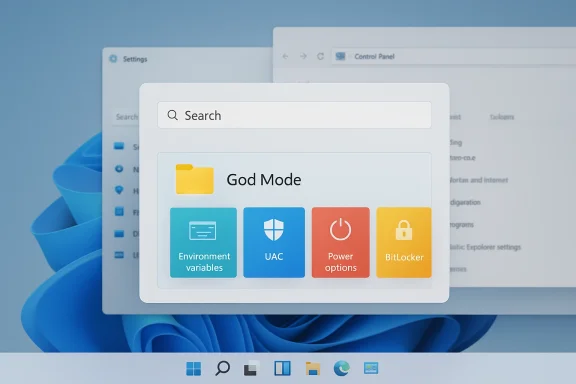
The appeal of God Mode is not that it does something magical behind the scenes. It is simply a single folder that exposes a searchable, consolidated view of many Windows configuration tools that otherwise live in scattered corners of the operating system. For enthusiasts, IT pros, and anyone who regularly tweaks Windows, that convenience can feel like the difference between fighting the OS and actually controlling it.
Microsoft’s long-running migration from Control Panel to Settings has been real, but it has not been complete. Official support documentation still acknowledges that many settings remain in Control Panel for compatibility reasons, while newer surfaces in Windows 11 continue to absorb more modern options over time. That means Windows 11 is not one settings app; it is still, in practice, two overlapping systems.
For ordinary users, that split may be tolerable. For people who manage devices, install development tools, adjust power behavior, or troubleshoot hardware, it is a friction multiplier. God Mode survives because it reduces the mental overhead of remembering where Microsoft decided to hide a feature this month, and that matters more than the novelty of a cleaner UI. The interface may be modern; the workflow often is not.
Windows 11 was supposed to accelerate the end of the Control Panel era. Microsoft’s design direction emphasized a cleaner, more consistent Settings app and reduced dependence on older dialog boxes. Yet Microsoft’s own documentation still describes an incomplete migration, and many advanced controls remain outside Settings because they have not been rebuilt there yet.
That gap matters because configuration is not just about aesthetics. It affects how quickly people can reach environment variables, UAC settings, power plans, File Explorer options, BitLocker tools, and other common admin tasks. These are not fringe features; they are the sort of controls that define whether Windows feels efficient or unnecessarily indirect.
Microsoft has continued to modernize Windows in pieces. Some system controls have moved into Settings, including newer developer-oriented options and several region, language, and power-related items. But the transition is uneven, and that unevenness is precisely why many users still prefer a universal launcher like God Mode. What is old is not always obsolete.
Another reason is scope. Some settings are simple toggles, but others are part of older administrative frameworks, shell dialogs, or device-management paths that are harder to redesign safely. Microsoft has already documented modern pages like Advanced settings for developers, but that is not the same as completing every older migration path.
A final reason is that Windows serves both beginners and professionals. A simplified Settings app helps casual users, but power users need dense control surfaces, and enterprises need predictable behavior. Microsoft is trying to satisfy both groups, and the result is a compromise that works well enough—except when it doesn’t.
That is especially true for tasks that remain fragmented across Windows 11. Environment variables still involve a chain of dialogs and links. Advanced power controls still live in legacy pathways. File extension visibility, detailed system properties, and some recovery or device-management tasks still send you to older windows.
This is why experienced users often keep God Mode pinned or saved long after trying newer tools. It becomes a pressure valve for the moments when the system’s organization feels opaque. In practice, that can save time whenever Microsoft introduces a new layout or relocates a feature in Settings.
For power users, there is also a trust factor. The folder doesn’t change under you in the same way app-driven settings pages do, and the underlying applets are familiar. That stability can be more valuable than polish when you are troubleshooting under time pressure. Consistency is a feature.
Some examples are especially revealing. User Account Control still points to Control Panel. Advanced power behavior still relies on the Power Options infrastructure. System restore and other recovery-related paths may surface through older interfaces or related legacy utilities. In other words, Windows 11 often begins with a modern shell and ends with an older one.
There are also category-specific modern tools that live outside the main Settings experience, such as Windows Security pages for app and browser control, ransomware protection, and Smart App Control. These are useful, but they underscore how dispersed Windows configuration remains.
This matters because fragmentation creates friction by design, even when no one intended it. The more places a user has to remember, the more likely they are to choose the wrong path or abandon the task. God Mode works because it compresses that maze into one searchable layer.
This is especially true on devices where Windows is being tuned repeatedly. Developers, testers, IT staff, and enthusiasts often need to revisit the same controls over and over. In that scenario, the shortest path is not just a convenience; it becomes part of the workflow.
For managed devices, the stakes are higher because policies and restrictions are often layered on top of the base OS. Microsoft Intune documentation still references blocks for Settings categories, including System and Power-related areas, which shows how deeply configuration remains tied to administrative controls rather than a single consumer-friendly surface.
There is a second enterprise angle: compliance and control. Security settings such as app protection, browser reputation controls, and ransomware defenses are split across Windows Security and other management channels. That is the right architecture for Microsoft’s security model, but it also means users and admins cannot rely on Settings alone.
In consumer use, the upside is simple convenience. In enterprise use, the upside is reliability at scale. The same folder that helps one enthusiast find a setting faster also helps an IT professional cut through a maze of moving targets.
There is also a usability paradox. Settings was designed to simplify Windows for mainstream users, but the more Microsoft tries to unify advanced features into the new app, the more complex that app becomes. At some point, a “simpler” interface can start to resemble the old one it replaced, just with more modern typography. That tension is not unique to Windows, but Windows feels it more acutely.
That selective migration suggests a deliberate strategy: move the highest-traffic, safest settings first, then slowly absorb the rest. It is rational from a product engineering perspective, but it leaves enthusiasts with an awkward interim state that has lasted much longer than expected.
God Mode is useful precisely because it sits above that transition. It does not care whether Microsoft is done modernizing the backend. It simply exposes the available controls in a uniform way, which is the kind of pragmatic solution Windows users have always invented for themselves.
The reason it still works is that Microsoft has never fully broken the underlying shell behavior. The folder is not dependent on a separate app or a cloud service. It simply leverages Windows’ existing configuration namespace, which means it continues to benefit from backward compatibility even as the front end evolves.
That has broader implications for Microsoft’s ecosystem strategy. The company wants Settings to be the canonical place for users to manage the OS, but the continued relevance of God Mode suggests there is still unmet demand for better navigation and consolidation. If Windows does not provide it natively, users will keep building or borrowing it elsewhere.
Its strengths are straightforward, but their combined effect is powerful. It makes Windows feel more legible, more searchable, and less dependent on memory. For power users, that is surprisingly valuable in a system that changes just enough to be annoying but not enough to be consistent.
There is also a support concern. Because God Mode is an unofficial convenience trick rather than a branded Windows feature, it may be less familiar to casual users and helpdesk staff. That can make it awkward in environments where standardized support scripts matter.
For users, that means the safest assumption is that Windows will continue to be hybrid for some time. The best strategy is to treat Settings as the default, Control Panel as the fallback, and God Mode as the fast-access layer that sits above both. That combination reflects the reality of Windows in 2026 better than any official marketing line does.
Source: Make Tech Easier Windows 11 Has a Settings Problem — God Mode Is Still the Best Fix in 2026 - Make Tech Easier
 Overview
The appeal of God Mode is not that it does something magical behind the scenes. It is simply a single folder that exposes a searchable, consolidated view of many Windows configuration tools that otherwise live in scattered corners of the operating system. For enthusiasts, IT pros, and anyone who regularly tweaks Windows, that convenience can feel like the difference between fighting the OS and actually controlling it.Microsoft’s long-running migration from Control Panel to Settings has been real, but it has not been complete. Official support documentation still acknowledges that many settings remain in Control Panel for compatibility reasons, while newer surfaces in Windows 11 continue to absorb more modern options over time. That means Windows 11 is not one settings app; it is still, in practice, two overlapping systems.
For ordinary users, that split may be tolerable. For people who manage devices, install development tools, adjust power behavior, or troubleshoot hardware, it is a friction multiplier. God Mode survives because it reduces the mental overhead of remembering where Microsoft decided to hide a feature this month, and that matters more than the novelty of a cleaner UI. The interface may be modern; the workflow often is not.
Background
God Mode has been around for years as a simple Windows folder naming trick, and its longevity says a lot about how Microsoft has handled system configuration. The feature is not an official product in the sense of a branded app or dedicated shell component; rather, it is a shortcut into a long list of administrative and Control Panel tasks. Its persistence shows that the old model still solves real problems.Windows 11 was supposed to accelerate the end of the Control Panel era. Microsoft’s design direction emphasized a cleaner, more consistent Settings app and reduced dependence on older dialog boxes. Yet Microsoft’s own documentation still describes an incomplete migration, and many advanced controls remain outside Settings because they have not been rebuilt there yet.
That gap matters because configuration is not just about aesthetics. It affects how quickly people can reach environment variables, UAC settings, power plans, File Explorer options, BitLocker tools, and other common admin tasks. These are not fringe features; they are the sort of controls that define whether Windows feels efficient or unnecessarily indirect.
Microsoft has continued to modernize Windows in pieces. Some system controls have moved into Settings, including newer developer-oriented options and several region, language, and power-related items. But the transition is uneven, and that unevenness is precisely why many users still prefer a universal launcher like God Mode. What is old is not always obsolete.
Why the migration stalled
The obvious explanation is compatibility. Windows supports an enormous range of hardware, software, and enterprise policies, and some legacy configuration surfaces are deeply embedded in that ecosystem. Microsoft can modernize the front end only as fast as it can preserve the behavior behind it.Another reason is scope. Some settings are simple toggles, but others are part of older administrative frameworks, shell dialogs, or device-management paths that are harder to redesign safely. Microsoft has already documented modern pages like Advanced settings for developers, but that is not the same as completing every older migration path.
A final reason is that Windows serves both beginners and professionals. A simplified Settings app helps casual users, but power users need dense control surfaces, and enterprises need predictable behavior. Microsoft is trying to satisfy both groups, and the result is a compromise that works well enough—except when it doesn’t.
What God Mode Actually Solves
God Mode’s real value is not speed in isolation. It is the removal of uncertainty, which is often more expensive than a few extra clicks. When you already know the exact task you want, a searchable catalog of system actions is faster than hunting through nested categories and settings pages.That is especially true for tasks that remain fragmented across Windows 11. Environment variables still involve a chain of dialogs and links. Advanced power controls still live in legacy pathways. File extension visibility, detailed system properties, and some recovery or device-management tasks still send you to older windows.
The mental model matters
The hidden benefit is cognitive, not just operational. Instead of memorizing which part of Settings has taken ownership of a feature, you search the system’s entire vocabulary and move directly to the target. That creates a single mental index for Windows configuration.This is why experienced users often keep God Mode pinned or saved long after trying newer tools. It becomes a pressure valve for the moments when the system’s organization feels opaque. In practice, that can save time whenever Microsoft introduces a new layout or relocates a feature in Settings.
For power users, there is also a trust factor. The folder doesn’t change under you in the same way app-driven settings pages do, and the underlying applets are familiar. That stability can be more valuable than polish when you are troubleshooting under time pressure. Consistency is a feature.
Where Windows 11 Still Falls Short
Windows 11 has improved Settings significantly, but the platform still sends users elsewhere for many important tasks. Microsoft’s own support pages explicitly state that Control Panel remains in place for compatibility and for settings that have not yet migrated. That is a direct admission that the transition is incomplete.Some examples are especially revealing. User Account Control still points to Control Panel. Advanced power behavior still relies on the Power Options infrastructure. System restore and other recovery-related paths may surface through older interfaces or related legacy utilities. In other words, Windows 11 often begins with a modern shell and ends with an older one.
The Settings app is not the whole story
Microsoft has added modern pages for some advanced workflows, including a developer-oriented Advanced settings page that now surfaces items such as showing file extensions and hidden files. That is progress, but it also illustrates the problem: the app is still selectively absorbing capabilities instead of fully replacing older components.There are also category-specific modern tools that live outside the main Settings experience, such as Windows Security pages for app and browser control, ransomware protection, and Smart App Control. These are useful, but they underscore how dispersed Windows configuration remains.
This matters because fragmentation creates friction by design, even when no one intended it. The more places a user has to remember, the more likely they are to choose the wrong path or abandon the task. God Mode works because it compresses that maze into one searchable layer.
Why Power Users Keep Returning to It
Power users are not using God Mode because they enjoy nostalgia. They use it because the folder still maps well to the way Windows is actually built. System configuration remains a layered stack of modern pages, legacy dialogs, administrative tools, and specialized security apps. One place that indexes all of that is still genuinely valuable.This is especially true on devices where Windows is being tuned repeatedly. Developers, testers, IT staff, and enthusiasts often need to revisit the same controls over and over. In that scenario, the shortest path is not just a convenience; it becomes part of the workflow.
Common tasks that benefit
- Opening Environment Variables without navigating several system pages.
- Jumping straight to Advanced Power settings instead of detouring through Power & battery.
- Launching Device Manager or related admin tools from a single searchable list.
- Finding File Explorer options such as extension visibility more quickly.
- Reaching UAC, BitLocker, or other legacy controls without guessing their current location.
- Reducing the chance of getting lost in multiple Settings categories.
Enterprise Versus Consumer Impact
Consumers mainly feel the inconvenience of a confusing UI. Enterprises feel the cost of inconsistency at scale. When support staff need to guide users through settings paths over the phone or via chat, a fragmented interface turns into avoidable support overhead.For managed devices, the stakes are higher because policies and restrictions are often layered on top of the base OS. Microsoft Intune documentation still references blocks for Settings categories, including System and Power-related areas, which shows how deeply configuration remains tied to administrative controls rather than a single consumer-friendly surface.
Why administrators still care
Enterprise admins also care about reproducibility. If a feature moves from one surface to another, documentation, training material, and helpdesk scripts all need to change. A tool like God Mode is attractive because it shortens the path to common system dialogs even if Microsoft moves the primary entry point elsewhere.There is a second enterprise angle: compliance and control. Security settings such as app protection, browser reputation controls, and ransomware defenses are split across Windows Security and other management channels. That is the right architecture for Microsoft’s security model, but it also means users and admins cannot rely on Settings alone.
In consumer use, the upside is simple convenience. In enterprise use, the upside is reliability at scale. The same folder that helps one enthusiast find a setting faster also helps an IT professional cut through a maze of moving targets.
Why Microsoft Hasn’t Killed Control Panel Yet
The simplest answer is that Microsoft cannot fully remove Control Panel until the old configuration surfaces are gone. That is easier said than done because Windows includes decades of behavior, compatibility expectations, and obscure edge cases. The company has openly acknowledged that some settings remain in the older environment for compatibility.There is also a usability paradox. Settings was designed to simplify Windows for mainstream users, but the more Microsoft tries to unify advanced features into the new app, the more complex that app becomes. At some point, a “simpler” interface can start to resemble the old one it replaced, just with more modern typography. That tension is not unique to Windows, but Windows feels it more acutely.
The migration is selective, not total
Microsoft has made real progress in targeted areas. The new Advanced settings page in Windows 11, for example, centralizes several developer and power-user options, and recent Insider builds have continued moving more items from Control Panel into Settings. But these are incremental steps, not the finish line.That selective migration suggests a deliberate strategy: move the highest-traffic, safest settings first, then slowly absorb the rest. It is rational from a product engineering perspective, but it leaves enthusiasts with an awkward interim state that has lasted much longer than expected.
God Mode is useful precisely because it sits above that transition. It does not care whether Microsoft is done modernizing the backend. It simply exposes the available controls in a uniform way, which is the kind of pragmatic solution Windows users have always invented for themselves.
How to Set It Up and Why It Still Works
Setting up God Mode remains almost absurdly easy. Create a new folder on the desktop and rename it to the special shell identifier that Windows recognizes. Once you do, the folder icon changes and the directory becomes a searchable control hub. That low effort is part of why the feature has endured for so long.The reason it still works is that Microsoft has never fully broken the underlying shell behavior. The folder is not dependent on a separate app or a cloud service. It simply leverages Windows’ existing configuration namespace, which means it continues to benefit from backward compatibility even as the front end evolves.
A quick practical note
- It works on Windows 11 Home and Pro.
- It does not require administrator rights just to create.
- It is most useful when you already know the setting you need.
- It pairs well with Windows search and PowerToys tools.
- It is best treated as a launcher, not a replacement for all of Settings.
The Competitive Implications for Windows
From a platform perspective, Windows 11’s lingering settings split is more than an interface nuisance. It creates an opportunity for third-party utilities, launcher tools, and even IT automation platforms to claim the simplicity that Microsoft has not fully delivered. When the OS is fragmented, tools that unify it become more attractive.That has broader implications for Microsoft’s ecosystem strategy. The company wants Settings to be the canonical place for users to manage the OS, but the continued relevance of God Mode suggests there is still unmet demand for better navigation and consolidation. If Windows does not provide it natively, users will keep building or borrowing it elsewhere.
What rivals and toolmakers can learn
- Users value discoverability as much as visual polish.
- Advanced settings need an index, not just a prettier layout.
- Power-user workflows should be direct and searchable.
- Migration plans should include a clear deprecation path.
- Friction in the OS invites third-party abstractions.
Strengths and Opportunities
God Mode persists because it exploits a real weakness in Windows 11: the OS still has too many configuration endpoints. That makes the folder more than a novelty. It is a practical response to an incomplete migration, and it highlights where Microsoft can still improve the product experience.Its strengths are straightforward, but their combined effect is powerful. It makes Windows feel more legible, more searchable, and less dependent on memory. For power users, that is surprisingly valuable in a system that changes just enough to be annoying but not enough to be consistent.
- Single searchable entry point for many system tools.
- Low setup cost with no special software required.
- Works across Home and Pro, which broadens usefulness.
- Reduces cognitive load when settings are scattered.
- Complements newer tools like Windows search and PowerToys.
- Stable behavior across Windows generations.
- Useful in both consumer and enterprise contexts.
Risks and Concerns
The biggest risk is assuming God Mode solves a product problem Microsoft should fix natively. It does not eliminate fragmentation; it merely hides it behind a convenience layer. Users who rely on it may still run into unfamiliar paths when Windows updates shuffle settings around or retire older dialogs.There is also a support concern. Because God Mode is an unofficial convenience trick rather than a branded Windows feature, it may be less familiar to casual users and helpdesk staff. That can make it awkward in environments where standardized support scripts matter.
- Not an official replacement for Settings or Control Panel.
- Can obscure the fact that the OS remains split in two.
- May confuse novice users who do not understand the folder trick.
- Could become less useful if Microsoft retires more legacy dialogs.
- Does not address security or policy management directly.
- Still depends on legacy Windows behavior staying intact.
Looking Ahead
The next phase of Windows 11 settings evolution will likely be measured in incremental migrations, not a dramatic big bang. Microsoft continues to shift features into the modern app, and recent documentation shows that the company is still actively surfacing newer developer and configuration pages. But the pace is slow enough that utility layers like God Mode remain relevant in the meantime.For users, that means the safest assumption is that Windows will continue to be hybrid for some time. The best strategy is to treat Settings as the default, Control Panel as the fallback, and God Mode as the fast-access layer that sits above both. That combination reflects the reality of Windows in 2026 better than any official marketing line does.
What to watch next
- More legacy pages moving into Settings.
- Continued expansion of the Advanced settings page.
- Changes to Power, File Explorer, and developer-oriented controls.
- Whether Control Panel is further reduced or merely maintained.
- New third-party tools that abstract Windows settings even more cleanly.
Source: Make Tech Easier Windows 11 Has a Settings Problem — God Mode Is Still the Best Fix in 2026 - Make Tech Easier
