

Windows 11 still supports the long-running “God Mode” shortcut, a user-created folder ending in the class identifier
That is why the latest round of “Windows 11 has a secret God Mode” coverage lands with a strange mix of nostalgia and practical relevance. Enthusiasts love it because it feels like finding a trapdoor in the operating system. Administrators tolerate the branding because, beneath the meme, it solves a problem Microsoft still has not fully solved: Windows has too many settings, too many eras of UI, and no single map that reflects how people actually troubleshoot PCs.
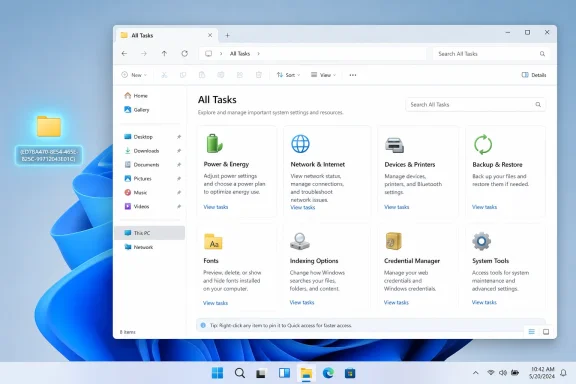
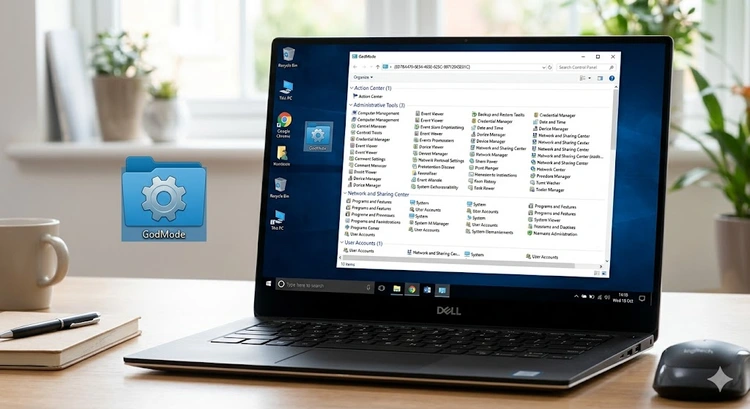
The mechanics are simple enough to sound like folklore. Create a new folder, rename it with any label followed by a period and the CLSID string, and Explorer stops treating it like an ordinary directory. The icon changes, the folder name may visually disappear depending on how it is written, and double-clicking opens a categorized list of tasks drawn from Control Panel and related shell entries.
That last phrase matters more than the nickname. This is not a new Windows 11 feature and not a privilege escalation trick. It is a shell namespace view, often described as “All Tasks,” that exposes shortcuts to configuration pages Windows already knows about. If your account lacks permission to perform an administrative action, God Mode does not bless you with one.
The endurance of the shortcut says something unflattering about Windows’ settings strategy. Microsoft has spent years moving the operating system away from Control Panel and toward the modern Settings app, but the migration has always been partial. Windows 11 looks cleaner than Windows 7 from ten feet away, yet under the glass it still depends on decades of configuration surfaces.
That is the real reason this folder keeps resurfacing. It is not because Windows users are desperate for Easter eggs. It is because Microsoft’s official route to many settings remains a scavenger hunt.
For ordinary users, that may be overwhelming. For Windows enthusiasts, it is comforting. The folder replaces a maze of Start menu searches, Settings pages, Control Panel icons,
That inventory is especially valuable because Windows search is inconsistent in precisely the moments users need it most. Search for a setting by the term Microsoft currently prefers and you may get the Settings app. Search by the term an older dialog still uses and you may get Control Panel. Search by the wording a help article used five years ago and you may get nothing useful at all.
God Mode works because it cheats around the branding problem. It does not care whether Microsoft’s current design language calls something a “page,” “task,” “setting,” or “experience.” It simply lists many of the old entry points in one place, which is often what a troubleshooter wanted from the beginning.
But modernization becomes frustrating when replacement and removal do not happen at the same pace. Windows 11 often pushes users toward Settings first, then quietly punts them back to legacy dialogs for deeper configuration. Networking, power management, devices, fonts, indexing, recovery, credentials, and administrative tools still contain pockets where the old world is not merely present but necessary.
That hybrid state creates cognitive overhead. A user who knows exactly what they want may still have to remember which era of Windows owns the setting. An IT pro documenting a fix has to decide whether to write instructions for Settings, Control Panel, a management console, PowerShell, Group Policy, or some combination of them.
The God Mode folder is useful because it is less ideological than the product. It does not pretend the transition is complete. It presents the mess as a list.
That may sound like faint praise, but in systems administration, honest messiness is often better than polished misdirection. A searchable catalog of old and current entry points is not elegant. It is, however, operationally useful.
That distinction matters in managed environments. A user who can open the folder may see entries for administrative tasks, but launching them still runs into the same permissions, prompts, and policies that would apply elsewhere. If a setting is blocked by Group Policy, Intune, standard-user rights, or enterprise configuration, the folder does not change that reality.
There is still a governance conversation to be had, but it is not the cartoon version. Some organizations may dislike the optics of users creating a desktop object called “GodMode,” especially on shared systems or locked-down endpoints. Others may worry that aggregating settings lowers the friction for curious users to wander into areas they do not understand.
Those are usability and support risks, not magical security failures. The correct response is not panic over a hidden exploit. It is ordinary endpoint hygiene: least privilege, sensible policy, application control where needed, and clear separation between standard user and administrator roles.
For home enthusiasts, the practical warning is simpler. The folder makes settings easier to find, and that includes settings you can misconfigure. Convenience is not the same thing as understanding.
That architecture is one reason the trick feels magical. You type a bizarre string into a folder name, and Explorer changes its interpretation of the object. The visible folder becomes a doorway into a virtual location defined by Windows itself.
There are cleaner ways to invoke the same idea, including shell commands and shortcuts, but the folder version spread because it is memorable. It requires no registry editing, no script, no download, and no third-party utility. It also has the delicious quality of a cheat code: a precise incantation that makes Windows reveal something it usually keeps out of sight.
For longtime Windows users, that is part of the appeal. The platform has always contained layers like this: documented enough to survive, obscure enough to feel illicit, and useful enough that people keep passing them around. God Mode is not an anomaly. It is Windows culture in miniature.
Both instincts are defensible. Most users do not want 200 configuration links staring back at them. Many would be better served by a Settings app that uses clearer language, safer defaults, and fewer legacy rabbit holes.
But Windows is not iOS, ChromeOS, or a single-purpose appliance. It is the operating system for gaming rigs, workstations, classrooms, kiosks, domain-joined laptops, lab machines, point-of-sale terminals, and weird old peripherals that refuse to die. That breadth makes total simplification impossible without stranding some serious users.
God Mode survives because Windows needs both philosophies and often fails to reconcile them gracefully. The modern Settings app is the curated tour. The God Mode folder is the maintenance hatch.
The problem is not that Microsoft offers a cleaner front end. The problem is that the maintenance hatch remains easier to search than parts of the front end.
In enterprise environments, the important configuration surfaces increasingly live elsewhere. Intune, Group Policy, PowerShell, Windows Admin Center, Microsoft Configuration Manager, and security baselines matter more than a desktop folder full of Control Panel tasks. The folder can help a technician get to a local setting quickly, but it does not scale.
There is also the issue of repeatability. A shortcut-driven workflow is easy for a skilled person and hard to audit. A script, policy, or management profile leaves a record and can be applied consistently across fleets. God Mode is a map; it is not infrastructure.
Still, maps matter. When a help-desk technician is trying to find a rarely used dialog on a user’s machine, or when an enthusiast is trying to remember where Windows hid a setting after yet another UI shuffle, this shortcut can save time. Its value is tactical rather than strategic.
That tactical value is exactly why it should be understood accurately. Treating it as a secret admin console invites bad advice. Treating it as a searchable index of legacy and system tasks makes it useful.
Every few months, some old Windows artifact goes viral again: a Run command, a Control Panel applet, a registry switch, a shell folder, a buried diagnostic tool. The cycle can look silly if you have known the trick for 15 years. It looks different if you ask why these discoveries still feel necessary.
Windows has accumulated an enormous amount of capability, but discoverability has not kept pace. Microsoft often documents features for administrators, developers, or support channels without turning that knowledge into a coherent everyday interface. The result is an ecosystem where community lore does real work.
That lore can be messy. It sometimes exaggerates, misnames, or strips away context. But it also preserves practical knowledge that would otherwise be lost beneath redesigns and marketing language.
God Mode is a perfect example. The name is nonsense. The utility is real. The reason people still care is revealing.
Dragging individual tasks to the desktop, as many guides suggest, is a more practical habit than opening the full catalog every time. It turns the overwhelming master list into a personalized toolkit. That is where the feature stops being trivia and becomes a workflow improvement.
There are limits. Some entries may redirect into the Settings app, some may open legacy dialogs, and some may behave differently depending on Windows edition, hardware, account rights, or policy. The list is not a promise that every feature is available on every PC.
The folder also does not solve Microsoft’s naming problem. You may still need to search using older terminology, especially for features whose modern Settings equivalent has been renamed or reorganized. But even that limitation can be useful: the list exposes how Windows itself still names many tasks internally.
In that sense, God Mode is less a control panel than an X-ray. It shows the bones beneath Windows 11’s polished surface.
Microsoft already has pieces of this. Settings search exists. Control Panel search exists. Windows Tools exists. Administrative consoles exist. Documentation exists. The missing piece is a unified expert-facing map that respects both modern design and the reality of legacy depth.
Such a tool would not need to be the default experience. Most users could continue using the simplified Settings app. But enthusiasts, technicians, developers, and administrators would have a first-party place to go when the simplified path runs out.
This is where Microsoft’s Windows strategy often feels conflicted. The company wants Windows 11 to look modern and approachable, but it also sells Windows as the flexible platform for serious work. Serious work sometimes requires dense interfaces, exact names, and fast access to obscure levers.
God Mode remains popular because it accidentally provides that density. Microsoft should take the hint instead of leaving the job to a folder-name trick from another era.
{ED7BA470-8E54-465E-825C-99712043E01C} that opens a searchable File Explorer view of Control Panel tasks and legacy system settings on modern Windows PCs. The trick is real, useful, and wildly overnamed. It is not a hidden superuser console, but a fossil from Windows’ shell architecture that has become more valuable as Microsoft continues splitting system configuration between Settings, Control Panel, and buried administrative tools.That is why the latest round of “Windows 11 has a secret God Mode” coverage lands with a strange mix of nostalgia and practical relevance. Enthusiasts love it because it feels like finding a trapdoor in the operating system. Administrators tolerate the branding because, beneath the meme, it solves a problem Microsoft still has not fully solved: Windows has too many settings, too many eras of UI, and no single map that reflects how people actually troubleshoot PCs.
 The So-Called God Mode Is Really Windows Admitting It Has Too Many Front Doors
The mechanics are simple enough to sound like folklore. Create a new folder, rename it with any label followed by a period and the CLSID string, and Explorer stops treating it like an ordinary directory. The icon changes, the folder name may visually disappear depending on how it is written, and double-clicking opens a categorized list of tasks drawn from Control Panel and related shell entries.That last phrase matters more than the nickname. This is not a new Windows 11 feature and not a privilege escalation trick. It is a shell namespace view, often described as “All Tasks,” that exposes shortcuts to configuration pages Windows already knows about. If your account lacks permission to perform an administrative action, God Mode does not bless you with one.
The endurance of the shortcut says something unflattering about Windows’ settings strategy. Microsoft has spent years moving the operating system away from Control Panel and toward the modern Settings app, but the migration has always been partial. Windows 11 looks cleaner than Windows 7 from ten feet away, yet under the glass it still depends on decades of configuration surfaces.
That is the real reason this folder keeps resurfacing. It is not because Windows users are desperate for Easter eggs. It is because Microsoft’s official route to many settings remains a scavenger hunt.
A Power User Shortcut Became a Meme Because Microsoft Left the Map Unfinished
The name “God Mode” did the feature no favors. It suggests forbidden power, unlocked capabilities, or some developer-only control room. In practice, it is closer to a master index: a long list of tasks such as adding devices, changing power settings, managing credentials, viewing fonts, configuring backup options, adjusting indexing, and reaching old network or administrative panels.For ordinary users, that may be overwhelming. For Windows enthusiasts, it is comforting. The folder replaces a maze of Start menu searches, Settings pages, Control Panel icons,
control.exe commands, and half-remembered dialog names with something that behaves like a searchable inventory.That inventory is especially valuable because Windows search is inconsistent in precisely the moments users need it most. Search for a setting by the term Microsoft currently prefers and you may get the Settings app. Search by the term an older dialog still uses and you may get Control Panel. Search by the wording a help article used five years ago and you may get nothing useful at all.
God Mode works because it cheats around the branding problem. It does not care whether Microsoft’s current design language calls something a “page,” “task,” “setting,” or “experience.” It simply lists many of the old entry points in one place, which is often what a troubleshooter wanted from the beginning.
Windows 11’s Modern Settings App Still Cannot Escape Control Panel’s Gravity
Microsoft’s long campaign to modernize Windows settings is understandable. Control Panel was never a model of coherence. It accreted applets, tabs, modal dialogs, vendor hooks, snap-ins, and administrative surfaces across generations of Windows, and it carries visual assumptions from eras when screen resolutions, account models, and security expectations were different.But modernization becomes frustrating when replacement and removal do not happen at the same pace. Windows 11 often pushes users toward Settings first, then quietly punts them back to legacy dialogs for deeper configuration. Networking, power management, devices, fonts, indexing, recovery, credentials, and administrative tools still contain pockets where the old world is not merely present but necessary.
That hybrid state creates cognitive overhead. A user who knows exactly what they want may still have to remember which era of Windows owns the setting. An IT pro documenting a fix has to decide whether to write instructions for Settings, Control Panel, a management console, PowerShell, Group Policy, or some combination of them.
The God Mode folder is useful because it is less ideological than the product. It does not pretend the transition is complete. It presents the mess as a list.
That may sound like faint praise, but in systems administration, honest messiness is often better than polished misdirection. A searchable catalog of old and current entry points is not elegant. It is, however, operationally useful.
The Trick Is Safe, but the Name Encourages the Wrong Security Story
The security angle is where “God Mode” becomes actively misleading. Creating the folder does not weaken Windows, disable User Account Control, bypass policy, or expose capabilities unavailable through other routes. It is a convenience layer over existing shell tasks, not a skeleton key.That distinction matters in managed environments. A user who can open the folder may see entries for administrative tasks, but launching them still runs into the same permissions, prompts, and policies that would apply elsewhere. If a setting is blocked by Group Policy, Intune, standard-user rights, or enterprise configuration, the folder does not change that reality.
There is still a governance conversation to be had, but it is not the cartoon version. Some organizations may dislike the optics of users creating a desktop object called “GodMode,” especially on shared systems or locked-down endpoints. Others may worry that aggregating settings lowers the friction for curious users to wander into areas they do not understand.
Those are usability and support risks, not magical security failures. The correct response is not panic over a hidden exploit. It is ordinary endpoint hygiene: least privilege, sensible policy, application control where needed, and clear separation between standard user and administrator roles.
For home enthusiasts, the practical warning is simpler. The folder makes settings easier to find, and that includes settings you can misconfigure. Convenience is not the same thing as understanding.
The Desktop Folder Is a Hacky Interface to a Deeper Windows Design Pattern
The folder-renaming trick is only the most famous expression of a broader Windows behavior. The operating system has long used class identifiers and shell namespaces to represent special locations that are not normal folders in the file-system sense. Control Panel, Recycle Bin, Libraries, network locations, and many other shell objects have lived in that conceptual neighborhood.That architecture is one reason the trick feels magical. You type a bizarre string into a folder name, and Explorer changes its interpretation of the object. The visible folder becomes a doorway into a virtual location defined by Windows itself.
There are cleaner ways to invoke the same idea, including shell commands and shortcuts, but the folder version spread because it is memorable. It requires no registry editing, no script, no download, and no third-party utility. It also has the delicious quality of a cheat code: a precise incantation that makes Windows reveal something it usually keeps out of sight.
For longtime Windows users, that is part of the appeal. The platform has always contained layers like this: documented enough to survive, obscure enough to feel illicit, and useful enough that people keep passing them around. God Mode is not an anomaly. It is Windows culture in miniature.
Enthusiasts Want Control; Microsoft Wants Curation
The persistence of God Mode points to a philosophical split between Windows’ power users and Microsoft’s product direction. Enthusiasts often want a dense cockpit. Microsoft increasingly wants guided experiences, simplified surfaces, and settings organized around common tasks rather than exhaustive control.Both instincts are defensible. Most users do not want 200 configuration links staring back at them. Many would be better served by a Settings app that uses clearer language, safer defaults, and fewer legacy rabbit holes.
But Windows is not iOS, ChromeOS, or a single-purpose appliance. It is the operating system for gaming rigs, workstations, classrooms, kiosks, domain-joined laptops, lab machines, point-of-sale terminals, and weird old peripherals that refuse to die. That breadth makes total simplification impossible without stranding some serious users.
God Mode survives because Windows needs both philosophies and often fails to reconcile them gracefully. The modern Settings app is the curated tour. The God Mode folder is the maintenance hatch.
The problem is not that Microsoft offers a cleaner front end. The problem is that the maintenance hatch remains easier to search than parts of the front end.
For IT Pros, the Shortcut Is a Convenience, Not a Management Strategy
Administrators should resist the urge to overstate what God Mode can do. It is handy on a bench machine, a personal workstation, or a test VM. It is not a substitute for proper device management, policy enforcement, documentation, or automation.In enterprise environments, the important configuration surfaces increasingly live elsewhere. Intune, Group Policy, PowerShell, Windows Admin Center, Microsoft Configuration Manager, and security baselines matter more than a desktop folder full of Control Panel tasks. The folder can help a technician get to a local setting quickly, but it does not scale.
There is also the issue of repeatability. A shortcut-driven workflow is easy for a skilled person and hard to audit. A script, policy, or management profile leaves a record and can be applied consistently across fleets. God Mode is a map; it is not infrastructure.
Still, maps matter. When a help-desk technician is trying to find a rarely used dialog on a user’s machine, or when an enthusiast is trying to remember where Windows hid a setting after yet another UI shuffle, this shortcut can save time. Its value is tactical rather than strategic.
That tactical value is exactly why it should be understood accurately. Treating it as a secret admin console invites bad advice. Treating it as a searchable index of legacy and system tasks makes it useful.
The BGR Revival Shows How Windows Lore Keeps Filling Documentation Gaps
The latest consumer-facing write-up frames the folder as a hidden Windows 11 feature most enthusiasts would love, and that is broadly fair as a hook. The steps work, the behavior is familiar, and the resulting panel remains useful. But the recurring rediscovery of this trick is less about novelty than about Windows’ failure to make its own structure legible.Every few months, some old Windows artifact goes viral again: a Run command, a Control Panel applet, a registry switch, a shell folder, a buried diagnostic tool. The cycle can look silly if you have known the trick for 15 years. It looks different if you ask why these discoveries still feel necessary.
Windows has accumulated an enormous amount of capability, but discoverability has not kept pace. Microsoft often documents features for administrators, developers, or support channels without turning that knowledge into a coherent everyday interface. The result is an ecosystem where community lore does real work.
That lore can be messy. It sometimes exaggerates, misnames, or strips away context. But it also preserves practical knowledge that would otherwise be lost beneath redesigns and marketing language.
God Mode is a perfect example. The name is nonsense. The utility is real. The reason people still care is revealing.
The Best Use Is Not Worshiping the Folder but Stealing Its Efficiency
The smartest way to use God Mode is not to make it the center of your Windows workflow. It is to use it as a discovery tool, then pull out the few shortcuts that actually matter to you. If you regularly adjust power plans, manage credentials, inspect devices, configure indexing, or reach old backup and recovery tools, the folder can help you find those entry points faster.Dragging individual tasks to the desktop, as many guides suggest, is a more practical habit than opening the full catalog every time. It turns the overwhelming master list into a personalized toolkit. That is where the feature stops being trivia and becomes a workflow improvement.
There are limits. Some entries may redirect into the Settings app, some may open legacy dialogs, and some may behave differently depending on Windows edition, hardware, account rights, or policy. The list is not a promise that every feature is available on every PC.
The folder also does not solve Microsoft’s naming problem. You may still need to search using older terminology, especially for features whose modern Settings equivalent has been renamed or reorganized. But even that limitation can be useful: the list exposes how Windows itself still names many tasks internally.
In that sense, God Mode is less a control panel than an X-ray. It shows the bones beneath Windows 11’s polished surface.
The Real Lesson Is That Windows Needs a Better Expert Mode
There is an obvious product idea hiding in this old hack. Windows should have an official expert settings index: searchable, filterable, permission-aware, and honest about whether an entry opens Settings, Control Panel, PowerShell guidance, a management console, or a policy-controlled surface. It should not be called God Mode, and it should not require users to memorize a GUID.Microsoft already has pieces of this. Settings search exists. Control Panel search exists. Windows Tools exists. Administrative consoles exist. Documentation exists. The missing piece is a unified expert-facing map that respects both modern design and the reality of legacy depth.
Such a tool would not need to be the default experience. Most users could continue using the simplified Settings app. But enthusiasts, technicians, developers, and administrators would have a first-party place to go when the simplified path runs out.
This is where Microsoft’s Windows strategy often feels conflicted. The company wants Windows 11 to look modern and approachable, but it also sells Windows as the flexible platform for serious work. Serious work sometimes requires dense interfaces, exact names, and fast access to obscure levers.
God Mode remains popular because it accidentally provides that density. Microsoft should take the hint instead of leaving the job to a folder-name trick from another era.
The Old Control Panel Ghost Still Has Useful Advice for 2026 PCs
Before anyone turns the shortcut into a personality test, the practical conclusions are modest and concrete. This is a useful Windows trick, not a revolution. It belongs in the toolkit, not on a pedestal.- The folder works by invoking a Windows shell namespace that aggregates many Control Panel and system tasks into a searchable Explorer view.
- The shortcut does not grant administrator rights, bypass security controls, or unlock settings that Windows would otherwise forbid.
- The feature is most useful for enthusiasts and technicians who already know what they are looking for but dislike digging through Settings and Control Panel.
- The folder’s continued usefulness reflects the unfinished migration from legacy Control Panel surfaces to the modern Windows 11 Settings app.
- The best workflow is to use the master list to find specific tasks, then create shortcuts to the few entries you actually use regularly.
- Managed environments should treat it as a convenience shortcut and rely on policy, permissions, and endpoint management for real control.
References
- Primary source: bgr.com
Published: Tue, 16 Jun 2026 18:17:00 GMT

Windows 11 Is Hiding A 'God Mode' Folder That Most Enthusiasts Would Love
Wouldn't it be convenient if you could access Windows settings from a single place? Well, you actually can if you set up a "God Mode" folder.www.bgr.com - Related coverage: techspot.com

How to Activate God Mode in Windows 10 and Windows 11 | TechSpot
Many of you may be familiar with Windows God Mode. It does not make your PC immortal, but puts an icon on your desktop that gives quick...www.techspot.com - Related coverage: techadvisor.com

Windows 11 God Mode: What It Is and How To Use It - Tech Advisor
The so-called ‘God Mode’ provides easy access to all the classic Control Panel settings, and it’s simple to enable on Windows 11.www.techadvisor.com - Related coverage: techrepublic.com

How to enable access to god-mode in Microsoft Windows 11 - TechRepublic
In certain circumstances, power users need to access more than the basic Windows 11 settings. Enabling god-mode will allow access to just about every setting available.www.techrepublic.com
- Related coverage: ulvbjornsson.com
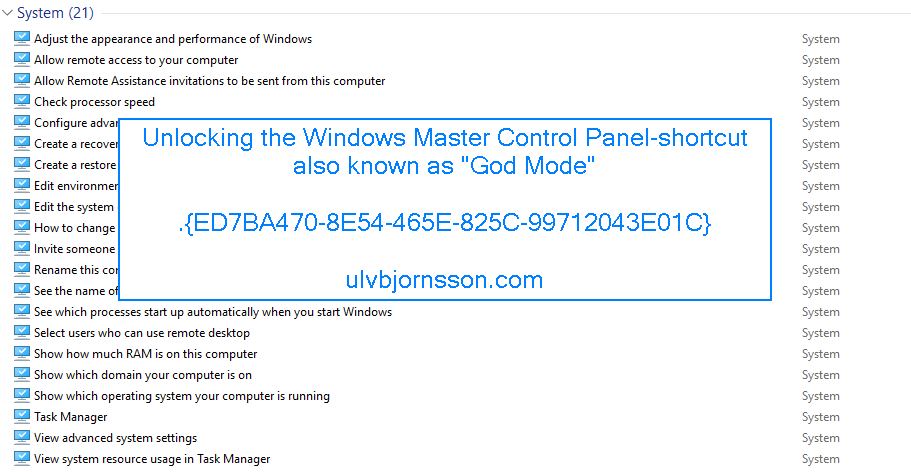
Creating a Windows Master Control Panel shortcut .{ED7BA470-8E54-465E-825C-99712043E01C} – musings of a consultant
The Windows Master Control Panel, also known as Windows God Mode, or the All Tasks folder is a shortcut to access a variety of control settings found in any operating system later then Windows Vist…ulvbjornsson.com - Related coverage: tomshardware.com

How to Enable God Mode in Windows 11 or 10 | Tom's Hardware
Get easy access to dozens of advanced settings.www.tomshardware.com
- Related coverage: pcworld.com

Did you know Windows 11 has a God Mode? Here's what it can do | PCWorld
God Mode is a hidden feature that makes it way easier to tweak various Windows settings.www.pcworld.com - Related coverage: windowsforum.com

God Mode in Windows 11: A Practical Productivity Shortcut | Windows Forum
Windows 11’s so-called “God Mode” is not a magic key to the operating system’s internals — it’s a pragmatic, little-known shortcut that collects hundreds of...windowsforum.com - Related coverage: palmgear.com
How to Enable the God Mode Folder on Windows — PalmGear
Unlock Windows' hidden God Mode folder to access all settings and control panel tools in one place — here's how to enable it in seconds.www.palmgear.com
- Related coverage: guidingtech.com

How to Enable “God Mode” in Windows 11 for All Settings - Guiding Tech
Access all Windows 11 settings instantly with God Mode, a hidden feature that puts over 200 system controls in one convenient folder.www.guidingtech.com
- Related coverage: techyorker.com

How to Enable “God Mode” in Windows 11 for All Settings - TechYorker
×Recommended: Maximize Your PC's Performance with Chipps AI Assistant →Recommended: Click Here to Fix Windows Issues and Optimize System Performance... techyorker.com
- Related coverage: der-windows-papst.de