

Microsoft is moving Windows 11 from a reactive desktop into an assistant-driven workspace by embedding interactive AI agents directly into the taskbar and deepening Copilot’s presence inside File Explorer—an evolution that aims to reduce clicks, speed common workflows, and make the OS feel more proactive about getting things done.
In recent Insider Preview builds, Microsoft introduced two tightly coupled pieces of functionality that together reshape how users will interact with Windows: Ask Copilot on the taskbar (including visible, running AI agents on the taskbar) and a new developer-facing framework called Agent Launchers that lets apps register AI agents system‑wide. These changes are landing first through Windows Insider channels and are initially scoped to managed previews and commercial accounts, with gradual rollouts planned as testing and enterprise validation continue.
At the same time, Microsoft is pushing Copilot deeper into File Explorer—moving beyond a sidebar helper into contextual file summaries, natural‑language file discovery, and action suggestions tied to documents and folders. The twin thrusts—taskbar agents plus File Explorer AI—represent a significant shift in Microsoft’s approach: instead of surfacing AI only in apps, the operating system itself becomes the hub where agents run, report status, and take actions on behalf of users.
Agents live in a controlled runtime Microsoft refers to as an “agentic workspace” in early documentation and developer notes. This workspace is designed to contain agent activity, communicate status to the taskbar, and surface results in apps or notifications without requiring the user to constantly context switch.
However, successful adoption across consumers and enterprises hinges on several non-technical factors: clear privacy and data‑flow guarantees, robust auditing and governance tools, manageable licensing, and sensible UX defaults that avoid clutter. If Microsoft can deliver transparent controls, comprehensive documentation, and enterprise-friendly deployment options, these features could redefine daily productivity on Windows.
For now, the sensible path for organizations and cautious users is to pilot selectively, validate AI outputs, and prepare governance and performance guardrails. The promise is large; the work to make it safe, audited, and trustworthy is only beginning.
Conclusion
Windows 11’s taskbar agents and deeper Copilot integration signal a shift toward an AI-first desktop where the OS itself mediates and accelerates work. The design choices Microsoft has made—agent launchers, opt-in taskbar experiences, and contextual File Explorer AI—are built to scale across both consumer and enterprise scenarios. But the leap from promising previews to broadly trusted tools will require meticulous attention to privacy, auditability, and operational transparency. When those pieces are in place, Windows may well set a new baseline for what an AI-enabled operating system should be: proactive, contextual, and undeniably useful.
Source: thewincentral.com Microsoft Brings Taskbar AI Agents to Windows 11
 Background
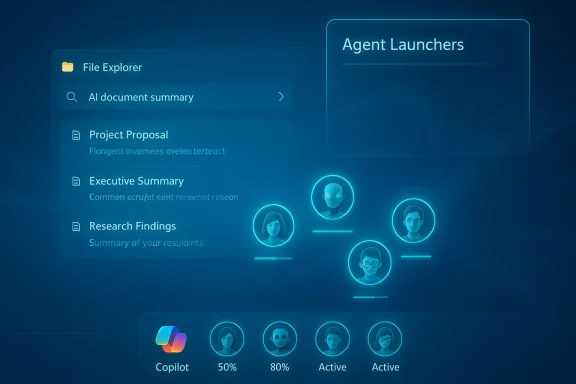
In recent Insider Preview builds, Microsoft introduced two tightly coupled pieces of functionality that together reshape how users will interact with Windows: Ask Copilot on the taskbar (including visible, running AI agents on the taskbar) and a new developer-facing framework called Agent Launchers that lets apps register AI agents system‑wide. These changes are landing first through Windows Insider channels and are initially scoped to managed previews and commercial accounts, with gradual rollouts planned as testing and enterprise validation continue.At the same time, Microsoft is pushing Copilot deeper into File Explorer—moving beyond a sidebar helper into contextual file summaries, natural‑language file discovery, and action suggestions tied to documents and folders. The twin thrusts—taskbar agents plus File Explorer AI—represent a significant shift in Microsoft’s approach: instead of surfacing AI only in apps, the operating system itself becomes the hub where agents run, report status, and take actions on behalf of users.
What Microsoft shipped in previews (the essentials)
Ask Copilot on the taskbar and visible agents
- Taskbar presence for agents: Active Copilot tasks and registered agents can now surface as icons or indicators on the taskbar. Hovering gives realtime status and progress updates.
- Opt-in experience: The feature is controllable via Settings and initially targeted at commercial Windows Insider customers with Microsoft 365 Copilot licenses.
- Interaction methods: Users can invoke agents via click, typing with an “@” syntax in Ask Copilot, or using the taskbar controls and voice input where supported.
Agent Launchers: a new platform API
- System-level discovery: Agent Launchers allow apps to register interactive AI agents that Windows can discover and present across the OS.
- Lifecycle and context: Registered agents can maintain context, ask clarifying questions, and open their chat experiences when launched from the taskbar or supported apps.
- Developer flexibility: Agents can be registered statically at install or dynamically at runtime, enabling availability to vary by authentication, subscription, or other conditions.
File Explorer gets smarter
- AI-powered file summaries: Copilot can generate concise summaries of documents and folders, accelerating triage and review.
- Contextual actions: Right-click or contextual UI will surface AI actions (where relevant) such as summarization, quick edits, or suggested next steps for documents.
- Natural-language search: Users can find files using conversational queries, shifting from exact filename/attribute matching to intent-driven discovery.
- Cleanup of irrelevant AI options: Microsoft is adjusting the UI to hide AI actions where none apply, reducing clutter in the context menu.
Why this matters: real user gains
Integrating AI agents into the taskbar and File Explorer removes friction from everyday tasks in three concrete ways:- Fewer context switches. Instead of opening an app, waiting for it to load, and then typing a query, users can ask an agent from the taskbar and monitor progress in place. This reduces cognitive load and saves time.
- Faster file triage. Students, researchers, and knowledge workers can get a quick summary or extract action items from documents without opening each file. That changes File Explorer from a passive browser into an active workspace.
- Actionable suggestions. Agents can propose next steps—compose a reply, create a task, or surface related files—turning discoveries into outcomes with fewer clicks.
How the pieces fit: the technical design in plain language
Agents, launchers, and the agentic workspace
The new framework treats agents as discoverable components that can register with Windows. When an agent runs, Windows shows it as a live entity on the taskbar. Microsoft is experimenting with how these taskbar entries appear—either grouped with the Copilot icon or as separate agent icons—and is testing hover cards that surface progress and results.Agents live in a controlled runtime Microsoft refers to as an “agentic workspace” in early documentation and developer notes. This workspace is designed to contain agent activity, communicate status to the taskbar, and surface results in apps or notifications without requiring the user to constantly context switch.
File Explorer integration: where context matters
File Explorer integration is context-aware: Copilot analyzes the file type, metadata, and the immediate folder view to propose relevant actions. The system aims to only show AI actions when they make sense—for example, offering a summary for a long document but not showing summarization on a compressed archive. This reduces UI noise and keeps the right-click menu useful.Licensing and rollout constraints
Several of these features—particularly the Ask Copilot taskbar experiences tied to Microsoft 365 Copilot agents—are initially gated behind Microsoft 365 Copilot licensing. Microsoft is rolling these features out gradually through Insider builds and commercial previews in specific regions and tenant types. The intent is to expand availability as reliability and enterprise controls mature.Strengths: what Microsoft got right
- Seamless integration, not just an add-on. By putting agents on the taskbar and inside File Explorer, Microsoft avoids the “AI as a bolt-on” problem where helpers live isolated in separate apps. This is a system-level approach that can provide consistent, discoverable AI across workflows.
- Developer-first framework. Agent Launchers are a smart move: they provide a standardized way for third-party developers and Microsoft services to expose agents to the OS without bespoke integrations for each app.
- Contextuality and reduced clutter. Microsoft’s decision to hide AI actions when they’re not applicable is a simple but important UX improvement. Showing AI only when it helps keeps the UI useful and prevents feature fatigue.
- Enterprise-aware controls. The preview emphasizes opt-in behavior, permission-based access, and enterprise management controls—key for adoption in corporate environments where data governance matters.
- Progress visibility. Making long-running agent tasks visible on the taskbar with hoverable progress is a pragmatic solution to transparency and reduces the feeling that agents are “doing things behind the scenes.”
Risks and unanswered questions
- Privacy and data flow. Any agent that processes file content raises hard questions about what data is sent to cloud services, how long it’s stored, and whether it’s used to improve models. Microsoft signals enterprise management options and permission controls, but operational details—what exactly leaves the device and under what consent—will determine enterprise trust and regulatory compliance.
- Model hallucinations and trust. AI summarization and action suggestions can hallucinate or misinterpret document content. When Copilot generates recommended actions based on a file that’s later used in a business workflow, the potential for error increases. Organizations will need validation workflows for AI-generated outputs.
- Resource and performance impact. Running multiple agents concurrently, especially if local model acceleration is used, can impose CPU/GPU and memory costs. On lower-end devices, these features might degrade responsiveness or force administrators to limit agent capabilities.
- Feature discovery vs. clutter tradeoff. Even with the attempt to hide irrelevant AI actions, a proliferation of agents across apps could flood the taskbar and context menus. Designing sensible defaults and giving users straightforward controls will be essential.
- Licensing complexity. Tying core OS agent experiences to Microsoft 365 Copilot licensing creates fragmentation for consumers and SMBs that might not have or want that subscription. This could create a two-tier Windows experience where premium AI features are unavailable to many users.
- Regulatory and regional constraints. Laws and rulings in regions like the European Economic Area may limit automatic installation or default-on behavior for AI features. Microsoft’s wider rollout strategies will need to account for these regulatory differences.
What administrators and IT teams should do now
- Review licensing entitlements. Confirm which user accounts in your tenant have Microsoft 365 Copilot licenses and whether those licenses should be enabled for broader Copilot experiences.
- Enable testing groups. Use Windows Insider Beta/Dev channels in a controlled ring to trial Agent Launchers and Ask Copilot with pilot users before broader deployment.
- Audit data flows. Work with security and compliance teams to map what metadata and content might be transmitted to cloud services when agents act on files.
- Set policy guardrails. Prepare or update Intune/Group Policy templates to control taskbar agent availability, Copilot access, and telemetry settings.
- User training and governance. Draft short guidance for end users that explains what agents can do, how to opt in/out, and how to validate AI-generated actions—especially for legal or sensitive content.
- Monitor performance. Track resource utilization on pilot devices to assess whether agent workloads need to be limited on certain hardware classes.
Practical guidance for everyday users
- Try the features in Insiders first. If you like to be early, enable the Windows Insider preview channel and experiment. If you rely on stability, wait for general channel rollouts.
- Use permission settings actively. When Copilot or an agent requests access to files or cloud content, take a moment to verify the scope of access instead of clicking Accept by default.
- Validate AI outputs. Treat summaries and suggested actions as drafts—especially when they involve important documents or legal content.
- Control clutter. If taskbar agents become noisy, disable Ask Copilot in Settings or turn off agent notifications until Microsoft provides finer-grained controls.
- Understand where data goes. If you work with sensitive data, verify whether agent interactions are processed locally or in the cloud, and consult your organization’s data policy.
Trust, transparency, and what Microsoft still needs to clarify
The technical plumbing is in place: agent registration, taskbar surfacing, and contextual File Explorer actions. But a few operational details still need clearer public answers before widespread enterprise adoption:- Precise data residency and retention policies for agent interactions and file processing—enterprises need certainties on whether file contents leave the tenant boundary and how long logs persist.
- Auditability and provenance of AI-generated outputs—if an agent suggested a change that was applied, admins need reliable logs to trace that origin.
- Fail-safe behaviors for agent actions—what happens if an agent executes an action that conflicts with existing security settings or breaks a business process?
- Model and source transparency—which models power the agents, what training data policies apply, and whether organizations can opt for tenant-scoped or self-hosted model options.
Broader implications for the Windows ecosystem
This move signals a strategic pivot: Windows is no longer merely a platform for applications; it’s increasingly a host for AI-driven workflows that live at the OS layer. That has systemic implications:- App developers gain a standardized entry point to expose agent capabilities across the OS, increasing potential reach but also introducing new expectations around privacy and UX design.
- Third-party AI vendors may seek to integrate through Agent Launchers, creating a marketplace of agents that could compete, collaborate, or interoperate.
- Hardware vendors could be pushed to include dedicated AI acceleration to support local inference and keep latency low when agents run on-device.
- Regulators and privacy advocates will scrutinize how OS-level agents process personal and enterprise data, potentially influencing feature timelines and deployment models.
Scenarios to watch: four use cases where agents will matter most
- Knowledge worker research: A "Researcher" agent that aggregates documents, extracts quotes, and builds a report while signaling progress on the taskbar could radically shorten literature review cycles.
- Content creation and editing: Copilot-assisted summarization and content suggestions directly in File Explorer could speed drafting workflows by surfacing related files and producing first drafts for revision.
- IT automation and monitoring: Admin-focused agents could triage logs, summarize incidents, and suggest remediation steps, making the taskbar a place to monitor ongoing systems work.
- Student study workflows: Students could ask an agent to summarize a set of readings and produce flashcards or key takeaways without leaving the file system view.
Final assessment: promising, but adoption depends on trust and control
Microsoft’s taskbar agents and File Explorer Copilot integration represent one of the most ambitious attempts to date to make an operating system actively assistive rather than passively supportive. The approach—system-level agent discoverability, taskbar progress visibility, and contextual file actions—solves real pain points around context switching and file triage.However, successful adoption across consumers and enterprises hinges on several non-technical factors: clear privacy and data‑flow guarantees, robust auditing and governance tools, manageable licensing, and sensible UX defaults that avoid clutter. If Microsoft can deliver transparent controls, comprehensive documentation, and enterprise-friendly deployment options, these features could redefine daily productivity on Windows.
For now, the sensible path for organizations and cautious users is to pilot selectively, validate AI outputs, and prepare governance and performance guardrails. The promise is large; the work to make it safe, audited, and trustworthy is only beginning.
Conclusion
Windows 11’s taskbar agents and deeper Copilot integration signal a shift toward an AI-first desktop where the OS itself mediates and accelerates work. The design choices Microsoft has made—agent launchers, opt-in taskbar experiences, and contextual File Explorer AI—are built to scale across both consumer and enterprise scenarios. But the leap from promising previews to broadly trusted tools will require meticulous attention to privacy, auditability, and operational transparency. When those pieces are in place, Windows may well set a new baseline for what an AI-enabled operating system should be: proactive, contextual, and undeniably useful.
Source: thewincentral.com Microsoft Brings Taskbar AI Agents to Windows 11
