

Windows 11 is quietly maturing into an operating system of many small revolutions: tucked-away productivity tools, expanding AI services that surface in unexpected places, and a steady stream of updates that shift the platform toward a more managed, security-first posture. Over the past year the conversation among enthusiasts and IT pros has split into two themes — discoverability and control. On one hand, Microsoft keeps adding genuinely useful, low-friction features hidden in Settings and app updates; on the other, a vocal segment of power users has pushed back against the aggressive integration of AI, producing community tools that forcibly remove those same conveniences. This feature examines the practical wins buried in Windows 11, the growing ecosystem of mini‑PC hardware designed to run it, and the real operational trade‑offs shown by community opt‑out tools and Microsoft’s own security updates.
Windows 11’s development strategy over the last two years has emphasized incremental, modular improvements rather than sweeping UI changes. That means a lot of useful capabilities — from Clipboard History and Title Bar Window Shake to Snipping Tool OCR and Calculator mini‑mode — arrive quietly via Store app updates, optional feature toggles, or incremental cumulative updates. Many of these additions aim to shave seconds off routine workflows, but their value is only realized by users who know where to look. The result is a platform rich in hidden productivity wins but also a settings landscape that can feel like a “feature junk drawer.”
At the same time, Microsoft is positioning the OS as an “AI PC,” embedding services such as Copilot, Recall, and AI‑assisted features into inbox apps and shell surfaces. For some users and organizations this is a productivity multiplier. For others it raises privacy, maintainability, and servicing concerns — especially where these features are delivered as provisioned packages that Windows Update can re‑provision without explicit admin action. That tension has led to community responses: open‑source PowerShell projects that automate disabling or removing AI components, and professional debate about the risks of manipulating the servicing store.
Why this matters for the Windows 11 ecosystem: hardware that supports on‑device AI (NPUs or AI‑capable APUs) aligns with Microsoft’s Copilot+ ambitions, letting users get lower‑latency, private inference for supported features. But buyers should watch for vendor‑published metrics (TOPS, synthetic scores) and verify them with independent tests that stress sustained workloads to expose thermal limits.
At the OS level, updates such as 24H2 and later cumulative packages prioritize both performance (faster installs, snappier File Explorer behavior) and security controls (improved kernel blocklists, SMB updates, and WebAuthn/passkey enhancements). Those same update channels are how Microsoft re‑provisions inbox packages, which is why community durability techniques target the servicing store. From an IT perspective, understanding the overlap of provisioning, update channels, and optional app updates is now essential to predictable device management.
Where Windows 11 succeeds:
Mini‑PCs such as the EliteMini HX90 show the hardware market catching up, enabling more users to run modern, AI‑enhanced Windows experiences locally. Meanwhile, the emergence of community PowerShell projects that remove AI features is a clear signal: a segment of the user base values agency and low‑surface privacy over the convenience of default, integrated AI.
The pragmatic path for enthusiasts and IT teams is clear: enable low‑risk hidden features that save time, audit and harden AI and syncing behaviors where data sensitivity demands it, and treat any servicing‑level modification as a last resort that requires testing, backups and a recovery plan. Windows 11 is more powerful — and more configurable — than many users realize; the next step is learning where to draw lines between agility and long‑term operability.
Source: Tom's Guide https://www.tomsguide.com/computing...sword-solution-laps-security-fixes-and-more/]
 Background
Windows 11’s development strategy over the last two years has emphasized incremental, modular improvements rather than sweeping UI changes. That means a lot of useful capabilities — from Clipboard History and Title Bar Window Shake to Snipping Tool OCR and Calculator mini‑mode — arrive quietly via Store app updates, optional feature toggles, or incremental cumulative updates. Many of these additions aim to shave seconds off routine workflows, but their value is only realized by users who know where to look. The result is a platform rich in hidden productivity wins but also a settings landscape that can feel like a “feature junk drawer.”At the same time, Microsoft is positioning the OS as an “AI PC,” embedding services such as Copilot, Recall, and AI‑assisted features into inbox apps and shell surfaces. For some users and organizations this is a productivity multiplier. For others it raises privacy, maintainability, and servicing concerns — especially where these features are delivered as provisioned packages that Windows Update can re‑provision without explicit admin action. That tension has led to community responses: open‑source PowerShell projects that automate disabling or removing AI components, and professional debate about the risks of manipulating the servicing store.
Hidden Windows 11 features that deliver real productivity
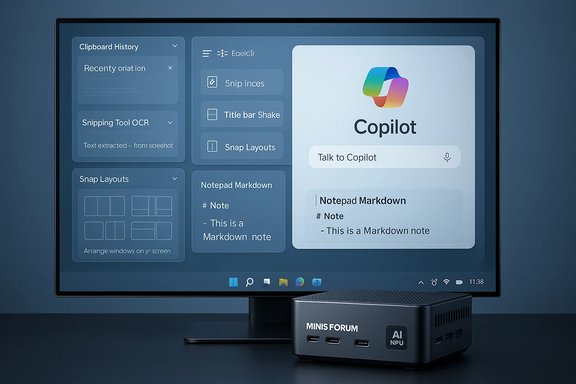
Windows 11 hides several features that are easy to enable and which pay disproportionate dividends in daily use. These are not marketing headline items, but small tools that reduce friction.Clipboard History and Sync
- What it does: Stores up to 25 clipboard entries and can sync across devices using a Microsoft Account.
- Why it matters: Recovering text, images, and small snippets without re-copying saves repeated context switching and time.
- How to enable: Win + V then toggle Clipboard History on.
Snipping Tool OCR and Screen Recording
- What it does: Built‑in OCR extracts text from screenshots; Snipping Tool also offers screen recording.
- Why it matters: Eliminates a class of third‑party tools and speeds documentation, bug reporting, and note taking.
- Caveat: Some advanced capture features remain gated behind app updates or Insider builds. Update via Microsoft Store for the latest capabilities.
Title Bar Window Shake and Snap Layouts
- What they do: Title Bar Window Shake quickly minimizes distractions by shaking the active window; Snap Layouts simplify multi‑window tiling and saved Snap Groups.
- Why they matter: These gestures and layouts let power users recompose their workspace in seconds, boosting focus and multi‑task throughput.
Photos’ Generative Tools and Snipping Tool Text Extractor
Modern Photos includes light generative edits such as Generative Erase for background object removal, while Snipping Tool and Photos combine to extract and reuse text from images. These features can lower the barrier to quick image editing and document capture — but be cautious: verify whether processing occurs locally or uses cloud services before using them on sensitive content.Notepad Markdown, Calculator Mini‑Mode, and Always‑on‑Top Tools
Small app updates have matured old utilities into productivity staples: Notepad’s Markdown view, Calculator’s always‑on‑top mini calculator and scientific modes, and expanded Notepad/Calculator features that make ad‑hoc tasks faster without installing external apps. These are the kind of quality‑of‑life wins that compound across a workweek.The strength of incremental design — and its limits
Microsoft’s modular delivery model (Store updates + optional features + servicing packages) has two key advantages:- It allows rapid iteration and targeted bug fixes without forcing full OS upgrades.
- It packages features that target specific pain points, so users can opt into exactly what they need.
- Discoverability: Many useful features remain effectively hidden unless documented or promoted.
- Fragmentation: Availability can depend on OS build, Insider channel, OEM image, or specific Store app versions.
- Privacy surface: AI features sometimes process data in ways that aren’t obvious; whether processing is local or cloud‑based matters and is not always clearly signposted.
The mini‑PC story: compact hardware catching up to modern Windows needs
The mini‑PC market has matured beyond low‑power HTPCs. Manufacturers now pack high‑end mobile APUs and even dedicated NPUs into tiny, upgradeable boxes — making them a practical desktop replacement for many Windows users.MINISFORUM EliteMini HX90 — a practical example
The EliteMini HX90 demonstrates this trend: a compact Windows 11‑ready chassis that pairs a high‑performance AMD Ryzen mobile processor with a surprisingly rich I/O package, including USB‑C, USB‑A 3.2 Gen2 ports, DisplayPort 2.0, HDMI 2.1, dual 2.5G Ethernet, Wi‑Fi 6 and Bluetooth 5.3. Its design allows at least partial storage expandability via an extra M.2 slot while preserving a small footprint and the thermal constraints inherent to mini PCs. For users who want desktop‑class compute without a tower, these designs hit a sweet spot.Why this matters for the Windows 11 ecosystem: hardware that supports on‑device AI (NPUs or AI‑capable APUs) aligns with Microsoft’s Copilot+ ambitions, letting users get lower‑latency, private inference for supported features. But buyers should watch for vendor‑published metrics (TOPS, synthetic scores) and verify them with independent tests that stress sustained workloads to expose thermal limits.
The pushback: community tools to remove AI features and what they reveal
A key theme in Windows 11 coverage is the emergence of community projects that attempt to remove or neutralize Microsoft’s AI integrations. One high‑profile example is an open‑source PowerShell project commonly discussed in community threads; it packages registry flips, Appx/MSIX uninstalls, scheduled task removals, and servicing store modifications into a one‑click workflow. Independent testers reproduce that it can hide Copilot and remove many AI‑related Appx packages, but outcomes vary by build, OEM customizations, and whether a device is on Insider channels.What these tools actually change
- Registry and Group Policy toggles to hide or disable UI elements (least invasive).
- Per‑user and provisioned Appx package removals (more intrusive).
- CBS servicing‑store edits and optional blocker packages intended to prevent re‑provisioning via Windows Update (most controversial).
Real risks and operational costs
- Upgrade fragility: Changes to servicing inventory can break future feature updates or in‑place upgrades, forcing recovery or reinstallation.
- Security and support exposure: Aggressively removing preinstalled security features or altering expected package inventories can create gaps that vendors or enterprise support teams did not anticipate.
- Data loss potential: Purging Recall indices or scheduled tasks without backups can permanently erase locally cached “memory” data.
- False sense of completeness: Because OEM images and Windows builds vary, community tools may not neutralize every AI surface; residual services or telemetry can remain.
Microsoft’s security and management responses: LAPS and update behavior
Microsoft continues to harden Windows by folding enterprise‑grade controls into mainstream builds. One clear example is the Windows Local Administrator Password Solution (LAPS), now more deeply integrated and enhanced, allowing managed local account rotation and new recovery scenarios for administrators — including tools to retrieve LAPS entries from AD backups in certain recovery contexts. These changes aim to reduce the admin password problem for IT teams while enabling safer endpoint management.At the OS level, updates such as 24H2 and later cumulative packages prioritize both performance (faster installs, snappier File Explorer behavior) and security controls (improved kernel blocklists, SMB updates, and WebAuthn/passkey enhancements). Those same update channels are how Microsoft re‑provisions inbox packages, which is why community durability techniques target the servicing store. From an IT perspective, understanding the overlap of provisioning, update channels, and optional app updates is now essential to predictable device management.
Practical guidance for WindowsForum readers
For power users, administrators, and enthusiasts who want to benefit from Windows 11’s hidden features while retaining control:- Enable the quick wins first: Clipboard History (Win + V), Snipping Tool OCR, Calculator mini‑mode, and Notepad’s Markdown support are low‑risk, high‑return features. Update the apps via Microsoft Store to get the latest behavior.
- Audit AI surfaces via Settings and Group Policy: Start with the UI toggles Microsoft exposes; document any registry or policy changes before applying them.
- For privacy‑sensitive systems, restrict clipboard sync, Nearby Sharing, and any cloud‑backed AI functions; test generative edits on non‑sensitive media to confirm where processing occurs.
- Trial community removal tools only in VMs: If your threat model requires aggressive removal of AI features, validate the process in a test image and ensure you have reliable backups and a recovery plan. Pay particular attention to servicing‑store edits — they are the most likely to cause upgrade issues.
- Keep hardware and firmware up to date: Mini‑PCs and Copilot+ capable machines may require BIOS/firmware updates to properly support NPUs or platform security features. Validate vendor claims with independent sustained workload tests.
Analysis: balancing convenience, privacy, and long‑term maintenance
Windows 11’s current state is the product of two competing design forces. One side emphasizes convenience and feature velocity: small, iterative improvements delivered through app updates are excellent for raising baseline productivity and letting users discover benefits gradually. The other side emphasizes the platform as a managed, secure foundation: enterprise requirements for predictable servicing, rollback resilience, and strict least‑privilege models push against the idea of end users toggling deep system features frequently.Where Windows 11 succeeds:
- Practical innovation: Small, targeted features address real pain points (OCR, clipboard management, Snap Layouts). They reduce reliance on third‑party utilities and centralize maintenance.
- Hardware synergy: Mini‑PCs with stronger NPUs and richer I/O make platform features like Copilot+ meaningful on a consumer and SMB scale.
- Enterprise tooling: Building LAPS and other admin‑centric features into mainstream builds reduces friction for IT security and disaster recovery.
- Servicing fragility: Edits to the Component‑Based Servicing store to prevent re‑provisioning are powerful but risky, and can cause upgrade failures that are time‑consuming to diagnose and repair. Community projects often warn about this, but many casual users may under‑estimate the operational cost.
- Transparency of AI processing: When features use on‑device inference vs. cloud processing matters a great deal for privacy. Microsoft documents both behaviors unevenly across features and builds; cautious users should treat AI edits to sensitive content as a potential data exposure vector until they can confirm local processing.
- Ecosystem heterogeneity: OEM customizations and staged rollout behavior mean feature presence and removal outcomes vary — a one‑size approach to “debloating” will not work across a fleet.
Conclusion
Windows 11 today is a pragmatic mixture of useful, discoverable tools and deeper platform changes that matter to security and manageability. Its hidden features — from Clipboard History to Snipping Tool OCR and small app improvements — are genuine productivity gains for the everyday user. The platform’s pivot toward integrated AI and Copilot‑style services has real upside for workflows, but it raises maintainability and privacy trade‑offs that communities and enterprises must address.Mini‑PCs such as the EliteMini HX90 show the hardware market catching up, enabling more users to run modern, AI‑enhanced Windows experiences locally. Meanwhile, the emergence of community PowerShell projects that remove AI features is a clear signal: a segment of the user base values agency and low‑surface privacy over the convenience of default, integrated AI.
The pragmatic path for enthusiasts and IT teams is clear: enable low‑risk hidden features that save time, audit and harden AI and syncing behaviors where data sensitivity demands it, and treat any servicing‑level modification as a last resort that requires testing, backups and a recovery plan. Windows 11 is more powerful — and more configurable — than many users realize; the next step is learning where to draw lines between agility and long‑term operability.
Source: Tom's Guide https://www.tomsguide.com/computing...sword-solution-laps-security-fixes-and-more/]
