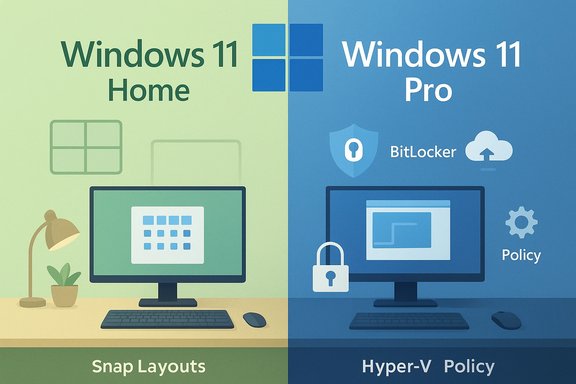
Windows 11’s split between Home and Pro still sparks the same practical question for buyers and upgraders: do you pay for Pro’s extra controls or stick with Home’s simpler, lower-cost experience? The concise answer from a detailed comparison is this—for most people, Windows 11 Home is the right choice; upgrade to Pro only if you have a specific, measured need for BitLocker, Hyper‑V/Windows Sandbox, domain/Azure AD management, Remote Desktop hosting, or centralized update/policy controls. This feature-first verdict underpins the practical upgrade advice that follows, with verified technical details, checks you must run before you pay, and the operational risks you should plan for. c
Microsoft ships the same core Windows 11 user experience across editions—centered Start, Snap Layouts and Groups, Widgets, Copilot integrations, Windows Security (Microsoft Defender), Auto HDR and DirectStorage where hardware supports them. The visible desktop, built-in apps, and most day‑to‑day features are identical between Windows 11 Home and Windows 11 Pro. The edition split exists to separate consumer cnagement, encryption, remote-hosting, and virtualization features businesses and power users need. What Pro adds are advanced system and administrative capabilities—not performance of core apps. In other words, Pro is not a “fastifferent toolkit for people who need tighter control or enterprise-grade features. If those tools don’t solve a concrete problem for you, the upgrade cost is rarely justified.
Practical next steps: run the Microsoft hardware checks, back up your data and export any existing encryption keys, and if you decide to buy, use Settings → System → Activation → Open Store or Change product key to upgrade. If you’re planning a fleet deployment or have regulatory requirements, document your key escrow and update‑management strategy before flipping the switch.
Source: filmogaz.com https://www.filmogaz.com/105187]
 Background / Overview
Microsoft ships the same core Windows 11 user experience across editions—centered Start, Snap Layouts and Groups, Widgets, Copilot integrations, Windows Security (Microsoft Defender), Auto HDR and DirectStorage where hardware supports them. The visible desktop, built-in apps, and most day‑to‑day features are identical between Windows 11 Home and Windows 11 Pro. The edition split exists to separate consumer cnagement, encryption, remote-hosting, and virtualization features businesses and power users need. What Pro adds are advanced system and administrative capabilities—not performance of core apps. In other words, Pro is not a “fastifferent toolkit for people who need tighter control or enterprise-grade features. If those tools don’t solve a concrete problem for you, the upgrade cost is rarely justified.What’s shared (the baseline)
Both Home and Pro give you:- The modern Windows 11 UI, core productivity features (Snap Layouts, File Explorer tabs, virtual desktops).
- Built‑in security basics: Microsoft Defender Antivirus, firewall, Secure Boot and TPM support when hardware provides it.
- Native gaming features that matter to most gamers: Auto HDR, DirectStorage (hardware permitting).
- Common developer tools like Windows SL) where supported.
What Windows 11 Pro actually adds — the functional differences
The headline Pro-only features that drive the upgrade decision are:- BitLocker full-disk encryption (and richer encryption management).
- Group Policy Editor, domain join, and Azure AD / Intune enrollment for centralized device and policy management.
- Hyper‑V and Windows Sandbox for native virtualization and disposable test environments.
- Remote Desktop (host) capability so the PC can accept inbound RDP sessions.
- Windows Update for Business controls (policy-based deferrals and staged updates).
- Higher hardware ceilings (Pro supports substantially larger maximum RAM and multi‑CPU/workstation configurations).
BitLocker vs. Home device encryption: why the difference matters
- Windows 11 Pro includes BitLocker, Microsoft’s full-disk enise management options and integration with TPM hardware. BitLocker protects OS and data volumes and lets administrators manage recovery keys centrally—critical for business continuity and compliance scenarios.
- *offer “device encryption”** on many modern devices, but this is a simplified, hardware-dependent feature and lacks the BitLocker management surface (granular policies, BitLocker to Go management, enterprise key escrow). Device encryption is convenient for consumers but not a substitute for managed BitLocker in corporate contexts.
Virtualization and testing: Hyper‑V and Windows Sandbox
- Hyper‑V is a native Microsoft hypervisor included on Pro. It’s tightly integrated with Windows, ideal for developers, QA engineers, and IT pros who run VMs locally. Client Hyper‑V requires SLAT-capable CPUs and is feature-rich compared with free third‑party alternativ
- Windows Sandbox creates a clean, disposable Windows instance for testing apps safely—very useful when you need to run untrusted installers or experiment without risking the hosusive to Pro and is an efficient lightweight virtual environment.
- Group Policy Editor, Domain Join, Azure AD/Intune: essential when managing a fleet, enforcing consistent security policies, and integrating devicesty systems. Home lacks these tools, so managing many Home devices quickly becomes manual or dependent on third‑party tooling.
- Remote Desktop hosting: if you need a PC to accept inbound RDP sessions (pport, or running a workstation headlessly), Pro is required. Home remains an RDP client only.
- Windows Update for Business: Pro provides more granular update deferral and staging options—important to avoid disruptive reboots in production environments. For home users this is rarely essential.
Hardware ceilings and performance myths
A persistent myth is that “Pro will make my PC faster.” That’s false. The OS kernel and scheduling behavior are the same across editions; edition choice does not increase single‑thread or GPU performance. Pro’s hardware limits are about scalability for workstation or server-like uses (theoretical maximums that most users never reach):- Home: typically cited maximum memory ≈ 128 GB and support for one physical CPU socket.
- Pro: typically cited maximum memory ≈ 2 TB and support for two physical CPUs and many more cores.
- Historically, Windows 11 Pro retail has been listed around $199, with Home retail lower (figures vary by outlet and time). Upgrading from Home to Pro in‑OS (Microsoft Store) often shows a lower in-place upgrade price (commonly $99 in past offers), but pricing changes and promotions occur regularly. Verify the in‑Store price at the time you purchase.
- Beware deeply discounted third‑party license “deals.” Limited promotions exist (e.g., StackSocial or other sellers) and can be attractive, but licenses from unknown sellers may have transfer or activation risks—stick to Microsoft ounless you understand the license terms. Recent reports show occasional cut-price offers for Pro licenses; treat these as time‑sensitive and verify validity before buying.
Practical upgrade checklist — decide methodically
- Inventory needs:
- Do you need BitLocker with key escrow, host RDP, Hyper‑V/Sandbox, domain/Azure AD join, or update deferrals?
- If yely justified.
- Verify hardware:
- Check TPM 2.0, virtualization‑capable CPU (VT‑x/AMD‑V), and any firmware settings required for Hyper‑V or BitLocker. Microsoft’s requirements page is the authoritative reference for minimum specs.
- Backup and export keys:
- Back up your data ande copy of any BitLocker recovery keys before enabling encryption. If migrating from Home (with device encryption), confirm how keys are stored and exported.
- Choose an upgrade path:
- In‑place via Settings → System → Activation → Open Store (recommended for most users), or use a Pro product key via Change product key. Microsoft documents these methods.
- Test in a controlled environment:
- If deploying many machines or enabling BitLocker across a fleet, trial the process on a secondary device or VM to catch unanticipated behavior.
Step-by-step: upgrading from Home to Pro
- Method A — Microsoft Store (easiest):
- Settings → System → Activation → Upgrade your edition of Windows → Open Store.
- Buy Pro and follow prompts to upgrade and restart. The system will detect activation state and digital license handling.
- Method B — Product key:
- Ensure Windows Home is activated.
- Settings → System → Activation → Change product key.
- Enter the 25-character Pro key and fearn.microsoft.
- If you changed a major hardware component (e.g., motherboard), activation may require re-linking your Microsoft account or using the Activatioosoft documents reactivation after hardware changes.
Real-world risks and pitfalls — the parts most users miss
- Encryption surprises: automatic device encryption on modern OEs toggle on unexpectedly during reinstalls or transitions. If recovery keys aren’t exported, this can lead to permanent data loss. Always proactively back up and record keys.
- *License confusiontchy sellers can be invalidated or non-transferable. OEM keys are often tied to the hardware and can’t be moved to a new device. Check terms before buying.
- Management complexity: enabling Pro features like Group Policy and BitLoan administrative plan leads to misconfigurations that can lock users out or create security gaps. Organizations shouAD enrollment and key-escrow policies before mass deployment.
- Update timing & stability: major Windows xample, 24H2) have historically caused intermittent compatibilitysions for some users, especially around gaming stacks and drivers. Pro’s update deferral tools help, but delaying a feature update is not a guarantee against future regressions—test before mass rollout.
- Misplaced expectations: Pro does not make your games run faster or magically improve driver suponey on hardware upgrades (GPU, SSD, RAM) if raw performance is your goal.
Who should upgrade — clear rule-of-thumb guidance
- Upgrade to Windows 11 Pro if any of the following apply:
- You ultiple PCs and need centralized policy controls (Group Policy/Intune/Azure AD).
- You require BitLocker with centralized recovery key management for compliance or to protect regulated data.
- n regularly and want Hyper‑V or use Windows Sandbox for testing untrusted code.
- You need to host Remote Desktop sessions (inbound RDP).
- You plan to build a workstation approaching Pro’s hardware ceilings (multi‑CPU or extremely large RAM).
- Stick with Windows 11 Home if:
- You’re or gamer who mainly browses, streams, or uses office productivity apps. Home covers these use cases well.
- You don’t intend to run VMs frequently and are comfortable ualization when needed.
- You don’t need centralized enterprise controls or host RDP sessions.
Cost-benefit examples (short scenarios)
- Casual user / student:
- Keep Home. No measurable benef upgrade cost and spend on an SSD or RAM if performance is a concern.
- Power user who occasionally runs VMs:
- Evaluate VirtualBox/VMware vs. Pro. If you need Windows-native Hyper‑V integration and Sandbox convenience, buy Pro; otherwise stick wusiness owner handling regulated data:
- Buy Pro and pair with Intune/Azure AD for BitLocker key escrow and centralized policy enforcement. The license cost is modest relative to compliance risk mitigation.
- Developer / IT admin:
- Pro is usually worth it for Hyper‑V, Sandbox, Group Policy, and domain join. Test upgrade in a lab and document key/backup processes first.
Final assessment and practical upgrade advice
- Most users: Keep or buy Windows 11 Home. It delivers the modern Windows experience and strong baseline security without extra cost or complexity.
- Upgrade to Pro when you have a specific operational need—BitLocker with key management, host RDP, Hyper‑V/Sandbox, domain/Azure AD integration, or managing a fleet with Windows Update for Business. Don’t buy Pro as a generic “better” edition.
- Before upgrading: inventory requirements, verify TPM and virtualization support, back up all data and recovery keys, and purchase from trusted channels. Test features on a secondary machine or VM when possible.
Conclusion
Windows 11 Home and Pro share the same modern user experience; the difference is a toolbox of management, encryption, virtualization, and update controls that serve business and power workflows. The right approach is pragmatic: confirm whether Pro’s exclusive features solve a real problem in your workflow, relative to the upgrade cost, and plan key management and deployment carefully. For the majority of consumers and gamers, Home remains a better economic and operational choice. For IT admins, developers, small-business owners, and anyone managing sensitive data or multiple devices, Pro provides essential tools that justify the investment—if you deploy them responsibly.Practical next steps: run the Microsoft hardware checks, back up your data and export any existing encryption keys, and if you decide to buy, use Settings → System → Activation → Open Store or Change product key to upgrade. If you’re planning a fleet deployment or have regulatory requirements, document your key escrow and update‑management strategy before flipping the switch.
Source: filmogaz.com https://www.filmogaz.com/105187]