

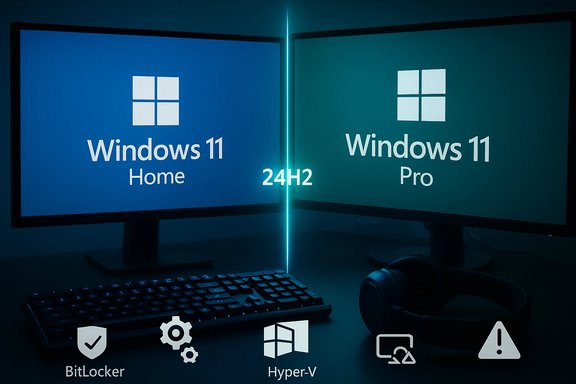
Windows 11’s edition choices and its latest 24H2 feature update have collided into a single, messy decision point for many PC owners: stick with Home, pay for Pro, or hold off on 24H2 because it’s causing broad instability for gamers and some workflows. The practical reality is simple but nuanced: Windows 11 Home continues to cover the vast majority of consumer needs, while Windows 11 Pro remains the right choice when you truly need enterprise-grade controls, BitLocker key management, virtualization, or device/identity management—and the 24H2 rollout has added a fresh reason to delay upgrading unless you have a compelling feature-based requirement or are prepared to troubleshoot.
Windows editions have always separated convenience from control. In Windows 11 that pattern continues: the core user experience (centered Start, Snap layouts, Copilot features, built-in Defender, Auto HDR, DirectStorage) is shared across Home and Pro, but Pro layers on tools intended for enterprises, IT admins, developers, and power users. The recent 24H2 feature update aimed to deliver refinements and new capabilities, but a raft of compatibility and performance regressions—especially around gaming features such as Auto HDR and interactions with anti‑cheat and audio stacks—has made the choice to update less straightforward.
Unverifiable or rapidly changing claims (for example, promocode prices, the timing of a specific OEM driver hotfix, or the precise rollout schedule for a Microsoft patch) are flagged in-text and should be verified before making high-consequence choices like mass fleet upgrades or a last‑minute update before an esports event.
The practical takeaway is straightforward: pay for Pro only if you will actually use Pro’s features; and install 24H2 only when your hardware, drivers, and primary applications are confirmed compatible. That approach minimizes downtime, prevents data‑loss scenarios, and keeps gaming rigs from becoming accidental test beds for unresolved OS issues.
Source: ZDNET https://www.zdnet.com/article/windo...-24h2-update-is-a-nightmare-for-many-gamers/]
 Background
Windows editions have always separated convenience from control. In Windows 11 that pattern continues: the core user experience (centered Start, Snap layouts, Copilot features, built-in Defender, Auto HDR, DirectStorage) is shared across Home and Pro, but Pro layers on tools intended for enterprises, IT admins, developers, and power users. The recent 24H2 feature update aimed to deliver refinements and new capabilities, but a raft of compatibility and performance regressions—especially around gaming features such as Auto HDR and interactions with anti‑cheat and audio stacks—has made the choice to update less straightforward.Windows 11 Home vs. Windows 11 Pro — the practical overview
What both editions give you (the shared baseline)
Both Home and Pro deliver the modern Windows 11 experience: a refreshed UI, core security (Microsoft Defender, Secure Boot, TPM 2.0 requirements on compatible systems), gaming features (Auto HDR, DirectStorage where supported), and productivity improvements. If your daily work is browsing, streaming, office apps, light photo/video editing, or typical schoolwork, you already have the features that matter.What Pro adds (the difference that actually matters)
Windows 11 Pro adds several practical capabilities that Home does not:- BitLocker full-disk encryption with enterprise-friendly recovery key management and administrative controls.
- Domain join, Group Policy, and Azure AD integration for centralized configuration and identity-based controls.
- Remote Desktop hosting (Pro can act as an RDP host; Home can only connect out).
- Hyper‑V and Windows Sandbox for native virtualization and safe, disposable test environments.
- Windows Update for Business / update deferral controls and other management tooling.
- Higher hardware limits and workstation capabilities for multi-CPU and server-class RAM requirements.
Who should upgrade to Pro (straightforward criteria)
Upgrade to Pro if any of the following apply:- You require administrable drive encryption and centralized recovery management.
- You must host Remote Desktop sessions or join an Active Directory domain.
- You run nested virtualization, professional VMs, or need Hyper‑V integration.
- You manage fleets of devices and need Azure AD / Intune enrollment and Group Policy.
- Your workflows demand Pro-only developer or security tooling (Windows Sandbox, advanced WIP/Microsoft Purview integration).
Cost, licensing and upgrade mechanics — what to check before you buy
- Retail and upgrade prices fluctuate. Historically the Home→Pro in-place upgrade sits well below buying a full Pro retail license, but prices change and third‑party deals can mask OEM/transfer restrictions. Treat cheap keys from unknown sellers with caution.
- License type matters: OEM keys are usually tied to one machine; retail keys are transferable. Volume and Enterprise licensing bring different entitlements and lifecycle features. Confirm transferability before purchase.
- Upgrade path: the supported in-place method is via Settings → System → Activation (enter a Pro key or follow the Store purchase flow). A clean ISO can be used if you prefer a fresh install, but digital licenses tied to hardware will be recognized by Microsoft activation servers. Back up first.
Security and operational pitfalls you must plan for
- BitLocker protects data, but encryption without safe key management can cause irrecoverable data loss. If you enable BitLocker, export your recovery key, store it safely, or use an enterprise key escrow solution. Pro’s power requires corresponding process discipline.
- Pro expands control surface—misconfigured Group Policy or update settings can lock out users or break applications if policies are applied carelessly. Test policies in a non-production environment first.
- Management features may push you toward cloud subscriptions (Intune, Microsoft 365, Purview) if you want lifecycle automation—Pro does not magically include cloud services. Confirm any dependent cloud tool licensing before committing to Pro for organizational features.
Step-by-step upgrade checklist (practical workflow)
- Inventory: list the Pro features you will use and verify hardware support (CPU virtualization support for Hyper‑V, trusted platform module for BitLocker best practices).
- Backup: create a full image or at least a verified cloud backup of critical data. Export existing Drive/Device encryption recovery keys.
- Purchase: prefer Microsoft Store or a reputable retailer for a retail license. Validate transferability if future reuse is a concern.
- Upgrade: Settings → System → Activation → Change product key/Store purchase; reboot and verify features (BitLocker, Hyper‑V, Windows Sandbox, Remote Desktop).
- Post-upgrade configuration: test BitLocker key escrow, Azure AD join or Group Policy deployment, and any virtualization networking you need. Document everything.
The 24H2 update: what went wrong and why gamers should be cautious
Overview of the 24H2 rollout problems
Windows 11’s 24H2 feature update shipped with fixes and new features, but also surfaced multiple compatibility regressions across audio, graphics, anti‑cheat, and device drivers. Gamers reported game crashes, color/Auto HDR rendering issues, stuttering and frame‑rate regressions, and in some cases Blue Screens of Death tied to anti‑cheat and certain drivers. Microsoft has acknowledged many issues and applied compatibility holds to block update delivery to affected devices, but the situation remains uneven across hardware and titles.The gaming-specific pain points (summary)
- Auto HDR causing crashes and incorrect color rendering. Auto HDR, a feature designed to upscale SDR content to HDR, has caused some games to crash or display wildly inaccurate colors after installing 24H2. Microsoft placed compatibility holds for affected systems to prevent forced updates until fixes land.
- Easy Anti‑Cheat interactions and BSODs. Certain combinations of anti‑cheat software and modern Intel CPUs produced memory or kernel errors resulting in blue screens, hitting competitive multiplayer environments hard.
- Driver and GPU-related performance regressions. Some cumulative updates and driver mismatches produced lower FPS and frame‑pacing issues on a range of systems; GPU vendors have sometimes issued driver updates to address regressions.
- Game-specific cases (Ubisoft and others). Microsoft blocked 24H2 delivery on PCs with certain Ubisoft titles after reports of crashes; Ubisoft issued game-side hotfixes for some titles, but broader fixes required OS/driver updates.
Why a feature meant to improve visuals broke games
Auto HDR depends on tight coordination between the OS, GPU drivers, display handling, and game engines. The 24H2 changes apparently altered display composition or color handling pathways in ways that exposed subtle driver or engine assumptions, producing crashes, color mis‑mapping, and stability regressions. When low‑level APIs or driver expectations shift, games (and anti‑cheat modules that run in kernel space) can fail catastrophically. The bottom line: a single subsystem change can cascade through the gaming stack.Practical guidance for gamers and cautious users
Immediate actions if you already installed 24H2 and you’re seeing issues
- If gaming is mission-critical, consider rolling back: Settings → System → Recovery → Go back to the previous version (available for a limited time after upgrade). This frequently restores stability for affected titles.
- Disable Auto HDR: a reliable workaround when color abnormalities or crashes stem from HDR upconversion. Settings → Display → HDR → toggle off Auto HDR.
- Update GPU and audio drivers from OEMs rather than relying solely on Windows Update; vendors often push hotfix drivers addressing regressions introduced by OS changes.
- Check Microsoft’s compatibility hold and known issues pages before forcing the update; Microsoft sometimes blocks affected devices automatically. Forcing the update via media tools can expose you to unresolved bugs.
If you haven’t updated yet — recommended strategy
- Delay 24H2 until official patches and vendor drivers surface; wait for at least several cumulative patches if you depend on stable gaming or professional workflows.
- Use the Target Feature Update Version policy or Group Policy (if available) to stay on the current stable build for now. This is especially useful in small-business or enthusiast contexts.
- Monitor game developers and GPU vendors for game-specific or driver fixes—UBISOFT, EA, NVIDIA, AMD, and others published targeted hotfixes in many cases.
Cross-checking claims and reliability
This article’s guidance and the comparative feature list were cross-referenced against multiple independent reports and practical upgrade guides contained in recent technical briefings and updates from the Windows ecosystem. The Home/Pro feature breakdown (BitLocker, Hyper‑V, Group Policy, Remote Desktop hosting) is consistently documented across technical write-ups and upgrade workflows in contemporary Windows coverage, and the 24H2 problems (Auto HDR, Easy Anti‑Cheat BSODs, audio driver breakage, and blocked rollouts for affected devices) have been repeatedly reported by affected users and acknowledged via compatibility holds in official channels. Where specific price or timing numbers were cited in the original materials, those figures were treated as variable and flagged as subject to retailer and regional changes. If you rely on exact dollar amounts, verify them at purchase time.Unverifiable or rapidly changing claims (for example, promocode prices, the timing of a specific OEM driver hotfix, or the precise rollout schedule for a Microsoft patch) are flagged in-text and should be verified before making high-consequence choices like mass fleet upgrades or a last‑minute update before an esports event.
Editor’s assessment — strengths, weaknesses and the risk calculus
Strengths
- Windows 11 Home gives a modern, secure baseline for everyday users without forcing enterprise complexity.
- Windows 11 Pro offers powerful, proven tools (BitLocker, Group Policy, Hyper‑V, RDP host) that reduce administrative overhead and improve security and manageability where they are used correctly.
- Microsoft’s compatibility holds and reactive hotfixes show the company is actively managing the 24H2 fallout—even if response times vary.
Weaknesses and risks
- Feature/driver fragility: The 24H2 update demonstrates how delicate the interaction between OS, drivers, and third‑party components (audio stacks, anti‑cheat, vendor drivers) can be. This yields real-world risks for gamers and production environments.
- Licensing complexity: Cheap keys and different license types can create long-term support and transferability problems for consumers.
- Administrative overhead: Pro gives you power but also responsibility—poorly implemented encryption or policies can cause severe operational headaches.
Bottom-line risk calculation
- For casual users, students, streamers, and most home gamers: stick with Windows 11 Home and delay 24H2 if you value stability over new minor features.
- For IT administrators, security-conscious professionals, developers who use VMs, and businesses requiring domain/Azure AD features: choose Windows 11 Pro and plan your rollout with staged testing, key management, and driver validation.
- For competitive or heavy gamers: treat 24H2 as a potential disruptor. If you need a guaranteed stable setup for tournaments or streaming, pause the update until vendor/OS patches arrive.
Actionable checklist — what to do this week
- If you run critical games or production workloads: Pause upgrades and backup your system image now.
- If you are considering Pro for a single feature (e.g., BitLocker): weigh the cost of the upgrade against alternatives (third-party encryption, cloud-managed VM environments). Confirm key escrow plans.
- If you’ve already upgraded to 24H2 and experience troubles: roll back, disable Auto HDR, update GPU/audio drivers, and monitor vendor advisories.
- If you manage fleets: stage Pro and 24H2 upgrades in a test ring, validate driver compatibility, and implement a centralized rollback plan.
Conclusion
The choice between Windows 11 Home and Pro remains one of needs versus cost: Home delivers the full modern Windows experience for most people, while Pro is the deliberate investment for those who need management, encryption, and virtualization. The recent Windows 11 24H2 rollout has complicated the upgrade calculus—especially for gamers—by exposing fragile interactions between OS changes, GPU and audio drivers, game engines, and anti‑cheat software. For the majority of users the safest path is conservative: choose the edition that matches real, enumerated needs, and delay major feature updates until vendor patches and Microsoft fixes have proven effective in real-world testing.The practical takeaway is straightforward: pay for Pro only if you will actually use Pro’s features; and install 24H2 only when your hardware, drivers, and primary applications are confirmed compatible. That approach minimizes downtime, prevents data‑loss scenarios, and keeps gaming rigs from becoming accidental test beds for unresolved OS issues.
Source: ZDNET https://www.zdnet.com/article/windo...-24h2-update-is-a-nightmare-for-many-gamers/]
