

Windows 11’s split into Home and Pro still causes questions: two editions share the same modern UI, Copilot, Widgets, Snap Layouts and gaming enhancements, yet one costs more and unlocks a suite of management, encryption, and virtualization tools. This deep-dive compares Windows 11 Home vs. Windows 11 Pro, verifies the important technical specifics, flags real-world risks, and delivers concrete upgrade advice so you spend money only when the benefits outweigh the cost.
Windows 11 launched as a single modern experience, but Microsoft continues to sell multiple editions to serve different audiences. The Home edition targets consumers and gamers; the Pro edition targets professionals, IT administrators, developers, and small-business owners who need advanced controls, encryption management, virtualization, and domain/cloud identity features. Both editions share the same core feature set—so the choice is not about interface or day-to-day apps, it’s about control, security posture, and enterprise capabilities.
In practice this means most users get the full Windows 11 experience without paying extra. Pro is a tier built for specific workflows: joining domains, hosting Remote Desktop sessions, running Hyper‑V VMs, using BitLocker, and applying Group Policy. Those capabilities matter only if you plan to use them.
That said, Pro supports higher hardware ceilings:
Key purchase hygiene:
Adopt a conservative path: inventory features, back up data, buy a legitimate license, and test Pro features on a secondary machine or VM before committing in production. The upgrade is straightforward—but the security and management capabilities you unlock demand responsible handling.
Source: ZDNET Windows 11 Home vs. Windows 11 Pro: I compared both versions, and here's my upgrade advice
 Background
Windows 11 launched as a single modern experience, but Microsoft continues to sell multiple editions to serve different audiences. The Home edition targets consumers and gamers; the Pro edition targets professionals, IT administrators, developers, and small-business owners who need advanced controls, encryption management, virtualization, and domain/cloud identity features. Both editions share the same core feature set—so the choice is not about interface or day-to-day apps, it’s about control, security posture, and enterprise capabilities.In practice this means most users get the full Windows 11 experience without paying extra. Pro is a tier built for specific workflows: joining domains, hosting Remote Desktop sessions, running Hyper‑V VMs, using BitLocker, and applying Group Policy. Those capabilities matter only if you plan to use them.
Overview: what each edition gives you
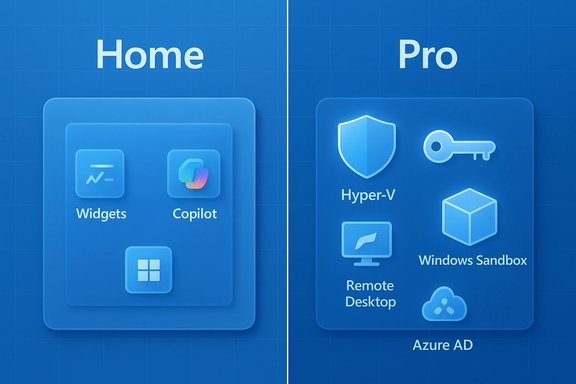
Both Windows 11 Home and Pro include:- The modern Windows 11 UI (centered Start, new Taskbar, Widgets)
- Productivity features: Snap Layouts, File Explorer tabs, Clipchamp
- Security basics: Windows Security (Microsoft Defender), firewall, Secure Boot and TPM requirements where supported
- Gaming features: Auto HDR, DirectStorage (where hardware supports them)
- AI features: built‑in Copilot integrations, available as part of Windows 11 feature updates.
- BitLocker full-disk encryption and more granular encryption management
- Group Policy and domain / Azure Active Directory join
- Remote Desktop hosting (accept inbound RDP connections)
- Hyper‑V and Windows Sandbox for virtualization and safe testing
- Windows Update for Business controls to defer and manage updates
-ings (more RAM and multi‑CPU support).
Security: BitLocker, device encryption, and the management gap
BitLocker vs. Device Encryption
- Windows 11 Pro includes BitLocker, Microsoft’s full-disk encryption solution, which offers robust options for encrypting OS volumes, data volumes, and removable drives. It integrates with TPM hardware and enterprise key management. Microsoft documents BitLocker as available on Pro, Enterprise, and Education SKUs.
- Windows 11 Home supports “device encryption” on many modern devices, but that is a simplified, hardware-dependent feature and lacks BitLocker’s management and advanced recovery options. Device encryption can be automatically enabled on some devices, but it does not give the same administrative surface as BitLocker.
Windows Security basics and Defender
Both editions ship with Microsoft Defender, firewall, and core protections. For everyday users, Defender is sufficient and continuously improved; upgrading to Pro does not inherently strengthen the day‑to‑day anti‑malware posture beyond enabling BitLocker and enterprise controls.Management and remote access: Group Policy, domain join, Intune/Azure AD
Windows 11 Pro is for managing devices at scale:- Group Policy Editor: configure and enforce settings across machines.
- Domain join / Azure AD join: integrate with corporate identity.
- Windows Update for Business: delay or stage updates to avoid disruptions in production environments.
Virtualization and testing: Hyper‑V and Windows Sandbox
- Hyper‑V: native hypervisor for running virtual machines, available on Windows 11 Pro. It’s tightly integrated and ideal for developers, testers, and IT pros who need isolated environments.
- Windows Sandbox: a disposable, throwaway desktop environment for testing untrusted apps—exclusive to Pro. When closed, the sandbox discards all changes, minimizing risk.
Hardware limits and performance: real ceilings, not speed boosts
A persistent myth is that Pro makes a PC faster. It does not. The OS kernel and core scheduling are the same across editions; Pro’s benefits are functional, not performance-based.That said, Pro supports higher hardware ceilings:
- Physical memory: Windows 11 Home supports up to 128 GB, while Windows 11 Pro supports up to 2 TB of RAM. Microsoft’s memory limits documentation lists these values explicitly.
- CPU support: Pro supports multi‑CPU configurations (two physical CPUs and higher logical core counts) in scenarios such as workstation motherboards; Home is limited to a single CPU socket and lower core limits. These limits matter for workstation builds doing video rendering, large-scale simulations, or heavy virtualization.
Updates, control, and enterprise features
Windows 11 Pro exposes Windows Update for Business controls (via Group Policy/Intune) that let admins defer feature updates and manage rollout. Home keeps updates more automated with limited deferral windows, which is usually fine for consumers but frustrating in production environments where stability is essential. Pro does not grant free cloud subscriptions or Microsoft 365 licenses; many enterprise-grade data protection and lifecycle features require separate subscriptions (Intune, Purview, Microsoft 365 E3/E5). Don’t conflate edition with cloud entitlements.Pricing and licensing: what you’ll actually pay
Microsoft sells a full Windows 11 Pro retail license (the Microsoft Store listing is $199.99 for the Pro download), and upgrades from Home to Pro are commonly offered at a lower price through the in‑OS store or product key entry. Upgrades from Windows 10 to Windows 11 remain free for eligible devices when staying within the same edition. Common market realities:- OEM systems typically ship with Windows 11 Home to lower the device cost.
- Upgrading a Home OEM to Pro is supported in Settings > System > Activation; the upgrade price varies by market and promotions.
- Beware third‑party “gray market” keys; they can be illegitimate or non-transferable. Purchasing through Microsoft or trusted resellers minimizes activation and support r
Practical upgrade workflow (step‑by‑step)
- Inventory: Confirm which Pro-exclusive features you actually need (BitLocker management, Hyper‑V, Remote Desktop hosting, Group Policy, Azure AD join).
- Backup: Full backup of important data. If you already use device encryption, export any existing recovery keys.
- Acquire license: Prefer Microsoft Store or authorized channels. If you buy safe and tie it to a Microsoft account if possible.
- Upgrade: Settings → System → Activation → Change product key or Open Store → enter key or purchase the upgrade.
- Verify: Confirm activation, test BitLocker and Hyper‑V, and configure Group Policy or Intune enrollment as needed.
- Secure: For BitLocker, export and securely store recovery keys (Microsoft account, enterprise key escrow, or offline safe storage). Mismanaged keys are the top risk of encryption. ([learn.microsoft.com](BitLocker Overview risks and common pitfalls
- Automatic encryption surprises: OEMs and fresh installs can enable device encryption automatically. If you don’t back up or register the recovery key (to your Microsoft account or an IT key escrow), you may permanently lose access. Always export recovery keys before changing system drives or reinstalling.
- Buying the wrong key: Deep-discount license keys from unknown sellers can be OEM-only keys tied to specific hardware, volume license keys with activation restrictions, or outright stolen keys. Prefer reputable channels.
- Misconfiguration after enabling Pro features: Group Policy and BitLocker, when poorly configured, can lock users out or prevent remote recovery. Document your changes and test on a non‑critical device first.
- Assuming Pro equals cloud features: Many enterprise controls require cloud services (Intune, Azure AD) or additional licenses—Pro alone is not a substitute for an enterprise subscription. Verify dependencies before committing.
Short decision guide: who should pick which edition
- Choose Windows 11 Home if:
- You are an average consumer—web, streaming, office productivity, light gaming.
- You want a straightforward setup with automatic updates and no extra management complexity.
- You don’t need virtualization, domain join, BitLocker management, or advanced update controls.
- You’re on a budget and don’t want to pay for features you’ll never use.
- Choose Windows 11 Pro if:
- You manage or administer multiple PCs, join domains, or need Azure AD integration.
- You require full BitLocker and centralized recovery key management.
- You run Hyper‑V or Windows Sandbox for development, testing, or running VMs.
- You need to host Remote Desktop sessions, implement Group Policy, or use Windows Update for Business.
Recommendation scenarios and cost justification
- Casual user / student / home office (budget-focused): Stick with Home. The security and performance basics are there, and you avoid an upgrade cost that likely won’t provide value.
- Power user who experiments with VMs occasionally but prefers free third-party VMs: Evaluate whether VirtualBox/VMware covers your needs; if yes, stay with Home.
- Developer / IT pro who needs integrated virtualization, sandboxing, or host RDP: Pro is worth the price—Hyper‑V and Sandbox reduce friction and licensing complexity compared with third-party tools.
- Small business / regulated data handler: Pro, ideally combined with Intune/Azure AD and documented BitLocker key escrow practices. The cost of the Pro upgrade is often trivial compared with the risk mitigation it enables.
Thingn’t true (mythbusting)
- Myth: “Pro will make my PC faster.” Reality: Edition does not change core performance; hardware and drivers do. Pro only increases management, encryption, and hardware ceiling options.
- Myth: “You can’t get Windows 11 for free.” Reality: Eligible Windows 10 systems can upgrade free to the equivalent Windows 11 edition; buying Windows 11 Home retail is only necessary for fresh builds without OEM licenses. Confirm eligibility with Microsoft’s upgrade tool.
- Myth: “You must have Pro to use professional apps.” Reality: Most professional apps run fine on Home; Pro matters when you need system-level features (domain join, Hyper‑V, BitLocker management).
Final verdict and upgrade advice
Put simply: for most people, Windows 11 Home is the right choice—it delivers the modern Windows experience, strong built-in protection, and game/creative features without additional cost or configuration complexity. If you’re a power user, developer, IT administrator, or business owner who values BitLocker, Hyper‑V, Group Policy, or Remote Desktop hosting, Windows 11 Pro is worth the upgrade—but buy it for the right reason, not because it sounds “better.”Key purchase hygiene:
- Verify hardware support for Pro-only features (TPM, virtualization extensions, motherboard CPU sockets).
- Buy licenses from Microsoft or respected retailers.
- Back up and export encryption recovery keys before enabling BitLocker.
- If you’re in a managed environment, coordinate upgrades with your IT or compliance teams.
Quick reference: the most important facts at a glance
- Shared baseline: same Windows 11 UI, Copilot, Snap Layouts, Defender, Auto HDR.
- Pro-only highlights: BitLocker, Group Policy, domain/Azure AD join, Hyper‑V, Windows Sandbox, Remote Desktop hosting.
- Pricing snapshot: Microsoft sells Windows 11 Pro retail around $199.99; Home-to-Pro upgrade prices vary and often appear in the in-OS Store. Verify current pricing at purchase time.
- Hardware ceilings: Home memory cap ≈ 128 GB; Pro cap ≈ 2 TB (useful for workstation builds).
Adopt a conservative path: inventory features, back up data, buy a legitimate license, and test Pro features on a secondary machine or VM before committing in production. The upgrade is straightforward—but the security and management capabilities you unlock demand responsible handling.
Source: ZDNET Windows 11 Home vs. Windows 11 Pro: I compared both versions, and here's my upgrade advice
