Windows 11 Home vs Pro: Which Edition Fits Your Needs

  • Thread Author
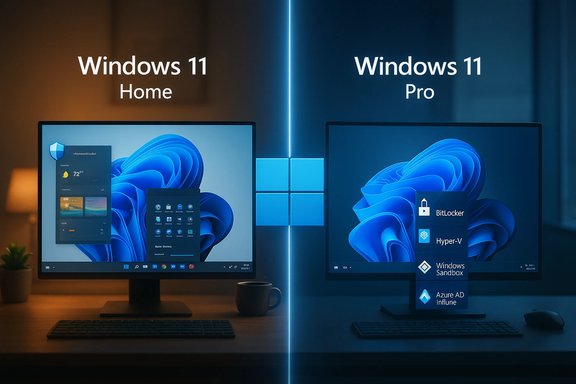
Windows 11’s edition choice is simple on the surface but consequential in practice: Home delivers the full consumer experience with core security and entertainment features, while Pro layers in management, encryption, and virtualization tools that matter to developers, IT administrators, and security‑conscious users.

Neon-blue tech setup with a laptop and a large monitor displaying Windows.Background​

Windows 11 has matured since its initial release, evolving from a visual and UX refresh into a platform with distinct edition-level trade‑offs. The shared baseline between Home and Pro includes the refreshed UI, Snap Layouts, Copilot, Microsoft Defender, and gaming enhancements such as Auto HDR and DirectStorage where hardware supports them. That shared baseline means most everyday workflows — browsing, streaming, Office productivity, and casual gaming — run equally well on either edition.
At the same time, Pro continues to exist as the “control and scale” edition: it’s designed for scenarios where device encryption management, domain/Azure AD integration, host Remote Desktop, and built‑in virtualization deliver measurable operational or security value. For buyers, the decision is rarely about performance — edition does not make a PC faster — but about capability, management overhead, and risk posture.

Core feature comparison: what you always get, and what you don’t​

Shared baseline (Home + Pro)​

  • Full Windows 11 UI and modern shell (centered Start, Snap Layouts, Widgets).
  • Built‑in security stack: Microsoft Defender Antivirus, SmartScreen, and anti‑ransomware protections.
  • Consumer features like Auto HDR, DirectStorage (hardware dependent), and Android app support where available.
  • Windows Hello biometric sign‑in support and basic Device Encryption when hardware is present.

Pro‑only highlights​

  • BitLocker full‑disk encryption with enterprise-style recovery key management.
  • Local Group Policy Editor and the ability to join on‑premises domains.
  • Azure AD / Intune enrollment and additional device management capabilities.
  • Hyper‑V virtualization and Windows Sandbox for disposable, isolated testing environments.
  • Host Remote Desktop (RDP) sessions from the PC (Home can only act as a client).
  • Extended hardware ceilings (workstation support for dual physical processors and much larger RAM limits).
These Pro features are not cosmetic. They’re structural: BitLocker changes how you protect data at rest; Group Policy changes how devices are governed across many users; Hyper‑V changes how developers and IT validate builds and test configurations.

Security differences: practical implications​

Windows 11 Home includes device encryption on many modern PCs, protecting data with a hardware‑backed flow when the device supports TPM and secure boot. For many consumers, this is a meaningful baseline improvement over older Windows releases.
Windows 11 Pro adds BitLocker, which is more flexible and administratively robust than the basic device encryption offered on Home. BitLocker supports:
  • Full‑disk encryption across system and secondary drives.
  • Integration with Active Directory or Azure AD for centralized recovery key escrow.
  • Policy controls for encryption methods and key rotation.
If protecting sensitive corporate or regulated data is essential, BitLocker + key escrow reduces the risk of data exposure while enabling recoverability — but it also imposes process requirements: export and securely store recovery keys and build procedures for re‑provisioning devices. Mishandled keys or automatic encryption defaults have caused irretrievable data losses for users who didn’t back up recovery keys; treating encryption as an operational responsibility is critical.

Virtualization, development, and testing workflows​

For developers, testers, and IT professionals the Pro edition is more than a convenience — it’s a time saver.
  • Hyper‑V: Native hypervisor useful for running multiple VMs without third‑party tools. It supports nested virtualization and integrates cleanly with Windows networking and snapshots. This lowers friction for local labs and CI test scenarios.
  • Windows Sandbox: A temporary, disposable Windows instance for running unknown or untrusted software safely. Each sandbox session starts fresh and discards state on close — ideal for quick validation.
  • WSL and network tooling: While Windows Subsystem for Linux runs on Home, Pro provides a tighter fit for advanced networking and virtualization backends used in professional stacks.
Alternative free virtualization solutions (VirtualBox, VMware Workstation Player) exist and satisfy many hobbyist needs. The value of Pro arises when Hyper‑V’s integration, licensing simplicity, or host‑level network virtualization materially shortens workflows or simplifies compliance.

Management and enterprise capabilities​

Windows 11 Pro exists to reduce administrative friction and scale management across multiple devices. Key Pro advantages for businesses:
  • Domain join & Group Policy: Enforce policies across machines without cloud tooling. This is foundational for many enterprises and legacy environments that still rely on Active Directory.
  • Azure AD + Intune: Pro machines can enroll into modern management and conditional access systems, which is the recommended path for remote work and cloud-first security posture.
  • Windows Update for Business: Pro supports more granular update controls and staged deployments, which helps avoid disruptive updates in production. Windows Autopatch and staged rollouts are important in enterprise environments where uptime and compatibility are critical.
However, some powerful enterprise features (advanced DLP, Purview integrations, Autopatch at scale) still require additional server or cloud licenses. Pro is necessary, but not always sufficient, for every enterprise deployment; confirm the full licensing stack when planning a rollout.

Pricing, upgrade mechanics, and license hygiene​

Retail and upgrade pricing fluctuate. Recent snapshots show a retail Windows 11 Pro MSRP near $199.99, while the in‑OS Home → Pro upgrade via the Microsoft Store commonly appears as a lower charge (historically around $99 in some markets). Pricing varies by region, promotions, and reseller. Always confirm the price at purchase time.
Practical upgrade routes:
  • Settings → System → Activation → Upgrade your edition of Windows → Microsoft Store purchase (seamless in‑place upgrade).
  • Settings → System → Activation → Change product key → enter a valid 25‑character Pro product key if you already own one.
Purchase hygiene:
  • Prefer Microsoft or reputable retailers. Avoid unknown discount key marketplaces that sell suspiciously cheap Pro keys; these can be OEM‑locked, volume‑limited, or invalidated later.
  • Distinguish OEM, retail, and volume licenses: OEM keys generally tie to the original motherboard and are non‑transferable; retail keys usually are. Know your intended lifecycle.

Practical trade‑offs and common myths​

  • Myth: “Pro makes my PC faster.” Reality: Edition does not change core performance; hardware and drivers do. Pro is about control, not speed.
  • Myth: “You must buy Windows 11 to get Windows 11.” Reality: Eligible Windows 10 devices qualify for free upgrades to the equivalent Windows 11 edition through Windows Update. Buying retail Home is only necessary for fresh builds without OEM licenses.
  • Real cost: For casual consumers, the incremental value of Pro is often small. For IT environments, the cost of Pro is usually dwarfed by the operational benefits it enables (reduced support calls, compliance posture, centralized recovery keys).

Upgrade decision framework: a structured checklist​

Use this checklist to quickly determine whether Pro is justified:
  • Upgrade to Pro if:
  • You need BitLocker with centralized recovery management.
  • You must host Remote Desktop sessions on the PC.
  • You require Hyper‑V or Windows Sandbox for development/testing.
  • You manage fleets of devices and require Group Policy, domain join, or Azure AD/Intune enrollment.
  • You handle regulated or sensitive data that benefits from enterprise controls.
  • Stick with Home if:
  • Your work is primarily browsing, streaming, consumer gaming, or light productivity.
  • You don’t want to manage encryption keys or enterprise tools.
  • You want to avoid paying extra for features you will rarely use.
If only one Pro feature (e.g., Hyper‑V or BitLocker) is needed, weigh the upgrade cost against the operational benefit that single feature provides. In many small‑scale scenarios, third‑party tools or disciplined backup practices can substitute for Pro features at lower cost — but they may increase management complexity.

Upgrade precautions and operational best practices​

  • Inventory first: Confirm the exact Pro features you will use and ensure hardware compatibility (TPM for BitLocker, CPU virtualization support for Hyper‑V, motherboard and CPU for bigger RAM ceilings).
  • Backup before you flip: Always do a full backup or image snapshot prior to any edition change or major Windows feature update. Export BitLocker recovery keys if enabling encryption.
  • Test on a secondary device or VM: Validate domain join, GPOs, Hyper‑V VMs, and RDP behavior before rolling out to production users.
  • Purchase clean keys: Buy from Microsoft or authorized resellers and link licenses to a Microsoft account where possible to simplify reactivation after hardware changes.
  • Avoid unsupported hacks: Workarounds to unlock Pro features on Home break with updates and increase long‑term support friction. Use supported upgrade paths.

Step‑by‑step: how to upgrade from Home to Pro (concise)​

  • Open Settings → System → Activation.
  • If you already have a Pro key: choose "Change product key" and enter the 25‑character key. Your system will validate and enable Pro features; reboot when prompted.
  • If you don’t have a key: choose the Microsoft Store option and complete the in‑OS purchase; the upgrade is applied automatically and the device reboots as needed.
  • After upgrade: confirm Activation status in Settings → System → Activation and verify Pro features (BitLocker, Hyper‑V, Group Policy Editor). Export or escrow any recovery keys deliberately.

Risk spotlight: what can go wrong and how to mitigate it​

  • Automatic encryption surprises: Some OEM installations and reinstall scenarios enable encryption by default. If you accept defaults and don’t store recovery keys safely, you risk permanent data loss. Export and store recovery keys offline (or in enterprise key escrow) before proceeding.
  • Bad keys from marketplaces: Cheap keys may be volume‑locked, non‑transferable, or rescinded. Avoid suspiciously low offers and verify vendor reputation.
  • Management misconfiguration: Powerful Group Policy or Intune rules can lock users out or break services if rolled out without testing. Stage policies and have rollback plans.
  • Hardware incompatibility: Meeting Windows 11 minimums doesn’t guarantee Pro features run. For example, Hyper‑V requires CPU virtualization features; Pro’s RAM and CPU ceilings still depend on motherboard and CPU physical limits. Check vendor specs.
Flag any claims that lack independent confirmation: if a vendor advertises Pro-exclusive integrations requiring additional subscriptions (for example, advanced Purview or Autopatch benefits), confirm those details against the vendor’s official licensing documents before budgeting. The Pro license is a platform entitlement; many enterprise-grade capabilities still sit behind cloud or server-side subscriptions.

Verdict: who should pay for Pro — and when it’s unnecessary​

For most consumer scenarios — students, families, gamers, general creators — Windows 11 Home is the pragmatic choice. It delivers the modern Windows experience, robust baseline security, and consumer features without additional cost or added administrative complexity.
Choose Windows 11 Pro when the features are operationally essential:
  • You must host RDP sessions, run Hyper‑V workloads, enforce Group Policy, or centrally manage BitLocker keys.
  • Your environment requires device enrollment to Azure AD and the management surface that Pro unlocks.
  • You operate in regulated environments where centralized encryption and recovery tooling materially reduce compliance risk.
When in doubt, inventory the single feature that matters most. If enabling Hyper‑V or BitLocker solves a day‑to‑day problem and saves time or risk, Pro often pays for itself. If the answer is “it might be useful someday,” stick with Home and re-evaluate later; Microsoft supports straightforward in‑place upgrades when required.

Closing summary​

Edition choice is a trade between simplicity and control. Home maximizes ease of use and value for the majority of users. Pro grants administrative control, advanced encryption, and virtualization that are essential in professional and managed contexts. Purchase and upgrade safely: verify hardware compatibility, back up data, store encryption keys, and buy licenses from reputable channels. Those steps convert the theoretical benefits of Pro into real‑world advantages without the preventable headaches that accompany rushed upgrades.


Source: filmogaz.com Windows 11 Home vs. Pro: Upgrade Advice from My Detailed Comparison
 

Attachments

  • windowsforum-windows-11-home-vs-pro-which-edition-fits-your-needs.webp
    windowsforum-windows-11-home-vs-pro-which-edition-fits-your-needs.webp
    107.5 KB · Views: 0
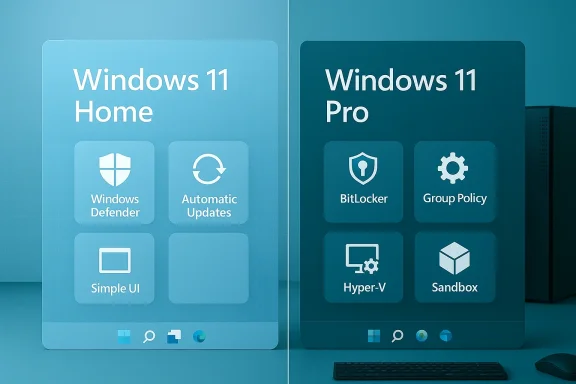
Split-screen Windows 11: Home (left) shows Defender and UI tiles; Pro (right) shows BitLocker and Group Policy.
Windows 11 Home is still the pragmatic choice for the majority of users: it delivers the full modern Windows experience, solid built‑in security, and no‑friction maintenance at a fraction of the cost and complexity of Windows 11 Pro—while Pro remains indispensable for power users, small businesses, and anyone who needs enterprise-grade device control, encryption management, or native virtualization.

Background / Overview​

Windows 11’s edition split is not a performance split; it’s a capability split. Both Home and Pro run the same kernel, share the same UI refinements, and receive the same monthly security updates and baseline protections such as Microsoft Defender, SmartScreen, Secure Boot, and virtualization‑based security. That shared foundation means everyday tasks—web browsing, office productivity, media, and gaming—work equally well on either edition.
What separates Home from Pro is a toolbox of features aimed at governance, encryption, virtualization, and staged update control. These are not cosmetic differences: they change how a device is managed, defended, and integrated into enterprise workflows. For most consumer scenarios, those tools are unnecessary overhead; for IT operations, regulated environments, and many developer workflows, they’re essential.

Windows 11 Pricing and Licensing at a Glance​

Microsoft’s retail pricing and typical upgrade costs create a clear cost calculus for buyers. Historically, Windows 11 Home has been listed in the retail channel around $139.99 while Windows 11 Pro retails near $199.99; upgrading a Home system to Pro through the in‑OS Microsoft Store commonly costs about $99.99. These numbers are broadly representative but can change with promotions, regional pricing, and retailer discounts.
  • Windows 11 Home: typical retail baseline (preinstalled on most consumer PCs).
  • Windows 11 Pro: higher list price, intended for business or advanced users.
  • Home→Pro upgrade: the in‑OS upgrade flow is convenient but not free; expect a mid‑triple‑digit charge in many markets.
A sharp warning applies: deeply discounted product keys offered on gray‑market sites are risky. Numerous reports show these keys can be OEM‑locked, volume‑license keys intended for other channels, or already activated and therefore revoked—resulting in wasted money and support headaches. Buy from Microsoft or trusted retailers when transferability, updates, and future support matter.

Security and Management Differences That Matter​

Both editions ship with the same baseline protections, but Pro adds tools for management, compliance, and recoverability that matter in professional contexts.

What Home gives you (baseline)​

  • Microsoft Defender Antivirus and real‑time protection, firewall, and anti‑ransomware guards.
  • SmartScreen and app reputation checks.
  • Basic device encryption on many consumer hardware configurations when you sign in with a Microsoft account.

What Pro adds (business‑grade controls)​

  • BitLocker full‑disk encryption with enterprise style key recovery options — important for compliance and loss/theft scenarios. Home’s consumer Device Encryption lacks BitLocker’s advanced options.
  • Group Policy controls to lock down features, enforce configurations, and manage behavior across machines.
  • Domain join and Microsoft Entra ID (Azure AD) enrollment for centralized identity and policy management, plus native Intune integration for MDM.
  • Windows Update for Business policies to defer or stage feature updates and reduce surprise rollouts in production fleets.
If your threat model extends beyond the average home user—sensitive corporate data, regulatory controls, or a need to escrow recovery keys—Pro’s management and encryption features provide measurable risk reduction. If not, Home provides a secure, automatically maintained environment with minimal friction.

Virtualization and Remote Workflows for Power Users​

Virtualization and remote access are where the functional gap becomes tangible in daily workflows.
  • Hyper‑V and Windows Sandbox are Pro‑exclusive. Hyper‑V allows you to host virtual machines natively for test environments, nested virtualization, or isolated build servers. Windows Sandbox gives a disposable desktop for opening untrusted files with zero residue. These features accelerate development, QA, and safe testing.
  • Windows Subsystem for Linux 2 (WSL2) works on Home and Pro, enabling a modern developer workflow without needing Pro. Docker Desktop can operate with the WSL2 backend on Home, but Home lacks Hyper‑V Manager and Sandbox convenience. That means many developer tasks are possible on Home, but Pro simplifies native VM management and disposable isolation.
  • Remote Desktop (RDP): Pro can host incoming RDP sessions; Home can only initiate outbound RDP. If you regularly remote into a workstation (for example, to access a powerful home workstation from a laptop), Pro’s hosting capability can be a practical reason to upgrade.
For anyone running multiple VMs, testing system images, or needing ephemeral desktops for malware analysis or suspicious downloads, Pro’s virtualization stack is a time‑saving productivity multiplier.

Performance Parity and Hardware Limits You Should Know​

Edition choice does not change raw CPU scheduling, graphics drivers, or routine performance—there’s no “Pro performance boost.” On identical hardware, day‑to‑day performance, gaming FPS, and app responsiveness are equal across Home and Pro. The edition differences are about scale and capability, not speed.
Hardware ceilings differ and can be decisive for workstation builds:
  • Windows 11 Home: supports a single physical CPU socket and up to roughly 128 GB of RAM in practical guidance.
  • Windows 11 Pro: scales to two physical CPU sockets and up to 2 TB of RAM (workstation class), which matters for high‑end content creation, large VM hosts, or memory‑heavy data workloads.
Always validate RAM and multiprocessor ceilings for production deployments against both Microsoft’s technical documentation and your motherboard/CPU vendor: Microsoft’s published tables are accurate for planning but are dispersed across documentation and can be misread in edge scenarios.

Update Policy: Simplicity vs. Staged Control​

Windows Update behavior is a subtle operational divide with outsized effects in multi‑device environments.
  • Home: update cadence is consumer‑focused and mostly automatic. Pause controls exist but are constrained, and feature updates follow Microsoft’s cadence more closely. This model suits single‑PC owners who prefer “set it and forget it.”
  • Pro: unlocks Windows Update for Business controls, enabling admins to defer feature updates, create deployment rings, and avoid day‑one compatibility surprises. For fleets or workstations where uptime matters, these controls are often worth the Pro license cost in avoided incidents.
If you manage more than a couple of machines, the time saved and the risk reduction from controlled rollouts can justify Pro’s licensing expense.

Real‑World Picks After Hands‑On Testing​

These profiles synthesize practical outcomes observed during daily use under both editions.
  • Choose Windows 11 Home if:
    • You use your PC for web browsing, streaming, office apps, schoolwork, or casual gaming.
    • You want automatic updates and minimal device management overhead.
    • You prefer not to pay extra for features you will rarely use.
  • Choose Windows 11 Pro if any of the following are true:
    • You need BitLocker with enterprise recovery and key escrow.
    • You must host Remote Desktop sessions or join on‑premises domains / Entra ID tenants.
    • You run Hyper‑V or Windows Sandbox for virtualization and testing.
    • You require Group Policy, Intune enrollment, or Windows Update for Business for staged updates.
    • You’re building a high‑end workstation that exceedseds Home’s hardware limits.
In short: Home is the sensible default for most consumer machines; Pro is the right tool for workflows that demand management, compliance, or advanced virtualization.

Upgrade Mechanics and Practical Checklist​

Upgrading is straightforward, but preparation prevents headaches.
  1. Inventory features you actually need (BitLocker escrow, RDP host, Hyper‑V, domain join).
  2. Verify hardware compatibility: confirm TPM, virtualization support, CPU/motherboard RAM limits, and the number of physical sockets.
  3. Back up your data and export or escrow any existing recovery keys before changing encryption state. Enabling BitLocker without a key‑management plan is a common source of irreversible lockouts.
  4. Purchase a legitimate license via Settings → System → Activation → Open Store or enter a purchased product key; avoid suspiciously cheap keys.
  5. Test Pro‑only features on a spare device or a VM where possible, and document your recovery procedures and update‑management strategy for fleet deployments.
Upgrading will typically preserve installed apps and data, but a full image backup is prudent whenever you change disk encryption or system editions.

Risks, Gotchas, and Operational Traps​

  • BitLocker without recovery discipline: enabling full‑disk encryption without escrow or a verified backup of recovery keys can lead to permanent data loss. Store keys in a Microsoft account, Entra ID tenant, or a safe offline location and test recovery.
  • Buying the wrong license: gray‑market keys may be OEM‑tied, nontransferable, or already used. These keys can be revoked and provide no support from Microsoft. Buy from reputable channels.
  • Over‑provisioning for features you won’t use: paying for Pro because “it’s better” is a common misstep. If you never host RDP sessions, manage devices centrally, or use Hyper‑V, the money is typically better spent on storage, RAM, or GPU upgrades that produce immediate benefit.
  • Assumption that Pro equals enterprise services: Pro enables integration hooks (Intune, Entra ID) but does not include cloud service licenses or enterprise DLP by itself. Additional subscriptions are often required to build a full enterprise stack.

Cost‑Benefit Examples (Practical Scenarios)​

  • Casual user / student: Keep Home. No measurable upgrade in productivity or security from Pro for general browsing, Office, or gaming. The upgrade fee is often better spent on an SSD or additional RAM.
  • Power user who occasionally runs VMs: Evaluate whether VirtualBox/VMware Workstation (which run on Home) meet your needs. If you prefer native integration (Hyper‑V) and disposable Sandboxes, consider Pro.
  • Small business handling regulated data: Buy Pro and pair it with Intune and Entra ID. The Pro license combined with managed BitLocker recovery and staged updates can materially reduce compliance risk and support overhead. Factor in the cost of cloud management licenses.
  • Developer / IT admin: Pro is usually worth it for Hyper‑V, Sandbox, Group Policy, and domain join; the productivity gains and safer testing workflows often pay back the upgrade cost quickly.

Final Assessment and Recommendation​

Windows 11 Home remains the best pick for most PCs because it delivers the modern Windows experience, strong baseline security, and minimal management complexity at a lower cost. Upgrade to Pro when you have a specific, recurring need for Pro‑only features—BitLocker with escrow, RDP host, Hyper‑V/Sandbox, domain/Azure AD integration, Group Policy, or higher hardware ceilings. Don’t buy Pro as a catch‑all “better edition”: match the edition to the workflow and the risk profile.
Before you upgrade: inventory requirements, verify hardware and TPM/virtualization support, back up systems and recovery keys, and purchase from trusted channels. These practical steps reduce the chance that a well‑intentioned upgrade turns into an expensive operational problem.

In the tradeoff between simplicity and control, Windows 11 Home wins for the many; Windows 11 Pro wins for the few who need its extra tools. Choose the edition that matches the reality of your workflows, not the marketing label, and you’ll save money now and avoid roadblocks later.

Source: FindArticles Windows 11 Home Remains Best Pick For Most PCs
 

Back
Top