

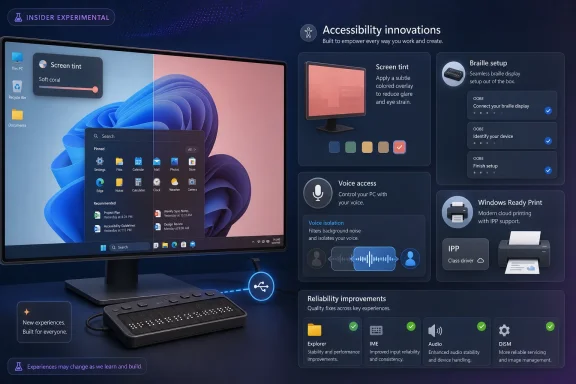
Microsoft released Windows 11 Insider Experimental Preview Build 26300.8497 on May 22, 2026, testing Screen tint, improved HID Braille display support, Voice Access voice isolation, Windows Ready Print controls, Magnifier refinements, and reliability fixes for Insiders on the Windows 11 25H2 enablement path. This is not the kind of build that sells a keynote. It is, however, the kind of build that reveals where Microsoft thinks the operating system still needs to become less brittle, less driver-dependent, and more usable for people who do not fit the default desktop-user template.
Build 26300.8497 lands in the new Experimental branch, the Insider lane Microsoft is using as it reshapes the old Dev Channel model. That matters because the branch is less a promise of what ships next month than a staging area for ideas Microsoft wants exposed to hardware, apps, peripherals, and real user workflows before they reach safer rings.
The headline additions are not Copilot panels, Start menu experiments, or cloud-first subscription hooks. They are screen filters, Braille setup support, printer installation defaults, voice recognition cleanup, and a list of repairs to explorer.exe, IME windows, audio muting, SSDP, DISM, and quick settings. In other words, Microsoft is working on the parts of Windows that users usually notice only when they break.
That makes the build more important than it first appears. Windows 11 is now mature enough that the company’s biggest changes are increasingly about control surfaces: which driver model gets preferred, which accessibility function becomes part of setup, which voice pipeline runs locally, and which feature reaches which testers through Controlled Feature Rollout. The operating system is being tuned not just for new features, but for a more predictable path through hardware chaos.
There is a tension here that has defined Windows for decades. Users want Windows to support everything forever, while Microsoft wants a platform it can secure, update, and explain without carrying every legacy decision into the next decade. Build 26300.8497 is a small but revealing entry in that larger argument.
Controlled Feature Rollout is the practical expression of that model. Two Insiders on the same build may not see the same features at the same time, which is maddening if you are trying to compare notes in a forum thread and rational if you are Microsoft trying to isolate breakage. The old dream of a build number as a complete map of system behavior is fading.
That shift has consequences for enthusiasts. A user installing 26300.8497 should not assume the absence of Screen tint, Voice Isolation, or a printing toggle means the build installed incorrectly. It may simply mean Microsoft has not enabled that experiment for that device, region, account, or cohort.
For administrators, this is both familiar and uncomfortable. Enterprise IT already lives in a world of staged deployment rings, telemetry gates, policy controls, and app compatibility holds. The Insider program is beginning to look more like that same controlled release culture, only exposed to consumers and testers.
The upside is fewer catastrophic rollouts. The downside is that Windows becomes harder to describe with certainty. A build number tells you the foundation; it no longer guarantees the exact house built on top.
That sounds subtle, but it addresses a real gap. Many users with light sensitivity, migraines, visual fatigue, neurological conditions, or simply long workdays in front of high-brightness panels have had to rely on monitor controls, third-party overlays, browser extensions, dark mode, or crude brightness reductions. None of those options is quite the same as an OS-level tint that follows the user through apps, shells, and system surfaces.
This is where accessibility work often becomes mainstream usability work. Curb cuts were built for wheelchairs and became useful for strollers, carts, and travelers with luggage. A screen-tinting feature designed for sensitivity and fatigue may also help office workers stuck under harsh lighting, OLED laptop users who find default color profiles too intense, or anyone who wants something between dark mode and a fully color-shifted display.
Microsoft’s challenge will be making the feature predictable. Screen overlays can interfere with color-sensitive workflows, screenshots, remote sessions, calibration tools, and creative applications if implemented clumsily. The company will need clear controls, obvious status indicators, and sensible interaction with existing display features such as HDR, color filters, Night Light, and vendor utilities.
Even so, the direction is right. Windows has spent years adding accessibility settings that feel like panels bolted onto the side of the OS. Screen tint feels closer to accessibility as display infrastructure, where the system itself accepts that not every pair of eyes experiences a monitor the same way.
That last clause is the one that matters. Accessibility that begins only after a system has already been configured is incomplete accessibility. If a blind or deaf-blind user needs sighted assistance to get through the first screens of a PC setup, the operating system has failed at the first interaction.
Supporting Braille devices during OOBE moves independence earlier in the device lifecycle. It means the setup flow itself becomes part of the accessible computing environment rather than a gate before it. For users who rely on Braille output, that difference is not cosmetic; it changes who controls the machine from the first boot.
The HID angle also matters because standardization is Microsoft’s friend here. The more Braille hardware can behave predictably through common interfaces, the less Windows depends on bespoke drivers, vendor-specific utilities, and fragile installation steps. That does not erase the complexity of assistive hardware, but it reduces one of the recurring sources of friction.
This is also a reminder that operating systems are judged differently by different communities. A Start menu animation might dominate social media, but the ability to set up a PC independently with a Braille display is a much more serious test of platform maturity. Windows is not only a consumer shell; it is infrastructure for work, school, public services, and personal autonomy.
The strategy is built around IPP and the Microsoft IPP Class Driver, already present for Mopria-compatible printers since Windows 10 21H2. The goal is simple in theory: if a printer can work through a modern standardized path, Windows should not need to fetch a vendor-specific driver from Windows Update just to produce a page. Fewer drivers mean fewer compatibility failures, fewer update surprises, and fewer security exposures in a historically messy subsystem.
The reality is more complicated. Printers are the cockroaches of enterprise hardware: ancient, numerous, weirdly configured, and often tied to workflows nobody documented until they stopped working. A monochrome office laser printer may be fine with a class driver, while a label printer, medical device, industrial unit, finishing system, accounting-controlled multifunction device, or color-managed production printer may still need vendor tooling.
Microsoft has already had to clarify that it is not simply killing existing legacy printer support overnight. The more precise shift is about new V3 and V4 driver submissions to Windows Update becoming more restricted, with driver ranking set to move more strongly toward the inbox IPP path in July 2026. Existing working drivers are not supposed to vanish just because the calendar turns.
That distinction will not stop confusion. Users hear “legacy printer drivers” and understandably assume their printer is about to become e-waste. Microsoft hears “driver distribution policy” and assumes everyone appreciates the difference between support, submission, ranking, and inbox class-driver preference.
The Windows Ready Print toggle may be an attempt to make that transition less invisible. Giving users and administrators an obvious preference point is better than silently changing driver selection behind the scenes. But Microsoft should not underestimate how quickly print changes become support incidents, especially in small businesses where the person who buys toner is also the person who “does IT.”
Legacy print drivers are powerful because they can do a lot. That is also why they are dangerous. Vendor drivers historically brought kernel-mode components, sprawling installers, updater services, monitoring utilities, and privileges far beyond what should be necessary to print a boarding pass. The industry tolerated this because printing was treated as an unavoidable mess.
Microsoft’s modern print push is an attempt to narrow the blast radius. If more devices work through standardized IPP paths, Windows can rely less on arbitrary vendor packages. If Windows can prefer an inbox class driver when appropriate, the update and security model becomes easier to reason about.
But standardization always creates losers at the edges. The weird printer with custom stapling. The old thermal unit attached to a line-of-business app. The scanner workflow that depends on a vendor utility last updated when Windows 10 was still new. The device that technically prints through IPP but loses the one advanced feature the office depends on.
That is why Build 26300.8497’s printer setting deserves attention from IT pros now, not after the policy shift becomes default behavior. This is the moment to inventory print fleets, identify which devices behave well through IPP, and document which ones still require vendor drivers. Printer modernization is boring until it is urgent; then it becomes an outage.
Voice control is inherently sensitive. A system that listens for commands must process speech from real environments: homes, offices, classrooms, shared workspaces, conference rooms, and accessibility setups where the microphone may be open for long periods. If background filtering required constant cloud analysis, many users and administrators would reasonably object.
Local Voice Isolation is a better fit for the feature’s purpose. It can improve recognition without turning ordinary environmental speech into a cloud dependency. It also fits the broader industry trend of pushing certain AI-assisted tasks onto the device, where latency, privacy, and resilience matter more than raw model scale.
The accessibility angle is again central. Voice Access is not merely a convenience feature for people who want to open apps hands-free. For some users, voice is the primary input method. Better separation of the intended speaker from ambient noise can determine whether the computer is usable in a shared room or only in ideal conditions.
The hard part will be consistency across hardware. Microphone arrays, laptop chassis, headset drivers, audio enhancements, and noise suppression stacks vary wildly. Microsoft can improve the Windows layer, but real-world performance will depend on the entire audio chain. Insiders testing this feature should try it where it matters: near televisions, fans, open offices, family conversations, and cheap microphones, not only in a quiet room.
IME fixes matter because Windows is a global platform. Input methods for Japanese, Chinese, and other languages are not optional extras; they are how millions of users write. A broken candidate window can be more disruptive than a missing visual flourish because it interrupts the act of typing itself.
Explorer crashes are similarly fundamental. The Windows shell is not just a file manager. It is the desktop, taskbar, windowing environment, drag-and-drop surface, and emotional center of the operating system. When explorer.exe becomes unreliable, users experience Windows as unreliable, even if the kernel is perfectly happy underneath.
The Win+X menu fix sits in the same category. Power users and administrators rely on that menu because it is muscle memory for Device Manager, Terminal, Disk Management, Event Viewer, and system settings. When it breaks, Windows feels less like a professional tool and more like a consumer interface with hidden maintenance doors.
Even the duplicate Energy Saver quick setting is meaningful. Quick Settings is supposed to be the low-friction control plane for common actions. Duplicate entries make the OS look careless, and carelessness in small UI surfaces undermines confidence in larger claims about reliability.
This is the Windows 11 model in miniature. Microsoft increasingly treats the OS as a continuously governed platform rather than a static product release. That means features are switched on by cohorts, infrastructure changes are hidden behind settings, and “available” no longer always means “visible today on your machine.”
For enthusiasts, this can be frustrating. The Insider program used to satisfy the desire to see everything first. Now it sometimes asks testers to accept being part of a controlled experiment where not seeing a feature is itself part of the deployment logic.
For Microsoft, the approach is defensible. Windows runs on too many devices, in too many regions, with too many drivers, apps, language packs, policies, assistive tools, and enterprise agents to treat every feature rollout as a single global event. Gradual rollout is not just caution; it is a survival mechanism.
The risk is communication. If Microsoft does not clearly explain what is rolling out, what is gated, what is policy-controlled, and what is missing due to a bug, users will fill the gap with suspicion. Windows has trained its audience to be skeptical, and staged rollouts only work when the company is unusually clear.
A user may ask whether they are “on 25H2,” but the more useful question becomes which components, features, policies, and enablement states are active. Windows version numbers still matter for support lifecycles and deployment planning. They just matter less as a full description of what the user experiences on screen.
This can be seen as an extension of Windows 10’s servicing philosophy, sharpened for the Windows 11 era. The operating system is less a boxed release than a moving train with scheduled cars, optional cars, and experimental cars attached at different times. Build numbers, cumulative updates, experience packs, Store app updates, and feature flags all contribute to the final system.
That complexity is not going away. If anything, AI features, accessibility improvements, hardware-specific capabilities, and regional compliance requirements will push Microsoft further toward componentized rollout. Build 26300.8497 may be experimental, but the deployment philosophy behind it is mainstream.
Administrators should plan accordingly. Testing Windows now means more than validating one ISO or one cumulative update. It means watching feature exposure, policy defaults, inbox driver behavior, app updates, and backend-controlled rollout states over time.
The more interesting risk is assumption drift. Users see accessibility, printing, and voice features in an Insider build and assume they are final. Admins see printer modernization language and assume their fleet is safe because nothing broke today. Enthusiasts see a feature mentioned in release notes and assume it should appear immediately.
All three assumptions are dangerous. Insider features can change, vanish, or arrive later in altered form. Printing transitions can work beautifully in a lab and still fail against a decade-old deployment script. Controlled rollout can make a feature real for one tester and nonexistent for another.
That does not make the build unimportant. It makes it a signal rather than a guarantee. Microsoft is showing the direction of travel: more standardized device paths, more local processing for sensitive assistive features, more accessibility integrated into first-run experiences, and more controlled feature exposure.
The best response is not panic or celebration. It is disciplined observation. Test the features if you have the hardware and need. Inventory printers before the July 2026 driver-ranking shift. Watch how Screen tint interacts with display workflows. Try Voice Isolation in noisy rooms. Treat Braille setup support as a serious accessibility milestone, not a line item.
 Microsoft’s Least Flashy Build Is the One That Explains Its Windows Strategy
Build 26300.8497 lands in the new Experimental branch, the Insider lane Microsoft is using as it reshapes the old Dev Channel model. That matters because the branch is less a promise of what ships next month than a staging area for ideas Microsoft wants exposed to hardware, apps, peripherals, and real user workflows before they reach safer rings.The headline additions are not Copilot panels, Start menu experiments, or cloud-first subscription hooks. They are screen filters, Braille setup support, printer installation defaults, voice recognition cleanup, and a list of repairs to explorer.exe, IME windows, audio muting, SSDP, DISM, and quick settings. In other words, Microsoft is working on the parts of Windows that users usually notice only when they break.
That makes the build more important than it first appears. Windows 11 is now mature enough that the company’s biggest changes are increasingly about control surfaces: which driver model gets preferred, which accessibility function becomes part of setup, which voice pipeline runs locally, and which feature reaches which testers through Controlled Feature Rollout. The operating system is being tuned not just for new features, but for a more predictable path through hardware chaos.
There is a tension here that has defined Windows for decades. Users want Windows to support everything forever, while Microsoft wants a platform it can secure, update, and explain without carrying every legacy decision into the next decade. Build 26300.8497 is a small but revealing entry in that larger argument.
The Experimental Channel Is Becoming Microsoft’s Pressure Chamber
Microsoft says the build is based on Windows 11 version 25H2 and delivered through an enablement package. That detail sounds administrative, but it is central to modern Windows development. The company is no longer treating every visible feature as a giant monolithic OS upgrade; increasingly, Windows versions are scaffolding for features that arrive gradually, light up selectively, and move through release rings at different speeds.Controlled Feature Rollout is the practical expression of that model. Two Insiders on the same build may not see the same features at the same time, which is maddening if you are trying to compare notes in a forum thread and rational if you are Microsoft trying to isolate breakage. The old dream of a build number as a complete map of system behavior is fading.
That shift has consequences for enthusiasts. A user installing 26300.8497 should not assume the absence of Screen tint, Voice Isolation, or a printing toggle means the build installed incorrectly. It may simply mean Microsoft has not enabled that experiment for that device, region, account, or cohort.
For administrators, this is both familiar and uncomfortable. Enterprise IT already lives in a world of staged deployment rings, telemetry gates, policy controls, and app compatibility holds. The Insider program is beginning to look more like that same controlled release culture, only exposed to consumers and testers.
The upside is fewer catastrophic rollouts. The downside is that Windows becomes harder to describe with certainty. A build number tells you the foundation; it no longer guarantees the exact house built on top.
Screen Tint Turns Accessibility Into Display Infrastructure
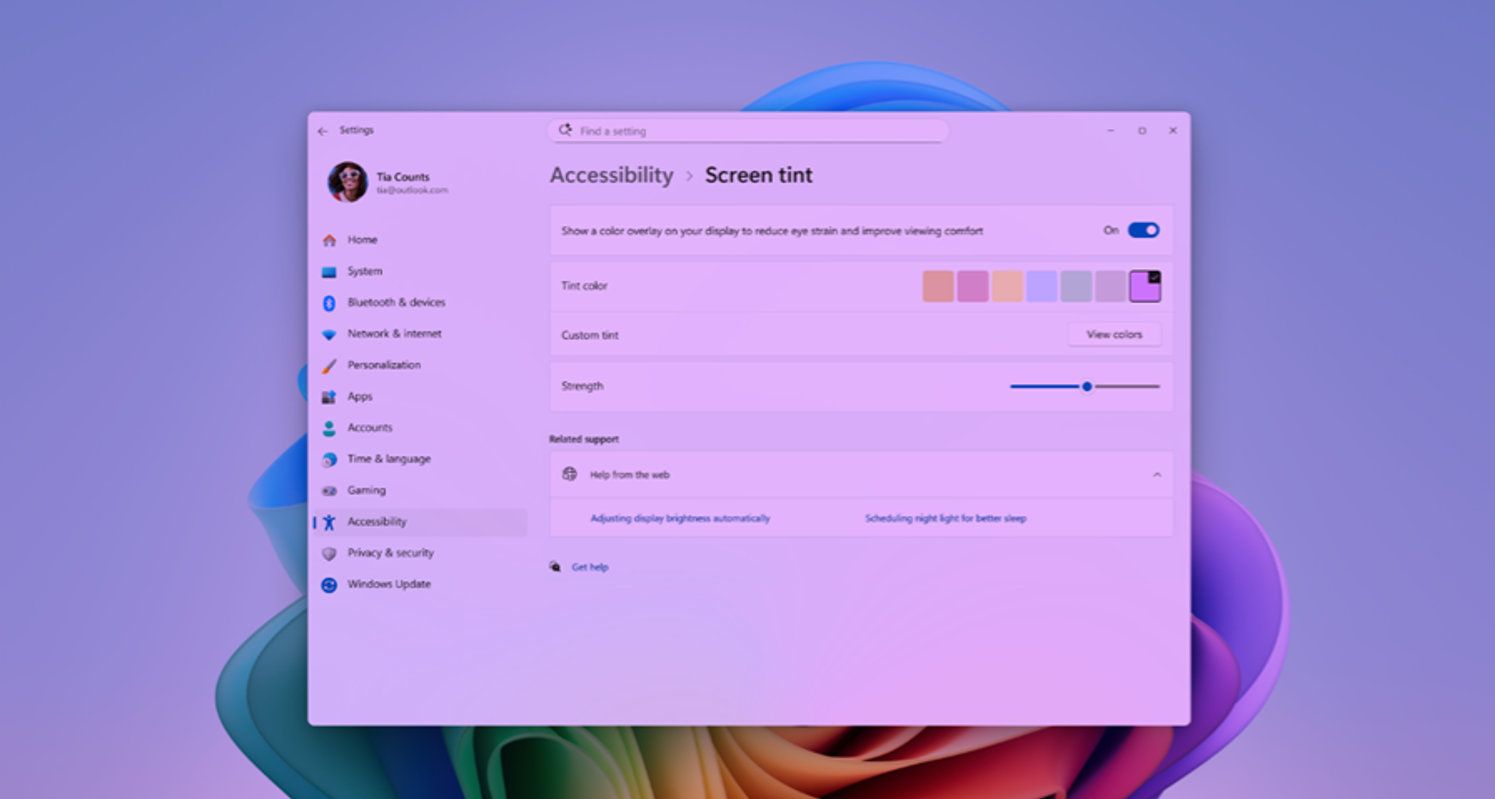
The most visible new feature in 26300.8497 is Screen tint, an accessibility setting that applies a color overlay across the entire display. Microsoft distinguishes it from Night Light, and that distinction is important. Night Light changes color temperature, usually pushing the display warmer in the evening; Screen tint is meant to reduce perceived brightness and saturation intensity throughout the day.That sounds subtle, but it addresses a real gap. Many users with light sensitivity, migraines, visual fatigue, neurological conditions, or simply long workdays in front of high-brightness panels have had to rely on monitor controls, third-party overlays, browser extensions, dark mode, or crude brightness reductions. None of those options is quite the same as an OS-level tint that follows the user through apps, shells, and system surfaces.
This is where accessibility work often becomes mainstream usability work. Curb cuts were built for wheelchairs and became useful for strollers, carts, and travelers with luggage. A screen-tinting feature designed for sensitivity and fatigue may also help office workers stuck under harsh lighting, OLED laptop users who find default color profiles too intense, or anyone who wants something between dark mode and a fully color-shifted display.
Microsoft’s challenge will be making the feature predictable. Screen overlays can interfere with color-sensitive workflows, screenshots, remote sessions, calibration tools, and creative applications if implemented clumsily. The company will need clear controls, obvious status indicators, and sensible interaction with existing display features such as HDR, color filters, Night Light, and vendor utilities.
Even so, the direction is right. Windows has spent years adding accessibility settings that feel like panels bolted onto the side of the OS. Screen tint feels closer to accessibility as display infrastructure, where the system itself accepts that not every pair of eyes experiences a monitor the same way.
Braille Support During Setup Is a Small Change With Outsized Meaning
The improved Narrator work may be the most consequential part of the build, even if it will affect fewer users than the display tint. Microsoft says refreshable Braille displays using the HID standard should work more easily, including plug-and-play over USB, and that HID Braille displays can now function during the initial Windows setup experience.That last clause is the one that matters. Accessibility that begins only after a system has already been configured is incomplete accessibility. If a blind or deaf-blind user needs sighted assistance to get through the first screens of a PC setup, the operating system has failed at the first interaction.
Supporting Braille devices during OOBE moves independence earlier in the device lifecycle. It means the setup flow itself becomes part of the accessible computing environment rather than a gate before it. For users who rely on Braille output, that difference is not cosmetic; it changes who controls the machine from the first boot.
The HID angle also matters because standardization is Microsoft’s friend here. The more Braille hardware can behave predictably through common interfaces, the less Windows depends on bespoke drivers, vendor-specific utilities, and fragile installation steps. That does not erase the complexity of assistive hardware, but it reduces one of the recurring sources of friction.
This is also a reminder that operating systems are judged differently by different communities. A Start menu animation might dominate social media, but the ability to set up a PC independently with a Braille display is a much more serious test of platform maturity. Windows is not only a consumer shell; it is infrastructure for work, school, public services, and personal autonomy.
Windows Ready Print Shows the Printer Driver War Is Not Over
The printer change in Build 26300.8497 looks modest: a setting under Printers & scanners that lets users control whether supported new printers are installed by default through Windows Ready Print. But this is not just a toggle. It is part of Microsoft’s long campaign to move printing away from the old third-party driver sprawl that has haunted Windows for years.The strategy is built around IPP and the Microsoft IPP Class Driver, already present for Mopria-compatible printers since Windows 10 21H2. The goal is simple in theory: if a printer can work through a modern standardized path, Windows should not need to fetch a vendor-specific driver from Windows Update just to produce a page. Fewer drivers mean fewer compatibility failures, fewer update surprises, and fewer security exposures in a historically messy subsystem.
The reality is more complicated. Printers are the cockroaches of enterprise hardware: ancient, numerous, weirdly configured, and often tied to workflows nobody documented until they stopped working. A monochrome office laser printer may be fine with a class driver, while a label printer, medical device, industrial unit, finishing system, accounting-controlled multifunction device, or color-managed production printer may still need vendor tooling.
Microsoft has already had to clarify that it is not simply killing existing legacy printer support overnight. The more precise shift is about new V3 and V4 driver submissions to Windows Update becoming more restricted, with driver ranking set to move more strongly toward the inbox IPP path in July 2026. Existing working drivers are not supposed to vanish just because the calendar turns.
That distinction will not stop confusion. Users hear “legacy printer drivers” and understandably assume their printer is about to become e-waste. Microsoft hears “driver distribution policy” and assumes everyone appreciates the difference between support, submission, ranking, and inbox class-driver preference.
The Windows Ready Print toggle may be an attempt to make that transition less invisible. Giving users and administrators an obvious preference point is better than silently changing driver selection behind the scenes. But Microsoft should not underestimate how quickly print changes become support incidents, especially in small businesses where the person who buys toner is also the person who “does IT.”
Standardization Is Security Policy Wearing a Compatibility Mask
The printer transition is not only about convenience. It is also about security. Windows printing became notorious during the PrintNightmare era, when print spooler vulnerabilities forced administrators to choose between disabling a core function and leaving systems exposed. That history still hangs over every attempt to modernize the stack.Legacy print drivers are powerful because they can do a lot. That is also why they are dangerous. Vendor drivers historically brought kernel-mode components, sprawling installers, updater services, monitoring utilities, and privileges far beyond what should be necessary to print a boarding pass. The industry tolerated this because printing was treated as an unavoidable mess.
Microsoft’s modern print push is an attempt to narrow the blast radius. If more devices work through standardized IPP paths, Windows can rely less on arbitrary vendor packages. If Windows can prefer an inbox class driver when appropriate, the update and security model becomes easier to reason about.
But standardization always creates losers at the edges. The weird printer with custom stapling. The old thermal unit attached to a line-of-business app. The scanner workflow that depends on a vendor utility last updated when Windows 10 was still new. The device that technically prints through IPP but loses the one advanced feature the office depends on.
That is why Build 26300.8497’s printer setting deserves attention from IT pros now, not after the policy shift becomes default behavior. This is the moment to inventory print fleets, identify which devices behave well through IPP, and document which ones still require vendor drivers. Printer modernization is boring until it is urgent; then it becomes an outage.
Voice Isolation Brings Local AI Back to a Practical Job
Voice Access gets a new Voice Isolation option intended to separate the user’s voice from background noise and other speakers. Microsoft says processing happens locally on the device, which is the key phrase. In a year when every Windows feature risks being interpreted through the lens of cloud AI, this is a case where local processing is not just a technical footnote but a trust boundary.Voice control is inherently sensitive. A system that listens for commands must process speech from real environments: homes, offices, classrooms, shared workspaces, conference rooms, and accessibility setups where the microphone may be open for long periods. If background filtering required constant cloud analysis, many users and administrators would reasonably object.
Local Voice Isolation is a better fit for the feature’s purpose. It can improve recognition without turning ordinary environmental speech into a cloud dependency. It also fits the broader industry trend of pushing certain AI-assisted tasks onto the device, where latency, privacy, and resilience matter more than raw model scale.
The accessibility angle is again central. Voice Access is not merely a convenience feature for people who want to open apps hands-free. For some users, voice is the primary input method. Better separation of the intended speaker from ambient noise can determine whether the computer is usable in a shared room or only in ideal conditions.
The hard part will be consistency across hardware. Microphone arrays, laptop chassis, headset drivers, audio enhancements, and noise suppression stacks vary wildly. Microsoft can improve the Windows layer, but real-world performance will depend on the entire audio chain. Insiders testing this feature should try it where it matters: near televisions, fans, open offices, family conversations, and cheap microphones, not only in a quiet room.
The Bug Fixes Tell the Same Story as the Features
The repair list in 26300.8497 is not glamorous, but it is revealing. Microsoft calls out fixes for Japanese and Chinese IME candidate windows, recurring explorer.exe crashes, duplicate Energy Saver quick settings, a broken Win+X menu, unexpected audio device muting, and reliability problems involving SSDP and DISM. These are not side quests; they are the everyday seams where Windows either feels solid or begins to fray.IME fixes matter because Windows is a global platform. Input methods for Japanese, Chinese, and other languages are not optional extras; they are how millions of users write. A broken candidate window can be more disruptive than a missing visual flourish because it interrupts the act of typing itself.
Explorer crashes are similarly fundamental. The Windows shell is not just a file manager. It is the desktop, taskbar, windowing environment, drag-and-drop surface, and emotional center of the operating system. When explorer.exe becomes unreliable, users experience Windows as unreliable, even if the kernel is perfectly happy underneath.
The Win+X menu fix sits in the same category. Power users and administrators rely on that menu because it is muscle memory for Device Manager, Terminal, Disk Management, Event Viewer, and system settings. When it breaks, Windows feels less like a professional tool and more like a consumer interface with hidden maintenance doors.
Even the duplicate Energy Saver quick setting is meaningful. Quick Settings is supposed to be the low-friction control plane for common actions. Duplicate entries make the OS look careless, and carelessness in small UI surfaces undermines confidence in larger claims about reliability.
Microsoft Is Designing for Rollout, Not Just Features
A pattern emerges across the build: Microsoft is not merely adding features; it is designing for staged adoption. Screen tint may roll out gradually. Braille support depends on standards and setup integration. Voice Isolation depends on local processing and hardware behavior. Windows Ready Print depends on driver ranking, fleet readiness, and user controls.This is the Windows 11 model in miniature. Microsoft increasingly treats the OS as a continuously governed platform rather than a static product release. That means features are switched on by cohorts, infrastructure changes are hidden behind settings, and “available” no longer always means “visible today on your machine.”
For enthusiasts, this can be frustrating. The Insider program used to satisfy the desire to see everything first. Now it sometimes asks testers to accept being part of a controlled experiment where not seeing a feature is itself part of the deployment logic.
For Microsoft, the approach is defensible. Windows runs on too many devices, in too many regions, with too many drivers, apps, language packs, policies, assistive tools, and enterprise agents to treat every feature rollout as a single global event. Gradual rollout is not just caution; it is a survival mechanism.
The risk is communication. If Microsoft does not clearly explain what is rolling out, what is gated, what is policy-controlled, and what is missing due to a bug, users will fill the gap with suspicion. Windows has trained its audience to be skeptical, and staged rollouts only work when the company is unusually clear.
The 25H2 Enablement Path Keeps Windows in the Service Era
Because Build 26300.8497 is tied to Windows 11 25H2 via an enablement package, it also illustrates how Microsoft now thinks about annual Windows versions. The enablement model suggests a shared base where features can be activated or exposed without requiring every device to take a massive platform leap. That is good for servicing, but it also makes version identity fuzzier.A user may ask whether they are “on 25H2,” but the more useful question becomes which components, features, policies, and enablement states are active. Windows version numbers still matter for support lifecycles and deployment planning. They just matter less as a full description of what the user experiences on screen.
This can be seen as an extension of Windows 10’s servicing philosophy, sharpened for the Windows 11 era. The operating system is less a boxed release than a moving train with scheduled cars, optional cars, and experimental cars attached at different times. Build numbers, cumulative updates, experience packs, Store app updates, and feature flags all contribute to the final system.
That complexity is not going away. If anything, AI features, accessibility improvements, hardware-specific capabilities, and regional compliance requirements will push Microsoft further toward componentized rollout. Build 26300.8497 may be experimental, but the deployment philosophy behind it is mainstream.
Administrators should plan accordingly. Testing Windows now means more than validating one ISO or one cumulative update. It means watching feature exposure, policy defaults, inbox driver behavior, app updates, and backend-controlled rollout states over time.
The Practical Risk Is Not the Experimental Build, but the Assumption It Creates
No one should install an Experimental build on a primary work machine expecting calm. Microsoft’s own channel structure exists because these builds are meant for testing, not production. The problem is not that 26300.8497 might contain bugs; that is the point of the branch.The more interesting risk is assumption drift. Users see accessibility, printing, and voice features in an Insider build and assume they are final. Admins see printer modernization language and assume their fleet is safe because nothing broke today. Enthusiasts see a feature mentioned in release notes and assume it should appear immediately.
All three assumptions are dangerous. Insider features can change, vanish, or arrive later in altered form. Printing transitions can work beautifully in a lab and still fail against a decade-old deployment script. Controlled rollout can make a feature real for one tester and nonexistent for another.
That does not make the build unimportant. It makes it a signal rather than a guarantee. Microsoft is showing the direction of travel: more standardized device paths, more local processing for sensitive assistive features, more accessibility integrated into first-run experiences, and more controlled feature exposure.
The best response is not panic or celebration. It is disciplined observation. Test the features if you have the hardware and need. Inventory printers before the July 2026 driver-ranking shift. Watch how Screen tint interacts with display workflows. Try Voice Isolation in noisy rooms. Treat Braille setup support as a serious accessibility milestone, not a line item.
The Real Message Hidden Inside Build 26300.8497
Build 26300.8497 is easy to underrate because it lacks a single spectacular feature, but its importance lies in how many quiet Windows assumptions it touches at once. It is about who can set up a PC independently, which printer path Windows prefers, how voice control behaves in the real world, and how Microsoft rolls features out when the operating system is too large for one-size-fits-all deployment.- Screen tint is an accessibility feature first, but it may become a broadly useful display comfort tool for users who find modern panels too bright or visually intense.
- HID Braille support during initial setup matters because accessibility that begins after setup is already too late for users who depend on Braille output.
- Windows Ready Print is part of Microsoft’s gradual move away from legacy driver dependence, not a sudden death sentence for every older printer.
- Voice Isolation is most notable because Microsoft says it runs locally, which makes voice accessibility more practical without making cloud processing the default trust model.
- Controlled Feature Rollout means the same build number may not expose the same features to every Insider, so absence is not automatically failure.
- The bug fixes in explorer.exe, IME windows, audio, DISM, SSDP, and quick settings are as important to daily confidence as the named new features.
References
- Primary source: igor´sLAB
Published: Tue, 26 May 2026 04:00:00 GMT

Windows 11 Build 26300.8497: Microsoft tests accessibility features, …
Microsoft has released Experimental Preview Build 26300.8497 for Windows Insiders. www.igorslab.de
- Related coverage: windowscentral.com
Windows 11 tests new accessibility features that are easy on the eyes (literally)
Screen tint, better Braille support, and Voice Access upgrades are now in testing among Windows Insiders. www.windowscentral.com
- Related coverage: notebookcheck.net

Windows 11 Insiders get screen tint and voice isolation
Microsoft releases Windows 11 Experimental build 26300.8497 with screen tint, braille display support, and voice isolation improvements for Insiders. www.notebookcheck.net
- Official source: learn.microsoft.com
Pré-visualização Experimental Compilação 26300.8497 - Windows Insider Program
Notas de versão da Compilação 26300.8497 da Pré-visualização Experimentallearn.microsoft.com - Related coverage: windowsnews.ai
Windows 11 Insider Build 26300.8497 Brings Screen Tint, Braille HID, and Voice Isolation to Experimental Channel
Microsoft rolls out Windows 11 Insider Build 26300.8497 with screen tint, plug-and-play HID Braille displays, and Voice Access voice isolation. Experimental...windowsnews.ai
- Related coverage: windowsforum.com

Windows 11 Insider 26300.8497: Screen Tint, Braille HID, Voice Isolation
Microsoft released Windows 11 Insider Preview Build 26300.8497 to the Experimental channel on May 22, 2026, adding screen tint, plug-and-play HID Braille display support, Voice Access voice isolation, Magnifier changes, Windows Ready Print controls, and reliability fixes for testers on the 25H2... windowsforum.com
- Related coverage: windowslatest.com

No, Windows 11 isn’t killing millions of printers, but it’s ending new V3/V4 drivers on Windows Update
Microsoft says it has stopped releasing V3 and V4 printer drivers via Windows Update starting January 2026. www.windowslatest.com
- Related coverage: pureinfotech.com
Windows 11 build 26300.8497 drops brand new display mode and smart audio filters
Build 26300.8497 for Windows 11 adds Screen Tint, Voice Isolation, HID Braille support, Windows Ready Print, and several fixes. pureinfotech.com
- Related coverage: technine.be
Loading…
www.technine.be - Related coverage: windowsreport.com
- Related coverage: tomshardware.com
Loading…
www.tomshardware.com - Related coverage: techradar.com
Loading…
www.techradar.com - Related coverage: justtech.com
Loading…
justtech.com