

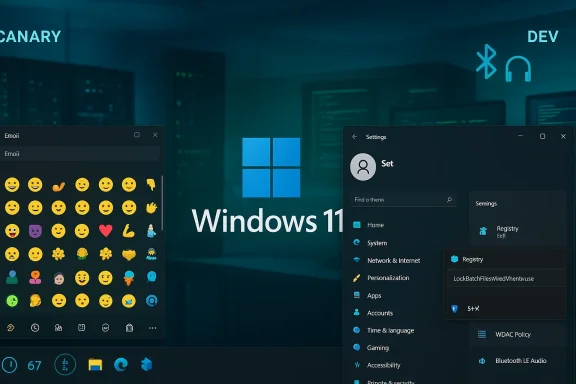
Microsoft’s latest Insider drops this week keep the momentum on Windows 11’s incremental polish and enterprise hardening — Canary and Dev channels received distinct but complementary tweaks that mix small, practical quality‑of‑life updates with features aimed squarely at administrators and power users. The Canary Channel’s Build 28020.1673 brings visible UX wins — a taskbar network speed test, Emoji 16.0 additions, and better dark‑mode consistency in File Explorer — while the Dev Channel’s Build 26300.7939 advances the shared Bluetooth LE Audio experience and introduces an opt‑in batch‑file protection mode that reduces attack surface and runtime overhead in scripted environments. Taken together, these Insider builds show Microsoft balancing everyday convenience with targeted security and manageability improvements as the platform evolves toward future Windows 11 releases.
Microsoft publishes Windows 11 Insider Preview builds across multiple channels — Canary, Dev, Beta — to let different groups of testers try features at different stages of maturity. Canary Channel builds typically preview experimental work early and can be unstable; Dev Channel builds are where Microsoft iterates on features that are closer to shipping but may still change. Recent Insider updates continue to be delivered alongside enablement packages that align some Dev builds to the upcoming Windows 11 servicing baseline (25H2), so developers and IT teams should pay attention to the channel and build numbers when planning tests and deployments.
These February 2026 builds are representative of two parallel threads in Windows development: consumer/UX polishing (taskbar, emoji, camera controls, dark mode fixes) and enterprise‑grade reliability/security (Quick Machine Recovery, batch file processing, RSAT availability on Arm64). Both classes matter — the former because they shape everyday user perception of system quality, and the latter because subtle changes in script handling or recovery behavior can materially affect automation, provisioning, and incident response.
Why this matters: troubleshooting connectivity is one of the most common desktop support requests. Having a one‑click test in the taskbar reduces friction for end users and helpdesk triage, and it standardizes one element of onsite vs remote troubleshooting.
Practical note: platform support for new emoji is occasionally uneven. Some older rendering engines and third‑party apps use their own emoji fonts or legacy drawing stacks, so new symbols may appear correctly only in apps that use the updated Segoe UI Emoji font or that pull system emoji properly. Expect gradual rollout and partial visibility until client components are fully updated.
Why this is important: expanding automatic recovery capability to more Pro devices improves out‑of‑box resilience for consumer and managed devices that are not part of an on‑prem domain. IT teams should note the policy differences for domain‑joined systems and treat QMR as an opt‑in enterprise capability when needed.
The UI also now shows a taskbar indicator when audio is being shared — a helpful privacy and convenience guardrail so you don’t accidentally leave audio sharing active.
Supported devices listed in the preview include:
The feature is exposed as:
A caution: there is some variance in early coverage and community posts that reference a differently spelled or named registry value (for example, LockBatchFilesInUse). Administrators should rely on the text of the official Insider release notes in their build as the authoritative name and test any registry changes in a lab before broad deployment.
Why this matters: many enterprise automation tasks depend on deterministic script execution. Locking a batch file during execution closes a real attack vector — an adversary or misconfigured process rewriting an automation script while it runs — and reduces the runtime cost of repeated signature verification when Windows Defender Application Control (WDAC) or similar policies are in place.
The shared audio updates highlight Microsoft’s continued investment in modern audio stacks (Bluetooth LE Audio) and its willingness to iterate on social use cases where small UX decisions (individual sliders, taskbar indicators) have outsized impact on adoption and user satisfaction.
Source: TechRepublic Microsoft Delivers New Windows 11 Insider Builds With Security, UX Tweaks
 Background
Microsoft publishes Windows 11 Insider Preview builds across multiple channels — Canary, Dev, Beta — to let different groups of testers try features at different stages of maturity. Canary Channel builds typically preview experimental work early and can be unstable; Dev Channel builds are where Microsoft iterates on features that are closer to shipping but may still change. Recent Insider updates continue to be delivered alongside enablement packages that align some Dev builds to the upcoming Windows 11 servicing baseline (25H2), so developers and IT teams should pay attention to the channel and build numbers when planning tests and deployments.These February 2026 builds are representative of two parallel threads in Windows development: consumer/UX polishing (taskbar, emoji, camera controls, dark mode fixes) and enterprise‑grade reliability/security (Quick Machine Recovery, batch file processing, RSAT availability on Arm64). Both classes matter — the former because they shape everyday user perception of system quality, and the latter because subtle changes in script handling or recovery behavior can materially affect automation, provisioning, and incident response.
What landed in the Canary Channel (Build 28020.1673)
Taskbar network diagnostics: lightning‑fast checks
A small but immediately useful feature debuted in the system tray: a built‑in network speed test accessible from the Wi‑Fi or cellular quick settings or by right‑clicking the network icon. Activating the test launches the default browser and runs a brief measurement of Ethernet, Wi‑Fi, and cellular throughput.Why this matters: troubleshooting connectivity is one of the most common desktop support requests. Having a one‑click test in the taskbar reduces friction for end users and helpdesk triage, and it standardizes one element of onsite vs remote troubleshooting.
Search previews and result counts
Taskbar search received two UX refinements: group headers now display exact result counts, and hovering over entries can show a Preview of the file contents without opening the file. These are small cognitive improvements that reduce clicks and make it easier to triage search results quickly.Emoji 16.0 arrives — but with platform caveats
Windows 11 Canary now exposes elements of Emoji 16.0 in the emoji panel. Emoji 16.0 itself is the Unicode/emoji update that added a handful of new symbols (a fingerprint, a shovel, leafless tree, root vegetable, harp, splatter, and face with bags under eyes); implementations and exact counts vary across vendors.Practical note: platform support for new emoji is occasionally uneven. Some older rendering engines and third‑party apps use their own emoji fonts or legacy drawing stacks, so new symbols may appear correctly only in apps that use the updated Segoe UI Emoji font or that pull system emoji properly. Expect gradual rollout and partial visibility until client components are fully updated.
File Explorer dark mode and stability fixes
Folder Options now respects the system dark theme for a consistent File Explorer experience, and Microsoft addressed a bug that could cause open File Explorer windows and tabs to unexpectedly jump to Desktop or Home. For users who prefer dark mode, these changes make the experience less jarring and reduce UI distractions.Camera pan/tilt controls from Settings
Canonically a hardware function, pan and tilt control for supported webcams can now be accessed via Settings > Bluetooth & devices > Cameras. If your USB or network camera implements the required control protocol, Windows exposes on‑device pan/tilt controls in the system UI so you can adjust framing without touching the camera.Quick Machine Recovery becomes more widely available
Quick Machine Recovery (QMR) — a recovery capability that uploads diagnostic information and can apply targeted fixes via Windows Recovery Environment — now turns on automatically for Windows 11 Pro devices that are not domain‑joined and for enterprise managed Pro devices. Domain‑joined devices keep QMR off by default unless enabled by IT policy.Why this is important: expanding automatic recovery capability to more Pro devices improves out‑of‑box resilience for consumer and managed devices that are not part of an on‑prem domain. IT teams should note the policy differences for domain‑joined systems and treat QMR as an opt‑in enterprise capability when needed.
Backup and first sign‑in restore for hybrid environments
Windows Backup’s “first sign‑in restore” experience — which automatically restores user settings and Microsoft Store apps at a user’s first sign‑in — now supports more device types, including Microsoft Entra hybrid joined devices, Cloud PCs, and multi‑user environments. This fills an important gap in device provisioning flows for organizations using Microsoft’s cloud identity and Cloud PC scenarios.What landed in the Dev Channel (Build 26300.7939)
Shared audio gets independent volume sliders
One of the more social features in recent Windows 11 development is Shared audio (preview) for Bluetooth LE Audio: two people can listen to the same audio stream on two pairs of LE Audio headphones from a single PC. This update refines that experience with individual volume sliders for each listener so one person’s adjustment doesn’t change the other’s level.The UI also now shows a taskbar indicator when audio is being shared — a helpful privacy and convenience guardrail so you don’t accidentally leave audio sharing active.
Supported devices listed in the preview include:
- Samsung Galaxy Buds 4 and Buds 4 Pro
- Sony WF‑1000XM6
- Xbox Wireless Headset
Batch file security and performance improvements
For administrators and policy authors, the Dev build introduces a new mode for processing batch files and CMD scripts that treats the script file as immutable while it runs. This reduces the attack surface where an on‑disk script could be modified mid‑execution and improves performance under code‑integrity scenarios by validating a script’s signature once at start rather than repeatedly per statement.The feature is exposed as:
- A registry toggle under:
HKEY_LOCAL_MACHINE\Software\Microsoft\Command Processor - The registry value name described in the Dev release notes: LockBatchFilesWhenInUse (DWORD, 0 or 1)
A caution: there is some variance in early coverage and community posts that reference a differently spelled or named registry value (for example, LockBatchFilesInUse). Administrators should rely on the text of the official Insider release notes in their build as the authoritative name and test any registry changes in a lab before broad deployment.
Why this matters: many enterprise automation tasks depend on deterministic script execution. Locking a batch file during execution closes a real attack vector — an adversary or misconfigured process rewriting an automation script while it runs — and reduces the runtime cost of repeated signature verification when Windows Defender Application Control (WDAC) or similar policies are in place.
Narrator and accessibility tweaks
The Narrator now offers a new command (Narrator key + backslash) to read the status bar in productivity apps like Word, Excel, and PowerPoint. In Excel, selecting a range of cells can now surface a spoken sum or average without shifting input focus. These improvements are meaningful for accessibility and for power users who rely on screen readers during complex editing tasks.Storage and Settings reliability
The Dev build also includes improvements to removing Windows Update files / windows.old entries via Settings > System > Storage, and fixes related to taskbar autohide animations and component loading in Safe Mode. These are the kind of reliability fixes that reduce helpdesk churn and make upgrades less error prone.Cross‑checking claims and points to verify
When a Windows Insider build introduces system‑level configuration knobs and behavioral changes, it’s critical to validate the exact string names and behavior in your environment before you act. Key claims validated across Microsoft’s own Insider release notes and independent reporting include:- The network speed test in the taskbar and Emoji 16.0 exposure are documented in Microsoft’s Canary Channel release notes for Build 28020.1673.
- The batch file locking feature and the shared audio individual sliders appear in Microsoft’s Dev Channel release notes for Build 26300.7939.
- Device support for shared audio in this preview explicitly lists Samsung Galaxy Buds 4/4 Pro, Sony WF‑1000XM6, and the Xbox Wireless Headset in Microsoft’s notes; hardware compatibility expands as partners update firmware.
- The exact registry or manifest names can change during Insider flighting. The Windows Insider release notes name the key LockBatchFilesWhenInUse; community summaries have reported slight name differences. Treat the official blog post and your own build’s release notes as the definitive reference and test before scripting wide changes.
Security analysis: the batch‑file lock — strengths and limits
The batch‑file locking addition is a pragmatic mitigation with meaningful upsides, but it is not a universal panacea. Here’s a measured breakdown.Strengths
- Reduces mid‑execution tampering: Making the command processor hold an exclusive lock prevents an on‑disk actor from modifying a script while it runs — this closes a real, low‑sophistication attack vector and reduces accidental corruption from competing writes during deployment windows.
- Improves performance under code‑integrity: With signature validation performed once at process start, highly script‑driven automation sees measurable gains where per‑statement validation would otherwise slow execution.
- Administrative control: Exposing the behavior as an opt‑in registry or manifest control prevents surprise breakage in legacy environments that rely on self‑modifying scripts.
Limitations and operational risks
- Compatibility risk for valid, self‑modifying workflows: Some scripts intentionally append or write to themselves during execution. Locking will break these designs, so organizations with bespoke automation must inventory and refactor where necessary.
- False sense of full protection: Locking the file while running limits a specific on‑disk tampering vector, but it does not eliminate broader script security risks like malicious input, insecure environment variables, privileged escalation through other mechanisms, or signed but malicious scripts.
- Manifest and policy complexity: Organizations using declarative policies (App Control) must update manifests and test policy behavior in staging before applying to production fleets.
- Variation across Insider builds: Registry names and manifest attributes may be updated during Insider flighting; test automation that reaches into HKLM should be resilient to such changes and validate existence before applying.
Practical guidance for IT teams and power users
If you manage automation or test on Insider builds, here are practical, conservative steps to evaluate and adopt these changes.1. Establish a test matrix
- Create a small lab that mirrors production: same OS build (Insider build if you must test the new behavior), similar AD/Entra and WDAC/App Control settings, matching versions of scripting runtimes.
- Include sample workloads that both assume immutable scripts and those that intentionally modify scripts to observe failure modes.
2. Verify the registry name in your build
- Check the Windows Insider release notes for the exact registry name in your build.
- On a test machine, confirm whether the key already exists and how the system behaves when you toggle it.
3. How to toggle the lock (example)
Always test in a controlled environment first and create a disk image snapshot before changing registry settings.- To check whether the key exists:
- Open Registry Editor (regedit), navigate to:
HKEY_LOCAL_MACHINE\Software\Microsoft\Command Processor - Look for a DWORD named LockBatchFilesWhenInUse (or the exact name documented in your build).
- To set the mode via PowerShell (run as Administrator):
- Create the registry key if it does not exist and set it to enabled:
- New‑ItemProperty -Path 'HKLM:\Software\Microsoft\Command Processor' -Name 'LockBatchFilesWhenInUse' -PropertyType DWord -Value 1 -Force
- To disable:
- New‑ItemProperty -Path 'HKLM:\Software\Microsoft\Command Processor' -Name 'LockBatchFilesWhenInUse' -PropertyType DWord -Value 0 -Force
- After changing the value, test your scripts that:
- Execute multiple internal commands (echo, set, call, etc.).
- Attempt to write to the running .bat file or replace it mid‑run to confirm locking behavior.
- Measure runtime performance under WDAC or code integrity policies to quantify benefits.
4. Use manifests for publisher opt‑in
If you publish automation packages or signed installers, consider adding the manifest attribute (LockBatchFilesWhenInUse) as a declarative opt‑in. Testing the manifest route gives a path to require the behavior for specific applications without applying a global registry toggle.5. Plan rollout
- Start with a canary group of noncritical automation-host systems.
- Use telemetry and logging to detect failures that stem from incompatible scripts.
- Update CI/CD job templates to include preflight validations that detect self‑modifying scripts and flag them for refactor.
6. Shared audio and end‑user guidance
For help desks and device managers:- Shared audio is a user‑facing feature with obvious social use cases (watching videos together, shared media at a desk).
- Document supported headsets and recommend firmware updates from vendors.
- Train helpdesk staff to use the new taskbar indicator and to demonstrate per‑listener volume controls.
- Expect incremental device support: keep an inventory of LE Audio capable headsets and track vendor firmware release notes.
Rollout caveats and channel mechanics
A few operational realities about Insider builds affect how you test and adopt these features.- Canary Channel builds can be unstable and may ship with limited documentation. Microsoft explicitly warns that leaving Canary later can require a clean install of Windows 11 because you cannot switch to a channel receiving lower build numbers without reinstalling. If you value easy reversion, don’t run Canary on production or primary work machines.
- Many features are rollouts controlled by feature flags or controlled feature rollout mechanisms (CFR). Seeing a build does not guarantee you’ll see every feature immediately; Microsoft often enables features for subsets of Insiders and expands coverage as telemetry and feedback arrive.
- Dev Channel builds in this cycle are tied to Windows 11 version 25H2 via enablement packages. That matters when you consider long‑term servicing and update baselines for testing.
- Expect UI and registry names to settle over time; rely on your build’s official release notes and flight hub when scripting changes.
What this says about Microsoft’s priorities
This pair of builds signals a dual focus: smooth the user experience where it’s most visible, and harden the platform where enterprises run mission‑critical scripts and automation. The addition of a system tray network speed test, preview emoji, and camera pan controls is classic quality‑of‑life work that reduces small frictions. At the same time, features like Quick Machine Recovery expansion and batch file locking reveal a sustained emphasis on manageability and predictable automation behavior.The shared audio updates highlight Microsoft’s continued investment in modern audio stacks (Bluetooth LE Audio) and its willingness to iterate on social use cases where small UX decisions (individual sliders, taskbar indicators) have outsized impact on adoption and user satisfaction.
Recommendations and final takeaways
- If you’re an IT admin: create a measured test plan for the batch‑file locking feature. Confirm the exact registry or manifest name in your build, validate behavior with real automation, and stage rollouts to minimize disruption.
- If you’re a power user or helpdesk technician: try the taskbar network speed test and shared audio preview on nonproduction systems to understand the new flows and hardware dependencies. Update headset firmware and educate coworkers about the taskbar sharing indicator.
- If you run Canary builds: treat these bits as experimental. Don’t run Canary on critical machines you can’t reimage easily because leaving Canary may require a clean installation. Use Canary to give feedback and to observe emerging directions.
- If you depend on emoji consistency for communications: be patient — Emoji 16.0 appearance will vary across apps and rendering engines until broader platform updates propagate.
Source: TechRepublic Microsoft Delivers New Windows 11 Insider Builds With Security, UX Tweaks
