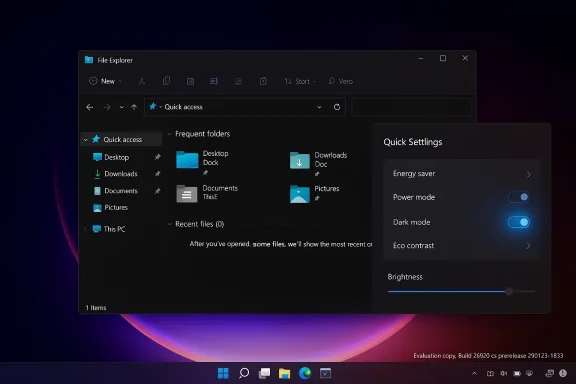
Microsoft has quietly moved to close the most visible remaining dark‑mode regression in File Explorer and — in the same Insider flight — slipped a convenient dark mode toggle into Quick Settings, but both changes are still in preview and deserve cautious optimism rather than celebration just yet.
The push to extend dark mode across File Explorer was deliberate and long‑running: Microsoft began rolling out broader dark theme coverage for file operation dialogs and other Explorer surfaces in the Dev channel in October 2025, as part of a controlled feature rollout that aimed to give a consistent dark experience for copy/move/delete dialogues, progress bars and other formerly white UI elements.
That polish arrived in a larger, optional preview cumulative update published on December 1, 2025 — which expanded dark mode to legacy file‑operation windows. Soon after that optional preview went out more widely for testers, users began reporting a startling side‑effect: brief, bright white flashes when interacting with File Explorer under dark mode. Microsoft flagged the behavior as a known issue and began iterating on fixes.
What followed was a mix of targeted fixes, telemetry‑driven rollouts, and more preview builds across Canary, Dev and Beta. The eclectic path to a full fix illustrates how even modest visual changes can touch deep, platform‑level rendering code paths and surface unexpected regressions on certain hardware and configurations.
Three practical mechanisms can explain the regression:
For people sensitive to sudden brightness changes — including those with photosensitivity or migraines — even a millisecond white screen can be unpleasant. That’s why the fix, once implemented, matters beyond simple aesthetics: it’s an accessibility improvement that restores a consistent theme experience.
Why the choice of Energy Saver? The Insider builds’ Quick Settings redesign seems to be consolidating battery and power‑related toggles into a single subpage (Power mode, Eco brightness, Screen Contrast, and now Dark mode). That design reduces tile clutter but introduces discoverability trade‑offs that Microsoft will likely refine with feedback.
But the saga also illustrates why even small UX projects can take time: compatibility with third‑party shell extensions, interaction with GPU drivers, and the reality of millions of hardware permutations make visual work deceptively complex. The result is sometimes a visible regression that needs iterative triage — exactly what we saw with the Explorer flashes.
That said, the fixes are still in preview and the company has a recent track record of iterative rollouts to get behavior right across the whole ecosystem. Expect further tweaks over the next few weeks as telemetry and Insider feedback arrive. If you rely on Windows 11 in professional environments, treat these as testable builds rather than final releases — and if you’re in the market for convenience, the new Quick Settings flow is already a promising improvement that Microsoft can refine before a wider push.
In short: the flashbangs are being defused, and dark mode is getting easier to access — but this story isn’t over until the fix clears validation and the toggle reaches general release. Fingers crossed, and keep an eye on the Insider notes for the next chapter.
Source: TechRadar https://www.techradar.com/computing...e-flashbangs-that-still-plague-file-explorer/
 Background: how a welcome UI polish turned into an irritant
The push to extend dark mode across File Explorer was deliberate and long‑running: Microsoft began rolling out broader dark theme coverage for file operation dialogs and other Explorer surfaces in the Dev channel in October 2025, as part of a controlled feature rollout that aimed to give a consistent dark experience for copy/move/delete dialogues, progress bars and other formerly white UI elements.That polish arrived in a larger, optional preview cumulative update published on December 1, 2025 — which expanded dark mode to legacy file‑operation windows. Soon after that optional preview went out more widely for testers, users began reporting a startling side‑effect: brief, bright white flashes when interacting with File Explorer under dark mode. Microsoft flagged the behavior as a known issue and began iterating on fixes.
What followed was a mix of targeted fixes, telemetry‑driven rollouts, and more preview builds across Canary, Dev and Beta. The eclectic path to a full fix illustrates how even modest visual changes can touch deep, platform‑level rendering code paths and surface unexpected regressions on certain hardware and configurations.
What Microsoft changed this week — the facts
- Microsoft released Insider quality updates that include a targeted removal of the white flash in File Explorer when certain actions were taken — specifically when launching new windows or tabs while Explorer is set to open to This PC, and when resizing particular elements inside File Explorer. Those corrections appear in recent Insider Preview builds delivered to testers: Beta Channel build 26220.7961 (as KB5079382) and Dev Channel build 26300.7965 (as KB5079385).
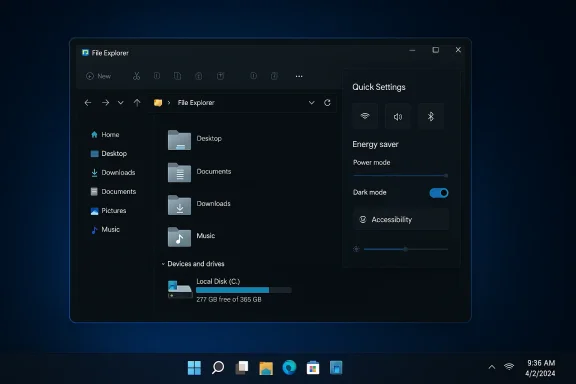
- Parallel to the Explorer fix, UI sleuths and Insider‑watchers have discovered a hidden Dark mode toggle inside a new Energy Saver subpage in Quick Settings. The toggle lets users switch between dark and light themes without opening Settings > Personalization > Colors, although it currently sits one tap deeper (Energy Saver → subpage → Dark mode) rather than as a top‑level quick action. The change was spotted in the same Dev/Beta preview flights by leaker PhantomOfEarth and reported by multiple outlets covering Insider builds.
Timeline recap — key dates you should know
- October 6, 2025 — Microsoft announced Dev‑channel improvements that made a wider set of File Explorer dialogs follow the system dark palette. This was the engineering move that set the stage for later visual regressions once the change reached broader preview rings.
- December 1, 2025 — Microsoft published an optional preview cumulative update (listed in preview records) extending dark mode to more Explorer surfaces; soon after, users began reporting the white‑flash problem. Microsoft classified the problem as a known issue and began investigating.
- January–February 2026 — iterative Canary/Dev test builds shipped candidate fixes; some Insiders reported improvements while others still observed flashes in particular scenarios.
- March 6, 2026 — Microsoft released Insider Preview updates to Beta and Dev that explicitly list the removal of white flashes in File Explorer and include a number of companion fixes and UI experiments (including Quick Settings changes). The builds are 26220.7961 (KB5079382, Beta) and 26300.7965 (KB5079385, Dev).
The technical angle: why did the white flashes occur?
At a high level, the white‑flash problem was a rendering‑pipeline and theme‑resource inconsistency triggered by moving previously white system dialogs into the dark theme family. When a window is created or a UI element is resized, the compositor and the app’s window creation path must ensure the correct background and theme resources are applied before the surface becomes visible. If any timing window allows an unthemed (white) background to present briefly, that shows as a flash to the end user.Three practical mechanisms can explain the regression:
- Theme mapping order: legacy dialogs were updated to use dark resources, but a race condition could let a default white background render before the theme brush is applied.
- DWM/compositor transitions: some hardware‑accelerated composition paths might clear or present a backing surface with a default color while the GPU pipeline rebuilds the frame.
- Layered UI and partial repaint: resizing or opening a tab can trigger partial repaints; if the repaint doesn’t cover the entire layer in the dark color immediately, a white band can appear.
Who this actually affected — accessibility and high‑res displays
The white flashes were more than a cosmetic annoyance for many users. Insiders with large OLED and high‑contrast displays reported that the sudden bright flash could be disorienting or painful; some articles described the effect bluntly because, on large bright panels, the flash is highly visible and jarring. That elevated the bug from a “visual polish” issue to an accessibility concern that merited faster prioritization.For people sensitive to sudden brightness changes — including those with photosensitivity or migraines — even a millisecond white screen can be unpleasant. That’s why the fix, once implemented, matters beyond simple aesthetics: it’s an accessibility improvement that restores a consistent theme experience.
What changed in the Insider builds — the fine print
The published Insider notes and community testing threads highlight a few discreet corrections and related improvements in these flights:- Removal of white flash when launching new File Explorer windows or tabs when Explorer is set to open to This PC.
- Removal of white flashes when resizing elements inside File Explorer.
- Companion tweaks across Quick Settings and the system tray, including an Energy Saver redesign that acts as the container for the new Dark mode toggle and the return of limited Quick Settings customization in preview.
Quick Settings dark mode toggle — small but meaningful
For everyday Windows 11 users, the more practical change is the new Dark mode toggle inside Quick Settings’ Energy Saver subpage. Currently hidden in Insider builds and not surfaced as a primary quick action, it allows:- One‑tap access to Energy Saver, then a second tap to the subpage where the Dark mode toggle lives.
Why the choice of Energy Saver? The Insider builds’ Quick Settings redesign seems to be consolidating battery and power‑related toggles into a single subpage (Power mode, Eco brightness, Screen Contrast, and now Dark mode). That design reduces tile clutter but introduces discoverability trade‑offs that Microsoft will likely refine with feedback.
Risks, unknowns, and why cautious testing matters
A few points of caution are worth repeating:- These corrections are in Insider preview builds; history shows fixes rolled to Insiders can still regress or have side effects when exposed to the full diversity of hardware and apps in the wild. Microsoft’s own rollout notes emphasize controlled feature ramping for this reason.
- Past fixes to Explorer and system UI have occasionally introduced new visual or functional oddities; several earlier flights already addressed other dark‑mode inconsistencies and copy/move dialogs but produced follow‑ups that required more iterations. The risk of a regress‑then‑fix loop is real.
- Enterprise environments often lag consumer rings for a reason: a staged, conservative rollout minimizes disruption to production systems. Organizations should continue to evaluate Insider notes and test any UI changes in lab images before allowing broad deployment.
What to do now — practical guidance for users and admins
If you’ve been annoyed by the Explorer flashes or you want to try the Quick Settings dark toggle, here’s a practical set of steps and options:- For testers and power users:
- Join the Windows Insider Program and set the update channel to Beta or Dev if you want to receive these preview quality updates sooner. The builds that list the white‑flash removal are 26220.7961 (KB5079382, Beta) and 26300.7965 (KB5079385, Dev). Keep in mind Insider builds are pre‑release and can change behavior between flights.
- For people experiencing the flashes on production machines:
- If you hit the white flashes and need immediate relief, switch Explorer back to Light mode (Settings > Personalization > Colors) until a production cumulative update reaches your device. Microsoft previously advised users that turning off dark mode is a short‑term mitigation.
- For IT admins:
- Track the Insider release notes and identifiy the KB numbers for your update rings; plan lab tests on representative hardware to confirm the fix doesn’t introduce regressions under your specific imaging and management stacks. Staging the rollout through Windows Update for Business or update rings remains the safest path.
- For accessibility‑concerned users:
- If sudden brightness changes cause discomfort, consider using hardware‑level features like adaptive brightness or temporary color filters, and report any persisting flashes through Feedback Hub so engineering teams can prioritize reproductions on affected devices.
Why this mattered — beyond an aesthetic gripe
At stake wasn’t merely a visual mismatch; the episode is instructive for how modern OS vendors manage UI churn. A few takeaways:- Small visual changes ripple deeply. Modern operating systems are composed of multiple rendering layers, backward compatibility shims, and legacy dialogs. Updating the theme brush for one class of windows can surface timing and composition issues in unrelated code paths.
- Community telemetry matters. The white‑flash issue was escalated quickly because Insiders, press outlets and accessibility advocates raised strong, reproducible complaints. That communal feedback loop accelerated attention and prioritized the fix.
- Design trade‑offs are real. The Quick Settings dark toggle shows Microsoft is trying to balance discoverability with decluttering. Placing theme switching under Energy Saver is defensible but not perfect; it signals ongoing experimentation with the Quick Settings UX.
- Testing cadence matters. Controlled Feature Rollouts and the multi‑ring Insider model exist to catch regressions like this before they hit stable channels, but the multi‑stage nature also means fixes can take weeks of iterative validation. That’s the careful path, even if it feels slow to end users.
The broader UX story: Microsoft is moving the right pieces, slowly
The endgame — a fully consistent dark experience and modernized Quick Settings — is a meaningful UX improvement for Windows 11. The company is tackling long‑standing inconsistencies (legacy dialogs, copy/move UI, share sheets) and the Quick Settings refresh promises to restore the customization many users missed. Those are good changes for power users and newcomers alike.But the saga also illustrates why even small UX projects can take time: compatibility with third‑party shell extensions, interaction with GPU drivers, and the reality of millions of hardware permutations make visual work deceptively complex. The result is sometimes a visible regression that needs iterative triage — exactly what we saw with the Explorer flashes.
Final verdict — realistic optimism
This week’s Insider releases are a welcome step: Microsoft has named the builds and KBs where the white‑flash corrections live and is testing a Quick Settings dark mode toggle that will save users multiple clicks to change themes. For everyday Windows 11 users, that’s two tangible wins: a fix for a jarring visual regression and a more convenient way to toggle dark mode.That said, the fixes are still in preview and the company has a recent track record of iterative rollouts to get behavior right across the whole ecosystem. Expect further tweaks over the next few weeks as telemetry and Insider feedback arrive. If you rely on Windows 11 in professional environments, treat these as testable builds rather than final releases — and if you’re in the market for convenience, the new Quick Settings flow is already a promising improvement that Microsoft can refine before a wider push.
In short: the flashbangs are being defused, and dark mode is getting easier to access — but this story isn’t over until the fix clears validation and the toggle reaches general release. Fingers crossed, and keep an eye on the Insider notes for the next chapter.
Source: TechRadar https://www.techradar.com/computing...e-flashbangs-that-still-plague-file-explorer/