

Microsoft’s November Insider wave has quietly reshaped the Windows 11 preview landscape: new user-facing refinements landed on the 25H2 preview stream while the Canary channel was advanced into a platform-only 26H1 branch for next‑gen silicon, and Microsoft began surfacing the early plumbing for an agentic Windows — all in a fortnight of incremental builds and gated rollouts that will matter to testers, admins, and anyone tracking Windows’ AI and hardware direction.
Windows Insiders received multiple preview packages in the first half of November 2025: Dev and Beta channel devices were offered builds in the 26220 family while Canary insiders saw experimental builds in the 27980–28000 range. Microsoft’s release notes make two important distinctions: 25H2 remains the active feature branch for new experiences, and 26H1 (introduced in the Canary channel) is a platform release intended to prepare Windows for new silicon rather than to ship large user features. This split explains why many visible changes are appearing as staged “controlled feature rollouts” rather than broad, immediate updates. Why this matters: with 26H1 targeted at Qualcomm Snapdragon X2 and NVIDIA N1X device families, Microsoft is prioritizing hardware enablement for future PCs while continuing to build and test user-facing features in 25H2. For Insiders and IT teams that means feature visibility will remain experimental and incremental for the near term.
Windows Share (drag tray) improvements make sharing via drag-and-drop markedly faster: dragging a file to the top of the screen surfaces a compact tray with share targets and a “More” option to open the full Windows Share UI. This mimics mobile sharing idioms and shortens common workflows for quickly dropping content into messaging or cloud apps.
Source: Windows Central https://www.windowscentral.com/micr...-brings-new-features-and-reveals-new-version/
 Background
Windows Insiders received multiple preview packages in the first half of November 2025: Dev and Beta channel devices were offered builds in the 26220 family while Canary insiders saw experimental builds in the 27980–28000 range. Microsoft’s release notes make two important distinctions: 25H2 remains the active feature branch for new experiences, and 26H1 (introduced in the Canary channel) is a platform release intended to prepare Windows for new silicon rather than to ship large user features. This split explains why many visible changes are appearing as staged “controlled feature rollouts” rather than broad, immediate updates. Why this matters: with 26H1 targeted at Qualcomm Snapdragon X2 and NVIDIA N1X device families, Microsoft is prioritizing hardware enablement for future PCs while continuing to build and test user-facing features in 25H2. For Insiders and IT teams that means feature visibility will remain experimental and incremental for the near term. Overview: the November feature highlights
- Widgets board redesign and new Widgets settings in Settings
- Quick Machine Recovery (QMR) behavior change to avoid repeated scans
- Smart App Control (SAC) now toggleable without a clean reinstall for Insiders
- Lock Screen Widgets management surfaced to Lock Screen settings
- Drag Tray / Windows Share improvements for quick drag-to-share workflows
- 26H1 Canary release (build 28000) — platform-only changes for next-gen silicon
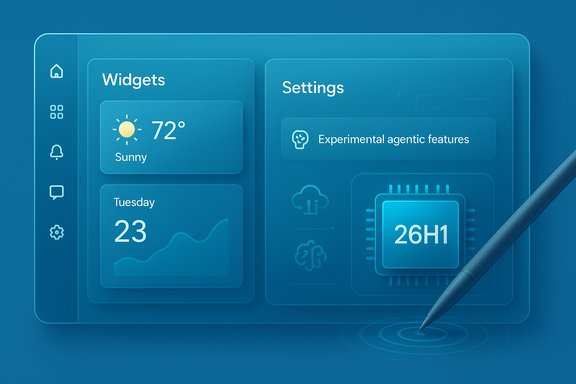
- Early agentic AI plumbing and an “Experimental agentic features” toggle
- Click to Do context menu redesign and updated tutorial flows
- Haptic feedback for pens and HD voices for Narrator/Magnifier plus math reading support for Narrator
Widgets board redesign: more modular, more discoverable
What changed
Microsoft refreshed the Widgets board with a multi-dashboard layout and a left-hand navigation rail that separates curated content (“Discover”) from the user’s owned dashboards. Icons on the rail now show numbered badges indicating unseen alerts per dashboard, and there’s a new full-page Widgets Settings experience that lets you reorder dashboards and set a default. The experience intentionally mirrors Copilot’s web “Discover” aesthetic where appropriate, since Copilot curates parts of the Discover feed.Why it’s important
This redesign is a usability move. It reduces ambiguity between content-first and utility-focused widgets, making the Widgets board behave more like a compact dashboard manager rather than a single scrolling feed. The numbered-badge affordance is a small but meaningful addition for glanceability. Because the change is gated, some Insiders will see it before others — expect a period of mixed UI experiences across enrolled devices.Quick Machine Recovery: quicker triage, fewer loops
Quick Machine Recovery (QMR) was adjusted to run a one-time diagnostic scan by default (when both QMR and “Automatically check for solutions” are enabled) instead of repeating scans in a loop. If an immediate fix isn’t found, the system now surfaces alternative recovery options faster rather than leaving the user waiting during repeated scans. The change applies to both the full Settings recovery experience and the Windows Recovery Environment (WinRE). Why this is notable: QMR’s new one-shot behavior reduces user confusion and speeds time-to-resolution in scenarios where cloud-assisted fixes are unavailable. For technicians and end users this should materially improve perceived recovery responsiveness in common failure cases.Smart App Control: the toggle that removes a major pain point
What changed
Historically, Microsoft required a clean install or reset to enable SAC (Smart App Control) if it had previously been turned off. The November Dev/Beta build 26220.7070 updates SAC so that Insiders can now toggle SAC on or off from Windows Security without reinstalling Windows. The option is surfaced under Windows Security → App & Browser Control → Smart App Control. This is an explicit change called out in the build notes.Cross-check and caution
Microsoft’s long-standing support documentation still states the earlier behavior — that SAC is only available on clean installs and that re-enabling after disabling traditionally required reinstallation. The Insider build notes therefore represent a behavioral change in preview that will need time to propagate into general support docs and enterprise guidance. Until Microsoft updates the formal support article, admins should treat SAC state changes as a policy-related event and validate controls with endpoint management tooling.Practical implications
- For home testers and Insiders: easier to evaluate SAC and validate app compatibility without reimaging.
- For IT teams: new toggleability simplifies pilot testing but raises the need to monitor and log SAC state changes as a security telemetry item.
- Security trade-off: allowing toggles makes testing easier, but it also increases the risk surface if toggles are misused on unmanaged endpoints; policy and auditing should be adjusted accordingly.
Lock Screen widgets and Windows Share (drag tray)
Starting in Canary build 27982, Windows moved widget controls for the Lock Screen into the Lock Screen settings page. Users can now manage which widgets appear on the Lock Screen (up to four slots) and enable suggestions to auto-fill unused slots. The control parity aligns Lock Screen widgets with the broader Widgets experience.Windows Share (drag tray) improvements make sharing via drag-and-drop markedly faster: dragging a file to the top of the screen surfaces a compact tray with share targets and a “More” option to open the full Windows Share UI. This mimics mobile sharing idioms and shortens common workflows for quickly dropping content into messaging or cloud apps.
Windows 11 version 26H1: platform enablement, not a feature release
On November 7 Microsoft released build 28000 to the Canary Channel and updated the version string shown in winver to Windows 11, version 26H1. Microsoft is explicit that 26H1 is not a feature update for existing 25H2 users; it’s a platform update intended to enable new silicon (e.g., next‑gen Qualcomm and NVIDIA processors). In short, 26H1 is Bromine — a Bromine platform baseline for OEMs and device OEM/system firmware targeting, not the primary vehicle for consumer feature rollouts. What to expect:- 26H1 will be relevant to OEMs and device manufacturers first.
- Feature development and experimentation will continue in the 25H2 stream.
- Enterprises and consumers with standard x64 PCs should track 25H2 for functional changes while monitoring 26H1 for future hardware support notes.
Experimental agentic features: early plumbing for a more autonomous Windows
The toggle and the architecture
Build 26220.7262 introduced a new Experimental agentic features toggle under Settings → System → AI components. When enabled, the system provisions an isolated agent workspace where AI agents (e.g., Copilot actions) can operate under scoped permissions, running multi-step workflows such as organizing files or drafting emails. The current implementation uses a separate Windows session as an isolated space and Microsoft has described plans to use lightweight virtualization for future agent workloads. This experience is disabled by default and gated for Insiders.Security model and risks
Microsoft published early guidance accompanying the preview that details the security trade-offs: at preview stage, agentic features run in contained workspaces and are opt-in, but they still introduce new risk vectors (data access, accidental or malicious actioning, credential use). Enterprises should pilot these features only on dedicated test hardware and implement strict telemetry and rollback plans. The initial architecture emphasizes least privilege and auditability, but the maturation of controls will be a critical factor for enterprise adoption.User experience today
Insiders who enable the toggle can see how agents perform tasks in a sandboxed environment. Expect limited, experimental capabilities initially — Microsoft is prioritizing control surfaces, teaching tips, and the mechanisms for agent isolation over broad agent functionality in these first previews. Consider this foundational plumbing for future Copilot Actions and automated assistants on Windows.Click to Do redesign, haptics, and accessibility upgrades
- Click to Do: Microsoft streamlined the Click to Do context menu to emphasize Copy, Save, Share, and Open with iconography, plus a refreshed tutorial with a “Launch Tutorial” button. This reduces friction when working with images, text, and tables and makes AI-driven contextual actions easier to discover.
- Haptic feedback for pens: Pens with haptic capability will now produce tactile responses (vibrations) during system interactions such as hovering over a close button or snapping/resizing windows, giving tangible feedback for stylus input. This is a hardware-gated feature and will only appear on compatible devices.
- Narrator & Magnifier HD voices and math support: Narrator and Magnifier now support on-device, high-definition voices (initially English US), and Narrator gained structured math reading for Microsoft 365 apps such as Word, improving accessibility for STEM content consumption. These features use larger on-device TTS models for improved cadence and clarity.
Security, privacy, and enterprise considerations
- Controlled rollouts and gating
- Many changes use CFR and will appear to subsets of Insiders. Admins and pilot managers must track which builds and toggles are enabled in their estate and maintain test devices that mirror production policies.
- Smart App Control (SAC)
- The SAC toggle makes testing simpler but means endpoint security posture can change without reimaging. Enterprises should log SAC state changes and adjust EDR/MDM policies accordingly. Until Microsoft updates formal support documentation, treat this as a preview-only behavior.
- Agentic features
- Agent-level automation introduces new data and action vectors. Pilot only on segregated hardware, require Microsoft/third-party auditing capabilities, and insist on clear rollback and revocation controls before wide deployment.
- On-device AI models
- HD voices and agentic components rely on larger on-device models. Organizations should validate storage, update policies, and potential NPU offload if using Copilot+ or NPU-equipped devices. HD voice downloads will consume disk and bandwidth; factor this into provisioning plans.
How to test these features today (Insider checklist)
- Enroll a spare device in the Windows Insider Program (Dev or Beta Channels for 25H2 features; Canary for 26H1 platform tests).
- Turn on “Get the latest updates as they are available” in Settings → Windows Update to increase the chance of receiving CFR-enabled features.
- Check Settings → System → About or winver to confirm your build and channel.
- Explore these locations after updating:
- Widgets Settings: Settings → Personalization → Widgets (or open Widgets and click the gear).
- Smart App Control: Windows Security → App & Browser Control → Smart App Control settings.
- AI Components: Settings → System → AI components → Experimental agentic features.
- Narrator/Magnifier voices: Settings → Accessibility → Narrator / Magnifier → Add a natural voice.
- Use Feedback Hub to file issues and send telemetry examples for specific bugs.
Strengths and limitations: a balanced assessment
Strengths
- Microsoft is shipping iterative usability wins (Widgets, QMR, drag-to-share) that reduce friction in common workflows. These are sensible, user-centric refinements that improve discoverability and recoverability.
- Accessibility investments (HD voices, math reading) are tangible improvements that will help users with vision impairments and reduce listening fatigue.
- The agentic toggle and agent workspace model show careful attention to isolation and least privilege; Microsoft is building the runtime scaffolding before exposing broad automatic behaviors.
- The SAC toggle removes a major friction point for testers and administrators evaluating app compatibility.
Limitations and risks
- Gated rollouts create inconsistent experiences across devices and complicate troubleshooting for IT because not every device will see the same behavior at the same time.
- Agentic automation raises real security and compliance concerns; isolation mitigates risk but does not eliminate it. Enterprises must demand stronger auditing, revocation, and management controls before enabling at scale.
- Documentation lag: formal support pages (e.g., SAC guidance) may continue to reflect older behaviors until preview changes stabilize. That gap introduces policy confusion for administrators.
- 26H1’s platform focus means feature development for mainstream users remains anchored in the 25H2 branch — a potential source of confusion when insiders see a “new version” label in winver without the corresponding user-facing features.
What to watch next
- Microsoft’s documentation updates to reconcile the SAC guidance with the preview behavior. Until the support article is updated, treat the SAC toggle as an Insider preview capability and require rigorous testing before enabling broadly.
- Agentic feature expansion and management tooling: the cadence of additional APIs, telemetry hooks, and admin controls will determine whether agentic automation is appropriate for enterprise use.
- 26H1 downstream changes: watch for OEM and driver notes as Qualcomm and NVIDIA silicon reach device OEMs in H1 2026 — the platform’s true test will be device compatibility and firmware integration.
- Accessibility rollouts: HD voices and math reading are useful now; expect expanded language support and voice variants if telemetry supports broader adoption.
Conclusion
November’s Insider wave is less about headline features and more about steady platform and usability progress: a redesigned Widgets board, faster recovery flows, an easier Smart App Control toggle, improved share mechanics, and significant groundwork for agentic AI and next‑gen silicon support. For testers and IT audiences the immediate value is pragmatic — less reimaging, faster recovery, and experimental access to agentic tooling — while the longer story is strategic: Microsoft is preparing Windows to run richer on-device AI and to ship on new silicon families without breaking the cadence of feature innovation in 25H2. Insiders should continue to treat these builds as previews: enable features on dedicated test hardware, file feedback, and plan audits and policies before permitting agentic automation or new security toggles on production endpoints.Source: Windows Central https://www.windowscentral.com/micr...-brings-new-features-and-reveals-new-version/
