Windows 11 Insider Preview 26220.7535: Copilot Accessibility, Admin Remove Policy, WNS XDR

  • Thread Author
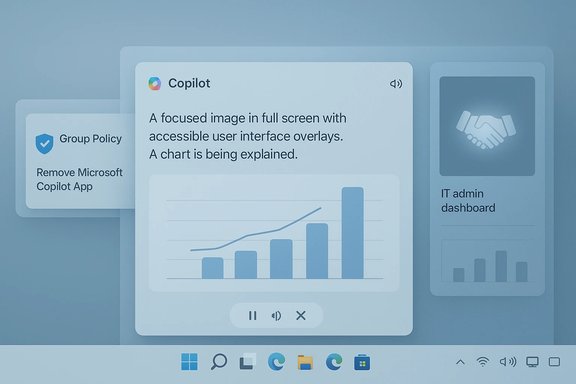
Layered UI mockup showing Copilot onboarding with a chart and admin dashboards.
Microsoft’s first Insider preview of 2026 lands as a focused, practical update: Windows 11 Insider Preview Build 26220.7535 (delivered as KB5072046) expands Copilot’s role in accessibility, gives IT administrators a new uninstall policy for the consumer Copilot app, and opens an alternate developer path for Cross‑Device Resume — all while polishing a few UI edges and shipping a collection of fixes and known issues for testers to validate.

Background / Overview​

Windows 11’s early‑2026 Insider cadence continues Microsoft’s enablement‑package strategy for the 25H2 servicing stream: identical binaries are distributed while feature visibility is controlled through server‑side gating and staged rollouts. That means installing Build 26220.7535 is necessary but not sufficient to see every new capability immediately — Microsoft flips feature flags on a per‑device basis.
This preview centers on three practical themes:
  • Accessibility: richer, interactive image descriptions in Narrator powered by Copilot.
  • Enterprise governance: a targeted Group Policy to remove the consumer Microsoft Copilot app on managed devices.
  • Developer flexibility: a new Windows Notification System (WNS) integration option for Cross‑Device Resume (XDR), lowering the friction for handoff scenarios from Android phones to Windows PCs.
Taken together, these changes show Microsoft’s strategy of weaving Copilot across OS workflows while adding management and integration controls that address enterprise and developer concerns.

What’s new in Build 26220.7535 (KB5072046)​

Copilot‑powered image descriptions in Narrator​

The most prominent user‑facing change is the expansion of Copilot‑powered image descriptions in Narrator beyond Copilot+ hardware. Insiders can now request an AI description of a focused image or the entire screen using keyboard shortcuts:
  • Press Narrator key + Ctrl + D to describe the focused image.
  • Press Narrator key + Ctrl + S to describe the full screen.
When invoked, Narrator opens Copilot with the image preloaded and asks for explicit confirmation before sharing — then Copilot supplies a contextual description and supports follow‑up questions (for example, counting items in a chart or clarifying colors). On qualified Copilot+ PCs (devices outfitted with NPUs for on‑device inference), descriptions can be generated locally; on other machines the flow will likely route images to cloud processing after the user confirms sharing. Microsoft notes that this capability is not available in the European Economic Area (EEA) at initial rollout.

Admins get Copilot removal controls​

Responding to enterprise feedback, Microsoft added a new Group Policy named RemoveMicrosoftCopilotApp that lets administrators perform a one‑time uninstall of the consumer Microsoft Copilot app on managed devices when all of these conditions are met:
  • Microsoft 365 Copilot and the consumer Microsoft Copilot app are both installed on the device.
  • The Microsoft Copilot app was not installed by the end user (meaning it was provisioned or pushed).
  • The Microsoft Copilot app has not been launched by the user in the last 28 days.
The policy is surfaced under User Configuration → Administrative Templates → Windows AI → Remove Microsoft Copilot App, and Microsoft documents complementary enforcement approaches (AppLocker, Intune, PowerShell) for organizations that want layered or durable controls. The uninstall is a one‑time action and users retain the ability to reinstall Copilot afterward.

Cross‑Device Resume gains a WNS integration option​

Developers building Cross‑Device Resume (XDR) scenarios now have an additional integration route: using the Windows Notification System (WNS) to surface resume triggers. Previously the path relied heavily on Link to Windows / the Continuity SDK on Android; WNS provides a pragmatic alternative that leverages Windows’ existing notification and toast infrastructure, reducing onboarding friction for apps that already use WNS for actionable notifications. This change broadens developer choices for implementing handoff experiences from Android to Windows.

Polish, fixes and staged rollouts​

Alongside these headline items, the build ships several smaller updates and fixes:
  • Windows Spotlight icon refresh to better match Windows 11 design language.
  • Multiple fixes across Start menu, File Explorer, Bluetooth, printing, and Settings.
  • Known issues remain for some taskbar, Xbox full‑screen, and Settings interactions; Microsoft is staging these fixes gradually via feature flags.
Insiders in Dev and Beta channels can install the KB via Settings → Windows Update, but staged distribution means it may take time to reach every device.

Deep dive: Narrator + Copilot — accessibility, privacy, and quality​

Why this matters for accessibility​

AI‑generated image descriptions address a persistent accessibility gap: many websites, documents, and images lack meaningful alt text, and static alt text often fails to convey complex visual information such as charts, infographics, or annotated screenshots. Integrating Copilot into Narrator turns a single alt text string into an interactive conversation that can:
  • Explain visual structure (titles, axes, labels).
  • Extract text via OCR.
  • Answer follow‑up clarifications (counts, colors, relationships).
This multimodal parity helps close real‑world gaps for blind and low‑vision users by making the same Copilot Vision capabilities available inside screen‑reader workflows. The follow‑up question model is especially valuable: it transforms passive narration into an exploratory workflow.

On‑device vs. cloud execution: performance and privacy trade‑offs​

The experience differs depending on hardware:
  • Copilot+ PCs with qualifying NPUs can run descriptions on‑device for lower latency and reduced cloud exposure.
  • Non‑Copilot+ devices will generally use cloud processing, subject to user confirmation before any image is shared.
On‑device inference is a clear privacy plus, but most Windows devices in the field will still depend on cloud models — raising questions about telemetry, retention, and sensitive content handling. Microsoft emphasizes user consent (the user must confirm before any image is shared), but preview notes do not publish a granular data‑retention policy for narrated images. That absence is meaningful for enterprises and privacy teams; until Microsoft publishes exact retention and telemetry matrices, organizations should treat claims of “privacy by default” with caution and test the flows in their compliance environments.

Quality assurance and limitations​

AI descriptions are probabilistic. They can dramatically improve accessibility in many contexts but are not a replacement for carefully authored alt text in scenarios that require precision (legal documents, medical images, or critical charts). The follow‑up model mitigates some risk by allowing clarification, but product teams and content authors should continue to provide author‑supplied alt text wherever accuracy matters most. Accessibility validators should test description accuracy across representative content types and across both Copilot+ and non‑Copilot+ hardware.

Enterprise implications and recommended admin actions​

What RemoveMicrosoftCopilotApp does — and what it doesn’t​

The new Group Policy fills a practical gap: administrators who don’t want a consumer‑branded Copilot app present on managed endpoints can trigger a one‑time uninstall when the policy’s strict conditions are met. Important operational notes:
  • It is conditional and one‑time; it’s not a permanent block against future installations.
  • The policy will not remove Copilot if users installed it themselves or if it has been launched within 28 days.
  • For durable enforcement (for example, to prevent reinstallation through future provisioning), combine the policy with AppLocker/WDAC, Intune configuration profiles, or scripted removal automation.

Practical rollout checklist for IT​

  1. Pilot the policy on a non‑production ring before broad deployment.
  2. Document how the policy behaves with Microsoft 365 Copilot installed; validate dependencies and license interactions.
  3. Combine RemoveMicrosoftCopilotApp with AppLocker or an Intune App Protection policy for durable enforcement.
  4. Test user reinstallation behavior: verify whether users can reinstall via the Microsoft Store or how tenant provisioning handles such events.
  5. Conduct privacy and legal reviews for any Copilot features that may process end users’ content (Narrator image descriptions, Copilot Vision flows).

Risks and mitigations​

  • Risk: The one‑time uninstall is tactical but not durable.
    Mitigation: Use AppLocker/Intune for persistent blocking; document reinstallation pathways.
  • Risk: Cloud‑processed Narrator descriptions could expose sensitive imagery.
    Mitigation: Restrict the feature in regulated environments until telemetry and retention policies are validated; require explicit user education and consent flows on managed devices.
  • Risk: Unexpected interactions with Microsoft 365 Copilot entitlements or licensing.
    Mitigation: Verify tenant entitlement mapping in a controlled pilot and coordinate with licensing teams.

Guidance for developers: Cross‑Device Resume via WNS​

What changes for app authors​

Cross‑Device Resume (XDR) previously leaned on Link to Windows / the Continuity SDK on Android. The WNS path lets developers send resume notifications to Windows using the same notification channel they already use for toasts and actionable messages. Benefits include:
  • Lower implementation friction for apps already using WNS.
  • Broader device coverage without integrating the full Continuity SDK.
  • Easier onboarding for cross‑platform apps that prefer a notification‑centric handoff.
However, WNS‑based resume increases the importance of secure identification and payload hygiene: resume invitations must be short‑lived, origin‑validated, and must not carry private tokens or credentials embedded in the resume payload itself. Use ephemeral AppContext tokens and server‑side binding to the paired device to avoid replay or spoofing attacks.

Developer checklist​

  • Validate resume token lifetimes and server‑side origin checks.
  • Avoid embedding authentication tokens or private URLs inside resume payloads.
  • Implement handshake verification on resume acceptance (prompt the user to reauthenticate where necessary).
  • Test fallback behavior when the Continuity SDK is unavailable on a client device.
  • Log and monitor suspicious resume attempts as part of the app’s telemetry/telemetry‑review process.

How to test Build 26220.7535 safely (recommended steps)​

  • Back up test devices and create system restore points before installing any Insider preview.
  • Use non‑production pilot rings (developers, accessibility testers, IT admins) for early installs.
  • Verify Narrator + Copilot on representative content sets: charts, screenshots, multi‑panel images, and scanned documents — compare on Copilot+ and non‑Copilot+ hardware.
  • Pilot the RemoveMicrosoftCopilotApp policy on a small group of managed endpoints; verify the uninstall, reinstallation options, and behavior when the Copilot app was user‑installed.
  • Test Cross‑Device Resume via both the Continuity SDK and the WNS path to compare tokens, latency, and fallback behavior.
  • Validate peripherals: printers, Bluetooth headsets, and GPU‑accelerated apps for regressions listed in the build notes.
  • File feedback via Feedback Hub and collect diagnostic traces for any reproducible issues.

Strengths, limitations, and what to watch next​

Strengths​

  • The Narrator integration is a concrete accessibility improvement that brings interactive, AI‑driven descriptions into the screen‑reader workflow — a real usability gain for blind and low‑vision users.
  • The RemoveMicrosoftCopilotApp policy answers a frequent enterprise ask: a safe, conditional way to remove consumer Copilot instances on managed devices.
  • The WNS option for Cross‑Device Resume is pragmatic and likely to accelerate developer adoption by lowering integration barriers.

Limitations and open questions​

  • The Narrator descriptions rely on cloud processing for most devices; the preview does not publish exhaustive data‑retention or telemetry matrices, which matters for regulated environments and privacy teams. Treat retention claims as unverifiable in the preview stage until Microsoft releases detailed documentation.
  • The uninstall policy is a one‑time, conditional hammer — not a permanent block. Organizations requiring durable prevention should layer additional controls.
  • WNS‑based resume raises security imperatives around token lifetimes and origin verification; sloppy implementations could create spoofing or replay risks.

What to watch next​

  • Whether Microsoft publishes a detailed telemetry and retention policy for Copilot image descriptions and Copilot Vision workflows, including regional differences (notably the EEA exclusion).
  • Developer uptake patterns: major apps choosing WNS vs. the Continuity SDK for XDR.
  • Enterprise management additions that make Copilot controls more durable (for example, explicit MDM CSPs or Store provisioning controls).

Quick reference: key technical specifics (verified)​

  • Insider build: Windows 11 Insider Preview Build 26220.7535 (KB5072046).
  • Narrator shortcuts: Narrator key + Ctrl + D (focused image), Narrator key + Ctrl + S (full screen).
  • Admin policy: RemoveMicrosoftCopilotApp — conditional one‑time uninstall; visible under User Configuration → Administrative Templates → Windows AI.
  • Developer option: Cross‑Device Resume via Windows Notification System (WNS) in addition to Continuity SDK/Link to Windows.
  • Copilot+ hardware note: on‑device NPU gating remains a key differentiator; Copilot+ PCs are documented to require NPUs capable of high‑throughput inference (public guidance has referenced thresholds in the high TOPS range for advanced local features). Treat detailed performance claims as hardware‑dependent.

Final assessment and recommendation​

Build 26220.7535 is a pragmatic, incremental preview that pushes Microsoft’s Copilot strategy into areas that matter: accessibility, enterprise manageability, and practical developer tooling. For accessibility advocates and testers, the Narrator + Copilot expansion is the most significant immediate gain — interactive image descriptions can materially reduce access barriers where alt text is absent or insufficient. For IT admins, the RemoveMicrosoftCopilotApp policy is useful as a controlled removal tool but should be combined with AppLocker or Intune controls for persistent enforcement. For developers, the WNS route for Cross‑Device Resume lowers integration friction but brings stronger security responsibilities around tokenization and origin verification.
Treat this build as a testing and feedback vehicle: install on non‑production machines, validate the scenarios that matter to users and compliance teams, and provide targeted Feedback Hub reports for any regressions. Enterprises and privacy‑sensitive deployments should delay broad enablement of cloud‑processed Copilot features until Microsoft publishes detailed telemetry and retention documentation and until pilots confirm acceptable behavior in real environments.
Build 26220.7535 signals Microsoft’s continued, deliberate push to make Windows 11 smarter without ignoring the management and privacy realities of modern IT — but it also highlights the continuing need for cautious evaluation and layered controls as AI features migrate from experiment to everyday tooling.

Source: thewincentral.com Windows 11 26220.7535 Brings Copilot AI & Accessibility Upgrades - WinCentral
 

Microsoft just opened a narrow window for Windows Insiders—and warned that delaying action could mean a time-consuming clean install later to undo the change.

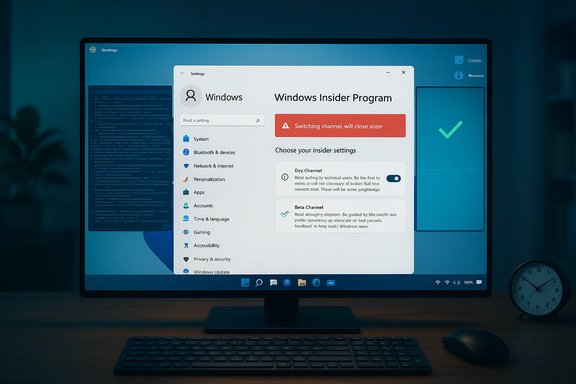
A computer monitor displays Windows Settings and the Windows Insider Program screen.Background: what Microsoft announced and why it matters​

On January 9, 2026 Microsoft published Windows 11 Insider Preview Build 26220.7535 (KB5072046) to the Dev and Beta channels and included a clear operational reminder for the Insider community: while the Dev and Beta channels are temporarily aligned on the same 25H2 build, Insiders in the Dev Channel have a limited opportunity to switch to the Beta Channel without reinstalling. Microsoft spelled it out plainly: once the Dev Channel moves forward to a higher build number, the ability to move between these channels without a clean reinstall will be closed until Microsoft opens another window.
That one-line procedural warning is the headline. The rest of the update contains several incremental but important items — most notably a Narrator integration that uses Copilot for richer image descriptions, a new Group Policy named RemoveMicrosoftCopilotApp that allows targeted one‑time uninstalls of the Copilot app on managed devices, and a developer enhancement for Cross Device Resume that adds a Windows Notification System (WNS) integration path. Those features are useful, but the operational impact of the channel-switch warning is what will actually push many Insiders to act now.

What exactly is the “act now or reinstall later” risk?​

When Microsoft runs the same build in Dev and Beta channels, Insiders can change the channel setting in Settings and remain on the same installed build. That temporary alignment is how Microsoft lets testers move to a less aggressive flight without losing their current installation.
The risk is procedural and technical:
  • Windows Update and Insider flighting logic enforce upgrade-only or forward-only state transitions between build numbers.
  • If your PC installs a Dev build that later advances beyond the Beta channel’s highest released build, the Settings UI will typically grey out or disallow switching back to Beta because moving a device to a channel whose highest shipped build is lower would require a downgrade path Microsoft does not support via Windows Update.
  • In that case, the official supported remedy to leave Dev for Beta or Release Preview is a clean installation of the desired channel image—meaning a full reinstall of Windows, data restore and reconfiguration.
Put plainly: if you want Beta-level stability and you’re currently on Dev, switching while the channels share the same build is the frictionless option. Delay, and your only supported option later may be to back up, wipe, and reinstall.

What’s in Build 26220.7535 (KB5072046)?​

This is an Insider preview build and the changes are primarily geared at preview testing, accessibility, and admin controls. The notable pieces are:
  • Narrator + Copilot image descriptions
  • New Narrator commands let users request a description of a focused image or the entire screen. The feature uses Copilot to generate richer, natural‑language descriptions and follow‑up Q&A. On Copilot+ PCs descriptions can be performed locally; on other systems the experience can move to cloud‑based Copilot when the user explicitly requests it. The feature is not automatically invoked—images are only shared when the user asks for a description. The rollout has a geographic caveat: it’s not available in the EEA at this rollout stage.
  • RemoveMicrosoftCopilotApp Group Policy
  • A new Group Policy allows admins to perform a one‑time uninstall of the Microsoft Copilot consumer app for specific users/devices when all of the following are true:
  • Microsoft 365 Copilot and the standalone Microsoft Copilot app are both present.
  • The Copilot app was not installed by the user (i.e., it was provisioned).
  • The Copilot app has not been launched in the past 28 days.
  • The policy path is: User Configuration → Administrative Templates → Windows AI → Remove Microsoft Copilot App. It applies to Enterprise, Pro and EDU SKUs. Important: this is a targeted cleanup/uninstall, not a permanent block; users can reinstall Copilot afterward and tenant provisioning can reintroduce it.
  • Cross Device Resume (XDR) expands to support WNS
  • Developers now have an alternate integration path using the Windows Notification System, widening scenarios for handoff/resume flows between phone and PC.
  • General fixes and known issues
  • Usual fixes for Settings, Bluetooth battery indicators, Taskbar and Xbox full-screen behavior, plus several known issues still under investigation in this preview release.
These features are being rolled out using controlled feature rollouts for Insiders, so not every device will see every item simultaneously.

Why Microsoft’s warning is realistic—and why you should treat it as urgent​

There are three practical reasons this is a real operational hazard for Insiders:
  • Build-number gating is deliberate. Microsoft prevents downgrade-like changes through regular update flows to avoid instability and data corruption that can accompany unsupported rollback paths.
  • No precise deadline. Microsoft used wording like “this window is soon closing” rather than publishing a specific date or build number. That ambiguity means the window could close with very little public notice.
  • Clean installs are disruptive. A clean install requires backing up data, recreating system configuration, reinstalling applications and drivers—and for some managed environments, re-provisioning device management. That can cost hours or even days for complex setups.
For Insiders who rely on stability for daily work, or who are testing on a primary machine, the trade-off is simple: switch to Beta now if you want to avoid the higher cost of a later reinstall.

Step-by-step: how to act right now (simple, low-risk)​

If you are enrolled in the Windows Insider Program and want to switch from Dev to Beta safely while the option exists, follow these steps:
  • Back up your data first. Create a full system image and at minimum copy important files to an external drive or cloud storage. Verify that backups restore correctly.
  • Open Settings (Win + I) → Windows Update → Windows Insider Program.
  • Under Choose your Insider settings, select Beta Channel.
  • Reboot if prompted and confirm Windows Update shows you are enrolled in Beta. If the option is greyed out, your build may already exceed Beta’s highest available build.
  • Optionally, disable the toggle “Get the latest updates as soon as they’re available” if you prefer slower, more stable rollouts even inside Beta.
If you plan to remain in Dev, ensure you have strong backups and be prepared to perform a clean install if you later decide to move back to Beta or Release Preview and the channel switch path is closed.

Preparing for the worst-case: how to clean install if necessary​

If you are forced to perform a clean install later, these are the practical steps that minimize downtime and risk:
  • Create recovery media:
  • Download the appropriate Windows 11 ISO for the release channel you want (Stable/Beta/Release Preview).
  • Use Rufus or the Media Creation Tool to make a bootable USB drive (verify the ISO hash where available).
  • Export and record licensing/activation keys, BitLocker recovery key(s) and device-specific credentials.
  • Fully back up applications and settings:
  • Create a disk image (Macrium Reflect, Acronis, or built-in imaging tools).
  • Export browser bookmarks, app configuration files, and any proprietary configuration scripts.
  • De‑register or disjoin from management services if needed (work with your IT team).
  • Boot from USB, run the clean install, and use the disk image/backup to restore files and configuration as needed.
  • Re-enroll or leave the Windows Insider Program deliberately from Settings → Windows Update → Windows Insider Program after reinstalling, depending on your goal.
Note: re‑enrolling or leaving the Insider Program can be tied to your Microsoft Account and device state. If you reinstall and sign in with the same Microsoft Account, your account-level enrollment settings may persist—so it’s best to verify enrollment settings after a clean install.

The admin angle: RemoveMicrosoftCopilotApp is useful but incomplete​

IT teams and endpoint managers will welcome the new RemoveMicrosoftCopilotApp Group Policy because it gives a targeted way to remove Copilot on managed devices without risking broad disruption. But there are key caveats administrators must plan for:
  • The policy performs one uninstall action per matching user/device when conditions are met. It is not a durable blocker. Users can reinstall the Copilot app afterward.
  • Tenant-level provisioning (Intune, autopilot, or Microsoft 365 tenant policies) can re-provision Copilot. To prevent reappearance, admins must disable tenant auto-provisioning and use MDM/Intune to control app distributions.
  • For durable enforcement, combine the uninstall policy with application control policies such as AppLocker or Windows Defender Application Control (WDAC) and tenant app-management configuration.
  • Test the policy on a small pilot cohort before wide deployment; package names and identifiers can change between preview builds, and brittle scripts that target name strings may fail.
Administrators must view the new policy as an operational tool in a broader governance toolkit—valuable but not a complete solution.

Privacy and compliance: Narrator’s Copilot integration raises questions​

The Narrator image descriptions feature is compelling for accessibility. It allows visually impaired users to get richer context for images and charts, and it supports follow‑up questions—bringing a modern AI-driven assistive experience to Windows.
However, it has privacy and regulatory implications:
  • On Copilot+ PCs, descriptions can be generated locally, limiting exposure. On other devices, the experience may move images into the cloud when the user explicitly requests it.
  • Microsoft states images are only shared when the user invokes the feature, but detailed telemetry and retention policies are not exhaustively documented in the preview post. Organizations subject to data residency, biometric, or strict privacy rules—especially in regulated industries—must evaluate the feature in a controlled environment before approving it for broad use.
  • The rollout excludes the EEA at this stage, signaling that Microsoft is mindful of regional privacy/regulatory complexity. Enterprises with a global footprint should map where the feature is available and enforce consistent policy.
In short: positive accessibility progress, with a need for disciplined privacy review.

Practical recommendations for different audiences​

If you’re a casual Insider (hobbyist)​

  • If you want Beta’s extra stability, switch now while the build alignment window is open.
  • Back up critical files and maintain a restore plan even if you stay in Dev—Insider builds can be unpredictable.

If you use your Insider PC for daily work (primary machine)​

  • Treat the announcement as urgent. Back up everything and either switch to Beta or prepare a verified clean-install plan. Do not procrastinate.
  • Consider dedicating a secondary machine or a VM for risky Dev flights.

If you’re an IT admin​

  • Review the RemoveMicrosoftCopilotApp policy and pilot it in a controlled group.
  • Combine the uninstall policy with AppLocker/WDAC and tenant provisioning controls to prevent reintroduction.
  • Communicate to users that channel switches may require a clean installation later; build simple runbooks for rapid recovery.

If you care about privacy or regulatory compliance​

  • Test Narrator’s Copilot image description workflow in an isolated environment and validate where images go, how long they’re retained, and what telemetry is generated.
  • Document consent and user training—explicit permission flows are central to compliance when data moves to cloud inference services.

Strengths and benefits of Microsoft’s approach​

  • Clarity and pre-warning: Microsoft’s explicit “window is closing” reminder is a practical early warning that gives Insiders actionable choice.
  • Useful admin tools: The RemoveMicrosoftCopilotApp policy acknowledges enterprise needs and provides a targeted remediation tool rather than a blunt, disruptive block.
  • Accessibility advancement: Expanding Narrator’s image description capabilities to more devices is a meaningful step for inclusive computing.
  • Controlled rollout model: Using controlled feature rollouts reduces blast radius and gives Microsoft a chance to iterate based on Insider feedback.

Risks and limitations you must weigh​

  • Ambiguous timeline: Microsoft did not publish a firm cutoff date or an exact build number when the switch window will close. That ambiguity increases the risk of missed timing.
  • Incomplete admin protection: The new policy is a one-time uninstall and does not stop reinstallation or tenant provisioning. Administrators must layer additional controls.
  • Potential for user disruption: Clean installs are time consuming and error‑prone if not planned properly—especially for users with complex software stacks or encrypted drives.
  • Privacy details still evolving: The data lifecycle for cloud-processed Narrator descriptions hasn’t been exhaustively documented in the preview announcement; organizations should validate before wide deployment.

Quick checklist: act now to avoid reinstall pain later​

  • Back up: full image + independent file backups (external drive, cloud).
  • Verify BitLocker recovery keys and device activation status.
  • If you want Beta stability: Settings → Windows Update → Windows Insider Program → select Beta Channel.
  • If you manage devices: pilot the RemoveMicrosoftCopilotApp policy and harden tenant provisioning.
  • Prepare a clean-install USB and test restores if you must reinstall later.

Final analysis​

This month’s Insider release is modest in feature scope but consequential procedurally. Microsoft’s reminder that the Dev→Beta switch window is closing is not a scare tactic—it’s a real operational reality rooted in how flighting, build numbers, and downgrade protections work. For Insiders who prize stability, the simplest risk management move is to switch channels now or at least create a verified recovery and reinstall plan.
The build’s other pieces—Narrator’s Copilot-powered image descriptions and the targeted RemoveMicrosoftCopilotApp policy—represent meaningful progress in accessibility and manageability. But they also bring typical preview-era caveats: geo restrictions, incomplete privacy details, and controls that require administrators to combine several mechanisms for durable enforcement.
In short: the update itself is minor; the decision it forces is not. Act now to keep your options open. If you delay, be prepared to rebuild—painfully—from backup.

Source: Windows Report https://windowsreport.com/act-now-or-reinstall-later-microsoft-warns-windows-insider-users/
 

Back
Top