Microsoft’s latest Insider Preview for Windows 11 tightens visual seams and ships a batch of small but meaningful fixes that push the OS toward a more consistent, modern look—while reminding enterprises and power users that these changes remain staged, gated, and not yet suitable for broad production rollout.
Microsoft delivered Windows 11 Insider Preview Build 26220.7653 (KB5074157) to the Beta Channel with a focused set of UI modernizations and reliability fixes, continuing a months‑long effort to unify system surfaces under the WinUI design language and to extend Dark Mode coverage across legacy dialog fragments. The release is part of the 25H2 preview stream and follows earlier Insider drops that introduced related changes and administrative controls—most notably a separate, earlier policy that allows admins to uninstall the Copilot app on managed devices under strict conditions. This flight is a classic Insider update: incremental user-facing polish, incremental bug remediation, and a handful of known issues retained for further investigation. Readers should expect staged exposure: code may ship inside a build but the visible feature is often enabled later via server-side toggles (Controlled Feature Rollout), producing staggered device behavior.
From an enterprise perspective, the Copilot removal policy is a politically and technically important lever: it gives organizations a controlled way to reduce consumer‑grade AI surface area on managed devices while preserving tenant-grade Microsoft 365 Copilot deployments. The policy’s restrictive gates indicate Microsoft’s intent to avoid accidentally removing required or tenant-managed components. Strategically, these updates reflect two parallel priorities:
Insiders should test on non‑production hardware, report findings through Feedback Hub, and monitor the Windows Insider Blog and their internal pilot telemetry as Microsoft widens the rollouts. Enterprises should treat these builds as validation opportunities: confirm accessibility, automation, and management scenarios before permitting broader deployment. The visual polish is real and useful—but the operational work around rollout mechanics and admin controls remains the central story for IT teams.
Source: heise online Windows Insider Preview polishes the look
 Background
Microsoft delivered Windows 11 Insider Preview Build 26220.7653 (KB5074157) to the Beta Channel with a focused set of UI modernizations and reliability fixes, continuing a months‑long effort to unify system surfaces under the WinUI design language and to extend Dark Mode coverage across legacy dialog fragments. The release is part of the 25H2 preview stream and follows earlier Insider drops that introduced related changes and administrative controls—most notably a separate, earlier policy that allows admins to uninstall the Copilot app on managed devices under strict conditions. This flight is a classic Insider update: incremental user-facing polish, incremental bug remediation, and a handful of known issues retained for further investigation. Readers should expect staged exposure: code may ship inside a build but the visible feature is often enabled later via server-side toggles (Controlled Feature Rollout), producing staggered device behavior. What shipped in Build 26220.7653
Modernized Account dialogs (WinUI + Dark Mode)
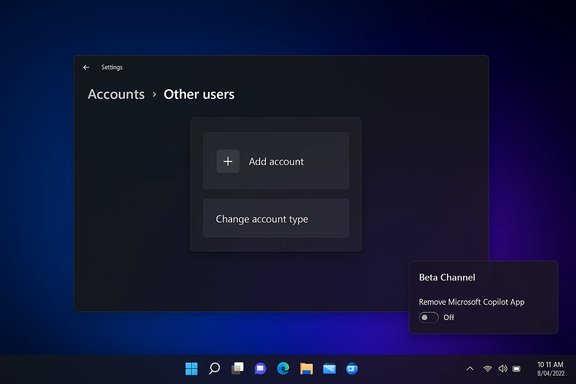
The most visible UI update in this drop is the rework of dialogs under Settings > Accounts > Other users—notably the Add account and Change account type flows—now implemented using modern WinUI components and designed to honor system theme settings (Light/Dark). The aim is visual consistency and reduced “jarring” theme swaps when small legacy dialog fragments previously rendered in bright, non-themable UI. This is deliberate, low‑risk polish intended to smooth daily interactions for multi-user households and IT admins alike.- Key user-visible changes:
- Dialogs adopt WinUI spacing, typography, and controls.
- They respect Dark Mode, eliminating bright popups on dark desktops.
- The flows mirror the rest of modern Settings for consistency.
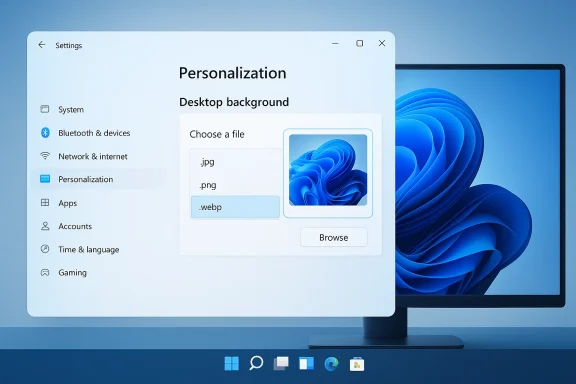
.webp wallpaper support
Windows 11 now accepts .webp images for desktop backgrounds via Settings > Personalization > Desktop Background. The adoption of .webp provides users with a modern, more efficient raster format—smaller files at similar visual quality—without requiring third‑party conversion. This is a convenience update that benefits users who want compact, high‑quality wallpapers.Click to Do / Copilot prompt speedups
On eligible Copilot-enabled devices, prompt suggestions in “Click to Do” now load instantly, reducing latency for Copilot-assisted workflows. Microsoft has regionally gated this improvement—Insiders in the European Economic Area (EEA) and China may not yet see it—consistent with the company’s staged rollout approach.Reliability fixes
The update includes a set of pragmatic fixes targeting surface-level friction:- Taskbar auto‑hide no longer invokes prematurely when interacting with the bottom of the screen.
- A fix is being tested for Start menu, Notification Center, and Quick Settings sometimes not opening on mouse click (keyboard shortcuts continued to work previously).
- Bluetooth device battery level reporting has been restored for affected devices.
- The login screen password icon issue (blank icon) has been addressed.
- A Settings crash when interacting with audio devices in recent Insider builds has been fixed.
- Memory leak and performance issues related to Start menu use have been mitigated.
Known issues and ongoing investigations
Microsoft lists a few active problems that Insiders should be aware of:- Some apps may not appear in the system tray when they should.
- Certain configurations report secondary displays showing only a black image.
- Xbox Full Screen Experience (FSE) and some other niche scenarios remain under validation.
The administrative angle: uninstalling Copilot (previous preview)
Parallel to the visual polish, Microsoft earlier shipped a policy that gives administrators a one‑time ability to remove the consumer Microsoft Copilot app on managed devices—available in Build 26220.7535 (KB5072046). The policy is conservative and guarded by multiple gates:- Microsoft 365 Copilot and the consumer Microsoft Copilot app must both be installed.
- The consumer Copilot app must not have been installed by the user.
- The Copilot app must not have been launched in the past 28 days for the target user.
Why these changes matter
Visual cohesion and user perception
The rework of small dialog surfaces under the Settings app is a quiet but meaningful step in the long game of modernizing Windows. Users and admins often judge the perceived quality of an OS by its small, frequent interactions. Eliminating bright, legacy dialog flashes and making controls theme-aware reduces eye strain and produces a more finished product.- Benefits:
- Consistency: fewer UI surprises across Settings pages.
- Accessibility: modern controls often expose better semantic roles to screen readers and improve keyboard focus behavior—but changes must be validated.
- Polish without disruption: visual updates that don’t alter core workflows minimize retraining needs.
Practical productivity improvements
Small fixes—like preventing the taskbar from popping up early or restoring Bluetooth battery readouts—remove daily annoyances that can undermine trust in an OS. The addition of .webp support reduces friction for users who collect or create efficient wallpapers, and faster Copilot prompts improve perceived responsiveness for AI features.Administrative control over AI components
The RemoveMicrosoftCopilotApp policy is an important control point for enterprises that must manage AI footprint and compliance on end‑user devices. It recognizes that administrators need mechanisms to remove consumer-grade apps shipped by OEMs or Microsoft—provided those removals do not impede paid, tenant‑managed Microsoft 365 Copilot deployments. The policy is narrow and deliberately safe‑guarded to prevent accidental removal of the only Copilot instance used by a user.Risks, trade-offs, and unanswered questions
Staged rollouts create fragmentation
Microsoft’s Controlled Feature Rollout model reduces the blast radius for regressions but produces inconsistent user experiences across machines on the same build. This complicates troubleshooting and user support: two identically provisioned devices may show different dialogs or behaviors while toggles remain gated server‑side. Administrative teams must anticipate this and align pilot rings and telemetry monitoring accordingly.Accessibility regressions are possible
While modern WinUI controls typically improve accessibility, reimplementing legacy flows can introduce localization gaps, missing narrator hints, or focus‑order regressions. Accessibility teams should validate Narrator, NVDA, JAWS, and keyboard navigation in test rings before enabling these updates broadly. Reported adjustments to color semantics and dialog structure are worth scrutiny against enterprise accessibility requirements.Management complexity around Copilot removal
The RemoveMicrosoftCopilotApp policy is conservative by design, but the operational constraints (especially the 28‑day inactivity gate) limit its usefulness in practice. Admins must evaluate whether the policy aligns with provisioning flows, tenant licensing, and user workflows. It is not a permanent uninstall block—users can reinstall the app—which means additional management layers (Intune restrictions, Store policies) will often be required for enterprises seeking persistent removal.Third‑party compatibility and automation
Theming changes and dialog reimplementations can break automation scripts, UI testing tools, or RPA (robotic process automation) flows that rely on precise control coordinates, colors, or element trees. Teams should validate automation test suites in preview rings and plan amendments where element IDs, control types, or visual states change. Community tools that flip internal feature flags (e.g., ViVeTool) are unsupported and risky on production images.Practical guidance: what users and IT should do now
For enthusiasts and Insiders (step-by-step)
- Join Windows Insider Program and choose the Beta Channel if you want a balance of stability and early features.
- In Settings > Windows Update, turn on “Get the latest updates as available” to opt into controlled rollouts.
- Test the build on a spare PC or virtual machine—do not use preview builds on production or primary work devices.
- Validate critical user journeys: multi‑monitor setups, system tray apps, audio device settings, and automation scripts.
For IT administrators
- Add the build to a small, targeted lab ring that includes accessibility users and automation owners.
- Validate the RemoveMicrosoftCopilotApp policy on representative managed devices and confirm behavior with tenant licensing and provisioning workflows before broader use.
- Test accessibility flows, Narrator/third‑party screen readers, and keyboard navigation thoroughly.
- Update documentation, screenshots, and automation if they reference specific dialog appearance or element positions.
- Maintain a rollback plan and backups—Insider builds can introduce regressions that require image restore or reinstall.
Quick checks and how to use the new wallpaper option
- To set a .webp wallpaper: open Settings > Personalization > Desktop Background, choose Browse, and select a .webp image. If your device doesn’t show .webp yet, the feature may still be gated for your device.
Critical analysis: strengths and strategic intent
Microsoft’s approach in this flight is pragmatic and well‑targeted. Modernizing small but frequent UI surfaces reduces cognitive friction and signals an ongoing commitment to visual consistency across Windows. The addition of .webp wallpaper support is the kind of user‑centric polish that, while small, removes needless conversion steps for creators and consumers.From an enterprise perspective, the Copilot removal policy is a politically and technically important lever: it gives organizations a controlled way to reduce consumer‑grade AI surface area on managed devices while preserving tenant-grade Microsoft 365 Copilot deployments. The policy’s restrictive gates indicate Microsoft’s intent to avoid accidentally removing required or tenant-managed components. Strategically, these updates reflect two parallel priorities:
- UI unification under WinUI and Dark Mode to reduce fragmentation and modernize accessibility surfaces.
- Operational control over AI components to address customer concerns about preinstalled AI software and management at scale.
What to watch next
- Whether the WinUI dialog updates expand beyond “Other users” into other legacy settings and File Explorer property sheets.
- How Microsoft addresses reported secondary‑display blackouts and system tray visibility problems in subsequent flights.
- Whether the Copilot removal policy is adjusted to be more or less permissive (for instance, shortening or lengthening the inactivity gate) after enterprise feedback.
- The timeline for broader availability of Click to Do latency improvements and .webp wallpaper support as the company widens the controlled rollout.
Conclusion
Build 26220.7653 (KB5074157) is not a headline‑grabbing feature drop but it matters: it tightens the visual grammar of Windows 11, fixes persistent daily annoyances, and ships administrative controls in nearby preview releases that shape how organizations manage AI on Windows endpoints. For enthusiasts and testers, this is a welcome step toward a more consistent Windows. For administrators and accessibility teams, it is a reminder that careful, measured validation is essential—these are staged experiments, not finished features.Insiders should test on non‑production hardware, report findings through Feedback Hub, and monitor the Windows Insider Blog and their internal pilot telemetry as Microsoft widens the rollouts. Enterprises should treat these builds as validation opportunities: confirm accessibility, automation, and management scenarios before permitting broader deployment. The visual polish is real and useful—but the operational work around rollout mechanics and admin controls remains the central story for IT teams.
Source: heise online Windows Insider Preview polishes the look