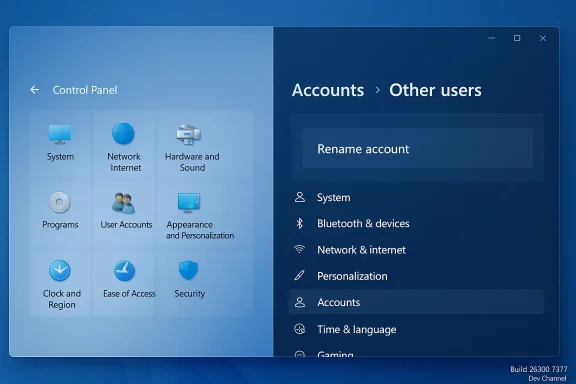
Microsoft has quietly moved the long‑standing “Change your account name” pathway out of the legacy Control Panel and into the modern Settings app in recent Windows 11 Insider Preview builds — a small surface change with outsized implications for discoverability, admin workflows, and the final fate of the Control Panel itself.
For more than a decade Windows has shipped two overlapping configuration surfaces: the legacy Control Panel (a collection of applets and management dialogs dating back to Windows 95) and the modern Settings app (introduced in Windows 8 and progressively expanded since). That duality has been a deliberate compatibility compromise: keep decades‑old management plumbing available while Microsoft builds a single, consistent modern shell. What we’re seeing now is not theoretical planning — it’s active migration. Recent Dev Channel flights expose new Settings pages that replicate or replace classic Control Panel functions, and account rename is the latest feature to appear in that rollout.
Why this matters: the Control Panel is not merely cosmetic. Many administrative tools, third‑party installers, and long‑standing workflows rely on specific Control Panel applets or on the expectation that certain tasks exist in a given place. Moving basic account management into Settings reduces fragmentation for mainstream users, but it also requires careful parity and migration planning for advanced scenarios.
Microsoft’s migration of account rename from Control Panel to Settings is small as a single UI update but important as a signal: the Control Panel’s retreat is an active program, not a distant plan. For users that value consistency and for admins who maintain fleets, the practical takeaway is straightforward — rely on supported, scriptable APIs for device management, update documentation now, and treat Dev Channel sightings as a warning to pilot and validate rather than a green light to change production procedures.
The Control Panel will linger while Microsoft and the ecosystem finish porting parity, but each moved feature narrows the surface where legacy behaviors can hide — and that process is accelerating.
Source: thewincentral.com Windows 11 Moves Another Control Panel Feature to Settings
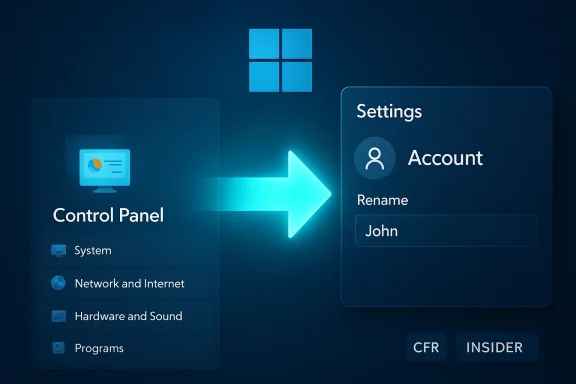 Background
For more than a decade Windows has shipped two overlapping configuration surfaces: the legacy Control Panel (a collection of applets and management dialogs dating back to Windows 95) and the modern Settings app (introduced in Windows 8 and progressively expanded since). That duality has been a deliberate compatibility compromise: keep decades‑old management plumbing available while Microsoft builds a single, consistent modern shell. What we’re seeing now is not theoretical planning — it’s active migration. Recent Dev Channel flights expose new Settings pages that replicate or replace classic Control Panel functions, and account rename is the latest feature to appear in that rollout.Why this matters: the Control Panel is not merely cosmetic. Many administrative tools, third‑party installers, and long‑standing workflows rely on specific Control Panel applets or on the expectation that certain tasks exist in a given place. Moving basic account management into Settings reduces fragmentation for mainstream users, but it also requires careful parity and migration planning for advanced scenarios.
What changed in the latest Insider builds
The visible change
Insiders who installed Dev Channel build 26300.7877 (KB5077232) have reported a new Settings entry for renaming a user account that previously lived in Control Panel > User Accounts. The new UI element appears inside Settings’ Accounts area, and early sightings show placeholder behavior (duplicated buttons or dialogs still routing to legacy flows), which is typical for a phased migration.Build and rollout context
The change was noted in the 26300.x family of Dev Channel enablement builds — a stream Microsoft uses for experimental work and controlled feature rollouts (CFR). That means the experience will be gate‑rolled to subsets of Insiders and can change before general release; features seen in Dev may be refined, delayed, or never ship. The Insider blog and community reporting make clear that this is iterative work, not a finished consumer release.Why Microsoft is consolidating Settings and retiring Control Panel pieces
Microsoft’s motivations are practical and strategic:- Consistent UX across device types. Settings is the single modern surface that adapts to desktops, tablets, and touch devices, whereas Control Panel contains disparate legacy dialogs with divergent designs.
- Faster, safer updates. Modern Settings panes are built with contemporary frameworks and can be updated and instrumented more safely and independently than legacy Control Panel applets.
- Smaller attack surface and maintenance cost. Reducing dependence on decades‑old code helps limit long‑tail vulnerabilities and lowers the engineering burden of maintaining two parallel systems.
The technical reality: what “rename account” actually does (and what it doesn’t)
Renaming an account is deceptively simple for users but touches a few distinct layers under the hood:- Display name vs. identity (SID). Windows identifies local accounts internally by a Security Identifier (SID), not by the visible display name. Changing the display or “friendly” name updates what appears on sign‑in screens and in UI lists, but it does not change the SID. Scripts and permissions tied to SIDs remain stable.
- Profile folder (C:\Users\<name>). Updating the friendly name does not rename the user profile folder. Renaming the profile path is a far more invasive change and is not what a simple “rename account” operation achieves — doing that requires a more complex sequence (temporary accounts, registry edits, profile relocation) and carries risk.
- Cloud identities vs. local accounts. For Microsoft accounts (cloud identities) the canonical name is controlled by the Microsoft identity service; local device UI may display the synced name, but true identity changes must be made at the account provider.
How to rename accounts today — verified methods
Until Microsoft ships and stabilizes the Settings flow universally, several established methods remain the practical way to rename accounts. Here are the options you can rely on now, with brief verification notes.- Control Panel (classic)
- Path: Control Panel > User Accounts > User Accounts > Change your account name.
- Works for local accounts and is the traditional UI many users already know. This is the applet Microsoft is gradually replacing with Settings.
- netplwiz (legacy advanced UI)
- Run dialog: type netplwiz → select the account → Properties → change “Full Name.”
- A quick route for local accounts and frequently used by technicians and power users.
- Computer Management (Local Users and Groups) — Windows Pro/Education/Enterprise
- Open Computer Management → System Tools → Local Users and Groups → Users → right‑click → Rename or Properties.
- The most administrative route for local accounts on non‑Home SKUs; this updates the account name shown in administrative consoles.
- PowerShell (recommended for scripting)
- Cmdlet: Rename-LocalUser -Name "OldName" -NewName "NewName"
- PowerShell’s Microsoft.PowerShell.LocalAccounts module supports Rename‑LocalUser and related cmdlets — the programmatic option for automation and large fleets. This is the safest method for scripted, repeatable changes.
- Microsoft account online portal
- For cloud‑backed Microsoft accounts, update the profile name through the Microsoft account web profile; the new name will sync back to devices (propagation can vary).
Real‑world implications for users and admins
For everyday users
- Expect more discoverability in Settings. Most mainstream users already open Settings rather than Control Panel; the move reduces confusion about where to find common tasks like renaming an account.
- Fewer Control Panel shortcuts will matter less to casual users, but it’s still worth checking that the new Settings flow behaves correctly (e.g., updates the displayed name everywhere the user expects).
For power users and IT admins
- Update documentation and runbooks. If your support or onboarding docs point to Control Panel instructions for rename, update them to show the Settings path once the change reaches your environment. The Settings page may not yet be present for all Insiders or production machines because of controlled rollouts.
- Validate automation and scripts. Scripts using UI automation or that expect a Control Panel applet may break; prefer PowerShell cmdlets (Rename‑LocalUser) or Group Policy/MDM workflows for repeatable operations.
- Test compatibility: some legacy installers or corporate tools that open specific Control Panel applets may not find the same surface if Microsoft eventually removes the applets entirely. Build a test plan to identify such dependencies.
For enterprise identity and endpoint teams
- Profile folder expectations. If any security or compliance controls rely on predictable profile folder names, review those dependencies — display name changes won’t help you here and profile renames are riskier.
- Delegated admin workflows. If you delegate local user management to helpdesk teams via RDP or remote management, ensure they have PowerShell permission and updated instructions. Tools like Computer Management and the Local Users and Groups MMC snap‑in remain viable for Pro/Edu/Enterprise devices.
Risks and failure modes to watch for
- Controlled feature rollouts (CFR) mean inconsistent experiences.
- Some devices will show the Settings page while others still use Control Panel. That inconsistency can create support confusion and accidental procedures.
- Partial implementations can be buggy.
- Early sightings of the Settings rename UI show duplicated controls and placeholder dialogs that still invoke legacy flows. Expect kinks until the feature is fully wired.
- Third‑party tooling and installers may rely on Control Panel applet behavior.
- Removing or hiding Control Panel components can break installers or maintenance scripts that call into legacy applets by canonical path name.
- Misunderstanding “rename” semantics.
- End users may assume that changing a display name will rename the profile folder or alter permissions. That misunderstanding can lead to attempted fixes that risk data loss; communications and documentation must be explicit about what changes and what does not.
- Dev Channel volatility.
- The preview builds used to test this migration are unstable by design. Don’t use Dev Channel behavior as ground truth for production deployment without explicit validation.
Practical recommendations and a migration checklist
If you manage Windows endpoints, treat the Control Panel → Settings migration as a workstream. Below is a concise checklist to prepare teams and systems:- Inventory dependencies
- Identify scripts, installers, or support docs that reference Control Panel applets or specific UI paths.
- Prefer scriptable, supported APIs
- Replace UI‑bound flows with PowerShell cmdlets (Rename‑LocalUser, Set‑LocalUser) or management tooling (SCCM/Intune/MDM) for repeatability.
- Update user help documentation
- Show both the old Control Panel path (for devices that still have it) and the new Settings path; explain display vs. profile folder semantics.
- Communicate to helpdesk
- Train first‑line support to use netplwiz and PowerShell when the Settings page is not yet available or is buggy.
- Test in a pilot ring
- Validate the Settings rename UI and PowerShell methods across representative hardware and image builds, including domain‑joined and managed devices.
- Monitor Insider channels
- Use the Windows Insider blog and Flight Hub to track which builds include the new Settings flow and to understand rollout behavior.
The big picture: Control Panel’s slow fade and what comes next
This rename migration is emblematic of a broader trajectory: Microsoft is steadily collapsing duplicate configuration surfaces into Settings. That process will be incremental, and Microsoft will gate it with controlled rollouts and iterative polish. From a product‑management point of view, consolidating to a single modern surface reduces long‑term maintenance and creates a more consistent experience. From an admin and compatibility perspective, it increases the importance of:- robust scripting and automation using supported APIs,
- proactive documentation updates, and
- careful compatibility testing before wide deployment.
Critical assessment — strengths and tradeoffs
Strengths
- Improved discovery and simplicity for mainstream users. Putting account rename in Settings meets users where they already look and reduces cognitive load.
- Stronger update cadence and telemetry. Settings pages can be instrumented and updated independently, allowing Microsoft to iterate faster and respond to telemetry-driven issues.
- Opportunity to modernize flows. A new Settings UI can unify name, picture, and account‑type management in a single, coherent visual design.
Tradeoffs and risks
- Intermittent experience across devices. CFRs can produce uneven behavior where support teams must maintain dual knowledge for Control Panel and Settings.
- Risk of breaking legacy assumptions. Scripts and installers that expect Control Panel paths will need verification.
- Potential for user confusion. Non‑technical users may assume display name changes affect file system paths or cloud identity; clear in‑UI explanation is essential.
What to watch next
- Watch the Windows Insider blog and Flight Hub for change logs to Dev/Beta/Release Preview builds to see when the Settings rename flow graduates beyond gated testing.
- Look for parity updates: does the Settings flow let you change full name, display name, account picture, and sync behavior the same way Control Panel and netplwiz do today?
- Monitor enterprise‑grade management primitives: Microsoft will need to ensure MDM, Group Policy, and PowerShell cover the same scenarios developers relied on in Control Panel.
Microsoft’s migration of account rename from Control Panel to Settings is small as a single UI update but important as a signal: the Control Panel’s retreat is an active program, not a distant plan. For users that value consistency and for admins who maintain fleets, the practical takeaway is straightforward — rely on supported, scriptable APIs for device management, update documentation now, and treat Dev Channel sightings as a warning to pilot and validate rather than a green light to change production procedures.
The Control Panel will linger while Microsoft and the ecosystem finish porting parity, but each moved feature narrows the surface where legacy behaviors can hide — and that process is accelerating.
Source: thewincentral.com Windows 11 Moves Another Control Panel Feature to Settings