

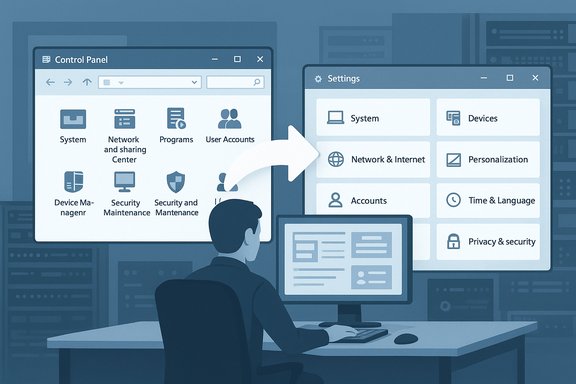
Microsoft’s brief, noisy announcement that it was “deprecating” the Windows Control Panel — followed by a quiet rewording that replaced “deprecated” with “many settings are being migrated” — isn’t just a semantic wobble. It exposes a decade-long transition, a tangled compatibility backlog, and a culture clash between long-time Windows power users and Microsoft’s push toward a single, modern Settings app. The upshot: the Control Panel’s era as Windows’ canonical settings hub is clearly winding down, but its final removal is neither imminent nor certain — and the path forward matters for home users, IT administrators, device makers, and enterprise support teams alike.
Background: how we got here and why it matters
The Windows Control Panel has been part of the operating system family since its earliest graphical releases in the mid-1980s. Over multiple generations of Windows it grew into a sprawling collection of “applets” — small utilities that let users add printers, adjust network settings, configure power options, and uninstall software. That longevity made Control Panel both a comfort and a problem: familiar to experienced users but increasingly inconsistent with modern app design and touch-focused interfaces. Microsoft introduced the Settings app as a modern replacement concept with Windows 8 (originally called “PC Settings”), and since 2012 the company has gradually moved many functions from Control Panel to Settings. The migration accelerated around Windows 10 and Windows 11, where Microsoft frequently redirected old Control Panel pages to the equivalent Settings pane. But some advanced or legacy controls — particularly device-driver applets, legacy network configuration panels, and rare administrative tools — remained stubbornly tied to Control Panel. That partial migration created a confusing two-headed experience that Microsoft has been trying to resolve for years.What Microsoft said — and what it changed
In late August 2024 a Microsoft support page about system configuration tools included wording that many read as a clear confirmation: “The Control Panel is in the process of being deprecated in favor of the Settings app.” That phrasing circulated widely, triggering headlines that the 39‑year-old Control Panel was being “killed.” Within hours or days — depending on the cached copy — Microsoft edited the text, removing the word “deprecated” and replacing it with a softer description: “Many of the settings in Control Panel are in the process of being migrated to the Settings app, which offers a more modern and streamlined experience.” The company’s rewording and lack of a public timeline created confusion and intense community reaction. This back-and-forth matters because “deprecated” is an engineering term with a specific implication: a feature marked deprecated is slated for removal and should not be used going forward. Replacing it with “migrated” signals an ongoing, often open-ended process rather than an imminent deletion. Microsoft’s change of phrasing suggests either a deliberate retreat from a rushed statement or a clarification to avoid guaranteeing a removal date that would have ripple effects across enterprise support and device compatibility. Multiple outlets documented the original wording and the later correction.Timeline of the public episode
- Microsoft support documentation update (late August 2024): removed ambiguity and initially used the word “deprecated,” prompting rapid dissemination in tech press.
- Community reaction: forums, journalists, and enterprise admins flagged the phrasing and raised concerns about lost functionality and migration cost.
- Microsoft edits the page (within days): “deprecated” replaced with language describing migration of settings to Settings app, and guidance to prefer Settings “whenever possible.”
What’s already moved — concrete examples
The Settings app has absorbed many of Control Panel’s most common functions, and Microsoft has repeatedly added parity features. Examples include:- System information and About pages: the classic “System” applet often redirects to Settings → About.
- Power and battery options: many power-mode controls have migrated to Settings in recent Insider builds.
- Apps & Features: uninstall and app-management flows are now primarily in Settings.
- Network & Internet: modern Wi‑Fi and Ethernet settings are centralized in Settings, though advanced far‑legacy networking options sometimes still live in Control Panel.
Strengths of Microsoft’s direction
- Unified UX and discoverability. A single Settings app simplifies searching across categories, presents a coherent visual language, and better supports touch and accessibility. This reduces friction for new users and for scenarios like tablets and convertible laptops.
- Modern development model. Building and maintaining one app rather than a myriad of legacy CPL files makes engineering, telemetry, and testing more efficient for Microsoft. It also enables new features — such as AI-driven help, richer telemetry-based diagnostics, and cloud-powered troubleshooting — to be integrated into the settings surface.
- Opportunity to declutter. Removing duplicate settings and consolidating options reduces user confusion and helps Microsoft retire outdated or insecure controls over time.
Risks and real-world costs
Despite the benefits, the migration creates measurable risks:- Feature gaps and admin workflows. Many enterprise scripts, Group Policy objects, and third-party tools rely on Control Panel applets or command-line access to .cpl files. Until exact parity exists, removing Control Panel would break those workflows. This risk explains much of the enterprise sensitivity and why Microsoft cannot simply “flip a switch.”
- Driver and OEM integrations. Printer, audio, and input device drivers sometimes integrate directly with Control Panel applets. Migration requires collaboration with hardware makers to repackage settings into modern panes or a new driver UI surface; that coordination takes time.
- Support burden. If Microsoft announces a deprecation timeline without full parity, PC manufacturers and enterprise IT teams will face costly retraining and update projects. Microsoft’s rapid rewording suggests the company understands the political and logistical pushback.
- Hidden usability regressions. Historically, some users have accused Settings of being harder to navigate for advanced options — a design mismatch that could harm power users if parity is incomplete.
How this affects different user groups
Home users and casual buyers
Most casual users already live primarily in Settings. For them, the shift is largely invisible and even helpful: consolidated UI, improved search, and clearer naming reduce support calls and frustration.Power users and enthusiasts
Power users still rely on Control Panel for granular controls (e.g., legacy power settings, device diagnostics, some shell-level preferences). They should anticipate slow parity and maintain familiarity with both tools. Backups, export of settings, and documentation of uncommon workflows are prudent.IT administrators and enterprises
Enterprises must treat the change as a long‑term migration project, not an immediate one. Key actions:- Inventory scripts and management tools that explicitly reference Control Panel applets or .cpl files.
- Identify policies or Group Policy Objects that will require new configuration paths.
- Test both Settings and Control Panel behavior on representative hardware, especially peripherals with vendor-supplied control panels.
- Plan communication and training windows for end users.
Practical checklist: prepare now (for admins and advanced users)
- Run an inventory of automation — find scripts that call control.exe or specific .cpl files.
- Document which settings you change via Control Panel and find their Settings app equivalents; note gaps.
- Test device drivers and third-party vendor utilities on Windows Insider and preview builds where Settings changes appear first.
- Use Group Policy and MDM (Intune) telemetry to spot dependent devices or users.
- Build a migration plan with phased rollouts and rollback procedures.
Technical nitty-gritty: why migrating certain controls is hard
- Legacy binaries (.cpl files) and in-process integrations. Control Panel applets are compiled as .cpl modules that integrate deeply into the desktop shell. Mapping their UI and capabilities into the Settings app often requires rewriting logic into a new runtime (UWP / WinUI / modern Win32 bridge), which can change behavior subtly.
- Vendor-specific extensions. Some device drivers add their own CPL entries; convincing third-party vendors to rewrite and ship new Settings panes is a coordination challenge across a fragmented hardware ecosystem.
- Administrative privileges and APIs. Some legacy applets were written at a time when certain privilege models were different. Ensuring the same functionality in a sandboxed or modern security model requires careful API design.
- Localization and compatibility testing. Each migrated setting needs full localization, accessibility, and regression tests to ensure parity, and Microsoft must verify these across dozens of languages and regional settings.
What Microsoft should (and likely will) do next
- Publish a clear migration roadmap. Enterprises and OEMs need timelines and feature‑by‑feature mappings. A technical deprecation schedule — with compatibility fixes and migration guides — would transform vague worry into actionable projects.
- Provide administrative tools for parity. A “migration analyzer” tool that scans systems for Control Panel dependencies and proposes Settings equivalents would cut support costs and reassure IT pros.
- Work with OEMs and ISVs. Microsoft must incentivize or require partners to move vendor-provided CLR/Win32 control panels into the modern configuration experience. This is as much policy and partner engineering as it is code.
- Keep both worlds available until parity is verified. A risk-managed sunsetting — where the Control Panel remains available on LTS (long-term servicing) and enterprise SKUs during an extended window — would ease transitions.
The user-experience reality: tips and tricks
- Use the Settings search bar. Many users still don’t realize Settings search is powerful and will link to equivalent Control Panel pages when available.
- Keyboard shortcuts: Win + I opens Settings quickly; control panels can still be launched directly with control.exe and specific parameters where needed.
- Create documentation for common tasks: a short “how to change X” guide per team reduces help-desk load during migration waves.
- Keep a list of vendor utilities for peripherals — sometimes the quickest fix is updating a driver or vendor software that already provides a modern settings pane.
The long view: modernization vs. stewardship
The Control Panel’s slow sunset is a textbook example of the tension between modernization and stewardship. On one hand, consolidating settings into a single, modern, accessible app makes Windows easier to use for millions of people and reduces engineering complexity long-term. On the other, Microsoft must steward decades of user expectations, complex OEM relationships, and enterprise automation.Microsoft’s quick rewording of its support note wasn’t just PR damage control; it was a pragmatic acknowledgment that deprecating a tool that sits inside millions of business processes requires painstaking coordination. Expect Microsoft to continue moving features while keeping legacy access for an extended period — and to communicate migration details more carefully as they firm plans.
Key takeaways and recommended actions
- The Control Panel is not being abruptly removed right now; Microsoft softened its public statement to emphasize migration rather than imminent deprecation. This rewording matters for enterprise planning.
- Functionality will continue to migrate to the Settings app over multiple Windows releases. Administrators should inventory dependencies now and prepare migration plans.
- Power users should remain fluent in both interfaces and document uncommon workflows until parity is complete.
- Vendors and hardware partners will play a central role; their cooperation is required to move driver and device settings out of legacy CPLs.
- Expect Microsoft to iterate: the Settings app will grow, but a hard removal date (if any) will be announced in advance and accompanied by migration tooling and guidance.
Final analysis: what this episode reveals about Microsoft and Windows
Microsoft’s brief “Control Panel is deprecated” moment — and the subsequent softening — reveals an organization trying to balance product modernization with the real-world constraints of scale, backward compatibility, and enterprise reliance. The situation is not just nostalgic hand-wringing; it reflects genuine engineering and ecosystem complexity. For users, the practical guidance is straightforward: prepare, test, and document.For those building on Windows — whether ISVs, device makers, or corporate IT teams — the Control Panel’s eventual fate is a project to manage, not a surprise to react to. Microsoft’s decision to change the wording was wise: it transformed a potential cliff into a managed slope. The remainder of the migration will be technical, slow, and bureaucratic — but also an opportunity to modernize Windows’ configuration surface into something more discoverable, consistent, and capable for the next generation of devices.
The Control Panel’s legacy will be remembered by those who learned their way around it decades ago; its practical replacement is the Settings app. The pressing question for the community is not whether the Control Panel will eventually be retired — it likely will — but how Microsoft, partners, and admins manage that transition so users and businesses aren’t left holding the bill.
Source: Mashable [Update] Microsoft says it's killing the 39-year-old Windows Control Panel
