Windows 11 Release Preview: Emoji 16 0 Sysmon and Quality of Life Upgrades

  • Thread Author
Microsoft’s latest Release Preview build for Windows 11 gives us a concrete look at the next feature drop — a measured package of quality‑of‑life enhancements that Microsoft says will start reaching production PCs in the coming weeks. The preview includes a curated subset of Emoji 16.0, a one‑click network speed test in the Taskbar, native (but opt‑in) Sysmon support, first‑sign‑in restore for managed devices, pan/tilt camera controls in Settings, WebP wallpaper support and several small but meaningful reliability and performance fixes intended to reduce friction for both consumers and IT administrators. Microsoft’s Release Preview notes and the Insider blog make it clear these features are being staged via controlled rollout mechanisms — so not every machine will see everything immediately.

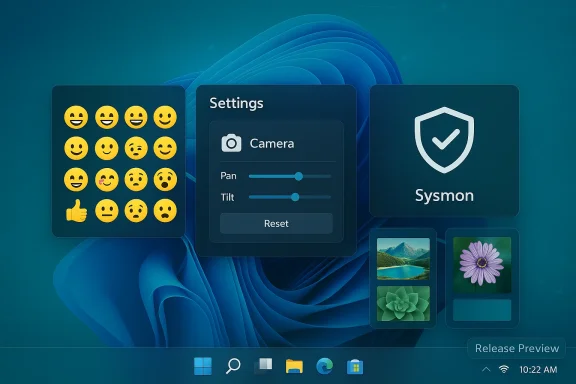
Windows-style desktop with floating widgets: emoji grid, camera settings, Sysmon shield, and photo tiles.Background / Overview​

Microsoft has continued the “continuous innovation” approach for Windows 11: smaller, feature‑level drops shipped when ready rather than bundling everything into an annual OS release. That cadence means high‑value refinements are arriving monthly in preview channels and then staging out to general users. The Release Preview build published this cycle consolidates several user‑facing conveniences and an enterprise‑grade security capability — a signal that Microsoft is balancing consumer polish with IT tooling in a single update wave.
Two operational realities are worth calling out up front. First, these items are being distributed via enablement packages and Controlled Feature Rollouts (CFR), so installing the preview build does not guarantee immediate visibility of a feature — Microsoft gates features server‑side to monitor stability and adoption. Second, some features are explicitly disabled by default and require explicit activation, which influences how businesses and power users should approach rollout and testing. Both points are documented in Microsoft’s Insider postings and in community coverage.

What’s included in this wave (high level)​

  • Emoji 16.0 (curated subset) — new glyphs added to the system emoji panel.
  • Taskbar network speed test shortcut — quick access to a browser‑based speed test via the system tray.
  • Built‑in Sysmon — native Sysmon functionality integrated into Windows but disabled by default.
  • First sign‑in restore for organizations — Windows Backup for Organizations restores user settings and Store apps at first sign‑in for hybrid and Cloud PC scenarios.
  • Quick Machine Recovery (QMR) expansion — auto‑enablement for certain Windows Pro devices not domain‑joined or managed.
  • Camera pan/tilt controls — native Settings controls for supported PTZ webcams.
  • WebP desktop backgrounds — support for .webp as wallpaper files.
  • A raft of small UX, performance and reliability fixes: File Explorer minor improvements, print spooler smoothing, login/lock screen stability, Nearby Sharing reliability, Projecting behavior, and display/resume improvements.
Each item in the list addresses specific user friction points — from emoji consistency to straightforward troubleshooting tools — while Sysmon represents a more strategic, security‑centric integration for enterprise defenders. Below we unpack the notable items and their implications.

Emoji 16.0: small set, big UX questions​

What Microsoft shipped​

Microsoft has added a curated subset of Emoji 16.0 glyphs into Windows’ emoji panel — one representative character from each major category — rather than pushing the entire Unicode 16.0 set at once. Examples called out include the Fingerprint, Harp, Shovel, and Face with Bags Under Eyes. Those glyphs now appear in the panel for Insiders receiving the staged rollout.

Why this matters​

Emoji updates are low‑risk feature wins for everyday users but surprisingly complex under the hood. Different apps and rendering engines (DirectWrite, GDI, web rendering) determine whether a new emoji glyph will display consistently across the OS and third‑party apps. Historically, Windows has shown new emoji in some first‑party apps before the emoji panel and legacy UI surfaces adopt them, which means users may see mixed results until the rollout and rendering engine updates complete. For example, first‑party apps that use DirectWrite may show the new glyphs while older Win32 title bars and some web surfaces still show blank boxes. Expect a phased improvement curve.

Practical guidance​

  • If consistent emoji rendering across apps matters (communications, documentation, social posts), test the new glyphs in the specific apps your team uses before broadly enabling the preview.
  • Be aware that emoji behavior is a function of both OS font/glyph installation and application rendering paths — some web services or cross‑platform apps may continue to use their own emoji fonts.

Taskbar: one‑click network speed test and taskbar overflow behavior​

What’s new​

A Perform speed test entry is being added to the network icon context menu in the system tray and as a button in the Wi‑Fi/Cellular quick settings. The menu option opens a browser and launches a speed test (Microsoft’s implementation funnels to a web‑based test). This is designed as a quick troubleshooting shortcut — not a native measurement engine — and supports Ethernet, Wi‑Fi and cellular interfaces.
Microsoft also adjusted behavior for uncombined taskbar setups so that multi‑window apps don’t push entire window sets into overflow when only some windows require it — a subtle fix that reduces spurious overflow and improves discoverability.

Why it’s useful​

Most users resort to third‑party sites or apps for an ad hoc speed check. Placing a launcher at the point where users usually go to inspect connectivity (the system tray) is a low‑friction UX improvement that reduces context switching.

Caveats and privacy​

Because the speed test launches a web page in the default browser, it relies on third‑party content and a web provider (the current implementation opens Microsoft’s web widget). That design choice keeps the OS lightweight but raises two practical questions:
  • Provider choice: the test is web‑hosted; results and telemetry may be subject to the web provider’s privacy policy rather than purely local system telemetry.
  • Reproducibility: web tests can vary by CDN and browser behavior; for critical troubleshooting, IT teams should continue using controlled measurement tools and internal network diagnostics.

Built‑in Sysmon: what changed and why it matters​

The change​

Microsoft has integrated Sysmon (System Monitor) — a longtime Sysinternals staple — into Windows as an optional, native component. The functionality mirrors the standalone Sysmon: extended system event logging, configurable XML filters, and detailed telemetry usable by SIEMs and EDR tooling. The key points from Microsoft’s announcement are straightforward: the feature is disabled by default, must be enabled explicitly, and if you previously installed the standalone Sysmon, you must uninstall it before enabling the built‑in variant.

How to enable (administrative steps)​

  • Open Settings > System > Optional features > More Windows features and check Sysmon, or run with administrative rights:
  • Dism /Online /Enable-Feature /FeatureName:Sysmon
  • Complete installation by running:
  • sysmon -i
Note: uninstall any previously installed Sysinternals Sysmon before enabling the native feature to avoid conflicts. These instructions are published in Microsoft’s Insider blog and reiterated across technical coverage.

Security benefits​

  • Out‑of‑the‑box observability: integrating Sysmon reduces administrative overhead for organizations that previously had to deploy the Sysinternals binary manually.
  • Event‑log integration: Sysmon events written to the Windows Event Log can be consumed by existing security pipelines, enabling quicker incident detection.
  • Configurability: Sysmon’s XML config model allows teams to tailor event collection and reduce noise, which matters for log storage and analyst time.

Risks and operational considerations​

  • Event volume: Sysmon can generate very high event volumes. Without proper filter configuration and ingestion controls, SIEM costs and storage requirements can spike.
  • Privacy and data sensitivity: detailed process and network activity can contain sensitive data. Ensure collection complies with policy and data residency rules.
  • Change management: enabling Sysmon on production endpoints should be staged; teams should assess the impact on log collection, agent processing, and retention policies.
  • Compatibility: the instruction to uninstall previously installed Sysmon is operationally significant — orchestration tools and configuration management must account for the switch to the native feature.

Recommended rollout path for IT teams​

  • Pilot in a controlled lab with representative workloads.
  • Deploy a conservative Sysmon configuration tuned to capture high‑value indicators of compromise (IOCs) rather than full verbose logging.
  • Measure event rates and SIEM ingestion costs, and iterate on configuration to balance fidelity and cost.
  • Automate installation and rollback using scripts and configuration management tools, respecting the uninstall requirement for the older Sysmon agent.

Backup & Restore, Quick Machine Recovery and enterprise setup improvements​

Microsoft is extending the first sign‑in restore experience to Windows Backup for Organizations. This means that on supported device types — Entra hybrid‑joined devices, Cloud PCs, and multi‑user environments — user settings and Microsoft Store apps can be restored automatically at first sign‑in. That improves onboarding velocity during device refresh and migrations. Separately, Quick Machine Recovery (QMR) is being turned on automatically for Windows Pro devices that are neither domain‑joined nor managed by enterprise endpoint management, aligning recovery features for Pro devices with Windows Home users.
Implications:
  • For enterprise IT, the sign‑in restore extension reduces helpdesk tickets after hardware refreshes.
  • Administrators should confirm that restoration policies align with corporate app‑lifecycle management and compliance needs.

Camera controls, media and personalization: small but practical​

Pan/tilt controls​

Settings now surface pan and tilt controls for supported PTZ webcams under Settings > Bluetooth & devices > Cameras in the Basic settings for the selected camera. This removes reliance on vendor utilities for basic repositioning and unifies camera control across device types. The change simplifies meeting setup and reduces support complexity for webcam vendors.

WebP backgrounds​

You can now set .webp image files as desktop backgrounds via Settings or File Explorer. That’s a convenience for users who encounter the WebP format frequently, especially those working with images saved from modern web sources.

Identity & enterprise: Entra SID resolution and account menu updates​

Windows now supports Microsoft Entra ID group and role SID resolution, enabling Windows to translate Entra cloud group and role SIDs to readable names for file permissions and local group membership. This reduces reliance on hybrid AD for permission readability and helps cloud‑first organizations manage access more coherently.
The Start menu account menu also gains a direct entry to the Microsoft account benefits page, a small UX change that surfaces account‑centric benefits for consumers.

Quality, performance and reliability fixes​

This release includes a mixture of pragmatic reliability improvements:
  • Print spooler performance smoothing during high‑volume jobs.
  • Faster scanning for temporary files and improved Storage Settings dialogs.
  • Login/lock screen reliability and resume‑from‑sleep improvements (particularly on docked laptops).
  • File Explorer fixes including an “Extract all” command for non‑ZIP archive folders and reliability fixes for devices on the Network page.
Those kinds of incremental reliability improvements can materially reduce helpdesk noise and are often the most appreciated by power users and admins who manage fleets at scale.

Deployment and rollout: what to expect​

Microsoft is rolling these changes through the Windows Insider channels first (Dev, Beta, Canary) and into the Release Preview channel. From there, Microsoft typically gates features into the general population via staged updates or monthly cumulative releases. The company has historically timed such feature drops to coincide with monthly servicing updates and warned that not all features on a build are automatically visible due to server‑side toggles. In short: expect a measured, phased rollout rather than an immediate, universal switch.
Practical rollout checklist:
  • Enable preview testing on a small set of devices via Release Preview or Beta channels.
  • Validate high‑impact features — Sysmon, backup restore, camera controls — in lab scenarios that mirror production.
  • Adjust policies for Sysmon event retention, backup/restore behavior and Entra group mappings before mass enabling.
  • Communicate changes to end users around emoji rendering caveats and the new taskbar speed‑test affordance so helpdesk contacts aren’t surprised.

Risks, caveats and recommended mitigations​

  • Sysmon event noise: Start with conservative Sysmon configs, iterate slowly, and monitor SIEM ingestion costs.
  • Privacy and telemetry: The browser‑based speed test and any web‑launched tools will be subject to the host site’s privacy practices; document this for compliance teams.
  • Inconsistent emoji rendering: Communicate rendering differences to users; don’t assume universal glyph availability until rendering surfaces receive updates.
  • Enablement confusion: Because features are gated and sometimes disabled by default, create a feature matrix to document what is enabled on what builds and by which toggle, to avoid miscommunication across IT, helpdesk and user communities.
  • Third‑party agent interactions: The uninstall requirement for the Sysinternals Sysmon agent needs careful orchestration — include uninstall/enable steps in automated deployment pipelines.

How this fits into Microsoft’s broader Windows strategy​

This feature drop illustrates three ongoing threads in Microsoft’s Windows roadmap:
  • A focus on incremental user experience polish (taskbar efficiency, emoji, small Settings improvements).
  • A push to surface useful troubleshooting tools at discoverable UX points (taskbar speed test).
  • A strategic pivot to embed advanced telemetry/security tools natively when they have become indispensible for defenders (Sysmon integration), removing a friction point for organizations seeking deeper observability without third‑party installs.
Taken together, the release is emblematic of a matured Windows lifecycle: smaller, more frequent feature updates that balance consumer pleasing items with enterprise operational priorities. Community and media coverage also note that Microsoft briefly aligned Dev and Beta channels in February to ship an identical set of user features across both channels — a temporary parity meant to accelerate testing and visibility for those changes.

Recommendations for different audiences​

For IT administrators​

  • Pilot Sysmon in a controlled environment and tune XML configuration to limit noise.
  • Inventory endpoints for any pre‑installed Sysinternals Sysmon and plan an uninstall sequence before enabling the native feature.
  • Validate first sign‑in restore behavior for hybrid‑joined and Cloud PC devices to ensure app and settings restoration meets your compliance and provisioning standards.
  • Add test cases for camera repositioning workflows if your organization supplies PTZ webcams for hybrid work.

For power users and home users​

  • Try the Perform speed test shortcut for quick checks — but use a controlled test if you need reproducible measurements for ISP troubleshooting.
  • If you rely on consistent emoji rendering across multiple apps (chat clients, email, web), test the new glyphs in the specific apps you use before depending on them for communication.

For security teams​

  • Treat Sysmon as a capability that increases detection fidelity but also operational cost; plan ingestion and retention accordingly.
  • Update detection content and playbooks to consume native Sysmon events, and validate that your EDR/SIEM parses the event IDs and fields you need.

Final analysis — strengths, tradeoffs and the bottom line​

This feature drop is deliberately conservative in scope but strategic in impact. The strengths are clear: Microsoft is prioritizing friction reduction (taskbar speed tests, WebP support, camera controls), improving enterprise usability (Entra SID resolution, first sign‑in restore), and making a significant security capability (Sysmon) easier to adopt by integrating it into the OS. Those are smart, pragmatic moves that should reduce administrative overhead and modernize some long‑standing pain points.
The tradeoffs are also straightforward. Integrating a powerful logging tool like Sysmon into the OS comes with operational complexity around event volumes, privacy and compatibility. Web‑backed utilities (the speed test) favor simplicity over absolute control or reproducibility. Emoji updates — while welcome — highlight the messy reality of platform rendering diversity and may initially frustrate users who expect universal consistency.
For administrators and informed users the path forward is equally pragmatic: pilot, tune, and automate. These updates provide additional tools and conveniences, but they are not a wholesale platform change — they are incremental, useful, and manageable when paired with cautious validation and good change management.
Microsoft’s staged rollout model means this feature drop will be visible to increasing numbers of users over the coming weeks. If you manage devices in an organization, start planning now: identify pilot groups, tune Sysmon configs, and update user communications so the transition is smooth and the new tools deliver immediate value without surprises.

In short: expect a steady trickle of useful refinements, one practical security capability, and several small fixes that together reduce friction for both everyday tasks and enterprise operations — but plan your enablement and monitoring carefully before flipping switches across a production fleet.

Source: Windows Central Microsoft confirms new Windows 11 feature drop coming next month
 

Microsoft is preparing a steady stream of small-but-practical Windows 11 updates that together promise to reshape everyday PC workflows — from expressive text input with Emoji 16.0 to a one‑click network speed test in the Taskbar and native camera pan/tilt controls — and these changes are already rolling to Insiders in the Release Preview channel.

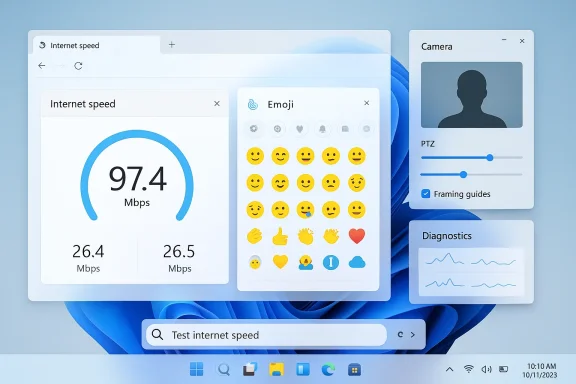
A Windows 11 desktop with floating widgets for internet speed, emojis, camera, and diagnostics.Background​

Microsoft shifted Windows 11 away from strictly annual feature drops toward a “continuous innovation” cadence, delivering functionality more frequently through servicing updates, Store updates, and targeted enablement packages. That shift lets the company iterate faster and expose features gradually to Insiders before a broader rollout. This approach underpins the modest but user‑focused additions we’re seeing now.
The items currently visible to testers are not a single large “OS refresh” but a set of targeted improvements: new emoji assets (Emoji 16.0), Taskbar convenience tools (notably a network speed test shortcut), improved camera controls in Settings, a streamlined sign‑in restore flow for backup/restore scenarios, and telemetry/diagnostic enhancements such as Sysmon‑level event visibility in certain builds. Many of these appear first in Insider Preview builds and Release Preview packages (for example, KB5077241 and related builds).

Overview of the headline features​

Emoji 16.0 lands in the Emoji panel​

Microsoft has started reintroducing a subset of Emoji 16.0 into the Windows 11 Emoji panel, accessible via the familiar Win + . (Win + period) shortcut. Expect new icons — reported examples include things like a fingerprint and other additions — that expand expression and better align Windows’ emoji set with cross‑platform standards. This rollout is staged and controlled, appearing progressively to Insiders before a broad release.
Why it matters: modern messaging and social workflows increasingly rely on quick visual shorthand. Updating the emoji set keeps Windows consistent with other platforms and reduces irritations when composing messages across devices.

Taskbar: one‑click network speed test​

A very visible convenience is a new “Perform speed test” / “Test internet speed” entry placed directly in the Taskbar’s network menu and the Wi‑Fi quick settings. In Insider builds that shipped to Release Preview, this control offers a one‑click path to a throughput check right where users already look for connectivity status. Early evidence shows the button currently opens a browser‑launched speed test (Bing’s web widget), rather than running a native in‑OS measurement engine. That choice makes the feature lightweight to ship but carries implications for accuracy, enterprise control, and telemetry.
Why it matters: instead of hunting down a website or installing a third‑party app, casual users and IT first‑responders will be able to reach a speed test in one click. For quick sanity checks this is a clear productivity win; for detailed diagnostics, native tools or command‑line utilities remain necessary.

Native camera pan/tilt (PTZ) controls in Settings​

Windows 11 is exposing pan/tilt/zoom (PTZ) camera controls at the system level inside the Settings app for supported webcams. These controls let you adjust framing, orientation, and sometimes zoom without needing vendor software, which simplifies setup for remote work and hybrid meetings. The feature is appearing in Insider flights and is being flagged to testers as a practical improvement to media handling.
Why it matters: unified camera controls reduce the fragmentation that has long plagued webcam setup and make consistent behavior across calls and apps more likely.

Backup & Restore: sign‑in restore experience​

Microsoft is streamlining the sign‑in restore flow to make migrating settings, apps, and data across devices easier — particularly for users who rely on OneDrive and Microsoft account sync. Insiders are seeing a guided experience that communicates which categories can be restored from cloud backups when signing in on a new or reset device. This is positioned as an OOBE (out‑of‑box experience) and recovery quality‑of‑life improvement.
Why it matters: smoother recovery reduces friction when moving to a new PC or completing a clean install, and it reduces support calls for both consumers and IT.

Visual and window‑management refinements​

Microsoft is making subtle visual changes to reduce Taskbar clutter when many windows are open, improving Snap layouts, and refining the Start menu and other chrome to feel less noisy. These tweaks emphasize cleaner visuals and faster discoverability of core UI controls.
Why it matters: incremental polish can improve focus and reduce cognitive load during heavy multitasking sessions.

Sysmon and telemetry enhancements​

Some preview releases include tighter Sysmon‑style event integration and improved system‑event tracking for diagnostics (notably in Release Preview packages that also bundle other small changes). This provides deeper event detail for troubleshooting and for enterprise monitoring, though it raises the usual questions about telemetry opt‑in, admin control, and data retention.
Why it matters: richer telemetry can speed support and root‑cause analysis, but enterprise teams will want explicit controls and clear documentation.

What we verified and how​

I checked the claims appearing in public Insider previews and Release Preview packages and cross‑referenced multiple independent Insider‑channel reports and release notes. The presence of Emoji 16.0 assets and native camera PTZ controls is documented in Beta/Dev Channel build notes and community coverage, as are the Taskbar speed‑test shortcuts appearing in Release Preview/test KB packages. The speed‑test control’s current behavior as a browser‑launched Bing widget (rather than a local diagnostic) was observed consistently across multiple preview reports.
Two points worth highlighting about verification:
  • The Taskbar speed‑test shortcut has been observed in multiple Insider builds and Release Preview packages (KB5077241 lineage) and consistently opens the browser‑based widget; that behavior is corroborated across community reports.
  • Emoji 16.0 additions and camera controls are rolling to Insiders in controlled enablement packages and have appeared in builds such as 26220.* and related flights. These appear as staged rollouts rather than universal feature flags.
If you require exact build numbers or KB identifiers for your deployment tracking, the Insider flight notes and Release Preview KB references cited above are the primary artifacts Microsoft uses for tracing a given capability to a binary.

Deep analysis: strengths, shortcomings, and real‑world impact​

Strengths: practical UX wins and lower friction​

  • Single‑click access to diagnostics: Putting a network speed check in the Taskbar removes friction for everyday troubleshooting and democratizes a common diagnostic action. For consumers and help‑desk technicians alike, that one‑click path reduces support steps.
  • Unified camera controls: Exposing PTZ controls in Settings simplifies admin tasks and user setup, especially in remote work scenarios where vendor utilities may be inconsistent. This can reduce pre‑call fiddling and improve meeting readiness.
  • Smoother restore and OOBE: An improved sign‑in restore flow is a tangible win for people who upgrade devices regularly or for IT teams managing refresh cycles; fewer manual configuration steps means faster time‑to‑productivity.
  • Faster cadence = faster feedback: Microsoft’s continuous innovation model allows the company to iterate on small features quickly, collect telemetry and user feedback, and either expand or roll back functionality without waiting for a monolithic update.

Shortcomings and risks: measurement, privacy, and enterprise controls​

  • Browser‑launched speed tests are limited: The Taskbar shortcut currently launches a web widget (Bing) rather than performing a measurement inside Windows. That design choice makes the feature easy to deliver but limits consistency and transparency: results may vary with browser settings, extensions, or default browser behavior; and offline/local diagnostics are not supported by the shortcut. For enterprise troubleshooting or scripted testing, the built‑in button is insufficient.
  • Telemetry and privacy questions: Because the speed test uses a web widget (likely relying on third‑party back ends), admins and privacy‑conscious users will rightly ask what telemetry is sent, whether test data is logged, and how that integrates with corporate policies. Microsoft’s telemetry controls are mature, but any web‑launched component can complicate corporate data governance.
  • Controlled rollouts can create inconsistent experiences: Staged enablement means features may appear for some Insiders and not others; enterprises testing features may see inconsistent behavior across a fleet, complicating pilot programs. Clear documentation and build‑level mapping are essential.
  • Feature depth vs. surface polish: Many changes are interface shortcuts or UX polish rather than deep new capabilities. For power users and enterprise IT, that can feel incremental — valuable, but not transformative. Expect subsequent updates to focus on deeper integrations, or on richer native diagnostics, if user feedback demands it.

Practical implications for different user groups​

Home users and consumers​

  • Faster troubleshooting: The Taskbar speed test is an immediate help for anyone who just wants to check whether their ISP or local Wi‑Fi is behaving. The simplicity will reduce time spent opening a browser, typing a URL, and navigating to a test site.
  • Expressive chat: Emoji 16.0 additions will improve text conversations and make cross‑platform emoji rendering more consistent. Expect only a staged rollout — not every user will see the new glyphs at once.
  • Easier device swaps: The sign‑in restore experience reduces friction when moving to new hardware or after resets, making common consumer scenarios (backing up and restoring a profile) less painful.

IT professionals and enterprise admins​

  • Pilot with caution: Because features arrive via staged enablement and might launch as browser‑based tools, admins should validate behavior (including telemetry and privacy aspects) in controlled pilots before rolling to broad user bases.
  • Diagnostics strategy: The Taskbar speed test may reduce inbound tickets about “how do I test my internet speed?”, but for enterprise troubleshooting you’ll still rely on controlled tools (iperf, managed measurement fleets, or native diagnostic suites). Document the new behavior for frontline support teams so they don’t mistake it for a full diagnostic.
  • Telemetry and eventing: The added Sysmon‑style event visibility can help with root‑cause analysis, but only if enterprises can control collection and retention. Verify Group Policy/MDM controls before enabling these features fleet‑wide.

How Microsoft is delivering these updates (and what that means for rollout timing)​

Microsoft uses multiple channels to deliver incremental Windows improvements:
  • Insider Dev/Beta channels for early testing and rapid iteration.
  • Release Preview channel for near‑final testing of features and quality fixes.
  • Servicing KB packages that can include enablement packages or lightweight feature updates.
  • Microsoft Store and web widgets for components that are easier to update outside the OS servicing cycle.
The Taskbar speed test and PTZ camera controls have been observed in Release Preview KB packages and Insider builds, and Microsoft typically extends these features to the general population after a period of telemetry‑driven validation. Expect a measured rollout that coincides with monthly security servicing and quality updates.

Step‑by‑step: what to check if you want to try these features today​

  • Join the Windows Insider Program (optional) and select the Release Preview channel to get closer to what’s shipping soon. This is the path most consumers and IT pilots use for near‑final builds.
  • Update Windows via Settings > Windows Update and install any available preview KB packages. Note the KB identifier if you need to document or roll back changes later.
  • Look in the Taskbar network menu or Wi‑Fi quick settings for a “Perform speed test” or “Test internet speed” control. If present, clicking it will open your default browser and run the web widget. Verify results and check telemetry behavior through your browser’s dev tools if you need deeper visibility.
  • Open Settings > Bluetooth & devices > Camera (or the new camera settings page) to see whether PTZ controls (pan/tilt/zoom, framing) are available for your webcam. Hardware support varies by device and driver.
  • During OOBE or after signing in to a reset device, follow the guided sign‑in restore prompts to migrate supported settings and OneDrive content back to the device. Confirm which categories are included in the restore before relying on it for mission‑critical configuration.

Security and privacy checklist (what admins should validate)​

  • Confirm telemetry controls: Understand what data the speed‑test widget and any PTZ control telemetry send back, and whether those calls can be blocked or audited by network security appliances.
  • Browser policies: Because the speed test opens in a browser, check your default‑browser policies and extension stack that might alter behavior or block the widget.
  • Group Policy / MDM: Identify Group Policy or Intune settings that control the enablement of staged features and diagnostic event collection (including Sysmon‑style events). Ensure compliance with corporate data retention rules.
  • Driver compatibility: Camera PTZ controls depend on hardware and driver support. Validate vendor drivers and sign‑off for unified settings in test fleets.

The big picture: incremental wins versus platform direction​

Microsoft’s current strategy prioritizes incremental, user‑centered improvements delivered frequently rather than waiting for large “once‑a‑year” releases. That creates constant but manageable churn: organizations must stay alert to small changes that can alter user workflows or telemetry behavior, while consumers receive steady improvements that make daily computing more pleasant.
The features landing now — Emoji 16.0, Taskbar shortcuts, native camera controls, restore flows, and enhanced eventing — illustrate a practical focus: reduce friction for common tasks, make media and communication experiences more reliable, and surface lightweight diagnostics where users need them. None of these are seismic, but together they materially improve the day‑to‑day experience for many users.

What to watch for next​

  • Native diagnostics: Will Microsoft evolve the Taskbar shortcut into a native in‑OS measurement tool that supports offline testing and enterprise telemetry? Many in the community expect this to be the logical next step if demand materializes.
  • Policy controls for web‑launched features: Expect requests for clearer MDM/Group Policy toggles that let admins block or approve browser‑launched widgets for corporate fleets.
  • Broader Emoji parity: Microsoft is likely to continue aligning Windows’ emoji set with Unicode releases; watch for wider Emoji 16.0 coverage and any rendering issues that show up in cross‑platform chats.
  • Deeper camera integrations: Camera PTZ controls could expand into camera profiles and automatic framing features for meetings — especially if device makers standardize on driver APIs for these capabilities.

Final verdict: small features, real everyday value — with caveats​

Microsoft’s latest Windows 11 preview updates underscore a practical design philosophy: deliver many modest improvements that together raise the baseline experience. The new features make common tasks faster and reduce friction, which is a net positive for most users. However, the details matter: the Taskbar speed test’s current implementation as a browser‑launched widget is useful but imperfect for enterprise diagnostics; telemetry and policy controls need clear documentation; and staged rollouts mean admins must plan pilots carefully.
If you’re a home user who wants quicker, simpler tools and a slightly cleaner interface, these changes are good news. If you manage devices for an organization, treat these updates as incremental — valuable, but requiring validation, policy review, and clear communication to support teams.
Microsoft’s strategy of continuous, monthly‑or‑near‑monthly improvements means you’ll likely see more of these pragmatic refinements over the next several updates. Keep an eye on Insider notes and Release Preview KBs for the exact flight numbers and rollout timing, and pilot changes in a controlled environment before wide deployment.

Source: wadenanews.ca Discover the Upcoming Windows 11 Features Transforming Your PC Experience! - Wadena News
 

Microsoft’s latest Release Preview flight for Windows 11 brings a batch of practical, user‑facing refinements — most visibly Emoji 16.0 in the emoji panel and a Taskbar‑accessible network speed test — while quietly adding deeper platform capabilities for IT and security teams, including an in‑box Sysmon and expanded recovery/backup options for managed devices.

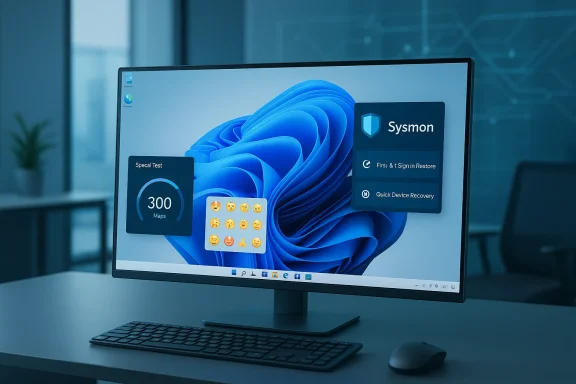
A modern desk setup with a large monitor showing Windows wallpaper and floating Sysmon widgets.Background / Overview​

Microsoft continues to shift Windows 11 from a once‑a‑year cadence to a continuous‑innovation model: smaller, targeted feature drops that reach users via Insider channels first and roll into production when Microsoft gates them ready. The Release Preview channel is now showing what the next broad feature wave will look like — a combination of everyday usability touches and enterprise‑oriented platform changes that matter to both consumers and IT administrators.
What’s notable about the current Release Preview builds (affecting both 24H2 and 25H2 servicing lines) is the mix: cosmetic and productivity improvements you’ll notice day‑to‑day, plus enterprise primitives that can shift management and security practices. The updates are staged; not every device will see every change immediately, and Microsoft is using controlled rollouts and toggles for some features. ([blogs.windows.com](https://blogs.windows.com/windows-insider/2026/02/17/releasing-windows-11-builds-26100-7918-and-26200-7918-to-the-release-preview-channel/?utm_sourceat’s new — the headline changes

Emoji 16.0 lands in Windows (but with caveats)​

Windows 11’s emoji inventory now includes glyphs from Emoji 16.0 — a small set of new symbols such as a fingerprint, harp, root vegetable, leafless tree and other characters — and those glyphs are being exposed through the system emoji panel for Insiders in preview rings. That means when the panel is available on your machine you can insert the new emoji directly in supported apps.
However, the rollout has been uneven. Several reputable reports and Insider notes show the emojis appear correctly in some apps (for example, Microsoft Word) but render as missing‑glyph rectangles in others (notably some browser contexts), underscoring that emoji support depends on multiple layers — font assets, rendering engines and app integration — not just the presence of Unicode code points. Expect partial availability and mixed rendering until the rollout completes across components and third‑party apps catch up.
Why this matters: emojis are small UI elements, but they reveal real world complexity in Windows’ font plumbing and rendering stack. For users this means incremental wins today and a reminder that visual parity across apps may lag behind the system picker.

Taskbar anork speed test and improved overflow rendering​

One of the most visible changes for everyday users is a built‑in network speed test accessible from the Taskbar. You can launch it via Quick Settings for Wi‑Fi or Cellular, or by right‑clicking the network icon in the system tray; the test opens in your default browser and measures Ethernet, Wi‑Fi and Cellular speeds. It’s a convenient shortcut to avoid opening a separate website or app to validate connectivity.
Other Taskbar refinements include fixes to the overflow area so that when an app opens many windows, the overflow behaves correctly without leaving extra space on the Taskbar — a tidy but welcome fix for heavy multitaskers.

Built‑in Sysmon — advanced logging as an optional feature​

Perhaps the most consequential change for IT and security teams is that Sysmon (System Monitor) — formerly a Sysinternals standalone utility — is now available as an in‑box optional feature. It is disabled by default and must be explicitly enabled via Settings > System > Optional features > More Windows features, or by an administrative command line (DISM), then initialized with sysmon -i. Microsoft explicitly warns to uninstall any previously installed stand‑alone Sysmon before enabling the built‑in variant.
This change offers two big benefits: first, it dramatically simplifies deployment and lifecycle for deeper event logging, and second, it lets administrators adopt Sysmon across fleets while maintaining update management within Microsoft’s servicing model. But because Sysmon surfaces verbose low‑level telemetry, enabling it should be part of a planned rollout rather than an ad‑hoc flip.

Backups, Quick Device Recovery (QMR) and first‑sign‑in restores for organizations​

Windows Backup for Organizations receives a practical expansion: a first‑sign‑in restore experience that can run when a user first signs into the desktop (instead of only during OOBE), and a Quick Device Recovery (QMR) path that brings fast recovery capabilities to Windows Pro devices that are not domain‑joined, aligning them closer to the consumer Windows Home recovery story. Domain‑joined devices keep the option off until an administrator enables it. These features are intended to shorten helpdesk cycles and speed user productivity after resets or provisioning issues.

Camera controls, Widgets, .webp backgrounds, and a handful of stability fixes​

Other practical updates in the Release Preview include:
  • Camera pan and tilt controls in Settings > Bluetooth & devices > Cameras for compatible webcams, helpful for docked laptops or multi‑camera setups.
  • Widgets now open full‑screen rather than in a dialog window, giving the Widgets UX more prominence.
  • The ability to set .webp images as desktop backgrounds from Settings or File Explorer, reflecting broader support for modern image formats.
  • Performance and UI fixes across File Explorer, Storage scanning for temporary files, Nearby Sharing for large files, print spooler improvements and more.

Deep dive: what this means for users and IT​

Everyday users — small wins that improve day‑to‑day flow​

For most consumers and knowledge workers, the most noticeable improvements will be:
  • Easier troubleshooting: a right‑click network speed test is a practical convenience that reduces the friction of checking link quality.
  • Better webcam control for hybrid meetings: pan/tilt settings in System Settings bring hardware controls into the OS, reducing the need for vendor utilities.
  • Visual polish: emoji additions and Widgets full‑screen mode change small but frequent interactions that affect daily productivity and expression.
These are the kinds of iterative UX improvements Microsoft has prioritized under the continuous delivery model — not necessarily headline features, but quality‑of‑life refinements that compound over time.

IT administrators — more capability, more choices, more responsibility​

For IT teams, this wave brings capabilities that deserve careful rollout planning:
  • Sysmon in the OS is the headline: it reduces installation complexity and brings richer telemetry into the native event pipeline. But the change also raises configuration and operational questions: which Sysmon configuration to deploy, how to manage the event volume, where to ship events for long‑term storage and analysis, and the legal/privacy implications of enabling syscall‑level telemetry on user devices. These are non‑trivial decisions that should be part of an endpoint telemetry strategy.
  • First‑sign‑in restore and QMR shrink helpdesk workload by allowing identity‑anchored rehydration and quicker remediations for boot failures. However, they are complementary to (not replacements for) existing imaging and application deployment pipelines. They should be introduced as part of an integrated provisioning policy that documents what is restored and what remains the responsibility of application management tools (MSIX, Intune, SCCM, etc.).
  • Controlled rollouts and gating mean admins should expect a staggered timeframe for features to appear. Use test rings, validate dependencies (for example, whether third‑party apps render Emoji 16 correctly), and ensure telemetry/monitoring reacts to new logging sources.

Security and privacy considerations​

Sysmon’s benefits and risks​

Sysmon provides detailed process creation, network connections, file creation, driver loads and other indicators that are extremely valuable for threat detection, incident response and forensic investigations. Having it as an in‑box optional feature lowers the bar for enterprises to standardize on richer monitoring.
But there are tradeoffs:
  • Event volume and cost: Sysmon produces high‑cardinality logs; shipping and storing that data can increase SIEM ingestion costs and storage needs. Plan retention policies and filters.
  • Performance: While Sysmon is efficient, misconfigured or overly verbose rulesets can create I/O and CPU pressure on endpoints. Test configurations in representative environments prior to fleet‑wide enablement.
  • Privacy and compliance: Extended process and network visibility can surface user activity that triggers compliance reviews. Ensure legal and HR policies are aligned with any change to endpoint telemetry. Document role‑based access to Sysmon logs and anonymization or redaction approaches where appropriate.

Emoji and content filtering​

Emoji updates are low risk from a security perspective, but organizations that use content filters, DLP or custom chat compliance rules should validate that new Unicode characters do not break regex patterns or filtering heuristics. Early testing in chat, collaboration tools and moderated forums is recommended.

How to try these features today (Insider and Release Preview guidance)​

If you manage Insider devices or want to experiment on a test machine, here are the practical steps and checkpoints.

To access the Release Preview build features​

  • Join the Windows Insider Program at the organizational or personal level and enroll a test device into the Release Preview channel.
  • Check Windows Update for the latest preview build offered to your channel and install it following normal patch‑management guidance. Remember some features are gradually rolled out with toggles and may not appear immediately on all devices.

To run the Taskbar network speed test​

  • Right‑click the network icon in the system tray or open Quick Settings for Wi‑Fi/Cellular and choose Perform speed test (or equivalent). The test opens in your default browser to measure Ethernet, Wi‑Fi and Cellular throughput. If you don’t see the option, the feature may not yet be enabled on your machine.

To enable built‑in Sysmon (recommended for secured test groups only)​

  • Open Settings > System > Optional features > More Windows features and check Sysmon.
  • Or run elevated PowerShell / Command Prompt:
  • Dism /Online /Enable‑Feature /FeatureName:Sysmon
  • After the feature is added, initialize Sysmon with: sysmon -i
  • If you have the stand‑alone Sysmon installed, uninstall it before enabling the built‑in feature to avoid conflicts.
Important: treat Sysmon enablement like any security control: test configurations, validate ingestion with your SIEM, and pilot with a subset of machines before broad rollouts.

Testing Windows Backup first‑sign‑in restore and QMR​

  • Configure test tenants and Intune policies that control the Windows Backup and Restore toggle. Enroll test devices (Entra joined / hybrid joined) and create backups for the user profiles you’ll use in validation. Perform a reset or reprovision sequence and validate whether the first‑sign‑in restore appears as expected. For Quick Machine Recovery, simulate boot failures and validate the recovery behavior per Microsoft’s guidance.

Deployment advice and recommended guardrails​

For IT teams planning production rollouts, follow a measured path:
  • Start small: pilot with a small, representative set of devices (diverse hardware, work profiles, connectivity scenarios).
  • Validate dependencies: ensure SIEM pipelines, DLP rules and app rendering (for Emoji 16) work as expected.
  • Monitor cost: track SIEM ingestion and storage after enabling Sysmon to avoid surprise expenses.
  • Communicate to users: update support docs for changes like the network speed test, camera pan/tilt controls and the first‑sign‑in restore so helpdesk calls remain low.
  • Maintain compatibility lists: record which devices and apps show issues with new emoji rendering or camera controls; keep vendor drivers updated.

Risks, unknowns and where to watch​

  • Partial emoji rendering — expect application gaps until rendering stacks are uniformly updated. This is a user‑experience inconsistency rather than a functional failure, but it impacts perception.
  • Feature gating variability — Microsoft’s controlled feature rollouts mean that behavior may differ between identically configured machines; track feature flags and build numbers tightly.
  • Operational impact of Sysmon — while powerful, misconfiguration can generate noise and cost; logging strategy and configuration management are essential.
  • Timing and documentation — some features ship to preview channels before documentation is complete; admins should wait for formal Microsoft Learn/Docs pages (Sysmon docs are cited as forthcoming) and test with vendor guidance.

The big picture: incremental UX plus stronger platform primitives​

This Release Preview wave typifies Microsoft’s current Windows strategy: improve everyday tasks while embedding better management and security primitives for enterprises. The network speed test and new emojis are the consumer‑facing highlights, offering immediate user value. Underneath those are structural changes — built‑in Sysmon and expanded restore/recovery flows — that will influence how organizations manage observability and endpoint resilience going forward.
For IT teams, the message is: the tools are arriving, but they require thoughtful adoption. Pilot, measure, and integrate Sysmon into your logging strategy carefully; treat first‑sign‑in restore and QMR as supplements to, not replacements for, your provisioning and application deployment processes. For end users, expect smoother troubleshooting and slightly richer expressiveness in the coming weeks.

Action checklist (quick reference)​

  • For IT:
  • Pilot Sysmon on a small group and test SIEM ingestion.
  • Validate Windows Backup first‑sign‑in restore in a test tenant and align Intune toggles.
  • Update helpdesk scripts to mention the Taskbar speed test and camera pan/tilt UX.
  • For power users and testers:
  • Enroll a non‑production device into the Release Preview channel.
  • Test emoji rendering across your most used apps (chat, browser, Office).
  • Try the Taskbar speed test and compare results with your favorite network diagnostics.

Conclusion​

What Microsoft shipped to the Release Preview channel is not a radical reimagining of Windows, but an effective combination of small, meaningful desktop improvements and important management features. Emoji 16.0 and the Taskbar network speed test make the system feel a bit more polished and more convenient for daily use, while built‑in Sysmon and expanded backup/recovery options strengthen Windows 11’s position as an enterprise platform with modern observability and resilience tools.
These changes matter because they reflect a deliberate trade: deliver immediate user value while evolving the operating system’s foundational capabilities, yet do so in a staged way that forces administrators to plan rather than react. For users, that’s a net win; for IT teams, it’s an invitation to revalidate endpoint telemetry, recovery workflows and support procedures before features reach broad production.

Source: Букви Windows 11 Release Preview Build Introduces Emoji 16 and Taskbar Enhancements | Ukraine news - #Mezha
 

Microsoft has begun rolling out a notable wave of quality‑of‑life and accessibility updates to Windows 11 — targeting both the supported 24H2 baseline and the enablement‑style 25H2 package — that bring Emoji 16.0, a smarter Taskbar with a one‑click network speed test and an emoji button, camera pan/tilt controls in Settings, and a suite of accessibility and Copilot refinements that are being staged through Insider channels before hitting general machines.

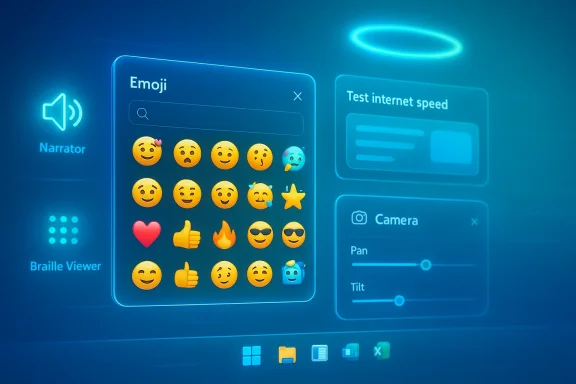
A futuristic holographic UI featuring an emoji keyboard, camera controls, and speed-test widgets in blue glow.Background​

Microsoft’s Windows 11 development model in recent years has shifted away from once‑a‑year monolithic upgrades to a more continuous, staged delivery. Feature drops and incremental enablement packages allow the company to surface smaller improvements, optionally gate features by hardware, and ship fixes as part of monthly updates. For 24H2 and 25H2 this approach means some features appear first for Insiders in Dev/Beta/Release Preview before being toggled on for general release; others arrive as preview KB packages that later become part of cumulative updates.
The updates being discussed here were observable across multiple channels and preview packages: Microsoft’s Insider announcements and Release Preview builds call out Emoji 16.0, new camera controls, taskbar visual/performance fixes, and smaller UI affordances; independent reporting and hands‑on coverage from major Windows outlets corroborates those changes and highlights a few implementation details.

What’s new — highlights and specifics​

Below I break down the main user‑facing changes, the technical details Microsoft has published, and what independent reporting and preview builds confirm.

Emoji 16.0 — fresh glyphs and emoji panel polish​

  • Microsoft has started to roll Emoji 16.0 into the Windows emoji panel. The initial set is curated — a small number of new glyphs from each major category — and includes designs such as Face with Bags Under Eyes, Fingerprint, Root Vegetable, Leafless Tree, Harp, Shovel, and Splatter. These appear directly in the WIN + . emoji picker once the feature is enabled.
  • Beyond new glyphs, Microsoft continues to update the underlying emoji infrastructure: search keyword improvements, skin‑tone and family personalization options, and the Fluent 2D visual refresh for font‑based emoji have been introduced incrementally across Insider builds over the last two years. Insider logs show sustained investment in making emoji discoverable, searchable, and stylistically consistent across Windows.
Why this matters: emoji are a small but highly visible part of modern computing: improving discoverability (search), personalization (family/skin tone combinators), and consistency with other Microsoft 365 platforms helps everyday communication and reduces confusion between platforms.

Taskbar and system tray improvements — practical shortcuts, speed test, and emoji button​

  • A one‑click network speed test is being added to the Taskbar’s network flyout and the network icon right‑click menu. The implementation launches a browser‑hosted speed measurement (the quick test widget) rather than embedding a full native throughput engine inside the OS. This provides a fast, discoverable way to check connection health without hunting for a web page. Early reports and Release Preview notes identify the option as “Perform speed test” / “Test internet speed” in the network context menu.
  • Microsoft is testing a dedicated “Emoji and more” system tray icon (and a taskbar button in some builds) to surface emojis, GIFs, kaomoji, and the emoji panel without using the WIN + . hotkey. The change is aimed at discoverability for users who aren’t familiar with the keyboard shortcut and complements the broader emoji work. Insider threads show that Microsoft has also experimented with an emoji tray icon that can be toggled off in taskbar settings.
  • Visual and performance tweaks to the Taskbar include improved thumbnail animations, reduced flicker when autohide is used, and adjustments for the tray area and icon animation performance. These are largely incremental polish items but address long‑running UX complaints about stability and responsiveness.
Practical consequence: the network speed test is a convenience — useful for quick troubleshooting — but because it opens a browser widget, it is dependent on an online resource and not an offline diagnostic tool.

Camera and device controls in Settings​

  • A new Settings control for camera pan and tilt has been added for supported webcams, exposed under Settings > Devices & drivers > Cameras. Where hardware supports it, users can manipulate pan/tilt directly from Windows, which helps for conferencing and remote camera adjustments. The Insider blog confirms this control and shows it as part of the build rollout.
  • Additional Settings refinements include “top cards” in About (quick hardware spec snapshot), more extensive color profile handling, and a redesigned, full‑page Widgets settings panel in some builds. These are small but meaningful changes that reduce clicks for common tasks.

Accessibility and Narrator improvements​

  • Microsoft is shipping a variety of accessibility enhancements as part of these preview updates. Notable items include upgrades to Narrator (improved table/list reading and a Braille Viewer), an expanded Click to Do feature that can detect simple on‑screen tables and export them, and incremental improvements to the way Windows reads complex content. Several preview KBs reference Narrator upgrades being rolled through Insider channels.
Why this matters: accessibility work is often underappreciated but has an outsized impact on inclusivity — these improvements make Windows more usable for people who rely on screen readers and assistive devices.

Copilot, Click to Do and AI refinements​

  • Copilot gets small but practical tweaks: the Copilot app is being refined (resizable, fullscreen experience), and Click to Do / Copilot actions are expanding into new surfaces — for example, suggesting Copilot prompts in the Start menu Recommended area and offering inline Copilot prompts in tools such as Excel and Notepad in some builds. These are experimental and being gated behind toggles for Insiders.
  • Some AI features — particularly higher‑impact items like Auto Super Resolution (Auto SR) or on‑device upscaling — remain hardware gated to Copilot+ certified PCs. Microsoft has been explicit about this binary: certain AI acceleration features require specific NPU/SoC capabilities. If you don’t have a Copilot+ device, you may see UI placeholders or not see the feature at all.

Packaging, deployment, and the 25H2 story​

  • Windows 11 version 25H2 is being treated as an enablement package in Microsoft’s model: feature parity with 24H2 was emphasized in Microsoft’s messaging, and 25H2 can be delivered as a small enablement package requiring a single reboot. Microsoft also used 25H2 as a vehicle to remove certain legacy components (PowerShell 2.0 and WMIC). This keeps the system current while minimizing installation friction.
  • Microsoft’s rollout cadence is staged: features start in Canary/Dev/Beta channels as builds (for example, KB5065782 and other preview KBs), then move to Release Preview, and finally to broad availability through monthly releases or non‑preview security updates. The company also toggles features on gradually (a “toggle on” model) to manage scale and capture feedback.

Cross‑checking and source verification​

This article draws on Microsoft’s official Windows Insider posts and cumulative build notes for factual confirmation of feature lists and wording, and cross‑references those with hands‑on and reporting from independent outlets (Windows Central, WindowsLatest, WindowsReport, and several community release notes surfaced in Insider threads). The core claims below are directly verifiable in Microsoft’s Insider blog and Release Preview change logs:
  • Emoji 16.0 inclusion and the specific emoji included are listed in the Insider build notes.
  • The Taskbar network speed test and the emoji tray/button are described in Release Preview notes and were observed by independent outlets reporting on the Release Preview channel.
  • Camera pan/tilt Settings controls appear in the Insider posts as new camera basic settings.
  • 25H2’s enablement package approach and the removal of legacy components were documented by Microsoft and reported by mainstream Windows press.
Where claims were less exact (for example, full public rollout timing and region‑by‑region availability), I’ve flagged those as variable below rather than asserting definitive schedules.

Critical analysis — benefits, trade‑offs, and risks​

The update package is useful and generally positive for daily Windows users, but there are trade‑offs and risks worth highlighting for IT pros and power users.

Notable strengths​

  • Convenience and discoverability. The network speed test and emoji tray button reduce friction for common tasks: diagnosing connectivity and inserting emoji. These are the kinds of small UX wins that benefit most users immediately.
  • Accessibility upgrades. Improvements to Narrator and Click to Do materially help users reliant on assistive tech. These are high‑value but low‑visibility fixes that increase Windows’ practical usability.
  • Incremental rollout reduces risk. Staging features via Insider channels and enabling them gradually allows Microsoft to gather telemetry and user feedback before mass deployment, which in theory reduces widespread regressions.

Practical and privacy trade‑offs​

  • Browser‑hosted speed test means dependency on an external web resource. The convenience of a one‑click test comes at the price of a dependency on the hosted measurement widget. Users should be aware that the test launches a browser page (and thus can be subject to content‑blocking, redirects, or third‑party behavior). It’s not a native network diagnostic that runs solely on your device. This design decision trades local instrumentation for reach and simplicity.
  • Feature fragmentation and hardware gating. Microsoft’s hardware‑gating for certain AI features (Copilot+ devices, NPUs) risks fragmenting the user experience across the installed base. Two users with the same Windows version may have markedly different capabilities depending on hardware and Microsoft’s gating policy. IT departments need to plan communications and testing around this.
  • Telemetry and privacy considerations. As with most modern feature rollouts, enabling new AI and diagnostic features increases the data surface Microsoft can collect (feature usage, telemetry, diagnostic metrics). Enterprises and privacy‑conscious users should monitor telemetry and device configuration settings, and apply group policy or management controls where appropriate.

Stability and enterprise risk​

  • Gradual enablement doesn’t eliminate regressions. Although Microsoft stages rollouts, real‑world regressions can still occur — especially where the update touches core shells like the Taskbar and shell components. Organizations should continue to test in lab environments and leverage Release Preview/Enterprise channels for controlled rollouts. Insider threads show that Microsoft continues to iterate on Taskbar flicker and explorer.exe reliability issues even in late previews.
  • Removal of legacy tooling needs planning. The phased removal of PowerShell 2.0 and WMIC in 25H2 is deliberate and long signaled, but organizations still relying on those legacy interfaces must inventory usage and migrate scripts or tooling to supported APIs — failing to do so could break automation during a targeted upgrade.

What IT admins and advanced users should do now​

If you manage machines or like to be cautious, here’s a practical checklist to handle the rollout.
  • Inventory and test:
  • Identify any dependencies on legacy tooling such as WMIC or PowerShell 2.0 and plan migration paths now.
  • Test key workflows on a representative hardware pool, including devices without Copilot+ NPUs to confirm behavior parity.
  • Staged deployment:
  • Use Windows Update rings (Insider Release Preview for early access, then pilot channels) to roll changes to a subset before organization‑wide deployment.
  • Communication:
  • Tell users about the Taskbar network speed test behavior (it opens a browser) so they know what to expect and to avoid confusion when it launches a web widget.
  • Privacy & telemetry controls:
  • Review telemetry levels and management policies. Use enterprise MDM/Group Policy to disable or block features if required by policy.
  • Backup & rollback plan:
  • Ensure system imaging and update rollback plans are up to date — particularly if you plan to upgrade mission‑critical machines. Even with staged rollouts, regressions can affect productivity.

How the rollout is being delivered — timing and channels​

  • Microsoft is enabling features via Insider builds first (Dev/Beta/Release Preview). Some features have been packaged as preview KB updates (for example, KB5065782 surfaced Emoji 16.0 support in preview builds and other previews). Microsoft often flips features on at scale during non‑preview monthly updates after validation.
  • Public availability can vary by region and device model. Microsoft’s “toggle on” approach means not every eligible device will see all features at the same time: expect staggered rollouts and selective enablement based on telemetry and hardware profile. Insider logs and community threads repeatedly document gradual rollouts and gated experiences.
  • If you want new features sooner, the Release Preview channel is the closest path to pre‑release updates that are still relatively stable; Dev and Canary channels will show more experimental changes. Enterprises should use the Release Preview only for targeted pilots.

Final verdict: incremental polish, but plan for variability​

This round of updates is a solid example of Microsoft’s current incremental, service‑style approach to Windows: small, user‑visible wins (emoji, speed test, camera controls) combined with important accessibility and stability fixes. For most users, these are welcome improvements that streamline everyday tasks and improve inclusion.
However, the delivery model — staged rollouts, hardware gating, browser‑hosted shortcuts — introduces variability in experience and requires organizations to plan. The network speed test illustrates the tradeoff: great for convenience, but dependent on external web content. Meanwhile, the removal of legacy tooling in 25H2 (PowerShell 2.0 and WMIC) is a reminder that staying current requires active migration planning.
If you manage or support PCs, start by cataloging legacy dependencies, add a pilot ring for Release Preview features, and communicate the UX changes to end users so the new Taskbar behaviors and emoji availability don’t become a source of confusion. For individual users, the changes are largely beneficial and minor — but if you care about absolute stability or run custom scripts that depend on older tooling, take a breath and test before you hit the “upgrade” button.

Quick reference: what to expect on your PC​

  • New emoji (Emoji 16.0) visible in the WIN + . panel when the update is toggled for your device. Expect a small curated set initially.
  • Taskbar gains a right‑click network speed test and may show an Emoji and more tray icon in preview builds; the speed test launches a browser widget.
  • Camera settings can expose pan/tilt controls for supported webcams.
  • Accessibility wins: Narrator improvements and Click to Do table detection/export features for assistive workflows.
  • 25H2 remains an enablement package with minimal consumer‑visible feature deltas over 24H2 but removes some legacy components; rollout is optional until Microsoft migrates unmanaged devices near end‑of‑support deadlines.

The updates reinforce a directional strategy: smaller, more frequent improvements that focus on day‑to‑day productivity, accessibility, and clearer UX discoverability. They are not a sweeping overhaul, but they matter — especially to the hundreds of millions of devices where tiny UX frictions add up. Test, communicate, and plan migration for legacy tooling; otherwise, enjoy the new emoji and the convenience of a one‑click connectivity check.

Source: Neowin Windows 11 24H2 and 25H2 get big update with new emojis, improved taskbar and more
 

Back
Top