

Microsoft is testing one of the most meaningful Windows Update control changes in years, and it lands squarely on a frustration that Windows users have been airing since the Windows 10 era: updates that arrive at the wrong time, hide too much detail, and turn basic power actions into negotiations. The new Windows 11 experience, now beginning in Insider testing, adds options to skip setup updates, repeatedly pause updates in 35-day blocks, and shut down or restart without being forced into pending patches. This is not Microsoft abandoning security updates; it is Microsoft finally admitting that security by default works better when users trust the mechanism delivering it.
For more than a decade, Windows Update has sat at the center of Microsoft’s modern operating system strategy. Windows 10 turned the old boxed-software model into “Windows as a service,” with cumulative updates, feature releases, driver delivery, and security patches arriving through a constantly maintained pipeline. That model made sense for a world of active exploitation, connected devices, and increasingly complex hardware ecosystems.
The problem was never that updates existed. The problem was that Windows often behaved as if timing did not matter, even when a laptop was about to go into a meeting bag, a desktop was rendering work overnight, or a new PC was being set up under time pressure. The classic complaint was not anti-security; it was anti-surprise.
Windows 11 improved parts of the update stack, including smaller update packages, faster installation work, and clearer release health information. But the emotional experience remained familiar: users still saw update prompts at inconvenient moments, setup could be delayed by mandatory update checks, and the power menu could make a simple shutdown feel conditional. That mismatch between technical improvement and user perception is exactly why these latest changes matter.
Microsoft says the new controls are based on user feedback, including complaints about untimely updates and insufficient control. That framing is important. This is not merely a settings-page redesign; it is an attempt to repair the social contract between Windows and the people who depend on it daily.
For years, Microsoft optimized Windows Update around successful deployment at scale. The new model still protects that goal, but it acknowledges a second requirement: the update process must be predictable enough that users do not actively fight it.
The new option to skip updates during setup addresses that perception problem. Users can choose to land on the desktop sooner and install updates later, accepting that the device may temporarily lack the latest features or security fixes. That is a fair trade-off when presented clearly.
This does not appear to apply universally. Microsoft has indicated that commercial devices with managed setup flows are treated differently, and some devices may still require updates if they are necessary for basic functionality. That caveat matters because enterprise provisioning is often governed by compliance, Autopilot rules, device enrollment, and security baselines.
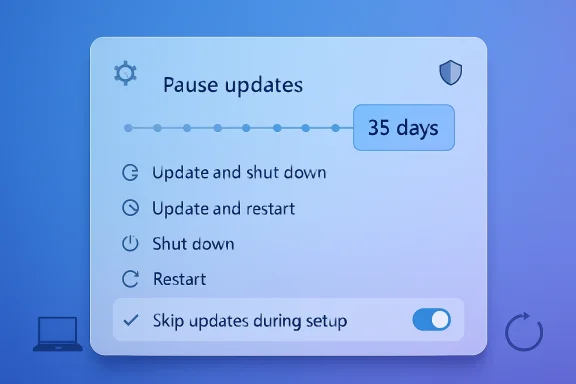
The ability to re-pause is the bigger change. Historically, Windows pause controls were useful but bounded; eventually, the operating system would insist on catching up before another pause was allowed. The new experience loosens that policy, giving users repeated 35-day blocks if they actively choose to continue delaying.
That creates a delicate balance. Microsoft clearly does not want users ignoring security fixes indefinitely, but it also recognizes that heavy-handed enforcement can cause people to disable services, use registry hacks, or avoid restarts altogether. A supported pause mechanism is safer than forcing determined users into unsupported workarounds.
This change is deceptively important because the power menu is one of the most trusted interfaces in an operating system. It should not require interpretation. If Microsoft wants users to accept update-specific actions, those actions should be explicit rather than smuggled into ordinary power controls.
There are technical reasons Windows historically preferred installing updates during restarts and shutdowns. Some files can only be replaced when components are offline, and coordinated restart windows improve update reliability. But the user-facing language often collapsed too many states into too few buttons.
By aligning more update types with the monthly quality update, Microsoft is trying to consolidate disruption. The goal is to download work in the background and apply it during a coordinated installation and restart. That is especially useful for users who do not closely follow update categories.
This approach also benefits support teams. Fewer reboot events mean fewer chances for users to ignore prompts, force power-offs, or call the help desk because Windows is “updating again.” It may also reduce confusion over whether a reboot came from a security patch, a GPU driver, or a firmware component.
Adding categories such as display, audio, battery, extension, or controller class helps users understand the target area. That can be especially useful after a bad update, when identifying the likely cause quickly matters. It also helps enthusiasts decide whether to take a Windows-delivered driver or obtain one directly from an OEM or component vendor.
For enterprises, clearer labels can reduce ticket friction. A help desk technician asking a user what changed can get a more meaningful answer if Windows Update itself exposes better metadata. For power users, it reduces the need to dig through Device Manager, update history, and driver store entries.
Still, the broader design philosophy could influence enterprise update policy. Administrators have spent years balancing security deadlines against user disruption, especially for mobile workers and executives. If Microsoft can provide more flexible user-facing controls while preserving admin enforcement, enterprises may get a better experience without sacrificing governance.
The crucial detail will be policy precedence. If an administrator sets deadlines, grace periods, active hours, expedited security updates, or feature update holds, Windows must communicate clearly when a user can pause and when policy overrides that pause. Ambiguity would create support pain.
These scenarios may sound ordinary, but ordinary frustrations shape platform loyalty. macOS, ChromeOS, Linux distributions, and mobile operating systems all have different update cultures, and Windows is judged against that broader expectation. Users increasingly expect devices to maintain themselves quietly without taking control at the wrong time.
The repeatable pause mechanism also helps households with older PCs or slower connections. A user on limited bandwidth may prefer to schedule updates when connectivity is stable. A family PC used for schoolwork may need a predictable maintenance window rather than surprise restarts during homework.
Competitors have their own update trade-offs. macOS can still surprise users with large upgrades, Linux distributions vary widely by release model, and ChromeOS succeeds partly because it abstracts much of the maintenance process. Windows has the hardest job because it supports an enormous range of hardware, drivers, legacy applications, and enterprise policies.
That complexity does not excuse poor user experience, but it explains why progress is difficult. A firmware update for one vendor’s laptop, a GPU driver from another, and a cumulative Windows security fix may all converge in the same settings screen. Microsoft’s challenge is to make that complexity feel orderly.
The repeatable pause option is the most controversial element. A disciplined user may use it for travel or a deadline, then update promptly. A careless user may treat it as an indefinite escape hatch and run months behind. Microsoft will need to design reminders, warnings, and perhaps risk indicators carefully.
There is also a difference between feature updates and security updates. Many users do not understand the distinction, and Windows Update itself often blends multiple categories into a single experience. Better labeling and clear language will be essential if users are expected to make informed decisions.
Microsoft frequently uses controlled feature rollouts, A/B testing, and staged enablement. Two Insider PCs on similar builds may not see the same interface at the same time. That can frustrate enthusiasts, but it also gives Microsoft telemetry before a change reaches hundreds of millions of devices.
The rollout path will likely depend on reliability metrics. If users pause updates repeatedly and then fail to install critical fixes, Microsoft may adjust messaging. If fewer users force power-offs or complain about surprise restarts, the company will have evidence that flexibility improves outcomes.
For consumers, the key question is whether the experience remains simple. A pause calendar, four power options, and clearer update labels should reduce confusion, not create another settings maze. Windows Update has often suffered when Microsoft tried to serve novices, enthusiasts, and administrators through the same interface.
Windows succeeds when it feels dependable. These changes do not solve every complaint about Windows 11, and they do not erase years of update frustration. But they do show Microsoft focusing on a core experience that affects every user, not just those buying new AI PCs or testing experimental features.
If Microsoft follows through, this could become one of the most practical Windows 11 improvements of the year. The update system will still need to protect users from real threats, and there will always be tension between convenience and security. But by giving people clearer choices, predictable power actions, and more honest update timing, Microsoft is moving Windows Update in the direction it should have gone years ago: less coercive, more transparent, and ultimately more trustworthy.
Source: OC3D Microsoft's finally fixing Windows Update - Here's how - OC3D
 Background
For more than a decade, Windows Update has sat at the center of Microsoft’s modern operating system strategy. Windows 10 turned the old boxed-software model into “Windows as a service,” with cumulative updates, feature releases, driver delivery, and security patches arriving through a constantly maintained pipeline. That model made sense for a world of active exploitation, connected devices, and increasingly complex hardware ecosystems.The problem was never that updates existed. The problem was that Windows often behaved as if timing did not matter, even when a laptop was about to go into a meeting bag, a desktop was rendering work overnight, or a new PC was being set up under time pressure. The classic complaint was not anti-security; it was anti-surprise.
Windows 11 improved parts of the update stack, including smaller update packages, faster installation work, and clearer release health information. But the emotional experience remained familiar: users still saw update prompts at inconvenient moments, setup could be delayed by mandatory update checks, and the power menu could make a simple shutdown feel conditional. That mismatch between technical improvement and user perception is exactly why these latest changes matter.
Microsoft says the new controls are based on user feedback, including complaints about untimely updates and insufficient control. That framing is important. This is not merely a settings-page redesign; it is an attempt to repair the social contract between Windows and the people who depend on it daily.
The Core Change: Windows Update Becomes More Negotiable
Microsoft’s new approach gives Windows 11 users more agency without removing the expectation that devices should stay patched. The headline feature is not one toggle but a cluster of changes that alter how Windows behaves at setup, during pause periods, and at shutdown. Together, they make updates feel less like commands and more like scheduled maintenance.Four Control Points
The most visible changes fall into four practical areas. Each one addresses a different pain point in the Windows lifecycle, from first boot to daily operation.- Skip updates during out-of-box setup when applicable.
- Pause updates for up to 35 days using a calendar-style experience.
- Extend that pause repeatedly with no fixed number of re-pauses.
- Choose standard shutdown or restart even when updates are waiting.
- See clearer update details, especially for driver update categories.
For years, Microsoft optimized Windows Update around successful deployment at scale. The new model still protects that goal, but it acknowledges a second requirement: the update process must be predictable enough that users do not actively fight it.
OOBE Update Skipping: Faster First Boot, Fewer Setup Frictions
The Out-of-Box Experience, or OOBE, is the setup flow users encounter when configuring a new PC or fresh Windows installation. In recent Windows 11 builds, that experience has often included update work before the user reaches the desktop. On paper, that means the machine starts life with newer fixes; in practice, it can turn unboxing into a waiting-room exercise.Why Setup Timing Matters
New-device setup is a uniquely sensitive moment. The user has not yet developed trust in the machine, has not configured preferences, and may be trying to get productive quickly. A forced update during this stage can make a new PC feel slow before Windows has even had a chance to prove itself.The new option to skip updates during setup addresses that perception problem. Users can choose to land on the desktop sooner and install updates later, accepting that the device may temporarily lack the latest features or security fixes. That is a fair trade-off when presented clearly.
This does not appear to apply universally. Microsoft has indicated that commercial devices with managed setup flows are treated differently, and some devices may still require updates if they are necessary for basic functionality. That caveat matters because enterprise provisioning is often governed by compliance, Autopilot rules, device enrollment, and security baselines.
- Consumers gain speed when setting up a new laptop or desktop.
- Reviewers and technicians save time during repeated clean installs.
- Retail and support scenarios become less awkward when customers need quick access.
- Managed business devices remain subject to administrator policy where appropriate.
The 35-Day Pause: A Bigger Psychological Shift Than It Looks
The new pause model allows users to pick a date up to 35 days away, then extend the pause again when that period ends. This effectively creates a repeatable delay mechanism for everyday Windows 11 users, though Microsoft still frames each pause as a temporary window. That design keeps the security message intact while giving users far more room to plan.Calendar Control Beats Abstract Deferral
A calendar-based pause is more understandable than a vague “pause for five weeks” button. People organize around trips, exams, conferences, projects, payroll runs, and deadlines. A date picker maps the update decision to real life rather than forcing users to count days backward from a system limit.The ability to re-pause is the bigger change. Historically, Windows pause controls were useful but bounded; eventually, the operating system would insist on catching up before another pause was allowed. The new experience loosens that policy, giving users repeated 35-day blocks if they actively choose to continue delaying.
That creates a delicate balance. Microsoft clearly does not want users ignoring security fixes indefinitely, but it also recognizes that heavy-handed enforcement can cause people to disable services, use registry hacks, or avoid restarts altogether. A supported pause mechanism is safer than forcing determined users into unsupported workarounds.
- Open Settings.
- Go to Windows Update.
- Select the new pause calendar control.
- Choose a date up to 35 days away.
- Revisit the setting before the pause expires if another delay is necessary.
Shutdown and Restart Finally Mean What They Say
Few Windows behaviors have generated more everyday irritation than the power menu changing meaning when updates are pending. A user clicks shutdown expecting the PC to power off, only to discover that Windows has begun installing updates. That is technically defensible in some scenarios, but emotionally disastrous when the user is about to board a flight or leave the office.Separating Power From Patching
Microsoft’s new power menu behavior restores a basic principle: Restart should restart, and Shut down should shut down. When updates are waiting, Windows can still offer Update and restart and Update and shut down, but those options no longer replace the standard choices. The user decides which action happens next.This change is deceptively important because the power menu is one of the most trusted interfaces in an operating system. It should not require interpretation. If Microsoft wants users to accept update-specific actions, those actions should be explicit rather than smuggled into ordinary power controls.
There are technical reasons Windows historically preferred installing updates during restarts and shutdowns. Some files can only be replaced when components are offline, and coordinated restart windows improve update reliability. But the user-facing language often collapsed too many states into too few buttons.
- Shut down should power off without beginning update installation.
- Restart should reboot without surprise patch work.
- Update and shut down should clearly mean patch first, then power off.
- Update and restart should clearly mean patch first, then reboot.
- Pending updates should remain visible without hijacking every power action.
Fewer Reboots: The Other Half of the Story
The update control changes are not only about delaying patches. Microsoft is also trying to reduce the number of separate restart events by coordinating driver, .NET, and firmware updates with the monthly Windows quality update. If successful, that could make update weeks feel less fragmented.One Restart Is Better Than Three
Modern Windows servicing is complicated because the operating system is not the only moving part. Drivers arrive through Windows Update, firmware packages may require restarts, .NET updates can need installation work, and optional updates may appear outside the main Patch Tuesday rhythm. For users, the distinction between these categories is often invisible; all they see is another reboot request.By aligning more update types with the monthly quality update, Microsoft is trying to consolidate disruption. The goal is to download work in the background and apply it during a coordinated installation and restart. That is especially useful for users who do not closely follow update categories.
This approach also benefits support teams. Fewer reboot events mean fewer chances for users to ignore prompts, force power-offs, or call the help desk because Windows is “updating again.” It may also reduce confusion over whether a reboot came from a security patch, a GPU driver, or a firmware component.
- Driver updates can be grouped more predictably.
- .NET updates can align with the broader Windows servicing rhythm.
- Firmware updates may become less disruptive when coordinated.
- Available updates can be collapsed into a clearer Settings view.
- Manual installation remains available for users who want specific updates sooner.
Better Update Information: Small Labels, Big Support Value
Microsoft is also improving the way Windows describes available updates, particularly driver updates. Driver names have long been cryptic, repetitive, or insufficiently differentiated. Adding the device class to driver titles may sound minor, but for support, troubleshooting, and user confidence, it matters.Why Driver Clarity Matters
A driver update titled with only a vendor name and version number tells most users very little. Is it for audio, display, battery, storage, camera, Bluetooth, or chipset behavior? Without context, users either install blindly or avoid the update entirely. Neither outcome is ideal.Adding categories such as display, audio, battery, extension, or controller class helps users understand the target area. That can be especially useful after a bad update, when identifying the likely cause quickly matters. It also helps enthusiasts decide whether to take a Windows-delivered driver or obtain one directly from an OEM or component vendor.
For enterprises, clearer labels can reduce ticket friction. A help desk technician asking a user what changed can get a more meaningful answer if Windows Update itself exposes better metadata. For power users, it reduces the need to dig through Device Manager, update history, and driver store entries.
- Display driver labels help diagnose graphics or monitor problems.
- Audio driver labels make sound-related regressions easier to trace.
- Battery driver labels matter for laptops and tablets.
- Firmware labels should help users understand higher-risk updates.
- Extension driver labels can clarify vendor-specific add-ons.
Enterprise Impact: Admins Still Need the Final Word
For business environments, the consumer-facing story is only part of the picture. Enterprises already manage Windows updates through tools such as Microsoft Intune, Windows Update for Business, Autopatch, Group Policy, and device management policies. The key question is how these new user controls interact with managed compliance requirements.Managed Devices Are Different
Microsoft has already signaled that some OOBE behavior does not apply to commercial devices where setup is managed. That is sensible. A company provisioning hundreds or thousands of devices cannot allow every user’s first-run preference to override enrollment, baseline security, and compliance obligations.Still, the broader design philosophy could influence enterprise update policy. Administrators have spent years balancing security deadlines against user disruption, especially for mobile workers and executives. If Microsoft can provide more flexible user-facing controls while preserving admin enforcement, enterprises may get a better experience without sacrificing governance.
The crucial detail will be policy precedence. If an administrator sets deadlines, grace periods, active hours, expedited security updates, or feature update holds, Windows must communicate clearly when a user can pause and when policy overrides that pause. Ambiguity would create support pain.
- IT admins need policy clarity before broad deployment.
- Compliance deadlines must remain enforceable for regulated environments.
- User pauses should not silently break security baselines.
- Autopilot and managed OOBE flows need predictable behavior.
- Reporting tools must show pause states and update readiness.
Consumer Impact: Trust Is the Real Feature
For home users, students, creators, and gamers, these changes are mostly about control at inconvenient moments. Windows Update became infamous not because it patched systems, but because it sometimes seemed indifferent to what users were doing. Microsoft is now addressing the human side of maintenance.The Everyday Scenarios
A student can pause updates during exams. A traveler can avoid installing patches on unreliable hotel Wi-Fi. A gamer can restart quickly before a session without triggering an update cycle. A creator can defer updates while finishing a render, stream, or production deadline.These scenarios may sound ordinary, but ordinary frustrations shape platform loyalty. macOS, ChromeOS, Linux distributions, and mobile operating systems all have different update cultures, and Windows is judged against that broader expectation. Users increasingly expect devices to maintain themselves quietly without taking control at the wrong time.
The repeatable pause mechanism also helps households with older PCs or slower connections. A user on limited bandwidth may prefer to schedule updates when connectivity is stable. A family PC used for schoolwork may need a predictable maintenance window rather than surprise restarts during homework.
- Students benefit from predictable pause periods.
- Gamers benefit from clearer restart choices.
- Creators benefit from avoiding update interruptions during long tasks.
- Travelers benefit from delaying updates on weak networks.
- Families benefit from scheduling maintenance around shared use.
Competitive Implications: Microsoft Responds to Platform Fatigue
The Windows ecosystem remains enormous, but user patience is not infinite. Complaints about forced updates, unwanted restarts, and opaque system behavior have contributed to a broader sense of platform fatigue. At the same time, Microsoft is pushing Windows 11 harder as Windows 10 exits mainstream support, making update trust strategically important.Windows 11 Needs Goodwill
The timing matters. With Windows 10 now past its mainstream support deadline, Microsoft needs users and businesses to feel that Windows 11 is not merely mandatory but meaningfully better. Update control is one of the areas where Windows 11 can demonstrate maturity instead of just adding visual polish or AI integrations.Competitors have their own update trade-offs. macOS can still surprise users with large upgrades, Linux distributions vary widely by release model, and ChromeOS succeeds partly because it abstracts much of the maintenance process. Windows has the hardest job because it supports an enormous range of hardware, drivers, legacy applications, and enterprise policies.
That complexity does not excuse poor user experience, but it explains why progress is difficult. A firmware update for one vendor’s laptop, a GPU driver from another, and a cumulative Windows security fix may all converge in the same settings screen. Microsoft’s challenge is to make that complexity feel orderly.
- Windows 11 adoption depends partly on trust.
- Update frustration can slow migrations from older systems.
- Enterprise buyers compare manageability across platforms.
- Consumer perception affects PC brand satisfaction, even when OEMs are involved.
- AI-era Windows features need a stable servicing foundation.
Security Tension: Flexibility Must Not Become Neglect
There is an unavoidable security trade-off in giving users more power to delay updates. A fully patched system is safer than one that has postponed fixes for weeks or months. Attackers routinely reverse-engineer patches, and once a vulnerability is publicly fixed, unpatched systems can become easier targets.The Patch Gap Problem
Microsoft’s position is that updates remain critical and should be installed shortly after release. The new controls do not change that reality. They simply allow users to plan timing more deliberately, which may improve cooperation but can also create longer exposure windows if abused.The repeatable pause option is the most controversial element. A disciplined user may use it for travel or a deadline, then update promptly. A careless user may treat it as an indefinite escape hatch and run months behind. Microsoft will need to design reminders, warnings, and perhaps risk indicators carefully.
There is also a difference between feature updates and security updates. Many users do not understand the distinction, and Windows Update itself often blends multiple categories into a single experience. Better labeling and clear language will be essential if users are expected to make informed decisions.
- Security updates should remain strongly recommended.
- Pause warnings must be understandable, not merely legalistic.
- High-risk vulnerabilities may require special handling.
- Users need visibility into how far behind they are.
- Enterprises need reporting when devices remain paused too long.
Insider Testing and Rollout Reality
These changes are beginning in Windows Insider channels, including Dev and the newer Experimental channel. That distinction matters because Insider features can change, roll out gradually, or remain unavailable on stable systems for some time. Users on production Windows 11 PCs should not assume the full experience will appear immediately.What Insider Channels Mean
The Dev Channel is where Microsoft tests features that may not be tied to a specific public release. The Experimental channel suggests an even more flexible testing ground for ideas that Microsoft wants to validate before broader exposure. That means the update-control experience may evolve before general availability.Microsoft frequently uses controlled feature rollouts, A/B testing, and staged enablement. Two Insider PCs on similar builds may not see the same interface at the same time. That can frustrate enthusiasts, but it also gives Microsoft telemetry before a change reaches hundreds of millions of devices.
The rollout path will likely depend on reliability metrics. If users pause updates repeatedly and then fail to install critical fixes, Microsoft may adjust messaging. If fewer users force power-offs or complain about surprise restarts, the company will have evidence that flexibility improves outcomes.
- Insider availability does not equal stable availability.
- Features may roll out gradually, even within the same channel.
- Microsoft may revise wording or limits before public release.
- Commercial policy details are still developing.
- Stable-channel timing remains uncertain until Microsoft confirms it.
Strengths and Opportunities
Microsoft’s update-control overhaul has the potential to improve Windows 11 in a way users will feel immediately. Unlike many platform changes that live deep in the stack, these controls touch everyday moments: setup, shutdown, restart, and scheduling. If Microsoft executes well, Windows Update could shift from a source of dread to a more predictable maintenance system.- More user agency without completely abandoning automatic servicing.
- Faster first-run setup for consumers who want the desktop immediately.
- Clearer power menu choices that reduce surprise update sessions.
- Repeatable pause windows for travel, exams, deadlines, and limited connectivity.
- Fewer monthly disruptions through coordinated driver, firmware, .NET, and quality updates.
- Better driver labeling that helps troubleshooting and support.
- Improved trust in Windows 11 at a critical moment for migration from older systems.
Risks and Concerns
The same flexibility that makes these changes appealing also introduces potential problems. A poorly informed user could repeatedly delay security updates, while a managed organization could face confusion if user-facing pause controls conflict with administrator policy. Microsoft must make the boundaries clear, because control without clarity can become another support burden.- Repeated pauses may leave some PCs exposed to known vulnerabilities.
- Users may misunderstand the difference between feature, driver, firmware, and security updates.
- Bundled update sessions could feel heavier if too many components install at once.
- Commercial policy interactions may create confusion unless clearly documented.
- Insider features may change before reaching stable Windows 11 releases.
- OEM-specific firmware updates still carry risk if installation fails or documentation is weak.
- Notifications could become nagging if Microsoft overcorrects to push delayed users back into compliance.
Looking Ahead
The next phase will be about implementation, not announcement. Microsoft has identified the right problems: untimely updates, insufficient control, unclear driver information, and too many restart moments. Now it must prove that the new design works across real hardware, slow networks, managed fleets, and users with very different levels of technical confidence.What to Watch Next
The most important signals will come from Insider feedback and Microsoft’s commercial guidance. If the company can explain how admins control these options, how security deadlines override pauses, and how update health is reported, enterprises may welcome the shift. If those answers remain vague, businesses will treat the consumer controls cautiously.For consumers, the key question is whether the experience remains simple. A pause calendar, four power options, and clearer update labels should reduce confusion, not create another settings maze. Windows Update has often suffered when Microsoft tried to serve novices, enthusiasts, and administrators through the same interface.
- Stable-channel rollout timing for Windows 11 users outside Insider testing.
- Commercial management documentation for Intune, Autopatch, and policy controls.
- Security behavior during urgent out-of-band patches.
- Telemetry on reduced reboots and failed installations.
- User feedback on whether the power menu feels predictable again.
The Bigger Windows 11 Signal
This update-control push also says something broader about Microsoft’s Windows strategy in 2026. The company has spent enormous energy on AI features, cloud integration, security hardening, and new hardware categories, but the fundamentals still matter. A smarter assistant means little if the operating system interrupts users at the wrong moment.Windows succeeds when it feels dependable. These changes do not solve every complaint about Windows 11, and they do not erase years of update frustration. But they do show Microsoft focusing on a core experience that affects every user, not just those buying new AI PCs or testing experimental features.
If Microsoft follows through, this could become one of the most practical Windows 11 improvements of the year. The update system will still need to protect users from real threats, and there will always be tension between convenience and security. But by giving people clearer choices, predictable power actions, and more honest update timing, Microsoft is moving Windows Update in the direction it should have gone years ago: less coercive, more transparent, and ultimately more trustworthy.
Source: OC3D Microsoft's finally fixing Windows Update - Here's how - OC3D
