

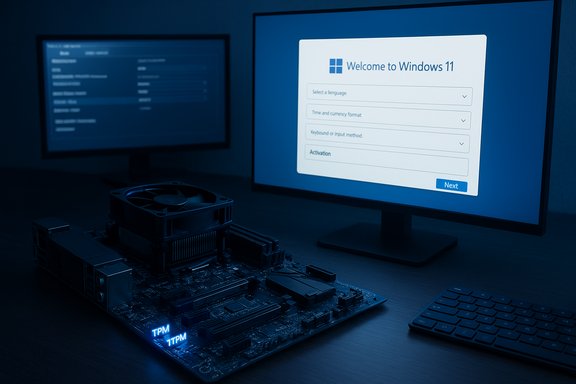
Building a new PC is thrilling, but the moment it first powers on you still need an operating system — and for most builders today that means Windows 11. The following is a practical, verified, and critically assessed guide that distills the step‑by‑step walkthrough from the provided 9meters piece into an up‑to‑date, technically accurate installation plan, plus deeper context, troubleshooting, and risk guidance you won’t find in a one‑page how‑to.
Background
Windows 11 raised the bar for minimum hardware requirements compared with previous Windows releases, placing emphasis on modern security primitives (UEFI Secure Boot, TPM 2.0), a 64‑bit architecture, and current CPU compatibility. Microsoft publishes the official baseline for Windows 11 — including the need for a compatible 64‑bit CPU, 4 GB RAM, 64 GB storage, UEFI with Secure Boot, and TPM 2.0 — and documents how to create installation media. These are the authoritative references to use before you begin.This guide synthesizes that official guidance with community best practices and third‑party tooling options (Rufus), highlights where Microsoft’s policy creates real‑world friction, and flags unsupported workarounds so you can choose an approach that matches your risk tolerance.
Overview: What you’ll need (at a glance)
- A new PC with a compatible 64‑bit CPU, UEFI firmware and Secure Boot capability, TPM 2.0 (discrete or firmware/fTPM), 4 GB+ RAM and at least 64 GB storage. These are the minimums; realistic builds should aim for 8 GB+ RAM and 120+ GB SSD for comfort.
- A second, working Windows PC with internet access to create installation media.
- A USB flash drive: at least 8 GB (16 GB recommended).
- A valid Windows 11 product key or a digital license (activation can be done after install).
- Drivers for your motherboard/other devices downloaded to backup media (recommended).
- Time and a reliable internet connection — downloads are several gigabytes and updates follow installation.
Preparing before installation
1. Confirm compatibility (don’t skip this)
Run Microsoft’s PC Health Check or cross‑check the official system requirements page to confirm TPM, UEFI/Secure Boot, CPU, RAM and storage status. Microsoft explicitly lists the hardware baseline and provides remediation steps for TPM/UEFI if the hardware supports them but they’re disabled in firmware. Use those tools first — they’ll save you time and frustration.Tip: motherboard firmware often exposes TPM as Intel PTT or AMD fTPM; enabling that option in UEFI typically satisfies the TPM requirement for Windows 11.
2. Back up anything important
If you’re migrating data from an old system, make a verified backup (external drive, cloud, or both). For a new build this mainly applies if you’re moving files from another machine. Verify backups by opening a few copied files — a backup that can’t be read is useless.3. Prepare drivers and firmware
Download your motherboard’s latest BIOS/UEFI firmware and chipset drivers, plus network and storage drivers. If your network driver isn’t included in the default installer image for very new hardware, having these drivers on a second USB can be critical immediately after first boot.Creating installation media: Microsoft’s Media Creation Tool (recommended)
Microsoft’s official Media Creation Tool remains the simplest supported route to prepare a Windows 11 USB installer. It downloads the latest Windows image and writes a bootable USB for you.- On a working PC, go to Microsoft’s Windows 11 download page and select Create Windows 11 installation media → Download Now. Run the tool and follow the prompts to create a USB installer (8 GB+).
- The tool will erase the USB drive; back up any existing USB data first.
- The produced USB is UEFI‑compatible and ready to boot modern motherboards.
- Using Microsoft’s tool means you’re getting the official image and the simplest path for future troubleshooting.
Alternative: Rufus and advanced options
For advanced users or when you need extra flexibility (custom partition schemes, or to install on hardware that does not meet Windows 11 checks) Rufus is a popular third‑party utility that creates bootable USBs from the official Windows 11 ISO. Rufus has an “extended” option to modify the installer’s boot‑time checks so you can proceed on unsupported hardware (bypass TPM/Secure Boot checks), but this is explicitly unsupported by Microsoft. Use this only if you understand the long‑term update and security trade‑offs.What Rufus changes:
- It alters the runtime installer environment to include “LabConfig” bypass flags, letting the booted installer skip certain hardware checks. This applies to booted installs — not to in‑place upgrades launched from within Windows.
Step‑by‑step: Install Windows 11 on your new PC
The following steps assume you’ll use Microsoft’s Media Creation Tool and perform a clean install (recommended for new builds).Step 1 — Create the USB installer
- On a working PC, download and run the Media Creation Tool and choose Create installation media → USB flash drive. Wait; the tool downloads several GB of data and writes the USB.
Step 2 — Configure UEFI/BIOS on your new PC
- Insert the USB into your new PC but keep it off for now.
- Power on and press the motherboard’s UEFI/BIOS hotkey (common keys: Del, F2, F10, F12; check your motherboard manual).
- In UEFI, confirm the system is set to UEFI boot (not Legacy/CSM).
- Enable TPM (Intel PTT or AMD fTPM) and Secure Boot if present. If you don’t see TPM, check for a firmware update from the motherboard vendor.
- Set USB as primary boot device (or use the one‑time Boot Menu to avoid changing order permanently). Save and exit.
Step 3 — Boot from the USB and start installer
- Boot to the USB; the Windows Setup screen appears. Choose language, time and keyboard and click Next → Install now.
- Enter a product key, or click I don’t have a product key to skip activation until later. For a new PC you can buy a retail license or use digital license transfer if applicable.
Step 4 — Choose installation type
- Select Custom: Install Windows only (advanced) for a clean install.
- If the drive is new, select the unallocated space and let Windows create partitions automatically; otherwise create/format partitions as needed (be careful — formatting erases data).
Step 5 — Wait while Windows installs
- Windows will copy files, install features and restart several times. On SSDs this commonly finishes in 15–40 minutes; slower on HDDs. Performance depends on CPU, NVMe/SSD speed, and RAM.
Step 6 — Out‑of‑Box Experience (OOBE)
- After install, follow prompts for region, keyboard, network and privacy options.
- Microsoft encourages signing in with a Microsoft account for full functionality; an offline/local account is still possible using specific steps or by disconnecting from the internet during OOBE. Be aware Microsoft is progressively nudging users to online accounts.
Step 7 — Post‑install drivers and updates
- Immediately connect to the internet and run Settings → Windows Update → Check for updates. Install cumulative updates and optional drivers.
- Visit your motherboard/vendor support page and install chipset, LAN, audio and other drivers in preference order (chipset first). Device Manager will flag missing components.
Activation and licensing
- You can install Windows 11 without a product key and activate later. A digital license tied to a Microsoft account simplifies reactivate-on-hardware-change scenarios. For new builds without pre‑installed keys, purchase a retail or OEM license from an authorized vendor. Retail licenses are transferable; OEM keys are generally tied to the original motherboard. If transferring a retail license, sign into the same Microsoft account used previously and use the Activation Troubleshooter if needed.
Common problems and troubleshooting
Problem: Installer says “This PC can’t run Windows 11”
- First, check the PC Health Check app and UEFI settings: enable TPM (PTT/fTPM) and Secure Boot, update BIOS if needed. Many modern motherboards have TPM disabled by default.
Problem: No drives listed during install
- If using NVMe drives, some older installers may need an NVMe driver or a UEFI SATA/NVMe mode change. Load the vendor’s storage driver from USB during the “Where do you want to install Windows?” screen.
Problem: Media Creation Tool fails or crashes
- Recent reports have shown intermittent Media Creation Tool failures on some Windows 10 systems. If the tool misbehaves, download the ISO directly from Microsoft and use Rufus (or mount the ISO and run setup.exe) as a workaround. Be cautious: running setup.exe from inside Windows enforces the in‑place checks; Rufus-only bypasses apply when booting from the USB.
Problem: Want a local account, not Microsoft account
- During OOBE, disconnect from the network to force offline account creation, or follow the platform's console‑command trick during setup (community workarounds exist but may be transient as Microsoft tightens flows). These tactics change over time; be prepared for them to be patched.
Unsupported installs and the long‑term consequences
Community tools and registry tweaks can allow Windows 11 to run on unsupported hardware. The mechanics include:- A Microsoft registry bypass used for in‑place upgrades (AllowUpgradesWithUnsupportedTPMOrCPU), or
- Rufus’s extended media that injects bypass flags into the installer environment so the booted installer ignores TPM/Secure Boot checks.
Performance and timing expectations
- Creating the USB installer: depends on internet connection — several GB download and 15–30 minutes to write on a stable connection.
- Clean install time: expect 15–60 minutes actual install time on modern SSD systems; include extra time for post‑install updates and driver installations. On older hardware or slow HDDs that window can extend into hours. These are general ranges; your mileage will vary.
Security and privacy advice
- Keep Secure Boot and TPM enabled after installation — they underpin many Windows 11 protections like measured boot and hardware‑based encryption keys. Disabling them to resolve a driver problem is sometimes a troubleshooting step, but re‑enable them once resolved.
- For sensitive use (work or handling confidential data), avoid unsupported installs. Enterprise and security‑conscious environments should only run Windows 11 on supported hardware and with vendor‑approved drivers and firmware.
Checklist for a smooth first‑boot (printable)
- [ ] Confirm CPU, TPM 2.0, UEFI/Secure Boot, 4 GB+, 64 GB+ storage.
- [ ] Download Media Creation Tool or official ISO and create bootable USB (8 GB+).
- [ ] Update motherboard UEFI/BIOS and enable TPM (PTT/fTPM) and Secure Boot.
- [ ] Save chipset, LAN and storage drivers to a secondary USB.
- [ ] Back up any data to external media or cloud.
- [ ] Install Windows: boot from USB → Custom install → create/format partitions → let setup run.
- [ ] After OOBE, run Windows Update and install OEM drivers.
- [ ] Activate Windows (digital license or product key) and link to Microsoft account if desired.
Critical analysis: strengths, limitations and risks
Strengths of the 9meters walkthrough and the official path
- The 9meters guide provides a clear, straightforward, step‑by‑step path for first‑time installers: create media, boot, install, then update. That clarity is valuable for novices.
- Using Microsoft’s Media Creation Tool gives you official, signed installation media — the safest and most supported approach.
Practical limitations and user friction
- TPM/CPU gating: Microsoft’s hardware checks improve baseline security but cause real friction for builders and owners of older yet perfectly usable hardware. Many otherwise capable systems are blocked until firmware toggles or BIOS updates are applied — a major UX headache for DIY builders.
- Account enforcement: Microsoft’s push toward Microsoft account sign‑in and online features can be unwelcome for users seeking a fully offline experience; the OOBE flow is increasingly nudged toward online setup.
Risks with workarounds
- Bypassing requirements (Rufus/registry) works in many cases, but you assume the risk of limited update access, potential security gaps, and worse long‑term support. For machines storing sensitive data or used in business, this is not recommended.
Final recommendations
- Use Microsoft’s official Media Creation Tool unless you have a specific non‑standard need (multi‑PC deployment, custom partitioning, or unsupported hardware where you accept risk).
- Enable TPM and Secure Boot in UEFI; update your motherboard firmware first. That solves most compatibility “fails.”
- Avoid unsupported installs for production, business, or sensitive personal systems — treat them as a stopgap or hobbyist experiment.
- Keep your driver collection and BIOS/UEFI updates ready on a second USB — this prevents the common “no network driver after install” trap.
- Plan for post‑install housekeeping: Windows Update, OEM drivers, and a verified backup/restore strategy.
Windows 11 installation on a new PC doesn’t have to be mysterious. Follow the official steps, confirm firmware and TPM settings in UEFI, create a clean USB installer with the Media Creation Tool, and perform a clean install when building new systems. For advanced users or last‑resort scenarios there are community tools and bypasses, but those come with real and lasting trade‑offs. The practical route that balances security, maintainability and supportability is simple: prepare, enable TPM and Secure Boot, use official media, install, update drivers, and activate. The detailed walkthrough above aligns the 9meters material with official Microsoft guidance and community practice so you can build, install and secure your new PC with confidence.
Source: 9meters How to Install Windows 11 on New PC (2026) - 9meters


