

Microsoft’s move to a stricter hardware baseline for Windows 11 means upgrading is no longer a simple checkbox — it’s a decision that touches security, firmware, and long-term support, and verifying your PC’s readiness is the single most important step before you click “Install.”
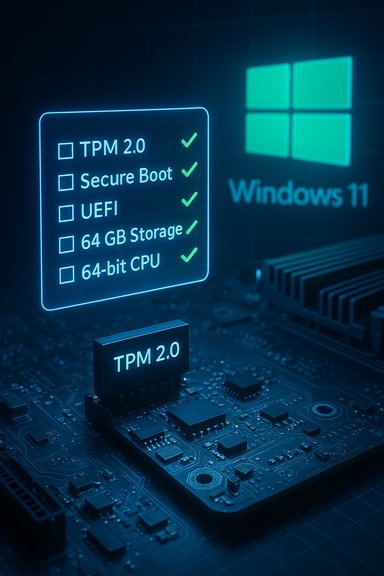
Windows 11 was built with a clear objective: raise the platform security floor and optimize for modern silicon. That design decision drove Microsoft to set minimums that differ substantially from past Windows upgrades — TPM 2.0, UEFI with Secure Boot, a supported 64‑bit CPU, and a baseline of 4 GB RAM and 64 GB storage are now the minimum gatekeepers for a supported upgrade path. These requirements are not cosmetic: they enable features like Virtualization‑based Security (VBS), Hypervisor‑protected Code Integrity (HVCI), hardware-backed BitLocker keys, and other protections that rely on a hardware root of trust.
For many users the central question is practical: can my current machine receive the supported Windows 11 upgrade (so it keeps receiving updates and security patches)? The answer depends on hardware presence and firmware settings more than raw CPU clock speed or age. In many cases the blocker is a firmware toggle that can be changed in your UEFI settings; in other cases it is a CPU model or TPM capability that simply can’t be retrofitted.
From a lifecycle perspective, Windows 10 reached its end of supported security updates on October 14, 2025. That date changes the calculus for many users: staying on Windows 10 beyond that point without Extended Security Updates (ESU) leaves systems exposed to unpatched kernel and OS vulnerabilities. Microsoft offered consumer ESU as a limited, time‑boxed bridge, but the safe long‑term choice for most users is to move to a supported platform.
The trade‑offs and risks are equally real: a sizable installed base of otherwise capable Windows 10 PCs was left without a supported upgrade path, which imposed upgrade costs on consumers and organizations and created a lively ecosystem of unsupported workarounds. These unsupported installs create an operational and security liability for users who apply them to production machines. Users should weigh the cost of new hardware against the long‑term security and update guarantees that come with a supported Windows 11 device.
Source: TechGeek Windows 11 Compatibility Guide | Tech Geek
 Background / Overview
Windows 11 was built with a clear objective: raise the platform security floor and optimize for modern silicon. That design decision drove Microsoft to set minimums that differ substantially from past Windows upgrades — TPM 2.0, UEFI with Secure Boot, a supported 64‑bit CPU, and a baseline of 4 GB RAM and 64 GB storage are now the minimum gatekeepers for a supported upgrade path. These requirements are not cosmetic: they enable features like Virtualization‑based Security (VBS), Hypervisor‑protected Code Integrity (HVCI), hardware-backed BitLocker keys, and other protections that rely on a hardware root of trust.For many users the central question is practical: can my current machine receive the supported Windows 11 upgrade (so it keeps receiving updates and security patches)? The answer depends on hardware presence and firmware settings more than raw CPU clock speed or age. In many cases the blocker is a firmware toggle that can be changed in your UEFI settings; in other cases it is a CPU model or TPM capability that simply can’t be retrofitted.
Windows 11 minimum requirements — the facts you must verify
Below are the official minimums Microsoft uses to determine a supported Windows 11 upgrade. These are the baseline items that the PC Health Check and the upgrade assistant evaluate:- Processor (CPU): 1 GHz or faster, 2 or more cores, 64‑bit processor on Microsoft’s supported CPU list. Practical guidance: a CPU must be from a generation Microsoft has tested and listed as supported.
- Memory (RAM): Minimum 4 GB (8 GB or more is the practical recommendation for comfortable multitasking).
- Storage: At least 64 GB of storage on the system drive. (Ignore any claims that Windows 11 requires multi‑terabyte drives — that is incorrect; the published minimum is 64 GB.
- Firmware: UEFI with Secure Boot capability (legacy BIOS/CSM is not supported for the supported upgrade path).
- TPM: Trusted Platform Module (TPM) version 2.0 — either discrete TPM or firmware TPM (fTPM / Intel PTT). This is mandatory for a supported installation.
- Graphics: DirectX 12 compatible graphics / WDDM 2.x driver.
- Display: High‑definition (720p) display and a diagonal size greater than 9".
- Internet & Account: Windows 11 Home requires an active internet connection and a Microsoft account for OOBE (initial setup). Business/Enterprise editions have different provisioning options.
Why these requirements matter (security and lifetime support)
Microsoft’s stated rationale is straightforward: modern security features require hardware primitives that older systems often lack. TPM 2.0 provides a hardware root of trust for cryptographic keys and device attestation; Secure Boot helps ensure a trusted boot path; and UEFI plus GPT partitioning provide a more robust firmware environment for modern mitigations. Windows 11’s security posture — Virtualization‑based Security, hardware isolation of system components, improved ransomware resilience — assumes these components are present and enabled.From a lifecycle perspective, Windows 10 reached its end of supported security updates on October 14, 2025. That date changes the calculus for many users: staying on Windows 10 beyond that point without Extended Security Updates (ESU) leaves systems exposed to unpatched kernel and OS vulnerabilities. Microsoft offered consumer ESU as a limited, time‑boxed bridge, but the safe long‑term choice for most users is to move to a supported platform.
How to check your PC: quick and manual methods
There are two practical approaches: use Microsoft’s automated tool, or verify manually.Use the official PC Health Check (recommended first step)
- Download and run Microsoft’s PC Health Check (PC Integrity Check) to get a clear pass/fail and a specific explanation of any blockers (TPM, Secure Boot, CPU, etc.. Many users find the tool’s guidance is the fastest way to identify a firmware toggle or missing component.
Manual checks (what to look for)
- To view CPU, memory and OS type:
- Press Windows + R, type msinfo32, and press Enter. Look for System Type (x64-based PC) and the processor entry.
- To check TPM:
- Press Windows + R, type tpm.msc, and open the Trusted Platform Module panel; it reports the TPM version and status (if present). If tpm.msc reports “Compatible TPM cannot be found,” fTPM/PTT might be disabled in firmware.
- To check Secure Boot and UEFI:
- In msinfo32, check the “BIOS Mode” (UEFI vs Legacy) and “Secure Boot State.”
- To check graphics:
- Device Manager → Display Adapters to confirm GPU model and driver family. Verify DirectX compatibility via dxdiag if needed.
- To check storage and free space:
- Settings → System → Storage or File Explorer → This PC.
Common compatibility blockers — and how to address them
- TPM 2.0 missing or disabled: Many modern motherboards support firmware TPM (fTPM) or Intel PTT but ship with it disabled. Enable it in UEFI or update firmware if the option is missing. Desktop owners with spare headers on compatible boards can sometimes add a discrete TPM module.
- Secure Boot disabled or the PC using Legacy BIOS: Switch the firmware to UEFI mode and enable Secure Boot. That may require converting the system drive from MBR to GPT; Microsoft’s MBR2GPT tool and vendor documentation explain the safe conversion steps. Always back up before altering partition layouts.
- CPU not on Microsoft’s supported list: This is a hard blocker for the supported upgrade path. While registry‑based workarounds or modified installation media exist, they produce unsupported installations that Microsoft may not update. For long‑term security and update entitlement, replacing the CPU (desktop) or buying a new PC are the practical routes.
- Insufficient RAM or storage: Upgrading RAM and swapping to a larger SSD are cost‑effective fixes for many laptops and desktops. For older systems where components aren’t available or the CPU remains unsupported, a new machine may be the better decision.
Supported upgrade methods (safe and recommended)
If your device is eligible, use one of Microsoft’s supported upgrade paths to preserve update entitlement:- Windows Update (in‑place upgrade): The simplest path; if Microsoft has staged the upgrade to your device you’ll see “Upgrade to Windows 11 — Download and install” in Settings → Windows Update. This path preserves apps, settings, and files.
- Windows 11 Installation Assistant: Microsoft’s guided tool for in‑place upgrades when Windows Update hasn’t offered the upgrade yet. Useful for getting the upgrade now on supported PCs.
- Media Creation Tool / ISO: Create a bootable USB for clean installs or in‑place upgrades; recommended for IT professionals and multi‑PC deployments. Clean installs erase the drive, so back up first.
Unsupported installs: what community workarounds do (and the risks)
Community workarounds exist and are well documented. They include:- Creating a registry key AllowUpgradesWithUnsupportedTPMOrCPU to bypass some checks for in‑place upgrades. This is an official but explicitly discouraged escape hatch.
- Using installer‑time registry edits (LabConfig) to bypass TPM, Secure Boot, and RAM checks during a clean install.
- Creating modified installation media or using tools like Rufus with “extended” options that build an installer configured to skip hardware checks. These tools automate the same LABCONFIG bypasses many users did manually.
Practical upgrade checklist (step‑by‑step)
Follow this checklist to reduce risk and increase the chance your upgrade will succeed:- Back up everything — cloud (OneDrive) plus a full disk image to an external drive. Test restores for a few critical files.
- Update Windows 10 fully (apply all pending cumulative updates) — some upgrade paths require the latest servicing stack.
- Run PC Health Check to identify specific blockers and recommended fixes.
- Update BIOS/UEFI and critical drivers from your OEM — this can expose fTPM or Secure Boot options or fix compatibility.
- Enable TPM (fTPM/PTT) and Secure Boot if present — reboot into UEFI and toggle them on. Re-run PC Health Check.
- Free up at least 20–30 GB of extra disk space (more during the install) and ensure system partition has the required 64 GB free ideally on an SSD for best performance.
- Choose the supported upgrade path (Windows Update, Installation Assistant, or official media) if your PC is eligible.
- After upgrade, verify drivers (graphics, audio, network) and re‑run Windows Update until no updates remain.
Special considerations for enterprise / power users
Businesses should inventory endpoints and plan staged migrations. The three practical enterprise lanes are:- Upgrade eligible devices now — preserves management, updates, and security posture.
- Enroll in commercial ESU (if necessary) as a short‑term bridge while hardware refreshes are scheduled.
- Replace or repurpose old hardware and migrate to other platforms where Windows 11 is not an option (ChromeOS Flex, Linux, or isolated VMs for legacy apps).
Common questions and concise, factual answers
- Do I have to upgrade right away? No. Windows 10 security updates ended on October 14, 2025; you can continue on Windows 10 with ESU for a limited time, but long‑term security requires migration.
- Can I install Windows 11 on a 32‑bit processor? No. Windows 11 requires a 64‑bit CPU.
- Can I enable TPM if my board only has TPM 1.2? TPM 1.2 is not sufficient for the supported Windows 11 path. Some motherboards with only a TPM header accept a discrete TPM 2.0 module; check your OEM’s documentation.
- Will most Windows 10 apps run on Windows 11? Yes — the vast majority of apps compatible with Windows 10 run on Windows 11. Niche, legacy drivers and bespoke enterprise software should be tested.
- Is it safe to use workarounds to install on unsupported hardware? It’s technically possible but comes with real risks: potential loss of updates, driver instability, and increased exposure to security vulnerabilities. Use workarounds only for non‑critical, test, or hobby systems.
Real‑world tradeoffs: upgrade, repair, or replace?
If your machine is less than about five years old, a firmware toggle (enable fTPM/PTT or Secure Boot) or a modest upgrade (RAM, SSD) will often bring it into compliance. If your CPU is unsupported or your motherboard lacks UEFI/TPM paths, the choice narrows to buying a modern Windows 11 PC or repurposing the old hardware for another OS or offline use. For many users the most cost‑effective path is:- Minor upgrades (RAM to 8 GB, SSD to NVMe) + firmware toggles when possible; or
- New PC purchase when the CPU generation or firmware limits block the supported upgrade route.
Closing analysis — strengths and risks of Microsoft’s approach
Microsoft’s stringent baseline trades short‑term inclusivity for a platform that can deliver stronger, hardware‑backed security and performance for the majority of active Windows users. That is a defensible engineering choice, and it results in tangible benefits — improved protections against firmware and boot‑level attacks, better support for virtualization security, and a platform designed for modern workloads.The trade‑offs and risks are equally real: a sizable installed base of otherwise capable Windows 10 PCs was left without a supported upgrade path, which imposed upgrade costs on consumers and organizations and created a lively ecosystem of unsupported workarounds. These unsupported installs create an operational and security liability for users who apply them to production machines. Users should weigh the cost of new hardware against the long‑term security and update guarantees that come with a supported Windows 11 device.
Final recommendations — a pragmatic, security‑first plan
- Run PC Health Check now and record the exact blockers. If they’re firmware toggles, enable them and re‑check immediately.
- Back up and test restores before making any major changes. A full image plus file backup is the minimum.
- If your PC is supported, use Windows Update or the official Installation Assistant to upgrade and keep your device on the supported update channel.
- If your CPU or TPM is an insurmountable blocker, plan for a hardware refresh or evaluate alternative OS options for older machines; do not rely on unsupported installs for critical or internet‑facing systems.
Source: TechGeek Windows 11 Compatibility Guide | Tech Geek
