

Microsoft’s January servicing wave for Windows 11 has produced a focused but irritating regression: after installing the January cumulative updates some older desktops using the classic S3 sleep state and certain configurations can no longer enter sleep properly — in some reports the machine appears to hang or blank the screen but never powers down, often requiring a hard reset. Early community troubleshooting and Microsoft’s own advisories show the problem is narrow in scope, tied to specific update packages and platform configurations, and in some cases a simple peripheral change (unplugging a USB webcam) has helped users regain normal S3 behaviour.
Microsoft shipped its January 2026 cumulative updates on January 13, 2026, in a regular Patch Tuesday bundle that included large security and quality changes across supported Windows 11 servicing channels. Two updates that became focal points for post‑patch problems were KB5074109 (the large January cumulative rolled across 24H2/25H2 branches) and KB5073455 (the January cumulative for Windows 11 23H2). Within days of release, multiple regressions were reported by end users and enterprise administrators: Remote Desktop sign‑in breaks, classic Outlook POP profile freezes, and several power‑state regressions affecting shutdown, hibernation or sleep on particular configurations. Microsoft responded quickly with one or more out‑of‑band (OOB) patches to address the highest‑impact regressions. What’s happening now is twofold but distinct:
The good news is the problem is narrow, the vendor has acknowledged it, and documented fixes and operational mitigations are available today. The hard lesson is operational: when low‑level servicing logic and hardware/driver interactions collide, even well‑tested updates can yield surprising behaviour — and recovery relies on precise telemetry, responsible rollout practices, and a disciplined update and driver‑management strategy that bridges vendor and IT workflows.
Source: TechRadar https://www.techradar.com/computing...ome-pcs-but-theres-one-trick-that-might-help/
 Background / Overview
Microsoft shipped its January 2026 cumulative updates on January 13, 2026, in a regular Patch Tuesday bundle that included large security and quality changes across supported Windows 11 servicing channels. Two updates that became focal points for post‑patch problems were KB5074109 (the large January cumulative rolled across 24H2/25H2 branches) and KB5073455 (the January cumulative for Windows 11 23H2). Within days of release, multiple regressions were reported by end users and enterprise administrators: Remote Desktop sign‑in breaks, classic Outlook POP profile freezes, and several power‑state regressions affecting shutdown, hibernation or sleep on particular configurations. Microsoft responded quickly with one or more out‑of‑band (OOB) patches to address the highest‑impact regressions. What’s happening now is twofold but distinct:- On some older desktops that use the legacy S3 sleep state, KB5074109 (and related January packages) appears to upset the S3 suspend/resume path causing the machine to fail to enter a deep sleep — the display turns off but fans, CPU and other signals remain active or the system hangs, often forcing a hard power cycle. Community posts describe identical behaviour that returns when the update is reinstalled and disappears after rollback.
- Separately, Windows 11 23H2 systems with System Guard Secure Launch enabled experienced a restart‑instead‑of‑shutdown or hibernate behaviour after the January 13 rollup (KB5073455). Microsoft acknowledged that regression and issued an out‑of‑band fix (KB5077797) to address the Secure Launch shutdown regression and other high‑impact issues. The Secure Launch regression is configuration dependent and concentrated in Enterprise/IoT images where Secure Launch is commonly enforced.
Why S3 vs. Modern Standby matters
S3 (classic Sleep)
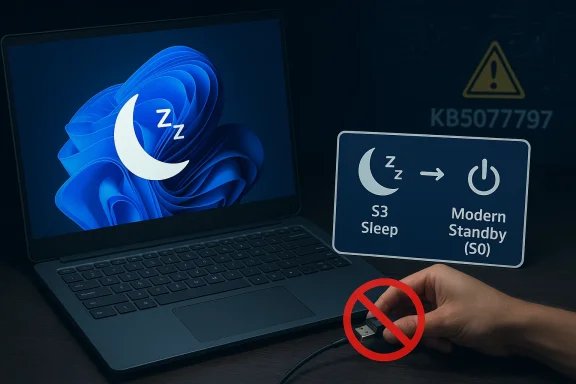
S3 is the long‑established ACPI sleep state in which the system saves context in RAM and shuts down most power rails: display off, CPU halted, fans stopped, RAM kept powered. Desktops and older laptops typically support S3; many consumer laptops built more recently have moved away from S3 in favour of Modern Standby. The S3 path relies on mature but low‑lver interactions — and that’s precisely why updates that touch firmware‑adjacent logic or servicing orchestration can expose regression risk.Modern Standby (S0 Low‑Power Idle)
Modern Standby (S0) keeps the platform in a low‑power runtime state where the OS remains logically active and responds to network or device events. Most contemporary notebooks and many newer desktops use Modern Standby instead of S3; those systems report a different power‑capability set when you run powercfg /a. If your PC uses Modern Standby you are far less likely to see this particular S3 regression. Running powercfg /a in an elevated Command Prompt will show which states your machine supports.What Microsoft has acknowledged and fixed
Microsoft publicly documented the Secure Launch shutdown/hibernate regression on its update history / support pages for the January patch and issued an out‑of‑band patch (KB5077797) on January 17, 2026 to resolve the shutdown/restart and Remote Desktop sign‑in failures introduced by the January 13 updates. The KBs explicitly call out the affected combinations and list the fixes included in the OOB package. For systems impacted by the Secure Launch bug, Microsoft’s KBs note the OOB update as the resolution. Microsoft’s public guidance for shutdown/hibernate regressions changed quickly in January as telemetry accumulated: initial advisories described the symptom and recommended mitigations for affected fleets; subsequent OOB packages were published to address the most disruptive regressions. Administrators and power users should verify their device’s update history and confirm whether the out‑of‑band packages (released January 17) have been applied.The unplug‑webcam workaround: what users reported
A recurring, practical tip surfaced in community Hub reports: if a USB webcam is attached, S3 sleep attempts sometimes fail on affected desktops; unplugging that camera (or other USB imaging devices) before initiating sleep reportedly allows S3 sleep to succeed. Windows Latest and community posts flagged this pattern after multiple users reported identical behavior across different hardware. The webcam workaround is not a universal fix — it only helps where an attached Upart of the failure chain — but it’s trivial to test and has alleviated the issue for some users. Why would a USB webcam matter? USB devices (especially those that implement both imaging and audio function arrays) participate in power‑management negotiation with Windows. A buggy or unexpected device driver can prevent a proper S3 transition or can reassert a wake condition immediately after the sleep request. Unplugging the peripheral removes that variable and, in several community reproductions, restored normal S3 suspend. That pattern has precedent in Windows power troubleshooting and was observed repeatedly in community reproductions for the January regressions.Step‑by‑step: how to triage the sleep problem (practical checklist)
Use the following ordered checklist. Each step is short, reversible, and helps narrow the root cause.- Confirm your power states
- Open an elevated Command Prompt and run: powercfg /a
This reports whether your system supports S3, S0 (Modern Standby), hibernate, etc. If your system does not support S3, the S3 regression is not relevant. - Test the USB webcam workaround
- Save work. Unplug any USB webcams, capture devices or hubs, then immediately put the PC to sleep.
- If sleep works with the webcam unplugged, leave it unplugged and update the camera’s driver or test a different USB port (preferably a USB 2.0 port) to isolate the problematic device. Community reports show this can be an immediate and effective diagnostic.
- Update device drivers and firmware
- Update chipset, USB controller, and webcam drivers from the vendor (motherboard/OEM and camera manufacturer). Update UEFI/BIOS if a vendor has released firmware addressing power‑state issues.
- If drivers are already current and the fault persists, perform a clean driver reinstall for the webcam (uninstall device → reboot → replug) or use a driver‑cleanup strategy for GPU/USB as appropriate.
- Disable wake sources temporarily
- In Device Manager, for keyboards/mice/USB hubs/webcams: open device Properties → Power Management → uncheck “Allow this computer.” This doesn’t fix the S3 entry path but reduces spurious wake events while testing.
- Disable Fast Startup and hybrid options
- Control Panel → Power Options → Choose what the power buttons do → Change settings that are currently unavailable → uncheck Turn on fast startupp. This toggler transitions that interact with hibernate/fast boot logic.
- Try a safe test environment
- Create a new local user or perform a clean boot (msconfig: hide Microsoft services → disable others) to rule out software interference.
- If you must power off reliably
- The forced shutdown command can be used as a temporary operational workaround for devices affected by shutdown regressions: open an elevated Command Prompt and run shutdown /s /t 0. For Secure Launch related restart‑on‑shutdown symptoms, Microsoft documented operations and pushed OOB fixes — check update status and apply KB5077797 where applicable. Be aware this is a manual stopgap, not a root ft.
- Rollback as diagnostic last resort
- If the problem disappears after uninstalling the January cumul evidence the update introduced the regression. Use the Update history / Installed updates UI or DISM to remove the specific LCU, but note that combined SSU+LCU packages may require special removal steps and rollback is not a long‑term solution from a security standpoint.
What IT admins and power users should do now
- Inventory and pilot: identify machines that still run S3 (many desktops and older workstations) and list those with attached USB imaging devices or specialized USB hubs. Prioritize machines with Secure Launch enabled for targeted testing.
- Apply Microsoft’s OOB updates where they address the documented regressions (especially the KB5077797 nch shutdown regression). Validate in a test ring before wide deployment and watch for additional cumulative updates from Microsoft in the coming weeks.
- Communicate to users: explain temporary mitigations (unplugging webcams before sleep; use shutdown /s /t 0 for reliable power‑off) and advise them to save work and avoid relying on hibernate until updates are confirmed clean in your environment. Keep a rollback plan if a critical workstation cannot be remediated quickly, but balance that against security exposure.
- Log and escalate: collect Event Viewer entries (System logs around sleep/wake/hibernate), powercfg /lastwake and powercfg /waketimers outputs, and driver versions when you open a ticket or report a Feedback Hub item. High‑quality repro steps accelerate vendor fixes.
Technical analysis — what likely went wrong
Modern cumulative updates touch multiple layers: servicing stack, update orchestration, and sometimes certificates or early‑boot hardening logic. Two interacting characteristics made this January wave fragile:- Complex offline commit ordering: servicing operations that commit changes require deterministic handling of the final user intent (shutdown/restart/hibernate). On some platform combinations, that intent wasn’t preserved across offline servicing stages, leaving the system in an unexpected state (restart instead of shutdown) or failing to clear maintenance/wake context (causing immediate wake after sleep).
- Device/driver power‑path edge cases: USB imaging devices with composite functions (camera + microphone + HID) can implement nonstandard suspend/wake behavior or buggy drivers that stall the S3 transition. That creates a deterministic repro in some cases when a particular peripheral is present — which is why unplugging the webcam resolves the symptom for some users.
Strengths, risks and trade‑offs in Microsoft’s response
Strengths- Microsoft responded quickly: within days the vendor published detailed KB entries, added Release Health notes, and shipped out‑of‑band updates to addressegressions (shutdown/Remote Desktop). That shows modern telemetry and rapid remediation cycles can be effective in reducing blast radius.
- Transparent configuration guidance: Microsoft was explicit that Secure Launch enabled configurations were primarily affected by the shutdown regression — this helped enterprises triage based on configuration rather than blanket rollbacks.
- Narrow fixes don’t remove all pain: some community reports show that even after the OOB patch was applied, certain Secure Launch configurations or machine/driver combinations still require firmware toggles or temporary disablement to restore consistent behaviour. That means administrators may need to manage device‑by‑device mitigation while vendor engineering continues.
- Regressions that interact with security features force hard policy choices: disabling Secure Launch to restore correct shutdown/hibernate behaviour reduces boot‑time protections and may violate compliance policies for hardened fleets. IT teams must weigh security posture versus availability when choosing interim actions.
- Community workarounds (such as unplugging a webcam) are useful but not an acceptable long‑term fix: they show the problem’s practical surface but do not resolve the underlying servicing/driver interaction that caused the regression. Reliance on such measures at scale is operationally brittle.
Clear recommendations for readers
- Home users with modern laptops: verify whether your device uses Modern Standby (powercfg /a). If it does, you are unlikely to see the S3 regression. Keep Windows Update enabled and install Microsoft’s OOB fixes as they appear.
- Desktop users with older hardware that still use S3:
- Test the USB webcam workaround immediately (unplug any external cameras) and verify sleep behavior.
- Update motherboard/U/EFi and USB drivers from the OEM; many vendors publish power‑state fixes in firmware updates.
- If the problem persists, follow the diagnostic checklist above and consider uninstalling the January cumulative only as a temporary diagnostic — prioritize driver/firmware remediation and OOB patches.
- IT administrators:
- Inventory devices for S3 support and Secure Launch state.
- Validate KB5077797 and other OOB releases in a pilot ring before mass deployment.
- Communicate clear user mitigations (unplug webcams, use forced shutdown command as a last resort).
- Avoid disabling Secure Launch at scale unless risk‑assessed and allowed by policy; prefer rolling out validated patches.
What remains uncertain and flagged claims
- Some community threads reported keyboard/mouse oddities and other peripheral anomalies after the January cumulative; these reports are plausible given the low‑level nature of the changes but are less well documented than the S3 and Secure Launch regressions. These ancillary claims should be treated as probable but not yet fully verified until vendor or reproducible telemetry corroborates them. Community reporting remains the main signal for those observations.
- The webcam unplug workaround is a useful diagnostic and legitimate mitigation for affected S3 desktops, but it is not universally effective. If it works for you, use it while pursuing driver/firmware updates and official fixes; if it does not, escalate through standard support channels with Event Log extracts and powercfg outputs.
Bottom line
January’s Windows 11 servicing wave produced a small set of sharp regressions that are both configuration dependent and operationally painful for affected users. Microsoft’s rapid deployment of out‑of‑band patches mitigated the most acute problems — notably the Secure Launch restart‑on‑shutdown issue — but a number of edge cases remain in heterogeneous customer environments. For owners of older desktops using the S3 sleep state, the practical first steps are simple and safe: run powercfg /a to determine supported power states, test the easy webcam unplug workaround, update drivers and firmware, and apply Microsoft’s OOB patches after pilot validation. Administrators must balance security and availability carefully, test fixes in representative rings, and avoid ad hoc disabling of platform hardening unless absolutely necessary.The good news is the problem is narrow, the vendor has acknowledged it, and documented fixes and operational mitigations are available today. The hard lesson is operational: when low‑level servicing logic and hardware/driver interactions collide, even well‑tested updates can yield surprising behaviour — and recovery relies on precise telemetry, responsible rollout practices, and a disciplined update and driver‑management strategy that bridges vendor and IT workflows.
Source: TechRadar https://www.techradar.com/computing...ome-pcs-but-theres-one-trick-that-might-help/
