

Microsoft has begun rolling out the January 2026 Patch Tuesday for Windows 11 — KB5074109 — advancing 25H2 systems to Build 26200.7623 (and 24H2 to Build 26100.7623) with a package that is primarily a quality-and-stability cumulative but also carries staged feature activations for Copilot-era functionality.
January’s monthly cumulative follows Microsoft’s 2025 pattern: ship security and reliability fixes while continuing a controlled feature rollout (CFR) that flips UI and AI features on per-device and per-account, rather than shipping them universally. The result is a Patch Tuesday that looks modest in the changelog but can deliver visible feature toggles — such as taskbar Copilot shortcuts, File Explorer polish, and new Settings surfaces — to devices that meet Microsoft’s gating criteria. For end users the practical delivery options remain the same:
Practical notes:
Key risks and guidance:
Windows 11’s January 2026 Patch Tuesday is a familiar mix: security and reliability fixes under the hood, with Microsoft continuing to broaden Copilot and on-device AI capabilities through staged rollouts. For most users this month’s cumulative is a routine but important upgrade; for administrators it remains imperative to pilot, verify drivers, and prepare offline servicing plans that account for larger package sizes and SSU sequencing.
Source: Windows Latest Windows 11 KB5074109 (25H2) released with major fixes, direct download links (.msu)
 Background / Overview
January’s monthly cumulative follows Microsoft’s 2025 pattern: ship security and reliability fixes while continuing a controlled feature rollout (CFR) that flips UI and AI features on per-device and per-account, rather than shipping them universally. The result is a Patch Tuesday that looks modest in the changelog but can deliver visible feature toggles — such as taskbar Copilot shortcuts, File Explorer polish, and new Settings surfaces — to devices that meet Microsoft’s gating criteria. For end users the practical delivery options remain the same:- Windows Update (recommended; express/differential delivery where available).
- Microsoft Update Catalog (.msu) for offline installs, image servicing, and scripted deployments.
What KB5074109 installs and how it changes your build
After installing KB5074109:- Windows 11 25H2 devices move to Build 26200.7623.
- Windows 11 24H2 devices move to Build 26100.7623.
Practical notes:
- If you manage machines, check winver to confirm the exact build after the update cycle completes.
- For offline deployment, download the matching .msu package(s) from the Update Catalog and install via DISM or wusa; if multiple .msu prerequisites are shown, put them in one folder and use DISM /Online /Add-Package /PackagePath: to allow automatic sequencing.
The release footprint: package sizes and distribution quirks
Community measurements and published catalog entries for recent cumulatives show the offline MSU bundles for the 26100/26200 families are multi-gigabyte in size (3.7–4.3 GB depending on architecture and the way Microsoft packages SSU+LCU). Windows Latest’s hands-on reporting for this January patch records package sizes above 4 GB for the combined SSU+LCU .msu files and observes that the download/install times on a 200 Mbps connection are measured in minutes (download ~5 minutes; install ~7–10 minutes on typical modern hardware). Why multi-gigabyte?- On-device AI components (model binaries, runtimes) and servicing stack additions have increased the footprint of Windows’ combined offline packages.
- Microsoft distributes on-device model components (examples: the Phi Silica family of small language models) as platform-targeted KBs and component updates; these may be included in offline bundles or published as separate KBs depending on the month and packaging. That behavior has resulted in larger Update Catalog MSU bundles for some months.
- Microsoft’s official KB text for a given cumulative is the authoritative record. At the time of publication some outlets report >4 GB sizes and claim AI models are being “bundled for everyone,” but whether every cumulative includes all model payloads for all hardware is subject to packaging choices and separate component KBs. Treat specific size claims as practical planning figures and verify the exact catalog entries and file sizes for your chosen architecture before mass distribution.
What’s new (feature activations and user-visible changes)
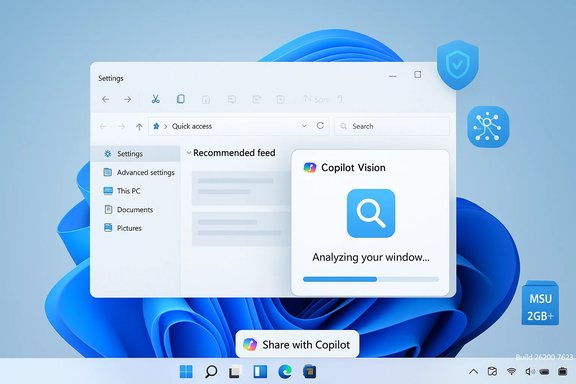
January’s KB is largely quality-focused, but several items that have been rolling out through December and earlier are likely to appear on more devices after this cumulative. These items are still staged — so some of them may show up for you immediately, and others may not appear until Microsoft flips a server-side flag or hardware entitlements are validated.1. “Share with Copilot” on the taskbar (staged rollout)
Hovering an app thumbnail on the taskbar can now surface a Share with Copilot action that launches Copilot Vision scoped to that window. Once invoked Copilot can analyze what’s visible (summarize, translate, highlight UI elements) and start a conversation based on the window’s content. The feature uses a limited-access Shell API — originally designed for communication apps — and Microsoft has used its own approval path to surface Copilot here. Important operational and privacy points:- Copilot Vision’s taskbar entry is permissioned: the user must confirm sharing before Copilot receives the snapshot/scrape of the window.
- Managed environments can restrict Copilot features; enterprise accounts or shared devices may not see the capability by default.
- The API required for third parties to expose the same button is gated; other assistant vendors (for example, third-party chatbots) would require Microsoft approval to use the same taskbar integration.
2. File Explorer — Recommended feed and more consistent dark mode
- Recommended feed: A new Home feed in File Explorer that prioritizes files you frequently use and recently downloaded items. It differs from a raw “Recent” list by attempting to surface useful items rather than everything you opened. This feed requires signing into a Microsoft account and can be toggled on in File Explorer Options.
- Dark mode consistency: Copy/move/delete confirmation dialogs, progress UI and certain error dialogs now respect the system dark theme more consistently. The work to eliminate jarring bright dialogs when Framework/Explorer is dark has been staged for months and is now more broadly visible. Note that Microsoft previously acknowledged a white-flash regression in early previews; cumulative fixes should reduce these occurrences for most devices, but administrators should validate on pilot hardware.
3. Settings > System > Advanced Settings (Virtual Workspaces)
Microsoft moved toggles for virtualization and sandboxing (Hyper-V, Windows Sandbox, Virtual Machine Platform, etc. into a centralized Advanced Settings page in Settings > System. This is part of Microsoft’s broader effort to migrate legacy Optional Features controls into the modern Settings app for discoverability. The change simplifies management and discovery for everyday users and IT staff.4. Full Screen Experience for handhelds
A focused gaming posture called Full Screen Experience (FSE) — previously visible on a subset of Windows handhelds — is being rolled out to additional devices. When enabled, the shell becomes controller-first, suppresses some desktop elements and trims background processes to free memory and CPU for games. On tuned handhelds testers have seen measurable memory savings; the toggle is currently targeted at handheld hardware and will expand availability gradually.5. Performance, HID backlight fixes and graphics stutter improvements
- Microsoft applied fixes to reduce stuttering caused when apps query monitor modes at launch, a change that benefits high-resolution monitors and multi-monitor setups.
- Backlight performance improvements for HID-compliant keyboards are included.
- These are quality-first changes but have practical benefits for gamers and high-refresh desktop users.
Known issues, rollout risks and what to watch for
KB5074109 is positioned as a stability-focused monthly cumulative but remember Microsoft is simultaneously using CFR to gate certain features. That means installing the cumulative upgrades your security posture and enables platform fixes, yet may not immediately expose all the UI/AI features described above.Key risks and guidance:
- Staged visibility: Controlled feature rollouts mean devices in the same environment can see different UI features. Don’t assume inconsistent visibility implies a failed install. Check winver and Update History to confirm the build is applied.
- Packaging/SSU implications: Combined SSU+LCU offline MSUs change rollback characteristics. SSUs are persistent; once installed they can complicate rollback. Always stage and test in pilot rings before broad offline deployments.
- Driver and third-party regressions: Large cumulatives can occasionally expose mismatches in GPU, virtualization, or peripheral drivers. Vendor driver readiness (GPU, NPU, NICs, virtualization) is the most common source of post-patch regressions; maintain driver rollback tactics and be prepared to test on a representative device fleet.
- White-flash and UI regressions: The File Explorer dark-mode white-flash was reproduced in earlier previews; Microsoft addressed it in subsequent fixes, but some devices may still show intermittent flashes until later cumulative fixes land. Validate on pilot devices with dark mode enabled.
- Back up critical systems or capture an image before mass deployment.
- Pilot KB5074109 on representative hardware (including Copilot+ test devices if you plan to validate on-device AI).
- Verify drivers (GPU, NPU, virtualization) and firmware are current for pilot machines.
- Use Windows Update for consumer fleets where possible (smaller express payloads). Use Update Catalog / DISM for offline or air-gapped deployments.
Deployment options and step-by-step notes
- Consumer path (recommended): Settings > Windows Update > Check for updates; let Windows Update deliver the express/differential payload if available.
- Offline / managed path:
- Open the Microsoft Update Catalog and download the MSU that matches your OS version and architecture.
- Place all .msu files required by the KB in a single folder.
- Use DISM to install and let it resolve prerequisites automatically: DISM /Online /Add-Package /PackagePath:C:\Packages\Windows11.0-KB5074109-x64.msu
- Reboot and verify with winver or Settings → System → About.
Why the AI model discussion matters (Phi Silica, on-device models and update packaging)
Over 2025 Microsoft introduced on-device small language models (SLMs) such as Phi Silica, and it has published separate KBs to update those components on Copilot+ devices. Those model KBs are targeted per hardware family (Intel/AMD/Qualcomm) and are delivered automatically to eligible Copilot+ PCs. The presence of on-device models has operational consequences:- On-device models improve latency and privacy for local Copilot/Click-to-Do experiences.
- They are updated periodically as separate component KBs; some months Microsoft can include model payloads in combined catalog bundles, which raises the offline install footprint.
- Verified: Microsoft publishes Phi Silica component KBs (platform-specific) and distributes them via Windows Update on eligible hardware. That behavior is documented in Microsoft’s release materials and community KB posts.
- Provisional / less certain: Claims that every monthly cumulative includes the full suite of on-device model binaries for all hardware types are not consistently documented by Microsoft. Sometimes model updates are separate KBs. Treat blanket statements about universal bundling as practical observations from community reports and verify specific catalog entries for your scenario.
Quick summary: who should install now and who should wait
Install now (recommended):- Home users and small businesses who rely on Windows Update and want security fixes and general polish.
- Test users who want to see Copilot features showing up on eligible hardware.
- Enterprises with large fleets, legacy line-of-business apps, or complex imaging workflows: stage KB5074109 for a pilot group and validate key apps and drivers for 48–72 hours.
- Air-gapped and imaging teams: download the Update Catalog .msu packages and validate SSU/LCU sequencing in a lab environment before broad push.
Final assessment: strengths, trade-offs, and practical recommendations
Strengths- KB5074109 consolidates important security and quality fixes while continuing Microsoft’s cautious, staged delivery of visible Copilot-era features. For end users this mixes practical reliability improvements with incremental feature gains that improve day-to-day workflows.
- Microsoft continues to modernize discoverability (Settings) and polish (File Explorer dark mode), which are tangible user-experience wins.
- On-device model updates like Phi Silica are a meaningful step toward lower-latency and more private AI experiences on supported hardware.
- Controlled Feature Rollouts (CFR) create inconsistent experiences across devices; IT teams must avoid assuming parity immediately after a cumulative installs.
- Larger offline MSU bundles and separate model KBs increase packaging complexity and require careful SSU/LCU sequencing for offline installs.
- Privacy and governance concerns require administrators to scrutinize Copilot Vision flows and to make policy decisions about enabling Copying/Sharing features in managed environments.
- Use Windows Update for most consumer devices to take advantage of express/differential payloads and Microsoft’s staged rollout safeguards.
- Maintain a short pilot ring for managed deployments that includes representative hardware (Copilot+ test devices, gaming handhelds, virtualization hosts).
- Verify drivers and firmware before broad deployment; vendor driver mismatches are the primary source of post-patch regressions.
- If you rely on offline install methods, download the exact catalog .msu packages you intend to deploy and confirm SHA hashes / file sizes before distributing.
Windows 11’s January 2026 Patch Tuesday is a familiar mix: security and reliability fixes under the hood, with Microsoft continuing to broaden Copilot and on-device AI capabilities through staged rollouts. For most users this month’s cumulative is a routine but important upgrade; for administrators it remains imperative to pilot, verify drivers, and prepare offline servicing plans that account for larger package sizes and SSU sequencing.
Source: Windows Latest Windows 11 KB5074109 (25H2) released with major fixes, direct download links (.msu)
