

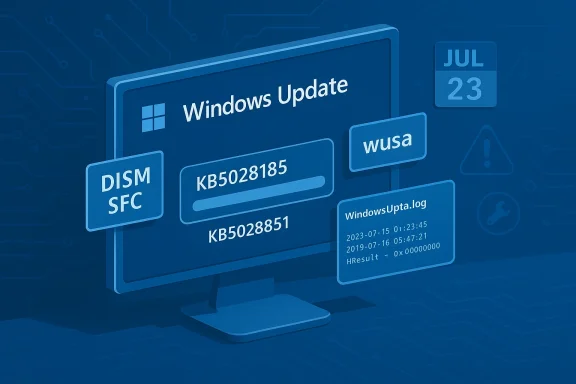
Windows 11 users who tried to install the July cumulative update KB5028185 — and its companion .NET rollup KB5028851 — saw downloads stall, installations roll back, cryptic error codes, and a raft of odd side effects ranging from broken network adapters to sluggish logons. This article pulls together community troubleshooting, official documentation, and repeatable diagnostics so you can safely identify whether you’re affected and apply targeted fixes — from quick repairs you can try in minutes to stronger interventions like manual package installs and in‑place repairs.
KB5028185 is the July cumulative update for Windows 11 (released July 11, 2023) that delivered security patches and “Moment 3” feature rollouts for 22H2 builds, while KB5028851 is the matching .NET Framework cumulative update published the same day for .NET 3.5 and 4.8.1. Microsoft’s KB pages confirm the release and the intended build targets; these updates are typical monthly quality updates combining a servicing stack update (SSU) with a latest cumulative update (LCU).
Soon after release, a subset of systems began reporting failed downloads..” states, rollback loops, BSODs, and networking regressions. Independent reporting and community threads documented multiple failure modes, making this an instructive case study for how update delivery, local client state, third‑party interference, and even installation media can interact to block a successful patch cycle.
This article explains the likely causes, gives a prioritized troubleshooting flow you can follow, and highlights safety, logging and escalation steps for IT prorawn from community reporting rather than Microsoft documentation, I flag it and recommend conservative steps.
If manual installs succeed, reboot and confirm Settings → Windows Update shows your system as up to dClean boot, driver, and AV isolation
If manual installs fail, the problem is often external interference — a driver, on‑access scanner, or startup service blocking the servicing stack.
The primary risk is making aggressive changes (manual driver removals, registry hacks, or deleting WinSxS contents) without backups. Another risk is that uninstalling a problematic cumulative leaves systems exposed; if you uninstall for stability, plan to apply alternative mitigations (network segmentation, updated AV, or scheduled rerosoft publishes a revised rollup). Community reporting has also shown that some issues were environment‑specific — OEM driver stacks, custom images, and endpoint hardening lead to different failure modes — so expect some variation across fleets.
Finally, vigilance is required: keep an eye on official Microsoft update health advisories and support pages for follow‑up servicing. When Microsoft issues an updated SSU/LCU pair that addresses a known regression, apply the recommended ordering and prefer manual staging for impacted machines.
If you follow the checklist, collect logs when failures persist, and escalate with clear artifacts (WindowsUpdate.log, CBS excerpts, winver output), you’ll give support teams the data they need to resolve complex servicing failures quickly. The KB5028185 / KB5028851 case is a reminder that update delivery depends on both the server-side payloads and the health of the local servicing pipeline — treating both sides methodically is the fastest path back to a stable, secure system.
Source: Boston University Pannellum
 Background / Overview
KB5028185 is the July cumulative update for Windows 11 (released July 11, 2023) that delivered security patches and “Moment 3” feature rollouts for 22H2 builds, while KB5028851 is the matching .NET Framework cumulative update published the same day for .NET 3.5 and 4.8.1. Microsoft’s KB pages confirm the release and the intended build targets; these updates are typical monthly quality updates combining a servicing stack update (SSU) with a latest cumulative update (LCU).Soon after release, a subset of systems began reporting failed downloads..” states, rollback loops, BSODs, and networking regressions. Independent reporting and community threads documented multiple failure modes, making this an instructive case study for how update delivery, local client state, third‑party interference, and even installation media can interact to block a successful patch cycle.
This article explains the likely causes, gives a prioritized troubleshooting flow you can follow, and highlights safety, logging and escalation steps for IT prorawn from community reporting rather than Microsoft documentation, I flag it and recommend conservative steps.
What the failures look like — common symptoms
Symptoms reported across support threads and news sites fall into several repeatable patterns:- Windows Update shows “Downloading…” for many minutes — often at 0% or stuck low — and never progresses.
- The installer runs, the PC reboots, and Windows reports “We couldn’t complete the updates. Undoing changes.” on restart. Erclude 0x80070002, 0x800f0922, 0x800f0983 and 0x800f0991 depending on system state.
- After a failed install there can be collateral glitches (networking disabled, Windows Security icon not responding, slower logon times) that community reports link to partial or failed servicing actions.
- Machines built from older ISOs or custom installation media sometimes never detect new cumulative updates, or the client applies older servicing components which break later rollups. This “media/distribution” pattern has been noted repeatedly.
Quick prechecks — what to verify first
Before you run commands or uninstall updates, gather ahese will both speed troubleshooting and prevent unnecessary steps.- Check Windows version and build: press Win+R, type winver and record Windows 11 version (for example 22H2) and OS Build. Many fixes depend on exact build numbers.
- Confirm free disk space on the system (C
 — cumulative updates need space to stage and apply. Low disk space causes predictable failures.
 - Reboot into a normal session and confirm system time and date are correct — certificate validation and download scheduling can be sensitive to clock skew.
- Note any third‑party security software (AV, endpoint protection, hardening tools) and whether you can temporarily disable or uninstall them for a test. Several community cases required complete AV removal to allow the servicing stack to run.
Tier 1: Safe, fast repairs (try these first)
These steps are low risk and often resolve client-side glitches that make Windows Update hang.1) Run the built‑in Windows Update troubleshooter
- Settings → System → Troubleshoot → Other troubleshooters → Windows Update → Run.
The troubleshooter resets several Windows Update client settings and can re-enable services automatically. If the troubleshooter reports it fixed issues, reboot and attempt the update again. This is a quick first move that catches common permission/service problems.
2) Restart update services and rebuild download cache
This is the single most effective usk downloads: stop update services, rename the download cache, and reboot.- Open an elevated command prompt (Run as Administrator).
- Run these commands in sequence:
- net stop wuauserv
- net stop bits
- net stop cryptSvc
- net stop trustedinstaller
- ren C:\Windows\SoftwareDistribution SoftwareDistribution.old
- ren C:\Windows\System32\catroot2 catroot2.old
- net start wuauserv
- net start bits
- net start cryptSvc
- net start trustedinstaller
3) Run DISM and SFC to repair component store corruption
If the component store is damaged, installs will fail even if downloads succeed.- Open an elevated PowerShell or CMD and run:
- DISM /Online /Cleanup-Image /CheckHealth
- DISM /Online /Cleanup-Image /ScanHealth
- DISM /Online /Cleanup-Image /RestoreHealth
- sfc /scannow
Tier 2: Manual installation (when Windows Update keeps failing)
If the update still won’t download or install after Tier 1, manually installing the right packages often bypasses the client’s download path and eliminates corrupted payloads.Why manual install order matters
When installing cumulative updates manually, always install the Servicing Stack Update (SSU) first, then the Latest Cumulative Update (LCU), and finally any related .NET rollups. Installing the SSU first ensures the servicing stack can apply the LCU correctly. The Microsoft KB entries and community instructions both strepport.microsoft.com]Steps: use the Microsoft Update Catalog and wusa
- From a machine that can access the web, identify your Windows build and whether you need x64/x86 or ARM64 packages.
- Download the SSU for your build, then the LCU matching KB5028185 for your exact OS build, and if required download KB5028851 for .NET. (If you’re unsure which package applies, re-check winver output.)
- Run installsSSU (double‑click or wusa), then the LCU. You can install via command line:
- wusa "C:\path\to\windows11-kbXXXXX-x64.msu" /quiet /norestart
If manual installs succeed, reboot and confirm Settings → Windows Update shows your system as up to dClean boot, driver, and AV isolation
If manual installs fail, the problem is often external interference — a driver, on‑access scanner, or startup service blocking the servicing stack.
Clean boot troubleshooting
- Use msconfig to hide all Microsoft services and disable non‑Microsoft services, then disable non‑Microsoft startup items in Task Manager and reboot. Attempt the manual install while in this minimal environment. If it succeeds, reintroduce services one by oer. Community troubleshooting threads repeatedly report that a clean boot allows the update to complete.
Antivirus and endpoint software
- Temporarily uninstall third‑party AV, endpoint detection, or system hardening tools — disabling is not always enough. Some community cases required full uninstallation to remove kernel hooks that prevented servicing operations. After uninstall, rebuild SoftwareDistribution and retry. If this clears the issue, work with the vendor for an updated client or configure an exclusion policy before reinstallation.
Drivers and storage controllers
- Outdated storage or network drivers can surface as update failures. Check Device Manager for unknown devices and update drivers from vendor sites (not Device Manager’s “Update drivers” shortcut). If you have an OEM machine, check the manufacturer’s support page for cumulative driver bundles that match your Windows build. Community best practice: update drivers only from the device maker and preferentially use vendor-signed drivers.
Tier 4: Logs, diagnostics, and escalation
If the update still fails, collect logs to pinpoint the failure and decide between an in‑place repair or escalating to Microsoft Support.Collecting Windows Update logs
- Use the PowdowsUpdateLog to convert ETL traces into a readable WindowsUpdate.log on your desktop. Microsoft’s documentation explains which logs matter (WindowsUpdate.log, CBS.log, Update Orchestrator traces) and how to interpret them. For deeper analysis, you may need symbol files and TraceFMT; the Microsoft docs and community posts cover those steps.
Useful commands to capture immediate failure state
- After a failed install, run these as Administrator:
- Get-WindowsUpdateLog -LogPath "$env:USERPROFILE\Desktop\WindowsUpdate.log"
- type %windir%\logs\cbs\cbs.log > "%userprofile%\desktop\CBS_excerpt.txt" (or open the log in a text editor and copy the last 200–400 lines)
- Event Viewer → Applications and Services Logs → Microsoft → Windows → WindowsUpdateClient → Operational (save events)
Community threads and forum guides suggest collecting these artifacts immediately after failure; they’re what support engingnosing servicing issues.
When to escalate or file a support case
- If logs show servicing store corruption that DISM cannot fix, or an SSU/LCU combination repeatedly fails despite manual installation attempts, elevate to Microsoft Support. Provide the WindowsUpdate.log, CBS excerpts, and systeminfo output. For enterprise environments, escalate via your Premier/Unified Support channel and include WSUS or Configuration Manager logs if you use them.
Last‑resort repair options
If all else fails, choose one of these two approaches, depending on your tolerance for downtime and risk.Option A — In‑place upgrade repair (keeps apps/data)
An in‑place repair using the latest Windows 11 ISO refreshes system files while preserving installed apps and data. Mount the ISO, run setup.exe, and choose Upgrade — this will repair broken servicing components and replace corrupted files referenced by DISM. Community procedures list this as reliable when DISM can’t repair the component store. Always back up important data before beginning.Option B — Uninstall KB and delay
If KB5028185 has been installed but caused immediate regressions (BSODs, networkin the update may restore stability until a fixed rollup is released. This is a pragmatic short‑term move but leaves the machine without the latest security fixes; weigh risk carefully for machines with internet exposure. Several reports recommended temporary uninstall for affected users while waiting for Microsoft fixes.Known distribution-side quirks and media issues
Community investigations highlighted a second class of problem: some installation media and older ISOs included servicing components that caused client detection to break for later cumulative updates. Put simply, if a system was built from out‑of‑date provisioning packages or custom media, the Windows Update client might not correctly scan or accept new rollups. In such cases, re-creating installation media from current Microsoft ISOs or applying a newer cumulative manually resolved detection issues for many systems. This is one reason manual SSU→LCU sequwhen client behavior is inconsistent.Safety notes and cautions
- Avoid indiscriminate registry edits or deleting system files. Most updaved by cache rebuilds, DISM/SFC, and safe in‑place repairs. Aggressive file dovery much harder. When in doubt, gather logs and escalate.
- If you rely on third‑party management (WSUS, SCCM, WUfB), confirm server policies and scan source settings; misconfigured WSUS or dual‑scan scenarios can lead to clientsckages. Community analysis linked policy misconfiguration to detection errors for some environments.
- If yo an update due to a regression, note Microsoft may re‑offer the update automatically. For enterprise, use update deferral or feature‑update deferral policies until a fixed servicing stack is released.
Summary: a prioritized playbook
Follow this concise, prioritized checklist when KB5028185 or KB5028851 fails to download or install:- Gather facts: winver, free disk space, installed AV, and last error code displayed.
- Run Windows Update troubleshooter and reboot.
- Rebuild SoftwareDistribution + catroot2 (stop services, rename folders, restart services).
- Run DISM /RestoreHealth and sfc /scannow; reboot and try update again.
- If still failing, download and install SSU → LCU → .NET packages manually with wusa, checking wusa process status.
- Try clean boot and, if necessary, uninstall problematic AV while testing.
- Collect WindowsUpdate.log and CBS excerpts, then escalate to Microsoft if logs show servicing errors you cannot repair.
- If required and acceptable, perform an in‑place upgrade repair to refresh servicing components.
Final analysis — risks, strengths, and what to watch for
The strength of the remediation approach documented above is its layered, safety‑first progression: start with reversible client repairs, escalate to manual installs, isolate third‑party interference, and only then move to in‑place repairs or uninstall. That sequence minimizes data risk and avoids unnecessary reinstallation.The primary risk is making aggressive changes (manual driver removals, registry hacks, or deleting WinSxS contents) without backups. Another risk is that uninstalling a problematic cumulative leaves systems exposed; if you uninstall for stability, plan to apply alternative mitigations (network segmentation, updated AV, or scheduled rerosoft publishes a revised rollup). Community reporting has also shown that some issues were environment‑specific — OEM driver stacks, custom images, and endpoint hardening lead to different failure modes — so expect some variation across fleets.
Finally, vigilance is required: keep an eye on official Microsoft update health advisories and support pages for follow‑up servicing. When Microsoft issues an updated SSU/LCU pair that addresses a known regression, apply the recommended ordering and prefer manual staging for impacted machines.
If you follow the checklist, collect logs when failures persist, and escalate with clear artifacts (WindowsUpdate.log, CBS excerpts, winver output), you’ll give support teams the data they need to resolve complex servicing failures quickly. The KB5028185 / KB5028851 case is a reminder that update delivery depends on both the server-side payloads and the health of the local servicing pipeline — treating both sides methodically is the fastest path back to a stable, secure system.
Source: Boston University Pannellum
