

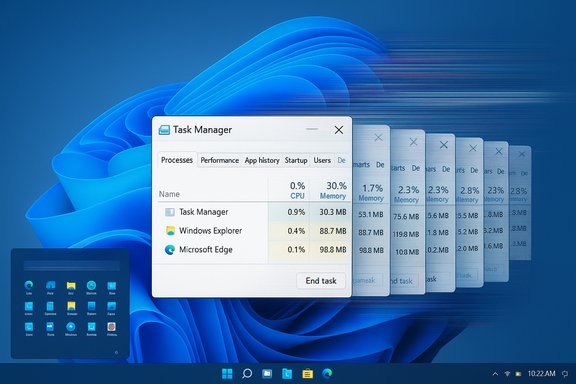
Microsoft’s optional October preview update for Windows 11, KB5067036, shipped a handful of visible improvements — a redesigned Start menu, colorful battery icons, and fixes for the Media Creation Tool — but it also appears to have introduced a surprising and insidious regression: closing Task Manager with the window “X” can leave the process running in the background, and each open/close cycle may spawn another taskmgr.exe instance that quietly consumes memory and CPU. The issue has been reproduced by testers and reported across community forums, and while Microsoft’s KB page details the update’s changes, the company has not published a detailed root-cause post‑mortem for the Task Manager duplication behavior at the time of writing.
A plausible technical hypothesis:
Source: PCWorld Task Manager bug surfaces after the latest Windows 11 update
 Background
What KB5067036 is and why it matters
KB5067036 is an optional preview cumulative update published by Microsoft on October 28, 2025, for Windows 11 24H2 and 25H2 (OS builds 26100.7019 and 26200.7019). It bundles quality improvements, fixes, and a set of user-facing enhancements that Microsoft is gradually rolling out to eligible devices. Preview updates are useful for ironing out problems ahead of wider distribution, but because they’re optional and are frequently staged, they can expose issues that haven’t been exercised across the full spectrum of hardware and third‑party software combinations. Key visible items in the KB5067036 release:- Redesigned Start menu and new Start layout options.
- Color-coded battery icons on the taskbar (gradual rollout).
- Fixes for the Media Creation Tool on Arm64 devices.
- Various quality improvements and internal Task Manager process‑grouping changes.
What users are seeing (symptoms & reproduction)
Symptom summary
- Open Task Manager (Ctrl+Shift+Esc) and close it using the window’s top‑right Close (X) button.
- Reopen Task Manager and look on the Processes tab (expand Background processes if necessary).
- Instead of a single Task Manager entry, you may find multiple “Task Manager” entries; the count grows each time you repeat the open → close cycle.
- The additional entries are real processes (taskmgr.exe), not merely UI artifacts, and they remain resident until explicitly terminated.
Measured resource impact
Independent tests reported by multiple outlets and community members show each orphaned taskmgr.exe instance is modest in size — roughly 20–25 MB of working memory per instance in stress tests — but that adds up with repetition. One tester opened and closed Task Manager around 100 times and saw about 2 GB of RAM consumed by orphaned instances in aggregate. On low‑memory systems or laptops, this growth can be noticeable and may affect responsiveness, battery life, and background CPU usage.Reproducibility and scope
- The issue is reproducible on many systems that installed KB5067036 but is not universal; some machines behave normally, suggesting environmental triggers such as driver/third‑party hooks, specific hardware, or server‑side feature gating. Community threads and forum posts show mixed results across OEMs and hardware configurations.
Why this likely happened (technical context and hypothesis)
Task Manager internals have to manage UI lifecycle events, performance counters, COM object registrations, and various background pollers. The KB5067036 release notes explicitly include changes intended to fix how Task Manager groups apps with their processes, which indicates code-level changes to Task Manager’s process‑mapping or UI‑layer logic. When lifecycle or grouping changes are made, it’s possible to inadvertently break the shutdown or teardown path — for example, by leaving timers, handles, or registered callbacks alive so the process cannot fully exit even after its visible window is destroyed.A plausible technical hypothesis:
- A fix to process grouping or mapping introduced a retained reference (an active worker thread, pinned COM object, or an unresolved performance counter handle).
- When the user clicks the window Close (X) button, Task Manager’s UI is torn down, but the underlying process still has live references and doesn’t exit.
- Launching Task Manager again creates a fresh process while the older one(s) stay resident, resulting in multiple taskmgr.exe entries and incremental resource consumption.
Verification: how to check whether you’re affected
- Press Windows+R → type winver → press Enter. Confirm your OS build is one of the KB5067036 builds (26100.7019 or 26200.7019) if you installed the preview.
- Press Ctrl+Shift+Esc to open Task Manager.
- Click the Close (X) button on Task Manager.
- Reopen Task Manager and switch to Processes → expand Background processes.
- Observe whether the number of Task Manager entries increases each open/close cycle.
- In PowerShell: Get-Process -Name taskmgr
- In Command Prompt: tasklist /FI "IMAGENAME eq taskmgr.exe"
Immediate mitigation — practical steps to avoid resource accumulation
If you have KB5067036 installed and see Task Manager duplicating, the following steps are quick, reliable, and safe.- Stop closing Task Manager with the window Close (X) button.
- Instead, from within Task Manager use End task on the top‑most Task Manager entry to terminate it cleanly.
- Use Alt+F4 to close the Task Manager window — anecdotal reports show Alt+F4 may avoid the duplication on some systems, but this is not guaranteed across all devices.
- Kill orphaned instances en masse:
- Open Command Prompt as Administrator and run:
taskkill /im taskmgr.exe /f - Or in PowerShell:
Get-Process -Name taskmgr | Stop-Process -Force - Use Sysinternals Process Explorer to inspect and kill lingering processes if you prefer a GUI that exposes handles, threads, and loaded modules.
- If you’ve accumulated many zombie instances and the system feels sluggish, run the taskkill command above and then reboot to clear in‑memory state.
Rollback and enterprise guidance
If the KB preview regression materially affects productivity or a fleet of machines:- Consider uninstalling the optional preview update (Settings → Windows Update → Update history → Uninstall updates). Note that combined servicing packages (SSU + LCU) sometimes complicate rollback semantics; follow Microsoft’s KB removal guidance for the exact package in your environment.
- For enterprises: pause broad rollout of optional preview updates and restrict them to pilot rings. If the update has already been applied to production rings and the behavior is widespread, stage a rollback and open a Microsoft support case including diagnostic artifacts.
- Diagnostic artifacts that accelerate triage:
- winver screenshot and exact build number
- ProcMon traces filtered for taskmgr.exe
- ETW traces for process/thread lifetimes
- Screen recording showing the open → close → reopen sequence and increasing taskmgr.exe count
Developer and QA lessons (why this slipped into a preview update)
This regression is a textbook example of the hazards that can appear when a seemingly isolated subsystem change (process grouping/UI grouping) interacts with lifecycle code paths used by millions of users. The close/exit path is exercised by every user, and if it isn’t included in automated regression suites the problem can escape detection:- Lifecycle tests must include open/close cycles and process termination checks, not just UI unit tests for grouping or layout.
- Staged rollouts help limit blast radius but complicate reproducibility and telemetry if feature gating is server‑side.
- Preview updates are intended for field testing but should include stronger automated testing for simple, high‑frequency user actions like closing a core utility.
Risk assessment: performance, security, and trust
- Performance and battery: Each orphaned Task Manager instance is small on its own (tens of MB), but repeated opens can cumulatively consume hundreds of MBs or more, causing performance regressions and increased power draw — especially on low‑end laptops and resource‑constrained VMs.
- Silent accumulation: The bug is insidious because it’s silent; users who rarely inspect Background processes may never notice until performance degrades.
- Supply‑chain/third‑party interactions: The behavior is not universal, implying that certain drivers or third‑party services might influence whether Task Manager can exit cleanly — a complication for enterprise diagnostics.
- Trust and update strategy: Preview regressions like this erode user confidence in optional updates and make IT shops more conservative about adopting non‑security preview releases. The incident underscores the tradeoffs between early feature delivery and the risk of regression.
- Microsoft has not released a formal root‑cause statement at the time of reporting, so specific internal causes (for example, an exact COM object leak or a named background thread) are not publicly confirmed. That means technical diagnosis beyond the observed symptoms remains hypothetical until Microsoft publishes a fix note or a post‑mortem. Treat any suggested internal causes as informed hypotheses until vendor confirmation.
What to watch next (timeline and expectations)
- Microsoft’s KB page for KB5067036 lists the update and its improvements, but as of this writing it does not describe the Task Manager duplicate‑process behavior as a known issue with an associated mitigation note. If Microsoft acknowledges the problem on the Windows Release Health or KB page, expect a follow‑up servicing patch; preview regressions are commonly fixed in a subsequent cumulative or preview release once they are triaged.
- Community channels (Feedback Hub, Reddit, Windows forums) are the earliest places where new bugs surface; Microsoft often responds after receiving telemetry and repro artifacts from broad testing rings. Follow Microsoft’s official release notes for a definitive KIA (known‑issue acknowledgement) or a hotfix release.
Recommendations — what users should do now
For most home users- If you don’t need the preview features, do not install optional preview updates on mission‑critical machines. Wait for the next cumulative/security release that includes validated fixes.
- If you’ve already installed KB5067036 and you don’t see the Task Manager symptom, you can continue using your device but remain observant for signs of resource growth.
- If you are affected, stop using the window “X” to close Task Manager, use End task or the taskkill command to clear instances, and reboot as needed.
- Collect diagnostic artifacts if you plan to open a support case (ProcMon, ETW traces, winver, screen recording).
- Use Process Explorer to inspect what handles or DLLs might be keeping the orphaned taskmgr.exe instances alive.
- Consider uninstalling the preview update from pilot or production machines until Microsoft issues a fix; document device images and rollback procedures (be mindful of combined package semantics).
- Update internal test suites to include simple lifecycle tests (open/close cycles) for core utilities.
Conclusion
KB5067036 brings legitimate fixes and new features to Windows 11, but the Task Manager duplication regression is a sharp reminder of how small internal changes can ripple into widely used code paths. The bug’s silent resource accumulation makes it dangerous for certain workflows and devices, even though each orphaned process is relatively small. The good news is that the problem is reproducible and has been widely reported, which increases the chances of a prompt fix in a follow‑up servicing release. Until Microsoft publishes an official root‑cause and patch, affected users should avoid closing Task Manager with the window “X,” use End task or taskkill to clear instances, and treat preview updates with caution on production systems. Community reporting and independent testing have documented the issue and practical mitigations; vendor confirmation and a concrete fix are the missing pieces to watch for in Microsoft’s next updates.Source: PCWorld Task Manager bug surfaces after the latest Windows 11 update
