

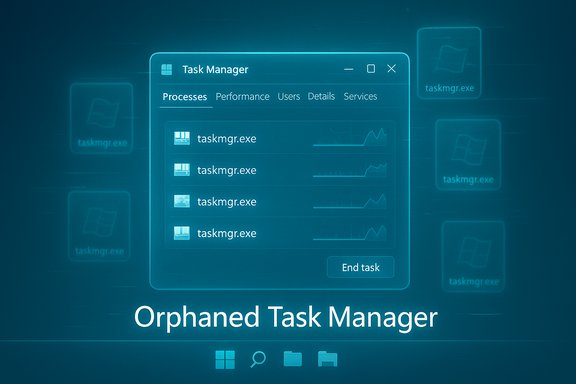
Microsoft’s optional October preview for Windows 11, KB5067036, has been tied to a reproducible regression that leaves Task Manager’s underlying taskmgr.exe processes running after the window is closed — and repeated open/close cycles can spawn multiple hidden Task Manager instances that quietly consume memory and sometimes CPU, degrading responsiveness on some systems.
KB5067036 was released as an optional, non-security preview cumulative update on October 28, 2025 and ships with incremental UI and reliability changes for Windows 11, including a redesigned Start menu and adjustments to Task Manager’s process‑grouping logic. The update is being distributed as a staged preview, meaning not all devices receive the same feature set or enablement flags at once.
Within days of the rollout, multiple independent reproductions and community threads documented the same anomaly: closing Task Manager using the top‑right Close (X) button sometimes does not terminate the application’s process, and reopening Task Manager creates another running taskmgr.exe instance while the prior instance remains active in memory. These orphaned processes are visible to system tooling (Task Manager’s Processes view, Process Explorer, tasklist, and PowerShell Get‑Process), confirming they are real processes, not merely cosmetic UI duplicates.
Importantly, these are not UI artifacts: the duplicate entries show up in system process lists and tooling such as Process Explorer and tasklist, demonstrating the processes remain live in the kernel’s process table until explicitly terminated or until the system is rebooted.
If a change to grouping logic altered object ownership, reference counting, or thread lifetime semantics, it could cause a teardown regression: the UI can be torn down while a background sampling thread or a referenced COM object remains registered, preventing the process from fully terminating. When the UI is recreated, a fresh Task Manager process starts while the prior background work persists, producing what users observe as duplicated, orphaned taskmgr.exe processes.
This teardown hypothesis is a well‑fitted and plausible explanation based on the observed symptoms — residual background activity, small periodic CPU spikes, and persistent process entries visible in system tooling — but it is not a confirmed root cause until Microsoft publishes engineering diagnostics or a formal post‑mortem.
Immediate mitigations — quick cheat sheet:
Historically, when preview updates produce high‑visibility regressions, Microsoft has issued fixes in follow‑up cumulative updates or out‑of‑band patches once reproducible telemetry and diagnostic artifacts are available. Given Task Manager’s central role and the reproducible nature of this regression, an official patch or hotfix is likely after engineering validation. However, the timing depends on root‑cause identification and risk assessment.
For users: prioritize stability on production machines, apply the one‑line taskkill mitigation if affected, and avoid closing Task Manager with the Close (X) until Microsoft publishes a fix. For administrators: restrict preview updates to pilot rings, deploy detection and remediation scripts where appropriate, and collect reproducible diagnostics to expedite Microsoft engineering’s triage. Until a formal patch is available, these conservative measures keep systems responsive and minimize unexpected helpdesk load.
The incident serves as a practical reminder: even small changes to OS internals can have outsized impacts on fundamental tools. That’s precisely the reason preview channels exist — to surface these regressions early — and the responsible path for both vendors and users is to test, document, and iterate until stability is restored.
Source: Windows Report Windows 11 KB5067036 Keeps Task Manager Running in the Background; Users Can't Quit Process
 Background / Overview
KB5067036 was released as an optional, non-security preview cumulative update on October 28, 2025 and ships with incremental UI and reliability changes for Windows 11, including a redesigned Start menu and adjustments to Task Manager’s process‑grouping logic. The update is being distributed as a staged preview, meaning not all devices receive the same feature set or enablement flags at once.Within days of the rollout, multiple independent reproductions and community threads documented the same anomaly: closing Task Manager using the top‑right Close (X) button sometimes does not terminate the application’s process, and reopening Task Manager creates another running taskmgr.exe instance while the prior instance remains active in memory. These orphaned processes are visible to system tooling (Task Manager’s Processes view, Process Explorer, tasklist, and PowerShell Get‑Process), confirming they are real processes, not merely cosmetic UI duplicates.
What shipped in KB5067036
The October preview package bundled several visible and under‑the‑hood changes intended to refine the Windows 11 experience. Notable items in the release include:- A redesigned Start menu (visual refresh and layout tweaks).
- Updates to taskbar icons (battery and other system indicators).
- File Explorer enhancements and assorted quality fixes.
- A targeted change to Task Manager’s process grouping behaviour intended to improve how processes are categorized and presented.
The bug: what users are actually seeing
Short, reproducible steps show the problem plainly:- Open Task Manager (Ctrl+Shift+Esc).
- Close it using the top‑right Close (X) button.
- Reopen Task Manager and inspect Processes → Background processes.
Importantly, these are not UI artifacts: the duplicate entries show up in system process lists and tooling such as Process Explorer and tasklist, demonstrating the processes remain live in the kernel’s process table until explicitly terminated or until the system is rebooted.
Why this likely happened — technical hypotheses
Task Manager performs two broad kinds of work: the UI thread(s) that create and render the window, and background monitoring threads that sample performance counters, query counters and marshal data to the UI. The KB notes for KB5067036 explicitly mention a change to Task Manager’s process grouping logic — a change that touches enumeration and mapping code paths.If a change to grouping logic altered object ownership, reference counting, or thread lifetime semantics, it could cause a teardown regression: the UI can be torn down while a background sampling thread or a referenced COM object remains registered, preventing the process from fully terminating. When the UI is recreated, a fresh Task Manager process starts while the prior background work persists, producing what users observe as duplicated, orphaned taskmgr.exe processes.
This teardown hypothesis is a well‑fitted and plausible explanation based on the observed symptoms — residual background activity, small periodic CPU spikes, and persistent process entries visible in system tooling — but it is not a confirmed root cause until Microsoft publishes engineering diagnostics or a formal post‑mortem.
Measured impact and real‑world implications
- Memory pressure: Each orphaned Task Manager instance is modest (≈20–30 MB), but repeated opens can accumulate hundreds of megabytes or more. On memory‑constrained machines, VMs, or demo/test rigs, this accumulation can materially reduce available RAM and slow app launches.
- CPU and battery: Orphaned background sampling threads can generate periodic CPU spikes while polling counters, which affects responsiveness and battery life on mobile devices.
- Diagnostic confusion: Task Manager is a primary troubleshooting tool. If it self‑duplicates, helpdesk workflows and triage can be complicated because the tool itself becomes a source of ghost processes to investigate.
- Enterprise risk: For managed fleets, helpdesk overhead increases if preview updates are distributed beyond pilot rings. Administrators may see escalations from users who experience degraded responsiveness or unexpected resource usage.
How to detect if your PC is affected
Follow this quick checklist to confirm whether KB5067036’s Task Manager orphaning is present on your system:- Check the installed build: press Windows+R, type winver, and verify whether your machine is on a preview build corresponding to KB5067036 (builds reported by community testing include 26100.7019 and 26200.7019).
- Reproduce the behaviour: open Task Manager, close it using the Close (X) button, reopen and inspect Processes → Background processes for multiple “Task Manager” entries.
- Use command‑line checks:
- PowerShell: Get‑Process -Name taskmgr
- Command Prompt: tasklist /FI "IMAGENAME eq taskmgr.exe"
If multiple taskmgr.exe entries persist after a Close (X) → Reopen cycle, your machine exhibits the orphaning behaviour.
Workarounds and mitigation (practical, step‑by‑step)
Microsoft and community responders have shared straightforward mitigations to reclaim resources and reduce nuisance until a formal fix is released.Immediate mitigations — quick cheat sheet:
- Use End task inside Task Manager
- Open Task Manager.
- Go to Processes → Background processes.
- Right‑click the Task Manager process entry and select End task for each orphaned instance. This reliably terminates leftover entries without relying on the window Close (X).
- Force‑kill from an elevated Command Prompt or PowerShell
- Open Start → type cmd → right‑click Command Prompt → Run as administrator.
- Run: taskkill.exe /im taskmgr.exe /f
- PowerShell alternative: Get‑Process -Name taskmgr | Stop‑Process -Force
- These commands forcibly terminate all taskmgr.exe instances in one action.
- Reboot
- Rebooting clears in‑memory orphaned processes and is the simplest full reset. Use this when many orphaned instances have accumulated or when the system feels sluggish.
- Use Process Explorer for investigation and targeted kills
- Sysinternals Process Explorer provides richer visibility (handles, threads, modules) and can be used to inspect what is keeping the orphaned Task Manager instances alive. It can also kill processes safely.
- Uninstall the preview (if stability is paramount)
- If KB5067036 is installed and the behaviour is unacceptable on production devices, consider uninstalling the optional preview via Settings → Windows Update → Update history → Uninstall updates. Note that combined packages that include a Servicing Stack Update (SSU) can complicate rollback and may require DISM operations for advanced removal scenarios.
- taskkill /im taskmgr.exe /f (run as Administrator)
How to safely roll back KB5067036 (when necessary)
Because KB5067036 is an optional preview, rollback is straightforward for many users but nuanced in cases where a combined SSU+LCU package was applied:- Settings → Windows Update → Update history → Uninstall updates.
- Identify the update that corresponds to KB5067036 and choose Uninstall.
- Reboot when prompted.
- Some preview packages are combined SSU + LCU; the SSU portion is not always removable via wusa.exe. In combined scenarios, removal of the LCU may require DISM /Remove‑Package and additional guidance from the KB article or Microsoft support. If Uninstall updates is unavailable or the device won’t boot normally, use Advanced Startup → Troubleshoot → Advanced options → Uninstall Updates, or restore from a System Restore point.
What Microsoft has said and the expected next steps
Microsoft acknowledged the symptom on the Windows Release Health dashboard and indicated engineering is investigating. The vendor’s guidance so far mirrors community mitigations: avoid closing Task Manager with the Close (X), use End task or a forced taskkill to clear instances, and monitor Release Health for a resolution. Microsoft stated they are working on a resolution and will provide more information when available.Historically, when preview updates produce high‑visibility regressions, Microsoft has issued fixes in follow‑up cumulative updates or out‑of‑band patches once reproducible telemetry and diagnostic artifacts are available. Given Task Manager’s central role and the reproducible nature of this regression, an official patch or hotfix is likely after engineering validation. However, the timing depends on root‑cause identification and risk assessment.
Enterprise and helpdesk guidance
For administrators and support teams, the incident reinforces well‑established patching discipline:- Treat optional preview updates as testing artifacts: deploy to pilot rings only, not to broad production cohorts.
- Add detection scripts to monitor for multiple taskmgr.exe instances:
- PowerShell: Get‑Process -Name taskmgr | Measure‑Object | Select‑Object -ExpandProperty Count
- If count > 1, trigger remediation: taskkill /im taskmgr.exe /f
- Prepare rollback scripts and runbooks for pilot and production rings.
- Collect diagnostics (ProcMon, ETW traces, Process Explorer captures, and screen recordings) from devices that reproduce the issue, and open Microsoft support cases with attachments to accelerate vendor triage.
Strengths, limitations, and risks
Strengths of the preview model:- Field testing at scale allows Microsoft and the community to uncover environment‑specific regressions before broad rollout.
- Staged enablement limits blast radius when problems surface.
- Lifecycle and teardown paths are fundamental and highly exercised; changes that touch these paths require exhaustive lifecycle regression testing across diverse hardware and software stacks. A seemingly small change in grouping logic can inadvertently affect teardown semantics.
- Preview updates installed on production or helpdesk machines increase operational risk and support burden.
- Accumulation of orphaned Task Manager instances can degrade performance on low‑RAM devices and complicate triage workflows.
- Automated endpoint management scripts that rely on Task Manager for diagnostics may be misled by the tool’s duplicate entries unless detection logic accounts for the anomaly.
Practical recommendations for everyday users
- If you value stability, avoid optional preview updates on primary or production devices. Preview builds are for testing and feedback.
- If you installed KB5067036 and notice multiple Task Manager entries:
- Use taskkill /im taskmgr.exe /f in an elevated Command Prompt to kill all instances immediately.
- Or use Task Manager’s Processes → End task on the Task Manager entry to terminate the process tree safely.
- Reboot to fully clear in‑memory state if many orphaned instances have accumulated.
- Consider uninstalling the preview if the regression materially impacts your workflow or battery life.
Final analysis and conclusion
KB5067036 illustrates the tradeoffs inherent in staged preview servicing: it enables rapid iteration and wider telemetry while exposing edge cases that only surface across diverse configurations. The Task Manager orphaning regression is an awkward but manageable bug — it does not indicate compromise, but it can create measurable resource pressure and diagnostic confusion in affected environments. Community testing consistently reproduces the symptom and provides robust mitigations; Microsoft’s ongoing investigation and past precedent make a corrective update the most likely outcome.For users: prioritize stability on production machines, apply the one‑line taskkill mitigation if affected, and avoid closing Task Manager with the Close (X) until Microsoft publishes a fix. For administrators: restrict preview updates to pilot rings, deploy detection and remediation scripts where appropriate, and collect reproducible diagnostics to expedite Microsoft engineering’s triage. Until a formal patch is available, these conservative measures keep systems responsive and minimize unexpected helpdesk load.
The incident serves as a practical reminder: even small changes to OS internals can have outsized impacts on fundamental tools. That’s precisely the reason preview channels exist — to surface these regressions early — and the responsible path for both vendors and users is to test, document, and iterate until stability is restored.
Source: Windows Report Windows 11 KB5067036 Keeps Task Manager Running in the Background; Users Can't Quit Process
