Windows 11 Preview KB5067036 Task Manager Bug Creates Orphaned taskmgr.exe Instances

  • Thread Author
A baffling regression in Microsoft’s optional October 28, 2025 Windows 11 preview (KB5067036) can leave Task Manager processes running after the window is closed, allowing multiple invisible copies of taskmgr.exe to accumulate and quietly consume memory and CPU — a problem reproduced across community tests and confirmed by independent reporting.

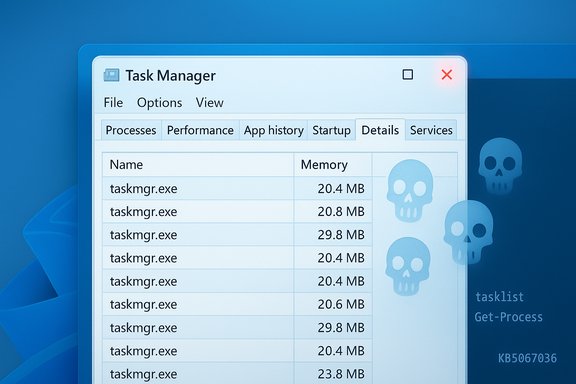
Windows Task Manager showing multiple taskmgr.exe processes on Windows 11.Background / Overview​

Microsoft released KB5067036 on October 28, 2025 as an optional, non‑security preview cumulative update for Windows 11 (targeting the 24H2 and 25H2 servicing branches). The package advertises visible changes — a redesigned Start menu layout, new battery icon indicators, fixes to the Media Creation Tool — and also includes internal fixes affecting Task Manager’s process‑grouping logic. Early adopters and preview‑ring testers began reporting a strange Task Manager regression within days of the rollout.
The bug’s observable behaviour is simple to state and easy to reproduce on affected machines: open Task Manager (Ctrl+Shift+Esc), click the window Close (X) button to dismiss it, then reopen Task Manager. Instead of one Task Manager entry, the Processes list shows an additional Task Manager process. Repeat the open → close cycle and more taskmgr.exe instances appear. Each of these orphaned processes remains resident until explicitly terminated. Multiple independent reproductions and community threads document the symptom and its impact on system resources.

What’s actually happening (reproduction and verification)​

How to reproduce the bug (short steps)​

  • Press Windows+R, type winver, and confirm your OS build if you installed KB5067036 (builds reported: 26100.7019 and 26200.7019).
  • Press Ctrl+Shift+Esc to open Task Manager.
  • Click the window Close (X) control in Task Manager’s top‑right corner.
  • Open Task Manager again and switch to Processes → expand Background processes.
  • Observe whether additional “Task Manager” entries are present and whether the count increases with repeated open/close cycles.
Command‑line verification can confirm the presence of multiple instances without relying on Task Manager itself:
  • PowerShell: Get-Process -Name taskmgr
  • Command Prompt: tasklist /FI "IMAGENAME eq taskmgr.exe"
If those commands return more than one taskmgr.exe following repeated open/close cycles, the device is exhibiting the orphaned Task Manager behaviour.

What the orphaned processes look like​

Community test runs and independent outlets report that orphaned Task Manager instances:
  • Appear as real processes (taskmgr.exe) in Process Explorer, Task Manager’s Details tab, and command‑line tools.
  • Usually surface under Background processes rather than the top‑level Apps group, which can cause casual users to overlook them.
  • Consume modest resources individually — typical observations cluster around 20–30 MB of RAM per orphaned instance, and CPU usage per instance can range from nearly 0% to ~1.5% during polling or sampling activity. These figures come from multiple community reproductions and hands‑on tests.

Measured impact: how bad can this get?​

Individually, each orphaned taskmgr.exe is light. Collectively, the effect can be meaningful, especially on machines with limited RAM or when Task Manager is opened and closed many times (whether manually or by automated tooling).
  • Memory: With per‑instance memory in the 20–30 MB range, 10 orphaned instances translate to ~200–300 MB of wasted RAM; 100 instances could consume 2–3 GB. Testers have demonstrated contrived scenarios in which repeated open/close cycles yielded multi‑gigabyte accumulation.
  • CPU and polling: If orphaned processes retain monitoring threads that poll performance counters or hardware telemetry, background CPU can increase intermittently. Reports describe per‑instance CPU spikes up to ~1.5% when the process is sampling system data; many such processes generate cumulative CPU churn that can cause UI stutter, reduced responsiveness, and marginally higher power use (battery impact on laptops).
  • Operational risk: For help‑desk teams, developers, and power users who frequently open Task Manager during profiling, the regression can silently inflate memory pressure, complicate diagnostics, and produce confusing telemetry. Administrators deploying preview updates at scale may experience increased support volume and may be forced to roll back the optional preview in affected environments.
Caveat: much of the available measurement data derives from community reproductions and independent tests performed shortly after the preview’s release. These are reliable indicators of behaviour but are not a substitute for Microsoft’s telemetry; exact per‑device impact will vary by system configuration, third‑party drivers, and feature‑flag gating. Where possible, cross‑validate with local measurements (Get‑Process, tasklist, Process Explorer).

Why this likely happened (technical analysis and hypotheses)​

The KB release notes for KB5067036 explicitly mention changes intended to improve Task Manager’s process grouping — code that maps UI rows to underlying process objects and links app entries to their process trees. That gives a plausible direction for where the regression could have been introduced. A reasonable technical hypothesis is that a modification to the process‑grouping or UI lifecycle code altered the shutdown or teardown path of Task Manager, leaving live references (timers, COM objects, performance counter handles, or worker threads) that prevent the process from exiting even after its visible window is destroyed. A new Task Manager launch then creates a fresh process, while the old one remains resident — thereby multiplying instances.
This is consistent with a class of lifecycle bugs commonly seen when a subsystem retains a reference and blocks clean process termination. However, it is important to flag this as an informed hypothesis: Microsoft had not published a formal root‑cause analysis or a known‑issue acknowledgement specifically describing this close‑path failure at the time community reports circulated. Treat the root‑cause explanation as plausible but unconfirmed until vendor engineering provides clarification.

Immediate mitigation: practical steps to stop the leak​

Affected users can contain the problem with simple actions that avoid creating additional orphaned instances and that remove existing ones.
  • Don’t use the window Close (X) button to dismiss Task Manager while the bug is present. Instead:
  • Use Task Manager’s End task on its own entry to terminate the Task Manager process tree cleanly.
  • Or run an elevated Command Prompt or PowerShell and execute:
    taskkill /im taskmgr.exe /f
    This force‑kills all taskmgr.exe processes in one command.
  • To inspect lingering instances without Task Manager:
  • PowerShell: Get-Process -Name taskmgr
  • Command Prompt: tasklist | findstr taskmgr
    These commands list active taskmgr.exe instances so manual or scripted cleanups can be performed.
  • If resource usage has spiked or behaviour is otherwise impaired, restarting the PC clears orphaned processes.
  • If the optional preview is unnecessary for your environment, uninstall KB5067036 via Settings → Windows Update → Update history → Uninstall updates. Note that combined SSU + LCU packages can have additional uninstall semantics; consult the KB entry’s guidance for removal instructions.

Recommendations by audience​

Home users and power users​

  • If stability matters more than preview features, skip optional preview updates like KB5067036 until Microsoft marks them broadly released or publishes a patch. Preview releases are staged precisely to surface these edge cases — that’s their purpose.
  • If already installed and affected:
  • Avoid using the Close (X) to dismiss Task Manager. Use End task or taskkill to remove instances.
  • Consider using Sysinternals Process Explorer as an alternative monitoring tool; third‑party tooling will not trigger the Task Manager close path and offers deeper diagnostics.

IT administrators and enterprises​

  • Treat KB5067036 as a preview update: stage deployments and validate critical administrative workflows and troubleshooting tools in pilot rings before pushing updates to production. Task Manager is a high‑value management utility for support teams — include it in acceptance tests.
  • If the issue appears widely across endpoints, consider rolling back the preview in affected clusters and open an enterprise support ticket with Microsoft — include reproducible steps, winver output, process listings, and a short recording of the reproduction to accelerate triage.
  • Monitor Microsoft’s Release Health dashboard and the KB support page for KB5067036 for any known‑issue acknowledgements, KIR (known‑issue rollouts), or out‑of‑band fixes. Historically, Microsoft has used emergency patches to resolve high‑impact regressions in servicing windows.

Why this is notable for Windows update quality and testing​

This regression underscores three recurring realities about modern OS servicing:
  • Small UI changes can cascade. A fix or enhancement in a UI subsystem (process grouping) can have outsized effects on lifecycle logic (close/exit semantics). The interplay of new features, performance monitoring, and lifecycle handling increases test surface area.
  • Preview updates surface environment‑specific edge cases. Staged rollouts and preview packages exist to find exactly these kinds of interactive issues in diverse hardware/driver/service combinations; the tradeoff is that some users will encounter regressions before they are broadly addressed.
  • Administrators must validate frequently used tools. Tools that support diagnostics and troubleshooting (Task Manager, Process Explorer, performance counters) are critical in enterprise workflows and should be part of acceptance testing for any servicing ring. The cost of an overlooked regression is not only system impact but added support load and potential rollback complexity.

Risks, unknowns, and items requiring vendor confirmation​

  • Microsoft had not published an explicit known‑issue acknowledgement for Task Manager duplicate instances at the time of the community reporting compiled here; vendor confirmation is required to validate the root cause and the exact set of affected OS builds and hardware. Until Microsoft issues a formal KIR or patch note, treat causation as plausible but unverified.
  • The distribution of the bug is not universal: many installs of KB5067036 run without incident. This implies environmental triggers such as specific third‑party drivers, installed services, or server‑side feature gating may influence repro rate. Profiling affected vs unaffected configurations will be essential for a precise fix.
  • Performance impact estimates rely on community testing and limited lab reproductions. Microsoft telemetry will yield the authoritative distribution and severity statistics; monitoring official Release Health updates is recommended.

Timeline and likely next steps​

  • October 28, 2025: KB5067036 published as an optional preview cumulative update. Community reporting of Task Manager duplication began within days of release.
  • Short term: expect Microsoft to investigate — Feedback Hub reports and reproduction artifacts speed analysis. Historically, Microsoft has issued out‑of‑band fixes for urgent regressions in the same servicing window when they are confirmed and widely impacting users. Administrators should monitor the KB entry and Release Health for updates.

Final assessment​

This Task Manager regression is peculiar in degree but predictable in kind: a focused internal change (process grouping) exposed a lifecycle edge that left the process running after the visible window was closed. The practical impact ranges from a mild annoyance (extra processes consuming a few dozen MB each) to a material performance problem on low‑end hardware or for workflows that repeatedly open and close Task Manager. The immediate remediation is straightforward: avoid the Close (X) button, use End task or taskkill, and uninstall the optional preview if stability is required.
While the bug is likely to be patched quickly — preview updates exist to catch exactly this sort of issue before full release — the incident is a useful reminder for users and admins to treat preview updates with caution, to validate critical troubleshooting tools during acceptance testing, and to report detailed repro steps to vendor support to accelerate fixes.

The safest course for most users is simple: if KB5067036 is not essential, do not install optional preview updates on production machines. If already installed and affected, use taskkill /im taskmgr.exe /f or Task Manager’s End task to clear orphaned instances, avoid the window Close (X) while a fix is pending, and watch Microsoft’s release notes for an acknowledged fix and patch.

Source: PC Gamer A bizarre bug in the latest Windows 11 update allows endless copies of Task Manager to run in the background and can even impact system performance
 

Microsoft has begun rolling out a substantial redesign of the Windows 11 Start menu through the October non‑security preview update (KB5067036), delivering a single, scrollable Start surface, new app‑browsing modes, tighter Phone Link integration, and a set of taskbar and File Explorer refinements that aim to make launching apps and managing cross‑device activity faster and less cluttered.

Windows 11 Start Menu overlay of apps on a blue abstract wallpaper.Background / Overview​

Windows' Start menu has been central to desktop navigation for decades, and the latest refresh represents the most visible rework for Windows 11 since the operating system first shipped. The update packages the new UI as part of KB5067036 and is being distributed to Windows 11 versions 24H2 and 25H2 via the Release Preview/optional preview channel, with Microsoft using staged, server‑side feature gating to enable experiences gradually across devices. This means installing the preview package gives your PC the updated binaries, but the redesigned Start may not appear immediately until Microsoft flips the activation flag for your device. What’s changed in practical terms:
  • A single, vertically scrollable Start canvas that places the full All apps inventory on the main page.
  • New viewing modes for the All apps list — Category, Grid, and the retained List — letting users choose between automatic grouping, denser alphabetical scanning, or the classic A→Z list.
  • A collapsible Phone Link panel embedded in Start for recent phone activity (messages, missed calls, photos).
  • Taskbar tweaks including animated app thumbnails on hover and a battery icon option that shows percentage.
  • New toggles in Settings → Personalization → Start to hide Recommended content, recently added apps, and other in‑Start suggestions.
These changes are designed to reduce friction (fewer clicks to reach installed apps), scale better on large or touch displays, and fold basic phone‑to‑PC continuity closer to the primary desktop workflow. Early reporting and Microsoft’s own release notes emphasize discoverability and flexibility as the guiding design principles.

What’s actually different — deep dive​

Single, scrollable Start surface​

The most fundamental interaction change is that the Start menu now behaves like a single, scrollable launcher. Instead of separating Pinned, Recommended, and All apps across different pages or panels, everything is hosted on one vertical canvas. That reduces one common friction point: previously you often had to open a separate All apps page to find less‑frequent applications. The new approach mirrors mobile launchers and many third‑party desktop launchers that prioritize a single surface for discovery.

Category, Grid and List views​

  • Category view: Apps are auto‑grouped into functional buckets (Productivity, Games, Creativity, Communication, etc. and frequently used apps “bubble up” inside those groups. Categories are created when the system detects sufficient related apps; users cannot yet define custom categories. This view targets task‑oriented workflows where people think in terms of what they want to accomplish rather than specific app names.
  • Grid view: Presents an alphabetized, denser tile grid that makes horizontal scanning faster — useful on widescreen displays or when you want a visual, tile‑like layout without Live Tiles.
  • List view: The classic, alphabetical vertical list remains available for power users and keyboard‑centric navigation. The Start menu remembers the last view you selected and restores it on the next open.

Screen‑aware responsiveness​

Start adapts to the size and scale of the device. On larger monitors the interface expands to show more pinned apps and categories; on smaller screens it condenses to preserve reachability and reduce clutter. Microsoft’s release notes explicitly mention responsive layout behavior and memory of user preferences for view mode. This is especially helpful for ultrawide displays and hybrid tablet devices where the previous centered, compact Start could feel wasted or cramped.

Phone Link inside Start​

A Phone Link button now appears near the Start search box. Clicking it expands a panel that surfaces recent notifications, missed calls, messages, and photos for a paired Android or iOS device. This brings phone interactions into the primary launcher instead of requiring a separate Phone Link app window, which reduces context switching for users who frequently reference their phone while working on a PC. Rollout timing and exact feature parity between Android and iOS may vary by region.

Taskbar and system tray refinements​

KB5067036 also bundles small but visible taskbar improvements:
  • Animated app thumbnails on hover to make window switching feel smoother.
  • A redesigned battery icon with an optional battery percentage display directly in the system tray — a longstanding user request. These are quality‑of‑life changes that complement the Start redesign and help make battery and window switching state more immediately visible.

File Explorer and Copilot touches (adjacent changes)​

The same servicing drop includes File Explorer improvements (a Recommended files area in File Explorer Home, StorageProvider APIs for cloud suggestions) and Copilot/Copilot+ UI hooks. Those aren’t strictly Start changes, but they indicate Microsoft’s broader push to tighten file, AI, and continuity experiences across the shell.

How Microsoft is delivering the update — what to expect​

Microsoft is shipping the code and enabling features using a mixed delivery model that’s become standard for Windows 11:
  • Release Preview / optional non‑security preview update KB5067036 (October 28, 2025) for Windows 11 24H2 and 25H2 packages the binaries and some enablement components.
  • Feature activation is staged via server‑side flags, A/B testing, and gradual rollout across devices. Installing the optional update does not guarantee the new Start appears immediately — Microsoft will flip the activation flag for subsets of devices over days or weeks.
  • Wider availability is expected to expand through normal Patch Tuesday releases (the next major monthly cumulative rollout) after telemetry and compatibility validation.
How to get the preview now (official path):
  • Open Settings → Windows Update.
  • Ensure “Get the latest updates as soon as they’re available” is enabled to increase the likelihood of receiving preview packages.
  • Look under Optional updates available and install the Preview update (KB5067036) if it appears.
  • Reboot and wait; the Start redesign may still be enabled remotely by Microsoft at a later time even after the update is applied.
Alternative (unsupported) routes exist — community tools such as ViVeTool can toggle internal feature flags — but these are not supported by Microsoft and carry risk. Use caution and understand that enabling features this way can produce unstable UI states and complicate future updates.

Why this matters — UX and workflow implications​

The Start menu is more than a cosmetic piece of the OS: it’s the first interaction many users have with their desktop. Small changes compound into daily friction or efficiency gains.
  • Fewer clicks, faster app launch: By making All apps visible on the main surface, the redesign eliminates a formerly required secondary step for many app launches. Users with long application lists or keyboard-driven workflows should see measurable reductions in time to app.
  • Task‑oriented discovery: Category view is a move toward intent‑based finding rather than name recall. If you think “I need a photo editor” rather than “Where’s GIMP?”, categories can speed the path. This aligns Start more with mobile launchers and app shelves on iPadOS.
  • Cleaner, distraction‑free option: Users who disliked the Recommended feed can now hide it entirely — useful for minimalists, privacy‑conscious users, or environments where recent files should not be visible. That reduces cognitive noise and potential data leak surfaces (but administrators should validate policy impacts in enterprise environments).
  • Better use of large screens: The responsive layout reduces wasted whitespace on ultrawide and high‑DPI displays by surfacing more pins and categories — an overdue practical improvement for multi‑monitor setups.
  • Phone continuity closer to the desktop: Phone Link embedded in Start reduces the friction of phone‑to‑PC interactions, which is meaningful for users who frequently copy/paste numbers, review messages, or answer calls while working on a computer. Regional parity and iOS feature differences should be expected.

Strengths and positives​

  • Thoughtful response to long‑standing complaints: Microsoft is addressing criticisms about discoverability and extra clicks that have persisted since Windows 11’s initial Start layout. The move to a single surface is pragmatic and user‑tested.
  • Choice, not coercion: New views and the ability to hide Recommended content give users agency over density and behavior; the Start menu now supports diverse workflows from minimal to information‑dense.
  • Incremental, safe rollout model: Staged activation helps Microsoft test broad compatibility and avoid regressions on millions of machines. For cautious users and IT admins, the preview path followed by Patch Tuesday general distribution is a sensible timeline.
  • Ecosystem polish: The taskbar, File Explorer, and Copilot/Copilot+ touches bundled with the preview show an integrated approach to shell improvements rather than isolated window dressing.

Risks, limitations and caveats​

  • Server‑side gating creates inconsistent experiences: Some users who install KB5067036 will immediately see the new Start; others won’t until Microsoft flips the activation flag. This can be confusing for multi‑device users and IT pilots. Documented guidance from Microsoft confirms this staged behavior.
  • Category grouping is automated and non‑editable for now: The Category view groups apps automatically and does not currently allow manual category creation or deterministic grouping. Power users who require precise control over organization may find this limiting. Microsoft may expand controls later, but there’s no official timeline.
  • Feature parity and regional availability: Phone Link features, recommended file visibility, and some Copilot capabilities can be gated by region, account type (personal vs commercial), or device hardware. Admins should evaluate how these behaviors interact with enterprise policies.
  • Preview instability risk: KB5067036 is a non‑security preview. While Microsoft intends these to be safe for broad testing, preview releases can surface bugs (e.g., Media Creation Tool fixes bundled here came with caveats in early reporting). If stability is critical, waiting for the cumulative Patch Tuesday rollout may be prudent.
  • Unsupported modifies (ViVeTool): Forcing the UI with third‑party or community tools is unsupported and can introduce update regressions or UI inconsistencies. The official path is the only recommended approach for production machines.

For power users and IT admins — recommended steps​

  • Inventory: Identify devices where UI consistency matters (shared endpoints, training images, documentation).
  • Pilot ring: Enroll a small pilot group in the Release Preview channel or enable the “Get the latest updates as soon as they’re available” toggle to evaluate KB5067036 in a controlled environment.
  • Test workflows: Validate keyboard shortcuts, scripting, and any third‑party start/menu utilities (Start11, StartAllBack) since the new Start may interact with or break legacy behavior.
  • Policy review: Confirm whether hiding Recommended files conflicts with corporate data discovery or compliance tools. If necessary, prepare Group Policy or Intune configuration guidance before broad rollouts.
  • Communication: Inform end users about the change, show screenshots of the new views, and provide a short how‑to for toggling Recommended content or switching views. Visual changes like this generate the most support calls in early rollouts.

How to try it now (step‑by‑step)​

  • Confirm your Windows build: Press Windows+R, type winver, and press Enter. The preview is associated with builds in the 26100.x / 26200.x families for 24H2/25H2; Microsoft’s KB lists OS Builds 26100.7019 and 26200.7019 as part of the October 28, 2025 preview.
  • Open Settings → Windows Update → Check for updates.
  • If you see “Preview update (KB5067036)” under Optional updates available, choose Download & install. Reboot after installation.
  • If the redesigned Start does not appear immediately after reboot, be patient: Microsoft may still be gating activation for your device. Do not use unsupported feature toggles unless you accept the risk.

What to watch next​

  • Microsoft’s broader Patch Tuesday distribution will determine when the new Start becomes ubiquitous; expect wider availability in the November cumulative release cycle if preview telemetry is clean.
  • Administrative controls and enterprise policy support: Look for Intune/Group Policy documentation that explicitly covers toggles for hiding Recommended content, controlling Phone Link behavior, and managing Start layout at scale.
  • User customization: Microsoft may expose manual category editing or pinned management enhancements in future flights in response to user feedback.
  • Interaction with assistive technologies: Accessibility teams and admins should validate that screen readers, keyboard navigation, and voice access flows remain consistent across view modes. The update bundle includes on‑device voice improvements, but real‑world accessibility tests matter.

Verdict — practical takeaways​

The Start menu refresh is a pragmatic, well‑targeted improvement that returns some of the discoverability and density users missed while preserving the visual polish Windows 11 introduced. For most users, the changes will feel like a welcome modernization: fewer clicks to reach apps, clearer options for controlling Recommended content, and better behavior on large screens.
However, the staged rollout model means experiences will be inconsistent in the near term, and some advanced organization features (manual category control) are absent today. IT teams should plan pilot deployments and communications; everyday users who prefer stability can wait for the Patch Tuesday general release. For enthusiasts and testers, the preview offers a solid preview of a more flexible Start that balances modern aesthetics with pragmatic utility.

Quick summary (for scanners)​

  • New Start menu arrives with KB5067036 (October 28, 2025 preview) and is rolling out in stages.
  • Main changes: single, scrollable Start surface; Category/Grid/List views; Phone Link panel in Start; taskbar thumbnail animations and battery percentage option.
  • Delivery: install Preview (Optional update) or use Release Preview channel; Microsoft activates features server‑side so immediate visibility may vary.
  • IT & power users: pilot first, test accessibility and third‑party utilities, don’t force enable with unsupported tools unless prepared for rollback.
The redesigned Start is a clear example of Microsoft listening to Windows’ vocal user base and iterating toward a Start that’s both modern and utilitarian — delivered cautiously, so the company can scale it without breaking the millions of workflows that depend on the Windows desktop.

Source: Digital Trends Windows 11’s new Start menu begins rolling out, and it’s more flexible than ever
 

Microsoft has quietly delivered the most significant Start menu overhaul since Windows 11 launched, replacing the two‑pane launcher with a single, vertically scrollable canvas, new browsing modes for installed apps, and tighter Phone Link integration — and it's being rolled out via an optional preview and staged enablement rather than a single monolithic update.

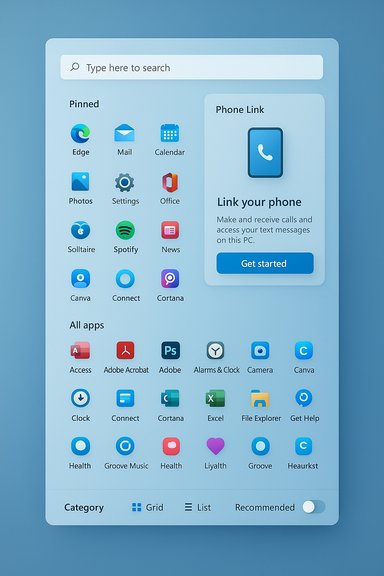
A Windows-style app launcher with a search bar, pinned icons, and a Phone Link panel.Background and overview​

Microsoft's refreshed Start menu is part of the KB5067036 preview package that surfaced to Release Preview and optional update channels and is being staged to wider audiences in the lead‑up to the November cumulative update cycle. The change is packaged for Windows 11 versions 24H2 and 25H2, and delivers a mix of UI refinements, continuity features (Phone Link inside Start), and personalization toggles that respond to years of user feedback.
This redesign has three visible goals:
  • Improve discoverability by eliminating the extra step formerly needed to reach “All apps.”
  • Increase density and responsiveness so Start better uses large, high‑DPI and ultrawide displays.
  • Give users more control over what appears in Start, including a straightforward path to hide the Recommended feed.
Microsoft is not flipping the switch for every device at once. The binaries for the new Start are delivered in a servicing update, but the experience is activated via staged, server‑side flags; installing the KB may be necessary but not sufficient to see the new UI immediately. This delivery model reduces rollout risk but creates inconsistent exposure across devices and enterprise fleets.

What changed — feature breakdown​

A single, scrollable Start surface​

The most fundamental change is structural: Pinned apps, Recommended content, and the full All apps list now live on a single vertically scrollable canvas rather than splitting off All apps to a secondary page. That removes a click or two from the common workflow of launching less‑frequent applications and mirrors the mobile app‑drawer model many users already understand.
Why this matters:
  • Faster app discovery for users with long app lists.
  • Better ergonomics on touch devices and tablets.
  • Fewer contextual jumps when switching between apps and recent files.

Multiple views for All apps: Category, Grid, and List​

Microsoft added configurable presentation modes for the All apps section:
  • Category view (default) — Apps are automatically grouped into topical buckets (Productivity, Games, Creativity, Communication, etc.. The system creates a category after it detects multiple apps of the same type (commonly three or more). This mode is task‑oriented and surfaces frequently used apps within each group.
  • Grid view — An alphabetized, denser tile grid that favors horizontal scanning and visual scanning, useful on wide or high‑resolution displays.
  • List view — The classic A→Z list is retained for keyboard‑driven or power users who prefer deterministic ordering.
The Start menu remembers your last selected view so the UI restores the same mode on subsequent opens, reducing friction for users who switch between workflows.

Pinned area updates​

The pinned section defaults to two rows but can be expanded with a Show more / Show less control. On larger displays each row can hold up to eight icons, letting the pinned grid become denser on widescreen setups. There’s also a Show all pins by default option for users who want every pinned item surfaced without an extra click.

Recommended section — now hideable (but not with a single toggle)​

The Recommended area continues to show recent files and app suggestions — and it has historically been used to surface Microsoft Store apps, which many users consider promotional. The redesign makes it possible to hide Recommended entirely, but Microsoft implemented this by grouping several toggles in Settings > Personalization > Start rather than providing one dedicated “Hide Recommended” switch. To remove the section you must disable all options under the Recommended settings (and in some cases turn off recently added apps and browsing history web suggestions). If you disable all those toggles, Recommended disappears from Start. The menu can display up to six recommendation items when enabled.
Note: labeling promotional content as “recommendations” is a product decision and a point of debate; the ability to conceal this area is a practical win for privacy‑minded or minimal‑UI users.

Phone Link integration inside Start​

A small phone icon appears next to the Start search area; clicking it expands a Phone Link panel embedded in the Start menu that surfaces recent calls, messages, photos, and continuity prompts from a paired smartphone. This collapsible pane brings basic mobile workflows into the Start surface so users can glance at phone content without opening the full Phone Link app. Availability varies by region and phone platform.

Settings reorganization​

Settings > Personalization > Start has been simplified: the separate layout selection is removed in favor of grouped settings labeled Recommended, All, and Other. The toggles that control recently added apps, most used apps, recommendations and phone panel visibility remain accessible there.

Design alternatives Microsoft considered​

The team explored many prototypes before settling on the current balance of familiarity and modernity. Experiments included:
  • A personalized “For You” dashboard with widgets and a second column for apps.
  • Soft, rounded stacked layouts and variants with a left navigation pane mirroring a Windows 10 feel.
  • A full‑screen start experience and heavy reliance on widget‑type cards.
Microsoft ultimately preserved the familiar Pinned + Recommended + All structure, but merged them into one surface and added configurable views to achieve both discoverability and a modern design language. These prototypes illustrate a broader design tension: users want both low friction and predictability, and Microsoft chose an approach that favors less clicking while maintaining recognizable affordances.

How to get it now — optional preview and enablement caveats​

The Start redesign is distributed as part of the KB5067036 optional preview (Release Preview/optional channel). Microsoft has stated the refreshed Start will be delivered more broadly through the next cumulative update cycle, but rollout is staged with server‑side flags.
If you want to see it now:
  • Open Settings > Windows Update.
  • Turn on “Get the latest updates as soon as they’re available” to surface optional preview updates.
  • Check for updates and install the optional preview labeled KB5067036.
  • Reboot and open Start — the new layout may appear immediately or be enabled later via Microsoft’s staged activation.
A few operational notes:
  • Installing KB5067036 may install binaries needed for the experience without enabling the feature. Microsoft may continue to gate activation by device group or telemetry.
  • Some community methods (ViVeTool and similar utilities) exist to toggle hidden features locally, but these are unsupported and carry risk. Use caution and test in a controlled environment before deploying to production systems.

Enterprise and IT considerations​

For IT administrators and deployment teams, the staged enablement model matters more than the KB number itself. The servicing update distributes the code across build families (notably build branches in the 26100.xxxx and 26200.xxxx lines for 24H2 and 25H2), but Microsoft controls feature exposure independently with small enablement packages and server flags. This means:
  • Installing the optional preview does not guarantee the UI change will appear immediately.
  • Pilot and compatibility testing should validate app and shell interactions, especially for organizations that rely on shell extensions, custom start‑menu tooling, or non‑standard window managers.
  • Group Policy and MDM controls that target Start and Taskbar settings should be reviewed to confirm expected behavior (for example, policies that pin apps or disable user modifications). Where policies overlap with the new toggles, test results may vary across build versions.
Recommended IT steps:
  • Create a small pilot ring and install the optional preview on representative hardware.
  • Verify pinned/app‑launch behavior, search, and context‑menu operations.
  • Monitor telemetry for regressions and validate that enterprise software (including third‑party shell extensions) behaves correctly.
  • Decide whether to enable “Get the latest updates as soon as they’re available” on pilot machines or to rely on staged Microsoft activation.

Strengths — what Microsoft got right​

  • Fewer clicks to apps: Moving All apps onto the main canvas reduces a common pain point in Windows 11 and restores the single‑surface mental model many users expect.
  • Flexible discovery modes: Category and Grid views are thoughtful additions that support both task‑oriented and visual scanning workflows, while preserving the classic List for power users.
  • Responsive layout for modern displays: The adaptive column and pin density makes Start scale sensibly on ultrawide and high‑DPI screens.
  • User control over recommendations: Exposing toggles to hide Recommended content eliminates the need for registry hacks or third‑party apps for users who want a minimal launcher.
  • First‑party phone continuity: Embedding Phone Link inside Start simplifies common cross‑device tasks and reduces context switching.

Risks, trade‑offs, and unresolved issues​

  • Lack of explicit size controls: The new Start adapts to screen resolution and density, but users cannot manually set the Start window size. This has already prompted initial frustration from those who prefer precise control over UI dimensions. Expect pushback from users with unique workflows on very large monitors.
  • Server‑gated enablement complicates rollout: IT teams that install the KB for testing may not see the feature due to server flags; conversely, devices in the wild may receive the change unexpectedly once Microsoft expands exposure. This staged model requires careful pilot planning.
  • Categories are system‑generated and not user editable: Category view groups apps automatically and typically needs multiple apps in a category to create grouping; advanced users and administrators may find this lack of explicit control limiting.
  • Potential for ‘promotional recommendations’: Although Recommended can be hidden, the fact that Microsoft uses the feed to surface Store apps remains controversial. Some users see this as in‑product advertising; others accept it as app discovery. The ability to hide the feed mitigates but does not remove the policy choice. Watch for future clarity on how app promotions are selected and whether enterprise policies can suppress them by default.
  • Edge cases and known bugs: Insider reports have flagged intermittent issues preserving layout selection across reboots and small visual regressions. These are typical for staged previews, but administrators should treat the update as preview‑level and not assume full stability.

Practical tips, tweaks, and troubleshooting​

  • To hide Recommended with the new controls: open Settings > Personalization > Start and disable all toggles under the Recommended group, then turn off recently added apps and web suggestions if they remain visible. The Recommended area should disappear once all relevant toggles are off.
  • If the new Start does not appear after installing the KB, remember that Microsoft may still be gatekeeping activation; check your Windows Update status and consider enrolling a test device into Release Preview to increase the chance of earlier exposure.
  • Avoid unsupported third‑party tools to toggle features unless you have a lab or backup image. Community utilities exist, but they bypass official enablement paths and can complicate support.
  • For administrators: test Group Policy interactions with pinning and Start layout settings before deploying at scale. Some policies may behave differently on the new canvas.

How this fits into Microsoft’s broader UI strategy​

The refreshed Start menu is a practical, incremental step that aligns with Microsoft's pattern of shipping UI changes progressively through servicing branches and staged feature flags. It reflects three larger signals from Microsoft’s design strategy:
  • A move toward single‑surface interactions (fewer nested pages, more direct access).
  • Greater responsiveness to device form factors and higher‑DPI displays.
  • Increased on‑device continuity with Phone Link and Copilot/Copilot+ feature hooks appearing in companion updates.
The result is less radical than some early prototypes but likely more palatable for mainstream users because it preserves familiar patterns while reducing friction.

Final analysis — verdict for everyday users and IT​

For most users the new Start menu will feel like a clear improvement: fewer clicks to reach installed apps, sensible category grouping for task‑oriented discovery, and real controls to silence recommendations. Power users who crave manual layout control, deterministic categories, or very high density may find the default experience too opinionated; however, the retention of List view and the pin management options offer reasonable alternatives.
For IT teams the key takeaway is to treat this as a staged preview: test widely, validate pinned and policy behaviors, and plan communications for users who may see the change suddenly when Microsoft expands activation. The update mechanism reduces the downtime of major installs but increases the need for controlled pilot programs.

Summary checklist (quick reference)​

  • What: Single, scrollable Start surface with Pinned, Recommended, All apps.
  • Views: Category (default), Grid, List.
  • Pin density: Up to 8 icons per row on large displays; two rows shown by default with Show more/less.
  • Recommendations: Up to 6 items; can be hidden by disabling Recommended toggles in Settings.
  • Phone Link: Embedded panel next to Search that surfaces phone messages, calls, and photos.
  • Delivery: KB5067036 optional preview; staged, server‑side feature gating for wider release.

This Start menu refresh is a pragmatic convergence of usability improvements and modern design trade‑offs: it reduces friction and adds helpful views, while leaving some advanced users wanting more direct control. For most people it will be a tangible quality‑of‑life upgrade; for IT professionals, it is another reason to run a careful pilot before broad rollout.

Source: Windows Central Microsoft revamps the Start menu in Windows 11 — scrollable layout, new views, and fewer clicks
 

Microsoft’s optional preview update KB5067036 for Windows 11 has produced a stubborn Task Manager regression: clicking the window Close (X) button can make Task Manager disappear visually while one or more underlying taskmgr.exe processes remain running, and repeated open/close cycles may spawn additional “zombie” Task Manager instances that silently consume memory and occasional CPU until explicitly terminated or the system is rebooted.

Windows Task Manager displaying multiple taskmgr.exe entries and their memory usage.Background / Overview​

KB5067036 was shipped as an optional, non‑security preview cumulative update for Windows 11 and was distributed in late October 2025 as part of a staged rollout targeted to 24H2 and 25H2 servicing branches. The package bundles visible UI changes — including Start menu adjustments and taskbar battery icon updates — and internal reliability changes that touched Task Manager’s process‑grouping behavior and other under‑the‑hood logic. Reported affected OS builds include 26100.7019 and 26200.7019.
Because KB5067036 is a preview update delivered optionally and in waves, not every device that downloads the package necessarily receives the same internal feature flags at once. That staged delivery model helps explain why the Task Manager symptom is reproducible but not universal — some systems show the behavior reliably while others appear unchanged.

What exactly is happening?​

Symptoms in plain terms​

  • Open Task Manager with Ctrl+Shift+Esc (or via the Quick Link menu).
  • Click the window Close (X) button in the top‑right corner.
  • Reopen Task Manager and inspect Processes (or run tasklist / Get‑Process).
  • If affected, you will see additional “Task Manager” entries (multiple taskmgr.exe instances). Each open→close cycle can add another running instance.
These orphaned processes are not cosmetic UI duplicates; they appear in the Details tab, are visible to Process Explorer and command‑line tools such as tasklist and PowerShell’s Get‑Process, and they persist in memory until terminated or until a reboot clears them. Community stress tests have shown roughly 20–30 MB of RAM per orphaned taskmgr.exe on average, with small periodic CPU polling spikes that can aggregate when many instances accumulate.

Immediate user impact​

  • Casual users who rarely open Task Manager and reboot regularly will usually see negligible impact.
  • Power users, IT staff, and troubleshooting technicians who repeatedly open/close Task Manager during diagnostics have higher exposure and will notice resource creep faster.
  • Low‑RAM devices, virtual machines, and long‑uptime systems are most likely to show tangible slowdowns or increased swapping when orphaned instances accumulate.

Why this matters: risk assessment​

  • Usability: Task Manager is the first‑stop diagnostic tool for many users. A regression that undermines its lifecycle (close/terminate) path is particularly sensitive.
  • Performance: Multiple background taskmgr.exe instances add memory and can generate tiny CPU spikes; these are minor per instance but additive and measurable in aggregate.
  • Operational: For administrators and managed fleets, preview updates that touch system utilities can introduce operational risk if pilot discipline or rollout controls are insufficient. The incident underscores the importance of pilot rings and staged validation before broad deployment.

Reproduction, diagnosis and verification​

Quick verification checklist​

  • Press Windows+R, type winver, and confirm the OS build — look for 26100.7019 or 26200.7019 if KB5067036 is present.
  • Open Task Manager (Ctrl+Shift+Esc). Click the Close (X) button.
  • Reopen Task Manager and check Processes → Background processes. If you see more than one “Task Manager” entry, the device reproduces the symptom.

Command‑line checks​

  • Verify instances: tasklist /FI "IMAGENAME eq taskmgr.exe" or PowerShell: Get-Process -Name taskmgr.
  • Force‑kill orphaned Task Manager instances: taskkill /im taskmgr.exe /f (run from an elevated Command Prompt).
The commands above provide unambiguous evidence the duplicates are real processes rather than UI artifacts. Multiple independent testers and outlets used these same checks to confirm the symptom.

Short‑term workarounds and remediation​

Microsoft and the community agree on pragmatic mitigations until a vendor patch arrives:
  • Avoid using the Close (X) button on Task Manager. Instead, end the program from within its own UI: right‑click the Task Manager entry and choose End task to terminate that instance cleanly.
  • Use taskkill for mass cleanup: Open an elevated Command Prompt and run: taskkill /im taskmgr.exe /f. This forcibly kills all taskmgr.exe instances.
  • Reboot clears orphaned instances if immediate reclamation is required.
  • Uninstall the preview on affected production machines if the behavior is disruptive: Settings → Windows Update → Update history → Uninstall updates (select KB5067036 if present). Be careful: combined servicing packages sometimes have nonstandard uninstall behaviors; validate before mass rollback.
For organizations, the advisable playbook is simple and conservative:
  • Hold KB5067036 off production rings until Microsoft confirms a fix.
  • If already deployed broadly, stage automated remediation scripts (taskkill) and collect diagnostic artifacts (ProcMon, Process Explorer dumps, ETW traces).
  • File Feedback Hub reports and, where warranted, open Microsoft support cases with attached traces to speed triage.

Technical analysis: likely causes and historical context​

Task Manager’s internals mix UI threads, background sampling threads, references to performance counters, and process grouping logic. Historically, clicking the window Close (X) has been handled differently in lifecycle code than other termination paths (for example, using End task or programmatic process termination), because the UI teardown must coordinate with sampling threads and with references held by other kernel or user‑mode components.
A plausible hypothesis — consistent with community analysis and the wording in KB release notes that referenced Task Manager process‑grouping changes — is that a change intended to improve grouping logic inadvertently altered the teardown path for the Close (X) interaction, leaving outstanding references (handles or background threads) that keep the process alive even after the window is closed. Reopening Task Manager creates a new instance while previous ones remain resident, creating the observed multiplicity. This teardown/handle/reference hypothesis is consistent with prior Task Manager regressions in Windows history.
Former Task Manager engineers have also noted that window close semantics and program termination semantics were treated differently in older versions; that quirk makes the Close (X) path a natural place for regressions when internal grouping or thread‑lifecycle code is modified. While this is plausible and aligns with observed behavior, it remains a hypothesis until Microsoft publishes a definitive engineering root‑cause.

What Microsoft has said and what to watch​

Early community reports appeared within hours/days of the optional preview rollout, and independent testers reproduced the symptom across diverse hardware combinations. Microsoft’s official KB entry for KB5067036 initially did not list the Task Manager duplication as a known issue in the first published notes; community pressure and diagnostic telemetry collection make an official acknowledgement and patch likely once the vendor confirms a reproducible failure mode. Users should monitor the Windows Release Health dashboard and the KB article for a formal known‑issue entry and a remediation timeline.
Be aware: because the preview is staged and some feature flags may be toggled server‑side, the presence of the update package does not guarantee the symptom will appear on every device. This environmental variability complicates root‑cause isolation and can slow vendor confirmation.

Cross‑referenced reporting and independent confirmations​

Multiple independent outlets and community forums reproducing the issue provide converging evidence:
  • Community reproductions and aggregated reporting documented repeated open→close cycles producing multiple taskmgr.exe processes and measured per‑instance memory footprints in the 20–30 MB range.
  • Forum thread summaries and diagnostic guides supplied the identical verification and remediation steps (winver, Task Manager open/close, tasklist/Get‑Process, taskkill cleanup).
Those independent confirmations — from community threads, power‑user sites and forum collections — meet the practical standard for reproducibility: multiple parties using native verification commands observed the same behavior. That cross‑validation strengthens the case that the regression is real and not an isolated artifact of a single setup.

Unverified or conflicting claims — cautionary notes​

  • Some early anecdotes suggested additional servicing or installation problems coincident with the KB rollout. Those claims are environment‑sensitive and remain unverified without aggregated telemetry or Microsoft engineering confirmation. Treat such ancillary reports cautiously until they are backed by reproducible traces or vendor statements.
  • The exact engineering root cause — whether a leaked handle, an abandoned sampling thread, a COM lifecycle mismatch, or an interaction with third‑party drivers — has not been publicly confirmed by Microsoft. The technical teardown above is an informed hypothesis that fits observed behavior; it should be treated as provisional until Microsoft publishes definitive notes.

Recommendations for home users, power users and administrators​

Home users​

  • If you value stability, skip optional preview updates like KB5067036 on production machines. Disable “get the latest updates as soon as they’re available” if you prefer minimal preview exposure.
  • If you already installed it and see the duplication, avoid the Close (X) and use End task or taskkill /im taskmgr.exe /f to reclaim resources. Reboot if necessary.

Power users / developers​

  • Use command‑line tools to verify and clean any orphaned instances: Get-Process -Name taskmgr | Stop-Process -Force or taskkill /im taskmgr.exe /f. Collect ProcMon or Process Explorer dumps if you plan to file detailed Feedback Hub reports.

IT administrators and fleet managers​

  • Pause broad deployment of KB5067036 on production rings.
  • Stage the update only to pilot rings that include support and monitoring staff.
  • Prepare remediation scripts (taskkill) and rollback plans if the symptom is observed in your environment.
  • Collect reproducible artifacts and escalate to Microsoft support with attached traces to accelerate a fix.

Broader lessons for update management and QA​

This incident underlines predictable lessons for both vendors and enterprise consumers:
  • Preview/staged rollouts reduce blast radius but still expose devices to environment‑specific regressions.
  • Lifecycle paths — open, close, uninstall — must be incorporated into end‑to‑end automated regression suites; closing an app is a basic user action that should never be omitted.
  • Clear vendor communication (fast known‑issue acknowledgements and mitigation guidance) reduces helpdesk load and user confusion.
  • Pilot rings and conservative adoption policies remain essential for production stability.

Conclusion​

KB5067036 demonstrates how a seemingly targeted change in Task Manager’s grouping logic can ripple into everyday user workflows. The symptom is straightforward: clicking the Task Manager Close (X) button can leave taskmgr.exe processes running in the background and allow repeated open/close cycles to multiply those orphaned instances. The condition is reproducible on many affected machines running OS builds 26100.7019 and 26200.7019, and practical mitigations — avoid the Close (X), use End task or taskkill /im taskmgr.exe /f, and reboot or uninstall the preview when needed — are effective until Microsoft issues a formal fix.
For most users the pragmatic choice is conservative: treat KB5067036 as a preview, avoid deploying it on production endpoints, and follow the command‑line and Task Manager workarounds if you encounter the duplication. Administrators should enforce pilot ring discipline, collect diagnostic traces where the bug appears, and monitor Microsoft’s Release Health and KB notices for an official acknowledgement and corrective update.

If you are troubleshooting this right now: confirm your OS build (winver), verify duplicates with tasklist/Get‑Process, and reclaim resources with taskkill /im taskmgr.exe /f — then avoid using Task Manager’s Close (X) until Microsoft publishes a targeted fix.

Source: Heise Online Optional Windows Update Causes Task Manager Zombie
 

Microsoft’s redesigned Start menu for Windows 11 is rolling out in preview form, but if you’re impatient you can either wait for Microsoft’s staged enablement or force the change locally — the choice requires understanding builds, the KB packaging, and the risks of toggling undocumented feature flags with community tools like ViVeTool.

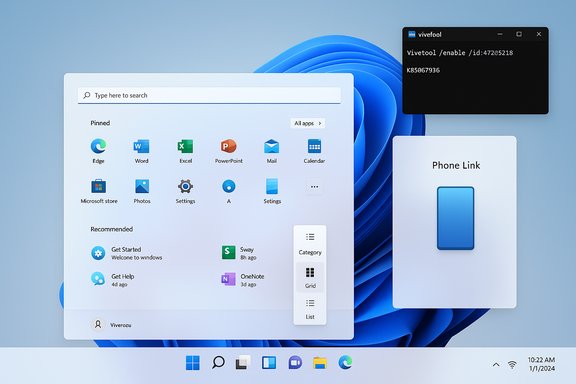
Windows 11 desktop showing Start menu, pinned apps, a Phone Link card, and a ViveTool console.Background​

Microsoft packaged the new Start menu as part of an optional preview/servicing update delivered as KB5067036 (October preview), which places the necessary binaries on devices running Windows 11 version 24H2 or 25H2. The visible enablement of the redesigned Start is staged server‑side, so installing the KB is necessary but not always sufficient to see the change immediately.
The preview builds commonly associated with the rollout are reported as build 26100.7019 (24H2) and 26200.7019 (25H2). Those builds contain the Start surface bits; Microsoft flips feature gates in stages to limit widespread instability. If you prefer a supported route, install KB5067036 and wait for Microsoft’s server flip; if you prefer to act now, the enthusiast community uses ViVeTool to flip local feature flags — an unsupported and potentially fragile approach.

What changed in the redesigned Start menu​

The redesign is evolutionary rather than revolutionary, focused on usability and discoverability:
  • Single, scrollable Start canvas that puts Pinned apps, the Recommended section, and All apps in one continuous vertical surface, eliminating the old two‑pane experience.
  • Three All apps presentation modes — Category, Grid, and List — so you can choose a view that suits visual scanning, task‑oriented browsing, or keyboard-driven lists.
  • Automatic category grouping (e.g., Productivity, Entertainment) to surface apps by role, though manual category editing is not part of the initial release.
  • Controls to hide or collapse Recommended items, giving users the option to minimize promotional or suggestion content.
  • Phone Link integration hooks, adding a collapsible mobile device pane inside Start for cross‑device content when both device and backend gating allow it.
  • Taskbar and system tray refinements arriving in the same preview (animated thumbnails, battery percentage option), enhancing the overall shell experience.
These are practical usability changes designed to reduce friction for users who manage many installed apps or rely on quick app discovery.

How to check if your PC already has the redesign (quick tests)​

  • Press Windows + R, type winver, and press Enter. Confirm whether your OS build is at or above 26100.7019 (24H2) or 26200.7019 (25H2).
  • Open Settings → System → About to validate build and edition.
  • Open Settings → Windows Update → Advanced options → Optional updates and look for KB5067036 under optional/preview updates. If present, install it and restart.
If you meet the build requirements and KB5067036 is installed but the new Start hasn’t appeared, Microsoft is likely still gating the experience for your device. Waiting 24–72 hours is often the supported next step.

Supported (recommended) method: install KB5067036 and wait​

This is the safest method for most users and enterprise fleets.
  • Install KB5067036 via Settings → Windows Update (Optional updates or Release Preview channel).
  • Restart the PC and give Microsoft’s staged enablement 24–72 hours to flip the server‑side gating.
  • If you administer devices, pilot the update on a small ring before broad deployment. This preserves supportability and minimizes help‑desk churn.
Benefits of the supported path:
  • You remain inside Microsoft’s update and support model.
  • You receive complementary fixes and mitigations packaged with the KB.
  • Lower risk of regressions that are sometimes reported when flipping feature flags manually.

Unsupported (community) method: force‑enable with ViVeTool — what you need to know​

Power users can force the redesigned Start to appear immediately by toggling feature flags with ViVeTool. This is an advanced, unsupported procedure that should only be used on test or non‑critical machines after creating reliable backups. ViVeTool sets local feature state via Windows’ Feature Management APIs — it does not rewrite OS binaries in normal use, but the numeric feature IDs it manipulates are community‑discovered, undocumented by Microsoft, and may change between servicing builds.
Important safety preflight (do this first):
  • Create a full system image or at minimum a System Restore point. Record BitLocker recovery keys if applicable.
  • Confirm your Windows build (winver) is 26100.7019 or 26200.7019 (or another build that community trackers list as compatible). ViVeTool requires the on‑disk binaries that KB5067036 delivers.
  • Download ViVeTool only from its official GitHub releases page and pick the variant matching your CPU architecture (x64, x86, ARM64). Verify checksums if you can.
  • Avoid running ViVeTool on managed/enterprise devices subject to Group Policy, MDM restrictions, or EDR that may reject local flag changes.
Why this is risky:
  • Unsupported: Microsoft may not troubleshoot issues stemming from toggled feature flags.
  • ID volatility: Numeric IDs (the /id: values) can change between builds; an ID that worked yesterday may not work tomorrow or may map to a different feature. This makes the approach fragile over time.
  • Server gating: In some cases, flipping a local flag still won’t produce the full experience if Microsoft’s backend entitlements are required. ViVeTool can’t create server entitlements.

Step‑by‑step: force‑enable the new Start using ViVeTool (conservative approach)​

  • Back up your system (full image) and create a System Restore point. Record BitLocker keys.
  • Install KB5067036 (Optional preview) and restart. Confirm winver shows an eligible build such as 26100.7019 or 26200.7019.
  • Download the latest ViVeTool release from the official GitHub releases and extract it to a simple path (example: C:\ViVeTool). Use the release that matches your CPU architecture and verify the archive if possible.
  • Open an elevated Command Prompt (right‑click → Run as administrator). Change directory to the ViVeTool folder, for example:
    cd C:\ViVeTool
  • Verify ViVeTool runs by typing:
    vivetool
    — you should see the usage output or help text.
  • Run the conservative enable command (single‑ID approach commonly reported):
    vivetool /enable /id:47205210
    If that single ID does not produce the new Start, some community threads report that a multi‑ID set can work, e.g.:
    vivetool /enable /id:57048231,47205210,56328729,48433719
    Use multi‑ID sets only if you understand the additional risk; IDs vary by build and hardware.
  • Restart the PC. Open Start and verify whether the new single, scrollable Start canvas appears.
If anything goes wrong, revert:
  • To disable specific IDs you used:
    vivetool /disable /id:57048231,47205210,56328729,48433719
  • Or reset a single ID:
    vivetool /reset /id:47205210
  • If problems persist, uninstall the preview (KB5067036) via Settings → Windows Update → Update history → Uninstall updates, or restore from your system image.

Troubleshooting: common issues and fixes reported by the community​

  • Start menu fails to open or becomes unresponsive after enabling certain IDs. Try disabling the IDs and rebooting.
  • Search input not accepting keyboard input — community posts report toggles that temporarily interfere with the Start search box. Reverting the flags or uninstalling the preview can restore behavior.
  • Companion integrations (Phone Link) or other cloud features may not show even after flag changes because server‑side contingencies remain. Patience or waiting for Microsoft’s official enablement may be required.
  • In rare cases tied to early October 2025 previews, optional packages introduced regressions (e.g., quirks in Task Manager behavior); track Microsoft’s follow‑up patches and be prepared to roll back if you rely heavily on a given system component.
Practical recovery checklist:
  • Keep a Windows Recovery USB ready in case you need to boot external recovery tools.
  • Use a VM to test flag toggles first — snapshots give a fast rollback path.
  • If you must return a production machine to a known state, uninstall the preview and restore from backup rather than chasing multiple ViVeTool combinations.

Enterprise and governance considerations​

For IT teams, the supported deployment path is strongly recommended:
  • Treat KB5067036 like any optional servicing drop: pilot with a small cohort, gather telemetry, and document user behavior across hardware classes and management agents.
  • Evaluate privacy implications of the Recommended feed and Phone Link surfaces with tenant privacy/DLP policies before wide deployment.
  • Block or disallow ViVeTool and similar utilities on managed endpoints through policy or EDR if you want to prevent unsupported local toggles. Running community toggles on managed devices can break support and contravene organizational change control.

Is the redesign worth forcing now?​

The redesigned Start offers real, practical benefits: fewer clicks to access All apps, better use of large displays, and straightforward toggles to remove Recommended clutter. For power users who value immediate access and prefer to customize quickly, the UX improvements are compelling.
However, the drawbacks are meaningful:
  • The auto‑grouping behavior lacks manual editing, which will frustrate users who want deterministic control over app placement.
  • Community‑enabled flips can produce regressions or incomplete experiences if server gating still applies.
  • For managed or production systems, the official path minimizes support risk and is the right choice for most organizations.
Recommendation:
  • If you rely on your machine for critical work: install KB5067036 and wait for Microsoft to enable the redesign server‑side.
  • If you are an enthusiast, tester, or run a secondary machine and you value early access: follow the conservative ViVeTool path after backing up, and start with the single ID (47205210) before trying larger ID sets. Always keep a tested rollback plan.

Final analysis: strengths, weaknesses, and the forward path​

Strengths
  • Improved discoverability and a single, scrollable canvas significantly reduce friction for users with large app catalogs.
  • Multiple All apps views give flexibility suited to different workflows and monitor sizes.
  • User control over Recommended content responds to long‑standing requests to minimize promotional items in Start.
Weaknesses and risks
  • Lack of manual category editing limits power users’ ability to curate app groups.
  • Community toggle fragility (changing IDs, server gating) makes ViVeTool a temporary, brittle solution. Treat any ViVeTool activation as experimental.
  • Enterprise complexity — staged enablement can produce inconsistent user experiences across identical machines, complicating documentation and support.
The redesign is a meaningful and practical improvement, not a radical reimagining. For most users, patience and the supported path will deliver the cleanest, most stable experience. For testers and enthusiasts, ViVeTool provides a fast path to preview changes — but only with proper backups, careful rollback planning, and an acceptance of the risks involved.

The steps and caveats in this article reflect community testing and the preview packaging around KB5067036; community-reported feature IDs and behavior were cross‑checked against multiple independent community sources and release notes so you can make an informed, risk‑aware choice about whether to enable the new Start now or wait for Microsoft’s supported rollout.

Source: Make Tech Easier How to Force Enable The New Start Menu in Windows 11 - Make Tech Easier
 

Back
Top