

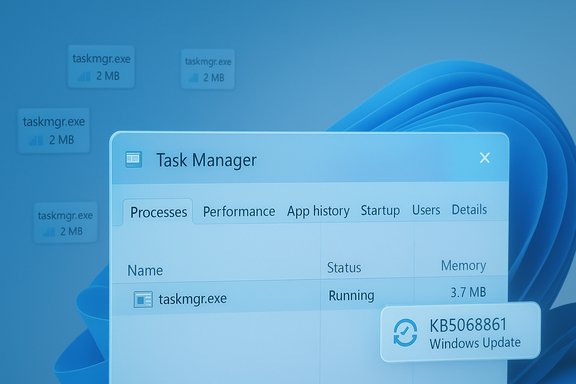
Microsoft shipped a targeted Windows 11 quality update that finally closes the loop on a peculiar regression that left Task Manager processes running after the window was closed — a bug that could quietly accumulate orphaned taskmgr.exe instances and degrade system responsiveness over time.
In late October, Microsoft published an optional preview cumulative (identified as KB5067036) that included visible UI refinements — a redesigned Start menu and taskbar battery icon changes — and several behind‑the‑scenes servicing fixes. Within days, community testers and independent outlets began reproducing a lifecycle regression: closing Task Manager with the window’s Close (X) button sometimes did not terminate the underlying process, and repeated open/close cycles left multiple background Task Manager processes running. The symptom was straightforward to reproduce and simple to observe, making it both annoying and, for some systems, materially impactful.
Microsoft rolled that preview work into the November cumulative update KB5068861. The November rollup explicitly addresses the Task Manager shutdown issue — ensuring that closing Task Manager with the Close button fully ends the process and prevents background instances from lingering — and that fix is now part of the supported cumulative delivery.
The November cumulative also bundled other related quality improvements and fixes — a reworked Start menu layout, refreshed taskbar battery visuals, and multiple reliability patches across subsystems — which is typical of Microsoft’s cumulative delivery model. Because some UI changes are controlled by server‑side flags, installing the cumulative supplies the corrected binaries but might not immediately surface every visual tweak for every device. That staged enablement helps Microsoft limit exposure while still delivering reliability fixes.
Several engineering realities make these regressions possible:
Lessons for users and administrators:
For everyday users, the practical takeaway is simple: install the November cumulative (KB5068861) to get the Task Manager fix and other quality improvements, reboot, and you should no longer see orphaned taskmgr.exe instances after closing Task Manager. For administrators, the episode is a reminder to stage updates, broaden lifecycle tests, and keep rollback and diagnostic plans ready for any preview or cumulative that touches core management tooling.
Closing the loop on a small but meaningful reliability regression makes the day‑to‑day Windows experience measurably better. The fix for Task Manager is a welcome, pragmatic repair that prevents silent resource creep and restores a basic expectation: when you close a management tool, it actually stops running.
Source: PCWorld Microsoft fixes Windows 11 bug that kept Task Manager open
 Background
In late October, Microsoft published an optional preview cumulative (identified as KB5067036) that included visible UI refinements — a redesigned Start menu and taskbar battery icon changes — and several behind‑the‑scenes servicing fixes. Within days, community testers and independent outlets began reproducing a lifecycle regression: closing Task Manager with the window’s Close (X) button sometimes did not terminate the underlying process, and repeated open/close cycles left multiple background Task Manager processes running. The symptom was straightforward to reproduce and simple to observe, making it both annoying and, for some systems, materially impactful.Microsoft rolled that preview work into the November cumulative update KB5068861. The November rollup explicitly addresses the Task Manager shutdown issue — ensuring that closing Task Manager with the Close button fully ends the process and prevents background instances from lingering — and that fix is now part of the supported cumulative delivery.
What happened: symptom, scope and user impact
Symptom in plain terms
The bug presented as a simple lifecycle regression:- Open Task Manager (Ctrl+Shift+Esc).
- Click the Close (X) button to close the window.
- Reopen Task Manager and find additional Task Manager entries in Processes.
- Each open→close cycle could leave another taskmgr.exe process resident in memory, accumulating over time.
Who was affected
The reports clustered around users who installed the October 28 preview build (KB5067036), but reproduction frequency varied by configuration. The bug appeared to be environment‑dependent — not every system with the preview showed the issue — suggesting interplay between Task Manager internals, shell state, drivers, or third‑party utilities. Microsoft’s staged rollout model and server‑side gating for UI features also meant visibility and prevalence varied across devices.Real‑world impact
For many users the issue was a nuisance; for others it could be a real performance problem. Two concrete impacts were commonly reported:- Increased memory use and minor CPU polling from multiple taskmgr.exe instances, which could compound on memory‑constrained systems.
- Gradual performance degradation on systems that accumulate orphaned instances over long uptimes, particularly desktops/laptops that rarely reboot.
How Microsoft fixed it
The remediation arrived in the November Patch Tuesday cumulative identified as KB5068861. The update’s public notes explicitly list a fix: closing Task Manager with the Close button now fully ends the process rather than leaving background instances that could slow performance over time. Microsoft validated the repair in Insider flights and folded it into the mainstream cumulative distribution.The November cumulative also bundled other related quality improvements and fixes — a reworked Start menu layout, refreshed taskbar battery visuals, and multiple reliability patches across subsystems — which is typical of Microsoft’s cumulative delivery model. Because some UI changes are controlled by server‑side flags, installing the cumulative supplies the corrected binaries but might not immediately surface every visual tweak for every device. That staged enablement helps Microsoft limit exposure while still delivering reliability fixes.
Reproducing and verifying the problem (and confirming the fix)
If you want to check whether your PC was affected and confirm the remediation, follow these steps.- Check your current build:
- Press Win+R, type winver and press Enter.
- If you previously installed the October preview, your build might have been in the 26200.7019 / 26100.7019 family. The November cumulative moves affected devices into the KB5068861 rollup build family.
- Reproduce the bug (before installing the fix):
- Open Task Manager (Ctrl+Shift+Esc).
- Click the Close (X) button.
- Reopen Task Manager and check Processes → Background processes. If the count grows with each open/close cycle, your machine exhibited the behavior.
- Confirm the fix:
- Install KB5068861 via Settings → Windows Update (or offline .msu from the Microsoft Update Catalog).
- Reboot, rerun the open/close test, and confirm that closing Task Manager ends the process fully. If the issue is resolved, additional Task Manager entries should no longer appear after reopening.
Short‑term mitigations and diagnostics
Before Microsoft shipped the cumulative fix, community and support guidance converged on simple, reliable workarounds to reclaim resources and avoid accumulation:- Use End task instead of the Close (X) button. Right‑click the Task Manager entry and select End task to properly terminate the process.
- Force‑kill with taskkill:
- Open an elevated Command Prompt and run: taskkill /im taskmgr.exe /f
- This forcibly terminates all taskmgr.exe instances and reclaims RAM immediately.
- Rebooting the system clears orphaned instances and is a pragmatic, if blunt, remedy.
Deeper technical analysis: how such bugs appear and why they can be hard to catch
Task Manager is more than a window that lists processes — it’s tied into Windows process enumeration, session plumbing, and UI lifecycle management. A change intended to improve process grouping logic or redraw the UI can subtly alter reference counts, event handlers, or object lifetimes. If the Close (X) path fails to release a critical reference, the process host (taskmgr.exe) can remain resident even after the visible UI is destroyed. Over many open/close cycles, small memory footprints multiply.Several engineering realities make these regressions possible:
- Preview updates mix user‑facing features with servicing fixes. A fix in one subsystem can expose lifecycle fragility in another if the coverage of end‑to‑end lifecycle tests is incomplete.
- Staged rollouts and server‑side feature gating mean not every configuration gets the same combination of binaries and flags during preview testing, which reduces the ability to replicate every real‑world configuration during validation.
- Tooling and test suites often exercise common flows (open, interact, close) but might not stress large numbers of repeated open/close cycles in automated coverage, making long‑running accumulation scenarios easier to miss.
What else arrived in the KB5068861 cumulative
While the Task Manager fix is the most immediately consumer‑visible reliability correction, KB5068861 included other items worth noting:- A redesigned Start menu with new All apps views (Category, Grid, List) and changed layout behavior for pinned and recommended items. These visual changes are being rolled out in stages and may be gated per device.
- Taskbar battery icon refinements, including color‑coded states and options for persistent percentage display.
- Reliability fixes for various subsystems, including some gaming‑handheld issues (preventing unexpected low‑power transitions and addressing controller input problems at the login screen). Microsoft has particular reason to keep an eye on handhelds as those devices gain traction.
Recommended actions for end users and administrators
For home users and power users
- Install KB5068861 through Settings → Windows Update if you want the Task Manager fix and other reliability updates. Reboot afterward.
- If you avoid preview builds, continue that practice; optional previews are valuable for early adopters but can expose unexpected regressions. If you did install the October preview and experienced the Task Manager behavior, use taskkill or End task as a mitigation until you install KB5068861.
For IT and enterprise administrators
- Pilot the update:
- Apply KB5068861 to a representative pilot group that mirrors hardware, driver, and application stacks in production. Validate critical workflows and instrument telemetry.
- Validate lifecycle tests:
- Include open/close lifecycle tests for key management tools (Task Manager, Services, Event Viewer) in your acceptance suite to catch similar regressions early.
- Use offline installers when staging:
- For controlled deployments, download the appropriate KB5068861 .msu from the Update Catalog and stage with DISM or WSUS to avoid staged feature gating discrepancies. The offline .msu approach also helps validate clean installs on target images.
- Maintain rollback and diagnostics plans:
- Retain documented rollback steps, and collect diagnostic traces (ProcMon, ETW, Process Explorer) for any regression you escalate to Microsoft. These artifacts greatly reduce triage time.
What this episode teaches about preview updates and update discipline
This Task Manager incident is a textbook case of preview‑driven discovery: Microsoft shipped a preview that corrected a long‑standing shutdown lifecycle inconsistency elsewhere (Update & Shut Down), but that same preview included Task Manager internals changes that, in some configurations, produced an orthogonal regression.Lessons for users and administrators:
- Preview updates are valuable for surfacing issues early, but they are optional by design; production systems should favor cumulative releases unless a preview addresses a critical operational problem.
- Staged rollouts are a safety valve: they reduce blast radius but also complicate reproducibility across different machines when server‑side flags vary. Expect short‑term variability and verify fixes in pilot rings before full deployment.
- Simple lifecycle tests (open, close, repeat) should be part of acceptance routines for management tools. Small lifecycle regressions can have outsized cumulative effects over time.
Risks and caveats
- The public notes for preview releases and cumulative updates do not always contain deep engineering root‑cause analyses. If you need certainty about why a regression occurred, Microsoft’s engineering blog posts, Release Health dashboard, and KB follow‑ups are the places to watch. Until then, root‑cause statements are engineering inferences rather than official post‑mortems. Treat those inferences as useful but provisional.
- Because Microsoft sometimes rolls out UI features via server‑side flags, installing a cumulative update is necessary to receive fixes but might not immediately surface all UI changes. That can create confusion when two machines on the same build behave differently — a normal artifact of the feature‑flight model.
- The Task Manager duplication reports highlighted that even tightly scoped fixes can introduce regressions in related subsystems. Administrators should therefore maintain conservative update policies for mission‑critical endpoints and rely on pilot validation for major servicing releases.
Final assessment
The Task Manager orphaning bug was an inconvenient but fixable regression that exposed the fragile balance between rapid iteration and end‑to‑end validation in modern OS development. Microsoft’s response — validating a repair in Insider channels and folding it into the November cumulative KB5068861 — was the expected and correct operational path: reproduce, validate, ship a cumulative fix that reaches mainstream devices, and remind administrators to pilot updates before broad deployment.For everyday users, the practical takeaway is simple: install the November cumulative (KB5068861) to get the Task Manager fix and other quality improvements, reboot, and you should no longer see orphaned taskmgr.exe instances after closing Task Manager. For administrators, the episode is a reminder to stage updates, broaden lifecycle tests, and keep rollback and diagnostic plans ready for any preview or cumulative that touches core management tooling.
Closing the loop on a small but meaningful reliability regression makes the day‑to‑day Windows experience measurably better. The fix for Task Manager is a welcome, pragmatic repair that prevents silent resource creep and restores a basic expectation: when you close a management tool, it actually stops running.
Source: PCWorld Microsoft fixes Windows 11 bug that kept Task Manager open
