Windows 11’s November cumulative (reported as KB5068861 in press coverage) marks one of the more consequential Patch Tuesday rollouts of the year: a staged feature delivery that flips on a redesigned Start UI for more users, introduces colourful taskbar battery icons with an optional percentage readout, patches long-running reliability issues (including a Task Manager quit bug), and brings a handful of small but meaningful performance fixes — all delivered via Windows Update and downloadable as offline .msu installers from the Microsoft Update Catalog. While Microsoft’s official release channels show the normal cadence and build families for 24H2/25H2, community testing and hands‑on reporting supply the detail users and administrators need to decide how and when to adopt the update.
Windows 11 continues to be serviced via monthly cumulative updates and occasional non‑security preview packages; feature work is often seeded through servicing and then enabled progressively by Microsoft. The pattern used for the 25H2/24H2 family this year is familiar: binaries appear in cumulative updates and preview MSUs, but features like the Start redesign and some Copilot/AI integrations are staged — a server-side rollout that means installing the update is necessary but not always sufficient to immediately surface every UI change. This reduces upgrade disruption but increases variability in who sees what and when. High-level takeaways:
Strengths:
Conclusion
This November servicing wave demonstrates Microsoft’s continued emphasis on iterative refinement: a handful of visible UI improvements — notably the single‑page Start and colour battery icons with an optional percentage — plus important reliability fixes that make daily Windows use smoother. The update’s mixed delivery model (binaries via servicing plus server‑side gating) preserves operational flexibility while requiring administrators to be deliberate about pilot testing and rollout timing. Security teams and device managers should plan around the offline package sizes and SSU constraints, and privacy/review teams should evaluate Copilot and Recommended‑powered features before broad enablement. For users, the immediate experience will be one of small, welcome polish; for IT, it’s another reminder that modern Windows servicing favors staged, telemetry-driven adoption over a one‑size‑fits‑all release.
Source: Windows Latest Windows 11 KB5068861 25H2 out with features, direct download links (.msu)
 Background / Overview
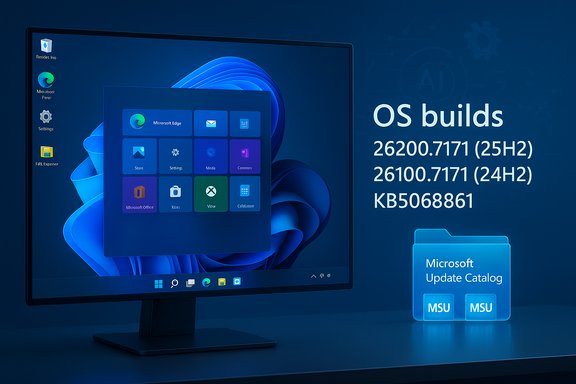
Windows 11 continues to be serviced via monthly cumulative updates and occasional non‑security preview packages; feature work is often seeded through servicing and then enabled progressively by Microsoft. The pattern used for the 25H2/24H2 family this year is familiar: binaries appear in cumulative updates and preview MSUs, but features like the Start redesign and some Copilot/AI integrations are staged — a server-side rollout that means installing the update is necessary but not always sufficient to immediately surface every UI change. This reduces upgrade disruption but increases variability in who sees what and when. High-level takeaways:- The update is reported to advance 25H2 devices to builds in the 26200 family and 24H2 to the 26100 family; community tracking shows incremental suffixes in the weeks around Patch Tuesday. Official release-health pages list build families and the usual cadence for monthly updates.
- Microsoft publishes offline installers (.msu) in the Microsoft Update Catalog for scripted or offline installs; those packages contain the combined servicing stack and the latest cumulative payload and are therefore notably larger than the express/differential payloads Windows Update uses. Plan disk space and bandwidth accordingly.
What’s new in KB5068861 (reported highlights)
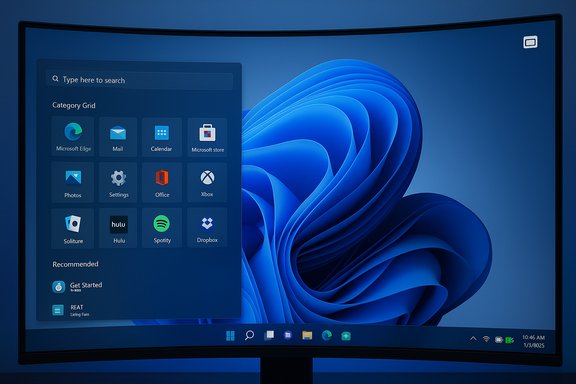
The update is notable less for a single big feature and more for a cluster of UI refinements, quality fixes, and delivery options that matter to everyday users and administrators alike.Redesigned Start menu: single-page, categories, Grid/List views
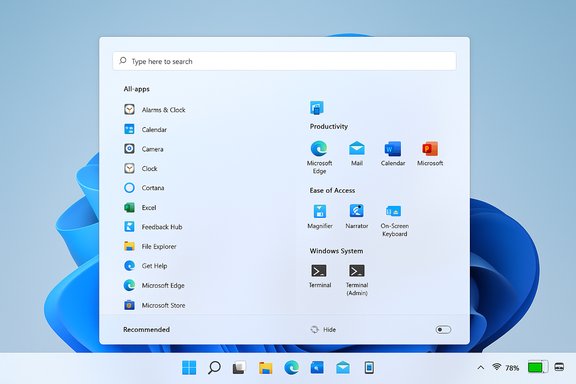
- The Start menu moves toward a single, vertically scrollable surface where pinned apps, Recommended content, and the All apps listing sit on the same canvas. That removes a separate “All” page and reduces one click for discovery. Microsoft provides three All apps views: Category (system‑grouped buckets such as Productivity, Entertainment), Grid (compact, alphabetically filtered grid), and List (traditional alphabetical list). The Start menu remembers your selected view.
- Community reports describe how the Category grouping is implemented: a local mapping used to tag apps into buckets. One report claims a locally stored JSON (~15 MB) drives the category assignments and that categories only appear if there are at least three apps per category; this is presented as an offline client-side mapping rather than a live server lookup. That specific JSON‑size claim appears in early press coverage but cannot yet be confirmed from Microsoft’s official notes; treat that particular numeric claim with caution until Microsoft publishes a KB or engineer note confirming the payload and format. Exercise caution before assuming the precise 15 MB figure is authoritative.
- Why it matters: the change is intended to improve discoverability for users with large app libraries and to give everyone more control over how the All apps list behaves. For administrators, it’s a cosmetic change with minimal manageability impact, but it’s worth validating any UI-dependent workflows (for example, scripted UI automation) in pilot rings before broad rollout.
Colourful battery icons and optional percentage in the system tray
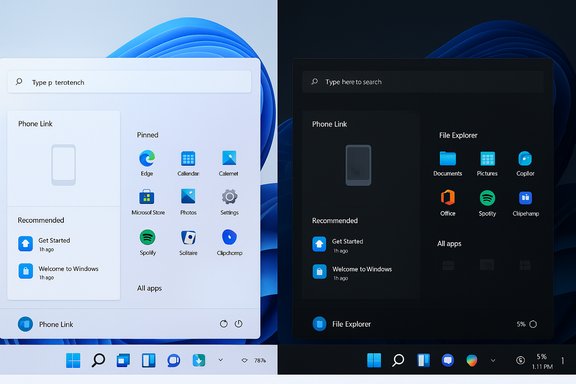
- The taskbar battery icon receives a practical polish: color‑coded indicators (green while charging/healthy; yellow/orange when energy saver is active or battery is low; red at critically low levels) and a larger glyph that makes visual state easier to read at a glance. The system now includes an explicit Battery percentage toggle under Settings → System → Power & battery to display the numeric value next to the icon; the toggle is off by default and must be enabled. Some builds show the percentage instantly when toggled, while staged rollouts can delay visibility in some devices.
- Practical note: community testing shows thresholds reported across sources may vary slightly (e.g., some reports cite 20% for the yellow energy-saver state, while a few secondary pieces referenced a red threshold as low as 6%). Microsoft’s official guidance emphasizes the staged rollout and may refine thresholds or visuals between preview and GA. Treat precise numeric thresholds in secondary reporting as potentially variable until Microsoft posts a formal KB description.
Task Manager quits — a small reliability but important fix
- A long‑reported bug that caused Task Manager to be “sent to the background” when closing — leaving orphaned Task Manager processes running instead of terminating them — has been addressed. Community testing and preview notes confirm that closing Task Manager now properly ends the process instead of backgrounding it, removing a pathological case that could cause multiple Task Manager instances and degraded system performance over time. This is an immediate quality win for power users and administrators.
Performance and reliability improvements
- Users report faster taskbar population after resume from sleep and fewer cases where the taskbar would fail to load — symptoms that previously required restarting explorer.exe. Microsoft also patched lock‑screen freezes that prevented the password field from appearing after boot or wake. Many such fixes are small but compound into a noticeably smoother unlock and boot experience on a wide range of hardware.
- File Explorer stability and AI-assisted features (hover actions and Recommended cards) are also tied to this servicing wave; some AI features remain hardware- and licensing‑gated (Copilot+ devices) and are staged via feature flags. Administrators should be mindful of privacy and data egress considerations when evaluating Copilot and on‑device/cloud-assisted features.
Delivery options, package sizes, and install methods
Microsoft distributes these updates in multiple ways; choose the path that fits your environment.- Recommended (consumer/business): Windows Update — opens Settings → Windows Update and apply the monthly cumulative when it appears. Windows Update uses express/differential delivery so download sizes are smaller. Installing via Windows Update is the safest, most tested route and preserves express delta behavior.
- Manual / offline: Microsoft Update Catalog (.msu) — Microsoft publishes the combined SSU+LCU MSU packages in the Update Catalog for x64 and ARM64. These offline packages are larger (community checks and catalog entries put combined catalog sizes roughly in the 3.7–3.9 GB range for the 26100/26200 family MSUs), so expect multi‑gigabyte downloads when using the offline catalog. Windows Latest and community guides reiterate that Windows Update will download a much smaller payload (~1 GB or less for many scenarios) due to express/differential delivery, while the catalog MSU can be several GB depending on architecture and packaging.
- Deployment via DISM or WSUS/ConfigMgr: place all MSU files for the target KB in a single folder and use DISM to add packages (DISM /Online /Add-Package /PackagePath:C:\Packages\Windows11.0-KBxxxxxxx-x64.msu). DISM will resolve prerequisites in that folder. This approach is recommended for scripted or offline deployment, but ensure you also stage the servicing stack (SSU) where required — SSUs are often bundled into the MSU and cannot be reversed after install.
- Confirm your OS version and architecture (winver; Settings → System → About).
- Download the matching .msu package(s) from the Microsoft Update Catalog for your architecture (x64/ARM64). Verify file hashes if you require integrity checks.
- Place all MSUs in one folder, open an elevated Command Prompt and run:
DISM /Online /Add-Package /PackagePath:C:\Packages\Windows11.0-KB5068861-x64.msu - Reboot when prompted and re-check the build with winver.
Cross‑checking and verification
- Official timeline and build families: Microsoft’s Windows 11 release information page and release-health dashboard confirm the monthly cadence, build families for 24H2/25H2, and the dates of baseline preview packages; they are the authoritative place to verify build IDs and KB articles once Microsoft publishes them. The public release-health pages list monthly baseline builds and their KB cross‑references.
- Independent reporting and community hands‑on: multiple independent outlets and forum threads corroborate the practical details reported in early press coverage: the single‑page Start menu behavior, category/grid/list All apps views, color battery icon rollout with an optional percentage, taskbar responsiveness fixes, and the availability of Update Catalog MSU installers. Community checks of Update Catalog entries also provide realistic offline package sizes for planning. These community traces are consistent with Microsoft’s staged delivery model — binaries arrive in cumulative updates, features are gated progressively, and the Update Catalog hosts the offline installers for power users and admins.
- Claims to treat cautiously: any exact numeric claim that appears only in a single press item (for example, the 15 MB JSON size for Start menu category mapping) should be flagged until an official Microsoft engineering note or KB article confirms it. It’s plausible in principle — categorization tables or local resource files could live in a JSON — but treat the specific size figure and any implications about telemetry or server calls as unverified unless corroborated by multiple authoritative sources.
What this means for users and administrators
Benefits
- Better discoverability: The new Start layout reduces clicks and gives users familiar choices (Category / Grid / List).
- Improved situational awareness: Colour-coded battery icons and an optional tray percentage put essential battery information front-and-center, reducing “battery anxiety.”
- Quality and reliability: Fixes like the Task Manager termination bug and faster taskbar population after wake are quiet wins that improve daily usability and reduce helpdesk cases.
- Multiple deployment modes: The Update Catalog MSU path supports offline and enterprise deployment needs, while Windows Update remains the safest path for most users.
Risks and considerations
- Staged rollout and feature gating: Installing the cumulative update may not immediately enable every new UI element due to server-side gating. This can produce inconsistent behavior across a fleet and may complicate pilot verification.
- Package size and SSU permanence: Offline MSU packages are large; combined SSU+LCU installs include an SSU that cannot be rolled back. Plan rollback and recovery procedures carefully.
- Third‑party compatibility: EDR/antivirus, device drivers, and management agents sometimes need updates after a servicing wave. Delay broad rollouts until key vendors have validated compatibility in enterprise environments.
- Privacy/egress for AI features: Copilot/AI integrations and File Explorer’s Recommended cards can surface data and might use on‑device or cloud-assisted models depending on configuration and hardware gating. Review policies and tenant settings before enabling AI surfaces widely.
- Unsupported hacks: Community tools that flip feature flags (ViVeTool, etc. remain unsupported by Microsoft and can destabilize managed devices. Use them only in isolated test environments if necessary.
Recommended rollout plan (practical, concise)
- Inventory: Identify devices with legacy dependencies (WMIC, PowerShell v2 scripts, old drivers, or agent versions).
- Pilot (1–5%): Apply the update to a small, representative set (workstations, laptops, and impacted vendor profiles).
- Validate: Check OS build with winver; verify critical apps, EDR/AV functionality, and login/unlock behavior.
- Staged expansion (10–25%): Expand to broader pilot groups, monitor telemetry and helpdesk tickets.
- Full deployment: When pilot telemetry is clean and vendor compatibility confirmed, push via WSUS/WUfB/Intune.
- Rollback preparedness: Document uninstall steps and recovery images; for offline installs, keep copies of the previous image or system snapshots.
Final analysis: strengths, trade-offs, and the upgrade verdict
KB5068861 (as reported in press and community threads) delivers polish and quality more than sweeping functional upheaval. The single‑page Start redesign and the battery icon refresh are user-facing, tangible improvements that address long‑standing usability feedback. The fix for Task Manager and taskbar/lock‑screen responsiveness are meaningful stability upgrades that reduce routine friction.Strengths:
- Incremental usability wins that are broadly applicable across hardware classes.
- The staged delivery model reduces distribution pain and allows Microsoft to closely monitor telemetry during rollout.
- Multiple delivery options (Windows Update, Update Catalog MSU, DISM/WSUS) support different operational needs.
- The staged rollout model creates heterogeneity: two identical machines may show different UIs until Microsoft flips the server-side flag. This complicates documentation and support workflows for helpdesks.
- Offline MSU installers are significantly larger than delta updates and include SSUs that cannot be rolled back, so offline deployment requires careful planning and rollback strategies.
- Some AI/Copilot features are hardware- or license-gated; installing the cumulative does not guarantee the Copilot experience will appear. Administrators must coordinate with vendor partners and review privacy settings.
- For individual and home users who rely on standard apps and want the fastest path to improvements, installing via Windows Update when the optional/Preview cumulative appears is recommended.
- For enterprises, follow the pilot-and-validate approach: apply to a small, device‑representative ring, validate with AV/EDR and imaging workflows, and roll out in stages once behavioral telemetry stabilizes.
- Avoid community feature‑flag hacks in production. If you must test new UI earlier, do so in designated test VMs or lab hardware.
Conclusion
This November servicing wave demonstrates Microsoft’s continued emphasis on iterative refinement: a handful of visible UI improvements — notably the single‑page Start and colour battery icons with an optional percentage — plus important reliability fixes that make daily Windows use smoother. The update’s mixed delivery model (binaries via servicing plus server‑side gating) preserves operational flexibility while requiring administrators to be deliberate about pilot testing and rollout timing. Security teams and device managers should plan around the offline package sizes and SSU constraints, and privacy/review teams should evaluate Copilot and Recommended‑powered features before broad enablement. For users, the immediate experience will be one of small, welcome polish; for IT, it’s another reminder that modern Windows servicing favors staged, telemetry-driven adoption over a one‑size‑fits‑all release.
Source: Windows Latest Windows 11 KB5068861 25H2 out with features, direct download links (.msu)