Windows 11 KB5068861 Update: Start Menu Redesign, Battery Icon, and Reliability Fixes

  • Thread Author
Windows 11’s November cumulative (reported as KB5068861 in press coverage) marks one of the more consequential Patch Tuesday rollouts of the year: a staged feature delivery that flips on a redesigned Start UI for more users, introduces colourful taskbar battery icons with an optional percentage readout, patches long-running reliability issues (including a Task Manager quit bug), and brings a handful of small but meaningful performance fixes — all delivered via Windows Update and downloadable as offline .msu installers from the Microsoft Update Catalog. While Microsoft’s official release channels show the normal cadence and build families for 24H2/25H2, community testing and hands‑on reporting supply the detail users and administrators need to decide how and when to adopt the update.

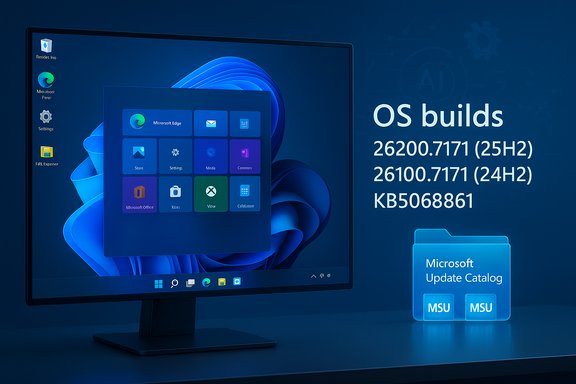
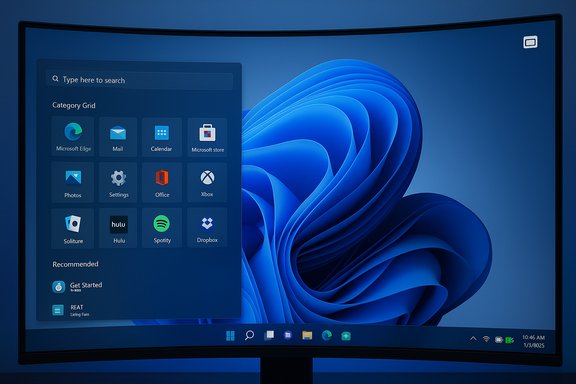
Curved monitor shows Windows 11 desktop with app grid and search panel.Background / Overview​

Windows 11 continues to be serviced via monthly cumulative updates and occasional non‑security preview packages; feature work is often seeded through servicing and then enabled progressively by Microsoft. The pattern used for the 25H2/24H2 family this year is familiar: binaries appear in cumulative updates and preview MSUs, but features like the Start redesign and some Copilot/AI integrations are staged — a server-side rollout that means installing the update is necessary but not always sufficient to immediately surface every UI change. This reduces upgrade disruption but increases variability in who sees what and when. High-level takeaways:
  • The update is reported to advance 25H2 devices to builds in the 26200 family and 24H2 to the 26100 family; community tracking shows incremental suffixes in the weeks around Patch Tuesday. Official release-health pages list build families and the usual cadence for monthly updates.
  • Microsoft publishes offline installers (.msu) in the Microsoft Update Catalog for scripted or offline installs; those packages contain the combined servicing stack and the latest cumulative payload and are therefore notably larger than the express/differential payloads Windows Update uses. Plan disk space and bandwidth accordingly.

What’s new in KB5068861 (reported highlights)​

The update is notable less for a single big feature and more for a cluster of UI refinements, quality fixes, and delivery options that matter to everyday users and administrators alike.

Redesigned Start menu: single-page, categories, Grid/List views​

  • The Start menu moves toward a single, vertically scrollable surface where pinned apps, Recommended content, and the All apps listing sit on the same canvas. That removes a separate “All” page and reduces one click for discovery. Microsoft provides three All apps views: Category (system‑grouped buckets such as Productivity, Entertainment), Grid (compact, alphabetically filtered grid), and List (traditional alphabetical list). The Start menu remembers your selected view.
  • Community reports describe how the Category grouping is implemented: a local mapping used to tag apps into buckets. One report claims a locally stored JSON (~15 MB) drives the category assignments and that categories only appear if there are at least three apps per category; this is presented as an offline client-side mapping rather than a live server lookup. That specific JSON‑size claim appears in early press coverage but cannot yet be confirmed from Microsoft’s official notes; treat that particular numeric claim with caution until Microsoft publishes a KB or engineer note confirming the payload and format. Exercise caution before assuming the precise 15 MB figure is authoritative.
  • Why it matters: the change is intended to improve discoverability for users with large app libraries and to give everyone more control over how the All apps list behaves. For administrators, it’s a cosmetic change with minimal manageability impact, but it’s worth validating any UI-dependent workflows (for example, scripted UI automation) in pilot rings before broad rollout.

Colourful battery icons and optional percentage in the system tray​

  • The taskbar battery icon receives a practical polish: color‑coded indicators (green while charging/healthy; yellow/orange when energy saver is active or battery is low; red at critically low levels) and a larger glyph that makes visual state easier to read at a glance. The system now includes an explicit Battery percentage toggle under Settings → System → Power & battery to display the numeric value next to the icon; the toggle is off by default and must be enabled. Some builds show the percentage instantly when toggled, while staged rollouts can delay visibility in some devices.
  • Practical note: community testing shows thresholds reported across sources may vary slightly (e.g., some reports cite 20% for the yellow energy-saver state, while a few secondary pieces referenced a red threshold as low as 6%). Microsoft’s official guidance emphasizes the staged rollout and may refine thresholds or visuals between preview and GA. Treat precise numeric thresholds in secondary reporting as potentially variable until Microsoft posts a formal KB description.

Task Manager quits — a small reliability but important fix​

  • A long‑reported bug that caused Task Manager to be “sent to the background” when closing — leaving orphaned Task Manager processes running instead of terminating them — has been addressed. Community testing and preview notes confirm that closing Task Manager now properly ends the process instead of backgrounding it, removing a pathological case that could cause multiple Task Manager instances and degraded system performance over time. This is an immediate quality win for power users and administrators.

Performance and reliability improvements​

  • Users report faster taskbar population after resume from sleep and fewer cases where the taskbar would fail to load — symptoms that previously required restarting explorer.exe. Microsoft also patched lock‑screen freezes that prevented the password field from appearing after boot or wake. Many such fixes are small but compound into a noticeably smoother unlock and boot experience on a wide range of hardware.
  • File Explorer stability and AI-assisted features (hover actions and Recommended cards) are also tied to this servicing wave; some AI features remain hardware- and licensing‑gated (Copilot+ devices) and are staged via feature flags. Administrators should be mindful of privacy and data egress considerations when evaluating Copilot and on‑device/cloud-assisted features.

Delivery options, package sizes, and install methods​

Microsoft distributes these updates in multiple ways; choose the path that fits your environment.
  • Recommended (consumer/business): Windows Update — opens Settings → Windows Update and apply the monthly cumulative when it appears. Windows Update uses express/differential delivery so download sizes are smaller. Installing via Windows Update is the safest, most tested route and preserves express delta behavior.
  • Manual / offline: Microsoft Update Catalog (.msu) — Microsoft publishes the combined SSU+LCU MSU packages in the Update Catalog for x64 and ARM64. These offline packages are larger (community checks and catalog entries put combined catalog sizes roughly in the 3.7–3.9 GB range for the 26100/26200 family MSUs), so expect multi‑gigabyte downloads when using the offline catalog. Windows Latest and community guides reiterate that Windows Update will download a much smaller payload (~1 GB or less for many scenarios) due to express/differential delivery, while the catalog MSU can be several GB depending on architecture and packaging.
  • Deployment via DISM or WSUS/ConfigMgr: place all MSU files for the target KB in a single folder and use DISM to add packages (DISM /Online /Add-Package /PackagePath:C:\Packages\Windows11.0-KBxxxxxxx-x64.msu). DISM will resolve prerequisites in that folder. This approach is recommended for scripted or offline deployment, but ensure you also stage the servicing stack (SSU) where required — SSUs are often bundled into the MSU and cannot be reversed after install.
Step-by-step for a manual offline install (concise):
  • Confirm your OS version and architecture (winver; Settings → System → About).
  • Download the matching .msu package(s) from the Microsoft Update Catalog for your architecture (x64/ARM64). Verify file hashes if you require integrity checks.
  • Place all MSUs in one folder, open an elevated Command Prompt and run:
    DISM /Online /Add-Package /PackagePath:C:\Packages\Windows11.0-KB5068861-x64.msu
  • Reboot when prompted and re-check the build with winver.

Cross‑checking and verification​

  • Official timeline and build families: Microsoft’s Windows 11 release information page and release-health dashboard confirm the monthly cadence, build families for 24H2/25H2, and the dates of baseline preview packages; they are the authoritative place to verify build IDs and KB articles once Microsoft publishes them. The public release-health pages list monthly baseline builds and their KB cross‑references.
  • Independent reporting and community hands‑on: multiple independent outlets and forum threads corroborate the practical details reported in early press coverage: the single‑page Start menu behavior, category/grid/list All apps views, color battery icon rollout with an optional percentage, taskbar responsiveness fixes, and the availability of Update Catalog MSU installers. Community checks of Update Catalog entries also provide realistic offline package sizes for planning. These community traces are consistent with Microsoft’s staged delivery model — binaries arrive in cumulative updates, features are gated progressively, and the Update Catalog hosts the offline installers for power users and admins.
  • Claims to treat cautiously: any exact numeric claim that appears only in a single press item (for example, the 15 MB JSON size for Start menu category mapping) should be flagged until an official Microsoft engineering note or KB article confirms it. It’s plausible in principle — categorization tables or local resource files could live in a JSON — but treat the specific size figure and any implications about telemetry or server calls as unverified unless corroborated by multiple authoritative sources.

What this means for users and administrators​

Benefits​

  • Better discoverability: The new Start layout reduces clicks and gives users familiar choices (Category / Grid / List).
  • Improved situational awareness: Colour-coded battery icons and an optional tray percentage put essential battery information front-and-center, reducing “battery anxiety.”
  • Quality and reliability: Fixes like the Task Manager termination bug and faster taskbar population after wake are quiet wins that improve daily usability and reduce helpdesk cases.
  • Multiple deployment modes: The Update Catalog MSU path supports offline and enterprise deployment needs, while Windows Update remains the safest path for most users.

Risks and considerations​

  • Staged rollout and feature gating: Installing the cumulative update may not immediately enable every new UI element due to server-side gating. This can produce inconsistent behavior across a fleet and may complicate pilot verification.
  • Package size and SSU permanence: Offline MSU packages are large; combined SSU+LCU installs include an SSU that cannot be rolled back. Plan rollback and recovery procedures carefully.
  • Third‑party compatibility: EDR/antivirus, device drivers, and management agents sometimes need updates after a servicing wave. Delay broad rollouts until key vendors have validated compatibility in enterprise environments.
  • Privacy/egress for AI features: Copilot/AI integrations and File Explorer’s Recommended cards can surface data and might use on‑device or cloud-assisted models depending on configuration and hardware gating. Review policies and tenant settings before enabling AI surfaces widely.
  • Unsupported hacks: Community tools that flip feature flags (ViVeTool, etc. remain unsupported by Microsoft and can destabilize managed devices. Use them only in isolated test environments if necessary.

Recommended rollout plan (practical, concise)​

  • Inventory: Identify devices with legacy dependencies (WMIC, PowerShell v2 scripts, old drivers, or agent versions).
  • Pilot (1–5%): Apply the update to a small, representative set (workstations, laptops, and impacted vendor profiles).
  • Validate: Check OS build with winver; verify critical apps, EDR/AV functionality, and login/unlock behavior.
  • Staged expansion (10–25%): Expand to broader pilot groups, monitor telemetry and helpdesk tickets.
  • Full deployment: When pilot telemetry is clean and vendor compatibility confirmed, push via WSUS/WUfB/Intune.
  • Rollback preparedness: Document uninstall steps and recovery images; for offline installs, keep copies of the previous image or system snapshots.
For most home users: open Settings → Windows Update → Check for updates and install the monthly cumulative when it appears. For advanced users who need offline installers, use the Microsoft Update Catalog and follow DISM guidance above.

Final analysis: strengths, trade-offs, and the upgrade verdict​

KB5068861 (as reported in press and community threads) delivers polish and quality more than sweeping functional upheaval. The single‑page Start redesign and the battery icon refresh are user-facing, tangible improvements that address long‑standing usability feedback. The fix for Task Manager and taskbar/lock‑screen responsiveness are meaningful stability upgrades that reduce routine friction.
Strengths:
  • Incremental usability wins that are broadly applicable across hardware classes.
  • The staged delivery model reduces distribution pain and allows Microsoft to closely monitor telemetry during rollout.
  • Multiple delivery options (Windows Update, Update Catalog MSU, DISM/WSUS) support different operational needs.
Trade‑offs and risks:
  • The staged rollout model creates heterogeneity: two identical machines may show different UIs until Microsoft flips the server-side flag. This complicates documentation and support workflows for helpdesks.
  • Offline MSU installers are significantly larger than delta updates and include SSUs that cannot be rolled back, so offline deployment requires careful planning and rollback strategies.
  • Some AI/Copilot features are hardware- or license-gated; installing the cumulative does not guarantee the Copilot experience will appear. Administrators must coordinate with vendor partners and review privacy settings.
Upgrade verdict:
  • For individual and home users who rely on standard apps and want the fastest path to improvements, installing via Windows Update when the optional/Preview cumulative appears is recommended.
  • For enterprises, follow the pilot-and-validate approach: apply to a small, device‑representative ring, validate with AV/EDR and imaging workflows, and roll out in stages once behavioral telemetry stabilizes.
  • Avoid community feature‑flag hacks in production. If you must test new UI earlier, do so in designated test VMs or lab hardware.

Conclusion
This November servicing wave demonstrates Microsoft’s continued emphasis on iterative refinement: a handful of visible UI improvements — notably the single‑page Start and colour battery icons with an optional percentage — plus important reliability fixes that make daily Windows use smoother. The update’s mixed delivery model (binaries via servicing plus server‑side gating) preserves operational flexibility while requiring administrators to be deliberate about pilot testing and rollout timing. Security teams and device managers should plan around the offline package sizes and SSU constraints, and privacy/review teams should evaluate Copilot and Recommended‑powered features before broad enablement. For users, the immediate experience will be one of small, welcome polish; for IT, it’s another reminder that modern Windows servicing favors staged, telemetry-driven adoption over a one‑size‑fits‑all release.
Source: Windows Latest Windows 11 KB5068861 25H2 out with features, direct download links (.msu)
 

Microsoft’s November cumulative for Windows 11, identified as KB5068861 and published on November 11, 2025, is rolling out to the 25H2 and 24H2 servicing families and advances affected systems to OS Builds 26200.7171 (25H2) and 26100.7171 (24H2); the update packages the latest servicing‑stack improvements, security hardening, and a set of visible UI polish items that began shipping in October preview builds.

Blue Windows desktop mockup showing OS build details and Microsoft Update Catalog.Background / Overview​

Microsoft’s servicing model for Windows 11 in 2025 combines monthly cumulative updates (LCUs), accompanying Servicing Stack Updates (SSUs), and occasional preview/non‑security packages used to test feature rollouts. KB5068861 is the November cumulative that folds in fixes and incremental features previously observed in preview releases such as the October preview family (for example, KB5067036). The package is published to Windows Update, the Microsoft Update Catalog, and enterprise distribution channels (WSUS/Intune/ConfigMgr), and it uses Microsoft’s familiar approach of combining SSU+LCU payloads in catalog MSUs when appropriate. This release is notable for two operational realities administrators and power users should understand immediately:
  • Installing the cumulative via the built‑in Windows Update channel is the simplest and safest option for most devices because Microsoft delivers express/differential payloads where possible, minimizing download size and installation churn.
  • For imaging, offline servicing, or air‑gapped environments you must use the Microsoft Update Catalog MSU packages and the documented DISM/PowerShell commands. When a catalog entry includes multiple MSU files, Microsoft documents two installation patterns: (1) place all MSUs in a single folder and let DISM discover prerequisites, or (2) install individual MSUs in the explicit order the KB lists. Follow the KB guidance exactly to avoid dependency errors.

What KB5068861 delivers — highlights and technical scope​

Headline user‑facing changes​

KB5068861 is primarily a quality/servicing rollup with select user‑facing improvements that broader audiences will notice:
  • Start menu refinements and a redesigned Start surface (category/grid/list options and a promoted apps list) — this UI work was seeded through the October preview builds and is being enabled progressively via server‑side gating.
  • Colorful taskbar battery icons and optional percentage readout — a small visual enhancement that improves situational awareness for laptop users.
  • Reliability fixes for everyday pain points, including a Task Manager shutdown bug where closing the window left background instances running, taskbar responsiveness improvements, and fixes for certain storage/Storage Spaces scenarios.
These visible items are accompanied by the usual cumulative security fixes and an updated servicing stack (SSU) to make future updates more reliable. The Microsoft KB explicitly notes inclusion of security content and references the Security Update Guide for the full CVE mapping.

Under the hood: servicing stack, AI components, and SafeOS notes​

The KB bundles a servicing stack update (noted on the KB as KB5067035 for the 26100 branch in Microsoft’s notes) and lists updated AI components and their versions. Because SSUs are often included in combined catalog MSUs, administrators must treat SSUs as persistent: the SSU portion of a combined SSU+LCU MSU cannot be uninstalled via the normal wusa /uninstall flow — removal requires DISM package‑level operations or image rollback strategies.

Installation options: step‑by‑step and verification​

Microsoft documents two supported methods to install the catalog MSU packages for KB5068861. Use the method that matches your environment and risk tolerance.

Method 1 — Preferred for offline and scripted installs: put all MSUs in one folder and use DISM​

This is the recommended approach when the KB entry includes multiple MSU files or when you want DISM to manage prerequisite discovery automatically.
  • Download all MSU files for KB5068861 from the Microsoft Update Catalog and place them in the same folder (for example C:\Packages).
  • Open an elevated Command Prompt on the target PC and run:
    DISM /Online /Add-Package /PackagePath:C:\Packages\Windows11.0-KB5068861-x64.msu
  • Or use PowerShell:
    Add-WindowsPackage -Online -PackagePath "C:\Packages\Windows11.0-KB5068861-x64.msu"
  • Reboot if prompted, then confirm the OS build with winver or Settings → System → About.
Notes and verification:
  • DISM will scan the folder and automatically resolve and apply prerequisite MSUs (such as a prerequisite MSU like windows11.0-kb5043080-x64.msu if present). Placing all MSUs together reduces ordering mistakes and avoids the “operation not supported” errors that sometimes occur when running wusa against a package that requires a bundled SSU.
  • After installation, check DISM logs at C:\Windows\Logs\DISM\dism.log and confirm installed packages with DISM /Online /Get-Packages. If you need to remove the LCU portion later, find the LCU package name with the same command and use DISM /Remove-Package. (WUSA /uninstall will not remove the SSU portion.

Method 2 — Install each MSU individually, in the KB‑documented order​

When Microsoft explicitly lists an ordered sequence of MSUs for a given catalog entry, and you have a reason to run them one by one, follow that order exactly:
  • Example order historically found in similar KBs:
  • windows11.0-kb5043080-x64_*.msu (prerequisite)
  • windows11.0-kb5068861-x64_*.msu (main LCU)
  • Either double‑click each MSU (interactive) or use wusa.exe:
    Code:
    wusa.exe C:\Packages\windows11.0-kb5043080-x64.msu /quiet /norestart
    wusa.exe C:\Packages\windows11.0-kb5068861-x64.msu /quiet /norestart
    Caveat: Microsoft increasingly discourages blind double‑click installs for combined SSU+LCU packages and prefers DISM because DISM’s package discovery is more predictable for multi‑file catalog deliveries.

For offline images (integrating into install.wim / WinRE)​

To inject the update into a mounted offline image, use:
DISM /Image:mountdir /Add-Package /PackagePath:Windows11.0-KB5068861-x64.msu
Or in PowerShell:
Add-WindowsPackage -Path "C:\offline" -PackagePath "Windows11.0-KB5068861-x64.msu" -PreventPending
When updating media, also refresh or re‑inject matching Dynamic Update packages (SafeOS/Setup DU) for the same servicing month when possible — this reduces setup-time mismatches during in‑place upgrades or media-based installs.

Dynamic Update, Setup and WinRE: media‑refresh guidance​

Dynamic Update (DU) packages for Setup and SafeOS are intentionally narrow and target only the binaries Setup and WinRE depend on. For organizations that maintain frozen ISOs or PXE images, injecting the latest Setup and SafeOS DU packages into install.wim and winre.wim is a low‑risk but high‑value operation that reduces upgrade failures caused by mismatched setup binaries. Key points:
  • DU packages are published on the Microsoft Update Catalog; they are not always delivered through consumer Windows Update and must be downloaded and injected into images as needed.
  • When injecting DUs into media, Microsoft recommends ensuring the SafeOS and Setup DU packages match the same month as the target LCU; if they don’t exist for the same month, use the most recently published SafeOS/Setup DU packages available.
  • After injecting DU packages, verify file versions inside install.wim / winre.wim against the KB file tables (the KB includes explicit file versions and timestamps that are the authoritative reference). If you rely on disallowing Dynamic Update at setup time, make sure your image contains the DU binaries or Setup may attempt to download them at runtime and fail in air‑gapped scenarios.

Deployment guidance — consumer vs enterprise​

For consumers and most managed desktops​

  • Use Windows Update (Settings → Windows Update → Check for updates). Windows Update delivers smaller, express/differential payloads and is the path with the least operational risk. Reboot and confirm OS build after the update completes.

For sysadmins, imaging teams, and air‑gapped environments​

  • Use the Microsoft Update Catalog and the DISM folder approach for scripted consistency. Place all required MSUs in a single folder and let DISM resolve prerequisites. Pilot to representative hardware and expand rings gradually (pilot → broad → full).
  • Maintain a tested rollback plan: because the SSU portion of combined packages is persistent and not removed by wusa uninstall, keep image-level backups or known-good ISOs for emergency rollback. Document the DISM remove‑package steps and test them in a lab before relying on them in production.

Practical checklist for enterprises (short)​

  • Confirm the baseline build (winver) across representative devices.
  • Back up critical systems or capture a system image for pilot machines.
  • Refresh install media with matching Dynamic Update packages and validate WinRE flows (Reset this PC, cloud reinstall, recovery).
  • Pilot on representative hardware and monitor telemetry, event logs, and key apps for 48–72 hours.

Known issues, risks and practical caveats​

Known issues​

At the time Microsoft published KB5068861, the KB reported no known issues in the update. Administrators should still proceed cautiously because field‑reported regressions sometimes emerge after broader rollout. Confirm Microsoft’s release‑health dashboard and update history pages for any subsequent known issues after deployment.

Common installation pitfalls and mitigations​

  • “The operation is not supported” or MSU stalls — this often indicates the MSU you launched interactively requires a prerequisite or SSU that is not present. Fix: use the DISM folder method or install the prerequisite MSU first.
  • SSU persistence complicates rollback — once an SSU is applied as part of a combined MSU, it typically cannot be uninstalled with wusa; keep image backups and know how to remove LCU packages with DISM if necessary.
  • Driver / app regressions — historically, some large cumulatives can surface regressions in GPU/capture drivers, virtualization stacks, or specialized capture/NDI workflows. Pilot widely and have driver rollback strategies.

Areas that require caution or verification​

  • Offline MSU file sizes and file names shown on third‑party pages can change; verify SHA‑256 hashes on the Microsoft Update Catalog at the moment you download if file integrity is mission‑critical. Community reports show combined MSUs for 26100/26200 families frequently land in the 3.7–3.9 GB range, while Windows Update express payloads are typically around ~1 GB or less depending on the scenario — treat these numbers as rough planning figures, not guarantees.

Verification after install and troubleshooting steps​

After installation (either online or offline), perform these checks:
  • Confirm the OS build:
  • Run winver or check Settings → System → About to verify the build is 26200.7171 (25H2) or 26100.7171 (24H2).
  • Check Update history for the KB number and the servicing stack entry.
  • Validate key services and drivers: EDR/AV agents, VPN, virtualization hosts (Hyper‑V), graphics drivers, and storage connectivity. Reboot once and re-check behavior.
  • Inspect DISM logs if you used offline servicing: C:\Windows\Logs\DISM\dism.log for granular package application results.
If you encounter failures:
  • Run servicing health checks:
  • DISM /Online /Cleanup-Image /RestoreHealth
  • sfc /scannow
  • Reset Windows Update components and retry or switch to the DISM folder install method with the full set of MSUs.

Recommendations — who should install and when​

  • Consumers and small business users: install via Windows Update as soon as the update is offered. The express/differential payload is smaller and less error‑prone; Microsoft’s staged rollout reduces risk for most devices.
  • Enterprises with managed update rings: follow a staged pilot plan. Start with a small representative group, validate critical apps and hardware, then expand rings only after 48–72 hours of successful telemetry. Use WSUS/Intune/ConfigMgr rings and maintain a rollback image ready.
  • Imaging and air‑gapped environments: use the Microsoft Update Catalog and the DISM folder approach. Refresh install.wim and winre.wim with matching Dynamic Update packages for the same servicing month when possible. Verify file versions against the KB’s file table post‑injection.

Critical analysis — strengths, trade‑offs, and risks​

Strengths​

  • Safer, incremental feature delivery: Microsoft’s pattern of shipping binaries and gating visibility server‑side reduces the chance of a broad‑scale regression while still letting administrators adopt the underlying fixes. This lowers immediate operational risk while allowing staged feature activation.
  • Comprehensive servicing stack improvements: Bundling an SSU with the LCU in catalog packages helps ensure subsequent updates install reliably across a range of devices, particularly those that missed prior SSUs.
  • Clear offline servicing paths: Microsoft’s documented DISM and Add‑WindowsPackage commands work well for scripted deployments and image refresh operations when followed exactly. The folder-based DISM discovery model is robust for multi‑MSU KBs.

Trade‑offs and risks​

  • Heterogeneity and troubleshooting complexity: Server‑gated features mean identical binaries can produce different visible behaviour across devices, complicating helpdesk triage and documentation. This is a trade‑off between safety and uniform experience.
  • Rollback complexity due to SSU persistence: Combined SSU+LCU MSUs make simple removals difficult; rollback often requires image restoration or complex DISM package removal steps. Organizations that relied on uninstalling an LCU as a rollback tactic must update their rollback playbooks.
  • Manual MSU installs are brittle in some scenarios: Using wusa double‑click for multi‑MSU KBs has proven brittle in past servicing windows. The DISM folder approach is the safer alternative for multi‑file packages.

Unverifiable or evolving claims (flagged)​

  • Any single‑site claim about precise offline .msu file sizes, exact byte counts for JSON configuration files governing the Start menu, or ephemeral third‑party test measurements should be treated cautiously unless corroborated by Microsoft’s Update Catalog file metadata or the KB’s official file information package. Package names and sizes can change between catalog revisions. Verify at download time.

Quick reference commands (copy‑ready)​

  • Online, folder‑based DISM (recommended for multi‑MSU):
    DISM /Online /Add-Package /PackagePath:C:\Packages\Windows11.0-KB5068861-x64.msu
  • PowerShell equivalent:
    Add-WindowsPackage -Online -PackagePath "C:\Packages\Windows11.0-KB5068861-x64.msu"
  • Install individual MSU via wusa (if you must; use explicit ordering):
    Code:
    wusa.exe C:\Packages\windows11.0-kb5043080-x64.msu /quiet /norestart
    wusa.exe C:\Packages\windows11.0-kb5068861-x64.msu /quiet /norestart
  • Inject into mounted image:
    Code:
    DISM /Image:mountdir /Add-Package /PackagePath:Windows11.0-KB5068861-x64.msu
    Add-WindowsPackage -Path "C:\offline" -PackagePath "Windows11.0-KB5068861-x64.msu" -PreventPending
    Verify the OS build after reboot:
    winver
    (Commands and recommended patterns are documented in the KB and Microsoft deployment guidance.

Final verdict — how to proceed​

KB5068861 is a routine‑but‑important November cumulative that mixes security hardening, an SSU slate, and select UI polish items that will be visible to many users as Microsoft flips server‑side gates. For most users and organizations the sensible approach is:
  • Consumers / unmanaged PCs: install via Windows Update when offered. The express/differential download is smaller and less error‑prone.
  • Managed fleets and imaging teams: follow a staged pilot plan, prefer DISM folder installs for offline servicing, refresh install media with matching Dynamic Update packages, and keep image rollback options ready because SSUs bundled into catalog MSUs are persistent.
Where precise package filenames, SHA‑256 hashes, or sizes matter to your process, verify them at download time on the Microsoft Update Catalog. Treat one‑off third‑party size claims as planning estimates rather than guarantees.
KB5068861 is not a dramatic departure from Microsoft’s 2025 servicing pattern, but it contains meaningful quality fixes and small UX improvements that reduce everyday friction while maintaining the usual trade‑offs of staged feature delivery and SSU persistence. Apply it thoughtfully: let Windows Update do the heavy lifting for typical endpoints, and reserve catalog/DISM workflows for imaging, air‑gapped systems, and controlled enterprise deployments.
Conclusion
KB5068861 (OS Builds 26200.7171 and 26100.7171) is a November cumulative that balances security and reliability work with visible UI polish. Follow Microsoft’s KB instructions for installation, prefer Windows Update for consumer devices, use DISM folder installs for offline or scripted deployments, and verify build/version/file metadata after install. Plan rollback and pilot rings with SSU persistence in mind, and confirm any critical file hashes and package names on the Microsoft Update Catalog before deploying at scale.
Source: Microsoft Support November 11, 2025—KB5068861 (OS Builds 26200.7171 and 26100.7171) - Microsoft Support
 

Microsoft shipped the November Patch Tuesday rollup for Windows 11 on November 11, 2025, delivering a visible set of UI refinements and quality‑of‑life features that are already rolling out to users: a redesigned Start menu that promotes app discovery and flexibility, and color‑coded battery icon changes that finally bring an integrated battery percentage option to the taskbar and lock screen. The cumulative update (KB5068861) updates OS builds for the supported feature releases and bundles a number of reliability fixes — but these changes are being distributed gradually and may not appear instantly on every device.

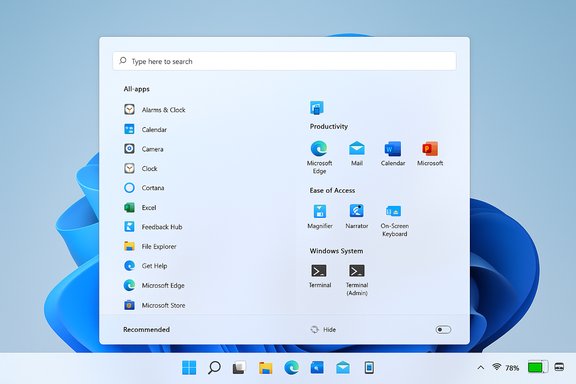
Windows 11-style Start menu showing app icons on a soft blue desktop background.Background​

Microsoft packaged these user-facing changes into the November 11, 2025 cumulative update (KB5068861) for Windows 11 versions 25H2 and 24H2, which updates the public builds to the 26200.x and 26100.x families respectively. This monthly rollup is not a feature update in the style of a major OS release; instead, it is a cumulative LCU (Latest Cumulative Update) that includes security hardening, servicing‑stack improvements, and a set of UI and usability features that Microsoft has been testing via the Windows Insider channels over the past months.
These changes have been validated against Microsoft’s official release notes and cross‑checked with multiple independent technology outlets and community reports. The rollout uses standard Windows Update mechanisms and, in many cases, server‑side gating — meaning that installing the LCU is necessary but not always sufficient to unlock every UI tweak immediately.

What’s new: the redesigned Start menu​

The design philosophy: more apps, less friction​

The new Start menu surface is aimed at reducing friction when locating apps. Rather than hiding the full app list behind a secondary view, the updated Start promotes the All apps experience to a primary position and offers multiple viewing modes:
  • Grid view — an alphabetical catalog of installed apps in a denser tile arrangement.
  • Category view — apps grouped by purpose or type, surfacing frequently used items and suggested groups.
  • The ability to hide the Recommended feed for a cleaner layout.
The Start menu now adapts its layout to the screen size: larger displays show more pinned apps and categories by default, while small screens get a denser presentation. A Phone Link toggle sits beside the search box for quick access to a connected mobile device from inside Start.
These changes are delivered as part of the cumulative update and, for some systems, via server‑side feature flags that Microsoft flips afterwards. That mixed delivery method is an important operational detail for IT admins and power users who expect deterministic behavior after patching.

Why it matters for users​

The Start redesign is a clear attempt to balance discoverability and personalization. By promoting all installed apps to the main surface and adding multiple views, Microsoft reduces the number of clicks to launch less‑commonly used software. The new layout also gives users greater control over what appears in Start — hiding Recommended, expanding the number of visible pins, and switching views all provide flexibility.
For power users and people who keep many apps installed, the category and grid modes can speed workflows. For casual users, the ability to hide Recommended and pin more apps makes the Start menu feel less transient and more curated.

Admin controls and policy changes​

Microsoft added a new Boolean option to the Configure Start Pins policy so enterprises can apply Start menu pins once at first sign‑in, allowing admins to provision an initial pinned layout while ensuring users can later change and preserve their personal configuration. This highlights two points:
  • Enterprises must verify Group Policy or MDM settings after deploying the November rollup because Start behavior can be affected by policy changes.
  • Admins should pilot‑test the new policy behavior before broad deployment, as the provisioning semantics have changed.

What’s new: battery icon changes, percentage, and taskbar refinements​

Color‑coded battery states and percentage display​

After years of user requests, Windows 11 gains clearer battery status cues in the system tray and lock screen:
  • Green — charging and battery in good state.
  • Yellow — battery saver / energy saving mode active (automatically triggered at a configurable threshold).
  • Red — critically low battery.
In addition to color cues, Microsoft added an option to show battery percentage directly on the taskbar. The toggle lives under Settings > System > Power & battery and can be switched on by users once the new icons are available on their PC.
The visual treatment also simplifies overlays (such as the charging bolt) so they no longer block the progress bar of the battery icon, improving clarity at a glance.

Practical implications for laptop and handheld users​

The changes are small but high value for mobile users. Color cues remove the reliance on a tiny monochrome glyph to determine charging state, and the percentage option eliminates the extra hover‑or‑click needed to see an exact charge level.
For handheld gaming devices and battery‑sensitive form factors, the colorization and percentage readout are especially useful; Windows’ own bug fixes in the same update addressed some earlier issues with low‑power state management on gaming handhelds.

Accessibility and edge cases​

Colorcoding conveys quicker information but introduces accessibility considerations. Users with color vision deficiency may not perceive the difference between yellow and red as quickly. Microsoft’s implementation pairs color with a progress bar and numerical percentage, mitigating the risk, but IT and accessibility teams should validate that the combination meets their users’ needs.

Other notable changes and fixes in the rollup​

Task Manager and reliability fixes​

The November cumulative addresses a long‑reported issue where Task Manager would continue running background instances after being closed, leading to resource drain. The update fixes that behavior and includes other reliability improvements around window management and shutdown semantics — for example, ensuring that “Update and shut down” actually completes as expected.

File Explorer and Recommended feed​

Microsoft has been iterating on File Explorer Home. The rollup makes the “Recommended” concept more prominent and, in some deployments, replaces Quick Access for a richer file‑discovery surface that pulls together recent and relevant files. At the same time, Microsoft has noted delays for some File Explorer recommendations in certain locales; availability can still be gated or postponed.

AI and Copilot updates​

The update continues to extend AI experiences on Windows, with incremental enhancements to Click to Do, voice access improvements like Fluid Dictation on Copilot+ devices, and additional contextual Copilot integrations in File Explorer and productivity flows. Many of these features depend on device hardware entitlements (Copilot+ PC requirements) and licensing — meaning some functionality will remain exclusive to compatible or licensed hardware.

Rollout details and how features are being delivered​

  • The update is an LCU distributed via Windows Update, WSUS, and other standard channels. Organizations can control delivery through Update Rings, WSUS approvals, or manually installing the MSU packages.
  • Many UI features are subject to server‑side gating. Installing the cumulative update makes the device capable of receiving the UI change, but Microsoft may control the actual visibility via phased flags.
  • Some features are hardware or licensing dependent (Copilot+ features require NPUs and associated hardware/software entitlements).
  • Microsoft’s release notes recommend installing the latest servicing stack update (SSU) before the LCU in some complex deployment scenarios.
Because of phased delivery and server gating, early adopters may see the new Start menu or battery icons sooner than corporate fleets; conversely, some enterprise devices might get the cumulative security and reliability fixes without the UI flips until later.

Cross‑platform and third‑party compatibility concerns​

Shell customizers, docking software, and vendor tools​

Third‑party shell replacement utilities, taskbar customizers, and docking software frequently hook into or overlay system tray icons and shell behavior. The redesigned battery icon and taskbar behavior increase the risk of visual or functional conflicts with these tools.
IT teams should validate critical third‑party tooling against the new build in a controlled environment and work with vendors for updates if issues appear.

Remote monitoring and management platforms​

RMM tools and endpoint monitoring that parse or overlay the system tray may need updates; some tools read the battery icon state programmatically or rely on legacy APIs. Confirming compatibility with the new iconography and new settings is recommended before large‑scale deployment.

Security and privacy considerations​

The November update is predominantly a quality and usability rollup, but it also includes standard security patches and improvements to the servicing stack. In addition:
  • AI features that rely on Copilot or cloud services may introduce telemetry or require enterprise data protection configuration. Where Copilot integrations touch corporate documents, organizations should review governance and DLP rules.
  • Some on‑device AI features are designed to run locally on Copilot+ hardware, reducing cloud exposure. Admins should confirm which features are local vs. cloud‑processed and update compliance documentation accordingly.

What administrators should do: a recommended rollout checklist​

  • Review the update metadata and confirm build numbers — verify that devices will be updated to the expected OS build (for example, builds in the 26200.x and 26100.x families for 25H2 and 24H2).
  • Pilot in a controlled group — select a small set of representative devices (including laptops, docking stations, gaming handhelds, and managed desktops) and apply the update to catch device‑specific issues.
  • Validate third‑party integrations — test dock software, RMM tools, and shell customizers for visual or functional conflicts, especially around the system tray and taskbar.
  • Test Group Policy/MDM behavior — confirm the new Configure Start Pins Boolean behaves as expected and that policy provisioning flows match your user provisioning plan.
  • Confirm accessibility compliance — check the new battery cues and Start menu layout with your accessibility team and verify assistive technologies continue to work properly.
  • Communicate changes to end users — inform staff about the new Start menu behaviors, battery percentage toggle, and how to access or revert settings if desired.
  • Stage deployment using rings or WSUS approvals — phase the rollout across business units and monitor telemetry for regressions.
  • Document rollback and recovery procedures — ensure that you can remove the cumulative update from pilot systems or perform system restores should unexpected failure modes appear.

Tips for end users​

  • To check whether you have the November rollup installed, use the system About page or run winver to confirm the OS build number.
  • If the battery percentage or colorful icons are not visible after the update, navigate to Settings > System > Power & battery and toggle the Battery Percentage option. If the toggle is missing, the feature might be behind a phased rollout and not yet enabled for your device.
  • To customize Start: open Start, go to Settings > Personalization > Start and toggle the Recommended feed or switch between available views if the new options are present.
  • If unexpected icon behavior or missing system tray items occur after updating, reboot once and, if needed, file feedback via the Feedback Hub so Microsoft can triage and address broader rollout issues.

Strengths and notable gains​

  • Practical usability wins: Colorized battery icons and a taskbar percentage remove small but persistent friction points for laptop users.
  • Start menu flexibility: Promoting the app list, adding category and grid views, and the ability to hide Recommended make Start useful for both casual and power users.
  • Reliability improvements: Fixes for Task Manager and shutdown edge cases reduce long‑tail support costs and improve system stability.
  • Enterprise controls: The new policy Boolean for Start pin provisioning gives IT more precise control over initial configuration while respecting user personalization after first sign‑in.

Risks and caveats​

  • Phased availability causes inconsistency: Server‑side gating can produce wildly different experiences across a single organization — some users see the new UI the day the LCU is installed, while others wait weeks.
  • Third‑party compatibility: Tooling that touches the shell or tray icons may break or render incorrectly; vendor coordination is necessary.
  • Accessibility reliance on color: While the implementation uses a bar and percentage as well as color, any color‑only cues would be problematic; confirm assistive tech behavior.
  • Copilot and AI dependencies: Features that rely on Copilot+ are tied to hardware and licensing — not all users will benefit, and some features raise privacy and governance questions.
  • Perception vs. impact: Many users equate visible UI tweaks with major changes; support desks should be prepared for increased queries despite most changes being cosmetic or incremental.

Troubleshooting common issues​

  • If the new Start menu does not appear after installing the update, confirm the OS build number and allow up to several days for server‑side feature exposure. If immediate access is critical, consult your organization’s update policies; standing up the Release Preview or Insider channels is not recommended for production fleets.
  • If the battery icon disappears or displays incorrectly, reboot and ensure the latest graphics and platform drivers are installed — some vendor drivers interact with the shell. If problems persist, file a Feedback Hub report and check vendor forums for updated drivers.
  • For enterprise deployments, if the Configure Start Pins policy behaves unexpectedly, validate the policy version and test the “apply once” behavior on a fresh user profile to confirm provisioning semantics.

Final assessment​

The November 11, 2025 cumulative update for Windows 11 is a pragmatic mix of polish, accessibility gains, and reliability fixes. The Start menu redesign addresses long‑standing usability complaints by making app discovery quicker and more configurable. The battery icon changes and the long‑requested taskbar percentage are incremental but meaningful improvements for mobile users. From an operations perspective, the update is low risk if handled with standard pilot and ring deployment practices, but it does raise typical concerns around phased feature rollouts, third‑party compatibility, and AI feature gating.
For most users the update will feel like a tangible quality‑of‑life win. For IT organizations, the most important takeaways are to validate third‑party tooling, pilot the change across representative hardware, and prepare helpdesk guidance for a rollout that will appear uneven while Microsoft flips feature flags globally. The tradeoff between phased rollout stability and immediate, uniform feature delivery is visible in this release — and managing that tradeoff is the operational challenge for the months ahead.

In short: the Windows 11 November update brings sensible UI refinements that reduce everyday friction and bring long‑requested features like taskbar battery percentage; but the feature will be delivered gradually, and organizations should plan testing, compatibility checks, and user communications before broad deployment.

Source: TechPowerUp Windows 11 November Update Brings Redesigned Start Menu and Battery Icon | TechPowerUp}
 

Microsoft’s November Patch Tuesday for Windows 11 lands as a pragmatic mix of polish, reliability fixes, and a guarded roll‑out of a long‑anticipated Start menu redesign that should make daily navigation noticeably faster for many users.

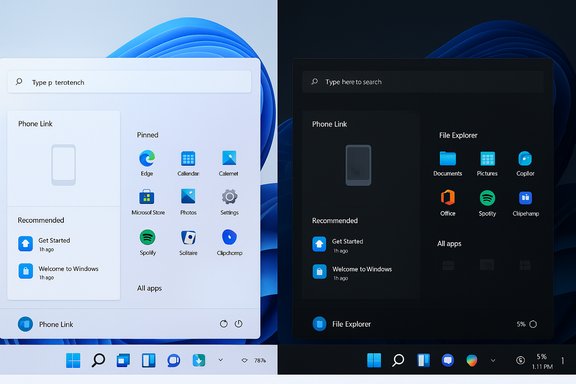
Windows 11 Start menus in light and dark themes shown side by side.Background​

Microsoft continues to deliver Windows 11 updates using a hybrid cadence: monthly cumulative updates on Patch Tuesday carry security fixes and quality patches, while optional preview packages (Release Preview / optional previews) are used to validate and gate visible feature changes before broader activation. The November cumulative is published as KB5068861, advancing devices in the 25H2 and 24H2 servicing families to build numbers in the 26200.x and 26100.x lines respectively.
That delivery model matters: binaries for new UI behaviors were frequently shipped in earlier preview packages (for example KB5067036 in October), but Microsoft enables many features by server-side gating (Controlled Feature Release), so installing the cumulative does not guarantee immediate visual changes on every PC. This staged rollout reduces regression risk at scale but produces temporary variability between otherwise identical machines.

What’s new at a glance​

  • Start menu redesign: Single, vertically scrollable Start surface with a promoted “All” apps area and three new views — Category, Grid, and List. The Start menu remembers your last selected view and adapts layout density by display size.
  • Phone Link integration: A mobile device button adjacent to Search in Start exposes a collapsible Phone Link panel for messages, calls, and photos for connected Android and iOS devices (availability phased by market).
  • Taskbar battery polish: Colored battery icons (green/yellow/red) to signal charging/health levels and an optional persistent percentage display next to the taskbar icon.
  • Copilot & AI integrations: Expanded Copilot+ and Copilot experiences across the OS, including Copilot prompts in File Explorer and deeper on‑device assistant features on Copilot‑certified hardware; Microsoft 365 Copilot hooks appear in onboarding flows for eligible users.
  • Reliability and security fixes: Task Manager shutdown bug repair, display/input/sign‑in fixes, Windows Update servicing and SSU updates, and new administrative protections among other hardening and bug patches.
These items are the visible surface of a larger cumulative that also bundles the regular security and servicing stack changes expected on Patch Tuesday.

Deep dive: the redesigned Start menu​

A single, scrollable surface — what changed​

The biggest visible change is a fundamental interaction shift: Start is now a single, vertically scrollable canvas that hosts Pinned apps, Recommended content, and the entire All apps inventory in one place. That eliminates the old two‑step path where users had to open a separate “All apps” page and reduces the number of quick clicks needed to locate and launch software. Early hands‑on reports and Microsoft’s notes confirm this change was validated in preview builds before making its way into the November cumulative.

Three modes: Category, Grid, List​

Users can switch between three distinct views for the All apps area:
  • Category view: Apps are grouped automatically by function (Productivity, Games, Creativity, Communication, etc. and frequently used apps are surfaced within groups — a task‑oriented layout intended for users who think in terms of activities rather than app names.
  • Grid view: A denser, alphabetized tile grid designed for fast horizontal scanning — especially helpful on widescreen or ultra‑wide monitors.
  • List view: The traditional alphabetical list for keyboard‑oriented, power‑user workflows.
The Start menu persists your last selected view between sessions, so once you pick the mode that suits you it becomes the default.

Responsive layout and large‑display behavior​

Start adapts to your screen size: on larger displays the layout exposes more pinned apps, more category columns, and additional recommendations by default, while smaller displays compress density. This is a responsive rather than a resizable Start — the OS decides density thresholds to balance visibility and vertical real estate.

Phone Link surfaced in Start​

A compact Phone Link toggle sits near Search, allowing quick expansion of phone content (messages, missed calls, photos) from the Start surface. The feature is designed to work with Android and iOS devices in many markets, with some regional gating still applied during rollout.

Why the change matters​

Practically, the redesign reduces friction for users who juggle many apps and prefer fewer clicks to launch software. Category view helps people who think in terms of tasks; Grid and List preserve choices for different scanning preferences. The change is clearly a usability‑first refinement that restores some familiar workflows lost in the original Windows 11 Start while keeping the modern visual language.

Taskbar and battery: small changes that matter​

The taskbar battery icon receives a subtle but useful facelift: the glyph now changes color to indicate charge/health state (green for charging/healthy, yellow for low, red for critical) and there is an option to show a persistent battery percentage next to the icon. For mobile and laptop users this is a quick visual cue that reduces the need to open the flyout for basic battery information. These changes first appeared in preview builds and were folded into the November cumulative.
Beyond battery, there are smaller taskbar polish items — thumbnail behavior, hover animations, and a few lock‑screen parity tweaks — intended to make day‑to‑day interactions feel more fluid rather than adding groundbreaking new capabilities.

Copilot, File Explorer and the AI surface​

Copilot functionality continues to expand incrementally across Windows:
  • File Explorer gains contextual “AI actions” and hover quick‑actions such as “Ask Copilot” and other shortcuts that surface editing or summarization workflows; some actions route to on‑device models when hardware permits, or to cloud services otherwise.
  • On Copilot‑certified hardware (Copilot+ PCs), Click‑to‑Do and other Copilot features receive on‑device acceleration such as fluid dictation, translation, and selection detection.
  • Microsoft 365 Copilot elements are surfaced in onboarding flows and agent surfaces for eligible users and paid entitlements; certain AI features remain gated by licensing and local hardware capabilities.
These AI augmentations aim to speed triage and simple edits without forcing a full app context switch, but they also raise new privacy, licensing, and data‑residency considerations for both consumers and organizations.

Fixes, security and platform changes​

This Patch Tuesday includes a wide set of reliability and security patches that administrators should treat as the core purpose of the rollup:
  • Task Manager shutdown fix: Closing Task Manager should now terminate background instances reliably, addressing an issue where multiple lingering processes could consume resources.
  • Sign‑in / touch input fixes: Regression fixes for touch keyboard and sign‑in workflows (important for tablet and convertible users) were promoted from preview packages.
  • Hyper‑V and virtualization fixes: A fix for external virtual switch NIC binding regressions was included for some host configurations.
  • Administrator Protection preview: Microsoft introduced a just‑in‑time elevation model surfaced as Administrator Protection that isolates elevated operations into a system‑managed admin context; this is intended to reduce attack surface from persistent admin tokens. Administrators should test policy interactions before broad deployment.
A full list of CVEs and low‑level changes is included in Microsoft’s KB and the Security Update Guide; the cumulative also bundles an updated Servicing Stack Update (SSU) for reliable future servicing.

Claims that need caution or further verification​

  • “PQC APIs added” — references to post‑quantum cryptography readiness and PQC tooling appear in broader platform and cloud guidance, and Microsoft/industry work on PQC is ongoing, but an explicit claim that the November cumulative adds immediate, system‑wide PQC APIs for general application use is not clearly evidenced in vendor KB summaries. Treat statements about new PQC platform APIs as requiring explicit verification against Microsoft developer documentation and the KB before assuming availability in production.
  • Regional availability and licensing gates for Copilot and certain File Explorer AI actions are real constraints: several AI flows require Microsoft 365/Copilot entitlements or Copilot+ hardware to enable full on‑device behavior. Expect mixed availability depending on license, hardware, and the server‑side flight state.
If you need to depend on a specific API or Copilot behavior operationally, verify the exact SKU/hardware/license prerequisites in Microsoft’s official docs before enabling at scale.

Deployment and rollout: practical guidance​

  • For consumers: Let Windows Update install the cumulative automatically — it’s the smallest, safest path and includes express/differential payloads where applicable. If you want new cosmetics early and are comfortable with preview behavior, opt into Release Preview or optional preview packages and be prepared for staged feature gating.
  • For enthusiasts/power users: If you want to force the preview experience now, the Microsoft Update Catalog offers .msu packages that can be installed manually. Note that even after installing the binaries the new Start UI may remain gated until Microsoft flips server‑side flags. Community tools that toggle feature flags exist but carry risk and are unsupported.
  • For IT administrators: Use a pilot ring and phased rollout. Validate critical workloads (virtualization, capture drivers, GPU compute, identity/passkey flows), check compatibility with third‑party management agents, and retain rollback images. Apply updates through WSUS/Intune/ConfigMgr as appropriate and carefully sequence SSU and LCU packages for offline servicing scenarios (DISM).
  • Verification steps after installation:
  • Confirm OS build with winver or registry keys.
  • Test Start menu behavior on representative hardware in the pilot — remember gating can cause feature variability.
  • Validate Copilot/AI behaviors only on licensed devices or Copilot+ hardware where supported.

Risks and trade‑offs​

  • Feature fragmentation and user confusion: Server‑side gating means two identical machines can show different experiences after the same cumulative is applied. That complicates support, training, and documentation for helpdesks and community support channels.
  • Compatibility and driver regressions: Any cumulative can expose fragile third‑party drivers (capture drivers, virtualization drivers, legacy kernel drivers). Pilot testing remains essential.
  • Privacy and compliance: Copilot and File Explorer AI actions may route data to cloud services depending on hardware and licensing, which raises data‑residency and data‑sharing questions for organizations. Audit agent and AI consent settings before enabling.
  • Operational complexity for enterprises: SSU + LCU package ordering, offline servicing with DISM, and the need to coordinate with vendor software and drivers increase lift for enterprise imaging and patching teams. Plan and test before broad deployment.

Practical checklist — what to do this week​

  • Consumers:
  • Let Windows Update deliver KB5068861 automatically.
  • If you want the new Start early, enroll in Release Preview or install the optional preview, but expect staged availability.
  • Power users:
  • Back up system state and create a system image before installing preview packages.
  • If you try community enablement tools, recognize the risk and be prepared to uninstall or roll back.
  • IT / administrators:
  • Add KB5068861 to a pilot ring and validate:
  • Application compatibility
  • Virtualization and Hyper‑V behavior
  • Authentication and passkey flows
  • Device management agents (SCCM/Intune/third‑party)
  • Stage the SSU and LCU in test images and validate offline servicing flows with DISM if you use image-based deployment.
  • Review Copilot licensing exposure and data‑handling policies before enabling Copilot features across managed devices.

Final assessment​

The November 2025 Patch Tuesday cumulative (KB5068861) is a quality‑and‑polish release rather than a breakout, feature‑heavy milestone. It fixes hard problems (stability, Task Manager behavior), bundles regular security hardening, and begins to push a long‑requested Start menu redesign into the mainstream servicing channel. The Start changes — a scrollable single‑surface Start, Category/Grid/List views, and Phone Link integration — are sensible usability improvements that restore familiar workflows while keeping Windows 11’s visual style intact.
However, the staged, server‑side gating model means visibility will be inconsistent for some time; enterprises should treat the update as a mainstream quality rollup but validate feature exposure in pilots before assuming uniform behavior across their estates. The growing Copilot surface and AI‑driven shortcuts improve productivity for many users, but they also require careful license and privacy reviews.
For most users, the recommended path remains straightforward: install the cumulative through Windows Update, let Microsoft manage express delivery, and pilot any preview or feature changes in controlled rings where possible. The redesign makes Start more usable — and that alone will feel like a win for many who’ve waited for a less click‑heavy, more discoverable app launcher.


Source: XDA This month's Windows 11 Patch Tuesday adds some welcome changes to the Start menu
 

Microsoft’s November 2025 Patch Tuesday lands as a hybrid package: a substantial security roll‑up that fixes 63 vulnerabilities across Windows and Microsoft products, paired with visible user‑experience upgrades for Windows 11 and a new, previewed privilege model called Administrator Protection that changes how elevated rights are granted and managed.

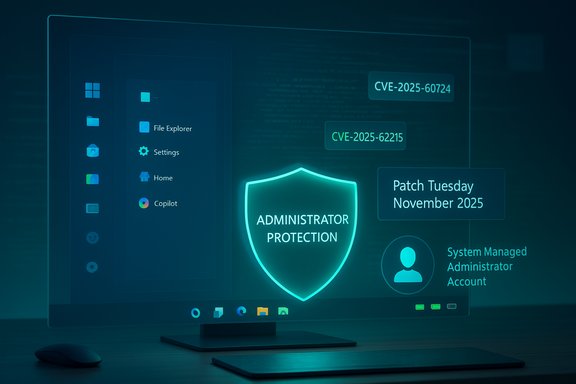
A holographic shield labeled 'ADMINISTRATOR PROTECTION' hovers over a cybersecurity dashboard.Background / Overview​

Microsoft shipped the November 11, 2025 cumulative updates as part of the regular Patch Tuesday cadence. The main servicing packages for Windows 11 are identified as KB5068861 (for versions 25H2 and 24H2) and a related preview/Release Preview package chain leading up to that release. These updates combine traditional security fixes and servicing‑stack updates with targeted quality improvements and a staged enablement model for several user‑facing features.
Two practical delivery details matter to administrators:
  • Microsoft delivers the binaries in monthly cumulative updates but often enables user‑facing features gradually by server‑side flags (Controlled Feature Release). Installing the cumulative is necessary but not always sufficient to see every feature immediately.
  • A mix of preview packages (for example KB5067036 in late October) seeded much of the UI and Copilot work into Release Preview and Insider channels before mainstream promotion.
This release therefore requires IT teams to treat it as both a security priority and a compatibility exercise — verify the security patches and pilot the UX/privilege changes before wide deployment.

The security roundup: 63 vulnerabilities, four criticals, one exploited in the wild​

Microsoft patched 63 vulnerabilities across Windows, Office, Edge, Azure Monitor Agent, Dynamics 365, Hyper‑V, SQL Server and more. Of those, four were rated Critical and 59 were rated Important; Microsoft identified one kernel elevation vulnerability as actively exploited in the wild. Multiple independent security vendors and trackers confirm the overall counts and call out the most consequential items for defenders. Highlights administrators should prioritize:
  • CVE‑2025‑62215 — Windows Kernel privilege escalation (race condition). Microsoft confirmed exploitation in the wild for this elevation‑of‑privilege bug; defenders should prioritize patching endpoints where local access could be weaponized.
  • CVE‑2025‑60724 — Remote code execution in the Microsoft Graphics Component (GDI+). This heap‑based buffer overflow was assigned a CVSS of 9.8 by several tracking services and is a high‑impact RCE because GDI+ is commonly used to parse images and metafiles in many applications and services.
  • CVE‑2025‑62220 — Heap overflow in Windows Subsystem for Linux GUI (WSLg) with RCE potential; rated high and requiring attention in environments running WSL/WSLg.
  • Multiple WinSock (afd.sys) vulnerabilities (including CVE‑2025‑60719, CVE‑2025‑62213 and CVE‑2025‑62217) that enable local privilege escalation under certain conditions and were called out as “more likely” to be weaponized in local attack scenarios.
Security researchers and vendors emphasize that while some critical RCEs are assessed by Microsoft as “Exploitation Less Likely” (largely due to modern mitigations), a 9.8‑rated flaw in a ubiquitous library like GDI+ still represents a high risk for servers and client systems that process untrusted media. Patch prioritization should consider exposed attack surfaces (file upload parsers, mail‑processing services, RDP/document preview paths).

Notable CVEs — technical context and risk​

  • CVE‑2025‑62215 (Windows Kernel EoP)
    Nature: Race‑condition privilege escalation in the kernel.
    Risk: Local attacker can escalate to SYSTEM if they can execute code at low privilege; Microsoft reports real‑world exploitation. This is critical to patch on all endpoint systems where adversaries may already have limited footholds.
  • CVE‑2025‑60724 (GDI+ RCE)
    Nature: Heap‑based buffer overflow in Microsoft Graphics Component allowing unauthenticated remote code execution in some contexts. CVSS reported at 9.8 by multiple trackers.
    Risk: High — affects desktop clients and servers that render or parse graphics/metafiles; can be weaponized through crafted documents or server‑side image processing. Prioritize servers that accept user file uploads or that preview files in mail portals.
  • CVE‑2025‑62220 (WSLg heap overflow)
    Nature: Heap overflow in Windows Subsystem for Linux GUI, potentially allowing RCE via crafted inputs.
    Risk: Significant where WSLg is used, particularly for developers or CI/CD hosts that accept untrusted content. Confirm WSL/WSLg updates and apply the supplied mitigations.
  • WinSock afd.sys flaws (CVE‑2025‑60719, CVE‑2025‑62213, CVE‑2025‑62217)
    Nature: A mix of untrusted pointer dereference, use‑after‑free and race conditions enabling privilege escalation from local, low‑privileged contexts.
    Risk: Medium‑high for multi‑user systems and hosting environments; patching reduces the risk of local lateral movement and privilege escalation.
For full triage, administrators should consult Microsoft’s vulnerability mapping (KB entries matched to CVEs) and cross‑check with security vendor advisories and network IDS/IPS rule updates before scheduling broad rollouts. Independent vendors (Tenable, Cisco Talos, BleepingComputer) provide helpful exploitability notes and prioritized lists that map to real‑world exposure.

Quality and experience updates: Start Menu, taskbar, Copilot+ refinements​

This Patch Tuesday is unusual in that Microsoft promoted several UI and on‑device AI improvements into the mainstream cumulative. These are visible on Windows 11 versions 25H2 and 24H2 for devices where Microsoft’s server‑side gating has enabled the features.
Key user‑facing changes included in KB5068861 and associated preview packages:
  • A redesigned Start menu: single, vertically scrollable surface combining Pinned, Recommended and All apps, with three “All apps” presentation modes (Category, Grid, List). The Start canvas is responsive and adapts layout density by display size. A Phone Link toggle sits beside the search box to open a collapsible mobile panel.
  • Taskbar and battery UX: battery icon now uses color states (green/yellow/red) to indicate charging/health/critical levels and offers an optional persistent battery percentage in the taskbar and lock screen.
  • Click to Do / Copilot+ improvements: improved Click to Do prompt, on‑device translation and unit conversion, new selection modes (Freeform, Rectangle, Ctrl‑click multi‑select), and touch gestures on Copilot+ certified devices. Windows Search gains semantic indexing on Copilot+ PCs with supported NPUs so some natural‑language local queries run on‑device.
  • Voice Access upgrades including fluid dictation (on‑device punctuation and filler suppression) and expanded language support for Copilot on‑device features.
Why this matters: these changes aim to make common workflows faster and to push more AI/assistive features to run locally on Copilot+ hardware for privacy and responsiveness. But feature availability is deliberately selective: hardware, region, account licensing (Microsoft 365 / Copilot entitlements) and server‑side flags determine which machines see what and when. Administrators must therefore plan communications and training to account for a mixed fleet.

What’s gated and why you may not see a change immediately​

Microsoft’s controlled activation model means:
  • Installing the cumulative is typically necessary but not always sufficient to surface the UI changes. Devices may already contain the binaries but remain visually unchanged until server‑side enablement flips the flag.
  • Copilot+ features require device eligibility (NPUs/accelerators and OEM drivers) and often license entitlements; organizations should inventory hardware and licensing before assuming on‑device AI will be available broadly.

Administrator Protection (preview): a paradigm shift in elevation​

One of the most consequential security‑architecture items in this release is the Administrator Protection preview. This feature reworks interactive elevation so administrators run with de‑privileged tokens by default and receive just‑in‑time elevated contexts created from a hidden, system‑managed account. The elevated token is isolated from the regular user profile and destroyed when the task ends. Core design points:
  • Just‑in‑time admin tokens — elevation requests prompt for consent/authentication (Windows Hello/PIN) and produce a temporary admin token used only for the requesting process.
  • Profile separation / SMAA — the elevated context is created from a hidden System‑Managed Administrator Account (SMAA) with a separate profile and SID, making the elevation boundary stronger and reducing the risk that user‑level malware can access elevated memory or credentials.
  • Management paths — Administrator Protection is off by default in the preview; it can be enabled via Windows Security, Microsoft Intune (OMA‑URI or Settings Catalog), or Group Policy in enterprise environments. Microsoft documents system requirements and how the feature behaves on supported builds.
Strengths and security benefits:
  • Enforces principle of least privilege more strictly, reducing the window attackers can exploit elevated tokens.
  • Makes elevation events auditable and interactive authentication stronger via Windows Hello integration.
  • Reduces persistence of admin credentials in interactive sessions, which mitigates some common lateral‑movement patterns.
Operational caveats and compatibility risks:
  • The new elevation model can break older installers, management scripts, imaging processes or backup tools that assume persistent elevated tokens or that rely on environment‑bound admin contexts. Microsoft explicitly recommends piloting before enabling organization‑wide.
  • Some third‑party security or management software may need updates to respect the SMAA model and to correctly perform unattended maintenance tasks; consult vendor guidance.
Administrators should treat Administrator Protection as a security hardening lever that requires a careful compatibility plan: enable in test rings, validate imaging and management workflows, update documentation and train support staff on the new elevation flows.

Windows 10 ESU note: KB5068781 and extended support fixes​

Microsoft also shipped KB5068781, a Windows 10 Extended Security Update (ESU) quality roll‑up that corrects an “end of support” message and includes November security fixes for devices enrolled in the ESU program. This package is targeted and available only to devices with ESU entitlements; organizations still running Windows 10 on unsupported devices should plan upgrades or ESU enrollment rather than expect long‑term parity with Windows 11 servicing.

Deployment guidance: testing, timing, backup and rollback best practices​

This release mixes urgent security fixes (including a kernel zero‑day being exploited in the wild) with UI and privilege model changes that carry compatibility risk. The right operational stance is deliberate, fast, and measured:
  • Inventory and prioritize: identify internet‑facing systems, mail/file‑handling servers, RDP/WebEx/remote‑access hosts, and any systems that parse user‑supplied documents or images (high priority for CVE‑2025‑60724).
  • Apply emergency patches where immediate exploitation risk exists: endpoints with evidence of local footholds, public‑facing parsing services, and servers handling untrusted documents should be patched promptly.
  • Pilot the cumulative on a representative hardware matrix: ensure business‑critical apps, imaging/backup tools, enterprise AV/EDR agents and management stacks handle the updated Start/UI semantics and Administrator Protection elevation model.
  • Verify Copilot+ device eligibility and driver stacks before enabling on‑device AI features at scale. Inventory NPUs, firmware, and OEM driver updates required for Copilot+ experiences.
  • Backup and rollback planning: use image‑level or reliable system backup tools; document SSU+LCU pairing and have offline installers (.msu) ready from the Catalog; test uninstall scenarios in the pilot ring. Monthly servicing updates occasionally produce device‑specific regressions and recovery steps must be pre‑validated.
A practical checklist for IT teams:
  • Confirm KB mapping for each CVE in your environment.
  • Stage updates via WSUS/ConfigMgr/SCCM or Intune with phased rings (Pilot → Broad → Full).
  • Validate login, sign‑in methods, and automated installs with Administrator Protection off and then with it enabled.
  • Monitor telemetry and application logs closely for the first 72 hours after broad rollout.
  • Keep a communications plan to set expectations for end users about phased UI changes due to flighting.

Compatibility and known issues — what to watch for​

Several community reports and early feedback threads indicate update installation problems on specific hardware and that staged feature enablement can lead to inconsistent UX across similar machines. Known‑issue patterns to watch:
  • Update install failures or retry loops on certain gaming handhelds or devices with custom drivers; these are often solvable with driver updates or temporary rollback.
  • Variability in whether the redesigned Start menu appears immediately — appearance is tied to server‑side gating; do not assume universal visibility after installation.
  • Potential compatibility issues with legacy installers, imaging tasks, and backup or restoration utilities when Administrator Protection is enabled. These require vendor validation and pilot testing.
Flagged but unverifiable community claims
  • Some community posts reported internal artifacts (for example, a locally stored JSON mapping apps to categories and precise size metrics). Those numeric implementation details are not confirmed by Microsoft and should be treated as speculative until Microsoft publishes an engineering note or authoritative KB content. Administrators should rely on Microsoft’s official KB and Learn documentation for configuration and artifact expectations.

Practical recommendations for defenders and power users​

  • Prioritize applying security updates for systems that process untrusted files, run public‑facing file parsers, or host multiple user sessions. RCEs in GDI+ and WSLg, and the kernel EoP actively exploited in the wild, deserve top priority.
  • For organizations using Windows 11 at scale, pilot KB5068861 in a controlled ring to validate both security and UX changes before mass deployment. Test critical business apps, signer/installer flows, imaging and backup/restore scenarios.
  • If you plan to adopt Administrator Protection, build a dedicated compatibility checklist:
  • Test common deployment and maintenance scripts under the SMAA elevation model.
  • Verify remote maintenance tooling (SCCM/ConfigMgr tasks, Intune scripts) operates when elevated tokens are short‑lived.
  • Communicate the new consent workflows to help desk staff and end users.
  • Keep external detection and prevention controls up to date: IDS/IPS signatures, EDR rules, and mail gateways should include signatures for the November CVEs and parsing exploitation attempts. Security vendors (Tenable, Cisco Talos, others) have published prioritized lists and detection guidance aligned with Microsoft’s advisories.

Final analysis — strengths, trade‑offs and the operational cost of progress​

The November 2025 Patch Tuesday is a typical example of modern platform engineering trade‑offs: Microsoft delivered a substantial security roll‑up that fixes a wide set of vulnerabilities — including a kernel zero‑day acknowledged as exploited — while simultaneously beginning a broader shift in user experience and privilege architecture. That combination is powerful but increases operational complexity for administrators.
Strengths:
  • Security first: urgent EoP and RCE fixes were issued; Microsoft’s acknowledgement of an exploited kernel bug underscores the timeliness of the release.
  • Meaningful UX polish: practical improvements (Start redesign, battery UX, Click to Do enhancements) respond to long‑standing user feedback and add productivity gains for Copilot+ eligible devices.
  • Privilege hardening: Administrator Protection represents a real, measurable improvement in the elevation model that reduces the lifetime of admin tokens and narrows attack surface for privilege escalation.
Trade‑offs and risks:
  • Staged enablement increases fleet heterogeneity: inconsistent UX across otherwise identical devices complicates help desk workflows and documentation. Expect short‑term confusion about feature visibility.
  • Compatibility risk from elevation model: the SMAA and just‑in‑time model can break legacy management and imaging pipelines if not validated and adapted.
  • Patch‑induced regressions remain possible: as with any large cumulative, some devices may encounter installation or device‑specific regressions; robust backup and rollback plans are necessary.
Where uncertainty remains
  • Microsoft’s server‑side flighting schedules are intentionally opaque; precise per‑device timing for UI activation is probabilistic rather than deterministic, so statements about “when a user will see the Start redesign” should be framed as directional until the feature appears on individual machines. Community reverse‑engineering of internal artifacts has surfaced interesting leads, but numeric implementation claims that lack Microsoft confirmation should be treated cautiously.

Conclusion​

The November 2025 Patch Tuesday is a consequential release: it closes serious security holes, including a kernel vulnerability actively exploited in the wild, while introducing a measured set of user experience and security architecture changes that set the tone for how Windows will balance AI features and privilege hardening going forward. Administrators should treat the security fixes as a near‑term priority and treat the Administrator Protection and UI changes as planned upgrades requiring pilot testing, vendor coordination, and updated operational playbooks. Back up systems, stage the cumulative in a representative pilot ring, and coordinate communications with end users and application owners so the benefits of this release are realized without unnecessary disruption.

Source: Petri IT Knowledgebase Microsoft Releases November 2025 Patch Tuesday Updates
 

Back
Top