

Microsoft pushed a substantial Release Preview package into Insiders’ hands this week: the November “Week D” preview (packaged as KB5070311) advances Windows 11 24H2 and 25H2 builds to 26100.7309 and 26200.7309 respectively and bundles a mix of Copilot+ hardware-gated improvements, visible UI polish (notably File Explorer dark-mode fixes and Settings refinements), and at least one operationally important stability fix — all intended to preview what will be folded into the next Patch Tuesday cumulative.
Microsoft’s Release Preview channel and the so-called “Week D” optional previews are the company’s standard staging ground for non-security cumulative and quality updates ahead of formal Patch Tuesday releases. These preview packages ship binaries broadly to Insiders but frequently leave major user-facing experiences controlled by server-side flags, device entitlements, and OEM drivers — a model that reduces roll‑out risk but produces visible heterogeneity between otherwise-identical machines. The official Microsoft KB confirms the builds, the dual rollout patterns (gradual and normal), and that several features are device- and market-gated. Two facts are immediately verifiable and central to planning:
The Full Screen Experience (FSE) — Microsoft’s console-style, minimal-distraction UI for handheld gaming — is also being enabled on more Windows 11 gaming handhelds. If you use an ASUS ROG Ally or similar device, expect to see a cleaner Xbox-style home UX under Gaming > Full screen experience.
Recommended admin checklist
From a user perspective, the most immediately welcome change is the daily polish — dark-mode consistency and the ability to apply Studio Effects to external webcams will be tangible wins. From an IT perspective, the key action is caution: verify the LSASS fix and authentication flows, confirm driver compatibility for Copilot+ experiences, and use the supported Drag Tray toggle to manage rollout in managed environments.
Source: Thurrott.com Microsoft Finally Releases the November Week D Preview Update for Windows 11
 Background / Overview
Microsoft’s Release Preview channel and the so-called “Week D” optional previews are the company’s standard staging ground for non-security cumulative and quality updates ahead of formal Patch Tuesday releases. These preview packages ship binaries broadly to Insiders but frequently leave major user-facing experiences controlled by server-side flags, device entitlements, and OEM drivers — a model that reduces roll‑out risk but produces visible heterogeneity between otherwise-identical machines. The official Microsoft KB confirms the builds, the dual rollout patterns (gradual and normal), and that several features are device- and market-gated. Two facts are immediately verifiable and central to planning:- The preview is identified as KB5070311 and updates devices to builds 26100.7309 (24H2) and 26200.7309 (25H2).
- Many of the headline items target Copilot+ PCs (machines with on‑device NPUs and vendor support), and availability for those features will vary by hardware and region.
What’s in KB5070311 — Quick inventory
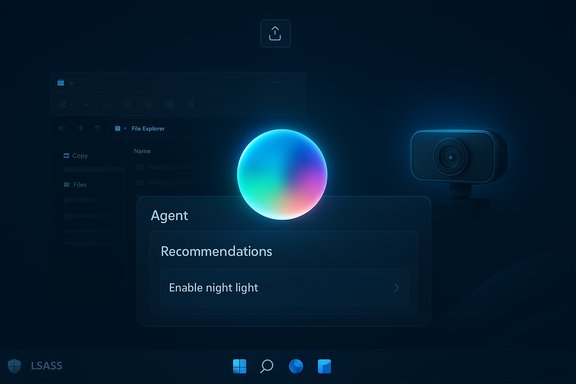
The release notes, community testing, and independent reporting converge on a clear set of headline changes. The most notable items are:- Copilot / Agent and Click to Do improvements on Copilot+ PCs: richer Agent in Settings, a streamlined Click to Do context menu, and automatic invocation for large on-screen images/tables.
- Windows Studio Effects extended to secondary cameras (external USB webcams or laptop rear cameras) on supported Copilot+ hardware.
- File Explorer dark-mode overhaul: copy/move/progress/confirmation dialogs and other legacy surfaces now better respect Dark theme.
- Drag Tray (Nearby Sharing) improvements: multi-file sharing, smarter suggested targets, and a supported toggle in Settings to disable the Drag Tray.
- Desktop Spotlight context menu additions: Learn more about this background and Next desktop background.
- Settings consolidation and redesigns: Virtual Workspaces control surfaced, Device Card on Settings home (U.S., Microsoft account), and About page redesign.
- Full Screen Experience (FSE) availability expanded to more Windows 11 handhelds.
- A non-security but operationally significant LSASS stability fix addressing an access‑violation crash scenario that could affect sign‑in reliability.
Deep dive: Copilot+ features, agents, and Studio Effects
Agent in Settings and Click to Do — the push toward agentic UI
Microsoft is widening the scope of Copilot integrations into the OS with two complementary moves in KB5070311: Agent in Settings and refinement to Click to Do. On eligible Copilot+ PCs, the Settings search menu now shows more results, includes inline recommended settings to speed modifications, and will surface explanatory dialogs when a setting can’t be changed further. Click to Do’s context menu was streamlined for faster access to Copy, Save, Share, and Open actions; the system can also open the menu automatically when it detects a large image or table. These changes are aimed at shortening task flows and making agent suggestions more actionable. Why this matters- It reduces friction between suggestion and action, making automated assistant output directly useful.
- It signals Microsoft’s intent to allow agentic activity inside the shell while keeping control and transparency through Settings and dialogs.
- The agent behaviors and Click to Do auto-invocation are hardware- and market-gated; not all users will see them even after installing the preview.
- Agentic features need strong privacy and security guardrails. Microsoft’s current approach uses opt‑in toggles and workspace containment, but administrators should treat agent permissions and auditing as a distinct risk vector until mature enterprise controls exist.
Windows Studio Effects on secondary cameras
Long a pain point for docked laptop users, Windows Studio Effects are now permitted to run on an alternate camera (for example, an external USB webcam) on Copilot+ machines that meet NPU and driver requirements. This eliminates the annoying limitation where docking a laptop would strip away on-device camera effects. The change is accessible via Settings > Bluetooth & devices > Cameras > Advanced camera options. Operational notes- Studio Effects still require compatible NPU hardware and an OEM driver. Expect OEM driver updates or vendor-specific entitlements to be prerequisites.
File Explorer: dark mode, context menus, and the everyday polish
File Explorer receives a surprisingly broad set of quality-of-life updates in KB5070311. The most user‑facing improvement is extension of dark mode to legacy dialog surfaces — copy/move progress, confirmation prompts, delete/empty recycle bin messages, and a number of other once-bright panels now obey the system theme. For users on OLED or low-light setups, this is a real reduction in eye‑pain and visual jolt during routine file operations. Other File Explorer refinements include:- Simplified and consolidated context menu items (Share, Copy, Move) to reduce clutter.
- Thumbnail fixes for some video files with certain EXIF metadata and removal of a legacy white toolbar that used to appear unexpectedly.
- A new Windows Search tie-in: photos that were AI‑categorized in the Photos app can be found via Windows Search semantic queries.
- These changes aren’t flashy, but they improve the everyday experience. Aligning Win32 dialog surfaces with modern theming reduces jarring transitions and reflects a sustained investment in shell polish.
- The simplified context menu will be initially available to a small group of devices as Microsoft evaluates the change. Expect gradual exposure and the usual server-side gating.
Drag Tray and Windows Share: sharing rethought (and opt‑outs added)
Drag Tray — the thin top-of-screen tray that appears when you drag files to share — has been iterated to support multi-file drag, better target suggestions, and easier folder drops. Importantly, Microsoft has added a supported toggle in Settings > System > Nearby sharing so users and administrators can disable the Drag Tray without registry hacks. This is a pragmatic response to polarized feedback: many users like the quick drag workflow, but others find it intrusive. Practical implications- For organizations that previously considered blocking the feature with policy or scripting, a supported toggle dramatically simplifies opt-out and communication to users.
- The Drag Tray’s smarter ranking aims to speed common workflows (e.g., drag an image into an email draft), but the feature is still being gradually rolled out.
Desktop Spotlight additions and FSE expansion
Small but welcome: Desktop Spotlight now includes two actionable context-menu items — Learn more about this background and Next desktop background — reducing friction for users who enjoy Spotlight images. This is a minor discoverability win, but it illustrates how small UI experiments are being tested at scale.The Full Screen Experience (FSE) — Microsoft’s console-style, minimal-distraction UI for handheld gaming — is also being enabled on more Windows 11 gaming handhelds. If you use an ASUS ROG Ally or similar device, expect to see a cleaner Xbox-style home UX under Gaming > Full screen experience.
The operationally important fix: LSASS stability
KB5070311 includes a non-security fix that addresses an LSASS access‑violation crash scenario that could materially affect sign-in reliability. While not a CVE or security patch, an LSASS instability has outsized operational impact because it touches user authentication and sign‑on reliability. Administrators should validate sign-in flows and pilot this update in representative rings to confirm stability improvements and to ensure no downstream regression in domain, smartcard, or Windows Hello flows.Recommended admin checklist
- Pilot KB5070311 on a small, representative set of devices (including domain-joined and hybrid devices).
- Validate Windows Hello, Smart Card logon, and SSO behaviors after install.
- Confirm vendor drivers (especially camera and NPU drivers) are up-to-date for Copilot+ features.
- Prepare rollback or recovery media for imaging workflows; offline MSUs and SSU/LCU ordering can complicate rollbacks.
Compatibility, gating, and geographical constraints
One core reality of Windows servicing in 2025 is that installing a cumulative may not be sufficient to see all features. KB5070311’s notes explicitly call out gradual rollout and regional/device restrictions for several items. For example, Copilot+ experiences and certain drag/tray behaviors may not be available in the European Economic Area or may require a Microsoft account and vendor entitlements. This model reduces regression risk but complicates troubleshooting and user expectations. What to tell users- Installing the preview delivers fixes and updated binaries, but visual features may remain hidden until Microsoft flips server-side flags or OEM drivers are updated.
- If users report “I installed the update but don’t see the feature,” the explanation often lies in staged enablement rather than an installation failure.
Security, privacy, and the Copilot+ risk profile
AI features that manipulate UI and files — such as agent-driven settings and Click to Do — require transparent permissioning, logging, and clear revocation mechanisms. Microsoft has implemented agent workspaces and opt-in controls in previous flights, but enterprise admins should insist on:- Clear audit trails for agent actions.
- Granular admin controls and Group Policy (or MDM) support to disable agentic behaviors in managed environments.
- Privacy assessments for Copilot interactions that may rely on cloud services or telemetry.
Deployment recommendations — who should install and when
- Home users who want the freshest UX improvements and aren’t dependent on enterprise integrations can install via Windows Update or the Microsoft Update Catalog if comfortable with optional previews. Expect gradual feature exposure.
- Enthusiasts and power users who want to test Copilot+ features may join Release Preview but should use non-critical machines for testing. Hardware prerequisites (NPUs, drivers) will gate experiences.
- IT administrators must pilot in representative rings, verify authentication and device management workflows, and confirm third-party driver compatibility. Use offline MSU installers only after confirming SSU/LCU ordering and rollback strategies.
- Identify representative hardware (including Copilot+ devices and standard endpoints).
- Install KB5070311 on pilot group and validate sign-in, imaging, and core apps.
- Confirm vendor driver updates for camera and NPU features.
- Validate user experience and, if necessary, test disabling Drag Tray via Settings.
- Gradually expand rings after observing telemetry and helpdesk metrics.
Strengths and notable improvements
- The File Explorer dark-mode polish addresses a long-standing UX inconsistency and reduces jarring white flashes for dark-theme users.
- Providing a supported toggle for Drag Tray is a pragmatic response to community feedback and simplifies administrative opt-out.
- Extending Windows Studio Effects to secondary cameras closes a real-world usability gap for docked and hybrid users.
- The LSASS fix, while non-security, is operationally important and justifies testing in all enterprise pilots.
Risks, unknowns, and things to watch
- Controlled Feature Rollout means two identical devices may show different behaviors, complicating troubleshooting and helpdesk guidance.
- Copilot+ features are gated by hardware and drivers; inconsistent vendor updates can delay or fragment the experience across fleets.
- Agentic features that perform UI actions raise audit and privacy questions. Enterprises should insist on clear logging and revocation mechanisms before enabling widely.
- While KB5070311 is “preview” and non-security for many of its items, the presence of an LSASS fix elevates the importance of pilot testing. Administrators must confirm authentication flows after installation.
- Reports of precise rollout timelines or device-specific entitlements are often opaque; unless Microsoft or OEMs publish explicit driver/entitlement checklists, treat claims about universal availability as tentative.
Final assessment — what this preview signals for Windows 11
KB5070311 is less a single transformational release than a consolidation: Microsoft is shipping months of UI and AI work into an optional preview to be validated at scale. The package shows continued emphasis on Copilot integration, on‑device AI polish for Copilot+ hardware, and incremental UX fixes that matter in day-to-day use (dark-mode consistency, sharing workflow improvements, and Settings consolidation). For administrators, the update reinforces a predictable playbook: pilot, validate, then scale.From a user perspective, the most immediately welcome change is the daily polish — dark-mode consistency and the ability to apply Studio Effects to external webcams will be tangible wins. From an IT perspective, the key action is caution: verify the LSASS fix and authentication flows, confirm driver compatibility for Copilot+ experiences, and use the supported Drag Tray toggle to manage rollout in managed environments.
Conclusion
KB5070311 (builds 26100.7309 / 26200.7309) is a substantive Release Preview that blends Copilot+ feature polish with broad shell refinements and an important stability fix. The release demonstrates Microsoft’s current servicing model — ship the code broadly, gate features gradually, and iterate based on telemetry — and it leaves administrators and enthusiasts with a clear recommendation: test this preview in representative rings, validate sign-in and driver-dependent features, and prepare communications for users that explain staged visibility and the new opt-out for Drag Tray. For users on Copilot+ hardware, the promise of better on-device AI (Studio Effects on external webcams, smarter Click to Do) finally begins to match the variety of real-world setups many of us use today.Source: Thurrott.com Microsoft Finally Releases the November Week D Preview Update for Windows 11
