

Microsoft has confirmed a Windows 11 bug that can crash explorer.exe during the first sign‑in — making the taskbar and desktop UI vanish — and says the problem has been addressed in the January preview update KB5074105, which Microsoft has started rolling out as an optional preview. (support.microsoft.com)
The Windows shell (explorer.exe) is responsible for the taskbar, Start menu, desktop icons, and a host of UI behaviors. When explorer.exe hangs or crashes, the user session can appear to be without a desktop: taskbar icons and Start menu go missing, desktop shortcuts disappear, and standard interaction becomes difficult until the process is restarted or the machine rebooted. That classic symptom set is what users began reporting after the January 2026 cumulative update KB5074109 and in some earlier builds — and Microsoft now lists a targeted fix in the January 29 preview release, KB5074105. (support.microsoft.com)
This article explains what happened, what Microsoft fixed, how to recognize and recover from the problem if it affects you, and what IT pros should do next. I verified Microsoft’s advisory and cross‑checked community reporting and independent outlets to confirm the scope of the issue and the contents of the patch. (support.microsoft.com)
Beyond the explorer.exe hang, the same January update rollout (KB5074109) produced other regressions that drew attention: File Explorer ignoring desktop.ini LocalizedResourceName entries (showing raw folder names instead of the friendly display name), intermittent black screens or display flickers on a subset of systems, and Outlook/Remote Desktop/Azure Virtual Desktop regressions reported by many users and administrators. Microsoft addressed several of those problems in KB5074105 or via out‑of‑band mitigations, but the broader January update sequence has been noisy for many users. (windowslatest.com)
Microsoft’s KB5074105 is a focused corrective step that should resolve the explorer.exe sign‑in hang and several other nuisance regressions introduced in the January patch cycle. The technical reality — that startup apps and diverse hardware drivers interact unpredictably with OS updates — remains unchanged. For users, the immediate steps are simple (restart explorer.exe and install the optional preview when available). For administrators, the appropriate response is disciplined testing, staged deployment, and readiness to roll back if new regressions appear. Until Microsoft publishes more granular root‑cause details (specifically which startup apps cause the hang), cautious, evidence‑driven mitigation is the safest path forward. (support.microsoft.com)
Source: Windows Latest Microsoft says latest Windows 11 issue crashes explorer.exe, makes taskbar disappear, but a fix is rolling out
 Background / Overview
The Windows shell (explorer.exe) is responsible for the taskbar, Start menu, desktop icons, and a host of UI behaviors. When explorer.exe hangs or crashes, the user session can appear to be without a desktop: taskbar icons and Start menu go missing, desktop shortcuts disappear, and standard interaction becomes difficult until the process is restarted or the machine rebooted. That classic symptom set is what users began reporting after the January 2026 cumulative update KB5074109 and in some earlier builds — and Microsoft now lists a targeted fix in the January 29 preview release, KB5074105. (support.microsoft.com)This article explains what happened, what Microsoft fixed, how to recognize and recover from the problem if it affects you, and what IT pros should do next. I verified Microsoft’s advisory and cross‑checked community reporting and independent outlets to confirm the scope of the issue and the contents of the patch. (support.microsoft.com)
What Microsoft says — precise wording and scope
The official fix (KB5074105)
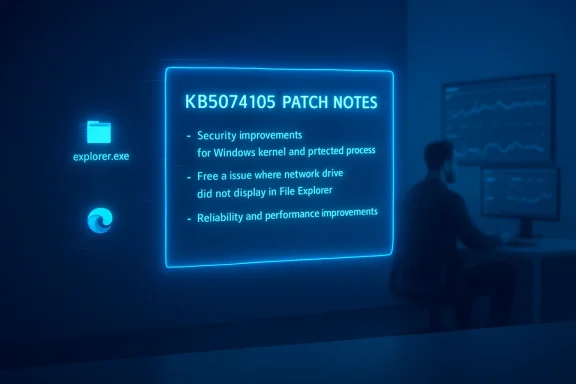
Microsoft’s KB5074105 release notes explicitly list the explorer.exe problem as a fixed item: “This update addresses an issue where Explorer.exe might stop responding (hang) the first time you sign in to your PC, if certain apps were configured as startup apps. This could make the taskbar not appear.” The KB also documents several other fixes tied to File Explorer responsiveness, desktop.ini (LocalizedResourceName) handling, lock screen responsiveness, and certain graphics-related crashes. The package is published as a preview/optional update for Windows 11 builds in the 26100.xxxx and 26200.xxxx families. (support.microsoft.com)Is the update mandatory?
KB5074105 is published as a preview (optional) update, not as an automatic cumulative security roll‑out. Microsoft’s page explains the preview/optional nature and provides both Windows Update and offline installation methods (including DISM and MSU installers) for administrators who need to apply it directly. That means the fix will not necessarily appear immediately on every machine; Microsoft’s phased distribution and the preview label mean users and admins may have to manually trigger installation via the Optional updates link in Windows Update or deploy the MSU catalog package. (support.microsoft.com)What caused the desktop to disappear — technical summary
The explorer.exe hang described by Microsoft appears to be triggered during the initial sign‑in flow when certain third‑party or user‑configured startup applications are present. Microsoft has not published a public list of the specific startup items that cause the problem, and community reporting indicates the failure modes vary across configurations and builds. In short: a startup‑time race or regression in the sign‑in path can hang explorer.exe and prevent the taskbar from initializing. Because the issue only reliably shows up when particular startup items are present, reproducing it outside affected environments is nontrivial. (support.microsoft.com)Beyond the explorer.exe hang, the same January update rollout (KB5074109) produced other regressions that drew attention: File Explorer ignoring desktop.ini LocalizedResourceName entries (showing raw folder names instead of the friendly display name), intermittent black screens or display flickers on a subset of systems, and Outlook/Remote Desktop/Azure Virtual Desktop regressions reported by many users and administrators. Microsoft addressed several of those problems in KB5074105 or via out‑of‑band mitigations, but the broader January update sequence has been noisy for many users. (windowslatest.com)
How to tell if you’re affected
- On first sign‑in after boot or after updating, the desktop loads but the taskbar and Start menu are missing, or clicking the Start button does nothing. This symptom is the classic sign of explorer.exe failing to initialize. (windowslatest.com)
- If you can open Task Manager (Ctrl + Shift + Esc or Ctrl + Alt + Del → Task Manager), look for explorer.exe or “Windows Explorer” under Processes. If explorer.exe is not running or is marked “Not Responding,” you likely have the same issue Microsoft described.
- Some users saw the problem only on their first interactive sign‑in after boot (Microsoft’s wording), which can make reproduction tricky; try a full reboot to confirm. (support.microsoft.com)
Immediate recovery — how to bring your desktop back right now
If the taskbar is missing but you can reach Task Manager:- Press Ctrl + Shift + Esc to open Task Manager. If you see a compact view, choose “More details.”
- In Processes, locate “Windows Explorer” (this is the explorer.exe process). Right‑click it and choose Restart. The Start menu, notification area and taskbar should reinitialize within a few seconds.
- In Task Manager choose File > Run new task.
- Type explorer.exe and press Enter. That will start a fresh explorer process and (normally) restore the missing UI.
How to install the KB5074105 fix today
- Windows Update (recommended for most users): Open Settings > Windows Update. Look for Optional updates available and the listing for KB5074105 (Preview). Select it and install. Microsoft’s KB page states this update shows under optional updates and that the package can be applied via standard Windows Update channels. (support.microsoft.com)
- Offline / manual install (for administrators or offline hosts): Download the MSU packages from the Microsoft Update Catalog and apply them using DISM or the Windows Update Standalone Installer. Microsoft documents the DISM /Add-Package command in the KB article for advanced deployments. (support.microsoft.com)
- Release Preview / Insider channel: Microsoft has also surfaced equivalent fixes in Release Preview and Insider channels (builds such as 26100.7701 and 26200.7701), which contain the same logging/sign‑in fixes. These channels can be used by organizations that want to validate fixes before broad rollout.
Recommended immediate mitigations and diagnostic checklist
If you have experienced the explorer.exe hang, follow this checklist:- Restart explorer.exe using Task Manager first, as described above. This restores usability in most cases.
- Check your OS build (Win + R → winver or Settings > System > About) and confirm whether you are on the problematic KB5074109 build number (for example, builds reported in community threads were 26200.7623 and 26100.7623). If you are on or newer than those builds, KB5074105/preview may be applicable.
- Apply KB5074105 via Optional updates if it’s available to your machine; if you manage many workstations, test the preview patch first on a pilot set before broad deployment. (support.microsoft.com)
- If you can’t apply the preview or continue to have trouble, consider a clean boot (disable non‑Microsoft startup items) to see whether a specific startup app reproduces the failure; this is a diagnostic step rather than a long‑term solution. Use msconfig or Startup in Settings to selectively disable startup items.
- For enterprise fleets, prepare to use Known Issue Rollback (KIR) or to uninstall the problematic KB5074109 if you see broad regressions — Microsoft and other outlets have documented KIR and rollback steps for some January regressions. (windowslatest.com)
Critical analysis — strengths and weak points of Microsoft’s response
What Microsoft did well
- Microsoft produced a targeted preview update (KB5074105) that addresses multiple discrete regressions — explorer.exe sign‑in hangs, desktop.ini/LocalizedResourceName handling, lock screen responsiveness, and graphics/BSOD edge cases — in a single cumulative preview package, which simplifies deployment for admins who want the fixes now. Publishing a preview with explicit bug‑fix notes is standard practice and helps administrators know what to test. (support.microsoft.com)
- The KB includes both Windows Update visibility (Optional updates) and offline deployment instructions (MSU/DISM), which is important for managed environments with air‑gapped or restricted Internet access. (support.microsoft.com)
- Microsoft used the Release Preview and Insider channels to roll equivalent builds for broader testing, which gives organizations a method to pre‑validate the fix before broad rollout.
Risks, gaps, and unanswered questions
- Microsoft did not publish a list of the specific startup apps that trigger the explorer.exe hang. That omission makes root‑cause analysis harder for IT teams trying to determine whether a given third‑party application is safe to keep enabled in startup. The KD/KB text only references “certain apps,” leaving sysadmins to hunt through startup items. This is a significant transparency gap. Treat claims about which apps cause the issue as currently unverifiable unless Microsoft provides more details. (support.microsoft.com)
- The broader January rollout (KB5074109) introduced several unrelated regressions (desktop.ini display names, black screens, Outlook/AVD problems). While KB5074105 addresses many of those, the simultaneous cadence of patches and out‑of‑band mitigations has created confusion and a perception of instability for some users. Large cumulative updates that touch core shell and graphics components inherently risk driver and configuration interactions; the volume of reported regressions shows how fragile that ecosystem can be. (windowslatest.com)
- Microsoft’s practice of using preview/optional releases and KIRs is appropriate, but the phased distribution means some users will continue to experience the problem until the patch reaches their device. For organizations that need immediate remediation, waiting for automatic rollout is not sufficient — administrators must either manually deploy KB5074105 or use standard rollback/mitigation procedures. That extra operational work can be costly during a large, cross‑site incident. (support.microsoft.com)
Practical guidance for home users and IT admins
Home users (non‑technical)
- If your desktop disappears: try Ctrl + Shift + Esc → find “Windows Explorer” → Restart. If that restores the taskbar, apply the KB5074105 optional update from Settings > Windows Update if it’s available.
- If the problem recurs after reboot or you can’t restore the desktop: boot into Safe Mode and apply updates after confirming the fix appears as optional, or reach out to vendor support if a particular third‑party startup app is involved. (support.microsoft.com)
IT administrators and power users
- Pilot the KB5074105 build on a representative set of devices (including different GPU vendors and enterprise‑grade login/startup apps) and validate user sign‑in scenarios before wide deployment. Microsoft published Release Preview equivalents for early validation.
- If you operate in a managed environment, consider packaging the KB5074105 MSU via SCCM/WSUS or deploy it via managed tooling to affected machines. Microsoft documents DISM and WUSA methods for offline and scripted installs. (support.microsoft.com)
- Prepare rollback procedures: if the broader January Patch (KB5074109) induced more severe regressions in your fleet (black screens, boot failures), be ready to uninstall the problematic cumulative or apply Known Issue Rollback (KIR) controls available to administrators. Community reporting and Microsoft advisories describe uninstall and WinRE-based recovery steps for severe boot issues.
- Use a clean‑boot diagnostic to isolate a misbehaving startup app if you continue to see explorer.exe hangs. Disable nonessential startup apps, reproduce the sign‑in scenario, and re‑enable items selectively to identify the culprit. Document and escalate the third‑party vendor if you identify an app that consistently triggers the hang.
What to watch next — monitoring and follow‑up
- Watch Windows Update in your environment for the general availability build that incorporates KB5074105 fixes into the cumulative servicing pipeline. Microsoft’s preview is the first step; the fully rolled‑out LCU will follow after telemetry confirms the preview is clean at scale. (support.microsoft.com)
- Monitor vendor (GPU, security, backup) advisories for driver updates or hotfixes that might interact with these Windows components. The January KB5074109 thread produced reports tying graphics driver interactions to black screens and driver hangs; GPU vendors sometimes issue micro‑fixes to restore compatibility with updated OS components.
- If you run critical remote desktop or Azure Virtual Desktop infrastructure, verify Microsoft’s Known Issue Rollback (KIR) guidance and any published mitigations for RDP/AVD sign‑in regressions; those fixes are often controlled by admin portals or policy packages. (windowslatest.com)
Final assessment — should you install KB5074105 now?
- If you are an individual user who experienced the explorer.exe hang or one of the other regressions fixed by KB5074105, installing the preview is reasonable and likely to restore normal behavior. The KB documents the targeted fixes and includes offline install options for advanced users. (support.microsoft.com)
- If you are managing a large or mixed environment where stability is paramount, test first. Deploy KB5074105 to a pilot group that represents your hardware and software diversity, validate sign‑in and desktop behavior, then proceed to staged rollout. Keep rollback plans and recovery media available if you encounter a different regression.
- For anyone uncertain about whether a third‑party startup app is implicated, use the clean‑boot diagnostic steps and collect logs before and after applying the patch. Document and escalate vendor interactions if a particular app reproduces the problem. At present Microsoft has not published the specific list of startup apps that triggered the explorer.exe hang, so direct diagnosis remains the only reliable path to attribution. (support.microsoft.com)
Microsoft’s KB5074105 is a focused corrective step that should resolve the explorer.exe sign‑in hang and several other nuisance regressions introduced in the January patch cycle. The technical reality — that startup apps and diverse hardware drivers interact unpredictably with OS updates — remains unchanged. For users, the immediate steps are simple (restart explorer.exe and install the optional preview when available). For administrators, the appropriate response is disciplined testing, staged deployment, and readiness to roll back if new regressions appear. Until Microsoft publishes more granular root‑cause details (specifically which startup apps cause the hang), cautious, evidence‑driven mitigation is the safest path forward. (support.microsoft.com)
Source: Windows Latest Microsoft says latest Windows 11 issue crashes explorer.exe, makes taskbar disappear, but a fix is rolling out

 , then click “Clean up system files”.