

Microsoft pushed the first cumulative for Windows 11 in 2026 — KB5074109 — to devices on January 13, 2026, folding last month’s preview fixes and a raft of staged, Copilot-era UI and gaming polish into the 24H2/25H2 servicing stream while also addressing several reliability concerns that mattered to handheld and NPU-equipped PCs.
Windows 11’s servicing model has shifted toward incremental, staged feature delivery: binaries are shipped broadly while higher‑visibility features are often controlled by server-side gating, hardware checks, and account/licensing entitlements. That architecture means a monthly cumulative like KB5074109 can be both a traditional security/quality rollup and the vessel that surfaces additional UI and AI features for qualifying hardware and accounts. Microsoft’s official release notes confirm the package’s build numbers — OS Builds 26200.7623 (25H2) and 26100.7623 (24H2) — and list the update as January 13, 2026’s cumulative. Community and independent reporting around the December preview and this January cumulative emphasized three parallel themes that continue into KB5074109: tighter Copilot integration into shell flows, handheld-focused gaming ergonomics (the Full Screen Experience / FSE), and a continued polish pass on UI consistency — notably File Explorer dark mode and context menus. These items are being delivered with differing visibility depending on hardware (especially Copilot+ NPUs), Microsoft accounts, and OEM entitlements.
KB5074109 is a good example of where Windows is headed: incremental AI convenience layered on top of steady quality engineering. That approach brings practical improvements, but it also compounds the need for clear rollout plans, governance for new AI data flows, and vigilance for driver/firmware parity across diverse PC hardware.
For immediate action: check Settings → Windows Update and confirm your device build is 26200.7623 (25H2) or 26100.7623 (24H2). If you manage machines in a business or lab, stage and validate KB5074109 with your standard pilot procedures and ensure drivers and firmware are current before broad deployment.
Source: Technetbook Windows 11 Update KB5074109 Brings Copilot Integration and Gaming Improvements for 2026
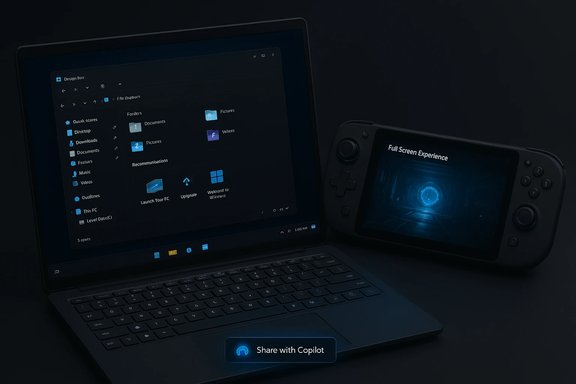 Background / Overview
Windows 11’s servicing model has shifted toward incremental, staged feature delivery: binaries are shipped broadly while higher‑visibility features are often controlled by server-side gating, hardware checks, and account/licensing entitlements. That architecture means a monthly cumulative like KB5074109 can be both a traditional security/quality rollup and the vessel that surfaces additional UI and AI features for qualifying hardware and accounts. Microsoft’s official release notes confirm the package’s build numbers — OS Builds 26200.7623 (25H2) and 26100.7623 (24H2) — and list the update as January 13, 2026’s cumulative. Community and independent reporting around the December preview and this January cumulative emphasized three parallel themes that continue into KB5074109: tighter Copilot integration into shell flows, handheld-focused gaming ergonomics (the Full Screen Experience / FSE), and a continued polish pass on UI consistency — notably File Explorer dark mode and context menus. These items are being delivered with differing visibility depending on hardware (especially Copilot+ NPUs), Microsoft accounts, and OEM entitlements.What’s in KB5074109 — feature and quality highlights
Copilot: Share with Copilot / screenshot integration
- What changed: On eligible devices KB5074109 can enable a Share with Copilot option on taskbar thumbnails and application hover previews that lets users capture and send a screenshot of an app window directly to Copilot (Copilot Vision) for contextual assistance. The flow is explicitly permissioned — the user must confirm sharing — and the capability can be turned off in system settings.
- Why it matters: This tightens Copilot’s presence in everyday workflows beyond the dedicated Copilot app: quick, context‑grounded conversations with Copilot that reference live screen content can accelerate troubleshooting, summarization, or tutorial-style help without manual screenshot tooling.
- Caveats and verification: Microsoft’s KB confirms the cumulative and the staged nature of Copilot-era features, but some of the in‑shell Copilot behaviors are rolled out by feature gating and server-side configuration; visibility can vary across accounts, devices, and regions. Treat some detailed UI descriptions as rollout observations reported by community testing rather than universal behavior guaranteed simply by installing the package.
Gaming and interface improvements
- Full Screen Experience (FSE) / Fullscreen Experience Game Mode: A controller‑first, console-style session posture that trims desktop ornamentation and defers background tasks is being expanded to more handhelds and qualifying PCs. FSE was previously preinstalled or enabled on a narrow set of devices (for example, the ASUS ROG Xbox Ally family); KB5074109 continues that staged rollout and exposes infrastructure to enable FSE on additional OEM models when permitted. FSE aims to reclaim runtime memory and reduce platform noise so games feel smoother on thermally constrained handheld systems.
- Stuttering fixes and graphics polish: The cumulative packages targeted fixes for stutter and micro‑stutter at game launch, especially where apps query monitor modes or the GPU stack misclassified graphics hardware. These corrections pair with vendor driver updates (GPU and platform firmware) to produce measurable quality improvements for affected titles. Users testing these fixes reported directional improvements when the OS update was combined with current GPU drivers.
- Unified dark UI: KB5074109 continues work to eliminate visual inconsistencies in dark mode (progress dialogs, confirmation/overwrite prompts, copy/move progress windows) that previously produced jarring bright flashes. This polish reduces UI friction for dark-theme users but has historically required multiple cumulative passes to fully stabilize across configurations.
File Explorer & system management
- Recommendations in File Explorer Home: A new Recommendations section surfaces frequently used files, folders, and shortcuts based on usage patterns rather than strict chronological order. This feature requires a Microsoft account sign-in to enable the personalized feed and can be toggled in Folder Options. The aim is to make File Explorer’s Home more actionable for short‑glance productivity tasks.
- Advanced Settings menu: Settings → System → Advanced is now a centralized entry for virtualization and sandbox controls (Windows Sandbox, Hyper‑V, Virtual Machine Platform, and related toggles), making these discoverable without digging through legacy Optional Features dialogs. This change is targeted at both consumers and admins who need a single place to manage sandboxing and virtualization state.
Reliability, security and platform hygiene
- Combined SSU + LCU packaging: KB5074109 is delivered as a combined servicing stack update (SSU) plus latest cumulative update (LCU). That packaging improves install sequencing but also affects rollback behavior: the SSU portion of a combined package is persistent and cannot be removed by wusa /uninstall once installed; enterprise images and rollback playbooks should account for that. Offline MSU installers in the Update Catalog may appear as multiple files and are best applied via DISM for correct sequencing.
- NPU power / battery-life fix: Some devices with Neural Processing Units (NPUs) were observed to keep the NPU powered in idle states, negatively affecting battery life. KB5074109 resolves this behavior on affected hardware to restore expected battery characteristics when the system is idle. This fix is specifically mentioned in coverage as a key quality improvement for Copilot+ and NPU-equipped devices.
- Secure Boot certificate rotation: Microsoft is preparing a phased deployment to update Secure Boot certificates that begin to expire in mid‑2026; KB5074109 contains device-targeting metadata and logic to identify and enqueue eligible devices for automatic certificate distribution after sufficient update success signals. Administrators should track this because it will affect boot security and certificate churn later in 2026.
Installation and packaging — practical notes
Installing KB5074109 can be performed via the normal consumer path or via offline enterprise methods. The most common options are:- Windows Update (recommended for most users): Settings → Windows Update → Check for updates. Windows Update delivers the express/differential payloads and handles SSU/LCU sequencing automatically. This is the least error-prone consumer route.
- Microsoft Update Catalog / MSU files (offline): Download the combined or split MSU packages and apply them manually. Offline bundles may be multi‑gigabyte for x64 packages, especially when including optional on‑device AI payloads. Use DISM to ensure prerequisite sequencing if multiple MSUs are provided. Example: DISM /Online /Add-Package /PackagePath:C:\Packages\Windows11.0-KB5074109-x64.msu.
- Image servicing (DISM for WIMs): For imaging and air‑gapped environments, place all the KB files into a single folder and use DISM /Image to add packages; sequencing and cross-package dependencies are automatically resolved. This avoids the common “out of order” installation state that can happen when applying split MSUs manually.
- Back up or capture an image before applying to production fleets; SSU persistence complicates in-place rollback.
- Pilot on representative hardware, especially if your fleet includes Copilot+ NPU devices, gaming handhelds, or legacy peripherals. Driver mismatches (GPU, virtualization drivers, NICs) are the most frequent source of post‑update regressions.
- Check winver and Update History to confirm the build number after installation rather than relying purely on visible UI changes — controlled feature rollouts mean feature visibility can differ post-install.
Critical analysis — strengths, limitations and risks
Strengths and meaningful benefits
- Incremental productivity gains: Folding AI flows into shell primitives (File Explorer “Ask Copilot”, context-aware images/summaries, and quick share flows) reduces friction for common tasks. For many users, these represent time saved for repetitive operations like summarizing documents or cleaning up screenshots.
- Targeted gaming improvements: The Full Screen Experience and launch-time stutter fixes represent targeted, useful engineering work for handheld gamers and users on high‑refresh, high‑resolution displays. When paired with up-to-date GPU drivers, many testers observed smoother launch behavior and reduced micro‑stutter. That’s a practical win for a subset of users.
- Accessibility and UX polish: Consistent dark-mode coverage, a centralized Advanced Settings area, and accessibility tool improvements (Narrator / Braille viewer in earlier releases) are cumulative wins for users and administrators who depend on predictability and discoverability.
- Platform hygiene and security: The combined SSU+LCU packaging is technically cleaner and allows Microsoft to include necessary servicing stack updates alongside fixes, reducing the number of sequential reboots and potential mismatch states in many consumer installs.
Risks, limitations and things to watch
- Feature gating (CFR) and fragmentation: Controlled feature rollouts mean two identical devices may show different experiences after the same KB is installed. This can confuse end users and administrators who expect parity across a managed fleet. Admins should not assume a missing UI element implies a failed install.
- Privacy and data flow for Copilot Vision: The screenshot-to-Copilot workflow is permissioned, but it changes the operational model for how screen content is acted upon. Organizations should audit how Copilot, Microsoft Graph, and OneDrive/SharePoint permissions are granted. If enhanced Copilot actions are cloud-processed, data may traverse Microsoft services and must be considered in data governance and DLP planning. Treat on‑device vs. cloud processing assumptions carefully; on‑device inference is gated by Copilot+ hardware and certification.
- SSU permanence complicates rollback: Once the SSU portion of a combined package is installed it cannot be removed via the typical uninstall flow. For enterprises that rely on quick rollback, this means rebuilds or image redeployment may be the simplest path to revert to an earlier servicing state. Plan pilot rings accordingly.
- Hardware fragmentation creates a two‑tier experience: Advanced features that rely on NPUs or Copilot+ certification (often discussed as a ~40+ TOPS threshold in community reporting) will not be available to much of the installed base, potentially creating confusion and perceived inconsistency. Treat the 40+ TOPS figure as provisionally reported until specific OEM certification documents confirm thresholds for each Copilot+ SKU.
- Driver and OEM dependencies: Many gaming-related improvements require current GPU and firmware drivers. In practice, the best results come from pairing the OS cumulative with the recommended vendor driver — rolling the OS without validating vendor driver readiness can expose regressions.
Deployment checklists — who should do what
For home users
- Use Windows Update and install the cumulative after creating a restore point or verifying your OneDrive/backup strategy. If you’re a casual user, the express/differential path via Windows Update is safest.
- If you see Copilot “Share” UI and prefer not to use it, disable it via Settings → Copilot or the taskbar personalization options. Remember some Copilot features are account-gated.
For gamers and handheld owners
- Update GPU drivers (NVIDIA/AMD/Intel) to the latest stable release before installing the cumulative to reduce the chance of driver‑related regressions.
- If you own a handheld (ROG Ally, MSI Claw, Legion Go, AYANEO), check Settings → Gaming → Full screen experience after installing; the toggle may be gated by OEM firmware/entitlement. Use Game Bar (Win+G) to validate FSE behavior if present.
For IT administrators and enterprise fleets
- Stage KB5074109 on a pilot ring (1–5%) that represents your hardware diversity, including any Copilot+ candidate devices.
- Validate: WinRE, BitLocker suspend/resume, imaging tools, and recovery flows after applying the update to pilot machines.
- For offline deployments, download the MSU packages and use DISM to add packages to your images or run scripted offline installs. Remember SSU persistence in combined packages prevents simple uninstall.
- Review and update DLP and governance policies around Copilot, share flows, OneDrive/SharePoint access, and the use of vision‑based AI workflows.
What to watch for in the coming weeks
- Visibility of Copilot features continues to be gated; do not assume feature absence means a failed install. Check build numbers in Settings → About and the Update History to confirm KB5074109 was applied.
- Keep an eye on Secure Boot certificate telemetry and Microsoft’s guidance as devices will be queued for certificate updates in a phased manner leading into mid‑2026. Administrators should plan accordingly.
- Track reports from your vendor channels (GPU/NIC/OEM) for device‑specific firmware or driver notes that complement this cumulative. Many of the gaming and performance gains are cross‑stack outcomes requiring vendor drivers and BIOS/firmware updates.
- Watch for reports of dark-mode regressions or the transient white‑flash behavior in File Explorer; Microsoft’s December–January servicing has been addressing those regressions incrementally. Pilot dark-mode devices carefully.
Final assessment
KB5074109 is both a routine security rollup and a continuation of Microsoft’s larger strategy to embed AI into the Windows shell while ironing out device-level quality issues that affect gamers and NPU‑equipped devices. The update’s official release is confirmed by Microsoft and the cumulative contains important fixes — notably the NPU idle-power battery-life correction and preparatory Secure Boot certificate metadata — while community reporting and hands‑on testing provide color on in‑shell Copilot flows, Full Screen Experience expansion, and UI polish. For most users the recommended path is conservative: install via Windows Update after a local backup, or stage in a pilot ring for managed environments. For power users and testers who want to validate Copilot Vision, FSE, or File Explorer Recommendations, run targeted pilots on representative hardware and confirm vendor driver compatibility first.KB5074109 is a good example of where Windows is headed: incremental AI convenience layered on top of steady quality engineering. That approach brings practical improvements, but it also compounds the need for clear rollout plans, governance for new AI data flows, and vigilance for driver/firmware parity across diverse PC hardware.
For immediate action: check Settings → Windows Update and confirm your device build is 26200.7623 (25H2) or 26100.7623 (24H2). If you manage machines in a business or lab, stage and validate KB5074109 with your standard pilot procedures and ensure drivers and firmware are current before broad deployment.
Source: Technetbook Windows 11 Update KB5074109 Brings Copilot Integration and Gaming Improvements for 2026
