Windows 11 KB5077181: Uninstall and Pause Updates to Restore Stability

  • Thread Author
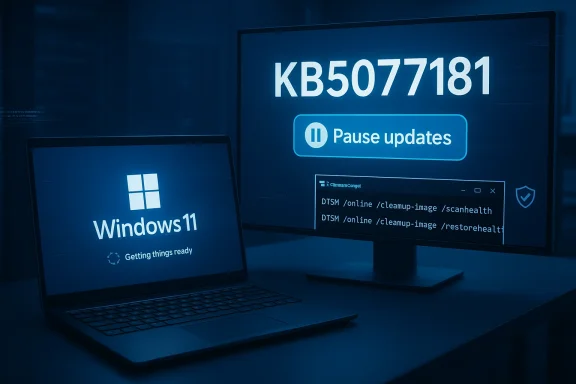
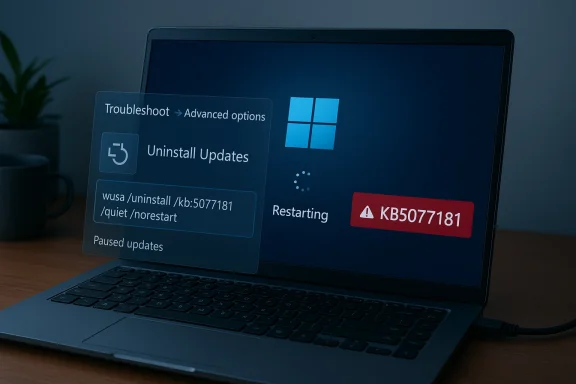
A laptop screen shows Windows recovery mode with options to uninstall updates and a KB5077181 warning.
Microsoft’s February 2026 cumulative for Windows 11 — KB5077181 — has triggered a wave of severe post-update failures for a non-trivial set of devices, producing endless restart loops, broken logins caused by System Event Notification Service (SENS) failures, and cases where machines appear connected to a network but have no working internet due to DHCP failures. Multiple independent community threads and tech outlets now show consistent, reproducible mitigation: uninstall the update (from the desktop or from WinRE) and pause updates until Microsoft issues a confirmed fix.

Background / Overview​

Microsoft released KB5077181 for Windows 11 (builds 26200.7840 and 26100.7840) on Patch Tuesday, February 10, 2026, bundling the monthly security rollup with a servicing‑stack update (SSU) and a set of feature/quality items that had been staged in January. The package also includes preparatory changes tied to an upcoming Secure Boot certificate refresh, servicing‑stack hardenings, and several Copilot+ / AI component updates targeted to capable devices. Microsoft’s official KB page for the release lists the package contents and — at the time of publication — reports no known issues with the release.
Independent reporting and high‑volume community telemetry, however, show a different picture: a proportion of devices across both consumer and enterprise images entered severe failure modes immediately after installing KB5077181. Those symptoms are consistent across multiple independent sources and community threads: repeated restarts (often more than 15 cycles), inability to reach a usable login session, SENS (System Event Notification Service) sign‑in errors reading “the specified procedure could not be found,” DHCP/client failures that leave the NIC “connected” but without internet, and update/servicing error codes such as 0x800f0983 and 0x800f0991 during install attempts.
This article summarizes what’s known, verifies the practical mitigations that are working in the field, explains why these regressions are both plausible and dangerous, and gives step‑by‑step, tested recovery and hardening guidance for consumers, power users, and IT teams.

Symptoms reported in the field​

Boot loops and broken logins​

The most disruptive symptom is an infinite boot loop that repeatedly restarts the system and — if the login screen ever appears — blocks interactive sign‑in with a SENS error. Community reports describe machines cycling through 10–20+ restarts before halting at a login screen that will not accept credentials because the System Event Notification Service has failed during early initialization. This prevents local and remote sign‑in and removes the simplest remediation paths for typical users.

DHCP / “connected but no internet”​

A second common pattern is networking that appears to work at the link layer but cannot acquire routing or DNS — commonly traced to DHCP client failures or a service registration problem that prevents name resolution. Users see their Wi‑Fi or Ethernet status as “connected” while applications have no internet access; remote troubleshooting becomes much harder because many diagnostic tools require internet access to fetch fixes or diagnostic agents.

Installation/servicing errors​

When manual installs are attempted or when the servicing commit fails, users report Windows Update / CBS error codes 0x800f0983 and 0x800f0991. These codes are classic indicators of component‑store mismatches, missing components during servicing or partial commits that leave the image in an inconsistent state. In some machines, SFC and DISM repairs have succeeded; in others, the only reliable fix has been uninstalling the problematic cumulative.

Edge cases: UNMOUNTABLE_BOOT_VOLUME and Secure Boot violations​

A minority of reports involve Stop Codes such as UNMOUNTABLE_BOOT_VOLUME or Secure Boot violations on systems where firmware interactions changed. Those cases are rare in absolute numbers but materially serious when they occur, often requiring WinRE, external recovery media, or in the worst instances a full image restore. The presence of SSUs and pre‑boot certificate changes raises the risk of such failure modes.

What fixes it right now — verified, practical mitigations​

The fastest, most widely verified mitigation used by both community responders and Microsoft support staff in Q&A threads is to uninstall KB5077181 and prevent its immediate reinstallation until Microsoft issues a corrected package.
  • If you can sign in normally: uninstall via Control Panel → Programs and Features → View installed updates, locate KB5077181 and choose Uninstall, then reboot. After verification, pause updates. This path has repeatedly restored normal boot and network services for many affected users.
  • If you cannot sign in (desktop unreachable): boot to Windows Recovery Environment (WinRE) — either by interrupting the boot sequence three times or by using recovery media — then choose Troubleshoot → Advanced options → Uninstall Updates → Uninstall latest quality update. If that UI path is unavailable, open Command Prompt in WinRE and run:
    • wusa /uninstall /kb:5077181 /quiet /norestart
      After command completion, restart. This WinRE command line path mirrors what Microsoft support staff have recommended in Q&A threads.
Important practical notes:
  • After uninstalling, pause Windows Updates from Settings → Windows Update → Pause updates to avoid immediate re‑application of the package until Microsoft confirms a fix.
  • If uninstall fails or the system is in a partially committed servicing state, a repair in‑place upgrade using matching or newer build media (a “repair install”) can rehydrate the component store and resolve hydration mismatches that prevent successful servicing. Community-tested in‑place upgrade sequences are described in recovery threads; they require careful prep (backups, BitLocker suspension) and adequate free disk space.

Step‑by‑step: Uninstall KB5077181 (desktop and recovery methods)​

Below are the tested, field‑proven steps many technicians have used. Perform the simpler, desktop‑level steps first when possible.

1) If you can sign in (desktop uninstall)​

  1. Create a full backup or at minimum copy critical files to external media or cloud.
  2. Open Control Panel → Programs and Features → View installed updates.
  3. Look for an entry named KB5077181 (or build 26200.7840 / 26100.7840).
  4. Select the entry and click Uninstall; allow the system to remove the package.
  5. Reboot when prompted and confirm normal sign‑in.
  6. Immediately pause updates: Settings → Windows Update → Pause updates.

2) If you cannot sign in (WinRE method)​

  1. Force WinRE:
    • Force power off as Windows starts three times in a row, or boot from Windows recovery USB and choose Repair your computer.
  2. Choose Troubleshoot → Advanced options → Uninstall Updates → Uninstall latest quality update.
    • If the UI option succeeds, reboot and verify.
  3. If Uninstall Updates is not available or fails, open Command Prompt in WinRE and run:
    • wusa /uninstall /kb:5077181 /quiet /norestart
  4. Reboot and verify sign‑in. Pause updates when the desktop is available.

3) If servicing/uninstall commands return errors​

  • Run component repair commands from an elevated prompt if you can access Safe Mode or the desktop:
    • DISM /Online /Cleanup-Image /RestoreHealth
    • sfc /scannow
  • If packages are pending, inspect with:
    • dism /online /get-packages | findstr 5077181
  • When DISM/DISM‑Image operations or remove-package sequences are required, be careful with drive letters when operating from WinRE and collect logs (CBS, DISM) for escalation. Community examples show that DISM /Image:C:\ /Cleanup-Image /RevertPendingActions can be useful in some scenarios, but only when you confirm the correct system partition letter.

Networking recovery quick checks (if you regain desktop but internet remains broken)​

If uninstalling restores boot but internet still fails:
  • Release and renew IP:
    • ipconfig /release && ipconfig /renew
  • Reset TCP/IP stack:
    • netsh int ip reset
  • Restart DHCP Client service:
    • Open Services.msc → find DHCP Client → Restart (or net stop dhcp && net start dhcp).
  • Roll back or reinstall NIC drivers from Device Manager if a driver update coincided with the failure.
  • Ensure firewall/endpoint agents are not blocking traffic — temporarily disable them for troubleshooting (re-enable afterwards).

Why this kind of regression happens (technical analysis)​

Modern cumulative packages increasingly combine multiple payloads: a Servicing Stack Update (SSU), the Latest Cumulative Update (LCU), and on‑device model or AI component binaries. That consolidation is operationally efficient but raises two risks:
  • SSUs are often sticky: they can persist on systems even if an LCU is rolled back, complicating clean rollback and leaving a system with mixed states. That stickiness increases reliance on WinRE or image restores when early‑boot systems are affected.
  • Changes to the boot path or UEFI‑held certificates raise early‑boot fragility: small differences between firmware expectations and updated boot binaries (or updated Secure Boot certificate entries) can result in exported procedure mismatches at service initialization time — SENS failing to find expected routines is one such visible symptom. When that occurs, interactive sign‑in can fail despite intact disk and kernel subsystems.
  • Third‑party drivers and endpoint agents (anti‑cheat, audio drivers, EDR/AV, fingerprint middleware) are frequent accelerants because they often export or rely on specific early‑load routines. When the servicing stack or early boot path changes their expected environment, those drivers can cause cascading failures.
  • Component store mismatches during parallel servicing hydration are the canonical cause behind 0x800f0983 and 0x800f0991 errors. When the update process can’t find or hydrate components it expects, the final commit step may leave the image partially applied, producing the symptoms described above. DISM and SFC sometimes repair these mismatches, but not always — which is why uninstall or repair install becomes necessary.
Critical caveat: there is no single public Microsoft engineering post‑mortem available yet that ties the failures to one binary or driver. Multiple plausible vectors (SSU + LCU interactions, firmware/UEFI gating, and driver incompatibility) remain hypotheses; treat them as such until Microsoft publishes a confirmed root cause.

Risks, trade‑offs and what to watch for​

  • Uninstalling a quality update removes the immediate operational regression but also temporarily rolls back the security fixes contained in that monthly rollup. For individual machines, that trade‑off is usually acceptable to regain functionality. For security‑sensitive assets, weigh compensating controls (network segmentation, host firewall hardening, virtual patching at perimeter devices) while delaying the package for production fleets.
  • SSU persistence means a rollback won’t always leave a system in a perfectly pre‑update state. In complex cases, an in‑place repair (install‑over) or restoring a golden image may be the safest route. Always secure BitLocker recovery keys before performing offline changes.
  • Automatic re‑installation: Windows Update may attempt to reinstall KB5077181 after rollback. Pause updates immediately after recovery and apply management controls (Windows Update for Business, WSUS, Intune/GPO) to block the offending KB for fleets.

Recommendations for individuals and IT teams​

For home users and small offices​

  • If you are not experiencing problems: consider a short pause (7–30 days) before installing the cumulative. That gives Microsoft time to acknowledge and, if necessary, reissue a corrected package. Keep recent backups and ensure recovery media is available.
  • If you are affected: follow the uninstall steps above, pause updates, and run DISM /Online /Cleanup-Image /RestoreHealth and sfc /scannow after recovery. If you rely on the device for critical remote work, consider using a secondary clean device while the primary is repaired.

For IT administrators and helpdesk​

  1. Immediately move KB5077181 into a pilot/test ring only. Stop broad deployment until you validate that the package is stable on representative hardware.
  2. Prepare recovery runbooks and artifacts: validated WinRE images, bootable USB tools, golden system images, and accessible BitLocker recovery keys for all devices. Make sure helpdesk can uninstall from WinRE or perform in‑place repairs.
  3. Collect logs from any affected endpoints before reimaging: CBS, DISM, WindowsUpdate logs, and Event Viewer entries around the time of failure — these are essential for escalation to Microsoft and OEMs.
  4. If the update closes an unacceptable security gap and you must keep devices patched, deploy compensating controls (segmentation, micro‑segmentation, host firewall rules) and stage rollout with short pilot windows.
  5. Watch for Microsoft’s Known Issue Rollback (KIR) guidance and any out‑of‑band patches; KIR can sometimes mitigate without requiring endpoints to install a new package immediately.

What Microsoft has said (and what it hasn’t)​

Microsoft’s official KB page for KB5077181 lists the package contents and warns about Secure Boot certificate expiry preparation, but at the time of writing Microsoft states it is not currently aware of any issues with the package. That statement sits in contrast with high‑volume community reporting and the Microsoft Learn Q&A thread in which support staff and community responders report reproducible SENS sign‑in failures that are mitigated by uninstalling KB5077181. Until Microsoft publishes an engineering acknowledgment or a corrected package, the community guidance to uninstall/pause updates remains the accepted risk‑mitigation posture.

How to prepare if you’re still running KB5077181​

  • Backup: ensure a verified system image and file backups are available.
  • BitLocker: escrow recovery keys to an accessible vault before attempting offline recovery.
  • Recovery media: have a tested Windows recovery USB or ISO available.
  • Documentation: prepare scripts/helpdesk steps for WinRE uninstall, DISM diagnostics, and driver rollbacks.
  • Communication: inform end users and stakeholders that a rollback may be necessary and provide a support hotline or a simple step‑by‑step to pause updates and obtain recovery help.

Final assessment — what this episode means for Windows servicing​

KB5077181 is a cautionary example of how modern monolithic cumulatives (LCU + SSU + other payloads) increase the potential blast radius for certain classes of regressions. Microsoft’s bundling of SSUs with LCUs is generally a good practice for long‑term reliability, but when those SSUs touch early‑boot pathways or certificate stores the operational risk is elevated — especially on devices with diverse OEM firmware, legacy drivers, or third‑party endpoint agents.
The right operational response for organizations is unchanged: pilot widely, stage carefully, ensure recovery assets and BitLocker keys are available, and collect telemetry/logs when incidents occur so they can be escalated effectively. For individuals, the pragmatic route is to delay non‑critical updates briefly, keep backups current, and be ready to follow proven rollback steps if a machine becomes unusable.
Until Microsoft publishes a confirmed fix and an engineering post‑mortem, the community’s field‑tested mitigation — uninstall KB5077181 via Control Panel or WinRE, then pause updates — is the defensible approach to restore stability and protect productivity. Monitor Microsoft’s release channels and the Windows Release Health dashboard, but treat the package with caution until official remediation is available.

Conclusion
KB5077181 provides important security and feature updates for Windows 11 and prepares devices for upcoming Secure Boot certificate changes, but real‑world deployments have revealed early‑boot and networking regressions on a subset of devices. The current, widely verified operational fix is to uninstall the cumulative (from the desktop or within WinRE) and pause Windows Update until Microsoft confirms a safe reissue. Administrators should immediately shift the package into pilot rings, ensure recovery assets and BitLocker keys are available, and collect logs from affected machines for escalation. For home users, short‑term pause and readiness to rollback are prudent steps while Microsoft investigates and issues a corrected update.

Source: Tbreak Media Windows 11 KB5077181 boot loop fix: uninstall guide | tbreak
 

Microsoft’s February cumulative for Windows 11, delivered as KB5077181, has left a significant number of users in the field facing crippling startup failures — endless restart loops, login-blocking SENS errors, and networking that shows “connected” but produces no internet — with community troubleshooting pointing to a reliable short-term mitigation: remove the offending cumulative and pause updates while engineering investigates. ([support.microsoft.microsoft.com/en-au/topic/february-10-2026-kb5077181-os-builds-26200-7840-and-26100-7840-f0fa9e54-a22a-4a06-96b6-bf5b2aded506)

Windows 11 laptop beside a monitor displaying Pause updates and KB5077181.Background / Overview​

Microsoft released KB5077181 on February 10, 2026, as the February cumulative update for Windows 11 versions 25H2 and 24H2 (OS builds 26200.7840 and 26100.7840). The package is a combined update that includes the Latest Cumulative Update (LCU) and a Servicing Stack Update (SSU), and it also carries a set of non-security refinements and updated AI components. Microsoft’s official release notes list the intended fixes and current rollout plan and, at time of publication, state that Microsoft is not currently aware of any known issues with this release.
Despite the official status, multiple independent community threads and tlets reported a correlated, reproducible set of failures immediately after installing KB5077181. The symptoms cluster into three dominant failure modes: boot loops and broken sign-in (SENS related), networking/DHCP failures that yield “connected but no internet” results, and servicing/installation errors with classic CBS/Windows Update codes such as 0x800f0983 and 0x800f0991.
This article synthesizes the available public evidence, confirms technical details against Microsoft’s release documentation, evaluates possible root causes, and offers practical, tested remediation and mitigation guidance for everyday users and IT professionals. Where claims are speculative or not yet confirmed by Microsoft, those sections are explicitly labeled.

What affected users are renant symptoms​

  • Boot loops and failed sign-ins: Machines repeatedly restart (often reaching double-digit cycles) and — when they finally reach the login screen — signing in fails with a System Event Notification Service (SENS) error such as “The System Event Notification Service service failed the sign-in. The specified procend.” These failures can block both local and remote interactive sign-in and prevent simple in-place troubleshooting for less experienced users.
  • “Connected but no internet” networking: Some devices report link-layer connectiet shows as “connected”) while applications cannot reach the internet. Community diagnostics point to DHCP client failures or service registration issues that prevent proper IP routing or DNS resolution.
  • Update/servicing errors: When the servicing attempt partially commits or fails, users see update errors such as 0x800f0983 and 0x800f0991 in Windows Update / CBS logs. These codes typically indicate component-store or servicing mismatches, or interrupted servicing operations. Some sys/DISM repairs; others only recovered after the cumulative was removed.

Scale and surface area​

Reports come from a mix of consumer and enterprise devices with diverse hardware, suggesting the regression is not strictly limited to one OEM or narrow configuration. The reproducibility of the pattern across multiple independent reports and threads has created a sizable telemetry signal within enthusiast communities and IT forums. The exact proportion of affected devices versus successful installs is not publicly disclosed by Microsoft.

Confirmed technical facts (what we can verify)​

  • Release date and builds: KB5077181 was released February 10, 2026 and targets Windows 11 25H2 and 24H2, raising devices to OS builds 26200.7840 and 26100.7840. Microsoft’s KB page confirms the date, the build numbers, and the inclusion of updated AI components and an SSU.
  • Combined LCU + SSU packaging: The release is distributed as a combined package (LCU + SSU). Microsoft’s documentation explicitly notes that the SSU included with a combined package cannot be removed by simple wusa /uninstall on the combined installer; the preferred process for removing the LCU piece is via DISM /online /get-packages and /remove-package. This has important operational consequences for recovery and rollback.
  • Microsoft’s public position at the time of reporting: Microsoft’s KB entry for KB5077181 lists the package contents and, as of the latest published note, says it is “not currently aware of any issues” with the update — a point of friction with the growing community reports.
  • Security fixes contained: The update bundles security fixes that Microsoft classifies as part of the monthly security rollup; independent coverage highlights that the Februeveral important vulnerabilities. Removing the update therefore re-exposes any systems that rely on the cumulative for recent security hardening.

Investigation: plausible technical causes (explicitly labeled as inference)​

No public engineering post from Microsoft (as of the sources checked) assigns a definitive root cause or code-level explanation connecting KB5077181 to SENS/DHCP/boot loop behaviour. The following explanations are plausible given how Windows servicinginferences drawn from the available telemetry pattern and Microsoft’s update packaging model — they are not confirmed root causes.
  • Servicing-stack / component-store mismatch during combined install: Combined SSU + LCU packages change the order and timing of component updates at install time. If an SSU or a newly updated component is committed while another dependent component fails, services that rely on particular DLL export sets (for example, SENS) can break during early initialization. The presence of 0x800f0983/0x800f0991 error codes — which are consistent with component-store or servicing mismatches — lends plausibility to this scenario.
  • Secure Boot / firmware interaction: The February package includes preparatory work tied to Secure Boot certificate refresh and boot manager changes on certain SKUs; firmware/UEFI interactions with a replaced boot binary or updated signature CA can cause rare secure-boot-related stops or startup failures if a system's Secure Boot DB/Signature Database (DB) is in a particular state. S reference Secure Boot violations or UNMOUNTABLE_BOOT_VOLUME stop codes as edge cases. This mechanism could explain a minority of the most severe failures, but it does not account for the broader set of SENS/DHCP reports.
  • AI component / service dependency regressions: The release upgraded several AI components and internal models. If an update changes interfaces or library expectations that other system services implicitly rely on, early-service initialization (SENS) could fail if dependent DLLs are not in the expected version state during first boot. This is an architectural pathway that fits the symptom timing (failures right after first boot post-update), but it remains speculative without Microsoft confirmation.
Because Microsoft has not posted an engineering root-cause statement (as of the checked sources), IT teams and support personnel should treat these as working hypotheses and proceed from validated mitigations.

What actually fixes the problem (field-tested mitigations)​

Multiple independent community threads and technical write-ups converged on the same practical mitigation: remove the February cumulative (KB5077181) and pause updates to prevent automatic reinstallation until Microsoft issues a confirmed fix. The pattern of recovery — uninstall then pause — has been repeated enough times across distinct deployments to be treated as an operational workaround.
Important operational notes about uninstalling the update:
  • Microsoft’s guidance for removing the LCU portion of a combined package recommends using DISM to list and remove the LCU package name via DISM /online /get-packages and DISM /online /remove-package /packagename. Running wusa /uninstall on the combined package will not remove the SSU portion and may fail depending on how the package was applied. Administrators should therefore prefer DISM for precise control.
  • For machines that are unbootable or trapped in a login loop, removal can be initiated from the Windows Recovery Environment (WinRE). Community-tested approaches include using the Command Prompt in WinRE to run DISM or wusa /uninstall /kb:5077181 (some users report wusa works in recovery contexts while Microsoft notes limitations in combined packages — DISM remains the more reliable, supported path). Exercise caution when using WinRE commands: improper DISM syntax or removing the wrong package risks leaving the image in an inconsistent state.
  • After removal and successful boot, pause updates (Settings > Windows Update > Pause updates) or deploy update-blocking controls (WSUS / Windows Update for Business deferrals) in managed environments to avoid re-delivery untila fix or updated package.

Step-by-step: recovery checklist for affected users (tested paths)​

  • If you can sign in:
  • Open Control Panel > Programs > View Installed Updates.
  • Locate KB5077181 and attempt Uninstall.
  • If uninstall succeeds, reboot and confirm the device boots normally.
  • Pause updates in Settings > Windows Update > Pause updates (choose a timeframe sufficient to await a hotfix).
  • Run sfc /scannow and DISM /online /cleanup-image /restorehealth to sanity‑check system files. ([pcworld.rld.com/article/3060768/windows-11-update-kb5077181-causes-startup-problems-heres-what-you-can-do.html)
  • If you cannot sign in (boot loop / broken login):
  • Boot into Windows Recovery Environment (interrupt boot three times or use recovery media).
  • In WinRE, choose Troubleshoot > Advanced options > Command Prompt.
  • Use DISM to list installed packages: DISM /image:C:\ /get-packages (adjust drive letter if the system drive is mounted differently in WinRE).
  • Identify the KB5077181 package name and remove it: DISM /image:C:\ /remove-package /packagename:<name>.
  • Reboot and allow Windows to attempt a normal start. If the device is still unstable, consider system restore or recovery image restore after data backup.
  • If DISM is unfamiliar or you prefer guided help, consult an experienced technician — do not attempt forced removal commands without backups.
Caution: Because KB5077181 contains security fixes, removing it exposes your device to vulnerabilities patched in that cumulative. Weigh the security risk of remaining unpatched against the operational risk of an unusable device. If removal is necessary to regain a working device, re-secure it by isolating from untrusted networks and applying compensating controls until a safe update is available.

Guidance for IT administrators and businesses​

  • Treat the February cumulative as a pending risk. Evaluate your telemetry before broad deployment. Systems with deep dependency on network services, domain logons, or custom security drivers should be tested first in a controlled staging ring before mass rollout.
  • If you already see a cluster of affected endpoints, move to a remediation window: remove KB5077181 where needed (using DISM for precision), and apply Group Policy / WSUS / Windows Update for Business deferral or express blocking to stop reinstallation. Keep an inventory of which machines have had the LCU removed but still have the SSU present — auditing your package list via DISM is essential.
  • Prepare a communications plan for users. The symptoms are alarming (boot loops, login-blocking errors) and will generate inbound help requests. Provide clear, stepwise recovery guidance and set expectations for the security trade-offs of rollback.
  • Maintain backups and recovery images. If a subset of devices show edge-case stop codes (UNMOUNTABLE_BOOT_VOLUME, Secure Boot violations), recovery media may be required. Test recovery procedures before a crisis.

Why Microsoft’s packaging choices matter here​

The combined SSU + LCU delivery model is intended to reduce servicing complexity for end users and to ensure devices have the updated servicing stack needed to accept future updates. However, it complicates rollback: because SSUs are not designed to be removed, a combined package can make a simple uninstall impossible via the usual GUI uninstaller. That complicates recovery when the cumulative itself introduces boot-blocking regressions. The presence of an SSU in the same package means administrators must use DISM to surgically remove the LCU content; this extra step increases the operational burden in an incident where speed matters.

Risk analysis: trade-offs and consequences​

  • Operational risk vs. security risk: Removing a cumulative to regain bootability is often necessary to restore productivity, but it reintroduces the specific security gaps the update addressed. NotebookCheck and other outlets highlight that the February release fixed security issst therefore treat removed endpoints as higher-risk and apply compensating controls (network isolation, firewall rules, limitation of admin privileges) until a secure replacement is available.
  • Reinstallation cycles: If automatic updates are not paused, Windows Update may reapply the same cumulative and trigger repeated failures. Pausing updates is a short-term mitigation; long-term control should be via WSUS or Windows Update for Business.
  • Differential impact by device class: While many reports come from consumer and SMB endpoints, certain enterprise scenarios (domain-joined machines using network login profiles, VDI images, or custom network stacks) may see different failure patterns. Because some reports mention Secure Boot interactions and boot-manager changes, devices with unusual UEFI setups could be at higher risk. Test widely.

How to monitor for a Microsoft-provided fix and what to watch for​

  • Monitor Microsoft’s official KB5077181 entry and the Windows release health dashboard for any newly posted “Known issues” sections or revised packages. Microsoft’s release page is the authoritative record for confirmed known issues and remedial downloads.
  • Watch for an updated cumulative (or an out‑of‑band hotfix) that either amends KB5077181 or replaces it. Microsoft sometimes ships follow-up LBUs or OOB hotfixes to remediate such problems; these will be published with updated file information and, often, explicit guidance on rollback or repair.
  • Expect communications from OEMs and large management tool vendors if the regression has broad impact; OEM firmware advisories are especially relevant for Secure Boot/UEFI edge cases. ([notebowww.notebookcheck.net/Windows-11-February-2026-Patch-KB5077181-and-KB5075941-fix-zero-days-shutdown-bugs.1224312.0.html)

Practical advice for everyday users (concise checklist)​

  • If your PC is stable: Delay installing KB5077181 until Microsoft confirms a fix or until you can test in a spare machine. Use Settings > Windows Update > Pause updates to hold off installations.
  • If your PC is unstable after installing the update: Attempt uninstall via Control Panel > View Installed Updates. If you cannot sign in, use WinRE to remove the package via DISM or try the uninstall command from Command Prompt in recovery. If you are uncomfortable, seek professional help.
  • After rollback: Run system integrity checks (sfc /scannow and DISM restorehealth) and keep the machine isolated from public networks until patched.

What we still do not know — open questions and cautionary flags​

  • The definitive root cause: Microsoft had not published an engineering post or confirmed a specific code-level regression tying a particular library or commit to the SENS/DHCP failures at the time of the referenced reporting. Community evidence is strong, but the why remains unconfirmed. This article treats proposed root causes as plausible explanations, not confirmed facts.
  • Exact attack surface of removed security fixes: While we know the cumulative contains security fixes, the exact exploitability or real-world risk increased by rolling back will vary by environment. Treat rollback devices as higher-risk until Microsoft publishes a safe alternative.
  • Any device-specific firmware interplay: There are edge-case Secure Boot reports; whether particular firmware versions or OEM Secure Boot databases are causative has not been confirmed. Administrators should watch OEM advisories.

Final assessment — what users and IT teams should do now​

  • For home users: If your device is working, delay the KB5077181 install until Microsoft provides an update or until reputable outlets confirm the package has been updated and tested. If already affected, follow the recovery checklist above and pause updates after rollback.
  • For IT teams: Move quickly to inventory affected devices, remove KB5077181 where necessary using DISM for surgical control, and implement update-deferral or blocking policies to prevent reinfection. Update your runbooks to include the DISM-based removal steps and ensure recovery media is available for remote or onsite remediation. Communicate clearly with users about the security trade-offs of rollback.
  • For everyone: Keep your system backups and recovery drives current. The combination of boot-blocking updates and complex package formats (LCU+SSU) makes reliable recovery media and tested rollback procedures essential.

The February 2026 Windows 11 cumulative update, KB5077181, illustrates the difficult balance between rapid security patching and the operational fragility that can occur when a service-critical update interacts unexpectedly with the diverse ecosystem of Windows firmware, drivers, and service dependencies. Community telemetry has identified a repeatable short-term mitigation — uninstall and pause — but the underlying cause remains to be officially confirmed by Microsoft. In the meantime, administrators and users must weigh the operational need to restore functioning devices against the security implications of rollback, apply compensating controls where necessary, and monitor Microsoft’s release notes for a definitive fix.

Source: FilmoGaz Windows 11 February Update Triggers Startup Issues for Users
 

Microsoft’s February cumulative for Windows 11, KB5077181, promised routine security fixes and servicing improvements—but within days of Patch Tuesday the update has become the focus of widespread field reports describing infinite boot and restart loops, a blocking System Event Notification Service (SENS) sign‑in error, DHCP/network regressions and a range of servicing failures that, in many cases, were only resolved by uninstalling the package. What was intended as a stabilizing release that also completes a repair for earlier unbootable‑after‑rollback systems is instead forcing administrators and home users into a difficult tradeoff: install to close tracked security holes, or pause and isolate until engineering provides a verified fix.

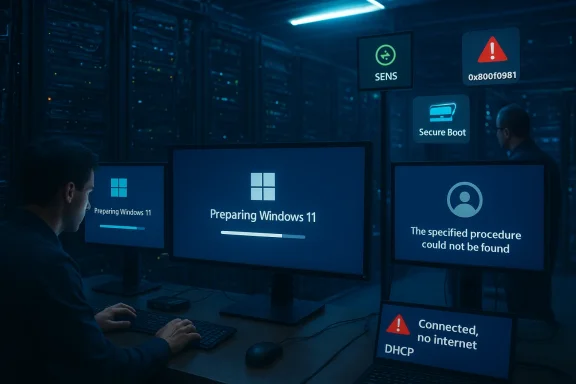
Technicians monitor Windows 11 installation across multiple screens in a dim data center.Background / Overview​

KB5077181 is the February 10, 2026 cumulative update for Windows 11. It combines the Latest Cumulative Update (LCU) and a Servicing Stack Update (SSU) to raise supported systems to OS Build 26200.7840 (25H2) and 26100.7840 (24H2) and to roll forward fixes shipped in January preview updates. In Microsoft’s public release notes the package includes network fixes (notably for WPA3‑Personal scenarios) and changes intended to enable a controlled rollout of new Secure Boot certificates. Microsoft’s KB entry states the company is not currently aware of any issues with the release.
That official stance sits uneasily next to growing community telemetry. Within days of the release multiple independent threads and technical outlets began documenting the same cluster of symptoms: repeated reboot/boot loops that prevent a usable desktop, logon attempts blocked by a SENS service error, “connected but no internet” DHCP failures following a successful restart, and multiple Windows Update error codes (including 0x800f0983 and 0x800f0991) on some systems. Administrators with large fleets and power users with varied hardware reported the most consistent mitigation: uninstall KB5077181 and pause updates while Microsoft investigates.

What users are actually seeing​

The reported problems fall into four practical buckets. Each has operational consequences that vary by user profile—from a single consumer machine to an enterprise ring of thousands.

Boot loops and endless restarts​

  • Symptom: Devices intermittently restart repeatedly during the late stages of installation or immediately after the first post‑install reboot. Some reports describe more than a dozen restart cycles before any login UI appears, and other cases never reach a usable desktop.
  • Impact: If the device cannot reach a stable desktop, normal troubleshooting (uninstall from Settings, run SFC/DISM, collect logs) is impossible without recovery media or WinRE access.
  • Short‑term mitigation: Multiple field reports indicate uninstalling KB5077181 (via Control Panel → Programs and Features → View installed updates, or using WinRE command tools) stops the loop and returns the system to its pre‑update behavior.

SENS sign‑in failures that block logon​

  • Symptom: When systems do reach the login screen, attempts to sign in sometimes fail with a message that the System Event Notification Service (SENS) failed the sign‑in and “The specified procedure could not be found.”
  • Why this matters: SENS participates in early service‑startup and session initialization. If it cannot start or if an expected exported procedure is absent, interactive logon and dependent services can be blocked even though lower‑level components like the kernel and file system remain intact.
  • Practical effect: Users are left at a broken login prompt; remote assistance and scripted fixes are more difficult, and manual removal via WinRE is often required.

DHCP and “Connected, no internet” networking regressions​

  • Symptom: After installing KB5077181 some devices report Wi‑Fi or Ethernet as “Connected,” yet cannot obtain or renew an IP lease or resolve DNS—classic DHCP failure symptoms.
  • Impact: Productivity loss for users who can boot but lack network access; software and security telemetry may be disabled; attempts to reapply fixes by reinstalling drivers or restarting services sometimes succeed, but in many reports the networking returns only after uninstalling the update.
  • Short‑term remedies: Common network troubleshooting commands (ipconfig /release && ipconfig /renew, netsh int ip reset) or rolling back NIC drivers have helped some users, but are inconsistent.

Servicing / installation errors (0x800f0983, 0x800f0991 and variants)​

  • Symptom: On some platforms the update fails to install with Windows Update errors such as 0x800f0983 and 0x800f0991, or throws “access denied” / component store errors.
  • Workarounds observed: Running System File Checker (sfc /scannow) and DISM /Online /Cleanup‑Image /RestoreHealth has allowed the package to complete in a few scenarios. Other systems require removal and reinstallation attempts.
  • Note: Error codes of this class are often downstream symptoms of inconsistent component store or driver state rather than a single root cause.

Immediate, practical recovery steps​

If you see any of the above behaviors, these are the field‑proven steps to try next. They’re ordered from least to most intrusive.
  • From a working desktop:
  • Open Control Panel → Programs and Features → View installed updates and uninstall KB5077181.
  • After uninstall, pause updates: Settings → Windows Update → Pause updates to prevent automatic reinstall.
  • If desktop login is blocked:
  • Boot into the Windows Recovery Environment (WinRE). Use a recovery key, interrupt boot 3x, or boot from recovery media.
  • Choose Troubleshoot → Advanced options → Uninstall Updates → Uninstall latest quality update. Alternatively open Command Prompt and run: wusa /uninstall /kb:5077181 /quiet /norestart.
  • If the update fails to install:
  • Run DISM /Online /Cleanup‑Image /RestoreHealth, then sfc /scannow.
  • Reboot and attempt the update again. If errors persist, uninstall and pause updates.
  • For networking issues when the desktop is reachable:
  • ipconfig /release && ipconfig /renew
  • netsh int ip reset
  • Restart the DHCP Client service and consider rolling back NIC drivers in Device Manager.
  • If BitLocker is in use:
  • Ensure you have recovery keys available before attempting uninstall or OS repair. Uninstalling SSUs/LCUs or boot‑level fixes may require recovery.
These are recovery tactics to restore functionality quickly. They are not a substitute for longer investigations to capture logs and reproduce the failure in a controlled environment.

What enterprise IT needs to do now​

For teams managing multiple devices, the KB5077181 reports require measured operational decisions.
  • Pause broad deployment. Move KB5077181 into a pilot ring and delay company‑wide rollout until Microsoft publishes guidance or a corrective cumulative is released.
  • Increase monitoring of pilot devices. Capture Event Viewer logs, Windows Update logs, and the CBS/DISM logs if an update fails. Pay attention to Service Control Manager entries around SENS and DHCP client startup.
  • Confirm recovery assets. Make sure recovery drives exist and that BitLocker escrow and recovery keys are accessible. Some machines may only be restored via WinRE.
  • Coordinate with OEMs and ISVs. Vendor drivers and third‑party protection layers (dongles, CodeMeter, AxProtector, etc.) have been noted as co‑factors in some incompatibilities—coordinate with vendors to gather known issues and workarounds.
  • Prepare rollback & communication plans. If a large‑scale issue appears, you’ll need scripts to uninstall KB5077181, guidance for end users to pause updates, and a communications plan that reduces panic while providing step‑by‑step recovery.

Deconstructing the likely causes — what we know and what we don’t​

At present there is no single, publicly confirmed root cause tying all these symptoms together. Several plausible explanations fit the observed behavior, and it’s important to separate what is supported by evidence from what is speculative.
  • What Microsoft says: KB5077181’s official documentation highlights fixes and improvements and still lists no known issues. The package also contains targeting data for Secure Boot certificate rollout and includes fixes from January preview releases.
  • What the field shows: A non‑trivial cluster of symptoms that are consistent with a post‑update mismatch in exported service functions or component store inconsistencies—SENS errors, repeated restarts, and DHCP failures are all symptoms you can see when a service binary or dependency is unexpectedly incompatible with a newly installed binary.
  • Why SENS matters: SENS participates in early logon and service orchestration. If a dependent DLL or an expected exported procedure is changed or missing because of a servicing update, the service can fail to initialize, and Windows can get stuck in an unstable service startup loop even though the OS kernel is intact.
  • Why DHCP and networking could be related: Networking stacks rely on layered services and drivers; if the DHCP client service cannot bind to required components, or if a driver mismatch occurs during SSU/LCU application, the result can be “connected but no internet” behavior.
  • Why installation errors appear: Error codes like 0x800f0983 commonly indicate that the package failed to commit due to component store corruption or in‑flight driver/registry states. They can be both a cause and symptom of unstable servicing.
Cautionary note: Many threads show mixed configurations—different OEM drivers, third‑party security tools, and virtualization or hardware particulars. That variance increases the likelihood that multiple, parallel issues are surfacing under the same cumulative. Until Microsoft publishes a root‑cause analysis, attributing all reports to a single bug would be premature.

The Secure Boot certificate transition: a complicating timeline​

KB5077181 also ships at a sensitive time for Secure Boot certificate management. Microsoft has warned about expiring Secure Boot certificates originating from 2011 and is moving devices toward newer 2023 certificates via targeted servicing to avoid a degraded Secure Boot state later in 2026. That transition requires updates to pre‑boot components and OS certificates and is intentionally staged.
  • Why this matters now: Updates that touch Secure Boot targets, SSU payloads, or preboot-related components increase the surface area for any regression to appear during early boot or service startup.
  • Operational risk: Devices with unusual firmware, older OEM Secure Boot configurations, or non‑standard preboot drivers may react differently to the combined SSU+LCU package, increasing the chance of early‑boot fragility on a small subset of systems.
  • Advice: If you manage hardware with custom firmware or use third‑party preboot tooling, validate Secure Boot behavior in a controlled lab before deploying KB5077181 widely.

Third‑party protected apps and driver/hardening interactions​

A separate but overlapping set of reports involves third‑party protected applications and license protection technologies, particularly those using CodeMeter and AxProtector. Several ISVs and Wibu‑Systems (CodeMeter/AxProtector) have published guidance and product alerts stating that recent optional previews and the February cumulative may modify Windows components in ways that make certain function‑call obfuscation configurations incompatible—resulting in protected apps that crash or refuse to start.
  • Real‑world implication: Enterprise applications protected with certain AxProtector configurations and CodeMeter runtime versions may fail after the preview or cumulative update. In some cases the temporary mitigation was to uninstall the offending Windows update until a compatible protection/runtime was provided by the ISV.
  • Practical steps for affected ISVs and customers:
  • Test protected applications against the current Windows update on representative hardware.
  • Request guidance or runtime updates from your ISV; many vendors have already released compatibility notes or updated drivers/runtimes.
  • If an application is mission‑critical and the update breaks it, coordinate a temporary hold on KB deployment until compatible application builds are in place.

Why Microsoft’s “no known issues” message increases friction​

Microsoft’s KB page for the package states there are no current known issues. That statement has been true from a formal advisory perspective but has not slowed community reporting or independent testing. The mismatch creates three practical problems:
  • Risk perception: Administrators see a divergence between field experience and the KB advisory and must decide whether to trust the KB or the community.
  • Response time: Without a public acknowledgment or workaround from Microsoft, organizations must triage on their own, invest staff time to capture logs and to coordinate with OEMs and ISVs.
  • Reinstallation loops: Systems that successfully uninstall and then have updates re-applied by the default Windows Update policy risk recurrence if updates are not paused.
From a process standpoint, when field incidents emerge quickly after a monthly cumulative, consistent and transparent communications (including a temporary known‑issue listing) materially reduce operational overhead for IT teams.

A measured, technical critique​

There are strengths and weaknesses in the way this release and its fallout have unfolded.
  • Strengths:
  • KB5077181 bundles SSU + LCU, which is the correct long‑term approach to keep servicing reliable and to centralize fixes.
  • The update resolves an important UNMOUNTABLE_BOOT_VOLUME scenario tied to failed December servicing—an issue that could render devices unbootable after a failed rollback.
  • Microsoft’s inclusion of Secure Boot targeting data in the quality updates demonstrates proactive lifecycle management to avoid a certificate expiry cliff later in 2026.
  • Risks / Weaknesses:
  • The rapid emergence of field regressions in disparate subsystems (boot, logon, DHCP, third‑party protection) suggests one or more changes in the package interact unpredictably with outlier system configurations.
  • The lack of an immediately visible “known issue” advisory delayed universal acknowledgement and has forced organizations to self‑triage.
  • Combining SSU changes with broad certificate and preboot modifications raises the stakes of any regression because failures may manifest at early‑boot or services initialization, complicating recovery.

What to monitor next​

If you’re tracking this incident as an administrator or curious power user, watch for these items:
  • Microsoft advisories and update history edits that change the “Known issues” section for KB5077181.
  • Postings from major ISVs and hardware OEMs that list confirmed incompatibilities or driver updates.
  • Evidence of a focused hotfix or revised cumulative (expect an out‑of‑band release if a reproducible boot‑blocking regression is found).
  • CodeMeter/AxProtector vendor alerts and their recommended mitigations or runtime updates for protected applications.

Final recommendations — a conservative playbook​

For consumers and small‑business users:
  • If you have not seen problems, you may defer the update for a short period (2–7 days) and allow pilots and news to settle.
  • If you rely on software protected by CodeMeter/AxProtector, verify compatibility with your vendor before applying KB5077181.
  • If your machine is affected, follow the recovery steps above and pause updates.
For enterprise and managed environments:
  • Pause broad deployment. Push KB5077181 only to an expanded pilot ring with thorough telemetry.
  • Ensure recovery procedures, BitLocker keys, and offline media are available.
  • Collect and centralize logs from affected systems (Event Viewer, CBS.log, DISM logs) and escalate evidence to Microsoft and hardware/ISV partners.
  • Coordinate with ISVs whose products rely on CodeMeter or other protection mechanisms and encourage them to test and publish compatibility guidance.

KB5077181 demonstrates how modern cumulatives—designed to deliver security and reliability—can also expose fragile interactions across firmware, boot components, drivers and protection frameworks when deployed broadly. The right posture now is conservative: validate, isolate, collect diagnostic data, and avoid large‑scale rollouts until the package’s behavior is well understood and Microsoft or affected vendors confirm a path to remediation. For administrators this incident is a reminder that monthly patches are not pure risk‑free hygiene—they are operational events that require change control, pilot validation and a resilient rollback plan.

Source: Notebookcheck Windows 11 KB5077181: Update causes boot loops, DHCP errors, and sign-in failures
 

Back
Top