

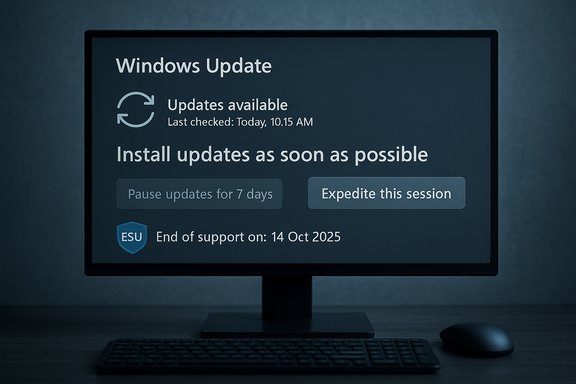
Microsoft’s quietly evolving Windows Update behavior has put a familiar control — the “Pause updates for 7 days” button — squarely in the spotlight after multiple independent reports found that some Windows 10 PCs not enrolled in Microsoft’s Extended Security Updates (ESU) program are seeing that control greyed out and replaced by a more aggressive “Install updates as soon as possible” / “Expedite this session” flow. This apparent change comes against the backdrop of Windows 10’s official end-of-support and the rollout of ESU-only security patches, and it has raised serious questions about user control, update transparency, and whether this is an intentional policy or an unfortunate side-effect of server-side update logic.
Conclusion
The pause button controversy is not merely a UI quirk; it sits at the intersection of security policy, user autonomy, and the economics of platform migration. Users should act now to verify update controls and protect critical workflows while awaiting Microsoft’s clarification. In the longer term, this episode highlights how important transparent, well‑communicated lifecycle transitions are for preserving user trust during major platform shifts.
Source: Irish Star Microsoft may be removing essential Windows 10 update feature for non-ESU users
 Background
Windows 10 end of support and the ESU bridge
Microsoft formally ended mainstream support for Windows 10 on October 14, 2025. After that date, routine free security and feature updates ceased for standard consumer Windows 10 installations; Microsoft introduced a time‑boxed Extended Security Updates (ESU) program to deliver critical and important security fixes for eligible Windows 10 machines through a defined extension period. The company’s lifecycle and ESU pages describe eligibility (Windows 10 version 22H2, current patch level) and the enrollment mechanisms available for consumers and organizations.- What ESU does: supplies security-only fixes for enrolled devices for a limited period.
- What ESU does not do: deliver new features, major fixes, or standard technical support beyond the security patches covered by the program.
Where the controversy started
In mid-December 2025, a hands‑on report and subsequent independent coverage described a Windows Update UI state on certain Windows 10 machines where the pause button was disabled, the Advanced Options screen reported the device had “reached the pause limit,” and an “Install updates as soon as possible” prompt opened an “Expedite this session” dialog that would immediately download updates and schedule a restart with minimal notice. In at least one test, that expedited flow presented and began a Windows 11 feature update (25H2) download which users reported was difficult to cancel via the Settings UI. Multiple outlets and forum posts reproduced similar symptoms, amplifying concern.What’s changed in Windows Update — the observable facts
The UI/behavior reported by testers
- The Settings → Update & Security → Windows Update page shows the familiar Pause updates for 7 days control as greyed out or otherwise disabled.
- Advanced options reports: “You’ve reached the pause limit”, sometimes even when the user never used the pause feature.
- A prominent alternate control appears: Install updates as soon as possible (or similar wording), which when accepted triggers an expedited download/install sequence and schedules a restart (often with a short warning). In some cases a Download and install Windows 11 (25H2) prompt appears in the same flow.
How common and corroborated is this?
Independent outlets picked up the original hands‑on test and replicated the behavior in community reports and smaller tests. Multiple community forums and news sites have posted screenshots and short videos of the exact sequence described above. That makes the behavior credible and reproducible in at least a subset of environments — but it is not yet a universal, Microsoft‑documented change. Analysts and community threads stress that the phenomenon appears to cluster around devices that are not recognized as ESU‑enrolled.Is Microsoft intentionally removing the Pause control for non‑ESU users?
Short answer: Not definitively. The evidence shows the pause control is being suppressed or disabled in some non‑ESU cases, but Microsoft has not published an explicit support bulletin stating it intentionally removed pause functionality from unenrolled Windows 10 devices as a policy decision. Independent reporting leans toward two plausible explanations:- A server‑side classification and lifecycle-aware update logic that identifies non‑ESU devices and pushes an expedited update flow (a policy-like nudge to move devices toward supported states).
- An implementation bug or rollout mismatch in the Windows Update client/server logic that incorrectly flags devices as having reached the pause limit.
Why Microsoft might choose to change pause behavior — technical rationale (if intentional)
If this behavior were intentional, the company could justify it on these grounds:- Security-first logic: After support ends, the proportion of vulnerable, unpatched devices rises. For Microsoft, nudging devices toward either ESU enrollment or the supported Windows 11 path reduces ecosystem risk.
- Lifecycle enforcement: Making Windows Update “lifecycle-aware” helps Microsoft surface migration options and reduce the population of unpatched installs.
- Operational simplicity: Reducing short-term deferrals on end‑of‑support devices creates a simpler update model for Microsoft and third-party software vendors who must decide which platforms to support.
Why it might be a bug instead
There are strong indicators this could simply be an unintended effect:- Microsoft shipped multiple Windows Update client changes (notably KB updates and servicing stack updates over 2024–2025) that broadened Windows Update’s lifecycle-awareness. Some of those updates previously generated stronger messaging and prompts for end‑of‑support devices; release notes were edited and clarified over time. A buggy interaction between client and server classification (ESU vs non‑ESU) can explain the “pause limit” message appearing incorrectly, and several outlets explicitly call this a likely bug.
- Microsoft has issued emergency fixes for ESU enrollment issues and other update-related problems (for example KB5071959 and related servicing updates), indicating active patching of the update pipeline. The presence of these fixes shows Microsoft monitors and responds to update‑related regressions quickly.
The practical risks and real user impact
For home users and small offices
- Loss of a simple safeguard: The pause button was a low-friction way to avoid untimely restarts while saving work or deferring a potentially disruptive update. Losing it increases the risk of interrupted sessions and unsaved work.
- Accidental upgrades: If a Windows 11 feature update begins and the system no longer exposes easy cancellation, users risk being migrated to a new OS without adequate preparation, driver updates, or compatibility checks.
- Perceived coercion: The combination of a paid/linked ESU option and disabled UI controls can create a perception of pay‑to‑retain control even if the behavior is unintentional.
For IT managers and small administrators
- Policy mismatch: Small organizations that rely on manual Settings UI controls rather than Windows Update for Business or Group Policy may find local controls overridden or functionally reduced, increasing support calls and operational overhead.
- Compliance and change control headaches: Unexpected restarts and forced feature upgrades can complicate change management and regulatory compliance windows (for organisations that require tight control over update timing).
Security trade-offs
Microsoft’s rationale—reduce the population of unpatched devices—makes sense at a population level. But for individual users who need a controlled migration path (legacy software, unsupported peripherals, specialized hardware), an abrupt loss of a pause control is damaging: it forces a binary choice between being exposed and being rushed into an upgrade. That balance is the central policy dilemma.How to check if your Windows 10 PC is affected (quick checklist)
- Open Settings → Update & Security → Windows Update.
- Look for the Pause updates for 7 days button. If it is greyed out, click Advanced options and check for a Pause updates date picker and any message that you have “reached the pause limit.”
- On Advanced options, check whether you see an Install updates as soon as possible or Expedite this session control, or a Download and install Windows 11 option. If present, treat the UI flow as potentially expedited and plan accordingly.
- Verify ESU enrollment status (if applicable): Settings → Windows Update may show ESU enrollment options or confirmation if your device is enrolled. Microsoft’s ESU guidance pages describe enrollment prerequisites and options.
Practical mitigations and defensive steps
If you depend on the pause capability or want to avoid an unwanted upgrade, consider the following measures. Each has trade-offs; evaluate what fits your situation.- Set your network connection to metered: Settings → Network & Internet → (Wi‑Fi / Ethernet) → properties → Set as metered connection. Metered connections commonly block large feature updates and delay automatic downloads. Use this as a short-term safeguard.
- Use Active Hours and Restart Options: Settings → Update & Security → Windows Update → Change active hours / Restart options to limit when a restart can happen. This does not prevent downloads but reduces surprise restarts.
- For Pro/Enterprise users: apply Group Policy or Windows Update for Business controls to defer feature and quality updates where possible. These tools provide stronger, administrative deferral capabilities than the consumer Pause UI.
- Temporary emergency stop: if an unwanted install begins, a temporary network disconnect or service stop can halt the download. This is an emergency-only tactic and not a recommended long-term strategy.
- Use Microsoft’s Show or Hide Updates troubleshooter (wushowhide) to block specific updates temporarily if a given update is known to be problematic. This is less effective for feature upgrades that are presented as a distinct download.
- Consider ESU enrollment if you need security updates but are not ready to upgrade to Windows 11. ESU is the supported bridge Microsoft offered to keep systems patched for a limited period; enrollment mechanics and region-specific rules are on Microsoft’s lifecycle pages. ESU has prerequisites (Windows 10 22H2 and current patches) and may require a Microsoft account or a one-time purchase in some markets.
Step-by-step: how to verify ESU status and enroll (consumer route summary)
- Confirm your device is on Windows 10 version 22H2 and fully patched.
- Open Settings → Update & Security → Windows Update → look for an Enroll in Extended Security Updates (ESU) prompt or guidance.
- Follow the on-screen enrollment flow — regional rules differ: some markets permit a free Microsoft account–linked enrollment, others may require redemption of Microsoft Rewards or a paid one-time option. If the ESU enrollment wizard fails, Microsoft has issued out‑of‑band fixes in November 2025 and may require specific servicing stack updates to succeed.
Critical analysis: strengths, risks, and how Microsoft could have handled this better
Strengths of Microsoft’s approach (intentional or otherwise)
- Security-first posture: Consolidating devices on a supported platform or an ESU bridge reduces the attack surface and is defensible from an ecosystem-security perspective. Microsoft’s rollout of ESU and timely KB fixes (including rapid out‑of‑band updates to repair enrollment bugs) demonstrates responsiveness to risk.
- Clear lifecycle messaging: Microsoft publicly documented the Windows 10 end-of-support date well in advance and provided documented ESU options for consumers and enterprises. Those facts create predictable expectations for enterprise planning.
Risks and harms
- Transparency shortfall: The lack of a single, clear Microsoft advisory addressing the pause-control reports created confusion and allowed speculation that Microsoft intentionally monetized control. Even if the change is security-minded, opaque behavior erodes trust.
- User autonomy: Disabling a low-barrier safety control without clear alternatives increases risk for individuals who rely on that control for legitimate operational reasons (presentations, critical work, niche hardware). This trade-off is real and not well‑acknowledged publicly.
- Operational instability: For small businesses and solopreneurs without centralized update management, the sudden loss of an easy deferral option raises real continuity and support costs.
What Microsoft should do (straightforward editorial prescription)
- Publish a clear advisory stating whether the disabled pause control is an intentional lifecycle enforcement or a bug, with technical details and affected scenarios.
- If intentional, document the exact behavior, timelines, and remediation options including how consumer ESU enrollment retains pause capabilities (if that is the case).
- If a bug, roll back the server-side change or issue an immediate patch and explain the root cause to reduce user uncertainty.
- Provide better UI messaging in Settings explaining why the pause option is disabled and clearly present safe alternatives and enrollment pathways. Clear, transparent communication would have substantially reduced the controversy and user friction.
Market context: how many users this affects
Not everyone is still on Windows 10 — but a significant minority remained on the older OS when support ended. Recent StatCounter data showed Windows 11 at roughly 53.8% of Windows desktop pageviews worldwide and Windows 10 at roughly 42.6% (global snapshot), meaning tens or hundreds of millions of machines still ran Windows 10 at the time of the snapshot. That scale explains why any change in update behavior for Windows 10 will generate intense scrutiny.Bottom line and recommended posture for Windows 10 users
- The pause control being greyed out on some Windows 10 devices is a real, verifiable behavior that has been reproduced and reported by multiple outlets and community threads.
- There is no authoritative Microsoft statement that explicitly confirms an intentional policy to remove pause controls for non‑ESU users — the change remains either an undocumented policy enforcement or a bug. Treat strong claims of deliberate “pay‑to‑pause” as unverified until Microsoft clarifies.
- Take pragmatic precautions now: verify your device state, use metered connections and active hours to protect sessions, consider ESU enrollment if you require continued security patches, and use administrative controls (Group Policy, WUfB) on managed devices.
Conclusion
The pause button controversy is not merely a UI quirk; it sits at the intersection of security policy, user autonomy, and the economics of platform migration. Users should act now to verify update controls and protect critical workflows while awaiting Microsoft’s clarification. In the longer term, this episode highlights how important transparent, well‑communicated lifecycle transitions are for preserving user trust during major platform shifts.
Source: Irish Star Microsoft may be removing essential Windows 10 update feature for non-ESU users
