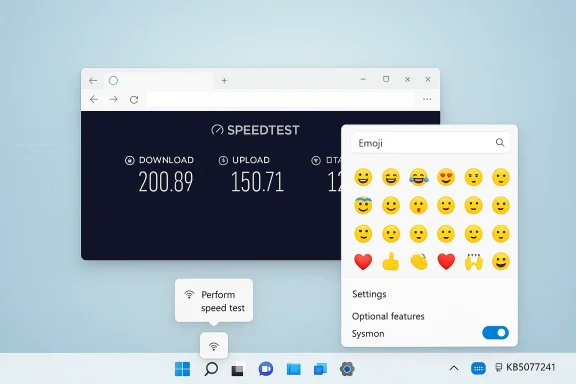
Microsoft has quietly shipped a practical, low‑risk preview for Windows 11 that is small in surface area but large in operational importance: the February 24, 2026 preview update KB5077241 advances 24H2 and 25H2 machines to OS Builds 26100.7922 and 26200.7922, respectively, and packages a handful of visible conveniences (a taskbar speed‑test launcher, .webp wallpaper support, Emoji 16 glyphs), enterprise‑focused additions (in‑box Sysmon, Entra SID translation, RSAT on Arm64), and a broad set of reliability fixes targeted at sign‑in, sleep/resume, File Explorer, printing, and update UX.
This article unpacks what KB5077241 actually installs, explains the recommended deployment methods for home users and administrators, and offers a measured assessment of the benefits, operational risks, and deployment playbook you should follow before taking the preview into production environments.
Microsoft continues to use optional preview updates as a staging ground for features and fixes that will eventually be folded into mainstream monthly rollups. KB5077241 is one of those preview packages: not a security-only release, but a cumulative preview that improves functionality and reliability while also surfacing a few new features via a Controlled Feature Rollout (CFR). The update was published to the Release Preview Channel in mid‑February and updated on February 24, 2026 with the combined MSU that produces builds 26100.7922 / 26200.7922.
Why this matters now: Microsoft’s approach lets administrators and enthusiasts validate changes in real‑world conditions ahead of being forced on devices. For enterprises that manage update cycles tightly, KB5077241 therefore represents a laboratory release — useful for testing, but not a blanket “apply everywhere” candidate. Community reporting and Insider notes show that the update’s visible features are rolling out gradually, meaning not every device that receives the update will immediately see every new capability.
Key technical notes you should verify before installing:
That conservatism brings its own complexity: checkpoint MSUs, SSU immutability, and staged feature rollouts mean administrators must pay careful attention to installation order, testing methodology, and telemetry configuration. If you manage production systems, don’t treat this as a push‑button update: pilot, validate, and only then deploy broadly. For power users and Insiders, KB5077241 is a worthwhile preview — just be mindful that the taskbar speed test is a browser‑launched web experience and that enabling Sysmon requires operational readiness.
If you follow the lab checklist above, keep the deployment rings narrow initially, and validate telemetry and printing workflows, you will benefit from the improvements while avoiding the kinds of regressions that have sometimes accompanied February servicing in recent years.
Additional context and community reporting about KB5077241 and the Release Preview builds appear in the Insider and Windows community posts that first tracked the rollout and feature behavior.
Source: Microsoft Support February 24, 2026—KB5077241 (OS Builds 26200.7922 and 26100.7922) Preview - Microsoft Support
This article unpacks what KB5077241 actually installs, explains the recommended deployment methods for home users and administrators, and offers a measured assessment of the benefits, operational risks, and deployment playbook you should follow before taking the preview into production environments.
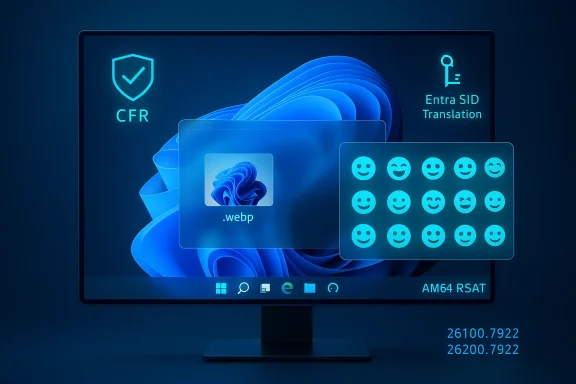 Background / Overview
Microsoft continues to use optional preview updates as a staging ground for features and fixes that will eventually be folded into mainstream monthly rollups. KB5077241 is one of those preview packages: not a security-only release, but a cumulative preview that improves functionality and reliability while also surfacing a few new features via a Controlled Feature Rollout (CFR). The update was published to the Release Preview Channel in mid‑February and updated on February 24, 2026 with the combined MSU that produces builds 26100.7922 / 26200.7922.Why this matters now: Microsoft’s approach lets administrators and enthusiasts validate changes in real‑world conditions ahead of being forced on devices. For enterprises that manage update cycles tightly, KB5077241 therefore represents a laboratory release — useful for testing, but not a blanket “apply everywhere” candidate. Community reporting and Insider notes show that the update’s visible features are rolling out gradually, meaning not every device that receives the update will immediately see every new capability.
What’s actually in KB5077241
Headline user features (practical, incremental)
- Taskbar network speed test (one‑click launcher) — a new “Perform speed test” or “Test internet speed” entry is surfaced from the network icon right‑click menu and the Wi‑Fi/Cellular Quick Settings flyout. Choosing it opens the default browser and runs a web‑hosted speed test (Bing/third‑party widget), not a native OS measurement engine. That design makes the feature lightweight but also means the measurement methodology and privacy boundary belong to the web widget.
- .webp desktop background support — you can now set .webp images as wallpapers directly from Settings or File Explorer, bringing Windows in line with common web formats and saving some conversion/quality headaches for creators and admins.
- Emoji 16 (curated subset) — Microsoft has added a conservative, staged subset of Unicode Emoji 16 to the emoji picker. This curated rollout reduces compatibility and font bloat risk while refreshing common glyphs.
- Camera pan/tilt (PTZ) controls — basic pan and tilt controls for compatible webcams are exposed in Settings > Bluetooth & devices > Cameras. Microsoft’s notes don’t list supported models, so behavior depends on hardware vendor implementations.
Enterprise and security‑oriented changes
- Sysmon in‑box (optional) — System Monitor (Sysmon) from the Sysinternals suite is now available as an optional in‑box feature that integrates with the Windows Event Log. It is disabled by default, but when enabled it provides richer telemetry for detection and investigation workflows without requiring a separate Sysinternals download. This is arguably the biggest platform change in KB5077241 for security operations teams.
- Microsoft Entra SID translation — Windows can now resolve Microsoft Entra group and role SIDs into readable names for permissions dialogs and local group mappings, reducing admin confusion when cloud identities appear in ACLs.
- RSAT on Arm64 — the update adds support for Remote Server Administration Tools (RSAT) as optional features on Windows 11 Arm64, an important step for organizations moving to Arm‑based devices that still need to manage Windows server endpoints.
- Quick Machine Recovery (QMR) behavior alignment — QMR auto‑enables for non‑domain Windows Pro devices not managed by enterprise tooling, aligning Pro behavior with Home in recovery scenarios. This has implications for device provisioning and user‑initiated recovery behaviour.
Reliability and platform fixes
KB5077241 also packages numerous reliability and quality‑of‑life fixes, including:- Sign‑in and lock screen reliability improvements
- Sleep/resume behavior, especially for docked laptops
- File Explorer network device listing fixes and a new “Extract all” command bar option
- Printing spooler performance changes for heavy print environments
- Windows Update Settings responsiveness and temporary file scan performance improvements
Installation details and recommended deployment methods
Microsoft provides two supported installation methods for the KB5077241 preview: (1) install all MSU files together by placing them in one folder and using DISM; or (2) install each MSU file individually in the exact order listed. The KB notes explicitly that the combined package includes a Servicing Stack Update (SSU) and that running wusa.exe with /uninstall on the combined package will not work because the SSU cannot be removed after installation. Administrators must plan accordingly.Key technical notes you should verify before installing:
- The DISM syntax Microsoft recommends for an online system is:
Dism /Online /Add-Package /PackagePath:c:\packages\Windows11.0-KB5077241-x64.msu
or you can run the PowerShell equivalent:
Add-WindowsPackage -Online -PackagePath "c:\packages\Windows11.0-KB5077241-x64.msu"
Microsoft’s DISM documentation confirms that /PackagePath can point at a folder containing one or more .msu files, and DISM will resolve prerequisite checkpoint packages within that folder. It also documents important switches such as /IgnoreCheck and /PreventPending for advanced scenarios. - Some update rollups use a checkpoint cumulative pattern where a prior checkpoint MSU (for example, KB5043080 from September 10, 2024) must either be present on the device or included in the same installation folder. Consequently, Microsoft sometimes requires you to download multiple MSU files and apply them together or in a specified order. KB5077241 follows that pattern: if the KB requires a checkpoint MSU, the KB text lists those MSUs and the order you must apply them. Use the Microsoft Update Catalog to identify and download any prior checkpoint MSUs before attempting offline or image servicing.
- Practical advice: reboot the target before running DISM /Add‑Package, ensure no Windows Update transactions are pending, and run as an elevated Administrator. For offline images, use the /Image parameter and consider /PreventPending to avoid conflicts. Microsoft’s DISM reference and third‑party deployment guides cover these patterns in detail.
Step‑by‑step: Safe lab deployment checklist (recommended)
- Capture the target device’s current build (winver) and create a system backup or image.
- On a representative lab machine, download the MSU files listed in the KB and place them in a single folder (for example C:\Packages). If the KB lists a prior checkpoint (e.g., KB5043080), include that file first.
- Reboot the machine and confirm no pending updates are in progress.
- From an elevated Command Prompt, run:
- Dism /Online /Add-Package /PackagePath:c:\packages\Windows11.0-KB5077241-x64.msu
- Reboot and validate all key apps, drivers, and services (digital signage, VPN, imaging, printing). Pay particular attention to GPU drivers and virtualization stacks—past February updates showed instability for some environments.
- If you manage many machines, test image servicing by applying the same MSUs to a Windows installation image (DISM /Image:mountdir /Add-Package) and then build a test deployment.
What administrators should watch for (risks and caveats)
1) Controlled Feature Rollout — not every device will see every feature immediately
Microsoft is shipping many of the new UI features as staged rollouts. Your devices may receive the update but not the taskbar speed test, or vice versa. Controlled Feature Rollout reduces immediate compatibility risk, but it also complicates testing because behavior will vary across identical builds. Treat visibility of features as a separate test vector from the servicing stack itself.2) The taskbar speed test is a browser‑launched web widget — privacy and measurement implications
The speed test is a convenience launcher that opens a Bing‑hosted web widget and runs the test in the browser. That means:- The measurement is performed by the web widget and its backend provider (not a Microsoft kernel network test).
- Measurements, logs, and any telemetry generated by the test are subject to the web provider’s network diagnostics and privacy policy.
- In environments that block external sites or use captive portals, the test may fail or return misleading results.
3) Sysmon in‑box — powerful but requires operational policies
Adding Sysmon to the OS simplifies deployment of advanced logging, but enabling Sysmon changes event volumes and storage usage. Sysmon events are noisy if default configurations are used; security teams must:- Define a Sysmon configuration aligned with SIEM/EDR ingestion patterns.
- Test event volumes and retention for event log size and storage costs.
- Understand that Sysmon is optional and disabled by default; enabling it should be a controlled change.
4) Past February update regressions warrant caution
Community reporting and news coverage show other February updates (notably KB5077181) produced installation failures and system instability for some users—errors in installation, networking, Bluetooth, and GPU subsystems have been reported. That history argues for conservative rollout: validate on representative hardware, and delay broad deployment until you’ve confirmed core workloads are stable.5) MSU ordering, checkpoint cumulative behavior, and SSU immutability
If you install the combined package that includes an SSU, you cannot uninstall the SSU afterwards. The KB explicitly warns that running wusa /uninstall on the combined package will not remove the SSU. If your deployment requires the ability to roll back the SSU, consider installing checkpoint and cumulative updates individually and validating rollback behavior on a lab image first. Also, when a KB references a prior MSU (for example KB5043080), include that file in your installation order or ensure devices already have it installed, otherwise installation errors like “Operation is not supported” have been observed with older checkpoint patterns.Hands‑on: Example deployment scenarios
Scenario A — Home power user
- If you’re a single‑device power user who enjoys testing new features, install KB5077241 from Windows Update > Optional updates or download the MSU and use DISM. Expect the speed‑test shortcut to appear for some devices and not others. Back up important files before applying.
Scenario B — Enterprise with controlled update rings
- SHA‑1: Do not push KB5077241 to broad production rings. Use a pilot ring (10–20% of fleet) for 2–4 weeks, exercise critical apps (VDI, corporate VPN, line‑of‑business apps), monitor event logs and kernel/crash telemetry, and only then promote.
- If your fleet requires the checkpoint MSU, add it to deployment bundles on your WSUS/SCCM or image repo. Test DISM incremental installs on a golden image and on representative hardware.
Scenario C — Offline image servicing
- Use DISM /Image:mountdir /Add‑Package /PackagePath:Windows11.0-KB5077241-x64.msu (or include the folder of MSUs). Apply the SSU as part of the image if you want the updated servicing stack available at first boot, but remember SSUs persist and are not uninstallable via wusa /uninstall on the combined package. Rebuild your images and run a deployment smoke test.
Critical analysis — why Microsoft shipped these changes, and what they mean
- Pragmatism over spectacle: KB5077241 exemplifies Microsoft’s recent update philosophy — small, practical changes deployed via servicing rather than large annual feature drops. The taskbar speed‑test launcher, .webp wallpaper support, and Emoji refresh are low‑risk enhancements that increase daily usability for many users without adding significant system complexity. Industry reporting and Insider commentary indicate Microsoft is favoring stability and incremental improvements.
- Enterprise value from in‑box Sysmon and Entra SID translation: For security and IT operations, the in‑box Sysmon and Entra SID translation features are very meaningful. Bringing Sysmon into the optional feature set reduces friction for SOCs and audit teams that have historically had to deploy and maintain the standalone Sysinternals package across fleets. Resolving cloud SIDs into readable names reduces admin friction for mixed hybrid/Azure Entra environments. Both changes are priprum.com]
- Measurement vs. marketing tradeoffs: The speed test’s browser‑launched design is smart engineering — it reduces OS code surface and lets measurement logic be updated server side — but it’s also a marketing play. Transporting users to a Bing‑hosted widget exposes them to web telemetry and possibly third‑party backends. From a privacy and measurement‑accuracy standpoint, organizations should be aware that results depend on web widget behavior and may not be reproducible in constrained networks.
- The invisible complexity of update servicing: The checkpoint cumulative model and SSU immutability introduce complexity for administrators managing images and offline servicing. In practice, this means more careful bookkeeping when downloading MSU checkpoints and an increased need for test images that include recent SSUs. Microsoft’s documented guidance is clear, but the operational friction is real — and has produced “Operation is not supported” class errors in the field when FoD or offline language packs are present. Treat this as a call to improve image hygiene and update tracking.
Recommendations — concise and actionable
- For consumers and enthusiasts: install if you want the convenience features and can tolerate staged visibility; back up first. If you rely on specialized apps that are sensitive to driver changes (GPU tools, virtualization), delay until the KB reaches the regular monthly channel or validate in a lab.
- For IT administrators:
- Pilot KB5077241 in a controlled ring before broad deployment.
- Include any listed checkpoint MSUs in your test bundles and validate DISM /Add‑Package processes on both online and offline images.
- Treat Sysmon as an optional security feature: plan configuration, ingestion, and event retention prior to enabling it on production hosts.
- Monitor community channels and vendor advisories for post‑deployment regression reports, particularly for firmware, GPU, and networking drivers. Prior February updates produced install and functional regressions that justify a conservative rollout cadence.
- If you encounter installation issues:
- Check for pending Windows Update transactions and reboot.
- Confirm you have the correct sequence of MSU checkpoint files (if required) and use DISM with /PackagePath pointing to the folder containing the MSUs.
- If DISM fails with “Operation is not supported,” verify any Features on Demand or locally installed language packs; reinstalling the checkpoint MSU (for example KB5043080) has been a successful workaround for prior checkpoint errors.
Final verdict
KB5077241 is a tidy, operationally sensible preview release: it delivers small but meaningful user features, important enterprise additions (Sysmon, RSAT for Arm64, Entra SID resolution), and a suite of reliability fixes that matter to help desks and admins. None of the changes are revolutionary, and that’s precisely the point — Microsoft is using preview servicing to roll forward pragmatic improvements with a conservative rollout strategy.That conservatism brings its own complexity: checkpoint MSUs, SSU immutability, and staged feature rollouts mean administrators must pay careful attention to installation order, testing methodology, and telemetry configuration. If you manage production systems, don’t treat this as a push‑button update: pilot, validate, and only then deploy broadly. For power users and Insiders, KB5077241 is a worthwhile preview — just be mindful that the taskbar speed test is a browser‑launched web experience and that enabling Sysmon requires operational readiness.
If you follow the lab checklist above, keep the deployment rings narrow initially, and validate telemetry and printing workflows, you will benefit from the improvements while avoiding the kinds of regressions that have sometimes accompanied February servicing in recent years.
Additional context and community reporting about KB5077241 and the Release Preview builds appear in the Insider and Windows community posts that first tracked the rollout and feature behavior.
Source: Microsoft Support February 24, 2026—KB5077241 (OS Builds 26200.7922 and 26100.7922) Preview - Microsoft Support