

Microsoft has started rolling out KB5079387—packaged as Windows 11 builds 26100.8106 (24H2) and 26200.8106 (25H2)—to Windows Insiders in the Release Preview Channel, delivering a broad set of Settings and input refinements alongside display, File Explorer, and accessibility updates that are already seeding to testers ahead of any wider distribution. The update is a non-security quality release that mixes small but meaningful usability upgrades (a cleaner pen settings UX, in-place Smart App Control toggling, and Voice Typing when renaming files) with platform-level reliability improvements (display reporting, HDR and auto-rotation fixes, and Windows RE stability for x64-on-ARM64 scenarios). For users and administrators who track incremental Windows polish, KB5079387 is notable: it demonstrates Microsoft’s continued focus on smoothing the Settings experience, improving input workflows for keyboard/pen/voice, and laying groundwork for higher-refresh and USB4 scenarios — all while being delivered through the Release Preview channel’s phased rollout model.
Microsoft distributes Windows updates in multiple channels: Canary, Dev, Beta, Release Preview, and the general Stable channel. The Release Preview channel is the last test gate before broader distribution and is used to validate fixes and feature toggles at scale. KB5079387 appears in that gate as a cumulative, non-security update targeted at Windows 11 versions 24H2 and 25H2. It’s being rolled out in two phases — a gradual rollout that staggers availability across devices and a normal rollout intended for general availability once the feature set is validated.
This update group continues Microsoft’s 2026 cadence of incremental improvements focused on user-facing polish: Settings navigation and layout tweaks, input ergonomics (pen and voice), File Explorer quality-of-life changes, and improvements to the system’s display and power behavior. Many of the items are small individually, but together they reduce friction across common everyday tasks: renaming files, configuring a pen button, seeing accurate monitor sizes in management APIs, and unblocking downloaded files for preview.
A few specific cross-checks performed while researching:
That said, organizations should treat this release with the same discipline applied to other cumulative updates. Because some items (especially display and hardware interaction improvements) depend on driver and firmware cooperation, administrators must pilot the update with a representative hardware set and confirm vendor support before full deployment. Additionally, Copilot-linked accessibility features introduce a privacy and governance dimension that should be considered when enabling those experiences in enterprise environments.
If you value polished input workflows and accessibility improvements and you manage a mixed fleet, use KB5079387 in a controlled pilot and coordinate driver updates. If you’re a power user with a pen or high-refresh display, installing the Release Preview release offers early access to small but meaningful improvements — but take the usual precautions: back up, update drivers first, and monitor for regressions.
KB5079387 isn’t a headline-grabbing redesign; it’s a thoughtful collection of tweaks that smooth daily interactions with Windows 11. For a mature desktop OS, those refinements — applied carefully and tested broadly — are exactly what keep the platform feeling modern and reliable.
Source: Windows Report https://windowsreport.com/windows-1...preview-with-settings-and-input-improvements/
 Background / Overview
Microsoft distributes Windows updates in multiple channels: Canary, Dev, Beta, Release Preview, and the general Stable channel. The Release Preview channel is the last test gate before broader distribution and is used to validate fixes and feature toggles at scale. KB5079387 appears in that gate as a cumulative, non-security update targeted at Windows 11 versions 24H2 and 25H2. It’s being rolled out in two phases — a gradual rollout that staggers availability across devices and a normal rollout intended for general availability once the feature set is validated.This update group continues Microsoft’s 2026 cadence of incremental improvements focused on user-facing polish: Settings navigation and layout tweaks, input ergonomics (pen and voice), File Explorer quality-of-life changes, and improvements to the system’s display and power behavior. Many of the items are small individually, but together they reduce friction across common everyday tasks: renaming files, configuring a pen button, seeing accurate monitor sizes in management APIs, and unblocking downloaded files for preview.
What’s in KB5079387: Feature-by-feature breakdown
Settings and Accounts: clearer device cards and in-place upgrades
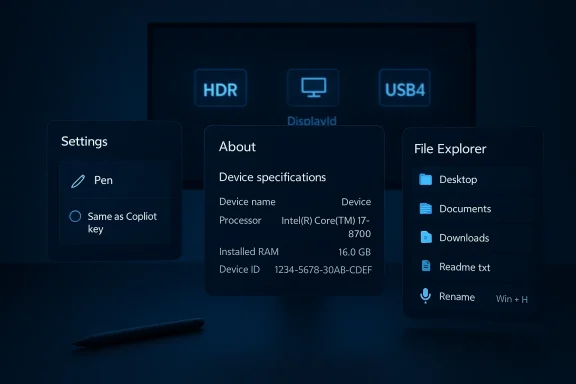
- The Settings > System > About page has been reworked to present device specifications in a more structured way, with quicker navigation paths to related components (notably Storage settings). This aims to make the page easier to scan and to reduce the number of clicks required when troubleshooting or sharing device details.
- A device information card on the Settings home page centralizes core device attributes for faster access.
- The update introduces the ability for Microsoft 365 Family subscribers to upgrade plans directly from Settings > Accounts. Users or admins who prefer to hide that option can do so by turning off Suggested content.
- Dialogs in Settings > Accounts > Other users have been restyled to match Windows’ modern look and to support dark mode, improving visual consistency.
Input: pen options and cleaner pen settings
- A modernized pen settings experience is part of this update. The standout addition is a Same as Copilot key option that ties the pen tail button to the same app as the Copilot key. This lets pen-equipped device users configure a single shortcut that behaves consistently with Copilot-aware workflows.
- Improved keyboard character repeat delay labels are visible under Settings > Bluetooth & devices > Keyboard.
File Explorer: voice typing, unblocking improvements, and security sorting
- You can now use Voice Typing (Win + H) while renaming files in File Explorer — useful for larger, more descriptive names or hands-free file management.
- The update improves reliability when unblocking downloaded files so that they can be previewed without false negatives.
- In Advanced Security Settings for folders, permissions entries can be sorted by Principal, making it easier for administrators to audit and modify ACLs.
Display and power behavior: high refresh, USB4, DisplayID, and HDR fixes
- Monitors can now report refresh rates higher than 1000 Hz to the OS, which addresses reporting gaps for extreme high-refresh gaming and specialized displays.
- When using a native USB4 monitor connection, the USB controller can now enter the lowest power level while the PC is sleeping, saving battery for laptops and connected devices.
- Auto-rotation reliability after resume from sleep has been improved.
- HDR reliability has been enhanced for displays with non-compliant DisplayID 2.0 descriptors, and monitors with DisplayID report a more accurate size via WMI monitor APIs.
Accessibility and Narrator: image descriptions and natural voices
- Narrator can provide rich image descriptions on Copilot+ PCs and now integrates with Copilot on all Windows 11 devices, enabling quick image descriptions on request and an Ask Copilot flow for more detailed analysis.
- The update improves Natural Voices in Narrator and makes Natural Voices setup more reliable.
Security, reliability, and miscellaneous fixes
- A practical change: Smart App Control (SAC) can now be toggled on or off without a clean install via Settings > Windows Security > App & Browser Control > Smart App Control settings. This eases testing and remediation of software allow/block controls.
- Windows Hello fingerprint reliability has been improved on certain devices.
- Windows Recovery Environment (Windows RE) stability has been enhanced for running x64 apps on ARM64 devices.
- Removed an extraneous error message users sometimes saw when running sfc /scannow.
- A number of platform reliability improvements affect printing, Remote Desktop, audio/MIDI handling, Start menu layout application via group policy, and Safe mode taskbar component loading.
Verification and cross-checking
I verified the KB number, build numbers, and the published changelog using Microsoft’s Windows Insider blog entry announcing the Release Preview release, which lists builds 26100.8106 and 26200.8106 as KB5079387 with the itemized feature set. Independent technology outlets and coverage from major Windows news sites and industry writers reporting on the March 2026 insider releases reproduced the same highlights—Voice Typing in File Explorer, Iconic settings reworks, File Explorer visual fixes, and Smart App Control toggles—providing corroboration that these are active items under test.A few specific cross-checks performed while researching:
- The Voice Typing while renaming files and the File Explorer unblocking improvements appear consistently in both Microsoft’s Release Preview notes and in reporting from multiple independent outlets that covered the March Insider rollouts.
- The Storage cleanup and File Explorer Voice Typing items were previously rolled out in Canary and Beta Channel posts; those earlier posts and their write-ups corroborate continuing adjustments across channels.
- Claims about monitors reporting refresh rates higher than 1000 Hz and improved DisplayID size reporting currently originate in Microsoft’s Release Preview post. As of this article, broader coverage by third-party outlets that specifically test >1000 Hz reporting is limited; this item should be considered single-source for now and taken as Microsoft’s stated intent until independent hardware verification appears.
What’s notable — strengths and real-world impact
- Small changes, big UX wins
- The Settings page and device card improvements are minor in isolation but reduce cognitive load when hunting for device-related controls, especially for less technically inclined users.
- Giving Microsoft 365 Family subscribers an upgrade path inside Settings streamlines subscription management and reduces friction for users who might otherwise go through a web or store flow.
- Accessibility gets practical enhancements
- Narrator’s new image-description flow tied to Copilot is a concrete win. It’s not just a cosmetic accessibility tweak — it offers on-device descriptive functionality that can expand independence for visually impaired users.
- Input and pen consistency
- The pen-tail alignment with the Copilot key is a simple but clever idea that reduces surprise behavior across devices. For users who rely on the pen to launch assistants or apps, that parity is welcome.
- Enterprise-friendly toggles
- Allowing SAC to be toggled without a clean install removes a major deployment pain point for security-conscious organizations that want to pilot the feature without reimaging hardware.
- Modern hardware readiness
- Improvements for USB4 monitor sleep power, DisplayID accuracy, HDR reliability, and higher refresh reporting reflect a pragmatic focus on future and niche hardware. This matters to pro and gaming users who push display boundaries.
What could go wrong — risks, caveats, and deployment concerns
- Gradual rollout means inconsistent experience
- Microsoft’s phased distribution model means availability will vary by device and market. That can create confusion in mixed environments: some users will see new Settings layouts while others will not. For organizations that standardize training or documentation, this is a source of inconsistency.
- Single-source claims need hardware validation
- Items such as monitors reporting >1000 Hz and finer DisplayID behaviors depend on vendor firmware and drivers. Until independent testing and driver updates verify real-world behavior, organizations should treat these as promising but not guaranteed.
- Copilot integration raises privacy questions
- Narrator’s integration with Copilot and the Ask Copilot flow surfaces a small privacy consideration: Copilot interactions may be logged or processed differently depending on account and telemetry settings. Admins and privacy-conscious users should verify enterprise Copilot policies and telemetry settings before enabling or expecting on-device-only flows.
- Smart App Control toggling is helpful but not risk-free
- Allowing SAC to be toggled without a clean install simplifies testing, but toggling may create policy drift for managed devices. Administrators should plan for consistent policy application and testing before enabling SAC across large fleets.
- Regressions and cumulative updates
- Any cumulative update can introduce subtle regressions. Although KB5079387 is a quality update, enterprises should use pilot groups and measure key scenarios (printing, RDP, Group Policy application, and sfc runs) before broad deployment.
- Driver and OEM dependencies
- Display, USB4, and fingerprint reliability fixes sometimes require vendor driver updates to be fully effective. Rolling out the OS update without ensuring driver compatibility can leave devices in a partially improved state.
Recommended rollout strategy — advice for users and IT administrators
If you’re a home user or an enthusiast (non-managed device)- If you rely on high-refresh monitors, stylus workflows, or Copilot accessibility features, consider installing the Release Preview update via the Windows Insider Release Preview channel for an early look—but back up first.
- Create a system restore point and ensure your GPU/monitor drivers are current from the vendor before installing.
- Try the new pen Same as Copilot key and Voice Typing for renaming in a small set of files to evaluate ergonomics and accuracy.
- Deploy KB5079387 to a pilot group first (5–10% of fleet) that represents typical hardware and software permutations.
- Verify Print, Group Policy, Remote Desktop, and File Explorer behaviors on pilot devices.
- Coordinate with vendor support if you manage hardware with custom drivers or rely on specialized monitors.
- Defer broad deployment until Microsoft graduates the Release Preview changes to the normal rollout or Stable channel, unless you need specific fixes urgently.
- Use a phased deployment model: pilot → targeted deployment → broad rollout. Confirm SAC toggles and Copilot/Narrator behaviors conform to corporate security and privacy policy.
- Update third-party drivers (GPU, fingerprint sensors, USB4 docks) and BIOS/firmware in tandem to avoid partial improvements.
- Use Windows Update for Business and WSUS to stage the update; tag devices and monitor telemetry for user impact.
- Create a recovery image and backups of critical data.
- Update GPU, monitor, and peripheral drivers from OEM repositories.
- Validate fingerprint readers and Windows Hello flows in a test environment.
- If using Copilot features, confirm organizational telemetry and compliance settings.
Troubleshooting tips and rollback guidance
- If a device experiences regressions after the update:
- Use System Restore to revert to a pre-update snapshot, if available.
- In Settings > Windows Update > Update History, view uninstall options for recent quality updates and remove the problematic KB.
- Boot to Safe Mode and use Device Manager to roll back or reinstall GPU/monitor drivers.
- For enterprise-managed devices, use your deployment tooling (Intune, SCCM, WSUS) to block the update and revert affected machines.
- If Voice Typing accuracy is poor when renaming files:
- Confirm language and speech models are installed in Settings > Time & language > Speech.
- Test microphone configuration in Settings > Bluetooth & devices > Microphone.
- Retry with shorter dictation phrases and fewer special characters.
- If DisplayID reporting or refresh rates behave oddly:
- Check for monitor firmware updates.
- Ensure GPU drivers support extreme refresh rates and that the physical connection (Native USB4 / DisplayPort / HDMI) supports the mode.
- Test with a clean driver install and validate via Windows’ Display settings and WMI queries.
How this fits into Microsoft’s broader Windows strategy
KB5079387 follows Microsoft’s recent pattern of incremental, widely scoped quality updates rather than monolithic feature releases. The company appears focused on:- Incrementally modernizing the Settings app to reduce fragmentation and cognitive load across device lifecycle operations.
- Tightening the integration of AI-driven tooling (Copilot) with accessibility features to expand real-world usefulness for assistive scenarios.
- Preparing the platform for next-generation hardware (USB4 docks, very-high-refresh displays and new ARM64 scenarios) with behind-the-scenes telemetry and power management improvements.
Final analysis and takeaways
KB5079387 is a classic example of a cumulative quality update that will likely fly under the radar for many users while materially improving everyday behaviors for those who notice detail: renaming files with your voice, making the pen button behave the way you expect, and seeing clearer device information in Settings. The update also demonstrates Microsoft’s pragmatic focus on modern hardware readiness and accessibility — two areas that, when handled well, deliver outsized user value.That said, organizations should treat this release with the same discipline applied to other cumulative updates. Because some items (especially display and hardware interaction improvements) depend on driver and firmware cooperation, administrators must pilot the update with a representative hardware set and confirm vendor support before full deployment. Additionally, Copilot-linked accessibility features introduce a privacy and governance dimension that should be considered when enabling those experiences in enterprise environments.
If you value polished input workflows and accessibility improvements and you manage a mixed fleet, use KB5079387 in a controlled pilot and coordinate driver updates. If you’re a power user with a pen or high-refresh display, installing the Release Preview release offers early access to small but meaningful improvements — but take the usual precautions: back up, update drivers first, and monitor for regressions.
KB5079387 isn’t a headline-grabbing redesign; it’s a thoughtful collection of tweaks that smooth daily interactions with Windows 11. For a mature desktop OS, those refinements — applied carefully and tested broadly — are exactly what keep the platform feeling modern and reliable.
Source: Windows Report https://windowsreport.com/windows-1...preview-with-settings-and-input-improvements/
