

Microsoft’s March 2026 optional preview for Windows 11 arrives as another reminder that the company now treats the monthly servicing cadence as more than a fix train: it is also a delivery vehicle for new UI behaviors, AI-adjacent accessibility features, and enterprise policy refinements. The newly documented KB5079391 preview, which targets Windows 11 25H2 and 24H2 with OS builds 26200.8116 and 26100.8116, continues that pattern with a split release model: some items roll out gradually, while others land immediately after installation. That matters because Microsoft is not simply shipping patches anymore; it is staging the operating system itself in layers, feature by feature.
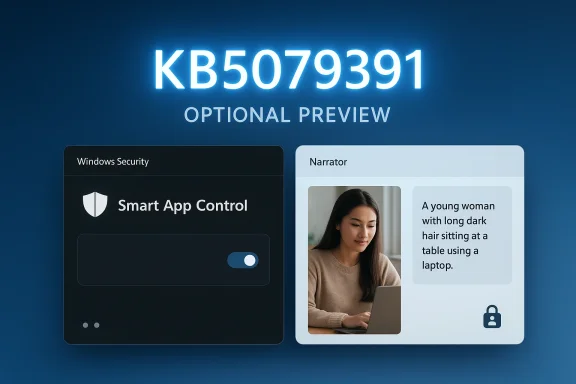
The update also brings Smart App Control back into the spotlight, after Microsoft had documented the capability in the January 2026 preview update, KB5074105, and then described it as something planned for a future release before it reappeared in March’s preview flow. The practical message is clear: Microsoft is trying to make Windows 11 feel more adaptive, more secure, and more service-like, even as it keeps the monthly quality update model intact. For consumers and IT admins, that means the question is no longer just whether to install a preview update, but whether to accept a release vehicle that may alter core behavior in subtle ways over time.
Windows 11’s servicing model has been steadily evolving away from the old idea that “Patch Tuesday” is only about security and reliability. Microsoft has been layering in features through cumulative updates for months, with optional preview releases now acting like a controlled laboratory for user experience changes. The March 2026 preview sits squarely in that pattern, arriving after February’s preview, KB5077241, and before the March security update, KB5079473, which reused a number of the same servicing channels and build families. (support.microsoft.com)
The broader context is important. Windows 11 24H2 and 25H2 share a common servicing lineage, and Microsoft has repeatedly used monthly releases to enable dormant capabilities rather than delivering them all in major annual leaps. That strategy reduces deployment shock, but it also means the operating system is increasingly assembled through a series of phased toggles, gradual rollouts, and post-release adjustments. For Microsoft, this is operationally efficient. For enterprises, it is a little less predictable.
March 2026 also arrives against a backdrop of Microsoft emphasizing the future of Windows as both a consumer and managed platform. The company has been talking about Copilot+ PCs, on-device intelligence, accessibility enhancements, and policy-driven management as part of the same ecosystem rather than separate product lines. That framing shows up in the March preview update’s headline items, especially Narrator’s new image-description behavior and the return of Smart App Control controls that can be changed without a clean install. (support.microsoft.com)
There is also a practical servicing lesson hidden in the update history. Microsoft’s January preview, KB5074105, documented Smart App Control changes, then revised the documentation in February to say the feature had been removed from the doc and planned for a future release, before the March update reintroduced it as part of the live rollout. That sequence suggests Microsoft is still tuning the feature’s readiness and deployment semantics rather than treating it as a one-and-done addition. In other words, preview now sometimes means “moving target,” not just “early access.” (support.microsoft.com)
That split is not cosmetic. In Microsoft’s current vocabulary, gradual rollout means a feature may appear on one device before another, even when both systems are eligible and up to date. Normal rollout, by contrast, is the broader release path that generally makes the feature visible immediately after installation. This dual-track delivery is central to understanding the March 2026 preview because it determines who sees what, and when. (support.microsoft.com)
The fact that the update is optional also matters. Optional previews are the place where Microsoft tends to place quality-of-life features, policy changes, and fixes that may later roll into the next security cumulative update. That makes KB5079391 worth watching even for users who routinely skip previews, because preview content often becomes the baseline for the following month’s mandatory patch. (support.microsoft.com)
For users, the tradeoff is simple: more innovation between annual releases, but less certainty that every device sees the same experience on the same day. In practice, Windows 11 is becoming a platform where timing is part of the feature set.
At a policy level, this is consistent with Microsoft’s broader push toward Application Control for Business and more transparent threat reduction. SAC is meant to block untrusted or potentially harmful apps, which positions it as a consumer-friendly counterpart to more granular enterprise controls. The key difference is that SAC tries to be lightweight and default-driven, while enterprise control systems depend on IT policy discipline and app allowlisting. (support.microsoft.com)
It also signals that Microsoft is still trying to make Windows safer without asking users to understand the entire threat landscape. That’s good product design in theory, even if not every user will keep the feature enabled. The practical gain is that Microsoft can now make SAC feel like a normal Windows setting instead of an arcane deployment artifact.
That is where the preview label becomes important again. A feature can be useful and still need a long burn-in period before it is fit for broad enterprise standardization. SAC’s future will likely depend on whether Microsoft can prove that it is both effective and predictable across real-world fleet diversity.
The distinction between Copilot+ PCs and standard Windows 11 devices is telling. On Copilot+ systems, Microsoft says Narrator can provide instant on-device descriptions, which suggests a latency and privacy advantage. On other devices, users can hand the image to Copilot for deeper detail, which may feel slower but also broadens support across the installed base. That dual-path design is classic Microsoft: premium hardware gets the best experience, but the software story still reaches everyone else.
That has benefits. Users with low vision, cognitive load concerns, or reading challenges may gain much faster access to image context. But it also raises expectations that Windows will continue to use AI in ways that are genuinely practical, not just promotional.
Still, reliability will decide whether this feels like a breakthrough or a demo. If the descriptions are practical and consistent, this could become one of the more meaningful Windows 11 accessibility additions in months.
This is the kind of work users often notice only indirectly. When Settings is fast, coherent, and predictable, Windows feels modern. When it is slow or fragmented, the operating system seems heavier than it should. Microsoft’s wording about improved reliability in opening the Home page and better download reliability for required updates suggests the company is still sanding down rough edges in core system management flows.
The Accounts area also gets attention in this update, including improvements to Microsoft 365 Family upgrade prompts and dialog design for “Other users.” Microsoft is clearly trying to make account management more consistent with the modern Windows aesthetic, including dark mode support. That is a small but visible step toward reducing the sense that some parts of Windows were designed in different eras.
The deeper story is that Microsoft is trying to normalize Settings as the primary administrative surface for Windows 11. That means every refinement, however small, is part of a larger effort to keep the platform coherent as more features are added.
That matters because File Explorer remains one of Windows’ most heavily used components. Any friction in previews, rename actions, or permissions review can generate outsized annoyance. Microsoft appears to be targeting exactly the areas where small failures can cascade into bigger workflow interruptions.
This is also aligned with the broader AI and voice strategy across Windows 11. A voice-assisted rename sounds trivial, but it creates a platform expectation: speech should work everywhere, not just in a dedicated dictation box.
The File Explorer fixes are not glamorous, but they are the sort of quality improvements that shape whether users see Windows 11 as refined or merely busy. Polish is a feature, especially in file management.
These changes reveal how Windows 11 is trying to keep pace with increasingly complex hardware. High-refresh gaming displays, multi-function USB4 monitors, and HDR-capable panels all create edge cases that can expose the operating system’s limitations. Microsoft is clearly trying to reduce those pain points before they become support issues.
More broadly, this kind of update helps maintain Windows’ position as the default platform for enthusiasts. If Microsoft wants users to keep choosing Windows for the newest displays and peripherals, it has to keep smoothing out the plumbing under the hood.
These hardware fixes also show Microsoft’s challenge. Windows has to accommodate old peripherals, new standards, and inconsistent vendor implementations all at once. That’s a hard engineering problem, and the preview channel is where the roughest edges tend to surface first.
These are not features most consumers will notice. But for enterprises, they can be the difference between a clean rollout and a support ticket storm. Printing compatibility and session configuration are the sort of seams that become very visible when they break.
That’s especially important in organizations that haven’t finished migrating away from older Windows Server or client versions. The right compatibility baseline keeps the ecosystem from fragmenting further.
That is one of the main takeaways from this preview: Microsoft is still investing in the plumbing. Not every meaningful update is glamorous; some of the best ones are the ones that disappear into operational normalcy.
That approach has strategic advantages. It lets Microsoft gather feedback faster, ship more frequently, and avoid saving every visible change for annual releases. It also helps keep the Windows 11 story competitive against platforms that update more fluidly and visibly.
That model makes Windows feel alive. But it also increases the importance of communication. Users need to know what is arriving now, what is phased, and what may still change before the next mandatory update.
That tension is the defining characteristic of modern Windows servicing. The OS is no longer just a product; it is an ongoing negotiation between platform ambition and deployment reality.
The other major watch item is whether Microsoft can make the new SAC model feel stable and transparent. If the company succeeds, it could become a stronger consumer security story and a more manageable enterprise policy tool. If it stumbles, the feature risks becoming another Windows control that sounds good on paper but fails to win lasting trust.
Source: The Tech Outlook Microsoft Announces Windows 11 KB5079391 Preview Update with New Features and Bug Fixes - The Tech Outlook
The update also brings Smart App Control back into the spotlight, after Microsoft had documented the capability in the January 2026 preview update, KB5074105, and then described it as something planned for a future release before it reappeared in March’s preview flow. The practical message is clear: Microsoft is trying to make Windows 11 feel more adaptive, more secure, and more service-like, even as it keeps the monthly quality update model intact. For consumers and IT admins, that means the question is no longer just whether to install a preview update, but whether to accept a release vehicle that may alter core behavior in subtle ways over time.
 Background
Windows 11’s servicing model has been steadily evolving away from the old idea that “Patch Tuesday” is only about security and reliability. Microsoft has been layering in features through cumulative updates for months, with optional preview releases now acting like a controlled laboratory for user experience changes. The March 2026 preview sits squarely in that pattern, arriving after February’s preview, KB5077241, and before the March security update, KB5079473, which reused a number of the same servicing channels and build families. (support.microsoft.com)The broader context is important. Windows 11 24H2 and 25H2 share a common servicing lineage, and Microsoft has repeatedly used monthly releases to enable dormant capabilities rather than delivering them all in major annual leaps. That strategy reduces deployment shock, but it also means the operating system is increasingly assembled through a series of phased toggles, gradual rollouts, and post-release adjustments. For Microsoft, this is operationally efficient. For enterprises, it is a little less predictable.
March 2026 also arrives against a backdrop of Microsoft emphasizing the future of Windows as both a consumer and managed platform. The company has been talking about Copilot+ PCs, on-device intelligence, accessibility enhancements, and policy-driven management as part of the same ecosystem rather than separate product lines. That framing shows up in the March preview update’s headline items, especially Narrator’s new image-description behavior and the return of Smart App Control controls that can be changed without a clean install. (support.microsoft.com)
There is also a practical servicing lesson hidden in the update history. Microsoft’s January preview, KB5074105, documented Smart App Control changes, then revised the documentation in February to say the feature had been removed from the doc and planned for a future release, before the March update reintroduced it as part of the live rollout. That sequence suggests Microsoft is still tuning the feature’s readiness and deployment semantics rather than treating it as a one-and-done addition. In other words, preview now sometimes means “moving target,” not just “early access.” (support.microsoft.com)
What KB5079391 Actually Is
At its core, KB5079391 is a non-security preview update for Windows 11 versions 25H2 and 24H2. Microsoft’s own support pages for adjacent releases show the company’s current update philosophy clearly: preview updates are meant to improve functionality, performance, and reliability, and their features may ship in phases. The March preview follows that same model, with a distinction between gradual rollout features and normal rollout features. (support.microsoft.com)That split is not cosmetic. In Microsoft’s current vocabulary, gradual rollout means a feature may appear on one device before another, even when both systems are eligible and up to date. Normal rollout, by contrast, is the broader release path that generally makes the feature visible immediately after installation. This dual-track delivery is central to understanding the March 2026 preview because it determines who sees what, and when. (support.microsoft.com)
Why the build numbers matter
The build numbers, 26200.8116 and 26100.8116, are more than bookkeeping. They confirm that Microsoft is servicing both 25H2 and 24H2 through a shared monthly cadence, which helps reduce fragmentation across the Windows ecosystem. That’s good news for supportability, but it also means that feature behavior can be subtly synchronized across different Windows 11 cohorts in ways that users may not notice until something changes.The fact that the update is optional also matters. Optional previews are the place where Microsoft tends to place quality-of-life features, policy changes, and fixes that may later roll into the next security cumulative update. That makes KB5079391 worth watching even for users who routinely skip previews, because preview content often becomes the baseline for the following month’s mandatory patch. (support.microsoft.com)
- Optional preview update: not required, but often the preview of next month’s baseline.
- Shared servicing path: applies to both 24H2 and 25H2.
- Mixed rollout approach: some features arrive instantly, some staged.
- Feature previews: especially relevant for accessibility and AI-driven workflows.
Why Microsoft keeps doing this
Microsoft’s update strategy gives it a safer way to introduce change without waiting for a full feature release. That is especially useful for features that need field validation, such as accessibility tools, security controls, and Settings UI refreshes. It also gives Microsoft room to dial back a feature that doesn’t behave as expected, which is increasingly important given the pace of Windows changes.For users, the tradeoff is simple: more innovation between annual releases, but less certainty that every device sees the same experience on the same day. In practice, Windows 11 is becoming a platform where timing is part of the feature set.
Smart App Control Returns as a User-Managed Feature
The most intriguing item in this preview is Smart App Control (SAC), now described as something users can turn on or off without a clean install. That is a meaningful shift because SAC has historically been tied to device state and onboarding decisions, not just a simple toggle buried in Windows Security. Microsoft is making the feature feel more accessible, but it is also making it more operationally relevant to users who want frictionless protection. (support.microsoft.com)At a policy level, this is consistent with Microsoft’s broader push toward Application Control for Business and more transparent threat reduction. SAC is meant to block untrusted or potentially harmful apps, which positions it as a consumer-friendly counterpart to more granular enterprise controls. The key difference is that SAC tries to be lightweight and default-driven, while enterprise control systems depend on IT policy discipline and app allowlisting. (support.microsoft.com)
Why this matters for consumers
For everyday users, SAC’s visibility inside Windows Security > App & Browser Control lowers the barrier to turning on an important guardrail. That could make a real difference for households that download utilities, side-load software, or install apps from uncertain sources. It is a protective nudge that feels more native than third-party antivirus prompts.It also signals that Microsoft is still trying to make Windows safer without asking users to understand the entire threat landscape. That’s good product design in theory, even if not every user will keep the feature enabled. The practical gain is that Microsoft can now make SAC feel like a normal Windows setting instead of an arcane deployment artifact.
- Easier access to a security control.
- Lower friction for home users.
- Better alignment with Windows Security’s existing UI.
- Potentially improved adoption if users actually understand the toggle.
Why this matters for IT
Administrators will look at SAC through a different lens. They will care about whether the feature behaves consistently across image states, whether it complicates support calls, and whether users can disable it in ways that undermine compliance posture. Microsoft’s own wording suggests the feature is still being introduced in a controlled manner, which implies there may be device eligibility or rollout constraints.That is where the preview label becomes important again. A feature can be useful and still need a long burn-in period before it is fit for broad enterprise standardization. SAC’s future will likely depend on whether Microsoft can prove that it is both effective and predictable across real-world fleet diversity.
Copilot, Narrator, and the Accessibility Layer
One of the most visible changes in KB5079391 is the new behavior in Narrator, which can now provide rich image descriptions on Copilot+ PCs and also work with Copilot on all Windows 11 devices. The feature appears designed to bridge accessibility and AI assistance, letting users describe either a focused image or the full screen through keyboard shortcuts. That is a notable step because it folds image understanding into a built-in assistive workflow rather than leaving it to external tools. (support.microsoft.com)The distinction between Copilot+ PCs and standard Windows 11 devices is telling. On Copilot+ systems, Microsoft says Narrator can provide instant on-device descriptions, which suggests a latency and privacy advantage. On other devices, users can hand the image to Copilot for deeper detail, which may feel slower but also broadens support across the installed base. That dual-path design is classic Microsoft: premium hardware gets the best experience, but the software story still reaches everyone else.
Accessibility is becoming a premium feature set
This update reinforces the idea that accessibility in Windows is no longer a separate menu of accommodations. It is becoming part of the AI and hardware narrative. By tying image descriptions to Copilot and Copilot+ PCs, Microsoft is positioning accessibility as an advanced capability rather than an afterthought.That has benefits. Users with low vision, cognitive load concerns, or reading challenges may gain much faster access to image context. But it also raises expectations that Windows will continue to use AI in ways that are genuinely practical, not just promotional.
- Copilot+ PCs get on-device instant descriptions.
- Other Windows 11 devices can use Copilot for richer description.
- Keyboard shortcuts make the feature fast to invoke.
- Privacy and latency differ depending on hardware.
The real product question
The larger question is whether these AI-assisted accessibility features are reliable enough to be trusted. If Narrator misdescribes an image, users can be misled in ways that matter. That is why Microsoft’s careful separation between instant on-device descriptions and Copilot-based expanded context is smart: it gives users a fallback model instead of promising one magical answer.Still, reliability will decide whether this feels like a breakthrough or a demo. If the descriptions are practical and consistent, this could become one of the more meaningful Windows 11 accessibility additions in months.
Settings, Accounts, and the Quiet UI Refresh
KB5079391 also contains several changes to Settings, which may not generate headlines but often define how polished Windows feels in daily use. Microsoft says the About page has been improved with a more structured layout, clearer device specifications, and easier access to related components such as Storage settings. The device information card on the Settings Home page also now summarizes key system specifications more cleanly. (support.microsoft.com)This is the kind of work users often notice only indirectly. When Settings is fast, coherent, and predictable, Windows feels modern. When it is slow or fragmented, the operating system seems heavier than it should. Microsoft’s wording about improved reliability in opening the Home page and better download reliability for required updates suggests the company is still sanding down rough edges in core system management flows.
Why Settings changes matter more than they seem
Settings has become the front door to Windows for everything from security to personalization to device health. Small improvements there can have outsized effects because they affect almost every support task. A cleaner About page is not dramatic, but it reduces friction for both consumers and help desk staff.The Accounts area also gets attention in this update, including improvements to Microsoft 365 Family upgrade prompts and dialog design for “Other users.” Microsoft is clearly trying to make account management more consistent with the modern Windows aesthetic, including dark mode support. That is a small but visible step toward reducing the sense that some parts of Windows were designed in different eras.
- Better device specification visibility.
- Easier navigation to Storage and related system pages.
- More polished account dialogs.
- More consistent dark mode support.
Consumer and enterprise split
For consumers, these changes help make Windows feel less intimidating. A simpler path to view system details and a cleaner way to explore Microsoft 365 upgrade options can improve the perceived quality of the platform. For enterprises, the value is mostly in reduced support time and fewer UI inconsistencies when instructing users.The deeper story is that Microsoft is trying to normalize Settings as the primary administrative surface for Windows 11. That means every refinement, however small, is part of a larger effort to keep the platform coherent as more features are added.
File Explorer, Input, and the Everyday Workflow
The File Explorer changes in this update are subtle but useful. Microsoft says the experience improves reliability around unblocking files downloaded from the internet for previewing, voice typing can now be used while renaming a file, and permissions entries in Advanced Security Settings can be sorted by Principal. These are the kinds of fixes that directly help power users and admins, even if they do not alter the surface design. (support.microsoft.com)That matters because File Explorer remains one of Windows’ most heavily used components. Any friction in previews, rename actions, or permissions review can generate outsized annoyance. Microsoft appears to be targeting exactly the areas where small failures can cascade into bigger workflow interruptions.
A better fit for mixed-input work
The addition of Voice Typing during file renaming is a nice example of how Windows is adapting to mixed-input workflows. Not every user types the same way, and some tasks are easier to complete with speech than with a keyboard. Letting the voice stack work inside a mundane action like renaming a file suggests Microsoft is trying to make accessibility and productivity features blend into ordinary work.This is also aligned with the broader AI and voice strategy across Windows 11. A voice-assisted rename sounds trivial, but it creates a platform expectation: speech should work everywhere, not just in a dedicated dictation box.
- Better handling of downloaded file unblocking.
- Voice typing now works during rename operations.
- Sorting security permissions improves admin clarity.
- Small improvements can have large workflow effects.
Why admins should care
The sorting improvement in Advanced Security Settings may be especially useful for administrators who need to inspect ACLs or explain inheritance to others. When permissions are easier to scan, mistakes are less likely. That reduces friction in troubleshooting and makes the interface a bit more trustworthy.The File Explorer fixes are not glamorous, but they are the sort of quality improvements that shape whether users see Windows 11 as refined or merely busy. Polish is a feature, especially in file management.
Display, Power, and Hardware Fidelity
Microsoft also uses KB5079391 to continue tightening hardware behavior, especially in the display and power stack. The update improves display reliability, allows monitors to report refresh rates above 1000 Hz, and lets the USB controller enter its lowest power level during sleep when using a native USB4 monitor connection. It also improves auto-rotation reliability after waking from sleep and HDR reliability for displays with non-compliant DisplayID 2.0 blocks. (support.microsoft.com)These changes reveal how Windows 11 is trying to keep pace with increasingly complex hardware. High-refresh gaming displays, multi-function USB4 monitors, and HDR-capable panels all create edge cases that can expose the operating system’s limitations. Microsoft is clearly trying to reduce those pain points before they become support issues.
High-refresh displays and the enthusiast market
The ability to report refresh rates above 1000 Hz is especially notable, even if only a small slice of hardware supports it today. It shows Microsoft is preparing for a future where display innovation keeps pushing beyond common boundaries. For gamers and display enthusiasts, this is the sort of change that signals Windows is at least paying attention to leading-edge hardware.More broadly, this kind of update helps maintain Windows’ position as the default platform for enthusiasts. If Microsoft wants users to keep choosing Windows for the newest displays and peripherals, it has to keep smoothing out the plumbing under the hood.
- Better support for cutting-edge refresh rates.
- Improved sleep and battery behavior with USB4 monitor setups.
- More reliable auto-rotation after resume.
- HDR fixes for imperfect display metadata.
Battery and power implications
The USB controller power improvement is a quiet but meaningful efficiency tweak. It may extend battery life in scenarios where the laptop is connected to a native USB4 monitor and then enters sleep. That is the sort of detail that matters in mobile-first work environments, especially for users who dock and undock frequently.These hardware fixes also show Microsoft’s challenge. Windows has to accommodate old peripherals, new standards, and inconsistent vendor implementations all at once. That’s a hard engineering problem, and the preview channel is where the roughest edges tend to surface first.
Printing, Remote Desktop, and the Enterprise Plumbing
KB5079391 also touches the infrastructure areas that keep Windows viable in workplaces. Microsoft updated the downlevel baseline support for printer connections to Windows 10 version 1607 and Windows Server 2016 build 14393, which sounds obscure but reflects the reality that printing ecosystems outlive OS generations. There is also a Remote Desktop change, where Set-RDSessionCollectionConfiguration now recognizes DisableSeamlessLanguageBar. (support.microsoft.com)These are not features most consumers will notice. But for enterprises, they can be the difference between a clean rollout and a support ticket storm. Printing compatibility and session configuration are the sort of seams that become very visible when they break.
Why printer baseline changes are a big deal
Printer management remains one of Windows’ most stubborn legacy domains. Even as Microsoft modernizes the OS, the reality is that many businesses still depend on older print infrastructure and drivers. Updating baseline support helps avoid abrupt incompatibility when mixed-environment fleets are in play.That’s especially important in organizations that haven’t finished migrating away from older Windows Server or client versions. The right compatibility baseline keeps the ecosystem from fragmenting further.
- Helps mixed-version fleets stay connected.
- Reduces avoidable printer support issues.
- Supports older server-side environments.
- Keeps enterprise deployment planning simpler.
Remote Desktop and language behavior
The Remote Desktop fix is more technical, but it addresses a practical issue for admins managing session collections. Recognizing DisableSeamlessLanguageBar more reliably can help avoid odd behavior in multilingual or virtual desktop scenarios. In enterprise environments, language-bar friction may seem minor, but these details add up quickly.That is one of the main takeaways from this preview: Microsoft is still investing in the plumbing. Not every meaningful update is glamorous; some of the best ones are the ones that disappear into operational normalcy.
The March Update as Part of a Bigger Servicing Story
If you step back, KB5079391 is less about any one feature and more about Microsoft’s ongoing shift to continuous innovation. The company has been making preview updates feel increasingly like the first half of the next release, rather than a separate optional lane. That is visible in the way features are staged, revised, and sometimes re-documented across monthly updates. (support.microsoft.com)That approach has strategic advantages. It lets Microsoft gather feedback faster, ship more frequently, and avoid saving every visible change for annual releases. It also helps keep the Windows 11 story competitive against platforms that update more fluidly and visibly.
The upside of feature-by-feature servicing
A monthly cadence gives Microsoft more room to iterate on accessibility, security, and UI design in a way that feels dynamic rather than frozen. It also means users get useful changes sooner. For example, if a security control like Smart App Control or a usability improvement in Settings is ready, there is no reason to delay it for a major release cycle.That model makes Windows feel alive. But it also increases the importance of communication. Users need to know what is arriving now, what is phased, and what may still change before the next mandatory update.
- Faster delivery of smaller enhancements.
- Better feedback loops from real devices.
- More opportunities to improve reliability.
- Increased complexity in release communication.
The downside of fluidity
The downside is obvious: fluid releases are harder to explain, harder to support, and harder to keep consistent across a fleet. Enterprises want predictability. Consumers want simplicity. Microsoft is trying to satisfy both, and the result is a servicing model that is flexible but not always easy to understand.That tension is the defining characteristic of modern Windows servicing. The OS is no longer just a product; it is an ongoing negotiation between platform ambition and deployment reality.
Strengths and Opportunities
The March 2026 preview is strongest when viewed as a set of targeted refinements rather than a blockbuster release. It improves the everyday feel of Windows 11 while also advancing Microsoft’s broader strategy around AI, accessibility, and security posture. The opportunity is that Microsoft can keep making Windows more useful without forcing major disruptive upgrades on users. That balance, if maintained, could strengthen Windows 11’s position among both home users and managed fleets.- Smart App Control becomes easier to manage without a clean install.
- Narrator gains genuinely useful image-description capabilities.
- Settings is becoming more coherent and easier to navigate.
- File Explorer gets small but valuable quality improvements.
- Display and power fixes matter for modern hardware and battery life.
- Enterprise plumbing improves printer and Remote Desktop behavior.
- The gradual rollout model lets Microsoft validate features before broad exposure.
Risks and Concerns
The main concern is that Microsoft’s update cadence is becoming more complex than many users and admins want. A feature can appear in one preview, disappear from documentation, and return in a later release, which makes planning harder than it should be. There is also a risk that AI-assisted features will be marketed more confidently than their real-world reliability can sustain. In a platform as large as Windows, even modest uncertainty can become a support headache.- Feature volatility can confuse users and IT teams.
- Gradual rollout means not everyone gets the same experience at once.
- AI-assisted descriptions may raise accuracy and trust concerns.
- Security toggles like SAC need clear operational guidance.
- Preview updates can blur the line between testing and production.
- Legacy infrastructure support remains fragile in enterprise environments.
- Too many moving parts may reduce confidence in optional releases.
Looking Ahead
The next few update cycles will reveal whether KB5079391 is a meaningful step forward or just another marker in Microsoft’s increasingly layered servicing roadmap. The most important thing to watch is not only which features land, but how consistently they behave once they do. Microsoft’s recent history suggests that some of the items in this preview will likely flow into the next cumulative security update, while others may continue to evolve in the background. (support.microsoft.com)The other major watch item is whether Microsoft can make the new SAC model feel stable and transparent. If the company succeeds, it could become a stronger consumer security story and a more manageable enterprise policy tool. If it stumbles, the feature risks becoming another Windows control that sounds good on paper but fails to win lasting trust.
- Watch for feature carryover into the next security update.
- Monitor SAC deployment behavior across device types.
- Track whether Narrator descriptions remain accurate and useful.
- See if Settings and File Explorer improvements persist without regressions.
- Pay attention to display and power behavior on high-end and USB4 hardware.
Source: The Tech Outlook Microsoft Announces Windows 11 KB5079391 Preview Update with New Features and Bug Fixes - The Tech Outlook
