

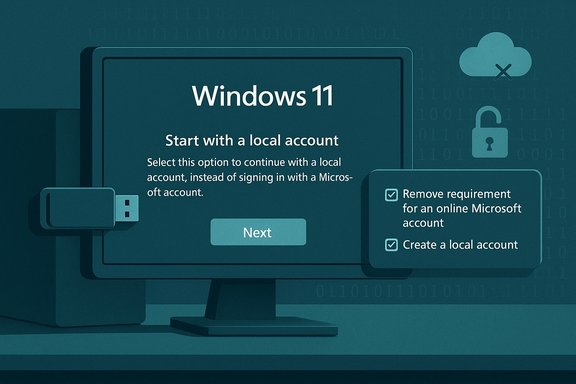
Microsoft’s recent push to make a Microsoft account the default sign‑in path in Windows 11 has spawned a second‑wave of community workarounds — and now a new round of countermeasures and clarifications that every PC builder, refurbisher, and privacy‑concerned user should understand before they rewrite their OOBE (Out‑Of‑Box Experience) playbook.
Background
Windows 11’s initial consumer setup flow increasingly nudges, cajoles, and in some cases requires a connected Microsoft Account (MSA) during OOBE. That shift accelerated after Windows 11’s early releases and has been reinforced in subsequent builds. The result: straightforward local‑account installs that once required nothing more than “I don’t have internet” are now more fragile — and sometimes unavailable — on modern installer images. Recent reporting and official community threads confirm Microsoft has been closing interactive bypasses while pointing customers toward supported provisioning and enterprise deployment methods. At the same time, community tools and mainstream utilities — notably Rufus — have added image‑preparation options that restore the old offline/local fallback for many consumer installs. Those tools automate what previously were manual tricks, offering a repeatable route to a local account during OOBE when used correctly and with proper network discipline. That capability is well documented in community FAQs and independent technical coverage. This article examines the claim made in recent headlines — that the “easiest way” to disable Windows 11’s Microsoft account requirement exists — and tests that claim against the technical reality, the official Microsoft stance, community tools (Rufus), and the practical trade‑offs for users and IT pros.What the recent coverage says (summary)
Recent popular articles and community writeups frame the situation like this:- Microsoft has removed or is hardening interactive shortcuts in OOBE that let installers revert to a purely local account creation path. Famous examples include the legacy oobe\bypassnro trick and other command‑based shortcuts that opened a local‑only path during setup. These changes are intentional and have appeared in Insider builds and later public updates.
- Community tools, most notably Rufus, provide an easier, repeatable mechanism to build Windows 11 installation media that restores the offline/local account behavior by altering the install image or answer file. Rufus exposes checkboxes such as “Remove requirement for an online Microsoft account” and even “Create a local account with username,” which automate unattend settings that the official OOBE UI no longer exposes. Multiple independent outlets and the Rufus project documentation corroborate this.
- Command‑prompt tricks still work on some ISOs and older builds, but Microsoft has actively patched many of those shortcuts and may continue to do so; they are therefore fragile. Community threads in our internal archives document both the commands and their intermittent failures.
- There are supported alternatives for managed deployments — autounattend.xml, Windows Deployment tools, provisioning packages, and Autopilot/Intune — and Microsoft recommends those methods for deterministic, fleet‑wide behavior.
How the bypasses actually work (technical overview)
Understanding the mechanics matters because it explains why some methods break and why others persist.The fragile, interactive tricks
- Shift + F10 → oobe\bypassnro (or oobe\bypassnro.cmd): This opens a command prompt during OOBE and executes a script that flips Setup into a “limited setup” path, allowing the installer to offer a local‑account creation flow. Where it works, it reboots OOBE and you can pick “I don’t have internet” → “Continue with limited setup.” This command relied on an installer script and a small set of keys that Microsoft can (and has) changed. It is now inconsistent across builds.
- Fake/dummy email entry or other UI baiting: Entering an obviously invalid email or password used to trip the installer into falling back to a local account. This behavior is intermittent and has been patched on many builds.
- start ms‑cxh:localonly: A more recent, short‑lived trick that invoked a Cloud Experience Host URI to open a local account dialog. Microsoft has disabled or made this inconsistent in preview channels.
The repeatable image change: Rufus and unattended answer files
Rufus and autounattend.xml don’t “hack” OOBE; they alter the installation media so the official Setup code runs a different, supported branch or consumes preseeded answers.- Rufus “Extended Windows 11 Installation” options add or modify the image’s unattended answer file (unattend.xml) and LabConfig flags. That tells Setup at image‑build time to expose or emulate the older “offline” behavior (local account path when there’s no network), bypass certain hardware checks, or precreate a local user. This is a preinstallation change — far less fragile than in‑OOBE tricks because it operates before Setup begins. The Rufus FAQ and multiple testing reports confirm this behavior.
- autounattend.xml and enterprise provisioning (Windows ADK, MDT, SCCM, WDS) are the supported way to preseed account choices, privacy settings, and other OOBE options for deterministic deployments. They are the correct path for large‑scale or repeated installations.
Step‑by‑step: the “easiest” method explained (what Rufus does)
If your primary aim is a consumer‑level single‑machine reinstall where you want a local account, Rufus often provides the most straightforward route today — but with important caveats.High‑level steps (summary)
- Download the official Windows 11 ISO from Microsoft.
- Download Rufus from its official release (run with administrator privileges).
- Insert an 8GB+ USB drive and select your ISO in Rufus.
- When Rufus presents the Windows customization dialog, check:
- Remove requirement for an online Microsoft account
- (Optional) Create a local account with username
- (Optional) Disable TPM / Secure Boot checks (if you understand the risks)
- Create the USB and boot the target PC from it.
- During OOBE, keep the machine offline when prompted for network (if Rufus’s option restores the offline branch).
- Complete the local account creation and finish setup.
Why this is “easiest” for many users
- It’s GUI‑driven and repeatable: once you configure Rufus the first time, you can reuse that USB across multiple machines.
- It avoids fragile in‑OOBE typing or timing tricks that vary by build.
- It centralizes the image modification step so you don’t have to perform command‑line edits during setup.
The limitations, hidden pitfalls, and trade‑offs
Labeling any route “the easiest” without highlighting trade‑offs would be irresponsible. Here’s what to watch for.1) Microsoft’s ongoing hardening and future risk
Microsoft has explicitly targeted interactive bypasses and may change installer behavior that affects image‑time modifications. Rufus’s approach works by restoring a prior branch of Setup; Microsoft can and does revise Setup behavior so that what works today may not tomorrow. Relying on unofficial or community‑driven workarounds over time increases fragility.2) Network discipline is crucial
Even when Rufus reverts the offline branch, if the installer has an active network connection at the account stage it will default to an MSA flow. Users must ensure the machine is offline (unplug Ethernet, remove Wi‑Fi credentials, or block connectivity via router) when prompted to sign in. Ars Technica and Rufus documentation emphasize this point.3) Unintended side effects (unattend parsing errors)
Because Rufus and similar tools inject an unattend.xml, certain combinations of newer install images and injected answer settings can cause Setup to fail to parse the file (errors around the oobeSystem pass), especially if Microsoft renamed or removed the expected settings between builds. GitHub issue reports show cases where custom options led to “Windows could not parse or process unattended answer file” errors. Always test your USB on a non‑critical machine first.4) Support, updates, and future feature access
Installing with a local account on a machine Microsoft expects to be account‑connected may impact certain cloud‑dependent experiences (automatic BitLocker recovery key escrow, seamless OneDrive integration, and cross‑device sync). Microsoft’s security and support rationale for steering users toward MSAs is real: online accounts can improve recovery and helpdesk workflows for mainstream consumers. If you sacrifice those conveniences you must adopt alternative recovery practices (local image backups, manual key escrow).5) Enterprise and legal considerations
For organizational assets, tampering with installer behavior can violate corporate policies or create inventory/accountability problems. Enterprises should use supported tooling (unattend/xml, provisioning, Autopilot) instead of consumer workarounds. Our forums and enterprise discussions emphasize using industry‑grade deployment for deterministic, auditable installs.Supported alternatives for technicians and IT pros
If your goal is scale, reproducibility, or compliance, use these supported methods instead of community shortcuts.- autounattend.xml (unattend files consumed by Setup): Preseed a local administrator account, OOBE choices, and privacy settings. This is deterministic and survives OOBE UI changes if you adhere to documented answer file schema.
- Image‑based deployment (MDT, SCCM, WDS, DISM‑based custom images): Useful for refurbishers and organizations that image dozens or thousands of devices.
- Windows Autopilot / Intune: For managed fleets that intend to use Azure AD or hybrid identity models but still need provisioning in a controlled way.
- Rufus only for consumer/small batch: If you refurbish a handful of devices and need a repeatable consumer‑grade USB, Rufus is currently the easiest route — but it is not a supported enterprise channel, and it can fail when Microsoft changes Setup internals.
Practical checklist before you proceed (short, actionable)
- Back up everything. Create a full image and an offline copy of your data.
- Test the chosen method on a disposable machine first.
- If using Rufus:
- Download Rufus from the official project page and verify the checksum.
- Use an official Microsoft ISO.
- Configure Rufus options intentionally and document your choices.
- Keep the target PC offline during the account creation step.
- If you work in IT, prefer autounattend.xml or deployment tools.
- Keep recovery keys and backup plans in place if you avoid an MSA (BitLocker recovery, OneDrive alternatives).
- Expect to re‑evaluate after major feature updates to Windows 11; re‑test your process after each significant cumulative update.
Security and privacy analysis
Microsoft’s case for an account‑first OOBE is centered on reliability and security: cloud escrow of recovery keys, remote device management, and a consistent support surface. For average consumers those are meaningful benefits: lost or locked accounts can be recovered through Microsoft’s processes, and automatic BitLocker key escrow can reduce permanent data loss.Conversely, privacy‑minded users and certain single‑purpose devices (kiosks, lab rigs, workshop PCs) legitimately prefer local accounts because they avoid telemetry, cross‑device sync, and cloud entanglement. A local account reduces the surface area of cloud‑based profile data and simplifies device handover in second‑hand scenarios. Our forum research highlights this trade‑off repeatedly, and it is the main driver behind the community’s continued interest in bypass methods.
From a security perspective, be explicit:
- A local account without a proper backup and a disciplined recovery plan increases the risk of permanent data loss if the device is encrypted and the recovery key is lost.
- Image‑based or enterprise provisioning that includes key escrow and centralized recovery is more secure for organizations.
- Modifying Setup to bypass checks (TPM/Secure Boot) can permit installations on unsupported hardware; such systems may not receive the same update guarantees and could be partially exposed to future compatibility or security gaps. Community testing shows update behavior on unsupported installs is unpredictable.
What we verified and how (transparency)
- Microsoft has been removing or neutralizing interactive OOBE bypasses such as bypassnro and related UI hooks. This is documented in Windows Insider communications and reported by multiple outlets.
- Rufus offers explicit options to “Remove requirement for an online Microsoft account” and to create a local account during image creation. This behavior is documented in the Rufus FAQ and corroborated by technical outlets including Ars Technica and Tom’s Hardware. We verified the Rufus documentation and independent reporting to confirm the option’s intent and limitations.
- The Shift+F10 oobe\bypassnro trick has historically worked on many builds but is now unreliable and may return errors on modern images. Microsoft community forums and Tech Community posts reflect this continued variability.
- Community forum records (our internal archives) document both the troubleshooting sequences users have relied on and the real‑world cases where those tricks fail or produce parsing errors; those same threads underscore the practical advice given here to test and back up.
Final verdict and recommendations
- For end users who want a simple, one‑off reinstall with a local account, Rufus is today the most practical “easiest” approach — provided you follow the necessary precautions (use official ISO, keep machine offline during account stage, test first). The community consensus and Rufus documentation support that conclusion.
- For anyone deploying multiple machines, refurbishing devices for resale, or operating within an organizational environment, use supported tooling (autounattend.xml, System Center, MDT, Autopilot/Intune). These solutions are deterministic, auditable, and resilient to OOBE UI changes.
- Don’t rely on Shift+F10 hacks or dummy email tricks as a long‑term strategy — Microsoft has repeatedly hardened Setup to neutralize those shortcuts, and doing so can lead to inconsistent outcomes or installer failures. If you must use such tricks as a last resort, be prepared for them to stop working after updates.
- Keep recovery front and center. If you choose local accounts for privacy reasons, implement robust local recovery strategies: encrypted backups, secure storage of BitLocker keys, and documented passwords. Avoid relying on one‑time easy tricks without a durable backup plan.
Conclusion
The headline claim that there is an “easiest” way to disable Windows 11’s Microsoft account requirement is partially true — but it requires context. The route most commonly called “easiest” today is to create a Rufus‑crafted Windows 11 USB that restores the offline/local OOBE branch and to ensure the target device is offline during the account stage. That method is repeatable and widely used, but it is not immutable: Microsoft continues to harden Setup and could change behavior again.Ultimately, the best path depends on scale and risk profile. Hobbyists and home users can use Rufus with due caution and backups. Professionals and organizations should adopt supported provisioning tools. And everyone should accept that fiddling with Setup to avoid cloud integration trades convenience and certain security/recovery features for privacy or control — a trade‑off that must be managed intentionally rather than assumed.
For those who will proceed, test, document, and back up — and treat today’s “easiest” method as a practical workaround rather than a permanent policy.
Source: MSN https://www.msn.com/en-us/news/tech...t-account-requirement/ar-AA1Or9rq?ocid=iehpO]
