

Microsoft is testing a surprisingly broad set of Windows 11 upgrades across its Insider channels in March 2026, and the common thread is clear: these are not flashy headline features, but practical changes that affect setup, recovery, file management, security, and everyday usability. The biggest items include a new way to customize the user folder name during initial setup, a more flexible “remove default Microsoft Store packages” policy for enterprise admins, updated Point-in-time restore controls, a major driver-trust enforcement shift, and a renamed Drag Tray feature now called Drop Tray. The recap also highlights smaller but tangible improvements such as Voice Typing in File Explorer renaming, pen-tail button behavior changes, camera pan and tilt controls, and new Emoji 16 support in the Canary Channel.
March 2026 has become a useful snapshot of where Microsoft wants Windows 11 to go next. Instead of one giant announcement, the company has been shipping a layered set of Insider builds across Dev, Beta, and Canary, with changes arriving in staggered flights such as 26300.8068, 26220.8062, 26300.7965, 26220.7961, 28020.1737, 28020.1685, and the separate 29550 branch in Canary. That spread matters because it shows Microsoft testing both visible UI refinements and lower-level platform behavior at the same time.
The result is a month where Windows 11 feels less like a static desktop OS and more like a constantly tuned system. Some additions are clearly aimed at power users and IT departments, while others are the kind of small quality-of-life changes that most people only notice after they start using them. That mix is exactly what makes this Insider wave interesting: Microsoft is not chasing drama, but it is changing the daily texture of the operating system.
This is the kind of change that feels minor until you actually need it. Many Windows users have accepted the default folder naming behavior as an immutable quirk, so giving control back at setup is a meaningful step toward a more polished first-run experience.
This matters because “debloat” is no longer just a consumer gripe. In managed environments, the ability to remove built-in apps precisely and consistently can reduce support noise, standardize images, and simplify compliance. Microsoft’s choice to expose more package-level control suggests it is acknowledging that some admins want Windows 11 to start leaner, not just look modern.
This is a particularly sensible addition because recovery tools often fail not due to capability, but due to discoverability. If Windows can make restore settings easier to understand and adjust, it lowers the barrier to using safety features before disaster strikes.
Microsoft says the system will monitor the machine for at least 100 hours and three restarts before enforcing the policy, evaluating compatibility before fully turning it on. If the system detects problems, it remains in monitoring mode. That cautious staged rollout is smart, but it also signals a real tightening of the Windows driver ecosystem.
That may sound cosmetic, but the change speaks to a larger pattern: Microsoft is trying to make Windows 11’s newer interaction surfaces feel less interruptive. Renaming the feature and relocating it to a more logical settings category improves both clarity and discoverability.
This is a textbook example of a feature that looks small in a changelog but could change behavior for the right user. File Explorer is one of the most frequently used surfaces in Windows, so any friction removed there has a disproportionate effect.
This is another sign that Microsoft is thinking about device input as part of a broader workflow, not just as a siloed accessories feature. If you use a pen regularly, the ability to map actions more intelligently can make the hardware feel far more integrated into the OS.
That design is important because it aims to reduce the attack surface around privileged sessions. The trade-off is complexity, especially for enterprise deployment and policy management, but Microsoft says it can be managed through Intune or Group Policy. For security-conscious organizations, that makes this more than a lab experiment—it becomes a potentially meaningful hardening option.
This is a small but telling example of how Microsoft continues to blend service promotion into core settings. The feature itself is not disruptive, but it reinforces the broader trend of Windows settings becoming both a control panel and a marketing surface.
When recovery tools are used, users are often already dealing with instability or data concerns. Any extra clarity there is valuable, and Microsoft appears to be acknowledging that the recovery process should be more guided, not just more capable.
The same build also improves Settings performance, particularly when opening the Home page, and boosts reliability when navigating Privacy & Security, File Explorer, and Wheel pages. Those fixes may not grab attention, but they are the sort of refinements that directly affect whether Windows 11 feels smooth or sluggish.
That strategy has strengths. It lets Microsoft test riskier platform changes, like driver trust enforcement, while also shipping lower-risk quality-of-life improvements such as renaming features or improving File Explorer input. It also helps the company collect feedback on targeted problems rather than forcing users to react to one giant release.
That complexity is especially relevant for changes like Administrator Protection and the new driver policy. Both are potentially valuable, but both also require careful validation before they can safely ship to broad audiences. Microsoft’s cautious monitoring periods are reassuring, yet they also underline how much depends on staged testing succeeding across diverse hardware and software combinations.
At the same time, Microsoft is trying to reduce clutter and confusion in visible UI surfaces. Renaming Drag Tray to Drop Tray, moving it into Multitasking, and shrinking its peek view all reflect the same design instinct: make the feature easier to understand and less likely to get in the way.
That may be the most important story of all. Microsoft appears to be using March’s Insider cycle to tune Windows 11 for both trust and usability, which is exactly where a modern desktop platform should be heading.
The caution is equally clear: a growing number of experimental branches and policy-controlled rollouts can make the platform feel harder to track, and security or driver changes always need careful validation before they reach mainstream users. Still, this is exactly the sort of incremental month that reveals Microsoft’s direction. Windows 11 is becoming less about big visual overhauls and more about smoothing the rough edges that experienced users notice every day.
Source: Windows Central Windows 11 is quietly testing 10 upgrades you’ll actually notice
 Background
March 2026 has become a useful snapshot of where Microsoft wants Windows 11 to go next. Instead of one giant announcement, the company has been shipping a layered set of Insider builds across Dev, Beta, and Canary, with changes arriving in staggered flights such as 26300.8068, 26220.8062, 26300.7965, 26220.7961, 28020.1737, 28020.1685, and the separate 29550 branch in Canary. That spread matters because it shows Microsoft testing both visible UI refinements and lower-level platform behavior at the same time.The result is a month where Windows 11 feels less like a static desktop OS and more like a constantly tuned system. Some additions are clearly aimed at power users and IT departments, while others are the kind of small quality-of-life changes that most people only notice after they start using them. That mix is exactly what makes this Insider wave interesting: Microsoft is not chasing drama, but it is changing the daily texture of the operating system.
The biggest user-facing changes
1. A better Out-of-box Experience with folder name control
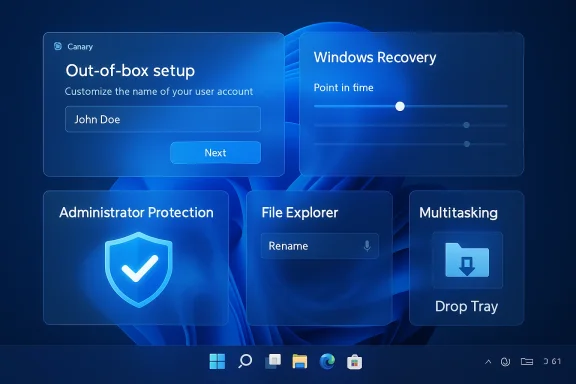
One of the most practical changes is arriving during setup. In builds 26300.8068 and 26220.8062, Microsoft is testing an updated Out-of-box Experience that changes the “Name your device” page so users can set a custom user folder name without resorting to Command Prompt workarounds. That is a small-seeming improvement, but it removes a long-standing annoyance for anyone who cares about clean profile naming from day one.This is the kind of change that feels minor until you actually need it. Many Windows users have accepted the default folder naming behavior as an immutable quirk, so giving control back at setup is a meaningful step toward a more polished first-run experience.
2. Enterprise debloat policy gets more powerful
Microsoft is also expanding the “Remove Default Microsoft Store packages” policy for Enterprise and Education editions. The new behavior lets admins specify additional MSIX and APPX packages by adding Package Family Names, making the policy more flexible for organizations that want a cleaner default software footprint.This matters because “debloat” is no longer just a consumer gripe. In managed environments, the ability to remove built-in apps precisely and consistently can reduce support noise, standardize images, and simplify compliance. Microsoft’s choice to expose more package-level control suggests it is acknowledging that some admins want Windows 11 to start leaner, not just look modern.
3. Point-in-time restore becomes easier to manage
Point-in-time restore is getting a more visible and configurable home in the Recovery page. Microsoft is adding a dedicated entry that lets users view and edit restore settings, including frequency, retention, reserved storage, and the list of available restore points. Messaging in the Windows Recovery Environment has also been improved.This is a particularly sensible addition because recovery tools often fail not due to capability, but due to discoverability. If Windows can make restore settings easier to understand and adjust, it lowers the barrier to using safety features before disaster strikes.
4. Driver trust policy is changing in a major way
One of the most consequential March changes is a new kernel enforcement policy that removes default trust for cross-signed drivers. WHCP-certified third-party drivers will remain trusted by default, while only a limited allow list of verified legacy publishers and drivers will still be allowed through the old cross-signing path.Microsoft says the system will monitor the machine for at least 100 hours and three restarts before enforcing the policy, evaluating compatibility before fully turning it on. If the system detects problems, it remains in monitoring mode. That cautious staged rollout is smart, but it also signals a real tightening of the Windows driver ecosystem.
Small changes with outsized day-to-day impact
5. Drop Tray replaces Drag Tray
Microsoft has renamed Drag Tray to Drop Tray and moved the feature into the Multitasking settings page. In build 26300.7965, it also reduced the peek view size so the flyout is less intrusive when triggered accidentally.That may sound cosmetic, but the change speaks to a larger pattern: Microsoft is trying to make Windows 11’s newer interaction surfaces feel less interruptive. Renaming the feature and relocating it to a more logical settings category improves both clarity and discoverability.
6. Voice Typing now works in File Explorer renaming
In builds 26300.7965 and 26220.7961, Microsoft added Voice Typing support to File Explorer rename fields. That means users can rename files by speaking instead of typing, which is especially helpful for accessibility and for anyone who simply wants a faster way to handle repetitive file naming.This is a textbook example of a feature that looks small in a changelog but could change behavior for the right user. File Explorer is one of the most frequently used surfaces in Windows, so any friction removed there has a disproportionate effect.
7. Pen tail button behavior gets more flexible
Windows 11’s Pen settings page has been updated with new tail button options, including a “Same as Copilot key” choice that lets the pen tail button launch the same app as the Copilot key. Microsoft says these changes are now in the Canary, Dev, and Beta channels.This is another sign that Microsoft is thinking about device input as part of a broader workflow, not just as a siloed accessories feature. If you use a pen regularly, the ability to map actions more intelligently can make the hardware feel far more integrated into the OS.
Security and account management changes
8. Administrator Protection returns as a serious security feature
Microsoft has begun re-enabling Administrator Protection starting with build 26300.7965. The feature is designed to improve security for accounts with admin rights by avoiding the token-sharing model that makes standard UAC less isolated than it appears. Instead of using a persistent administrator token, it creates a temporary, hidden system-managed account for elevation requests and deletes it afterward.That design is important because it aims to reduce the attack surface around privileged sessions. The trade-off is complexity, especially for enterprise deployment and policy management, but Microsoft says it can be managed through Intune or Group Policy. For security-conscious organizations, that makes this more than a lab experiment—it becomes a potentially meaningful hardening option.
9. Microsoft 365 Family users get a new upgrade prompt
On the Accounts page, Microsoft 365 Family subscribers will now see an option to upgrade to another plan. Microsoft also notes that users can disable suggested content if they want to avoid seeing the promotion.This is a small but telling example of how Microsoft continues to blend service promotion into core settings. The feature itself is not disruptive, but it reinforces the broader trend of Windows settings becoming both a control panel and a marketing surface.
Recovery, setup, and system behavior changes
10. Windows Recovery Environment gets more helpful
The recovery experience is receiving multiple tweaks beyond Point-in-time restore. Microsoft is adding recommendations in the recovery page, including guidance to plug in the computer before starting a restore process. That sounds obvious, but it is exactly the kind of guardrail that reduces user error during stressful recovery situations.When recovery tools are used, users are often already dealing with instability or data concerns. Any extra clarity there is valuable, and Microsoft appears to be acknowledging that the recovery process should be more guided, not just more capable.
Canary-channel refinements that point to future polish
11. Camera settings gain pan and tilt controls
In the Canary Channel’s secondary path, build 29550 adds new camera pan and tilt controls under Basic settings. The change is modest, but it suggests Microsoft is broadening support for more advanced camera hardware and more precise device configuration.The same build also improves Settings performance, particularly when opening the Home page, and boosts reliability when navigating Privacy & Security, File Explorer, and Wheel pages. Those fixes may not grab attention, but they are the sort of refinements that directly affect whether Windows 11 feels smooth or sluggish.
12. Emoji 16 arrives in Canary
Canary users are also getting Emoji version 16, which adds a few new emojis. It is a small feature by any measure, but it shows Windows 11 continuing to track broader platform standards even while the more technical plumbing changes elsewhere in the Insider program get most of the attention.Why these changes matter
Microsoft’s strategy is becoming clearer
Taken together, these March 2026 Insider changes show a familiar but important Microsoft pattern: the company is refining Windows 11 in layers, not with a single transformation. Some changes are meant for IT teams, some for accessibility, some for hardware integration, and some for the simple goal of making the operating system feel less awkward.That strategy has strengths. It lets Microsoft test riskier platform changes, like driver trust enforcement, while also shipping lower-risk quality-of-life improvements such as renaming features or improving File Explorer input. It also helps the company collect feedback on targeted problems rather than forcing users to react to one giant release.
The strongest improvements are the ones that remove friction
The standout theme is reduction of friction. Whether it is choosing a custom profile folder name, renaming files with voice input, or making recovery settings easier to find, Microsoft is working on situations that have historically required awkward workarounds or technical knowledge. Those are the kinds of improvements most users remember because they solve real problems at the moment they occur.The biggest risk is rollout complexity
The downside of this approach is fragmentation. With Dev, Beta, Canary, and a separate 29500-series path all carrying different features, it can become difficult for users, admins, and even enthusiasts to understand what is coming when. A feature can exist in one build branch, be renamed in another, and be hidden behind policy in a third.That complexity is especially relevant for changes like Administrator Protection and the new driver policy. Both are potentially valuable, but both also require careful validation before they can safely ship to broad audiences. Microsoft’s cautious monitoring periods are reassuring, yet they also underline how much depends on staged testing succeeding across diverse hardware and software combinations.
The broader Windows 11 direction
More control, less clutter, and more policy-driven behavior
If there is one broad takeaway from these Insider updates, it is that Windows 11 is moving toward a model where more behavior can be controlled, customized, or policy-managed. That includes setup customization, enterprise package removal, restore configuration, driver enforcement, and security elevation handling.At the same time, Microsoft is trying to reduce clutter and confusion in visible UI surfaces. Renaming Drag Tray to Drop Tray, moving it into Multitasking, and shrinking its peek view all reflect the same design instinct: make the feature easier to understand and less likely to get in the way.
Practical, not flashy
These are not the kinds of features that dominate launch-day marketing copy. But they are the kinds of changes that shape user perception of whether Windows 11 is maturing or merely accumulating features. A setup improvement here, a recovery cleanup there, and a security hardening change in the background all add up to an operating system that feels more deliberate.That may be the most important story of all. Microsoft appears to be using March’s Insider cycle to tune Windows 11 for both trust and usability, which is exactly where a modern desktop platform should be heading.
Final take
Windows 11’s March 2026 Insider updates do not announce a revolution, but they do show meaningful progress across the parts of the OS people actually use. The custom folder-name setup change, stronger enterprise debloat controls, Point-in-time restore management, Administrator Protection, File Explorer voice typing, and camera and Settings refinements all suggest a more mature Windows 11 is taking shape.The caution is equally clear: a growing number of experimental branches and policy-controlled rollouts can make the platform feel harder to track, and security or driver changes always need careful validation before they reach mainstream users. Still, this is exactly the sort of incremental month that reveals Microsoft’s direction. Windows 11 is becoming less about big visual overhauls and more about smoothing the rough edges that experienced users notice every day.
Source: Windows Central Windows 11 is quietly testing 10 upgrades you’ll actually notice
