

Microsoft has quietly adjusted two parts of the Windows maintenance story that many users take for granted: the official Windows 11 Media Creation Tool now pulls fresher, Patch‑Tuesday‑level images (reducing the need for large post‑install updates), and Windows 11 includes a powerful, built‑in battery‑health tool that remains underused by most laptop owners. Both developments are small on the surface but carry meaningful operational and support implications for home users, technicians, and IT teams alike.
Caveats remain. Tool regressions remind us that distribution of system utilities is itself a software lifecycle that must be treated with the same care as OS updates. And while vendor documentation confirms the relevant build numbers and the battery‑report command, some community claims (particularly about MCT binary versioning) should be verified locally before they’re accepted as audit‑grade facts. Use Microsoft’s KBs and release‑health pages as the primary source for build IDs and servicing details, validate media in small rings, and run the Battery Report as part of routine laptop maintenance to turn under‑used diagnostics into operational leverage.
Source: Neowin https://www.neowin.net/news/microso...article/battery-health-report-in-windows-11/]
 Background
Why the Media Creation Tool (MCT) matters
The Media Creation Tool (MCT) is Microsoft's official single‑executable route to download Windows 11 installation media, build a bootable USB, or save an ISO for later. For many home users and technicians the MCT is the lowest‑friction, supported path to create offline installers that match Microsoft’s own images. Historically, the MCT sometimes produced ISOs that did not include the very latest monthly cumulative updates (LCUs), forcing newly installed systems to download and apply several large updates right away. Recent changes mean that media produced by MCT often contains the same LCU that Microsoft shipped through the latest Patch Tuesday release — a practical operational win.Why battery health in Windows 11 matters
Windows 11 ships with diagnostic capabilities that reveal battery capacity, cycle counts, and trends over time — the built‑in Battery Report generated by the powercfg utility is the canonical example. Despite being present for years, many laptop owners never run the report and instead rely on surface indicators (like remaining time) that hide long‑term degradation. Journalists and how‑to outlets have repeatedly pointed out that most users under‑utilize this capability.What changed with the Media Creation Tool
The practical change: fresher images pulled by MCT
Recent community and vendor tracking observed that the MCT backend image target was updated to a Patch‑Tuesday image so that media created with the tool matches the patched build Microsoft distributed via Windows Update. In the December servicing cycle, the cumulative update KB5072033 produced Windows 11 builds 26200.7462 (25H2) and 26100.7462 (24H2), and MCT‑created media began delivering images aligned to those patched builds rather than older baselines. That means a clean install from a freshly created MCT USB will typically need fewer immediate updates and reboots. This change is confirmed by the official Microsoft KB entry describing the December update and by independent testing and reporting.The fix history and lingering caveats
This backend‑image alignment arrived alongside a period of instability for the MCT. In late September and October 2025, an updated MCT binary produced a host‑compatibility regression that caused the tool to exit silently on some Windows 10 and Arm64 hosts. Microsoft acknowledged the issue and remedied it by publishing a refreshed MCT binary and packaging compatibility fixes into the optional preview cumulative KB5067036; the company then folded those fixes into later Patch Tuesday servicing. The practical takeaway: the tool’s payload (what it downloads) is now fresher, but the exact MCT executable version and distribution timing remained subject to staged rollouts and platform compatibility checks. Where community trackers claim the MCT’s executable version stayed the same while the image changed, that observation should be treated as community‑reported unless you verify the executable metadata yourself.Why this matters operationally
- For home users: fewer post‑install updates reduce initial downtime and ease setups done over metered or slow connections.
- For technicians/refurbishers: fresher baseline images cut repeated update cycles across many machines — small savings per device scale significantly across batches.
- For imaging teams and validation rings: aligning install media with Microsoft’s Patch Tuesday baseline reduces update‑driven variability between gold images and freshly imaged endpoints.
How to verify and use the refreshed MCT safely
Quick verification checklist
- Download the MediaCreationTool executable from Microsoft’s official Windows 11 download portal (always use Microsoft’s page).
- Create media (USB or ISO) with the tool and note the timestamp and filesize of the generated ISO or the install.esd file on the USB.
- After creating the media, mount the ISO or inspect the image label inside the ESD/WIM to confirm the Windows build string; freshly created images matching Patch Tuesday build numbers (for example, 26200.7462) indicate the new payload is in use. If you need a precise build mapping, compare against Microsoft’s cumulative KB release notes.
Step‑by‑step: create a bootable USB with MCT (safest, supported path)
- Visit Microsoft’s Windows 11 download page and run the MediaCreationTool.exe you downloaded.
- Accept the license, choose “Create installation media (USB flash drive, DVD, or ISO file)” and select USB flash drive (8 GB minimum recommended).
- Let the tool download the payload and write the USB. When complete, browse the USB and check the \sources\install.esd (or \sources\install.wim) file and record the file modification date.
- If you require absolute assurance, boot a VM from the USB and confirm the edition and build during setup or inspect the registry of a clean install for the reported build number after first boot.
Alternatives when MCT misbehaves
- Download the Microsoft ISO directly (Disk Image page) and write it with a trusted third‑party tool like Rufus or Ventoy. Verify ISO SHA‑256 checksums if provided.
- Use the Windows 11 Installation Assistant for in‑place upgrades.
- If you’re managing many devices, deploy the official MSU packages via WSUS or Microsoft Update Catalog.
Battery health in Windows 11: the underutilized built‑in tool
What the built‑in Battery Report shows
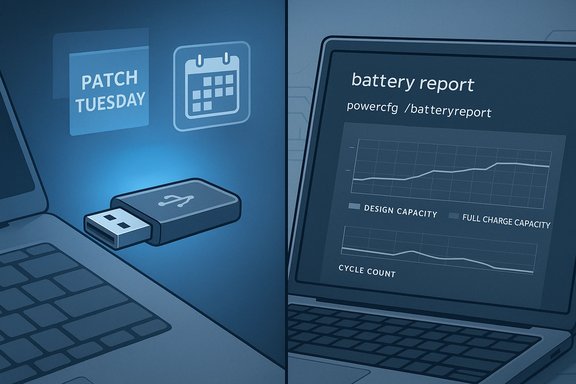
Windows’ built‑in Battery Report, generated by running powercfg /batteryreport, provides:- Identifying details of installed battery hardware (design capacity, full charge capacity)
- Capacity history that shows degradation over time
- Recent usage and usage history by time-of-day and power state
- Battery life estimates based on observed drains and full charge capacity
These data points let users and techs judge whether a battery is aging normally or is due for replacement. Microsoft documents the battery‑report workflow and recommends the report for diagnostics.
Why most users miss it
The barrier is primarily discoverability: the report is generated from the command line (powercfg) rather than being a prominent UI feature in Settings, and many users assume battery troubleshooting must rely on vendor apps or external tools. Press pieces and how‑to sites have consistently shown that running the Battery Report takes under a minute and yields actionable data most users never see.How to generate and interpret the Battery Report (quick how‑to)
- Open Start, type Command Prompt, right‑click and choose Run as administrator.
- At the prompt, run:
powercfg /batteryreport /output "C:\battery-report.html" - Open the generated file (typically saved to C:\Users\<YourUser>\battery-report.html) in your browser.
- Read these key sections:
- Installed batteries: compare Design Capacity vs Full Charge Capacity to estimate percent health.
- Battery capacity history: look for steady declines vs sudden jumps (sudden capacity loss often indicates hardware issues).
- Cycle count: if available, compare against vendor‑published cycle endurance spec.
This built‑in approach is vendor‑agnostic and widely applicable across hardware.
Cross‑validation: what independent sources confirm
- Microsoft’s official KB for the December servicing update (KB5072033) lists the December build numbers and the servicing details confirming the patched targets — this is the primary vendor reference for the build strings MCT is now targeting.
- Specialist reporting and community testing documented the MCT compatibility regression in late 2025, Microsoft’s acknowledgement, and the subsequent remediation; those independent press reports corroborate both the timing and practical effects observed by users.
- On battery diagnostics, Microsoft support documents explain the battery‑report generation and interpretation, while how‑to outlets (WindowsCentral, HowToGeek, Lifewire) offer stepwise guidance and broader context that confirm the command and the data fields to inspect. Together these sources validate the claim that Windows’ built‑in battery reporting is accurate, useful, and underused.
Analysis: strength, weaknesses, and real‑world risks
Notable strengths
- Fewer update cycles after clean installs. Aligning MCT payloads with Patch Tuesday LCUs reduces time‑to‑productivity for freshly imaged devices and lowers immediate bandwidth use for environments that image many machines. This is the single most concrete benefit for technicians and small IT shops.
- Official, supported workflows remain available. Microsoft’s continued distribution of official ISOs and the MCT keeps a vendor‑backed path that’s preferable to ad‑hoc or pirated ISOs when deploying or repairing systems.
- Built‑in battery diagnostics are powerful and free. The Battery Report exposes long‑term capacity trends and cycle information that is often sufficient to decide whether a battery needs replacement. It’s a fast, low‑risk diagnostic that users and technicians can run without installing third‑party tools.
Potential risks and limitations
- Tool regressions can reappear. The MCT regression that caused silent exits on certain hosts in late 2025 underscores that even small releases can introduce platform compatibility issues; treat each MCT update as a software release and test it in a small ring before mass deployment. Relying blindly on the MCT without validation can lead to wasted time during critical migration windows.
- Executable metadata vs payload: what’s verified? Community testing observed that the MCT executable’s file version might not change even though it downloads a newer image. Microsoft’s public KBs authoritatively state the cumulative build numbers but do not always publish per‑downloaded MCT EXE file version strings — treat file‑version claims as community findings unless you verify locally. Flag this as a caution when you need reproducible audit trails.
- Battery report interpretation requires context. Design capacity vs full charge capacity is meaningful, but variation by manufacturer, calibration, and firmware can affect readings. Users should cross‑reference vendor tools (Surface app, OEM battery utilities) and warranty policies when deciding to replace a battery on the basis of a single report. Microsoft’s guidance is accurate but not vendor‑fused.
Practical recommendations for Windows users and administrators
For home users
- Run the Battery Report if you notice poor battery life or if you’re buying a used laptop. It’s fast and exposes whether the battery is degraded. Command: powercfg /batteryreport.
- Use the official Media Creation Tool or Microsoft ISO for clean installs, but verify the created media’s build string if you need a fully patched baseline. Create a small test install in a VM to confirm before wiping your main machine.
For technicians and small IT shops
- Incorporate a validation step into your imaging workflow: after MCT media creation, validate the install image’s build number against Microsoft’s KB to ensure the payload matches your expected baseline. Automate this where possible.
- Keep a fallback path: maintain a verified ISO and a known‑good Rufus/ventoy recipe for environments where MCT may misbehave, and keep offline copies of critical servicing updates (SSU + LCU) for faster post‑install updates.
For enterprise admins
- Pilot MCT changes and KB deployments in a representative test ring. The MCT’s behavior across Windows 10 vs Windows 11 hosts and Arm64 vs x64 can differ; validate on all host types you manage.
- Use WSUS/Configuration Manager to control which cumulative updates are included in your gold images and document the build strings and KB numbers used during image creation. This ensures reproducibility and faster incident response after updates.
Final assessment and takeaway
The twin developments — a Media Creation Tool that more frequently packages Patch‑Tuesday images and the persistent availability of a detailed battery report — are incremental but meaningful improvements in Windows device maintenance. The updated MCT reduces friction for clean installs and shortens the update cycle after deployment, while Windows’ battery reporting tools provide precise diagnostics many users simply don’t exploit. Both are easily accessible: the MCT via Microsoft’s official download page and the battery report via a one‑line command. The real improvement is operational: fewer immediate updates and earlier detection of battery degradation translate to less downtime and clearer triage decisions.Caveats remain. Tool regressions remind us that distribution of system utilities is itself a software lifecycle that must be treated with the same care as OS updates. And while vendor documentation confirms the relevant build numbers and the battery‑report command, some community claims (particularly about MCT binary versioning) should be verified locally before they’re accepted as audit‑grade facts. Use Microsoft’s KBs and release‑health pages as the primary source for build IDs and servicing details, validate media in small rings, and run the Battery Report as part of routine laptop maintenance to turn under‑used diagnostics into operational leverage.
Source: Neowin https://www.neowin.net/news/microso...article/battery-health-report-in-windows-11/]
