

Windows 11 can feel slow even on capable hardware, but not every moment of hesitation points to a CPU, SSD, memory, or background-process problem. In some parts of the desktop, the perceived drag comes from a longstanding interface timing preference:
That distinction matters. Changing this setting will not make apps launch faster, improve game frame rates, fix File Explorer stalls, or cure a PC that is genuinely overloaded. What it can do is remove a deliberate pause from eligible legacy menu interactions—making parts of the Windows shell feel substantially more immediate without installing a “debloat” utility or changing core system services.
For Windows 11 users frustrated by menus that seem to hesitate just before expanding, this is one of the safer and more transparent registry adjustments available. It is also one that needs to be understood properly. The tweak is real, but its scope is narrower than many viral claims suggest.
A computer can be technically fast while still feeling unresponsive. Human perception is highly sensitive to the time between an action—such as clicking, hovering, or pressing a key—and the visible reaction on screen. When a button produces immediate feedback, users generally experience the system as fluid. When that response includes even a short pause, the same system can feel heavier than it really is.
Windows 11 complicates this because its interface is a mixture of technologies.
Some areas use newer Windows UI frameworks and modern design patterns:
What
The registry value is located here:
Its name is:
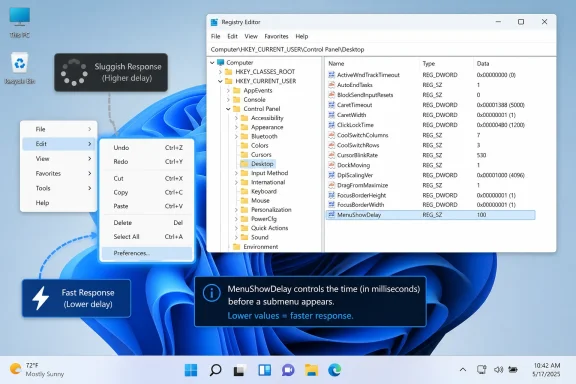
The value represents a delay in milliseconds before Windows displays certain cascading shortcut menus when the pointer moves over a submenu item. A familiar example is a menu item with a right-facing arrow: hover over it, and Windows waits briefly before expanding the next layer.
On many Windows installations, the commonly observed value is:
That corresponds to approximately 400 milliseconds, or four-tenths of a second.
Four-tenths of a second does not sound significant in isolation. Repeated dozens of times during normal navigation, however, it becomes perceptible. More importantly, a delay of that length can feel out of place when the user expects an immediate response from a direct action.
It does not:
That can make the interface feel more direct, but it should not be confused with a general-purpose Windows 11 speed boost.
Imagine a classic menu with several entries, each containing an arrow for another set of choices. Without a brief delay, moving the pointer diagonally toward a target could accidentally trigger neighboring menu branches. The screen would fill with rapidly changing panels, making the interface feel unstable rather than responsive.
A modest delay offers several benefits:
Windows 11 still supports that legacy environment because millions of Win32 applications, enterprise tools, administrative utilities, and third-party shell extensions depend on it.
The problem is not that a menu delay exists. The issue is that a delay designed for one type of interaction can feel increasingly outdated in an operating system where users expect direct clicks, touch-friendly controls, instant search, keyboard shortcuts, and shallow navigation.
Windows 11’s newer interface elements often avoid old-style cascading menus. The Start menu, for example, does not operate like a classic nested menu tree. Settings pages transition differently. Modern flyouts often use animations, loading states, or direct navigation rather than hover-dependent submenu expansion.
Then the user encounters an older element—perhaps a legacy application menu, a submenu in an administrative tool, or a shell component—and suddenly the interface behaves according to a different set of timing rules.
That contrast creates friction.
A static pause is different. If the cursor is hovering over a submenu and nothing happens for a fraction of a second, the user may wonder whether Windows registered the action. They may move the mouse again, click unnecessarily, or assume the machine is struggling.
This is why a registry change that removes only a few hundred milliseconds can feel disproportionally effective. It does not make the computer more powerful; it removes a moment of uncertainty.
In that context, a 400ms hover delay may cross the line from intentional pacing to perceived lag.
Microsoft’s own performance guidance has long treated interactions in the roughly 100ms to 200ms range as minimally noticeable for many “fast” UI actions. That does not mean every Windows menu must respond within that interval, but it illustrates why the default legacy value can feel slow to users accustomed to more immediate interfaces.
The Registry Tweak: Reducing
For users who want more immediate classic menu behavior, the adjustment is straightforward. The key is to change the existing setting carefully and understand that this is a per-user configuration.
Before changing
That means users should edit the existing
The difference may sound minor, yet it matters for a clean and reversible configuration. If the value is missing, recreating it with the correct name and type is preferable to using a mismatched registry type.
A value of
This is best for users who:
A value of
This is a practical middle ground for users who want a more responsive Windows desktop while retaining protection against accidental submenu openings. It is especially appropriate for systems used for productivity applications, remote desktop sessions, or complex administrative software.
At 200ms, the behavior generally still feels deliberate rather than abrupt.
A value of
It keeps a small intentional pause, but the delay is short enough that it is unlikely to be interpreted as a performance problem. Submenus appear quickly, yet they do not explode open every time the pointer crosses an item.
For many users, 100ms is the most balanced
Setting
This creates the most immediate result. On a clean desktop environment with simple menus, it can feel excellent. Every submenu appears as soon as the pointer reaches the relevant item.
However, zero is not automatically the best choice.
Potential downsides include:
For managed work PCs, signing out may be preferable to restarting Explorer if active File Explorer windows or shell-dependent workflows need to remain undisturbed until a convenient time.
Another registry value frequently mentioned alongside
Within that key, users may find:
This setting controls how long the pointer must remain over certain interface elements before Windows recognizes it as a hover event. That can influence tooltips, previews, and other hover-triggered actions.
The common starting value is often:
Like
Setting
A value around 100ms to 200ms is usually more reasonable if a user wants faster hover behavior. It shortens the wait while retaining enough delay to distinguish intentional hovering from ordinary pointer movement.
If the entire system is slow, the likely cause lies elsewhere.
If the delay occurs before the menu appears at all,
Changing
Users should treat these as distinct choices:
A user with excellent pointer precision and a preference for fast, direct feedback may love a 0ms or 100ms menu delay. Another user may find instant submenus disorienting. This can be especially relevant for people with tremor, reduced motor control, touchpad sensitivity issues, or workflows involving densely nested legacy menus.
The original delay exists because accidental activation is a real usability problem. Reducing it is an optimization for responsiveness, not an objective correction of a broken setting.
That makes 100ms or 200ms more sensible than zero for most Windows 11 users. It modernizes the feel of classic menus while preserving the intentionality that hover-based navigation requires.
This is the most relevant situation for the tweak. Look for older cascading menus, submenu arrows, and menu trees that hesitate before expanding.
Use moderation. Faster hover responses can quickly become distracting if the setting is pushed too low.
The bottleneck may be a context-menu handler rather than Windows menu timing. This is a common issue on PCs with years of accumulated utility software.
Look for:
That compatibility is one of Windows’ strengths. It is also why the user experience can sometimes feel uneven.
A registry value like
Reducing the value does not transform Windows 11 into a different operating system. It simply lets users decide how much of that older interaction model they want to keep.
For most users, setting the value from
The broader lesson is useful beyond this one registry entry: Windows 11 sluggishness is not always caused by weak hardware or bloated software. Sometimes the delay is deliberate, inherited, and adjustable. Knowing the difference makes it easier to tune the operating system intelligently—improving the way Windows feels without mistaking a user-interface preference for a system-wide performance fix.
MenuShowDelay, a per-user registry value that governs how long Windows waits before revealing certain cascading menus and submenus.That distinction matters. Changing this setting will not make apps launch faster, improve game frame rates, fix File Explorer stalls, or cure a PC that is genuinely overloaded. What it can do is remove a deliberate pause from eligible legacy menu interactions—making parts of the Windows shell feel substantially more immediate without installing a “debloat” utility or changing core system services.
For Windows 11 users frustrated by menus that seem to hesitate just before expanding, this is one of the safer and more transparent registry adjustments available. It is also one that needs to be understood properly. The tweak is real, but its scope is narrower than many viral claims suggest.
 The Difference Between Slow Windows and Slow-Feeling Windows
A computer can be technically fast while still feeling unresponsive. Human perception is highly sensitive to the time between an action—such as clicking, hovering, or pressing a key—and the visible reaction on screen. When a button produces immediate feedback, users generally experience the system as fluid. When that response includes even a short pause, the same system can feel heavier than it really is.Windows 11 complicates this because its interface is a mixture of technologies.
Some areas use newer Windows UI frameworks and modern design patterns:
- The Start menu
- The Settings app
- Quick Settings and notification flyouts
- Many modern inbox applications
- Parts of the redesigned File Explorer experience
- Cascading menus
- Legacy Control Panel components
- Certain File Explorer menus
- Older Win32 applications
- Context-menu extensions created by third-party software
- Toolbar menus and submenu trees
MenuShowDelay addresses one small but noticeable part of that experience.What MenuShowDelay Actually Does
The registry value is located here:HKEY_CURRENT_USER\Control Panel\DesktopIts name is:
MenuShowDelayThe value represents a delay in milliseconds before Windows displays certain cascading shortcut menus when the pointer moves over a submenu item. A familiar example is a menu item with a right-facing arrow: hover over it, and Windows waits briefly before expanding the next layer.
On many Windows installations, the commonly observed value is:
400That corresponds to approximately 400 milliseconds, or four-tenths of a second.
Four-tenths of a second does not sound significant in isolation. Repeated dozens of times during normal navigation, however, it becomes perceptible. More importantly, a delay of that length can feel out of place when the user expects an immediate response from a direct action.
This Is a Timing Preference, Not a Hardware Optimization
The critical point is thatMenuShowDelay does not improve underlying system performance.It does not:
- Increase processor speed
- Reduce RAM consumption
- Repair a damaged Windows installation
- Speed up SSD reads or writes
- Improve network latency
- Remove File Explorer extensions
- Fix a slow right-click menu caused by cloud-storage integrations
- Make third-party applications render faster
- Eliminate every animation in Windows 11
That can make the interface feel more direct, but it should not be confused with a general-purpose Windows 11 speed boost.
Why the Delay Exists in the First Place
The original logic behind menu delay remains sensible in traditional desktop interfaces. Cascading menus can be difficult to navigate if every submenu opens the instant the mouse passes over it.Imagine a classic menu with several entries, each containing an arrow for another set of choices. Without a brief delay, moving the pointer diagonally toward a target could accidentally trigger neighboring menu branches. The screen would fill with rapidly changing panels, making the interface feel unstable rather than responsive.
A modest delay offers several benefits:
- It prevents accidental submenu activation.
- It gives users time to position the pointer intentionally.
- It reduces visual clutter in dense menu hierarchies.
- It makes hover-driven navigation more predictable.
- It supports older software designed around mouse-first interaction.
Windows 11 still supports that legacy environment because millions of Win32 applications, enterprise tools, administrative utilities, and third-party shell extensions depend on it.
The problem is not that a menu delay exists. The issue is that a delay designed for one type of interaction can feel increasingly outdated in an operating system where users expect direct clicks, touch-friendly controls, instant search, keyboard shortcuts, and shallow navigation.
Why It Feels More Noticeable on Windows 11
A 400ms delay becomes more conspicuous when it appears inconsistently.Windows 11’s newer interface elements often avoid old-style cascading menus. The Start menu, for example, does not operate like a classic nested menu tree. Settings pages transition differently. Modern flyouts often use animations, loading states, or direct navigation rather than hover-dependent submenu expansion.
Then the user encounters an older element—perhaps a legacy application menu, a submenu in an administrative tool, or a shell component—and suddenly the interface behaves according to a different set of timing rules.
That contrast creates friction.
Consistency Is a Major Part of Perceived Responsiveness
A system can tolerate some delay if the delay is consistent and clearly communicated. A loading indicator, animation, or visual transition tells the user that the request has been received.A static pause is different. If the cursor is hovering over a submenu and nothing happens for a fraction of a second, the user may wonder whether Windows registered the action. They may move the mouse again, click unnecessarily, or assume the machine is struggling.
This is why a registry change that removes only a few hundred milliseconds can feel disproportionally effective. It does not make the computer more powerful; it removes a moment of uncertainty.
Modern Expectations Are Less Forgiving
Windows users have become accustomed to interfaces that provide fast visual confirmation. Smartphones, web applications, and modern desktop software have trained people to expect feedback almost immediately after an action.In that context, a 400ms hover delay may cross the line from intentional pacing to perceived lag.
Microsoft’s own performance guidance has long treated interactions in the roughly 100ms to 200ms range as minimally noticeable for many “fast” UI actions. That does not mean every Windows menu must respond within that interval, but it illustrates why the default legacy value can feel slow to users accustomed to more immediate interfaces.
The Registry Tweak: Reducing MenuShowDelay
For users who want more immediate classic menu behavior, the adjustment is straightforward. The key is to change the existing setting carefully and understand that this is a per-user configuration.Before Editing the Registry
The Windows Registry contains a huge number of settings, including values that influence startup behavior, device configuration, security policies, user profiles, and application compatibility. A small edit in the correct location is usually manageable, but careless changes can create unnecessary problems.Before changing
MenuShowDelay, take these precautions:- Create a restore point.
Search for “Create a restore point” from the Start menu, select the system drive, and create a manual restore point. - Export the relevant registry key.
In Registry Editor, select theDesktopkey before making changes, then use File > Export to save a backup.regfile. - Record the original value.
The commonly used default is400, but the value on a specific PC may differ because of past tweaks, migration settings, or management policies. - Avoid unrelated changes.
Registry tweaks are safest when they are isolated, documented, and reversible.
Step-by-Step Instructions
- Press Windows + R to open the Run dialog.
- Type:
regedit- Press Enter and approve the User Account Control prompt if it appears.
- Paste or navigate to this path:
HKEY_CURRENT_USER\Control Panel\Desktop- In the right pane, find:
MenuShowDelay- Double-click
MenuShowDelay. - Change the Value data field to the desired number of milliseconds.
- Select OK.
- Sign out and back in, restart Windows, or restart File Explorer to apply the change fully.
Important: It Is Usually a String Value
One common point of confusion is the value type.MenuShowDelay is typically stored as a string value (REG_SZ), not as a DWORD.That means users should edit the existing
MenuShowDelay value rather than deleting it and creating a new DWORD (32-bit) Value. The number is entered as text in the Value data field, but Windows interprets it as a millisecond timing setting.The difference may sound minor, yet it matters for a clean and reversible configuration. If the value is missing, recreating it with the correct name and type is preferable to using a mismatched registry type.
Choosing the Right Menu Delay Value
There is no universally perfect number. The best value depends on how much a user relies on mouse hover navigation versus direct clicks and keyboard commands.400: The Traditional Experience
A value of 400 preserves the familiar Windows behavior.This is best for users who:
- Frequently navigate deep cascading menus
- Use older business applications
- Prefer intentional hover activation
- Have difficulty with precise mouse movement
- Share a PC with people who may find instant submenus distracting
200: A Conservative Improvement
A value of 200 cuts the delay in half without removing it entirely.This is a practical middle ground for users who want a more responsive Windows desktop while retaining protection against accidental submenu openings. It is especially appropriate for systems used for productivity applications, remote desktop sessions, or complex administrative software.
At 200ms, the behavior generally still feels deliberate rather than abrupt.
100: A Strong Everyday Recommendation
A value of 100 is often the best compromise for users seeking a snappier Windows 11 experience.It keeps a small intentional pause, but the delay is short enough that it is unlikely to be interpreted as a performance problem. Submenus appear quickly, yet they do not explode open every time the pointer crosses an item.
For many users, 100ms is the most balanced
MenuShowDelay setting.0: Instant, but Not Always Better
Setting MenuShowDelay to 0 eliminates the configured wait for eligible menu interactions.This creates the most immediate result. On a clean desktop environment with simple menus, it can feel excellent. Every submenu appears as soon as the pointer reaches the relevant item.
However, zero is not automatically the best choice.
Potential downsides include:
- Accidental submenu activation
- Rapidly changing menus during pointer movement
- More visual distraction in older applications
- Harder navigation through tightly packed menu structures
- A less forgiving experience on high-sensitivity mice or trackpads
How to Apply the Change Without a Full Restart
A full reboot works, but it is often unnecessary. Since this is a user-interface setting, restarting the Windows shell is generally enough.Restart File Explorer from Task Manager
- Press Ctrl + Shift + Esc to open Task Manager.
- Locate Windows Explorer in the process list.
- Right-click it.
- Select Restart.
Sign Out Instead
Signing out and signing back in is another reliable option. It reloads the user session without restarting the entire PC.For managed work PCs, signing out may be preferable to restarting Explorer if active File Explorer windows or shell-dependent workflows need to remain undisturbed until a convenient time.
MouseHoverTime: A Related but Different Setting
Another registry value frequently mentioned alongside MenuShowDelay is:HKEY_CURRENT_USER\Control Panel\MouseWithin that key, users may find:
MouseHoverTimeThis setting controls how long the pointer must remain over certain interface elements before Windows recognizes it as a hover event. That can influence tooltips, previews, and other hover-triggered actions.
The common starting value is often:
400Like
MenuShowDelay, it is generally measured in milliseconds. But it should not be treated as a duplicate setting.What It Can Affect
ReducingMouseHoverTime may make these elements appear faster:- Tooltips
- Some taskbar previews
- Hover hints in desktop applications
- Certain button descriptions
- UI components that activate after the pointer pauses
Why Zero Is Riskier Here
Unlike a submenu, a tooltip or preview is often something users do not want every time the pointer passes across the screen.Setting
MouseHoverTime to 0 can make tooltips appear aggressively. In practice, that may clutter the screen or interrupt concentration, particularly in applications with dense toolbars and icons.A value around 100ms to 200ms is usually more reasonable if a user wants faster hover behavior. It shortens the wait while retaining enough delay to distinguish intentional hovering from ordinary pointer movement.
What This Tweak Will Not Fix
The appeal of a single registry change is understandable, especially when Windows 11 feels cumbersome. But it is important not to overstate what the setting can accomplish.If the entire system is slow, the likely cause lies elsewhere.
File Explorer Context Menus That Hang
A right-click menu can be slow because Windows is loading shell extensions from installed software. Cloud storage clients, archive tools, graphics drivers, antivirus packages, source-control utilities, PDF applications, and media tools may all add entries to the context menu.If the delay occurs before the menu appears at all,
MenuShowDelay may not help. The system could be waiting for a problematic extension, a slow network path, or a damaged component.Start Menu and Search Problems
The Start menu is not simply a legacy cascading menu. Search delays, missing results, or a Start panel that opens slowly may involve indexing, Windows Search, user-profile issues, system updates, or shell processes.Changing
MenuShowDelay is unlikely to make a delayed Start menu genuinely faster.Slow Application Launches
If apps take several seconds to open, investigate:- Startup-program load
- Available storage space
- SSD health
- Background updates
- Memory pressure
- Antivirus scanning
- Driver issues
- Corrupted application installations
- CPU power settings
Animation-Related Sluggishness
Windows 11 uses animations and transparency effects throughout the desktop. Disabling or reducing visual effects can alter the perceived speed of window transitions, task switching, and menu movement, but that is separate fromMenuShowDelay.Users should treat these as distinct choices:
MenuShowDelaycontrols delay before eligible submenu display.- Visual effects settings control animations and rendering effects.
- Hardware and background processes influence actual performance.
The Accessibility and Usability Consideration
Registry tweaks are often presented as universally beneficial. In reality, interface timing is personal.A user with excellent pointer precision and a preference for fast, direct feedback may love a 0ms or 100ms menu delay. Another user may find instant submenus disorienting. This can be especially relevant for people with tremor, reduced motor control, touchpad sensitivity issues, or workflows involving densely nested legacy menus.
The original delay exists because accidental activation is a real usability problem. Reducing it is an optimization for responsiveness, not an objective correction of a broken setting.
That makes 100ms or 200ms more sensible than zero for most Windows 11 users. It modernizes the feel of classic menus while preserving the intentionality that hover-based navigation requires.
A Better Way to Diagnose Windows 11 Slowness
Before treating the registry as a cure-all, identify the exact behavior that feels slow.If Menus Open Slowly Only After Hovering
TryMenuShowDelay.This is the most relevant situation for the tweak. Look for older cascading menus, submenu arrows, and menu trees that hesitate before expanding.
If Tooltips and Previews Feel Delayed
ConsiderMouseHoverTime.Use moderation. Faster hover responses can quickly become distracting if the setting is pushed too low.
If Right-Click Menus Take Several Seconds to Appear
Investigate shell extensions and third-party integrations.The bottleneck may be a context-menu handler rather than Windows menu timing. This is a common issue on PCs with years of accumulated utility software.
If Everything Feels Slow
Check Task Manager first.Look for:
- High CPU usage
- Disk usage stuck near 100%
- Low available memory
- Runaway background processes
- Excessive startup applications
- Synchronization clients consuming resources
- Pending updates or maintenance tasks
Why This Old Registry Value Still Matters
It may seem surprising that a setting associated with classic cascading menus remains relevant in Windows 11. Yet Windows continues to serve as a compatibility platform for decades of software. The operating system must accommodate newer apps alongside administrative tools, line-of-business software, older utilities, and established Win32 workflows.That compatibility is one of Windows’ strengths. It is also why the user experience can sometimes feel uneven.
A registry value like
MenuShowDelay is a reminder that Windows is not a single uniform interface. It is an ecosystem built in layers, with older behaviors preserved because they still support real-world applications and use cases.Reducing the value does not transform Windows 11 into a different operating system. It simply lets users decide how much of that older interaction model they want to keep.
The Bottom Line
ChangingMenuShowDelay is a legitimate Windows 11 responsiveness tweak, but it is not a performance miracle. It shortens the intentional pause before certain legacy cascading menus and submenus appear, helping eligible parts of the desktop feel faster and more consistent with modern UI expectations.For most users, setting the value from
400 to 100 or 200 milliseconds offers the best balance. It reduces the sense of hesitation without making menus too eager to expand. Setting it to 0 delivers the most immediate result, but can create accidental activations and visual noise in older menu-heavy applications.The broader lesson is useful beyond this one registry entry: Windows 11 sluggishness is not always caused by weak hardware or bloated software. Sometimes the delay is deliberate, inherited, and adjustable. Knowing the difference makes it easier to tune the operating system intelligently—improving the way Windows feels without mistaking a user-interface preference for a system-wide performance fix.
References
- Primary source: MakeUseOf
Published: 2026-07-24T19:30:13+00:00
Loading…
www.makeuseof.com - Official source: learn.microsoft.com
Loading…
learn.microsoft.com - Related coverage: windowsforum.com
Loading…
windowsforum.com - Related coverage: windowscentral.com
Loading…
www.windowscentral.com - Related coverage: pcgamer.com
'Apple does this and y’all love it': Microsoft defends new Low Latency feature in Windows 11 | PC Gamer
The new mode is reportedly snappier.www.pcgamer.com