

Windows 11 does not need to be “barely usable” to benefit from customization, but the frustration behind that claim is understandable: Microsoft’s polished default interface still leaves many power users wanting faster navigation, clearer multitasking, stronger desktop organization, and fewer interruptions. A recent collection of Windows 11 mods and utilities makes a persuasive case that a handful of carefully chosen tools can turn a stock installation into a far more personal and productive workspace—provided users understand the trade-offs before changing core shell behavior.
Windows 11 is a capable operating system with strong security defaults, a modern windowing system, useful accessibility options, and a growing number of built-in productivity tools. For many people, it works well without modification.
The issue is that Windows 11 often prioritizes a simplified visual experience over the detailed control long-time Windows users expect. The centered taskbar, abbreviated context menus, evolving Start menu design, promoted content, and dispersed settings can make the system feel less direct than earlier versions.
That gap has created a thriving ecosystem of Windows 11 customization tools. Some restore classic features that Microsoft removed or redesigned. Others provide functions that have never been built deeply into Windows, such as persistent clipboard archives, external-monitor brightness control, desktop containers, and advanced window layouts.
The strongest point in the recommended collection is its variety. It does not rely on one massive “tweaker” that changes dozens of system settings at once. Instead, it identifies tools for distinct jobs:
Fences addresses that problem by dividing the desktop into labeled containers. Instead of manually lining up icons or building a complex folder hierarchy, users can create distinct desktop zones for categories such as:
The feature that hides desktop icons with a double-click is also useful for screen sharing, presentations, and recordings. It creates a clean visual surface quickly, avoiding the common need to move files into temporary folders before showing a desktop to someone else.
Fences has also evolved beyond the basic “desktop boxes” concept, making it more capable for users who manage many items visually. For people who habitually save active work on the desktop, it can be one of the most immediately valuable Windows 11 productivity upgrades.
A well-organized File Explorer structure, pinned folders, cloud-sync locations, and Windows Search can solve the same issue for many people at no cost. Fences is best understood as a convenience and visual-workflow tool, not a necessary repair for Windows 11.
Start11 is designed to address precisely those complaints. It replaces or reshapes the Start menu with alternate layouts and adds taskbar controls that feel more familiar to users of Windows 7 and Windows 10.
Its appeal is straightforward: it offers a more configurable front door to the operating system.
That said, Start11 is also commercial software. Its licensing model should be reviewed carefully because pricing, subscription options, update eligibility, and device activations can change over time. Anyone considering it should test the trial before committing.
This is a recurring theme across Windows 11 customization: the deeper the modification, the more important it is to keep backups, stay current, and avoid installing several overlapping shell tools at once.
Its attraction lies in the sheer number of annoyances it can address. Rather than accepting Microsoft’s default behavior, users can search for a targeted mod and enable it with a few clicks.
However, open source does not automatically mean risk-free. A modification may still be poorly maintained, incompatible with a newer Windows build, or unexpectedly disruptive when it interacts with another customization utility.
Users should avoid treating a mod library as a buffet. Installing a dozen taskbar, Start menu, Explorer, and theme modifications all at once makes troubleshooting difficult. The safest process is to install one mod, test it for several days, and document what changed before adding another.
A restrained setup might include only:
WinToys attempts to bring many of those controls into one dashboard. That makes it appealing to people who want a cleaner view of installed apps, system health options, performance settings, privacy controls, background services, startup behavior, and interface tweaks.
For example, enabling a more aggressive power plan may increase energy use and heat while offering little or no real-world benefit on a typical modern desktop. Disabling services blindly can break useful background functions. Changing graphics scheduling settings may help one game or hardware configuration while causing no improvement, or even instability, on another.
The same caution applies to telemetry controls. Windows allows users to control optional diagnostic data and tailored experiences, but required diagnostic data serves update, security, and reliability functions. A tool that promises to “disable telemetry” should not be viewed as a magic privacy button.
Before changing a setting:
PowerToys is not a shell replacement, a registry hack, or a third-party patch layer. It is an optional collection of focused tools that extend Windows functionality.
This can be particularly valuable on:
Its advantage over permanently changing Windows power settings is that it can be turned on for a defined time or until a task is finished. That prevents the common mistake of changing sleep behavior for one overnight operation and then forgetting to restore it.
Users should remember that keeping a computer awake is not always the same as keeping it secure. For unattended work in shared environments, standard power settings and the lock screen remain important considerations.
Always on Top does exactly what its name suggests: it pins a selected window above others. This is useful for a calculator, meeting notes, video reference, checklist, music player, chat window, or monitoring panel.
PowerToys can become overwhelming because it includes many tools beyond these highlights. The best approach is to enable only the modules that fit the workflow. A slim PowerToys setup is easier to learn, uses fewer shortcuts, and creates less background complexity.
Ditto is a dedicated clipboard manager that goes much further.
It can store text, images, HTML, file-related clipboard data, and other formats. More importantly, it provides a searchable archive that can survive restarts, making it useful for people who repeatedly work with code snippets, customer details, commands, links, templates, addresses, color values, and research notes.
This is particularly useful for:
That means Ditto should be configured deliberately. Users should understand its retention settings, clear history when appropriate, exclude sensitive applications if possible, and avoid assuming that a clipboard archive is harmless just because it is convenient.
Its local-first design is reassuring, but privacy still depends heavily on the user’s configuration and physical security practices.
For visual customization enthusiasts, it offers enormous freedom. A Rainmeter setup can range from a small clock and CPU meter to an elaborate sci-fi command center.
Rainmeter can also consume more resources than expected if users install animated visualizers, high-frequency hardware monitoring, multiple web-fed widgets, or elaborate graphical themes. It is not inherently heavy, but a complicated desktop can become less efficient than the plain Windows desktop it replaces.
Monitorian brings brightness controls into Windows for compatible displays. It can control multiple monitors individually or together, and it can be configured to start with Windows.
That may sound minor, but it is the kind of small ergonomic improvement that becomes indispensable in a multi-monitor office.
Users should not assume a malfunction means the utility is defective. The monitor’s on-screen menu may need DDC/CI enabled, and some hardware chains simply do not pass the necessary control signals reliably.
The free feature set is sufficient for many people, while advanced options may be available through a paid add-on. As with Fences and Start11, the important point is transparency: not every recommended Windows 11 improvement is free, even when its basic function is accessible at no cost.
A stable customization strategy should follow a simple order:
Yet the broader criticism has merit. Microsoft’s defaults can feel restrictive for people who manage crowded desktops, work across several monitors, depend on dense taskbars, handle large volumes of copied content, or prefer direct local control over search and interface layout.
The most essential recommendations are therefore not the flashiest ones. PowerToys, Ditto, and Monitorian address concrete daily workflow problems without trying to redesign Windows wholesale. Start11 and Windhawk can be transformative for users dissatisfied with the Start menu and taskbar, but they demand more caution because they operate closer to the Windows shell. Fences and Rainmeter are valuable when desktop organization or visual customization is central to the way a person works.
The best Windows 11 mods are not those that make the operating system look radically different. They are the ones that remove repeated friction, preserve system stability, and let the PC conform to the user’s habits rather than forcing the user to conform to a default design.
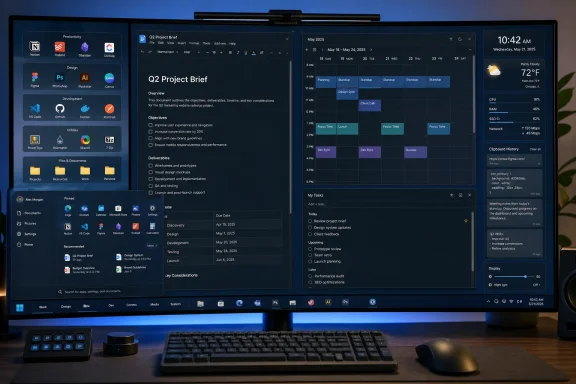 Overview: Windows 11’s Problem Is Not Capability, but Control
Windows 11 is a capable operating system with strong security defaults, a modern windowing system, useful accessibility options, and a growing number of built-in productivity tools. For many people, it works well without modification.The issue is that Windows 11 often prioritizes a simplified visual experience over the detailed control long-time Windows users expect. The centered taskbar, abbreviated context menus, evolving Start menu design, promoted content, and dispersed settings can make the system feel less direct than earlier versions.
That gap has created a thriving ecosystem of Windows 11 customization tools. Some restore classic features that Microsoft removed or redesigned. Others provide functions that have never been built deeply into Windows, such as persistent clipboard archives, external-monitor brightness control, desktop containers, and advanced window layouts.
The strongest point in the recommended collection is its variety. It does not rely on one massive “tweaker” that changes dozens of system settings at once. Instead, it identifies tools for distinct jobs:
- Desktop organization
- Start menu and taskbar customization
- Shell-level interface tweaks
- System maintenance and privacy controls
- Window management
- Clipboard history
- Desktop widgets
- External display control
Fences: A Better Desktop for File-Heavy Workflows
A cluttered desktop is not merely an aesthetic issue. It can become a productivity problem when active project files, temporary downloads, screenshots, documents, shortcuts, and folders all accumulate in one unstructured space.Fences addresses that problem by dividing the desktop into labeled containers. Instead of manually lining up icons or building a complex folder hierarchy, users can create distinct desktop zones for categories such as:
- Current projects
- Work-in-progress documents
- Utilities and shortcuts
- Downloads
- Screenshots
- Personal files
- Reference material
Why It Is Useful
The most practical Fences feature is not simply icon grouping. It is the ability to reduce visual noise without hiding information permanently. Collapsible or roll-up groups let users retain desktop organization while temporarily reclaiming space.The feature that hides desktop icons with a double-click is also useful for screen sharing, presentations, and recordings. It creates a clean visual surface quickly, avoiding the common need to move files into temporary folders before showing a desktop to someone else.
Fences has also evolved beyond the basic “desktop boxes” concept, making it more capable for users who manage many items visually. For people who habitually save active work on the desktop, it can be one of the most immediately valuable Windows 11 productivity upgrades.
The Catch: It Is Not a Free Mod
Fences is sometimes discussed alongside free Windows customization utilities, but it is a commercial product with a trial period and paid licensing. That does not make it a poor choice; it simply means users should evaluate whether their desktop workflow truly warrants it.A well-organized File Explorer structure, pinned folders, cloud-sync locations, and Windows Search can solve the same issue for many people at no cost. Fences is best understood as a convenience and visual-workflow tool, not a necessary repair for Windows 11.
Start11: Reclaiming the Start Menu and Taskbar
The Start menu remains one of Windows 11’s most polarizing design areas. Microsoft has refined it over time, but many users still dislike its recommended-content emphasis, its layout limitations, and the fact that certain taskbar customization options no longer match what was available in earlier Windows releases.Start11 is designed to address precisely those complaints. It replaces or reshapes the Start menu with alternate layouts and adds taskbar controls that feel more familiar to users of Windows 7 and Windows 10.
Its appeal is straightforward: it offers a more configurable front door to the operating system.
Key Benefits
Start11 can provide options such as:- Alternative Start menu styles inspired by earlier Windows versions
- More direct access to folders and common locations
- Greater control over pinned content
- Reduced emphasis on web content and promotional material in search
- Taskbar customization beyond the default Windows 11 experience
- More flexible taskbar positioning and behavior on certain displays
- Enhanced local search options, including integration with faster file-search tools
A Better Fit for Traditional Windows Users
Start11’s value is less about nostalgia than predictability. A familiar Start menu layout can shorten the distance between an intention and an action. If a user has spent years relying on a two-column menu, direct folder access, or a left-aligned taskbar, restoring those habits can make the PC feel faster even when the underlying system performance has not changed.That said, Start11 is also commercial software. Its licensing model should be reviewed carefully because pricing, subscription options, update eligibility, and device activations can change over time. Anyone considering it should test the trial before committing.
The Update Risk
Any product that modifies the Windows shell must contend with feature updates, cumulative updates, and Microsoft’s ongoing interface changes. Start11 has a more polished support model than many smaller tweaks, but no Start menu replacement can be completely immune to temporary compatibility issues after a major Windows update.This is a recurring theme across Windows 11 customization: the deeper the modification, the more important it is to keep backups, stay current, and avoid installing several overlapping shell tools at once.
Windhawk: The Most Powerful Tool in the List—and the One That Demands the Most Care
If Start11 is a polished commercial replacement for specific Windows interface components, Windhawk is a broad platform for modular Windows customization. It functions like a library of small, focused modifications that can alter Windows behavior without requiring users to manually edit system files.Its attraction lies in the sheer number of annoyances it can address. Rather than accepting Microsoft’s default behavior, users can search for a targeted mod and enable it with a few clicks.
Useful Windhawk Mods for Windows 11
The most practical Windhawk-style changes tend to be relatively narrow:- Restoring taskbar labels
- Adjusting taskbar button grouping
- Enabling middle-click to close taskbar windows
- Modifying File Explorer details
- Restoring or changing classic context-menu behavior
- Styling the taskbar
- Improving mouse-wheel actions on taskbar previews
- Making small Explorer and interface changes that Microsoft does not expose in Settings
Open Source Is Valuable, but Not a Guarantee
Windhawk’s open-source approach is a major strength. Mods can be reviewed rather than treated as opaque black boxes, and the platform is designed to apply changes dynamically instead of replacing Windows system files outright.However, open source does not automatically mean risk-free. A modification may still be poorly maintained, incompatible with a newer Windows build, or unexpectedly disruptive when it interacts with another customization utility.
Users should avoid treating a mod library as a buffet. Installing a dozen taskbar, Start menu, Explorer, and theme modifications all at once makes troubleshooting difficult. The safest process is to install one mod, test it for several days, and document what changed before adding another.
Best Practice: Keep Mods Narrow
Windhawk is at its best when used for small, high-value corrections—not as a way to turn Windows 11 into a different operating system.A restrained setup might include only:
- Taskbar labels.
- Middle-click taskbar closing.
- A preferred context-menu adjustment.
- One Explorer enhancement.
WinToys: Centralized Tweaks With a Warning Label
Windows has spent years splitting controls across the Settings app, legacy Control Panel, Group Policy, registry values, PowerShell commands, device-specific utilities, and hidden menus. The result is a system that can be deeply configured, but often not easily configured.WinToys attempts to bring many of those controls into one dashboard. That makes it appealing to people who want a cleaner view of installed apps, system health options, performance settings, privacy controls, background services, startup behavior, and interface tweaks.
What WinToys Gets Right
The basic premise is strong. A centralized dashboard can make common maintenance tasks faster:- Reviewing installed apps and their size
- Identifying unwanted software
- Managing startup applications
- Inspecting services
- Accessing disk-health and repair tools
- Changing selected performance behaviors
- Adjusting appearance and desktop options
- Finding privacy-related controls without hunting through menus
Do Not Confuse Tweaking With Optimization
The risk comes when a dashboard presents technical switches as obvious performance wins. Features such as Ultimate Performance, hardware-accelerated GPU scheduling, service changes, startup trimming, and privacy settings can be helpful in specific situations—but they are not universal fixes.For example, enabling a more aggressive power plan may increase energy use and heat while offering little or no real-world benefit on a typical modern desktop. Disabling services blindly can break useful background functions. Changing graphics scheduling settings may help one game or hardware configuration while causing no improvement, or even instability, on another.
The same caution applies to telemetry controls. Windows allows users to control optional diagnostic data and tailored experiences, but required diagnostic data serves update, security, and reliability functions. A tool that promises to “disable telemetry” should not be viewed as a magic privacy button.
The Sensible Way to Use WinToys
Use it to understand and manage settings, not to activate every performance and privacy tweak available.Before changing a setting:
- Create a restore point or a full backup.
- Record the default state.
- Change one category at a time.
- Test the system normally.
- Reverse the change if it introduces instability or removes a function you use.
PowerToys: Microsoft’s Best Answer to Windows 11’s Missing Productivity Features
Microsoft PowerToys is the least controversial recommendation in this collection. It is Microsoft’s own suite of advanced utilities, free to use and aimed directly at users who want more from Windows.PowerToys is not a shell replacement, a registry hack, or a third-party patch layer. It is an optional collection of focused tools that extend Windows functionality.
FancyZones Makes Multi-Monitor Work Better
FancyZones remains one of the most useful PowerToys modules. Windows 11 already includes capable Snap Layouts, but FancyZones allows users to create custom layouts tailored to their monitor size and working habits.This can be particularly valuable on:
- Ultrawide displays
- Dual- and triple-monitor setups
- High-resolution 4K screens
- Laptop-plus-monitor desks
- Workstations used for coding, editing, research, finance, or support work
Awake Is Better Than Changing Your Power Plan Permanently
Awake is another deceptively useful feature. It can keep a PC awake temporarily during long downloads, file transfers, render jobs, presentations, or other active tasks.Its advantage over permanently changing Windows power settings is that it can be turned on for a defined time or until a task is finished. That prevents the common mistake of changing sleep behavior for one overnight operation and then forgetting to restore it.
Users should remember that keeping a computer awake is not always the same as keeping it secure. For unattended work in shared environments, standard power settings and the lock screen remain important considerations.
Peek and Always on Top Add Everyday Convenience
Peek provides quick file previews without fully opening an application. That can speed up work when sorting images, inspecting documents, or checking files before attaching them to a message.Always on Top does exactly what its name suggests: it pins a selected window above others. This is useful for a calculator, meeting notes, video reference, checklist, music player, chat window, or monitoring panel.
PowerToys can become overwhelming because it includes many tools beyond these highlights. The best approach is to enable only the modules that fit the workflow. A slim PowerToys setup is easier to learn, uses fewer shortcuts, and creates less background complexity.
Ditto: Clipboard History Without Windows’ Tight Limits
Windows 11 includes clipboard history throughWin + V, and it is a welcome feature for anyone who regularly copies more than one item. But the built-in implementation has practical limits: it retains a limited number of entries, has size restrictions, and clears unpinned history after a restart.Ditto is a dedicated clipboard manager that goes much further.
It can store text, images, HTML, file-related clipboard data, and other formats. More importantly, it provides a searchable archive that can survive restarts, making it useful for people who repeatedly work with code snippets, customer details, commands, links, templates, addresses, color values, and research notes.
The Productivity Gain Is Real
A persistent clipboard archive changes the way repetitive work feels. Instead of repeatedly returning to old messages, documents, terminals, or webpages to recopy an item, users can search the clipboard archive and paste it again.This is particularly useful for:
- Developers
- Writers and editors
- IT administrators
- Support agents
- Researchers
- Designers
- Data-entry roles
- Anyone who works with recurring boilerplate text
The Privacy Risk Is Also Real
A persistent clipboard manager can retain sensitive data. Passwords, one-time codes, internal URLs, customer information, confidential text, copied financial data, and private messages may all enter the history.That means Ditto should be configured deliberately. Users should understand its retention settings, clear history when appropriate, exclude sensitive applications if possible, and avoid assuming that a clipboard archive is harmless just because it is convenient.
Its local-first design is reassuring, but privacy still depends heavily on the user’s configuration and physical security practices.
Rainmeter: Personalization With the Potential to Become Clutter
Rainmeter is one of the oldest and most recognizable Windows desktop customization tools. It can place clocks, calendars, system meters, media controls, weather information, launchers, and highly stylized dashboards directly on the desktop.For visual customization enthusiasts, it offers enormous freedom. A Rainmeter setup can range from a small clock and CPU meter to an elaborate sci-fi command center.
Best Use: Minimal, Functional Widgets
The most effective Rainmeter configurations are usually restrained. A simple setup might contain:- A clean clock and date
- CPU, memory, and storage activity
- A weather panel
- Media playback information
- A compact calendar
- A few carefully placed shortcuts
The Skin Ecosystem Requires Judgment
Rainmeter’s community is a strength, but downloading skins from random sites can introduce risk. Users should be cautious with unofficial installers, unfamiliar scripts, and overly complex packages. A skin should not need broad privileges or unrelated executable components merely to display a clock or system meter.Rainmeter can also consume more resources than expected if users install animated visualizers, high-frequency hardware monitoring, multiple web-fed widgets, or elaborate graphical themes. It is not inherently heavy, but a complicated desktop can become less efficient than the plain Windows desktop it replaces.
Monitorian: A Small Utility That Solves a Very Real Hardware Annoyance
External monitor brightness control remains one of Windows’ most frustrating gaps. Laptop users can usually change the internal panel brightness from Windows, but external-display owners often must reach behind the monitor and navigate tiny hardware buttons.Monitorian brings brightness controls into Windows for compatible displays. It can control multiple monitors individually or together, and it can be configured to start with Windows.
That may sound minor, but it is the kind of small ergonomic improvement that becomes indispensable in a multi-monitor office.
Compatibility Depends on DDC/CI
The key limitation is hardware support. External monitors generally need DDC/CI enabled for software brightness control to work. A monitor, cable, dock, adapter, KVM switch, or unusual display connection can interfere with that communication.Users should not assume a malfunction means the utility is defective. The monitor’s on-screen menu may need DDC/CI enabled, and some hardware chains simply do not pass the necessary control signals reliably.
The free feature set is sufficient for many people, while advanced options may be available through a paid add-on. As with Fences and Start11, the important point is transparency: not every recommended Windows 11 improvement is free, even when its basic function is accessible at no cost.
A Safer Windows 11 Customization Strategy
The central lesson from this collection is not that every Windows 11 installation needs eight additional applications. It is that Windows 11 works best when tailored selectively.A stable customization strategy should follow a simple order:
- Start with built-in Windows features.
Check whether Windows Search, Snap Layouts, clipboard history, virtual desktops, Focus sessions, accessibility options, and taskbar settings already solve the problem. - Add Microsoft PowerToys next.
It offers substantial productivity improvements with relatively low risk. - Choose one shell customization path.
Consider Start11 or a carefully limited Windhawk setup, rather than piling multiple Start menu and taskbar tools on top of each other. - Install workflow tools only where justified.
Use Ditto if clipboard history genuinely saves time. Use Monitorian if external display brightness is a daily irritation. Use Fences if the desktop is an active workspace rather than a wallpaper. - Avoid bulk “optimization.”
Do not disable services, change registry settings, or activate aggressive performance modes simply because a utility labels them as improvements. - Prepare for Windows updates.
Create backups, retain installers, note active mods, and expect that interface-level customization may require updates after major Windows releases.
The Verdict: Essential Is Personal, but the Best Tools Address Genuine Gaps
The idea that Windows 11 is unusable without modifications is overstated. Windows 11 is fully functional in its default form, and many users are better served by keeping it close to stock.Yet the broader criticism has merit. Microsoft’s defaults can feel restrictive for people who manage crowded desktops, work across several monitors, depend on dense taskbars, handle large volumes of copied content, or prefer direct local control over search and interface layout.
The most essential recommendations are therefore not the flashiest ones. PowerToys, Ditto, and Monitorian address concrete daily workflow problems without trying to redesign Windows wholesale. Start11 and Windhawk can be transformative for users dissatisfied with the Start menu and taskbar, but they demand more caution because they operate closer to the Windows shell. Fences and Rainmeter are valuable when desktop organization or visual customization is central to the way a person works.
The best Windows 11 mods are not those that make the operating system look radically different. They are the ones that remove repeated friction, preserve system stability, and let the PC conform to the user’s habits rather than forcing the user to conform to a default design.