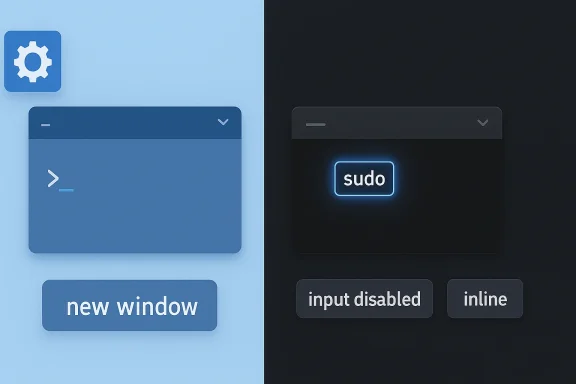
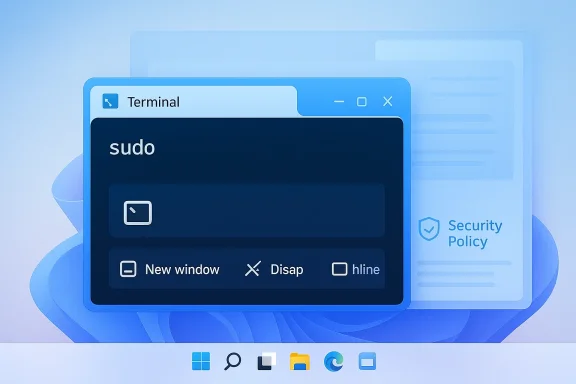
Windows 11’s built-in sudo command is one of those small features that can quietly reshape day-to-day workflows for power users. By letting elevated commands run directly from an existing terminal session, Microsoft is finally giving Windows a native answer to a Unix-style habit that developers, admins, and tinkerers have relied on for decades. In practical terms, it reduces friction, preserves context, and makes the old “Run as Administrator” routine feel heavier than it used to be. Microsoft’s own documentation now places Sudo for Windows squarely in Windows 11 version 24H2, with three selectable modes and policy controls for enterprise administrators. (learn.microsoft.com)
For years, Windows users who needed elevated access had to work around a system that was functional but often awkward for command-line work. The familiar path meant opening a new administrative console, approving a UAC prompt, and then re-running the command in a separate environment. That approach worked, but it broke flow, reset context, and created a cognitive gap between a normal terminal session and an elevated one. Microsoft’s new sudo implementation is designed to close that gap without abandoning Windows’ security model.
The feature first surfaced publicly in Windows Insider Preview Build 26052, announced in February 2024, where Microsoft described it as a “new, yet familiar way” to elevate processes directly from the command line. At that stage, it was presented as an Insider feature, not a finished mainstream capability, and Microsoft linked it to a broader 24H2 cadence shift for Windows 11. In other words, sudo was not an isolated experiment; it was part of a larger modernization of the platform’s annual release cycle. (blogs.windows.com)
Microsoft later folded sudo into the official Windows 11, version 24H2 documentation for IT pros. The documentation is explicit that sudo is available on Windows 11, version 24H2 and later, and it can be configured in three modes: new window, disable input, and inline. That matters because it shows Microsoft is treating the feature as a supported platform capability rather than a novelty tucked away in a preview branch. (learn.microsoft.com)
There is also an important difference between Windows sudo and the Unix/Linux tradition many users instinctively compare it to. Microsoft’s GitHub repository states that the Windows implementation is not a fork or port of the Unix/Linux sudo project. It is a Windows-specific design built around Windows permissions, Windows console behavior, and Windows security expectations. That distinction matters for compatibility, scripting, and user expectations, and it helps explain why Microsoft offers multiple modes instead of assuming every workflow should behave exactly like Linux.
The community reaction has been shaped by a long-running reality: Windows has slowly been adopting tooling patterns that power users already associate with other platforms. Windows Terminal, winget, WSL, and broader command-line improvements have all nudged the ecosystem toward a more modern, developer-friendly posture. Sudo for Windows fits that pattern neatly. It does not replace Windows’ security model, but it makes elevated work feel less like a detour and more like a continuation of the same session.
Sudo’s inline mode is the most meaningful answer to that problem. According to Microsoft’s documentation, inline mode runs the elevated process in the current window and allows it to receive input from the current console session. That is the closest approximation to the familiar Unix experience, and it is the mode most likely to matter to developers and system operators who work in terminals all day. (learn.microsoft.com)
There is a reason this matters beyond convenience. Modern terminal workflows are often iterative, with users chaining commands, testing outputs, and adjusting parameters on the fly. A sudden switch to a new window can add friction and increase the chances of errors. In that sense, sudo is not merely a convenience feature; it is a workflow continuity feature. That is a subtle but important distinction.
The point is not that one mode is universally best. It is that Microsoft finally recognized that elevation should be a configurable workflow choice rather than a single blunt instrument. That flexibility is likely to make the feature more durable over time.
This is especially relevant for managed environments, where any tool that changes elevation behavior can become part of a broader compliance or hardening story. Microsoft explicitly lists supported editions and operating system coverage for the policy, including Windows 11 version 24H2 and later. The presence of a formal policy interface suggests Microsoft expects enterprises to decide how comfortable they are with the feature rather than adopting it automatically. (learn.microsoft.com)
The security question is not whether sudo is safe in a vacuum. The real question is which mode is used, who can enable it, and how the organization wants to manage elevated command flows. That nuance is easy to miss if you only focus on convenience. (learn.microsoft.com)
That restraint is a strength. Windows has a long history of being criticized when changes feel too abrupt or too opaque, particularly in areas touching security. By introducing sudo as an opt-in capability with configurable modes and policy controls, Microsoft reduces the chance of surprising administrators. It also makes it easier for consumers to test the feature without committing their whole security posture to a new model.
The improvement is not just about speed. It is also about reducing friction in the kind of exploratory work developers do constantly. If an error message says a command needs elevation, the old flow pushes users out of the current context and into a separate administrative window. Sudo lets them react inline, which is a better match for how interactive troubleshooting actually happens.
Microsoft’s choice to adopt a Windows-specific sudo implementation, rather than just bolting on Unix behavior, helps here. It means the feature is native to the platform but still familiar enough to reduce the learning curve. That makes it a rare example of a feature that can serve both long-time Windows users and people coming from other ecosystems.
The challenge is not usefulness; it is governance. If organizations enable sudo broadly, they need to decide whether inline mode aligns with their risk tolerance or whether a more restricted mode makes more sense. That is exactly why Microsoft’s policy layer is so important.
This is why the feature feels more modern than the superficial comparison might suggest. It is not merely shaving seconds off a task. It is acknowledging that command-line work is iterative and stateful, and that elevation should not always require leaving the flow of the current session. That is the real user experience win.
In broader terms, Microsoft is adapting Windows to a world where command-line competence is no longer niche. More users now interact with package managers, build tools, scripts, containers, and developer workflows than they did a decade ago. Sudo is a small feature that signals a much larger shift in how Windows sees its technical audience.
That balance is why Microsoft’s three-mode model is so important. It lets the company offer a more graceful command-line experience without forcing every elevated action into the most permissive form. The feature is therefore best understood as an evolution of Windows administration rather than a replacement for it.
There is also a practical upside for the community. Open source makes it easier for power users to inspect behavior, file issues, and compare Sudo for Windows with alternatives such as gsudo, which Microsoft itself pointed to as a richer third-party option for some use cases. That ecosystem effect matters because it lowers the chances that users will treat sudo as the only answer.
Still, open source should not be confused with automatic simplicity. A public repository does not make the implementation risk-free, and it does not remove the need for careful security judgment. It does, however, make the feature easier to evaluate on its own merits rather than on rumor or assumption.
The result is a platform that feels more interoperable, more modern, and more aligned with current developer expectations. For longtime Windows users, the change is subtle. For newer technical users, it may feel like the platform is finally speaking a familiar language.
At the same time, standardization brings tradeoffs. If a team chooses inline mode, it gains convenience but also reduces the visual separation that some administrators may prefer when handling sensitive commands. If it chooses new window mode, it retains clearer boundaries but loses some of the ergonomic gains that make sudo appealing in the first place.
Microsoft’s policy model gives enterprises a way to mitigate that by allowing them to disable sudo altogether or limit it to a mode they find acceptable. That is a strong design choice because it means the feature is not purely consumer-facing. It is also adaptable to environments where command execution needs to be governed at the device level.
That said, the existence of gsudo is not a weakness for Microsoft. It is evidence that the demand was real. When a community workaround becomes popular enough, it often signals an opportunity for the platform vendor to formalize the experience. Sudo looks very much like Microsoft answering that signal.
Still, the symbolism is important. Windows has often been criticized for forcing command-line users into awkward privilege transitions, while Unix-like systems have long made those transitions feel natural. By introducing sudo, Microsoft is narrowing a long-standing usability gap, even if the underlying systems remain different.
Another thing to watch is whether Microsoft expands the surrounding tooling, documentation, and administrative guidance. Native features often become important only after they are easy to discover and easy to explain. If Microsoft continues refining the documentation and policy options, sudo could become one of those quietly essential features that people stop noticing precisely because it works so naturally. (learn.microsoft.com)
Source: explosion.com Windows 11's sudo Command Beats 'Run as Administrator'
 Background
For years, Windows users who needed elevated access had to work around a system that was functional but often awkward for command-line work. The familiar path meant opening a new administrative console, approving a UAC prompt, and then re-running the command in a separate environment. That approach worked, but it broke flow, reset context, and created a cognitive gap between a normal terminal session and an elevated one. Microsoft’s new sudo implementation is designed to close that gap without abandoning Windows’ security model.The feature first surfaced publicly in Windows Insider Preview Build 26052, announced in February 2024, where Microsoft described it as a “new, yet familiar way” to elevate processes directly from the command line. At that stage, it was presented as an Insider feature, not a finished mainstream capability, and Microsoft linked it to a broader 24H2 cadence shift for Windows 11. In other words, sudo was not an isolated experiment; it was part of a larger modernization of the platform’s annual release cycle. (blogs.windows.com)
Microsoft later folded sudo into the official Windows 11, version 24H2 documentation for IT pros. The documentation is explicit that sudo is available on Windows 11, version 24H2 and later, and it can be configured in three modes: new window, disable input, and inline. That matters because it shows Microsoft is treating the feature as a supported platform capability rather than a novelty tucked away in a preview branch. (learn.microsoft.com)
There is also an important difference between Windows sudo and the Unix/Linux tradition many users instinctively compare it to. Microsoft’s GitHub repository states that the Windows implementation is not a fork or port of the Unix/Linux sudo project. It is a Windows-specific design built around Windows permissions, Windows console behavior, and Windows security expectations. That distinction matters for compatibility, scripting, and user expectations, and it helps explain why Microsoft offers multiple modes instead of assuming every workflow should behave exactly like Linux.
The community reaction has been shaped by a long-running reality: Windows has slowly been adopting tooling patterns that power users already associate with other platforms. Windows Terminal, winget, WSL, and broader command-line improvements have all nudged the ecosystem toward a more modern, developer-friendly posture. Sudo for Windows fits that pattern neatly. It does not replace Windows’ security model, but it makes elevated work feel less like a detour and more like a continuation of the same session.
What sudo Actually Changes
The biggest practical change is not that Windows suddenly can elevate commands; it always could. The difference is that users can now request elevation in place, from an existing terminal, without first leaving the flow of the current session. That means environment variables, working context, and mental momentum are less likely to be disrupted by a detour into a fresh administrator window. Microsoft’s own wording emphasizes that sudo runs elevated commands directly from an unelevated console session. (learn.microsoft.com)Why Context Matters
Anyone who has spent time in PowerShell knows the annoyance of losing state when they have to reopen a shell with elevated privileges. You may already have a working directory, a pipeline, or a carefully prepared set of variables, only to discover that the command requiring elevation forces you into a new prompt. That is more than inconvenience; it is a workflow interruption that makes small administrative actions disproportionately expensive.Sudo’s inline mode is the most meaningful answer to that problem. According to Microsoft’s documentation, inline mode runs the elevated process in the current window and allows it to receive input from the current console session. That is the closest approximation to the familiar Unix experience, and it is the mode most likely to matter to developers and system operators who work in terminals all day. (learn.microsoft.com)
There is a reason this matters beyond convenience. Modern terminal workflows are often iterative, with users chaining commands, testing outputs, and adjusting parameters on the fly. A sudden switch to a new window can add friction and increase the chances of errors. In that sense, sudo is not merely a convenience feature; it is a workflow continuity feature. That is a subtle but important distinction.
- It reduces context switching.
- It preserves command-line momentum.
- It narrows the gap between normal and elevated tasks.
- It makes occasional admin work feel less ceremonial.
- It improves compatibility with mixed Windows/Linux habits.
The Three Modes Explained
Microsoft did not ship a single rigid elevation model. Instead, it gave sudo three modes that map to different risk profiles and use cases. That design is smart because it acknowledges that convenience and security are not always aligned. One size would not fit all, especially in enterprise environments where administrators need policy leverage. (learn.microsoft.com)New Window
In new window mode, the elevated command launches in a separate console window. Microsoft says this resembles the behavior ofrunas /user:admin, which makes it the most conservative and familiar option for users who want isolation. It is less elegant than inline mode, but it preserves the boundary between sessions and may be preferable when administrators want a visible separation of privilege. (learn.microsoft.com)Disable Input
The disable input mode is a compromise. The elevated process runs in the current window, but the input handle is closed so the elevated app cannot receive keyboard input from that console. That makes it a more constrained option than inline mode and potentially a useful middle ground when organizations want some continuity without giving elevated commands a fully interactive path inside the original shell. (learn.microsoft.com)Inline
Inline is the headline feature. It keeps the process in the current terminal, preserves the visual context, and lets the elevated command interact with the session directly. For developers, this is the mode that most closely approximates the convenience they have long expected from Linux and macOS. It is also the mode Microsoft appears to position as the default, at least in policy terms. (learn.microsoft.com)The point is not that one mode is universally best. It is that Microsoft finally recognized that elevation should be a configurable workflow choice rather than a single blunt instrument. That flexibility is likely to make the feature more durable over time.
- New window prioritizes separation.
- Disable input prioritizes containment.
- Inline prioritizes workflow continuity.
- Policies can restrict the maximum allowed mode.
- Enterprises can standardize the level of risk they are willing to accept.
Security and Control
Whenever a feature makes privilege elevation easier, the security conversation immediately gets more serious. Microsoft seems to understand that, which is why the company paired sudo with settings in the UI and a formal policy CSP. This is not “admin access made casual”; it is admin access made more flexible, but still governable. (learn.microsoft.com)Policy Matters More Than the Toggle
The Sudo Policy CSP shows that organizations can control the behavior of sudo at the device level. The policy can disable sudo entirely or limit it to specific modes, and Microsoft documents a default of inline mode when sudo is allowed. That is a useful clue about the intended balance: make the feature available, but do not remove administrative control from IT teams. (learn.microsoft.com)This is especially relevant for managed environments, where any tool that changes elevation behavior can become part of a broader compliance or hardening story. Microsoft explicitly lists supported editions and operating system coverage for the policy, including Windows 11 version 24H2 and later. The presence of a formal policy interface suggests Microsoft expects enterprises to decide how comfortable they are with the feature rather than adopting it automatically. (learn.microsoft.com)
The security question is not whether sudo is safe in a vacuum. The real question is which mode is used, who can enable it, and how the organization wants to manage elevated command flows. That nuance is easy to miss if you only focus on convenience. (learn.microsoft.com)
Why the Old Method Still Exists
It is worth stressing that sudo does not abolish UAC or remove traditional admin tools. The old “Run as Administrator” route remains part of Windows, because many workflows still depend on explicit process boundaries and visible prompts. Microsoft is adding a better option for command-line users, not tearing down the platform’s existing privilege model. (learn.microsoft.com)That restraint is a strength. Windows has a long history of being criticized when changes feel too abrupt or too opaque, particularly in areas touching security. By introducing sudo as an opt-in capability with configurable modes and policy controls, Microsoft reduces the chance of surprising administrators. It also makes it easier for consumers to test the feature without committing their whole security posture to a new model.
- The feature is configurable, not mandatory.
- Enterprises can cap the maximum mode.
- Inline mode is convenient but not the only choice.
- UI settings and policy settings both exist.
- Existing Windows privilege tools remain available.
Who Benefits Most
The obvious audience is developers, but that undersells the feature. Sudo is useful to anyone who spends time in a terminal and occasionally needs to cross the privilege boundary without breaking rhythm. That includes students, hobbyists, IT generalists, and small-business users who manage their own machines.Power Users and Developers
For PowerShell and Windows Terminal users, the value is immediate. Commands like package installation, system file edits, network troubleshooting, and service management often require elevation only at specific moments. Sudo makes those moments feel lighter and less disruptive, especially when a user is already in the right shell with the right path.The improvement is not just about speed. It is also about reducing friction in the kind of exploratory work developers do constantly. If an error message says a command needs elevation, the old flow pushes users out of the current context and into a separate administrative window. Sudo lets them react inline, which is a better match for how interactive troubleshooting actually happens.
Cross-Platform Users
There is also a psychological benefit for people who move between Windows and Linux or macOS. Habit matters, and command-line muscle memory is powerful. Having to remember a completely different elevation ritual on Windows has always been one more friction point for cross-platform users, especially those working with winget, scripting, or dev tooling.Microsoft’s choice to adopt a Windows-specific sudo implementation, rather than just bolting on Unix behavior, helps here. It means the feature is native to the platform but still familiar enough to reduce the learning curve. That makes it a rare example of a feature that can serve both long-time Windows users and people coming from other ecosystems.
Enterprise and SMB Scenarios
In enterprise environments, sudo could become a productivity booster, but only if policy is configured thoughtfully. For help desks, internal support teams, and power users who need occasional elevation, inline sudo can cut down on handoffs and reduce the need for extra terminal windows. For small businesses and solo operators, it can make one-off administration feel less technical and more approachable. (learn.microsoft.com)The challenge is not usefulness; it is governance. If organizations enable sudo broadly, they need to decide whether inline mode aligns with their risk tolerance or whether a more restricted mode makes more sense. That is exactly why Microsoft’s policy layer is so important.
- Helps developers who live in terminals.
- Helps users who switch between Windows and Unix-like systems.
- Helps small admins handling occasional maintenance.
- Helps support staff preserve session context.
- Helps organizations standardize elevation rules.
Why This Feels Different from “Run as Administrator”
The phrase “Run as Administrator” has always been more of a ritual than a workflow. It is a deliberate, visible, interruptive action that forces the user to stop, re-open, confirm, and resume. Sudo replaces that ritual with a command prefix, and that seemingly small shift changes the emotional texture of using Windows for technical work. (learn.microsoft.com)Less Ceremony, More Continuity
On a practical level, the old method asked users to move through a separate elevated process environment. That meant a command could not simply be upgraded inside the current thought process; it had to be re-entered in a new space. Sudo compresses that overhead into a single token at the front of the command line. (learn.microsoft.com)This is why the feature feels more modern than the superficial comparison might suggest. It is not merely shaving seconds off a task. It is acknowledging that command-line work is iterative and stateful, and that elevation should not always require leaving the flow of the current session. That is the real user experience win.
In broader terms, Microsoft is adapting Windows to a world where command-line competence is no longer niche. More users now interact with package managers, build tools, scripts, containers, and developer workflows than they did a decade ago. Sudo is a small feature that signals a much larger shift in how Windows sees its technical audience.
The UAC Legacy Still Shapes Expectations
To be fair, UAC was introduced for a reason. Windows has long had to balance ease of use with the need to make privileged actions visible and intentional. Any feature that makes elevation simpler must still reckon with the legacy of that design philosophy. Sudo is Microsoft’s answer, but it does not erase the original concern that privilege should be explicit. (learn.microsoft.com)That balance is why Microsoft’s three-mode model is so important. It lets the company offer a more graceful command-line experience without forcing every elevated action into the most permissive form. The feature is therefore best understood as an evolution of Windows administration rather than a replacement for it.
- It changes the shape of elevation.
- It does not eliminate privileged separation.
- It favors productivity without ignoring control.
- It fits Windows’ existing security posture.
- It is more of a workflow reform than a security revolution.
Open Source and Trust
One of the most notable details in Microsoft’s announcement is that Sudo for Windows was open-sourced on GitHub. That is not a trivial marketing flourish. It means the implementation can be inspected, discussed, and improved in public, which is especially relevant for a feature that sits directly on the boundary between user convenience and system privilege.Why Open Source Matters Here
Trust is everything in elevation tooling. Users are being asked to let a command-line helper mediate the transition from normal privilege to admin privilege, so transparency matters more than usual. Microsoft’s GitHub repository and developer blog framing both reinforce that the company wants this to feel like a platform contribution rather than a hidden subsystem.There is also a practical upside for the community. Open source makes it easier for power users to inspect behavior, file issues, and compare Sudo for Windows with alternatives such as gsudo, which Microsoft itself pointed to as a richer third-party option for some use cases. That ecosystem effect matters because it lowers the chances that users will treat sudo as the only answer.
Still, open source should not be confused with automatic simplicity. A public repository does not make the implementation risk-free, and it does not remove the need for careful security judgment. It does, however, make the feature easier to evaluate on its own merits rather than on rumor or assumption.
A Signal About Microsoft’s Priorities
Microsoft’s willingness to ship a Windows-native sudo also says something broader about the company’s current platform strategy. The company is increasingly willing to meet developers on their own terms, even if that means importing concepts that used to feel foreign to Windows. That is a significant shift from the old era when Windows often expected technical users to adapt to Windows conventions first.The result is a platform that feels more interoperable, more modern, and more aligned with current developer expectations. For longtime Windows users, the change is subtle. For newer technical users, it may feel like the platform is finally speaking a familiar language.
- Open source invites inspection.
- Public code can strengthen trust.
- Community feedback can improve behavior.
- Alternatives remain relevant.
- Microsoft is signaling a developer-first posture.
Enterprise Implications
For IT departments, sudo is more than a convenience toggle. It creates a new policy surface that can either simplify operations or complicate compliance, depending on how carefully it is deployed. Microsoft’s policy CSP suggests the company expects administrators to think in terms of controlled adoption rather than blanket enablement. (learn.microsoft.com)Standardization and Support
In managed fleets, a feature like sudo can reduce the need to teach users multiple elevation workflows. That is good for support documentation, onboarding, and troubleshooting scripts. If the organization standardizes on a chosen mode, help desk instructions can become simpler and more predictable. (learn.microsoft.com)At the same time, standardization brings tradeoffs. If a team chooses inline mode, it gains convenience but also reduces the visual separation that some administrators may prefer when handling sensitive commands. If it chooses new window mode, it retains clearer boundaries but loses some of the ergonomic gains that make sudo appealing in the first place.
Security Posture
The most interesting enterprise question is whether sudo changes the behavior of users who currently avoid admin prompts because they are cumbersome. If the answer is yes, then the feature may improve efficiency while also increasing the volume of privileged commands executed by end users. That is not inherently bad, but it is a change that administrators should acknowledge. Convenience can alter behavior as much as it saves time. (learn.microsoft.com)Microsoft’s policy model gives enterprises a way to mitigate that by allowing them to disable sudo altogether or limit it to a mode they find acceptable. That is a strong design choice because it means the feature is not purely consumer-facing. It is also adaptable to environments where command execution needs to be governed at the device level.
Operational Value
Where sudo may shine most is in environments that already encourage self-service troubleshooting. Internal developers, platform engineers, and support analysts often need temporary elevation for routine work, and a native sudo command can reduce dependence on separate elevated sessions. Over time, that may translate into fewer workflow interruptions and better adoption of terminal-based tooling.- Improves help desk script consistency.
- Reduces session switching.
- Allows policy-based governance.
- Supports self-service troubleshooting.
- Makes elevation more approachable for trained users.
How It Compares with Alternatives
Windows sudo is not arriving in a vacuum. Power users have already had workarounds, from third-party tools to terminal-specific elevation habits. Microsoft’s approach matters because it is native, supported, and integrated into the platform rather than bolted on from outside.Built-In Versus Third-Party
Microsoft’s own announcement pointed users toward gsudo if they wanted additional functionality. That is telling, because it acknowledges that the Windows ecosystem already had sophisticated community solutions before Microsoft stepped in. The native feature may not outstrip every third-party option, but it has the advantage of first-party integration and long-term platform support.That said, the existence of gsudo is not a weakness for Microsoft. It is evidence that the demand was real. When a community workaround becomes popular enough, it often signals an opportunity for the platform vendor to formalize the experience. Sudo looks very much like Microsoft answering that signal.
Comparison to Unix Sudo
The comparison with Linux and macOS is useful but incomplete. Microsoft is borrowing the idea of inline elevation, not recreating the entire Unix permission model. The Windows implementation is therefore more of a conceptual cousin than a direct equivalent. That is why users should not expect scripts or habits to transfer perfectly without adjustment.Still, the symbolism is important. Windows has often been criticized for forcing command-line users into awkward privilege transitions, while Unix-like systems have long made those transitions feel natural. By introducing sudo, Microsoft is narrowing a long-standing usability gap, even if the underlying systems remain different.
- Native integration beats add-on friction.
- Third-party tools still offer deeper customization.
- Unix comparisons are helpful but imperfect.
- Scripts may need adaptation.
- The core gain is workflow familiarity.
Strengths and Opportunities
Windows sudo is strongest when viewed as a workflow refinement that also happens to carry strategic platform value. It improves the everyday experience for people who live in terminals, and it does so in a way that respects enterprise control and security boundaries. That combination is rare, and it creates room for broader adoption than a purely convenience-driven feature might otherwise achieve.- Reduced friction for occasional administrative commands.
- Inline continuity that preserves terminal context.
- Three modes that allow matching behavior to risk tolerance.
- Policy controls for managed enterprise environments.
- Open-source transparency that can improve trust and feedback.
- Native Windows integration instead of third-party dependency.
- Cross-platform familiarity for developers moving between ecosystems.
Risks and Concerns
The same traits that make sudo attractive also create legitimate concerns. Easier elevation can encourage more frequent privilege use, and organizations that do not define policies clearly may find the feature used in ways they did not intend. Security teams will also want to be sure users understand the differences between modes, because inline convenience can feel deceptively simple.- Privilege creep if users elevate too casually.
- Misconfiguration risk if mode choices are not standardized.
- User confusion between inline, disable input, and new window.
- Security perception issues if sudo is mistaken for a full Unix clone.
- Training burden for enterprises that adopt it broadly.
- Policy inconsistency across managed and unmanaged devices.
- Overreliance on convenience in sensitive administrative workflows.
Looking Ahead
The most interesting question is not whether sudo is useful. It clearly is. The question is how deeply Microsoft will integrate it into the broader Windows command-line ecosystem over time, and whether it becomes a default habit for power users or remains a niche convenience for enthusiasts. The feature’s future will depend on how quietly it works when users need it and how well enterprises can shape it when they do not. (learn.microsoft.com)Another thing to watch is whether Microsoft expands the surrounding tooling, documentation, and administrative guidance. Native features often become important only after they are easy to discover and easy to explain. If Microsoft continues refining the documentation and policy options, sudo could become one of those quietly essential features that people stop noticing precisely because it works so naturally. (learn.microsoft.com)
- Watch for refinements to documentation and discoverability.
- Watch for more enterprise guidance on recommended mode usage.
- Watch for feedback from developers who use PowerShell and Windows Terminal daily.
- Watch for whether Microsoft adds adjacent command-line quality-of-life features.
- Watch for how third-party tools respond to the native feature.
- Watch for adoption in managed 24H2 environments versus consumer PCs.
Source: explosion.com Windows 11's sudo Command Beats 'Run as Administrator'
Last edited: