

Windows 11’s design and feature choices make it smooth and familiar for many users — but there are stubborn, repeatable gaps that third‑party apps fix far better than Microsoft’s in‑box tools. Pocket‑lint’s recent roundup of four utilities — Start11, PDFgear, Microsoft PowerToys, and Ditto — frames a practical argument: some of the most useful capabilities for day‑to‑day productivity aren’t built into Windows 11 and probably should be. The following feature examines those four recommendations, verifies the key technical claims, weighs benefits and risks, and lays out practical paths Microsoft could take to bring the best of these tools into the operating system itself.
Windows has always balanced broad compatibility and customization with product decisions that prioritize a consistent, maintainable baseline for tens of millions of devices. Third‑party developers often fill the gaps that a general‑purpose OS cannot or will not, producing utilities that specialize in personalization, productivity, or niche workflows. That dynamic is visible today in four categories where many users routinely install replacements or add‑ons:
However, the route from “third‑party tool” to “built‑in OS feature” is not trivial. Microsoft must balance accessibility, security, compliance, and long‑term supportability. The practical path is to:
Source: Pocket-lint 4 essential Windows 11 apps that aren't built in but should be
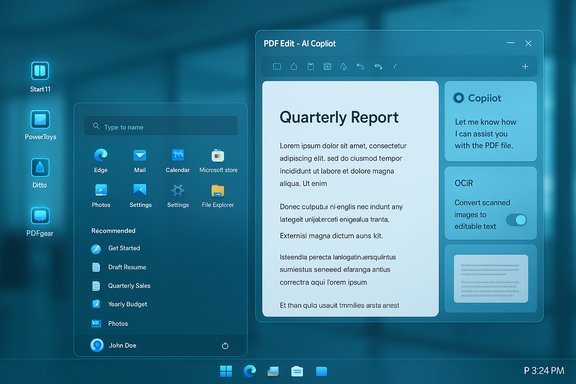 Background / Overview
Windows has always balanced broad compatibility and customization with product decisions that prioritize a consistent, maintainable baseline for tens of millions of devices. Third‑party developers often fill the gaps that a general‑purpose OS cannot or will not, producing utilities that specialize in personalization, productivity, or niche workflows. That dynamic is visible today in four categories where many users routinely install replacements or add‑ons:- A more flexible Start menu and taskbar (Start11).
- A full PDF editor with AI tools (PDFgear).
- A power‑user toolkit for windowing, hotkeys and small utilities (Microsoft PowerToys).
- A persistent, feature‑rich clipboard manager (Ditto).
Why these four matter: quick context
- Start11 restores widely missed UI options and adds taskbar customizations Microsoft has removed or changed. It targets users who want a predictable Start menu layout or enterprise admins who need consistent UX across device fleets.
- PDFgear offers a desktop PDF editor with OCR, conversion, and a ChatGPT‑powered “Copilot” for summarization and Q&A within documents — a feature set that many users now expect but that Windows doesn’t ship natively. PDFgear’s ChatGPT integration is a prominent selling point.
- Microsoft PowerToys bundles a suite of small, focused productivity tools such as FancyZones (window layouts), PowerRename, Keyboard Manager, and Always on Top. It’s an official Microsoft project but historically distributed outside the OS as a separate install.
- Ditto is a lightweight open‑source clipboard manager that stores persistent, searchable histories (often configured to store far more than the built‑in Windows clipboard). It addresses limitations such as the native clipboard history cap and lack of flexible retrieval.
Start11 — restore choice and manageability
What Start11 does (summary)
Start11 is a paid, polished utility from Stardock that restores classic Start menu styles, brings back taskbar behaviors removed or modified in Windows 11, and exposes deep visual and layout customization (colors, transparency, alignment, icon sizing, floating taskbars, and more). It also offers deployable configurations for organizations.Verified claims
- Start11 offers multiple Start menu styles (Windows 7, Windows 10, and custom “Pro”/Launcher themes) and can reposition the taskbar to the top, sides, or bottom. This capability is documented on the Start11 product pages.
- The product includes deployment and kiosk‑style locking tools used by IT teams to standardize desktops across fleets — again consistent with vendor documentation.
- Independent user reports show Start11 working across various builds but occasionally require configuration workarounds (for example, interactions with Windows’ own autohide or “enhanced taskbar” behaviors). Those community reports are consistent with feature complexity when third‑party shells interact with OS UI subsystems.
Why Microsoft should consider building parts of this in
Start11’s biggest value is returning choice — especially placement and classic Start behaviors that power users and organizations prefer. When an OS removes commonly used layout controls, it creates friction. Key candidate features for native inclusion:- Allow taskbar relocation (top/side) and granular autohide behavior.
- Offer a choice of Start menu layouts (compact, classic, full) and pinned items control with enterprise policy support.
- Provide a developer‑sanctioned API for Start/taskbar skins or extensions (better than third‑party shell replacements).
Risks and caveats
- Deep UI changes complicate accessibility and testing. Allowing multiple Start paradigms risks inconsistent behavior for assistive tech and app windowing (and increases testing surface for Microsoft).
- Including too many customization hooks invites OS fragmentation and backwards compatibility concerns with apps that assume standard taskbar behavior.
- Start11’s paid model and rapid iteration pace could force Microsoft to choose between shipping a pared‑back “official” variant or continually chasing third‑party feature innovation.
Bottom line
Start‑level customization is one of the least controversial features Microsoft could expand — but it must be implemented with accessibility, policies for enterprise management, and long‑term supportability in mind. Vendors like Stardock show demand and proof‑of‑concept; Microsoft could selectively integrate the highest‑value controls rather than adopt wholesale Start11 parity.PDFgear — full PDF editing plus AI assistance
What PDFgear brings
PDFgear is a full‑featured PDF editor that supports annotation, text/image editing, conversion to/from Word/Excel/PPT, and OCR in multiple languages. Its headline differentiator is an integrated PDF chatbot powered by ChatGPT (the vendor calls this Copilot), which can summarize, answer questions, and analyze documents interactively. PDFgear advertises cross‑platform availability (Windows, macOS, iOS) and both offline editing and an online AI assistant that requires internet access.Verified claims
- PDFgear documents the Copilot feature and explicitly states integration with ChatGPT (ChatGPT‑3.5‑Turbo at the time of documentation) and the requirement for an internet connection for the Chatbot portion. Vendor guides demonstrate summarization, Q&A, and suggested question generation within the app.
- Independent reviews and reporting confirm the core editor features (edit, annotate, OCR, merge/split) and note the AI assistant’s convenience for long documents. Coverage also highlights that the ChatGPT integration is an API‑driven feature and may have quota/usage constraints.
Why Microsoft should include a stronger PDF tool
- PDF workflows are ubiquitous in business and education: form filling, redaction, OCRing scans, and legally‑sensitive signing are everyday tasks. Windows offers viewing and light annotation via Microsoft Edge, but it lacks a full desktop PDF editor with built‑in conversion and high‑quality OCR.
- Bundling richer, offline PDF editing (with clear, opt‑in AI features) would reduce third‑party dependencies and the friction of switching between tools or paying for cloud subscriptions.
Risks and trade‑offs
- AI features: PDFgear’s Copilot uses ChatGPT endpoints — which means user data from documents is processed by external APIs unless Microsoft builds an on‑device model or a tightly controlled cloud flow. That raises clear privacy and compliance questions for sensitive documents (contracts, health records, financial statements). Vendors claim transient processing and no storage, but those claims should be audited and made explicit in regional privacy statements.
- Licensing & cost: PDFgear markets itself as free for many features, but long‑term viability and enterprise licensing differ across vendors and can shift. Microsoft integrating similar capabilities would imply development, testing, and privacy infrastructure costs.
- Security posture: PDF editors process potentially hostile content (malicious PDFs, embedded scripts). Microsoft would need to ensure hardened, sandboxed processing and a clear update cadence.
Practical recommendations for Microsoft
- Ship a built‑in Desktop PDF Editor with:
- Local editing, annotation, and reliable OCR (on‑device where possible).
- Conversion tools for common document interchange formats.
- Offer an optional, explicit AI Copilot that:
- Runs on Microsoft cloud services under enterprise SLAs, or
- Allows customers to route queries to private or on‑premise LLM providers.
- Publish detailed privacy and processing guarantees for any document‑processing AI: retention, access, and encryption controls.
Microsoft PowerToys — why the toolkit belongs in Windows
What PowerToys already does
PowerToys is an official Microsoft project that provides small, productivity‑focused utilities: FancyZones (window layouts), PowerRename (bulk rename with regex), Keyboard Manager (rebind keys), Always on Top, Color Picker, Image Resizer, and more. It’s open source and updated via GitHub and the Microsoft Store. PowerToys deliberately lives outside the core OS, but it’s developed by Microsoft and widely adopted by power users.Verified claims and recent developments
- PowerToys includes the named utilities (FancyZones, PowerRename, Keyboard Manager, etc. and has a transparent GitHub issue/PR process and changelog. The project’s documentation and releases are public on GitHub.
- Recent releases add features that Microsoft could have included natively (scheduled theme switching, hotkey conflict detection), and reporting indicates active development and frequent enhancements. The community and Windows press have highlighted these additions.
Why Microsoft should fold parts of PowerToys into Windows
PowerToys is an official indicator that certain power‑user features don’t need to remain external: window management, keyboard remapping, and file renaming are fundamental tasks that many users expect to be reliable and fully supported. Incorporating core, stable PowerToys functionality into Windows would:- Reduce install friction and support variance across enterprise deployments.
- Improve accessibility and system integration (for example, FancyZones as a first‑class windowing feature).
- Ensure consistent security and update behavior through the OS update pipeline.
Risks and caveats
- PowerToys intentionally experiments; not every module is mature enough for inclusion. Microsoft must separate “experimental” vs. “stable” utilities carefully.
- Surface area: kernel‑adjacent or hotkey features interfere with user workflows and other apps; including them increases the complexity of compatibility testing.
- User expectation: shipping a feature as “built in” implies long‑term commitment — if Microsoft later removes or changes behavior, users will resent regressions.
Recommended path
- Promote a “graduation” program: stable PowerToys modules that pass rigorous testing become part of Windows Settings and shell defaults.
- Keep a PowerToys distribution for experimental features and rapid iteration for power users.
- Provide enterprise policy controls for remapping keys, windowing behavior, and other system modifications so IT admins can gate functionality.
Ditto — making the clipboard forget nothing
What Ditto solves
Windows 11’s built‑in clipboard history is helpful but intentionally limited: Microsoft’s support documentation states clipboard history is capped at 25 entries and each item is limited to 4 MB; pinned items survive reboots, older items are removed as new ones arrive. For heavy copy/paste workflows, that’s a friction point. Ditto is a free open‑source clipboard manager that stores a configurable, persistent history (commonly configured to retain hundreds or thousands of clips), supports images and formatted content, searchable snippets, and network syncing options.Verified claims
- The built‑in Windows clipboard history limitation (25 entries; 4 MB per item) is documented by Microsoft. That constraint explains why power users reach for third‑party managers for longer histories or larger items.
- Ditto and comparable tools persist copies across reboots, support images, and allow per‑clip pinning, searching, and hotkey pasting — features verified across project sites and independent writeups. Ditto’s common default configs and user testimonials confirm large, persistent databases are practical.
Why this matters
A clipboard that holds dozens of recent payments, code snippets, or image crops and makes them instantly searchable is a major productivity multiplier for writers, developers, designers, and administrators. Integrating richer clipboard features natively would reduce the need for a separate install and minimize the security complexity of sharing between apps.Risks and privacy considerations
- Persistent clipboard storage can retain sensitive content (passwords, tokens, PHI). Any OS‑level expansion must include explicit controls:
- Default behavior: exclude common sensitive formats (password fields, one‑time codes).
- Clear privacy controls and per‑app exclusions.
- Easy purge and data lifecycle controls.
- Syncing across devices introduces encryption, key management, and account binding concerns. If Microsoft offers a cloud sync, it must be opt‑in and meet enterprise compliance standards.
Suggested native design
- Expand Windows Clipboard to offer a configurable “history depth” with safe defaults (e.g., 25 for general, optionally 500 for power users) and per‑item pinning.
- Add a secure “private mode” to prevent sensitive fields from being cached and offer one‑click purging of stored history.
- Provide policy controls for organizations that require clipboard restrictions or for kiosk/VDI scenarios.
Alternatives and competitive landscape
- For Start menu customization: other utilities exist (Open‑Source or commercial) but Start11 is the most visible polished choice for enterprise deployment.
- For PDF editing: alternatives include PDF‑XChange Editor, Foxit PDF Editor, and Adobe Acrobat. PDFgear’s unique angle is AI chat integration and a free tier, which changes the economics for many users. Independent reviews suggest strong basic editing and OCR, but any AI features should be validated against privacy requirements.
- For clipboard managers: CopyQ and ClipClip are capable open source alternatives. Ditto’s longevity and simplicity remain strong advantages.
- For PowerToys: Microsoft has the unique advantage of owning both the OS and the toolset; the real question is which utilities graduate from optional to built‑in.
Practical guidance for users and IT teams
- For home users who want immediate gains:
- Install PowerToys from Microsoft’s GitHub or the Microsoft Store for FancyZones, PowerRename, and more. It’s free and maintained by Microsoft.
- Try PDFgear if you need offline editing with an AI assistant — but test OCR and the ChatGPT features on representative documents and read the privacy settings carefully before uploading confidential content.
- Use Ditto for an unrestricted clipboard history and quick snippet management; configure retention and encryption options as needed.
- Use Start11 if you require classic Start layouts or enterprise‑grade Start menu deployment controls. Test interactions with Windows 11 build and autohide settings first.
- For IT administrators:
- Evaluate enterprise policy controls for each tool (especially PDF tools and clipboard sync). Consider packaging and signing policies before broad deployment.
- For document workflows involving AI, require legal/compliance sign‑off and document where processing occurs (on‑device vs cloud).
- Use imaging and configuration management to test Start11 or other shell customizations across the supported device image matrix before mass roll‑out.
- Security checklist (pre‑deploy):
- Confirm vendor privacy policy and telemetry options.
- Verify code signatures and update channels (Microsoft Store or verified vendor installer).
- Use Windows Defender Application Control or equivalent for sensitive environments.
- For clipboard syncing, check encryption, key management, and whether servers used for sync are under vendor or customer control.
Conclusion — should Microsoft simply build these in?
Yes — but selectively. Pocket‑lint’s shortlist rightly identifies four areas where third‑party tools deliver measurable day‑to‑day gains: Start/taskbar choice, robust PDF editing with AI assistance, power‑user utilities, and a persistent clipboard. Each of these fills an observable gap that many Windows users confront.However, the route from “third‑party tool” to “built‑in OS feature” is not trivial. Microsoft must balance accessibility, security, compliance, and long‑term supportability. The practical path is to:
- Integrate stable, low‑risk PowerToys capabilities (FancyZones, PowerRename) into Windows while keeping the experimental playground for fast innovation.
- Build a robust desktop PDF editor with on‑device editing and optional, auditable AI services for organizations that require privacy guarantees — not a vendor‑exclusive chatbot tied to an external API without controls.
- Expand clipboard history and controls in Settings — longer history, secure private modes, and enterprise policy controls would replicate Ditto’s benefits without adding unmanaged attack surface. Microsoft’s existing clipboard cap (25 items and 4 MB per item) is a sensible default but too small for power users; configurable depth and security defaults are the correct evolution.
- Offer Start menu and taskbar options that restore widely missed behavior while safeguarding accessibility and testability; allow enterprise‑level deployment of standardized Start layouts.
Source: Pocket-lint 4 essential Windows 11 apps that aren't built in but should be
