

If clicking Network and Sharing Center in Windows 11 does nothing, crashes, or causes the Settings/Control Panel UI to loop, you’re facing a surprisingly common but solvable problem that sits at the intersection of legacy Control Panel plumbing and modern Windows app infrastructure. This guide walks through every practical fix — from the one-line Run command that often bypasses the UI entirely to deeper repairs (services, SFC/DISM, network reset, Group Policy checks, re-registering Settings) — and explains the why behind each step so you can pick the safest, quickest path for your scenario.
Windows 11 still ships the classic Network and Sharing Center inside Control Panel even though Microsoft pushes the new Settings app for most networking tasks. That legacy path continues to depend on a set of background discovery and Windows component services that surface network state and sharing UI. When those services, system files, or app registration records are damaged, the Control Panel item can refuse to open, freeze, or cause the Settings/Control Panel process to close or loop.
There are three practical categories of root cause to consider:
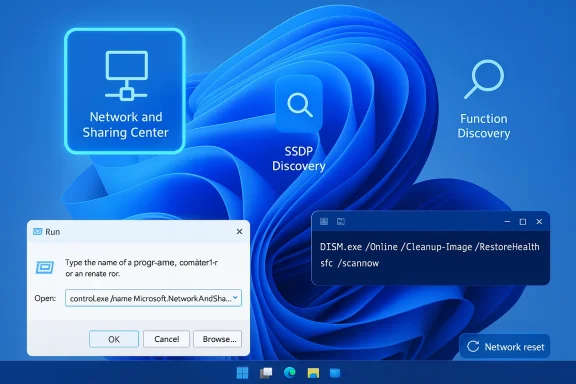
If you just need to reach the Network and Sharing Center now (to check adapters or sharing config), try the direct Run command that bypasses the Start menu and many UI layers.
Key services to check and restart:
How to restart the services:
Caveat: On servers or locked-down systems, changing startup types may be restricted. If you’re on a managed (work/school) device, skip this step unless you have admin approval.
What to expect:
How to run Network reset:
Community reports show Group Policy is a frequent explanation for devices that suddenly display Settings/Control Panel looping behavior after domain policy changes. If this is a personal computer, a registry key “NoControlPanel” under Software\Microsoft\Windows\CurrentVersion\Policies\Explorer can replicate the policy; editing it requires care and a full backup.
PowerShell commands that work on Windows 11:
Caveat: Re-registering built-in apps requires that the underlying app databases are healthy; on heavily corrupted systems or enterprise host images (VDI/FSLogix), additional steps (profile repairs, StateRepository cleanup) may be needed. Community sysadmins often pair this step with checking for AppLocker, antivirus policies, or roaming profile corruption.
Best practice:
If you want, run the first three checks now (Run command, service restarts, SFC/DISM) and paste any error messages or Event Viewer entries you find — I’ll help interpret them and recommend the safest next step.
Source: HowToiSolve Windows 11 Network and Sharing Center Not Opening (Fix Guide 2026)
 Background / Overview
Windows 11 still ships the classic Network and Sharing Center inside Control Panel even though Microsoft pushes the new Settings app for most networking tasks. That legacy path continues to depend on a set of background discovery and Windows component services that surface network state and sharing UI. When those services, system files, or app registration records are damaged, the Control Panel item can refuse to open, freeze, or cause the Settings/Control Panel process to close or loop.There are three practical categories of root cause to consider:
- UI/registration problems where the shortcut or the Settings app is broken but underlying functionality works.
- Service or discovery failures where background services (Function Discovery, SSDP, UPnP, Network List, etc.) are stopped, misconfigured, or set to wrong startup types.
- System corruption or policy controls where system file damage, recent updates, or Group Policy/registry restrictions prevent launching Control Panel items.
If you just need to reach the Network and Sharing Center now (to check adapters or sharing config), try the direct Run command that bypasses the Start menu and many UI layers.
- Press Win + R.
- Enter:
control.exe /name Microsoft.NetworkAndSharingCenter - Press Enter.
Restart the discovery and network-related services (most common fix)
If the Run command fails or the window hangs, the next and most productive step is to check a short list of services that the Network and Sharing Center and network discovery depend on.Key services to check and restart:
- Function Discovery Provider Host
- Function Discovery Resource Publication
- SSDP Discovery
- UPnP Device Host
- Network List Service
- Network Location Awareness
- DNS Client (when troubleshooting name resolution)
- Network Store Interface Service
How to restart the services:
- Press Win + R → services.msc → Enter.
- For each service listed above:
- Right-click → Restart (or Start if stopped).
- If a service is set to Manual, consider setting Startup type → Automatic for troubleshooting (you can revert later).
- Reboot after restarting the services to ensure dependent processes reload.
Caveat: On servers or locked-down systems, changing startup types may be restricted. If you’re on a managed (work/school) device, skip this step unless you have admin approval.
If services don’t fix it: System file repair (SFC and DISM)
When the Control Panel or Settings app components themselves are corrupted, Windows’ built-in image and file-repair tools are the correct next step.- Open Terminal (Admin) or Command Prompt (Admin).
- Run:
- DISM /Online /Cleanup-Image /RestoreHealth
- After DISM completes, run: sfc /scannow
What to expect:
- SFC will scan and attempt to repair protected system files. If it finds problems and repairs them, restart and retry opening Network and Sharing Center.
- If SFC reports it was unable to fix all files, capture the CBS logs for deeper analysis or run DISM with an explicit source if you have installation media.
- There have been occasional Windows 11 build-specific bugs affecting SFC behavior; if you encounter odd SFC loops, check that your system is patched and consider running DISM first. Real-world community reports indicate SFC sometimes needs patching or an updated component store to succeed. Treat SFC as a safe, non-destructive first repair step but be prepared to escalate if it reports unfixable corruption.
Advanced: Network reset (when adapter/config is broken)
If the Network and Sharing Center opens but network functions are broken, or if service and file repairs don’t help, a full Network reset can clear corrupt network stack configuration.How to run Network reset:
- Settings → Network & Internet → Advanced network settings → Network reset.
- Click Reset now and confirm.
- The PC will restart and Windows will reinstall network adapters and reset configs.
- Reinstalls network adapters.
- Clears saved Wi‑Fi networks, custom DNS, and proxy settings.
- Restores Winsock / TCP/IP stack to defaults.
- Persistent adapter misconfiguration.
- Repeated IP or DNS errors after multiple troubleshooting steps.
- When you want a clean network state without reinstalling Windows.
Group Policy, registry, and managed-device restrictions
If the Network and Sharing Center is blocked at a policy level, opening it may show a brief UI flash, close immediately, or loop the Settings/Control Panel processes. The specific Group Policy is “Prohibit access to Control Panel and PC settings” (user configuration → Administrative Templates → Control Panel).- If this policy is enabled on a work-managed device, it will prevent Control Panel and Settings from launching. Microsoft documents this ADMX policy and how it blocks Control Panel and Settings access.
- To check locally (Windows 11 Pro / Enterprise): gpedit.msc → User Configuration → Administrative Templates → Control Panel → Prohibit access to Control Panel and PC settings → set to Not Configured if you control the machine.
Community reports show Group Policy is a frequent explanation for devices that suddenly display Settings/Control Panel looping behavior after domain policy changes. If this is a personal computer, a registry key “NoControlPanel” under Software\Microsoft\Windows\CurrentVersion\Policies\Explorer can replicate the policy; editing it requires care and a full backup.
Re-register or reinstall the Settings app (PowerShell repair)
If the Settings app itself is broken and the Control Panel items cannot render, re-registering or resetting the Settings package often resolves the issue without deeper repairs.PowerShell commands that work on Windows 11:
- Reset the Settings app:
Get-AppxPackage windows.immersivecontrolpanel | Reset-AppxPackage - Reinstall / re-register Settings (use when Reset fails):
Get-AppXPackage windows.immersivecontrolpanel -AllUsers | Foreach {Add-AppxPackage -DisableDevelopmentMode -Register "$($_.InstallLocation)\AppXManifest.xml"}
- Open Windows Terminal as Administrator.
- Run the reset command. If it errors or Settings still fails, run the reinstall/re-register command.
- Reboot.
Caveat: Re-registering built-in apps requires that the underlying app databases are healthy; on heavily corrupted systems or enterprise host images (VDI/FSLogix), additional steps (profile repairs, StateRepository cleanup) may be needed. Community sysadmins often pair this step with checking for AppLocker, antivirus policies, or roaming profile corruption.
Uninstall recent updates or drivers (when the problem started after an update)
If the issue began immediately after a Windows update, driver update, or a specific configuration change, consider uninstalling the update or rolling back the driver:- Settings → Windows Update → Update history → Uninstall updates.
- For driver rollbacks: Device Manager → Network adapters → [your adapter] → Properties → Driver → Roll Back Driver.
- Use this step only when you can reliably correlate the symptom with a recent change.
- Create a restore point or image before rolling back major updates.
Event Viewer, troubleshooting logs, and targeted fixes
If previous steps don’t resolve the issue, gather targeted diagnostics before major changes:- Open Event Viewer → Windows Logs → Application and System. Look for recent errors timestamped when you attempted to open Network and Sharing Center.
- Run the Windows Troubleshooter for Network and Internet (Settings → Troubleshoot → Other troubleshooters → Internet Connections / Network Adapter).
- Check CBS logs for SFC: %windir%\logs\cbs\cbs.log (only if SFC reported issues).
Clean boot and safe mode testing
To rule out third-party interference (antivirus, firewall, or utilities that inject shell extensions), perform a clean boot:- msconfig → Services → Hide all Microsoft services → Disable all (non-Microsoft) services → Restart.
- If the problem disappears in a clean boot, enable disabled services selectively to find the culprit.
- Restart → Advanced startup → Troubleshoot → Advanced options → Startup Settings → Restart → choose Safe Mode with Networking.
- If Network and Sharing Center opens in Safe Mode, the issue is likely third-party or driver-related.
Security considerations: UPnP and SSDP
SSDP and UPnP are functional dependencies for discovering certain network devices, but they have security implications. The UPnP Device Host and SSDP Discovery services enable device discovery but historically have been a vector for privilege escalation or device enumeration vulnerabilities if exposed improperly. If you re-enable SSDP/UPnP on a machine in a hostile network, be aware of the risks and only run these services on trusted private networks. Microsoft documents the UPnP/Device Host APIs and SSDP provider functionality; vulnerability write-ups in the security community illustrate the trade-offs.Best practice:
- Keep UPnP/SSDP disabled on machines that don’t need device discovery.
- On home networks, run them only for short troubleshooting windows and re-disable if you have security concerns.
When to escalate: in-place repair, restore, or reinstall
If none of the above resolves the problem:- Consider an in-place repair (Windows “repair upgrade”) using official recovery media — this repairs system files while preserving apps and data.
- Restore from a known-good system image or restore point if available.
- As a last resort, back up data and perform a clean install.
Practical, safe troubleshooting flow (recommended order)
- Force-open via Run: control.exe /name Microsoft.NetworkAndSharingCenter.
- Restart Function Discovery + SSDP + UPnP + Network List Service, then reboot.
- Run DISM /Online /Cleanup-Image /RestoreHealth and sfc /scannow; reboot.
- If problem persists, reset Settings via PowerShell (Reset-AppxPackage) or re-register Settings.
- If UI opens but networking remains broken, perform Network reset (Settings → Network & Internet → Advanced network settings → Network reset). Back up Wi‑Fi credentials first.
- Check Group Policy / registry if the machine is managed or you suspect restriction.
- Use clean boot and Event Viewer to isolate third-party interference.
Why these steps work (technical explanation)
- The Network and Sharing Center is a Control Panel applet that depends on Windows’ discovery frameworks and services (Function Discovery + provider components). If the discovery pipeline can’t enumerate network instances, the applet can fail to render. Microsoft’s Function Discovery documentation explains provider roles and expectations.
- Modern Settings and Control Panel UI components are implemented as registered Windows app packages; if package registration or manifest entries are missing or corrupted, the Settings process may crash or loop. Re-registering the immersive control panel package repairs that registration.
- SFC and DISM repair underlying system files and the Windows component store used by UI and services; many real-world fixes depend on repairing these base files.
Risks, pitfalls, and final cautions
- Network reset wipes Wi‑Fi profiles and VPN settings. Export credentials before running it if you need them later.
- Group Policy edits on managed machines can violate organizational rules. If the device is domain-joined, consult IT before changing policies.
- Re-registering the Settings app is usually safe but can be inconclusive if the machine uses roaming or redirected profiles (FSLogix) or if AppLocker policies block re-registration. In enterprise contexts, coordinate with admins.
- UPnP / SSDP exposure: enabling these services on untrusted networks increases attack surface; re-disable after troubleshooting if not needed.
Conclusion
When Windows 11’s Network and Sharing Center won’t open, the shortest path to a fix is a layered approach: try the direct Run command, then verify and restart discovery services, run DISM and SFC, reset or re-register the Settings app if necessary, and only then perform a network reset or in-place repair. Most real-world cases resolve after restarting the Function Discovery / SSDP / UPnP services or after repairing corrupted system/app registration, and the step-by-step order in this guide minimizes data loss and escalation risk. Community troubleshooting threads back this sequence: service restarts and SFC/DISM are the most commonly successful interventions, while Network reset and app re-registration handle stubborn edge-cases.If you want, run the first three checks now (Run command, service restarts, SFC/DISM) and paste any error messages or Event Viewer entries you find — I’ll help interpret them and recommend the safest next step.
Source: HowToiSolve Windows 11 Network and Sharing Center Not Opening (Fix Guide 2026)
