

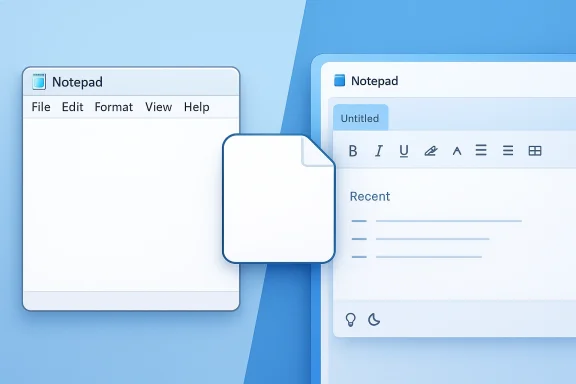
Microsoft’s Notepad has crossed a surprising line in Windows 11: it is no longer just a minimalist scratchpad, but a configurable document workspace with tabs, session restore, recent-file history, Markdown formatting, spell checking, autocorrect, and AI writing tools. At the same time, Microsoft has gone far enough with customization that users who miss the old utility can strip away most of the new behavior and get very close to the classic experience again. The result is a familiar Windows icon wearing a much more ambitious identity, and that tension is now the real story.
Notepad’s transformation has happened in stages, not all at once. The app that once opened a single plain-text window now lives inside a much broader Windows strategy: Microsoft has been steadily modernizing core utilities to make them feel less like legacy accessories and more like integrated productivity tools. The introduction of tabs and session restoration marked the first major break from old Notepad behavior, and later updates layered on formatting, AI assistance, and richer document handling.
That evolution matters because Notepad occupies a peculiar place in Windows culture. For decades it was the default place to paste a password, jot a quick note, or inspect a text file without ceremony. Users valued it precisely because it did so little, so every new feature risks feeling like an intrusion rather than an improvement. Microsoft’s challenge has been to add power without destroying the app’s essential simplicity, and that is a much harder design brief than it looks.
Windows 11 version 25H2 sharpens that balancing act further by extending Notepad into Markdown territory. That means Microsoft is no longer just polishing the old note-taking utility; it is positioning it as a lightweight writing tool that can live somewhere between a plain text editor and a stripped-down word processor. The app’s toolbar-driven formatting, visual styling, and markdown-aware rendering make that shift obvious even before a user touches the settings page.
At the same time, Microsoft has left the door open for traditionalists. The modern Notepad can be stripped back through settings, and the classic executable is still accessible if users know where to look. That is a significant signal from Microsoft: it wants modernization, but it also understands that Windows loyalty often comes from preserving familiar escape hatches.
The broader context is Microsoft’s growing use of AI and cloud-connected experiences across Windows. Notepad’s Copilot-powered writing tools fit the same pattern seen in other parts of the platform: a once-basic utility becomes a launch point for subscription-linked, account-backed, and sometimes device-specific intelligence features. In practical terms, Notepad now sits at the crossroads of nostalgia, productivity, and Microsoft’s commercial ecosystem.
Several features are enabled by default in the modern experience:
From a usability perspective, this is mostly positive. From a purist’s perspective, it can feel a little too clever for a tool once prized for its predictability. Microsoft clearly believes the average user values continuity more than austerity, and for many people that is probably true.
For casual users, the benefits are more subtle but still meaningful. Accidentally closing a tab no longer feels quite as destructive when documents can reappear on the next launch. The app becomes less ephemeral and more forgiving, which is a meaningful improvement for nontechnical users.
At the same time, the app’s new persistence can surprise people who expected the old behavior. If you do not realize Notepad is remembering your prior session, reopening the app can feel as though it has “forgotten” to start fresh. That is a training issue as much as a feature issue, and Microsoft has wisely exposed settings to tune it.
The key design choice is that Microsoft does not require users to memorize Markdown syntax to benefit from it. Instead, it offers formatting buttons and keyboard shortcuts, making the feature accessible even to people who have never used Markdown before. That is important, because a feature that is theoretically powerful but practically invisible would not help Notepad’s mainstream appeal.
There is also a subtle strategic angle here. If Notepad can support light formatting without turning into Word, Microsoft can keep users inside its ecosystem for more kinds of writing tasks. That does not make Notepad a Word replacement, but it does make it harder for simple note-taking to drift to third-party apps.
A few details are worth noting:
Still, the implementation is not a pure Markdown purist’s dream. Microsoft’s formatting model is a blend of conventional text-editing UI and Markdown semantics, which means some familiar shorthand behaves differently than expected. That makes the feature approachable, but also a little idiosyncratic.
Microsoft has tied these capabilities to account and subscription requirements. The text tools require sign-in with a Microsoft account and an active Microsoft 365 subscription, with monthly AI credits used for that activity. On Copilot+ PCs, users can also switch to a local model with unlimited generation capabilities, which changes the economics of use quite dramatically.
That split is important because it creates two different Notepad experiences. One is cloud-connected, quota-based, and subscription-gated; the other is device-local, less powerful, but effectively unconstrained. That is a familiar Microsoft pattern, and it gives the company flexibility while also nudging users toward newer hardware.
For consumer users, the appeal is obvious. Quick rewrite, fast summary, and tone-shifting are the kinds of tasks many people need every day, especially when they are composing email drafts, notes, or short documents. Not everyone wants to open a full AI chat interface just to rework a paragraph.
For enterprise users, the picture is more complicated. AI helpers in a lightweight text editor are convenient, but they also introduce policy, compliance, and licensing questions. The more Microsoft embeds AI in default apps, the more IT departments will need to decide where those tools are allowed and which accounts can use them.
There is also a practical concern: if the AI helpers are too prominent, they may change how users perceive Notepad itself. Once a tool starts offering generation and rewriting, it stops feeling like a neutral editor and starts feeling like a service endpoint. That may be exactly what Microsoft wants, but it is a meaningful shift in identity.
The implications are important. A user who wants a stripped-down experience can turn off most of the modern additions and preserve much of the old feel. A user who wants a richer writing environment can keep the new defaults and use Notepad as a compact notebook app. Microsoft has, in effect, built two products into one shell.
This is one of the app’s smartest choices. Rather than forcing a universal design philosophy, Microsoft has made the experience adjustable enough to satisfy both minimalists and power users. That flexibility is not just a nice-to-have; it is probably what keeps the whole modernization effort from becoming alienating.
That asymmetry tells us something about Microsoft’s product priorities. Tabs are now part of the app’s core identity, while other additions are still treated as optional layers. In other words, Microsoft sees tabs as foundational and AI as configurable. That hierarchy is revealing.
Microsoft is clearly not trying to make this the mainstream path. The steps are there, but they are not prominent, and they require enough Windows knowledge to keep casual users on the modern side of the fence. That is a common Microsoft compromise: preserve compatibility, but do not advertise it too loudly.
A few practical consequences stand out:
It also serves a practical purpose for IT professionals and enthusiasts. When troubleshooting scripts, text associations, or old workflows, having the classic editor still available can be a useful fallback. That is not glamorous, but it is very much in the Windows tradition of “the old thing is still there if you really need it.”
That is especially helpful for users who do not want a full office suite just to format a few lines or tidy a draft. Notepad can now act as a bridge between raw text and more structured writing, which may be enough for a large percentage of casual needs. Microsoft is betting that “good enough” will be the right level of capability.
The danger is that users may accidentally treat Notepad like a more robust document platform than it really is. It is still fundamentally a text editor, and the more features it grows, the more important it becomes to understand what it does not do. Files are still plain text at heart, and that simplicity remains both a strength and a limitation.
That split matters because consumer software lives or dies on emotional perception as much as on feature count. If users feel the app has become cluttered, they will resent even useful additions. If they feel it has become smarter without becoming heavier, they will embrace it. Microsoft is trying to land on the second outcome.
Enterprise customers will also care about the account and subscription dependencies around AI features. The need for Microsoft accounts, Microsoft 365 licensing, and AI credits can complicate deployment and user support. What looks like a simple writing assistant to a home user can become a licensing conversation in a corporate setting.
There is also a security dimension. The more capable a built-in editor becomes, the more it can be used for rapid, unsupervised content manipulation. That is not inherently bad, but it does mean organizations may want clearer guidance around when Notepad’s AI and formatting features are appropriate.
Still, there is a payoff. A better Notepad can reduce the need for third-party text utilities, which in turn can simplify standard images and reduce software sprawl. If Microsoft gets the balance right, Notepad could become one of those quiet platform upgrades that improves productivity without adding much training overhead.
That does not mean specialized tools are doomed. Many will still win on extensibility, syntax highlighting, project workflows, or cross-platform syncing. But Microsoft has clearly moved to protect the “basic editor” category from becoming an easy win for outsiders.
The AI layer raises the stakes further. Once Notepad can rewrite and summarize text, even a plain editor starts encroaching on drafting assistants and light content tools. That makes the app less like a legacy relic and more like a gateway into Microsoft’s broader AI stack.
The combination is smart. Microsoft gets to advance its platform narrative, promote Copilot, and modernize the Windows experience, while preserving enough backward compatibility to avoid user revolt. That is not accidental product design; it is careful ecosystem management.
The broader industry lesson is that inbox apps are no longer static. Microsoft is treating even the simplest Windows tools as venues for AI experimentation, cross-device continuity, and subscription alignment. Notepad is just one app, but it is also a preview of how the company wants everyday computing to feel: more persistent, more connected, and more assistive.
Source: Thurrott.com Notepad (25H2)
 Background
Notepad’s transformation has happened in stages, not all at once. The app that once opened a single plain-text window now lives inside a much broader Windows strategy: Microsoft has been steadily modernizing core utilities to make them feel less like legacy accessories and more like integrated productivity tools. The introduction of tabs and session restoration marked the first major break from old Notepad behavior, and later updates layered on formatting, AI assistance, and richer document handling.That evolution matters because Notepad occupies a peculiar place in Windows culture. For decades it was the default place to paste a password, jot a quick note, or inspect a text file without ceremony. Users valued it precisely because it did so little, so every new feature risks feeling like an intrusion rather than an improvement. Microsoft’s challenge has been to add power without destroying the app’s essential simplicity, and that is a much harder design brief than it looks.
Windows 11 version 25H2 sharpens that balancing act further by extending Notepad into Markdown territory. That means Microsoft is no longer just polishing the old note-taking utility; it is positioning it as a lightweight writing tool that can live somewhere between a plain text editor and a stripped-down word processor. The app’s toolbar-driven formatting, visual styling, and markdown-aware rendering make that shift obvious even before a user touches the settings page.
At the same time, Microsoft has left the door open for traditionalists. The modern Notepad can be stripped back through settings, and the classic executable is still accessible if users know where to look. That is a significant signal from Microsoft: it wants modernization, but it also understands that Windows loyalty often comes from preserving familiar escape hatches.
The broader context is Microsoft’s growing use of AI and cloud-connected experiences across Windows. Notepad’s Copilot-powered writing tools fit the same pattern seen in other parts of the platform: a once-basic utility becomes a launch point for subscription-linked, account-backed, and sometimes device-specific intelligence features. In practical terms, Notepad now sits at the crossroads of nostalgia, productivity, and Microsoft’s commercial ecosystem.
What Changed in Notepad
The biggest change is that Notepad now behaves more like a modern document app than a one-file-at-a-time editor. Tabs let users keep multiple documents open in a single window, and session restore means those documents can reappear the next time the app launches. For people editing several notes, scripts, or snippets, that is a substantial convenience gain.The new default experience
Microsoft has also introduced recent-file tracking and a more persistent workflow. That alone changes Notepad from a disposable utility into something that remembers context, which is a major philosophical shift. The app no longer assumes that every edit is one-and-done.Several features are enabled by default in the modern experience:
- Tabbed editing for multiple documents in one window.
- Session restore so previously open files can reopen automatically.
- Recent files in the File menu.
- Spell checking and autocorrect.
- Copilot access for AI writing tools.
From a usability perspective, this is mostly positive. From a purist’s perspective, it can feel a little too clever for a tool once prized for its predictability. Microsoft clearly believes the average user values continuity more than austerity, and for many people that is probably true.
What it means for workflows
For quick work, these changes reduce friction. You can open a text file, move to another, and come back later without juggling separate windows or rebuilding your workspace. That is especially useful for developers, administrators, and writers who live in plain text and want less window management overhead.For casual users, the benefits are more subtle but still meaningful. Accidentally closing a tab no longer feels quite as destructive when documents can reappear on the next launch. The app becomes less ephemeral and more forgiving, which is a meaningful improvement for nontechnical users.
At the same time, the app’s new persistence can surprise people who expected the old behavior. If you do not realize Notepad is remembering your prior session, reopening the app can feel as though it has “forgotten” to start fresh. That is a training issue as much as a feature issue, and Microsoft has wisely exposed settings to tune it.
Markdown Comes to Notepad
The most visible functional upgrade in Notepad 25H2 is Markdown support. Microsoft’s implementation allows users to apply lightweight formatting such as headings, bold, italics, links, lists, and tables, while still preserving the underlying text-file nature of the document. That makes the app a viable scratchpad for structured notes without forcing users into a heavier editor.Why Markdown matters
Markdown is popular because it solves a simple problem: it gives writers a way to add structure without the overhead of a full word processor. In Notepad, that matters because the app can remain fast and minimal while still supporting documents that are more readable than raw text. It is a pragmatic addition, not just a flashy one.The key design choice is that Microsoft does not require users to memorize Markdown syntax to benefit from it. Instead, it offers formatting buttons and keyboard shortcuts, making the feature accessible even to people who have never used Markdown before. That is important, because a feature that is theoretically powerful but practically invisible would not help Notepad’s mainstream appeal.
There is also a subtle strategic angle here. If Notepad can support light formatting without turning into Word, Microsoft can keep users inside its ecosystem for more kinds of writing tasks. That does not make Notepad a Word replacement, but it does make it harder for simple note-taking to drift to third-party apps.
What Notepad supports
Microsoft’s Markdown implementation is deliberately broad but not infinite. It includes headings, bulleted and numbered lists, bold, italics, strikethrough, hyperlinks, and tables. The app also supports indentation controls and table editing tools that make it easier to lay out structured content without hand-typing every separator.A few details are worth noting:
- Headings are exposed through Notepad-friendly labels such as Title, Subtitle, and Section.
- Lists can be created through toolbar commands or standard Markdown-style typing.
- Formatting shortcuts mirror familiar Windows conventions like Ctrl+B and Ctrl+I.
- Tables are supported through a graphical grid interface.
- Clear formatting is powerful but potentially risky because it removes applied formatting immediately.
Editorial impact
For journalists, developers, and technical writers, Markdown support in Notepad is more useful than it might first appear. It allows quick draft composition, structured notes, and lightweight documentation without a separate app launch or a browser tab full of editor clutter. That is exactly the kind of workflow improvement that quietly changes daily habits.Still, the implementation is not a pure Markdown purist’s dream. Microsoft’s formatting model is a blend of conventional text-editing UI and Markdown semantics, which means some familiar shorthand behaves differently than expected. That makes the feature approachable, but also a little idiosyncratic.
Copilot and AI Writing Tools
Notepad’s most controversial addition is its Copilot integration. The toolbar now exposes AI-based tools for writing, rewriting, summarizing, shortening, lengthening, and changing tone or format. In other words, Microsoft has turned a humble text editor into a lightweight AI writing front end.How the AI features work
The workflow is straightforward: users can generate text from a prompt, then refine it through rewrite actions or downstream transformations. You can summarize a selection, make it more formal, turn it into a different format, or ask for another variation if the first result misses the mark. That makes the app useful for quick drafting, not just editing.Microsoft has tied these capabilities to account and subscription requirements. The text tools require sign-in with a Microsoft account and an active Microsoft 365 subscription, with monthly AI credits used for that activity. On Copilot+ PCs, users can also switch to a local model with unlimited generation capabilities, which changes the economics of use quite dramatically.
That split is important because it creates two different Notepad experiences. One is cloud-connected, quota-based, and subscription-gated; the other is device-local, less powerful, but effectively unconstrained. That is a familiar Microsoft pattern, and it gives the company flexibility while also nudging users toward newer hardware.
Why this matters strategically
AI in Notepad is not only about convenience. It is also about normalizing Copilot in places where users never expected it. If people start encountering AI in the simplest Windows tools, Microsoft can make the technology feel ambient rather than exceptional. That is a big strategic difference.For consumer users, the appeal is obvious. Quick rewrite, fast summary, and tone-shifting are the kinds of tasks many people need every day, especially when they are composing email drafts, notes, or short documents. Not everyone wants to open a full AI chat interface just to rework a paragraph.
For enterprise users, the picture is more complicated. AI helpers in a lightweight text editor are convenient, but they also introduce policy, compliance, and licensing questions. The more Microsoft embeds AI in default apps, the more IT departments will need to decide where those tools are allowed and which accounts can use them.
Adoption and backlash
Not all users will welcome this. Some will view AI in Notepad as bloat, especially because the app’s traditional appeal was speed and clarity. Others will like the feature but object to the subscription and account dependencies. That tension is likely to shape how Microsoft tunes Notepad over time.There is also a practical concern: if the AI helpers are too prominent, they may change how users perceive Notepad itself. Once a tool starts offering generation and rewriting, it stops feeling like a neutral editor and starts feeling like a service endpoint. That may be exactly what Microsoft wants, but it is a meaningful shift in identity.
Customization and Control
One of the most interesting things about modern Notepad is how much of it can be changed. Microsoft has exposed granular settings for theme, font, opening behavior, formatting, recent files, and Copilot access. That level of control is a tacit acknowledgment that Notepad has evolved faster than some users are comfortable with.The settings that matter
The app settings page allows users to choose between light and dark app theme behavior, adjust the editor font, disable Markdown formatting, control whether new documents open in tabs or new windows, decide how Notepad behaves at startup, and toggle recent files and Copilot. That is a lot of power for a utility that used to have barely any configuration at all.The implications are important. A user who wants a stripped-down experience can turn off most of the modern additions and preserve much of the old feel. A user who wants a richer writing environment can keep the new defaults and use Notepad as a compact notebook app. Microsoft has, in effect, built two products into one shell.
This is one of the app’s smartest choices. Rather than forcing a universal design philosophy, Microsoft has made the experience adjustable enough to satisfy both minimalists and power users. That flexibility is not just a nice-to-have; it is probably what keeps the whole modernization effort from becoming alienating.
What can be turned off
The obvious wins for control are easy to identify:- Copilot can be disabled.
- Recent files can be switched off.
- Formatting can be turned off, removing the Markdown toolbar.
- Startup behavior can be changed to discard unsaved changes.
- Opening mode can be switched from tabs to separate windows.
That asymmetry tells us something about Microsoft’s product priorities. Tabs are now part of the app’s core identity, while other additions are still treated as optional layers. In other words, Microsoft sees tabs as foundational and AI as configurable. That hierarchy is revealing.
The Classic Notepad Escape Hatch
Microsoft still ships the classic Notepad executable alongside the modern one, which is a fascinating bit of coexistence. If you disable the modern app alias and launch the legacy executable directly, you can recover the old-school interface. That is unusual in 2026-era Windows, where legacy experiences are more often hidden than preserved.How the workaround works
The process is intentionally a little awkward, which is probably part of the point. You must go into Settings, navigate to App execution aliases, turn off Notepad, and then launch the executable from the Windows folder. Once you do that, the classic interface appears instead of the modern one.Microsoft is clearly not trying to make this the mainstream path. The steps are there, but they are not prominent, and they require enough Windows knowledge to keep casual users on the modern side of the fence. That is a common Microsoft compromise: preserve compatibility, but do not advertise it too loudly.
A few practical consequences stand out:
- Classic Notepad is still accessible.
- It is not the default app for text files.
- You cannot simply choose it in the usual “Open with” flow.
- A shortcut or Start pin can make it easier to reach.
- The modern app remains the primary experience for most users.
Why Microsoft left this path open
This is probably about user trust. Windows users have long been wary of losing familiar tools, and removing classic Notepad outright would have created unnecessary friction. By keeping the old executable available, Microsoft reduces resistance while still pushing the modern version forward.It also serves a practical purpose for IT professionals and enthusiasts. When troubleshooting scripts, text associations, or old workflows, having the classic editor still available can be a useful fallback. That is not glamorous, but it is very much in the Windows tradition of “the old thing is still there if you really need it.”
Consumer Impact
For ordinary Windows users, the biggest upside is convenience. Notepad now keeps track of open documents, handles light formatting, offers writing assistance, and reduces the need to switch apps for simple drafting tasks. That means the app has become more relevant to everyday writing than it was in its austere past.Everyday use cases
The consumer case is strongest for short-form writing. Shopping lists, draft messages, quick outlines, note dumps, and simple markdown notes all benefit from a faster, smarter Notepad. The app still starts quickly and remains lightweight, but it no longer feels empty.That is especially helpful for users who do not want a full office suite just to format a few lines or tidy a draft. Notepad can now act as a bridge between raw text and more structured writing, which may be enough for a large percentage of casual needs. Microsoft is betting that “good enough” will be the right level of capability.
The danger is that users may accidentally treat Notepad like a more robust document platform than it really is. It is still fundamentally a text editor, and the more features it grows, the more important it becomes to understand what it does not do. Files are still plain text at heart, and that simplicity remains both a strength and a limitation.
Convenience versus clutter
For some people, the new Notepad will feel like a better default. For others, it will feel like a utility that has drifted too far from its original purpose. Both reactions are understandable, and Microsoft appears to have built the customization options precisely to absorb that split.That split matters because consumer software lives or dies on emotional perception as much as on feature count. If users feel the app has become cluttered, they will resent even useful additions. If they feel it has become smarter without becoming heavier, they will embrace it. Microsoft is trying to land on the second outcome.
Enterprise Impact
In enterprise environments, Notepad’s evolution is more complicated than it is for consumers. The app’s new capabilities can help with documentation, support workflows, quick edits, and lightweight drafting. But the same features also introduce policy issues, licensing requirements, and questions about data handling.IT administration and policy
The modern app’s settings make it easier for administrators to standardize behavior, but not necessarily to eliminate all new functionality. Tabs, for instance, are part of the app’s core model, while Copilot can be disabled. That distinction matters in managed environments where IT teams want predictable behavior but may not want AI features exposed by default.Enterprise customers will also care about the account and subscription dependencies around AI features. The need for Microsoft accounts, Microsoft 365 licensing, and AI credits can complicate deployment and user support. What looks like a simple writing assistant to a home user can become a licensing conversation in a corporate setting.
There is also a security dimension. The more capable a built-in editor becomes, the more it can be used for rapid, unsupervised content manipulation. That is not inherently bad, but it does mean organizations may want clearer guidance around when Notepad’s AI and formatting features are appropriate.
The support burden
One of the hidden costs of modernizing a legacy app is support complexity. Help desks now have to explain tabs, session restore, recent files, Markdown, Copilot, and the classic fallback path. That is a lot more state to document than the old “open text, edit text, close text” model.Still, there is a payoff. A better Notepad can reduce the need for third-party text utilities, which in turn can simplify standard images and reduce software sprawl. If Microsoft gets the balance right, Notepad could become one of those quiet platform upgrades that improves productivity without adding much training overhead.
Competitive and Market Implications
Notepad’s expansion is not just an app story; it is also a platform signal. Microsoft is increasingly using Windows inbox apps to keep users inside its own productivity orbit, from core editing to AI-enhanced writing. That puts pressure on lightweight third-party editors and note-taking tools that once relied on simplicity as their main advantage.The challenge to third-party editors
For years, alternative editors competed on speed, portability, and features Notepad lacked. Tabs, sessions, and Markdown in the inbox app narrow that gap considerably. If Microsoft keeps iterating, some users may decide the built-in option is good enough and stop looking elsewhere.That does not mean specialized tools are doomed. Many will still win on extensibility, syntax highlighting, project workflows, or cross-platform syncing. But Microsoft has clearly moved to protect the “basic editor” category from becoming an easy win for outsiders.
The AI layer raises the stakes further. Once Notepad can rewrite and summarize text, even a plain editor starts encroaching on drafting assistants and light content tools. That makes the app less like a legacy relic and more like a gateway into Microsoft’s broader AI stack.
Platform lock-in by convenience
This is a classic platform play: make the default tool good enough that users do not bother replacing it. Microsoft has done this before with browser, mail, photos, and system utilities. Notepad’s modernization fits that pattern perfectly, but with the twist that it also offers a nostalgia valve for those who resist.The combination is smart. Microsoft gets to advance its platform narrative, promote Copilot, and modernize the Windows experience, while preserving enough backward compatibility to avoid user revolt. That is not accidental product design; it is careful ecosystem management.
Strengths and Opportunities
The strongest thing about the new Notepad is that it is no longer pretending to be one thing only. It can be a fast plain-text editor, a light Markdown notebook, a tabbed scratchpad, or a tiny AI-assisted drafting surface depending on how much of the modern feature set you leave turned on. That flexibility gives Microsoft room to satisfy very different kinds of users without shipping separate apps.- Better continuity through session restore and recent files.
- Useful writing tools without requiring a full office suite.
- Markdown support for structured notes and lightweight documentation.
- Granular settings that let users reclaim a simpler experience.
- A familiar fallback path via the classic executable.
- A stronger default app for everyday text work.
- Potential enterprise value for quick, low-friction drafting.
Risks and Concerns
The obvious risk is feature creep. Once a minimalist utility starts accumulating tabs, persistence, markdown, AI, and cloud-backed generation, it can lose the very simplicity that made it beloved in the first place. Microsoft has given users ways to disable much of this, but the danger is that the app’s identity becomes muddled even if the mechanics remain sound.- Perceived bloat from features some users never wanted.
- Subscription friction around AI-powered writing tools.
- Account dependence that complicates simple workflows.
- Confusing behavior when session restore reopens old documents.
- Training overhead for IT and support teams.
- Mismatch between expectations and behavior for classic Notepad loyalists.
- Risk of overreliance on AI for basic drafting and rewriting.
Looking Ahead
What happens next will likely depend on how users react to the balance Microsoft has struck. If the modern Notepad feels fast, stable, and optional enough, it may become one of Windows 11’s quiet success stories. If the AI and formatting layers begin to feel intrusive, Microsoft may need to refine defaults again and make the simple path even easier to preserve.The broader industry lesson is that inbox apps are no longer static. Microsoft is treating even the simplest Windows tools as venues for AI experimentation, cross-device continuity, and subscription alignment. Notepad is just one app, but it is also a preview of how the company wants everyday computing to feel: more persistent, more connected, and more assistive.
- More Markdown features are likely as Microsoft continues to refine formatting.
- AI improvements may further blur the line between Notepad and drafting assistants.
- Enterprise controls may become more important as administrators standardize usage.
- Classic compatibility will remain relevant for legacy workflows.
- Tabs and session behavior will likely stay central to the modern experience.
Source: Thurrott.com Notepad (25H2)
