

Microsoft’s November Patch Tuesday for Windows 11 arrives as more than a security roll-up — it’s a staged feature drop that folds several visible UI overhauls and new AI-backed experiences into the servicing stack for both Windows 11 version 24H2 and 25H2, with many capabilities gated behind Microsoft’s Controlled Feature Rollout and Copilot+ hardware requirements.
Microsoft has been using the Release Preview and Controlled Feature Rollout (CFR) model to deliver binaries ahead of broadly enabling features by server-side flags or enablement packages. The November 11, 2025 Patch Tuesday (delivered via cumulative updates and enablement packages) is built on that same model: the code is being shipped to devices, but visibility of new UI and AI features will be phased, region- and hardware-gated. This means some users will see changes on day one while others will receive them over weeks as Microsoft monitors telemetry and compatibility.
This update is packaged in the preview servicing line often referenced by KB and build identifiers used in Release Preview testing (discussed in Release Preview notes). Administrators and power users should treat the November drop as a mixed bag: useful new capabilities plus architectural changes that require testing before wide enterprise deployment.
The broader AI story — Voice Access Fluid Dictation, Click to Do expansion, and Recall-like features — hinges on Copilot+ hardware certification and on‑device NPUs. Organizations and users should plan pilots, validate hardware, and update policies before enabling these capabilities widely. The rollout will be phased and server‑gated, so expect a staggered experience across devices and regions as Microsoft monitors quality and telemetry.
Overall, this update signals where Windows is headed: a more integrated, AI-assisted OS that places a premium on local inference for privacy and responsiveness — but it also requires careful operational planning to realize the benefits safely and reliably.
Source: Windows Central Top 7 features in Windows 11’s November 11, 2025, update — AI, Start menu, and more
 Background
Microsoft has been using the Release Preview and Controlled Feature Rollout (CFR) model to deliver binaries ahead of broadly enabling features by server-side flags or enablement packages. The November 11, 2025 Patch Tuesday (delivered via cumulative updates and enablement packages) is built on that same model: the code is being shipped to devices, but visibility of new UI and AI features will be phased, region- and hardware-gated. This means some users will see changes on day one while others will receive them over weeks as Microsoft monitors telemetry and compatibility.This update is packaged in the preview servicing line often referenced by KB and build identifiers used in Release Preview testing (discussed in Release Preview notes). Administrators and power users should treat the November drop as a mixed bag: useful new capabilities plus architectural changes that require testing before wide enterprise deployment.
What’s shipping (high level)
The November feature drop centers on seven headline changes that blend UI refreshes and AI enhancements:- A consolidated, responsive Start menu with new “All” views and Phone Link integration.
- A new just‑in‑time Administrator Protection elevation model designed to reduce persistent admin tokens.
- A refreshed battery icon with colored states and an optional on‑tray battery percentage.
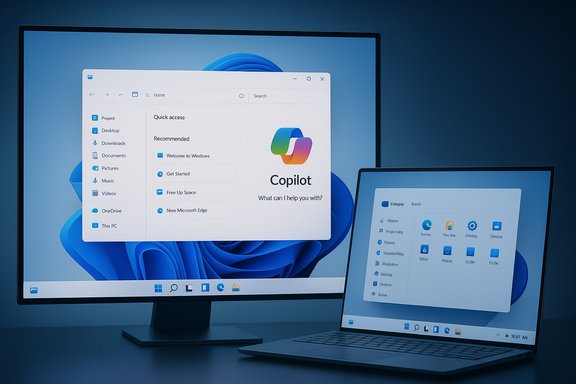
- File Explorer’s Home page replacing Quick Access with a Recommended feed and Copilot hooks.
- Voice Access upgraded with Fluid Dictation (on-device inference for punctuation and filler‑word suppression).
- Major Click to Do improvements for Copilot integration: translation, unit conversion, selection modes, and touch gestures.
- The continued expansion of Copilot/Copilot+ on‑device features — many gated to Copilot+ certified hardware.
Start menu overhaul
What changed
The Start menu is consolidating the formerly separate “Pinned” and “All apps” panes into a single, responsive canvas. The new interface adapts to screen size (it’s larger and auto‑responsive but not manually resizable) and offers three ways to view the All apps area: Category, Grid, and List. Category view groups apps into logical buckets and places uncategorized apps under “Other.” A top‑right toggle exposes or hides a Phone Link sidebar when a paired Android or iPhone is connected.Why it matters
This is a structural UX change — not just a styling tweak. Consolidating app discovery simplifies one of the most often used UI surfaces and reduces friction between pinned shortcuts and the full app inventory. Phone Link presence inside Start makes phone‑PC continuity more visible and more likely to be used by mainstream users.Caveats
- The layout is server‑gated and rolled out via CFR; not all devices will immediately see it even after installing the update.
- Some customization controls (the old “Layout” setting) are being moved or removed; administrators should audit user‑training and policies that reference those settings.
Administrator Protection — rethinking elevation
What it does
Administrator Protection introduces a just‑in‑time, isolated elevation model. Instead of relying on the traditional User Account Control model that issues an administrator token at sign‑in, the system creates a temporary, hidden system‑managed account to perform privileged actions and discards it afterwards. This aims to reduce the attack surface associated with long‑lived elevated sessions. The feature is off by default but can be enabled and managed via Microsoft Intune or Group Policy.Security implications
This approach addresses a known limitation in the classic UAC model: two tokens (standard and admin) tied to the user profile can be leveraged by attackers if the admin token is available during an interactive session. By issuing an ephemeral elevated context that’s separate from the user profile, Administrator Protection reduces opportunities for token‑pivoting and lateral privilege misuse.Deployment considerations
- Because this changes how elevation happens, compatibility testing is essential. Legacy installers, OEM utilities, or bespoke enterprise apps that assume the classic UAC behavior may fail or require updated installers.
- The feature is controllable via Group Policy: admin teams should pilot with a small set of machines and monitor application compatibility before a broad rollout.
Battery icon and percentage option
What’s new
A visible polish: the battery icon now uses color states (green while charging/healthy, yellow for power saver, red for critically low) and there’s an optional battery percentage toggle you enable under Settings → System → Power & battery. The new iconography extends to the system tray and lock screen visual surfaces.User value
This is a straightforward quality‑of‑life improvement. At a glance, users can interpret battery status without opening the fly‑out. For mobile workers, color cues are faster than icon shape alone.Notes for admins
If you deploy in environments where custom branding or monitoring overlays are used, validate that third‑party utilities don’t conflict with color states or lock‑screen displays.File Explorer: “Recommended” replaces Quick Access
What changed
The File Explorer Home page now surfaces a Recommended section that replaces the legacy Quick Access concept for many users. Recommended aggregates recent files, downloads, and items surfaced from the Gallery page. Hovering over a recent file shows quick actions like Open file location and Ask Copilot — a direct Copilot hook. If admins or users prefer the old Quick Access pane, a Folders options toggle can restore the previous behavior.Why this matters
Explorer is evolving from a pure file manager into a contextual productivity surface. By integrating Copilot actions and cloud provider hooks (via StorageProvider APIs), Microsoft is positioning Explorer as an on‑ramp for AI actions against local and cloud content.Privacy and policy considerations
- Recommended is activity‑based; enterprises should review telemetry and privacy policies before enabling. You can opt out or disable the Recommended feed via Folder options and related settings.
- Cloud provider integration means third‑party cloud storage plugins must be reviewed and tested to ensure they respect organizational data classification rules.
Voice Access: Fluid Dictation and the new wait time controls
Capabilities
Voice Access now provides a Fluid Dictation mode that performs on‑the‑fly grammar, punctuation, and filler‑word corrections as you speak. There’s also a Wait time before acting setting (ranging from Instant to Very Long) to prevent accidental command execution. Fluid Dictation runs with on‑device models on supported systems and currently ships in English for Copilot+ certified hardware.Accessibility gains
This is a meaningful upgrade for users who rely on dictation and voice control: cleaner text, fewer post‑edit passes, and configurable command latency. It’s a significant step toward a real‑time, natural voice experience within Windows.Hardware and regional gating
- Fluid Dictation and some Voice Access improvements require Copilot+ capable hardware (on‑device models) and are region‑ and language‑gated initially. Administrators should confirm which locale builds and hardware configurations in their environment support the feature before enabling it at scale.
Click to Do improvements — Copilot in context
New features
Click to Do becomes more powerful and contextual in this release:- An AI prompt box in the action menu that suggests Copilot prompts (Phi‑Silica on‑device model) when you select content in a snapshot.
- Translation of selected text when a language differs from the system display language.
- Unit conversion for numeric selections (length, area, volume, height, temperature, speed).
- Selection modes: Freeform Selection, Rectangle Selection, and Ctrl+Click multi‑selection across types.
- Touch gesture: two‑finger press and hold to summon Click to Do on touch screens (Copilot+ PCs).
- Visual cues and Live Persona cards for organization contacts detected in snapshots.
Practical use cases
Click to Do is moving from a novelty to a workflow accelerator: translate snippets quickly, convert measurements without manual lookup, and push contextual prompts to Copilot for summarization or further action. For creative work, the selection modes and conversion capabilities are immediately useful.Limits
Most of the advanced Click to Do features are Copilot+ hardware gated and may require on‑device NPUs or Copilot licensing for server‑side actions. Test the experience on representative hardware to understand where cloud fallbacks occur.Copilot+ hardware, NPUs, and gating
Requirements called out
Several of the on‑device AI capabilities — Windows Recall, Fluid Dictation, advanced Click to Do experiences, and certain Copilot Vision actions — are limited to Copilot+ PCs equipped with NPUs capable of roughly 40+ TOPS (tera-operations-per-second). Microsoft pairs feature availability with BitLocker/Device Encryption and Windows Hello enforcement for access to on‑device memory-like features.Why that matters
On‑device inference protects data locality and reduces latency, but it means only certain modern systems will realize the full suite of AI features. Organizations should inventory hardware and evaluate whether Copilot+ certified devices are required for the workflows they intend to enable.Cross-check and caution
The 40+ TOPS figure is repeatedly referenced in preview notes and community reporting; however, system integrators and admins should validate published Copilot+ hardware certification lists and vendor NPU specs before assuming a device qualifies. Hardware certifications and supported processor lists are living documents and may change as Microsoft updates certification criteria. Treat any numeric threshold as provisional until confirmed on Microsoft’s official hardware compatibility pages or manufacturer spec sheets.Deployment guidance for IT and power users
- Pilot early: enable the update on a representative ring (test, pilot, small production) and validate:
- Line‑of‑business apps that require elevation or change UAC behavior.
- File Explorer workflows (cloud provider plugins, network folders, mapping).
- Accessibility tools and voice workflows for users relying on assistive technologies.
- Validate Administrator Protection:
- Test installer and updater behaviors.
- Confirm Group Policy or Intune configuration options and rollback plans.
- Inventory hardware:
- Identify Copilot+ certified devices or those with NPU capabilities if your users need on‑device AI features.
- Confirm BitLocker and Windows Hello enrollment for devices that will use AI features requiring device encryption.
- Privacy and compliance review:
- If you intend to enable Recommended feeds or Copilot features, document data flows and verify compliance with company privacy policies and local regulation.
- User communication:
- Document UI changes (Start menu consolidation, battery icon color rules, new File Explorer Recommended) and provide short how‑to guides to minimize helpdesk volume.
Risk analysis and what to watch for
- Compatibility friction: Administrator Protection changes elevation semantics; older enterprise installers or scripts may fail. Test before wholesale enforcement.
- Mixed user experience: CFR means environments will see a hybrid of old and new UI behaviours during rollout — train helpdesk staff accordingly.
- Hardware gating confusion: Users and procurement teams may expect AI features on recent machines, but Copilot+ certification and NPU performance thresholds are precise. Confirm device eligibility before promising features.
- Privacy surface area: Recommended files and Copilot hints rely on activity signals and, in some cases, cloud provider hooks — privacy policies and data handling processes must be reviewed.
Quick checklist: How to prepare a Windows fleet
- 1. Run a compatibility pilot with Administrator Protection enabled on a small set of devices.
- 2. Audit LOB apps that perform silent elevation; update installers if needed.
- 3. Inventory endpoint hardware for Copilot+ compatibility; make procurement decisions if on‑device AI matters.
- 4. Update documentation and helpdesk scripts for Start menu changes and battery icon states.
- 5. Revisit privacy and security policies for Recommended/AI features and ensure opt‑out options are documented for sensitive user groups.
Conclusion
The November 11, 2025 Patch Tuesday collection is a pragmatic mix of visual polish and structural change. The Start menu consolidation and battery icon refinements improve day‑to‑day ergonomics, while File Explorer and Click to Do evolve Windows toward a contextual, AI‑augmented workspace. The most consequential change for security-minded administrators is Administrator Protection — a meaningful rework of how Windows handles elevation that reduces persistent admin attack surface but requires compatibility testing.The broader AI story — Voice Access Fluid Dictation, Click to Do expansion, and Recall-like features — hinges on Copilot+ hardware certification and on‑device NPUs. Organizations and users should plan pilots, validate hardware, and update policies before enabling these capabilities widely. The rollout will be phased and server‑gated, so expect a staggered experience across devices and regions as Microsoft monitors quality and telemetry.
Overall, this update signals where Windows is headed: a more integrated, AI-assisted OS that places a premium on local inference for privacy and responsiveness — but it also requires careful operational planning to realize the benefits safely and reliably.
Source: Windows Central Top 7 features in Windows 11’s November 11, 2025, update — AI, Start menu, and more
